1
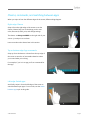
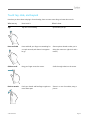
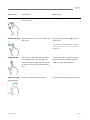
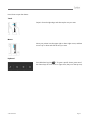
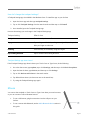
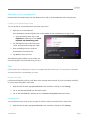
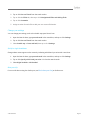
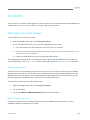
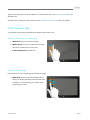
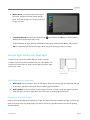
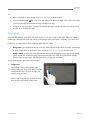
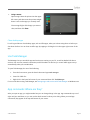
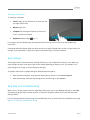
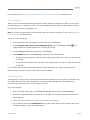
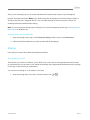
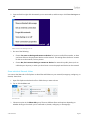
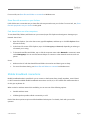
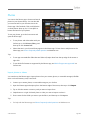
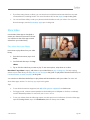
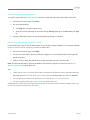
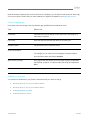
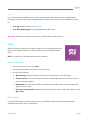
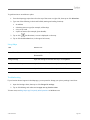
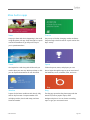
Resize a tile If a tile isn't fitting in the spot you want, you can usually make it larger or smaller. Here’s how: Swipe down on the tile (or right click), then tap or click Larger or Smaller. (Some tiles can't be resized.) Unpin a tile If there are tiles you don't use, you can unpin them. Here’s how: Swipe down on a tile (or right click), and then tap or click Unpin from Start. Group tiles You can put similar tiles together in a group and add a name. For example, you can create a "Websites" group for all the websites that you’ve pinned to Start. Here's how to name a group of tiles: 1. Pinch your fingers together on the Start screen to zoom out and see all the tiles. (If you're using a mouse, click the Zoom button 2. in the lower right corner.) Swipe down or right click the group of tiles you want to name, and then tap or click Name Group. Pin or unpin apps Some apps installed on your Surface might not be pinned to Start. However, you can change this if you’d like. Here’s how: From the Start screen, open the Search charm, swipe down on an app (or right click) to select it, and then tap or click Pin to Start. If the app is already on Start, you’ll see Unpin from Start. o If you unpin an app, it's still installed and can be found using Search. o To uninstall an app, see Uninstall apps in this guide. Turn off Live tiles Live tiles show you useful info on the tile. For example, the Calendar tile shows you your next appointment. You can, however, turn off a live tile off if you’d like. Here’s how: Swipe down on a live tile (or right click), and then tap or click Turn live tile off. © 2013 Microsoft Page 59