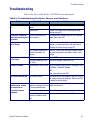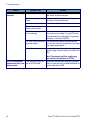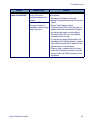
1
Entering Data
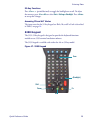
26-Key Keypad
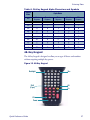
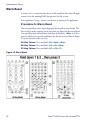
The 26-key keypad is organized like a cell phone, with multi-tap access to
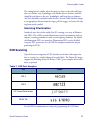
alpha characters on numeric keys (see Figure 14). Use the ten (10) alphanumeric keys and the <ESC> key to type letters, numbers, and symbols listed in
Table 6 on page 27.
Figure 14. 26-Key Keypad
Scan
Esc
BkSp
. (Space)
Enter
Tab
Alpha (Caps)
Fn
Power
Backlight
26-Key Functions. Most of the keys on the keypad of the Falcon have more
than one function. To access the secondary features and functions, you must
first press another key to access the desired input state.
Only one system tray icon is visible at a time. The most recently activated state
is in the left position of the system tray if more than one state is active.
Alpha-Numeric Keys. Press the keys in Table 6 once, twice, or more times
to cycle through the alpha letters and symbols until the desired character
appears in the system tray. After the last letter or symbol in the sequence for
that key, the next keypress will generate the first letter or symbol in the
sequence.
26
Falcon® 4400 Series with Windows®CE