1
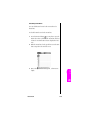
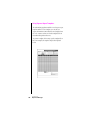
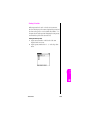
Editing a Draft
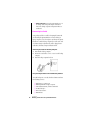
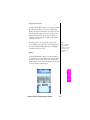
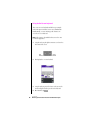
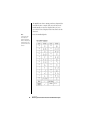
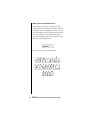
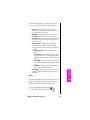
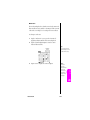
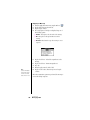
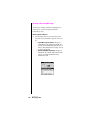
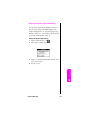
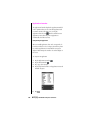
1. From the New Message screen, tap “Draft” from the drop
2.
3.
4.
5.
down menu located in the upper right corner.
Tap the draft message to edit.
Tap the “Edit” button.
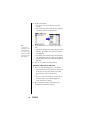
Make the desired changes to the e-mail message.
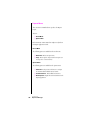
Choose from the following options:
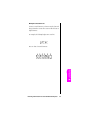
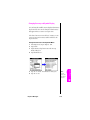
䊳 To re-save the draft without sending, tap the Menu
Launcher icon, select “Message” and tap “Save Draft”.
䊳 To send and transfer the message to the Outbox, tap
“Send”.
Purging Deleted Messages
When e-mail messages are deleted, they are transferred to the
“Deleted” folder. When the next HotSync operation is
performed, the messages are deleted and removed from your
phone. If there is a long wait between HotSync operations, this
folder can become very large and take up space. To avoid this
problem, you can purge the messages from the deleted folder
and they are immediately removed from the device.
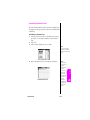
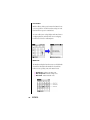
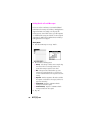
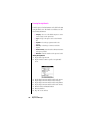
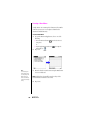
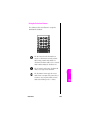
Purging messages
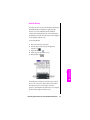
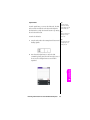
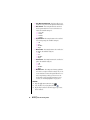
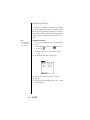
1. From the New Messages screen, tap the Menu Launcher
Note:
Once the e-mails have
been purged, they cannot
be restored.
icon.
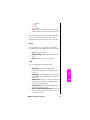
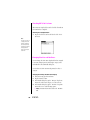
2. Select “options” and tap “Purge Deleted”.
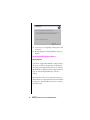
3. Tap “Yes” to confirm the deletion.
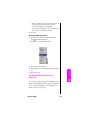
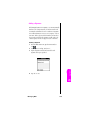
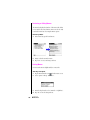
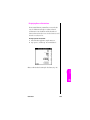
To Display a Warning Prompt
You can display a warning prompt before the messages are
purged to remind yourself that they are being deleted.
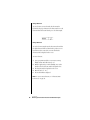
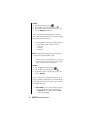
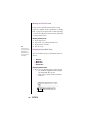
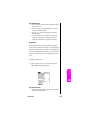
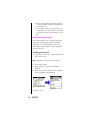
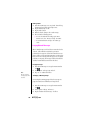
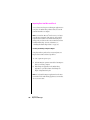
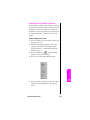
1. From the New Messages screen, tap the Menu Launcher
icon.
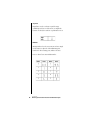
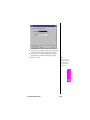
2. Select “Options” and tap “Preferences”.
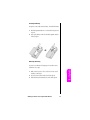
3. Tap the “Confirm deleted message” check box.
162
Section 13
Managing Mail