1
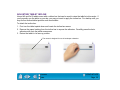
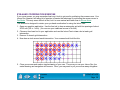
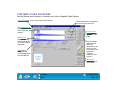
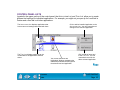
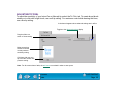
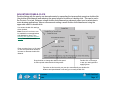
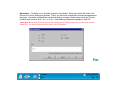
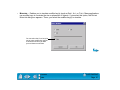
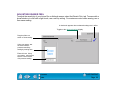
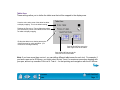
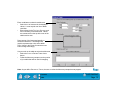
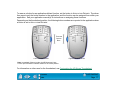
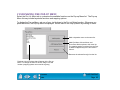
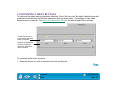
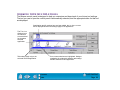
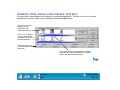
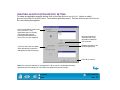
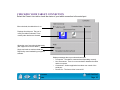
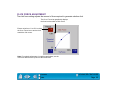
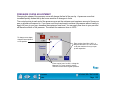
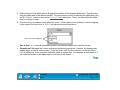
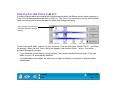
3. Define the size of the tablet area by dragging the handles of the selected tablet area. Then click and
drag the tablet area to the desired position. For more precise control in selecting the tablet area, click
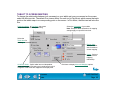
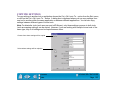
the SET TABLET... button to access the Portion of Tablet dialog box. There, you can define the tablet
area in a variety of ways.
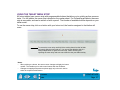
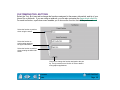
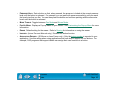
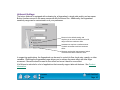
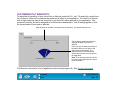
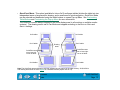
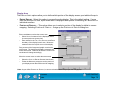
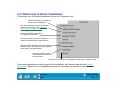
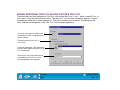
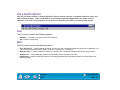
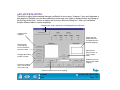
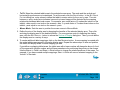
4. From the ASPECT pull-down menu, select an option. These options work similarly to normal mapping.
If you choose PROPORTIONAL or TO FIT, you can set an exact scale factor.
Same as normal mapping.
•
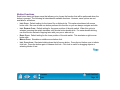
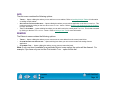
One to One. A 1:1 scale is maintained between the selected tablet portion and the screen.
•
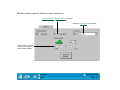
Proportional. Maintains the correct vertical and horizontal proportions. However, the drawing may
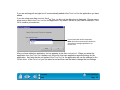
display larger or smaller on the screen. To set the scale, click the SCALE button. In the SET SCALE
FACTOR dialog box, enter a value to define the tablet to screen ratio. For example, a scale factor of 2
will make two inches on the tablet equal to one inch on the screen.
Contents
Index
ADVANCED FEATURES
Page 107