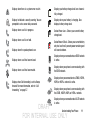
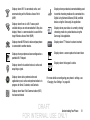
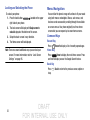
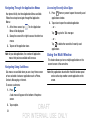
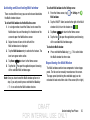
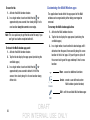
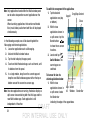
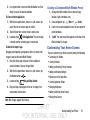
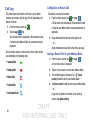
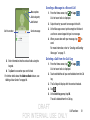
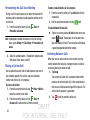
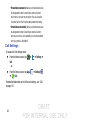
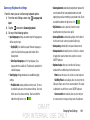
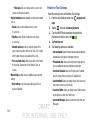
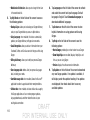
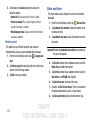
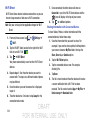
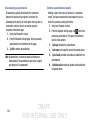
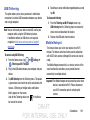
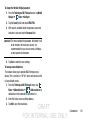
1
All Hardware Graphics removed 4 G L T E S M A R T P H O N E User Manual Please read this manual before operating your phone, and keep it for future reference. DRAFT FOR INTERNAL USE ONLY Warning!: This product contains chemicals known to the State of California to cause cancer and reproductive toxicity. Intellectual Property All Intellectual Property, as defined below, owned by or which is otherwise the property of Samsung or its respective suppliers relating to the SAMSUNG Phone, including but not limited to, accessories, parts, or software relating there to (the “Phone System”), is proprietary to Samsung and protected under federal laws, state laws, and international treaty provisions. Intellectual Property includes, but is not limited to, inventions (patentable or unpatentable), patents, trade secrets, copyrights, software, computer programs, and related documentation and other works of authorship. You may not infringe or otherwise violate the rights secured by the Intellectual Property. Moreover, you agree that you will not (and will not attempt to) modify, prepare derivative works of, reverse engineer, decompile, disassemble, or otherwise attempt to create source code from the software. No title to or ownership in the Intellectual Property is transferred to you. All applicable rights of the Intellectual Property shall remain with SAMSUNG and its suppliers. Open Source Software Some software components of this product incorporate source code covered under GNU General Public License (GPL), GNU Lesser General Public License (LGPL), OpenSSL License, BSD License and other open source licenses. To obtain the source code covered under the open source licenses, please visit: http://opensource.samsung.com. Disclaimer of Warranties; Exclusion of Liability EXCEPT AS SET FORTH IN THE EXPRESS WARRANTY CONTAINED ON THE WARRANTY PAGE ENCLOSED WITH THE PRODUCT, THE PURCHASER TAKES THE PRODUCT "AS IS", AND SAMSUNG MAKES NO EXPRESS OR IMPLIED WARRANTY OF ANY KIND WHATSOEVER WITH RESPECT TO THE PRODUCT, INCLUDING BUT NOT LIMITED TO THE MERCHANTABILITY OF THE PRODUCT OR DRAFT FOR INTERNAL USE ONLY SM-G870A_UM_English_ND7_WC_042814_D3 ITS FITNESS FOR ANY PARTICULAR PURPOSE OR USE; THE DESIGN, CONDITION OR QUALITY OF THE PRODUCT; THE PERFORMANCE OF THE PRODUCT; THE WORKMANSHIP OF THE PRODUCT OR THE COMPONENTS CONTAINED THEREIN; OR COMPLIANCE OF THE PRODUCT WITH THE REQUIREMENTS OF ANY LAW, RULE, SPECIFICATION OR CONTRACT PERTAINING THERETO. NOTHING CONTAINED IN THE INSTRUCTION MANUAL SHALL BE CONSTRUED TO CREATE AN EXPRESS OR IMPLIED WARRANTY OF ANY KIND WHATSOEVER WITH RESPECT TO THE PRODUCT. IN ADDITION, SAMSUNG SHALL NOT BE LIABLE FOR ANY DAMAGES OF ANY KIND RESULTING FROM THE PURCHASE OR USE OF THE PRODUCT OR ARISING FROM THE BREACH OF THE EXPRESS WARRANTY, INCLUDING INCIDENTAL, SPECIAL OR CONSEQUENTIAL DAMAGES, OR LOSS OF ANTICIPATED PROFITS OR BENEFITS. Modification of Software SAMSUNG IS NOT LIABLE FOR PERFORMANCE ISSUES OR INCOMPATIBILITIES CAUSED BY YOUR EDITING OF REGISTRY SETTINGS, OR YOUR MODIFICATION OF OPERATING SYSTEM SOFTWARE. USING CUSTOM OPERATING SYSTEM SOFTWARE MAY CAUSE YOUR DEVICE AND APPLICATIONS TO WORK IMPROPERLY. YOUR CARRIER MAY NOT PERMIT USERS TO DOWNLOAD CERTAIN SOFTWARE, SUCH AS CUSTOM OS. IF YOUR CARRIER PROHIBITS THIS, IF YOU ATTEMPT TO DOWNLOAD SOFTWARE ONTO THE DEVICE WITHOUT AUTHORIZATION, YOU WILL BE NOTIFIED ON THE SCREEN THAT UNAUTHORIZED SOFTWARE HAS BEEN DETECTED. YOU SHOULD THEN POWER DOWN THE DEVICE AND CONTACT YOUR CARRIER TO RESTORE THE DEVICE TO THE CARRIER AUTHORIZED SETTINGS. Diagnostic Software This device is equipped with diagnostic software reporting usage and performance information used solely to deliver improved network quality and overall device experience to AT&T customers. Please refer to your AT&T Wireless Customer Agreement and/or the AT&T Privacy Policy (www.att.com/privacy) for more information. DRAFT FOR INTERNAL USE ONLY SAFE™ (Samsung Approved For Enterprise) SAFE™: "SAFE™" (Samsung for Enterprise) is a mark for a Samsung device which has been tested against Samsung's own internal criteria for interoperability with certain third party security-related solutions for MDM and VPN. The testing includes field testing with local network connection and menu tree testing which tests functionality of the solutions in conjunction with the Samsung device. During the testing, the device is tested with the security solutions to see if the solutions work with the device as described by the third party security solution providers. The testing, for example, includes field testing with local network connection and menu tree testing which tests functionality of the solutions in conjunction with the Samsung device. For more information about Samsung's SAFE™ program, please refer to www.samsung.com/us/safe. Disclaimer of Warranties: EXCEPT AS OTHERWISE PROVIDED IN THEIR STANDARD END USER LICENSE AND WARRANTY, TO THE FULL EXTENT PERMITTED BY LAW SAMSUNG ELECTRONICS CO., LTD., SAMSUNG TELECOMMUNICATIONS AMERICA, LLC, AND THEIR AFFILIATES (COLLECTIVELY REFERRED TO HEREIN AS THE "SAMSUNG ENTITIES") EXPRESSLY DISCLAIM ANY AND ALL WARRANTIES, EXPRESS OR IMPLIED, INCLUDING ANY WARRANTY OF MERCHANTABILITY, FITNESS FOR A PARTICULAR PURPOSE, INTEROPERABILITY OR NON-INFRINGEMENT, WITH RESPECT TO INFORMATION TECHNOLOGY SECURITY PROTECTION, SAFE™ DEVICES AND APPLICATIONS TESTED WITH SAFE™ DEVICES. IN NO EVENT SHALL THE SAMSUNG ENTITIES BE LIABLE FOR ANY DIRECT, INDIRECT, INCIDENTAL, PUNITIVE, OR CONSEQUENTIAL DAMAGES OF ANY KIND WHATSOEVER WITH RESPECT TO INFORMATION TECHNOLOGY SECURITY PROTECTION, SAFE™ DEVICES OR APPLICATIONS TESTED WITH SAFE™ DEVICES. In addition, information technology security protection will be affected by features or functionality associated with, among other things the e-mail platform, master data management, and virtual private network solutions selected by the software provider, solution provider or user. Choice of an e-mail, master data management, and virtual private network solution is at the sole discretion of the software provider, solution provider or user and any associated effect on information technology security protection is solely the responsibility of the software provider, solution provider or user. For complete statement of limited warranty, please refer to www.samsung.com/us/safe, available on the web and where Samsung smartphone and Galaxy Tab™ devices are sold. [101212] DRAFT FOR INTERNAL USE ONLY Samsung Telecommunications America (STA), LLC Headquarters: 1301 E. Lookout Drive Richardson, TX 75082 Customer Care Center: 1000 Klein Rd. Plano, TX 75074 Toll Free Tel: 1.888.987.HELP (4357) Internet Address: www.samsung.com © 2014 Samsung Telecommunications America, LLC. Samsung is a registered trademark of Samsung Electronics Co., Ltd. Do you have questions about your Samsung Mobile Phone? For 24 hour information and assistance, we offer a new FAQ/ARS System (Automated Response System) at: http://www.samsung.com/us/support. The actual available capacity of the internal memory is less than the specified capacity because the operating system and default applications occupy part of the memory. The available capacity may change when you upgrade the device. Nuance®, VSuite™, T9® Text Input, and the Nuance logo are trademarks or registered trademarks of Nuance Communications, Inc., or its affiliates in the United States and/or other countries. DRAFT FOR INTERNAL USE ONLY The Bluetooth® word mark, figure mark (stylized “B Design”), and combination mark (Bluetooth word mark and “B Design”) are registered trademarks and are wholly owned by the Bluetooth SIG. microSD™ and the microSD logo are Trademarks of the SD Card Association. Openwave® is a registered Trademark of Openwave, Inc. LTE is a trademark of ETSI. and are trademarks of SRS Labs, Inc. CS Headphone and WOW HD technologies are incorporated under license from SRS Labs, Inc. Google, the Google logo, Android, the Android logo, Google Play, Gmail, Google Mail, Google Maps, Google Music, Google Hangouts, Picasa, YouTube and other marks are trademarks of Google Inc. Wi-Fi is a registered trademark of the Wireless Fidelity Alliance, Inc. Swype and the Swype logos are trademarks of Swype, Inc. © 2010 Swype, Inc. All rights reserved. Devices purchased for use on AT&T's system are designed for use exclusively on AT&T's system. You agree that you won't make any modifications to the Equipment or programming to enable the Equipment to operate on any other system. A voice plan is required on all voice-capable devices, unless specifically noted otherwise in the terms governing your agreement. Some devices or plans may require you to subscribe to a data plan. Your phone is designed to make it easy for you to access a wide variety of content. For your protection, AT&T wants you to be aware that some applications that you enable may involve the location of your phone being shared. For applications available through AT&T, AT&T offers privacy controls that let you decide how an application may use the location of your phone and other phones on your account. However, AT&T's privacy tools do not apply to applications available outside of AT&T. Please review the terms and conditions and the associated privacy policy for each location-based service to learn how location information will be used and protected. DRAFT FOR INTERNAL USE ONLY Your phone may be used to access the Internet and to download, and/or purchase goods, applications, and services from AT&T or elsewhere from third parties. AT&T provides tools for you to control access to the Internet and certain Internet content. These controls may not be available for certain devices which bypass AT&T controls. AT&T may collect certain types of information from your device when you use AT&T services to provide customer support and to improve its services. For more information on AT&T's Privacy Policy, visit http://www.att.com/privacy. Your phone features earSmart™, an intelligent voice processor that delivers a clear voice experience, allowing you to hear and be heard™ in nearly any environment. earSmart technology uses the science of human hearing to distinguish sounds, identify your voice and suppress surrounding noise, for clear conversations just about anywhere. How Does It Work? • The earSmart voice processor in your phone captures your voice and all the sounds around you. • Working like the human ear, it processes and distinguishes these sounds, isolates your voice conversation, and removes background noise from both ends of a call. • It also automatically equalizes and adjusts voice volume so you can hear and talk naturally, even in the noisiest places. • With earSmart technology, you can talk where you want, and have clear conversations for mobile calls, video chats, even speakerphone calls, without worrying about surrounding noise. DRAFT FOR INTERNAL USE ONLY Online Legal Information The online version of the Health/Safety and Warranty guide for your device can be found at: English: www.samsung.com/us/Legal/Phone_HSGuide Spanish: www.samsung.com/us/Legal/Phone_HSGuide_SP The online version of the End User Licensing Agreement for your device can be found: Online at: www.samsung.com/us/Legal/SamsungLegal-EULA1. DRAFT FOR INTERNAL USE ONLY Table of Contents Section 1: Getting Started ..............................5 Setting Up Your Phone . . . . . . . . . . . . . . . . . . . . . . 5 Charging the Battery . . . . . . . . . . . . . . . . . . . . . . . 8 Extending Your Battery Life . . . . . . . . . . . . . . . . . . 9 Switching the Device On or Off . . . . . . . . . . . . . . 10 Configuring your Phone . . . . . . . . . . . . . . . . . . . . 11 Maintaining water and dust resistance . . . . . . . . 11 Locking and Unlocking the Touch Screen . . . . . . 12 Creating a New Google Account . . . . . . . . . . . . . 12 Creating a Samsung Account . . . . . . . . . . . . . . . 12 Setting Up Your Voice Mail . . . . . . . . . . . . . . . . . 13 Section 2: Understanding Your Phone .........14 Features of Your Phone . . . . . . . . . . . . . . . . . . . . 14 Front View . . . . . . . . . . . . . . . . . . . . . . . . . . . . . . 15 Back View . . . . . . . . . . . . . . . . . . . . . . . . . . . . . . 17 Status Bar . . . . . . . . . . . . . . . . . . . . . . . . . . . . . . 18 Menu Navigation . . . . . . . . . . . . . . . . . . . . . . . . . 22 Using the Multi Window . . . . . . . . . . . . . . . . . . . . 24 Customizing Your Home Screen . . . . . . . . . . . . . 29 Notification Panel . . . . . . . . . . . . . . . . . . . . . . . . 37 Entering Text . . . . . . . . . . . . . . . . . . . . . . . . . . . .38 Using Google Voice Typing . . . . . . . . . . . . . . . . . .39 Using the Samsung Keyboard . . . . . . . . . . . . . . . .40 Entering Text Using Swype . . . . . . . . . . . . . . . . . .43 Section 3: Call Functions ............................ 45 Displaying Your Phone Number . . . . . . . . . . . . . .45 Making a Call . . . . . . . . . . . . . . . . . . . . . . . . . . . .45 Ending a Call . . . . . . . . . . . . . . . . . . . . . . . . . . . .47 Answering a Call . . . . . . . . . . . . . . . . . . . . . . . . .47 Making Emergency Calls . . . . . . . . . . . . . . . . . . .48 Making a Call Using Speed Dial . . . . . . . . . . . . . .48 Dialing Options . . . . . . . . . . . . . . . . . . . . . . . . . . .49 Call Log . . . . . . . . . . . . . . . . . . . . . . . . . . . . . . . .50 Call Duration . . . . . . . . . . . . . . . . . . . . . . . . . . . .52 Options During a Call . . . . . . . . . . . . . . . . . . . . . .52 Call Settings . . . . . . . . . . . . . . . . . . . . . . . . . . . . .58 Section 4: Contacts and Your Address Book .......................................................... 59 AT&T Address Book Activation . . . . . . . . . . . . . . .59 Adding a New Contact . . . . . . . . . . . . . . . . . . . . .60 DRAFT FOR INTERNAL USE ONLY 1 Editing an Existing Contact . . . . . . . . . . . . . . . . . Using Contacts . . . . . . . . . . . . . . . . . . . . . . . . . . Linking Contacts . . . . . . . . . . . . . . . . . . . . . . . . . Synchronizing Accounts . . . . . . . . . . . . . . . . . . . Address Book Options . . . . . . . . . . . . . . . . . . . . Groups . . . . . . . . . . . . . . . . . . . . . . . . . . . . . . . . Address Book Favorites . . . . . . . . . . . . . . . . . . . Managing Address Book Contacts . . . . . . . . . . . 62 62 63 65 65 67 68 69 Section 5: Messaging .................................. 71 Types of Messages . . . . . . . . . . . . . . . . . . . . . . . Creating and Sending Messages . . . . . . . . . . . . . Message Options . . . . . . . . . . . . . . . . . . . . . . . . Viewing New Received Messages . . . . . . . . . . . . Deleting Messages . . . . . . . . . . . . . . . . . . . . . . . Message Search . . . . . . . . . . . . . . . . . . . . . . . . . Messaging Settings . . . . . . . . . . . . . . . . . . . . . . 71 71 72 74 76 76 76 Section 6: Changing Your Settings ............. 80 Accessing Settings . . . . . . . . . . . . . . . . . . . . . . . Wi-Fi Settings . . . . . . . . . . . . . . . . . . . . . . . . . . . Bluetooth . . . . . . . . . . . . . . . . . . . . . . . . . . . . . . Tethering and Wi-Fi hotspot . . . . . . . . . . . . . . . . Airplane mode . . . . . . . . . . . . . . . . . . . . . . . . . . Data Usage . . . . . . . . . . . . . . . . . . . . . . . . . . . . . 2 80 81 82 83 84 85 Location . . . . . . . . . . . . . . . . . . . . . . . . . . . . . . . 85 More networks . . . . . . . . . . . . . . . . . . . . . . . . . . 86 NFC . . . . . . . . . . . . . . . . . . . . . . . . . . . . . . . . . . . 89 Nearby devices . . . . . . . . . . . . . . . . . . . . . . . . . . 90 Printing . . . . . . . . . . . . . . . . . . . . . . . . . . . . . . . . 90 Screen Mirroring . . . . . . . . . . . . . . . . . . . . . . . . . 91 Sound Settings . . . . . . . . . . . . . . . . . . . . . . . . . . 91 Display Settings . . . . . . . . . . . . . . . . . . . . . . . . . 94 Wallpaper . . . . . . . . . . . . . . . . . . . . . . . . . . . . . . 95 Home Screen Settings . . . . . . . . . . . . . . . . . . . . . 95 Lock Screen Settings . . . . . . . . . . . . . . . . . . . . . . 95 Multi window . . . . . . . . . . . . . . . . . . . . . . . . . . . 96 Notification panel . . . . . . . . . . . . . . . . . . . . . . . . 97 Toolbox . . . . . . . . . . . . . . . . . . . . . . . . . . . . . . . . 97 One-handed operation . . . . . . . . . . . . . . . . . . . . . 98 Easy Mode . . . . . . . . . . . . . . . . . . . . . . . . . . . . . 99 Accessibility . . . . . . . . . . . . . . . . . . . . . . . . . . . . 99 Blocking Mode . . . . . . . . . . . . . . . . . . . . . . . . . 102 Private Mode . . . . . . . . . . . . . . . . . . . . . . . . . . . 102 Finger Scanner . . . . . . . . . . . . . . . . . . . . . . . . . 103 Motions and gestures . . . . . . . . . . . . . . . . . . . . 104 Air view . . . . . . . . . . . . . . . . . . . . . . . . . . . . . . . 105 Accounts . . . . . . . . . . . . . . . . . . . . . . . . . . . . . . 106 DRAFT FOR INTERNAL USE ONLY Back up and reset . . . . . . . . . . . . . . . . . . . . . . . 107 Language and input . . . . . . . . . . . . . . . . . . . . . 108 Date and time . . . . . . . . . . . . . . . . . . . . . . . . . . 114 Safety assistance . . . . . . . . . . . . . . . . . . . . . . . 115 Accessories . . . . . . . . . . . . . . . . . . . . . . . . . . . . 116 Battery . . . . . . . . . . . . . . . . . . . . . . . . . . . . . . . 116 Power saving mode . . . . . . . . . . . . . . . . . . . . . . 116 Storage . . . . . . . . . . . . . . . . . . . . . . . . . . . . . . . 117 Security . . . . . . . . . . . . . . . . . . . . . . . . . . . . . . 117 Help . . . . . . . . . . . . . . . . . . . . . . . . . . . . . . . . . 122 About Device . . . . . . . . . . . . . . . . . . . . . . . . . . . 122 Application Manager . . . . . . . . . . . . . . . . . . . . . 124 Default applications . . . . . . . . . . . . . . . . . . . . . . 126 Calendar . . . . . . . . . . . . . . . . . . . . . . . . . . . . . . 126 Call . . . . . . . . . . . . . . . . . . . . . . . . . . . . . . . . . . 127 Contacts . . . . . . . . . . . . . . . . . . . . . . . . . . . . . . 132 Email . . . . . . . . . . . . . . . . . . . . . . . . . . . . . . . . 132 Gallery . . . . . . . . . . . . . . . . . . . . . . . . . . . . . . . 134 Internet . . . . . . . . . . . . . . . . . . . . . . . . . . . . . . . 134 Messages . . . . . . . . . . . . . . . . . . . . . . . . . . . . . 136 S Voice . . . . . . . . . . . . . . . . . . . . . . . . . . . . . . . 139 Section 7: Connections ..............................140 Wi-Fi . . . . . . . . . . . . . . . . . . . . . . . . . . . . . . . . .141 NFC . . . . . . . . . . . . . . . . . . . . . . . . . . . . . . . . . .145 Bluetooth . . . . . . . . . . . . . . . . . . . . . . . . . . . . . .145 USB Tethering . . . . . . . . . . . . . . . . . . . . . . . . . .149 Mobile Hotspot . . . . . . . . . . . . . . . . . . . . . . . . . .149 Section 8: Applications ............................. 152 Activity Zone . . . . . . . . . . . . . . . . . . . . . . . . . . .152 AT&T FamilyMap . . . . . . . . . . . . . . . . . . . . . . . .152 AT&T Locker . . . . . . . . . . . . . . . . . . . . . . . . . . .153 AT&T Mobile Locate . . . . . . . . . . . . . . . . . . . . . .153 AT&T Navigator . . . . . . . . . . . . . . . . . . . . . . . . .154 Beats Music . . . . . . . . . . . . . . . . . . . . . . . . . . . .154 Calculator . . . . . . . . . . . . . . . . . . . . . . . . . . . . .154 Calendar . . . . . . . . . . . . . . . . . . . . . . . . . . . . . .155 Camera . . . . . . . . . . . . . . . . . . . . . . . . . . . . . . .156 ChatON . . . . . . . . . . . . . . . . . . . . . . . . . . . . . . .162 Chrome . . . . . . . . . . . . . . . . . . . . . . . . . . . . . . .163 Clock . . . . . . . . . . . . . . . . . . . . . . . . . . . . . . . . .163 Contacts . . . . . . . . . . . . . . . . . . . . . . . . . . . . . .166 Device Help . . . . . . . . . . . . . . . . . . . . . . . . . . . .166 Drive . . . . . . . . . . . . . . . . . . . . . . . . . . . . . . . . .166 DriveMode . . . . . . . . . . . . . . . . . . . . . . . . . . . . .166 Email . . . . . . . . . . . . . . . . . . . . . . . . . . . . . . . . .167 DRAFT FOR INTERNAL USE ONLY PC Connections . . . . . . . . . . . . . . . . . . . . . . . . . 140 3 Flipboard . . . . . . . . . . . . . . . . . . . . . . . . . . . . . Gallery . . . . . . . . . . . . . . . . . . . . . . . . . . . . . . . Gmail . . . . . . . . . . . . . . . . . . . . . . . . . . . . . . . . Google . . . . . . . . . . . . . . . . . . . . . . . . . . . . . . . Google Settings . . . . . . . . . . . . . . . . . . . . . . . . Google + . . . . . . . . . . . . . . . . . . . . . . . . . . . . . Hangouts . . . . . . . . . . . . . . . . . . . . . . . . . . . . . Internet . . . . . . . . . . . . . . . . . . . . . . . . . . . . . . Keeper . . . . . . . . . . . . . . . . . . . . . . . . . . . . . . . Lookout Security . . . . . . . . . . . . . . . . . . . . . . . Maps . . . . . . . . . . . . . . . . . . . . . . . . . . . . . . . . Memo . . . . . . . . . . . . . . . . . . . . . . . . . . . . . . . Messages App . . . . . . . . . . . . . . . . . . . . . . . . . Messaging . . . . . . . . . . . . . . . . . . . . . . . . . . . . Mobile Hotspot . . . . . . . . . . . . . . . . . . . . . . . . . Mobile TV . . . . . . . . . . . . . . . . . . . . . . . . . . . . . Music . . . . . . . . . . . . . . . . . . . . . . . . . . . . . . . . My Files . . . . . . . . . . . . . . . . . . . . . . . . . . . . . . myAT&T . . . . . . . . . . . . . . . . . . . . . . . . . . . . . . Phone . . . . . . . . . . . . . . . . . . . . . . . . . . . . . . . . Photos . . . . . . . . . . . . . . . . . . . . . . . . . . . . . . . Play Books . . . . . . . . . . . . . . . . . . . . . . . . . . . . Play Games . . . . . . . . . . . . . . . . . . . . . . . . . . . 4 168 169 173 174 174 175 175 176 178 178 179 179 180 180 180 180 181 184 184 185 185 185 185 Play Movies & TV . . . . . . . . . . . . . . . . . . . . . . . . 186 Play Music . . . . . . . . . . . . . . . . . . . . . . . . . . . . 186 Play Newsstand . . . . . . . . . . . . . . . . . . . . . . . . . 186 Play Store . . . . . . . . . . . . . . . . . . . . . . . . . . . . . 187 POLARIS Office 5 . . . . . . . . . . . . . . . . . . . . . . . . 187 S Health . . . . . . . . . . . . . . . . . . . . . . . . . . . . . . 188 S Voice . . . . . . . . . . . . . . . . . . . . . . . . . . . . . . . 189 Samsung Apps . . . . . . . . . . . . . . . . . . . . . . . . . 189 Settings . . . . . . . . . . . . . . . . . . . . . . . . . . . . . . . 190 Smart Remote . . . . . . . . . . . . . . . . . . . . . . . . . . 190 Usage Manager . . . . . . . . . . . . . . . . . . . . . . . . . 194 Video . . . . . . . . . . . . . . . . . . . . . . . . . . . . . . . . . 194 Voice Recorder . . . . . . . . . . . . . . . . . . . . . . . . . 195 Voice Search . . . . . . . . . . . . . . . . . . . . . . . . . . . 195 Wallet . . . . . . . . . . . . . . . . . . . . . . . . . . . . . . . . 196 YouTube . . . . . . . . . . . . . . . . . . . . . . . . . . . . . . 197 YP . . . . . . . . . . . . . . . . . . . . . . . . . . . . . . . . . . . 197 Section 9: Samsung Product Registration ..............................................199 Index ............................................................200 DRAFT FOR INTERNAL USE ONLY Section 1: Getting Started This section explains how to start using your phone by first configuring your hardware, activating your service, and then setting up your voice mail. Setting Up Your Phone Prior to use it is necessary to install both the battery and SIM into their corresponding internal compartments. The microSD™ card slot is also located in this same internal area. 1. Remove the back cover by inserting a fingernail into the slot on the top of your phone (1). 2. Lift the cover up (2) and away from the phone. Caution! Do not remove the rubber seal from the inside of the back cover. Doing so can cause water damage to the device if it gets wet. Do not bend or twist the back cover excessively. Doing so may damage the cover. Caution! Do not bend or twist the back cover excessively. Doing so may damage the cover. Installing the SIM Card Hardware Graphics Removed When you subscribe to a cellular network, you are provided with a plug-in SIM card loaded with your subscription details, such as your PIN, available optional services, and many others features. DRAFT FOR INTERNAL USE ONLY Getting Started 5 Important! The plug-in SIM card information and its contacts can be easily damaged by scratching or bending, so be careful when handling, inserting, or removing the card. Keep all SIM cards out of reach of small children. Carefully slide the SIM card into the SIM card socket (as shown) until the card locks into place. • Make sure that the card’s gold contacts face into the phone and that the upper-left angled corner of the card is positioned as shown. Installing the Battery 1. Insert the battery into the opening on the back of the phone, making sure the connectors align (1). 2. Gently press down to secure the battery (2). Hardware Graphic Removed Removing and Installing the Memory Card Hardware Graphic Removed Note: If the card is not inserted correctly, the phone will not detect the SIM card. Re-orient the card back into the slot if the SIM is not detected. 6 You can use a microSD (SD) or microSDHC card to expand available memory space if you desire. This secure digital card enables you to exchange images, music, and data between SD-compatible devices. This type of memory card is designed for use with this mobile phone and other devices. Note: Your phone has been tested to support up to a 64GB memory card. DRAFT FOR INTERNAL USE ONLY Installing the Memory Card Push the microSD card into the slot until it clicks (as shown). The microSD card will fit on top of the SIM card. • Make sure the microSD’s gold contact pins face downward and the card is securely inserted. Installing the Back Cover 1. Place the battery cover onto the back of the phone (1) and press down (2). Hardware Graphic Removed Hardware Graphic Removed 2. Press along the edge of the back cover (3) until you have a secure seal. For more information on Memory Cards, see “Storage” on page 117. Removing the Memory Card Hardware Graphic Removed 1. Push on the memory card until it clicks and is released. 2. Grasp the memory card and remove it from the phone. DRAFT FOR INTERNAL USE ONLY Getting Started 7 3. To avoid water damage, ensure that the back cover is completely closed by pressing just below the AT&T Logo until you hear a click. Note: Make sure the battery is properly installed before switching on the phone. Charging the Battery Important! Verify that the battery is installed prior to connecting the wall charger. If both the wall charger is connected and the battery is not installed, the handset will power cycle continuously and prevent proper operation. Failure to unplug the wall charger before you remove the battery, can cause damage to the phone. Your device is powered by a rechargeable Li-ion battery. A wall charger, which is used for charging the battery, is included with your device. Use only approved batteries and chargers. Ask your local Samsung dealer for further details. Note: You must fully charge the battery before using your phone for the first time. A discharged battery recharges fully in approximately 4 hours. Although you can use the phone while the battery is charging, doing so will require additional charging time. Hardware Graphic Removed 1. Connect the USB cable to the charging head. 2. Lift up on the Charger/Accessory jack cover that covers the port on the bottom of your phone and swing it open. 8 DRAFT FOR INTERNAL USE ONLY 3. Insert the USB cable into the device’s Charger/ Accessory jack. 4. Plug the charging head into a standard AC power outlet. The device turns on with the screen locked and indicates both its charge state and percent of charge. 5. When charging is finished, remove the flat end from the interface connector jack on the phone. Important! Before closing the Charger/Accessory jack cover, check to see if there is any foreign substance such as dust on sand on the rubber seal. 6. Tightly close the multipurpose jack cover when you are finished so that no water can enter the port. Important! Your touch screen responds best to a light touch from the pad of your finger or a non-metallic stylus. Using excessive force or a metallic object when pressing on the touch screen may damage the tempered glass surface and void the warranty. For more information, refer to the “Standard Limited Warranty” in your in-box H&S Guide. Low Battery Indicator When the battery is weak and only a few minutes of talk time remain, the battery icon ( ) blinks and the device sounds a warning tone at regular intervals. In this condition, your phone conserves its remaining battery power, not by turning off the backlight, but by entering the dimming mode. For a quick check of your battery level, glance at the battery charge indicator located in the upper-right corner of your device’s display. Solid color ( ) indicates a full charge. When the battery level becomes too low, the phone automatically turns off. Extending Your Battery Life Active applications, light levels, Bluetooth usage, and GPS functionality all act to drain your battery. The following is a list of helpful tips that can help conserve your battery power: • Reduce the time your backlight stays on. • Turn Bluetooth off when not in use. • Turn Wi-Fi off when not in use. • Deactivate the GPS when not needed. Most applications using this function will periodically query the GPS satellites for your current location; each query drains your battery. DRAFT FOR INTERNAL USE ONLY Getting Started 9 • Do not wait until your battery is completely depleted before charging your device. Repeating this process of a complete discharge and recharge can over time reduce the storage capacity of any battery. • Use the Power Saving feature to deactivate some hardware and interface functions. • Check the Battery use screen to review what features or functions have been consuming your battery resources. • Check the Running Services and close any unnecessary applications. • Use the Task Manager feature to end/shutdown background applications that are still running. These minimized applications can, over time, cause your device to slow down. • Animated wallpapers use processing power, memory, and more power. Change your Live Wallpaper to a non-animated Wallpaper gallery or Gallery image. 10 Switching the Device On or Off Once the device has been configured, you will not be prompted with setup screens again. To turn the device on: 1. Press and hold switches on. Power/End until the device The device searches for your network and after finding it, you can make or receive calls. 2. Swipe your finger across the screen to unlock the phone. To turn the device off: 1. Press and hold options screen appears. 2. Tap Power/End until the Device Power off. 3. At the Power off prompt, tap OK. DRAFT FOR INTERNAL USE ONLY Configuring your Phone When you first turn on your phone, you will need to set up a few things. 1. As each screen is displayed, follow the instructions on each screen to set up that particular feature. 2. Tap Next or Skip to progress to the next page. 3. At the last screen, tap Finish, to finish your setup. Maintaining water and dust resistance This device is rated IP67 using the Ingress Protection rating system. The dust rating is 6 (highest level of protection), and the water resistance rating is 7 (water resistant up to 1 meter for up to 30 minutes). Despite this classification, your device is not impervious to water damage in any situation. It is important that all compartments are closed tightly. Follow these tips carefully to prevent damage to the device. • Whenever your device gets wet, dry it thoroughly with a clean, soft cloth. • Do not expose the device to salt water or ionized water, or to water over 1 meter deep for more than 30 minutes. If your device is exposed to salt water, wash the device with fresh water then dry thoroughly with a clean, soft cloth. Otherwise, when it dries, salt may accumulate and block the microphone, earpiece, and speaker. • When drying off your device, be sure to pat the earpiece (top front of phone), microphone (bottom of phone), and speaker (rear of phone) with a clean, soft cloth to remove as much water as possible. • When making a call immediately after your device is wet, the microphone may have water in it which may lower the volume that the other person will hear. After drying off the device, allow the device to air-dry before making a call. • The back and multipurpose jack covers may be loosened slightly if the device is dropped or receives an impact. Ensure that all the covers are properly aligned and tightly closed. Otherwise, they may not provide protection from water and dust. • Always keep the multipurpose jack cover clean and be careful to avoid damaging it. Note: The touch screen may not be active in water. DRAFT FOR INTERNAL USE ONLY Getting Started 11 Locking and Unlocking the Touch Screen 1. Press to lock the touch screen. 2. Press again to display the lock screen then swipe your finger across the screen to unlock. Note: Swipe is the default screen locking method. To change your screen lock, see “Lock Screen Settings” on page 95. Creating a New Google Account In order to utilize your device to the fullest extent, you will need to create a Google™ Account when you first use your device. With a Google Account, Google applications will always be in sync between your phone and computer. If you did not create a new account during the setup procedure when you first turned your phone on, follow these steps: . 1. From the Home screen, tap ➔ Gmail If you already have a Google account, tap Existing to sign in and add the account to your phone. 3. Follow the on-screen instructions to add a Google Account. Note: Once you have created a Google account, you only need to sign in. Creating a Samsung Account An active Samsung account is required to begin accessing applications such as ChatON and Samsung Hub. If you did not create a Samsung account when you first set up your phone, follow these steps: ➔ 1. From the home screen, tap ➔ Settings Accounts ➔ Add account. 2. Tap Samsung account. 3. Tap Create new account. 4. Follow the on-screen instructions to create and activate your account. The Add a Google Account screen displays. 2. Tap New to create a new Google account. – or – 12 DRAFT FOR INTERNAL USE ONLY Setting Up Your Voice Mail 1. From the Home screen, tap , then tap . 2. Follow the tutorial to create a password, record a greeting, and record your name. Note: These steps may be different depending on your network. Accessing Your Voice Mail 1. From the Home screen, tap , then tap . You may be prompted to enter a password. 2. When connected, follow the voice prompts from the voice mail center. Accessing Your Voice Mail From Another Phone 1. Dial your wireless phone number. 2. When you hear your voicemail greeting, press the asterisk key on the phone you are using. 3. Enter your password and you are connected to your Voice Mail. DRAFT FOR INTERNAL USE ONLY Getting Started 13 Section 2: Understanding Your Phone This section outlines some key features of your phone and describes the screen and the icons that appear when the phone is in use. It also shows how to navigate through the phone and provides information on using a memory card. Features of Your Phone Your phone is lightweight, easy-to-use and offers many useful features. The following list outlines a few of the features included in your phone. • Android v 4.4.2, KitKat Platform • Brilliant 5.1” HD Super AMOLED® (1920 x 1080) display • Multi-core processor • Water and Dust resistant (IP67) with rugged design • Wi-Fi ® Capability (802.11 a/b/g/n/ac) @ both 2.4GHz and 5GHz • Delivers data faster using 4G LTE and High Speed Packet Access Plus (HSPA+) • Galaxy Gear™ compliant. For more information, please visit: www.samsung.com/us/galaxygearsupport • Smart Switch™ compliant. For more information, see www.samsungsmartswitch.com 14 • Ready access to the Internet • Built-in Bluetooth and advanced Wi-Fi® technology • Mobile Hotspot and USB Tethering capability • 16 Megapixel camera and camcorder with Front Facing camera • Smart Remote control using Smart Remote • AT&T GPS Navigation functionality provides real-time navigation • Expandable memory slot • Corporate and Personal Email • Sync and update social network applications • Thousands of Apps available to download via Google Play Store™ and Samsung Hub • Full Integration of Google Mobile™ Services (Gmail, YouTube, Google Maps, Google Voice Search) • Multiple Messaging Options: Text/Picture/Video Messaging, and Instant Messaging with Google Hangouts™ • Video with Full HD 1080p recording and playback • Samsung Link to share your media content across DLNA certified devices DRAFT FOR INTERNAL USE ONLY Front View 20 19 18 17 1 16 2 15 1. Indicator light illuminates with a series of distinct colors and flashing patterns to indicate different notifications and statuses. Events include Charging, Low battery, and Missed event: • Powering on and Missed Notification (Call or Messaging)- blue blinks/animates • Battery Charging - red remains on 3 Hardware Graphic Removed 14 13 12 4 11 10 5 9 6 7 8 • Low Battery or Charging Error- red blinks/animates • Battery Fully Charged - green remains on. 2. Light (RGB) Sensor lets you use the ambient light level to adjust the screen brightness/contrast. This sensor decreases screen brightness in dim light. • In a bright light condition (outdoors), the sensors cause the device to increase the brightness and contrast for better viewing. • In dim light conditions, the device decreases the screen brightness to compensate. 3. Volume key allows you to adjust the ringer volume in standby mode (with the phone open) or adjust the voice volume during a call. When receiving an incoming call: • Pressing the volume key down mutes the ring tone. DRAFT Understanding Your Phone FOR INTERNAL USE ONLY 15 4. Application icons are shortcuts to your favorite applications on the Home screen. 5. Recent key displays a list of recently opened apps and provides access to the Task Manager. 6. Home key displays the Home screen when pressed. Press and hold to display Google Search. Double-press to activate S Voice. 7. Microphone - bottom is used during phone calls and allow other callers to hear you clearly when you are speaking to them. 12. Google Quick Search bar provides a shortcut to Google Search that allows you to search for items on the internet. 13. Widgets are self-contained on-screen applications (not shortcuts). These can be placed onto any of the available screens (Home or extended). 14. Power/End key ends a call or switches the phone off and on. Press and hold for two seconds to: • Access the audio modes for the device. Tap an on-screen selection (Mute, Vibrate, or Sound). 8. USB Power/Accessory connector allows you to connect a power cable or optional accessories such as a USB/data cable. • Turn the device On or Off ( 9. Back key re-displays the previous screen or clears entries. • Enable Emergency mode ( • Restart the device ( ) ). • Enable Airplane mode ( ). ). 10. Primary Shortcuts allow quick access to important features such as Phone, Contacts, Messaging, Internet, and Apps. 15. Indicator icons shows the information needed to operate your phone, such as the received signal strength, phone battery level, time, unread Emails, missed calls, etc. 11. Home screen indicator shows which Home screen is presently displayed. 16. Front Facing Camera allows you to take pictures while facing the screen and allows you to video conference. 16 DRAFT FOR INTERNAL USE ONLY 17. Gestures Sensor used to detect Air View and Air Gesture motions. 18. Proximity Sensor detects how close an object is to the surface of the screen. This is typically used to detect when your face is pressed up against the screen, such as during a phone call. • While talking on the phone, the sensor detects talk activity and locks the keypad to prevent accidental key presses. Back View 5 6 7 1 2 19. Receiver allows you to hear the other caller. 3 20. Microphone - top used while an active call is in the speakerphone mode and assists in noise cancellation (2 microphone solution). Hardware Graphic Removed 4 DRAFT Understanding Your Phone FOR INTERNAL USE ONLY 17 1. Camera lens is used to take photos. 2. Flash is used to take photos in low-light conditions. 3. Heart Rate Sensors, when using the S Health app, these sensors measure your heart rate via your fingertip. For information on the S Health app, see “S Health” on page 188. 4. External speaker allows you to hear ringers, music, and other sounds offered by your phone. 5. Headset jack allows you to connect a hands-free headset so you can listen to music. 6. Temperature and Humidty sensor allows your device to read both temperature and humidity conditions. This is useful to calculate calories burned within S Health. 7. IR Transmitter used to emit infrared signals used for controlling external devices. For more information, refer to “Smart Remote” on page 190. Status Bar The Status Bar shows information about the connection status, signal strength, battery level, and time, and displays additional notifications information. This list identifies the icons you see on your device’s display screen: Indicator Icons This list identifies the symbols you’ll see on your phone’s display and Indicator area: Displays your current signal strength. The greater the number of bars, the stronger the signal. Indicates that the Airplane Mode is active. You cannot send or receive any calls or access online information. Displays when there is no SIM card in the phone. Displays when there is no network available. Displays when your phone is in Blocking mode. 18 DRAFT FOR INTERNAL USE ONLY Displays when there is a system error or alert. Displays your battery charge level. Icon shown is fully charged. Displays to indicate a security warning. You are prompted to set a screen lock password. Displays when your battery is charging. Also displays battery charge level. Displays when a call is in progress. Device Power Low – Shows your current battery charge level. Displays when a call is on hold. Displays when the speakerphone is on. Device Power Critical – Shows your current battery only has less than 5 percent power remaining and will soon shutdown. Displays when a call has been missed. Displays when your connection to an EDGE network is active. Displays when a call has been muted. Displays when your phone is communicating with the EDGE network. Displays when Call forwarding is set to Always forward. For more information, refer to “Call forwarding” on page 57. Displays when your connection to a UTMS, HSDPA, HSPA, or HSPA+ network is active. Displays when your phone is communicating with the UTMS, HSDPA, HSPA, or HSPA+ network. Displays when your connection to a 4G LTE network is active. DRAFT Understanding Your Phone FOR INTERNAL USE ONLY 19 Displays when your phone is communicating with the 4G LTE network. Displays when your phone is downloading or has downloaded a file. It will blink green when it is installing. Displays when the an outbound file transfer is in progress. Displays when Email is received. Displays in the notifications window when there is a new Gmail message. Displays when the time and date for a Calendar Event has arrived. For more information, refer to “Calendar” on page 155. Displays when a Play Store download has completed. Displays when you set an alarm to ring at a specified time. For more information, refer to “Alarm” on page 163. Displays when updates are available for download. Displays when the Sound profile is set to Mute. Displays when the phone is connected to a computer via a supported USB cable connection. Displays when the Sound profile is set to Vibrate. Displays when the phone is tethered via a supported USB cable connection. Displays when a new text or multimedia message is received. Displays when Bluetooth is activated. Displays when a Bluetooth device has been paired with the phone. Displays when a new voice mail is received. 20 DRAFT FOR INTERNAL USE ONLY Displays when Wi-Fi is connected, active, and communicating with a Wireless Access Point (WAP). Displays when there is a Wi-Fi access point available but you are not connected to it. May also display if there is a communication issue with the target Wireless Access Point (WAP). Displays when your device is connected being used to control streaming media and is connected to a Digital Living Network Alliance (DLNA) certified device using the Samsung Link application. Displays when your device is currently sharing/ streaming media to a paired device using the Samsung Link application. Displays when Wi-Fi Direct is active and your phone is connected to another device. Displays when TTY device has been inserted. Displays when your phone as been configured as a portable Wi-Fi hotspot. Displays when a screen capture has been taken. Displays when the Location feature is active and acquiring a signal. Displays when data synchronization and application sync is active and synchronization is in progress for Gmail, Calendar, and Contacts. Displays when the keypad is active. For more details on configuring your phone’s settings, see “Changing Your Settings” on page 80. Displays when Near Field Communication (NFC) has been activated. DRAFT Understanding Your Phone FOR INTERNAL USE ONLY 21 Locking and Unlocking the Phone To unlock your phone: 1. Press the lock button right side of your phone. located on the upper 2. The lock screen will display with Swipe screen to unlock displayed at the bottom of the screen. 3. Swipe the touch screen in any direction. 4. The Home screen will be displayed. Note: There are several additional ways you can lock your screen. For more information, refer to “Lock Screen Settings” on page 95. Menu Navigation You can tailor the phone’s range of functions to fit your needs using both menus and widgets. Menus, sub-menus, and features can be accessed by scrolling through the available on-screen menus. Your phone originally has three home screens but you can expand up to seven home screens. Command Keys Recent Key Press Recent to display a list of recently opened apps. Home Key Press Home to display the main Home screen. Press and hold to display access the Google Search feature. Back Key Press step. 22 Back to return to the previous screen, option or DRAFT FOR INTERNAL USE ONLY Terms used in this user manual Tap Lightly touch items to select or launch them. For example: • Tap the on screen keyboard to enter characters or text. • Tap a menu item to select it. • Tap an application’s icon to launch the application. Touch and Hold Activate on-screen items by a touch and hold gesture. For example: • Touch and hold a widget on the home screen to move it. • Touch and hold on a field to display a pop-up menu of options. Swipe and Palm Swipe To swipe, lightly drag your finger vertically or horizontally across the screen. Use swipe when: • Unlocking the screen • Scrolling through the Home screen or a menu To palm swipe, swipe the side of your hand horizontally across the screen. Use palm swipe when: • Capturing the screen Turn over Turn your phone over so that the screen faces downward. For example: • Mute incoming calls and playing sounds by turning your phone over. Home Screen Overview The main home screen is the starting point for many applications and functions, and it allows you to add items like application icons, shortcuts, folders, or Google widgets to give you instant access to information and applications. This is the default page and accessible from any menu by . pressing Navigating Through the Home Screens Your phone originally has four home screens but you can expand up to seven home screens. If you like, you can place different applications on each of the home screens. From the main Home screen, sweep the screen with your finger in either direction. The main Home Screen is located in the middle with a Home screen on each side. DRAFT Understanding Your Phone FOR INTERNAL USE ONLY 23 Navigating Through the Application Menus Your phone initially has three Application Menus available. Follow these steps to navigate through the Application Menus: 1. At the Home screen, tap . The first Application Menu will be displayed. Accessing Recently-Used Apps 1. Press from any screen to open the recently-used applications window. 2. Tap an icon to open the selected application. – or – Tap to go to the Task manager. 2. Sweep the screen left or right to access the other two menus. – or – 3. Tap one of the application icons. Tap to delete the record of all recently used applications. Note: As you add applications, the number of Application menus that you have available will increase. Navigating Using Sub-Menus Sub-menus are available when you are at any Home screen or have selected a feature or application such as Phone, Contacts, Messaging, or Internet. Using the Multi Window This feature allows you to run multiple applications on the current screen at the same time. Note: Only applications found within the Multi window panel can be active atop another current application on the screen. To access a sub-menu: . 1. Press A sub-menu will appear at the bottom of the phone screen. 2. Tap an option. 24 DRAFT FOR INTERNAL USE ONLY Activating and Deactivating Multi window There are two different ways you can activate and deactivate the Multi window feature: To activate Multi window via the Notification screen: 1. In a single motion, touch the Status bar to reveal the Notifications tab, and then drag it to the bottom of the screen to open the Notifications screen. 2. Swipe the row of icons to the left until the Multi window icon is displayed. 3. Tap the Multi window entry to activate the feature. The icon turns green when active. 4. Tap Home to return to the Home screen. 5. Tap the tab to open the application panel showing all the available Multi window apps. Note: Once you have turned the Multi window option on in step 3, you only need to press and hold the Back key ( ) to re-activate the Multi window feature. To activate Multi window via the Settings menu: 1. From the Home screen, tap ➔ Settings ➔ Multi window. 2. Tap the ON/OFF slider, located to the right of the Multi window field, to turn the feature on . 3. Tap Home to return to the Home screen. 4. Tap the tab to open the application panel showing all the available Multi window apps. To deactivate Multi window: Press and hold the Back key ( ). This action hides the Multi window tab from view. Repositioning the Multi Window The Multi window contains two components: tab and apps panel. The tab can be manually moved across the screen. The apps panel (containing the scrollable apps) can be relocated to lock onto either side of the screen (left or right). DRAFT Understanding Your Phone FOR INTERNAL USE ONLY 25 To move the tab: 1. Activate the Multi window feature. 2. In a single motion, touch and hold the tab for approximately one-second, then slowly drag it to its new location along the current screen edge. Customizing the Multi Window apps The applications found within the apps panel of the Multi window can be organized by either being rearranged or removed. To rearrange the Multi window applications: 1. Activate the Multi window feature. Note: This is a quick way to get the tab out of the way if you can’t get to a button or option behind it. 2. Tap the tab to display the apps panel (containing the scrollable apps). To relocate the Multi window apps panel: 1. Activate the Multi window feature. 3. In a single motion, touch and hold a desired app until it detaches from the panel, then carefully drag it to a new location in the list of apps. Lift your finger or stylus off the screen to let go of the app and drop it into its new location. 2. Tap the tab to display the apps panel (containing the scrollable apps). 3. In a single motion, touch and hold the tab for approximately one-second to detach it from the screen, then slowly drag it to its new location along either side. More - access to additional functions Create Create - create a user-defined custom Multi window (paired window) Edit - edit the available Multi window apps Edit 26 DRAFT FOR INTERNAL USE ONLY To edit a Multi window application: 1. Activate the Multi window feature. To restore a Multi window application: 1. Activate the Multi window feature. 2. Tap the tab to display the apps panel (containing the scrollable apps). 2. Tap the tab to display the apps panel (containing the scrollable apps). More ➔ Edit (located at the bottom of 3. Tap the list) to reveal a staging area (on the right) that can house any removed applications from the Multi window panel. More ➔ Edit located at the bottom of 3. Tap the list) to reveal the staging area containing any previously removed apps. 4. Tap Done once you have completed the removal process. To remove a Multi window application: 1. Activate the Multi window feature. 2. Tap the tab to display the apps panel (containing the scrollable apps). More ➔ Edit button (located at the 3. Tap bottom of the list) to reveal a staging area that can house any removed applications from the Multi window panel. 4. Locate the desired application. 5. In a single motion, touch and hold a desired app until it detaches from the staging area, then carefully drag it to a new location in the current list of apps. Using Multi Window to run multiple apps on the same screen Any of the apps found within the Multi window panel can be run at the same time as a current on-screen app. Once multiple apps are running on the same screen, you can then choose to either swap their positions or maximize a desired app. 4. Tap Done once you have completed the removal process. DRAFT Understanding Your Phone FOR INTERNAL USE ONLY 27 Note: Only applications found within the Multi-window panel can be active atop another current application on the screen. When launching applications that contain multimedia files (music/video), audio from both files will be played simultaneously. In the following example, we will be launching both the Messaging and Internet applications. 1. Launch an application such as Messaging. 2. Activate the Multi window feature. 3. Tap the tab to display the apps panel. 4. Touch and hold the desired app, such as Internet, until it detaches from the panel. 5. In a single motion, drag it over the current app and drop the new Multi window app over either the top or bottom area of the current on-screen app. Note: Once two applications are running, the device displays a split screen view containing both the initial app and the new Multi window app. Each application is still independent of the other. 28 To switch the arrangement of the applications: 1. Tap the desired Drag/Drop Content App #1 application area (top Close or bottom). 2. With the two applications shown in a split screen, tap the Border button to show the on-screen functions. 3. Locate and tap Switch Window. The current apps are switched. To increase the size of a desired application window: 1. With the two applications shown in App Switch #2 Window a split screen, locate the Border bar indicating the edge of the app window. DRAFT FOR INTERNAL USE ONLY Border Bar 2. In a single motion, touch and hold the Border bar then drag it to resize the desired window. To close a selected application: 1. With the two applications shown in a split screen, tap one of the two on-screen apps to select it. 2. Tap the Border bar to show the on-screen icons. Close Application. The current app 3. Locate and tap is closed and the remaining app is maximized. Dragging and dropping a paragraph of text or a screen shot image is now possible with Multi Window. 1. Drag the Gallery app onto one of the available onscreen windows. Open an image folder. 2. With the two applications shown in a split screen, tap the Border button 1. Arrange the Multi window view as desired (app location, high of windows, etc.) 1. Once configured, tap More ➔ Create). 2. Use the on-screen keyboard to name the new preset of paired windows. 3. Tap OK. The new preset then appears at the top of the Multi window list of apps. Customizing Your Home Screen To add text or image to app: 3. Locate and tap Creating a Customized Multi Window Preset . Drag and Drop Content. 4. Drag and drop a paragraph of text or an image from one window into the other. Note: Not all apps support this feature. You can customize your Home screen by doing the following: • Customizing the Toolbox • Creating Shortcuts • Adding and Removing Primary Shortcuts • Adding and Removing Widgets • Moving Icons in the Apps Menu • Creating Application Folders • Managing Wallpapers • Adding and Deleting Home Screens • Moving Home Screens DRAFT Understanding Your Phone FOR INTERNAL USE ONLY 29 Customizing the Toolbox For more information, refer to “Toolbox” on page 97. Activating the Toolbox feature displays an on-screen button that provides quick access to a set of five user-defined applications. Important! There can only be at most five applications assigned to the quick access Toolbox button. To activate the Toolbox feature: 1. From the Home screen, tap Apps ➔ Settings ➔ Toolbox. 2. In a single motion touch and slide the Toolbox slider to the right to turn it on . To customize the Toolbox applications: 1. From the active Toolbox screen, tap Edit. 2. Place a checkmark alongside up to five applications. These will be quickly accessible via the on-screen button. 3. Tap Save once you have completed the assignment of your applications. 30 Creating Shortcuts Shortcuts are different than the current Home screen Widgets that only launch an application. Shortcuts activate a feature, action, or launch an application. Note: To move a shortcut from one screen to another, it must first be deleted from its current screen. Navigate to the new screen, then add the shortcut. Adding a shortcut from the Apps Menu 1. Press to activate the main Home screen. 2. Navigate to the desired Home Page. 3. Tap to display your current applications. 4. Scroll through the list and locate your desired application. 5. Touch and hold the application icon. This creates an immediate shortcut of the selected icon and closes the Apps tab. 6. While still holding the on-screen icon, position it on the current page. Once complete, release the screen to lock the new shortcut into its new position on the current screen. DRAFT FOR INTERNAL USE ONLY Adding a shortcut via the Add to Home screen 1. Press to activate the main Home screen. 2. Navigate to the desired Home Page. 3. Touch and hold on an empty area of the Home screen. 4. Tap Wallpapers, Widgets, or Home screen settings. 5. Press and hold a shortcut from the available list and position it on the current screen. Deleting a shortcut 1. Press to activate the main Home screen. 2. Touch and hold the desired shortcut. This unlocks it from its location on the current screen. 3. Drag the icon over the Remove icon and release it. As you place the shortcut into the Trash, both items turn red. Note: This action does not delete the shortcut, it just removes it from the current screen. Adding and Removing Primary Shortcuts You can change any of your primary shortcuts with the shortcut. exception of the Apps 1. Press to activate the main Home screen. 2. Touch and hold the primary shortcut you want to replace, then drag it to an empty space on any Home screen. 3. Scroll through the App menu to find the shortcut you want to add as the new primary short cut. 4. Touch and hold the new shortcut, then drag it to the empty space in the row of primary shortcuts. The new primary shortcut will now appear on all Home screens. Adding and Removing Widgets Widgets are self-contained applications that reside in either your Widgets tab or on the main or extended Home screens. Unlike a shortcut, the Widget appears as an on-screen application. DRAFT Understanding Your Phone FOR INTERNAL USE ONLY 31 Adding a Widget 1. Press to activate the main Home screen. 2. Navigate to the desired Home Page. Moving Icons in the Apps Menu 1. Press to activate the main Home screen. 2. Tap to display your current applications. 3. Touch and hold on an empty area of the screen. 3. Tap and tap View as. 4. Tap Widgets at the bottom of the screen. 4. Tap Custom. A green circle will appear next to the option. 5. Press and hold an available Widget to position it on the current screen, then release the Widget. Removing a Widget 1. Touch and hold a Widget until you can move it around on the screen. 2. Drag the Widget up to the Remove icon release it. and As you place the Widget into the Trash, both items turn red. 5. Tap and tap Edit. 6. Scroll through the list and locate the icon you wish to move. 7. Touch and drag the icon to the position that you want. To move to a different page, drag the icon to the edge of the page until the page scrolls to the desired page. 8. Tap Save. 9. Press to return to the Home screen. Note: This action does not actually delete the Widget, it just removes it from the current Home screen. 32 DRAFT FOR INTERNAL USE ONLY Creating Application Folders Managing Shortcuts You can create application folders to hold similar applications if you wish. To create a folder follow these steps: 1. Press to activate the main Home screen. 2. Tap to display your current applications. 3. Tap and tap Edit. 4. Touch and hold the first application that you would like to move to a folder. 5. Drag the icon up to the Create folder icon. 6. Enter a folder name and tap OK. A folder is displayed in the original place of the application icon with the application icon displayed on top of it. You can now drag other Apps into the folder. 7. To view information on an App, drag the App icon up to the App info icon to view information on the application. 8. Tap Save. Note: To move a shortcut from one screen to another, you must carefully touch and hold the shortcut and slowly drag it to the edge of the screen. As the shortcut turns light blue, you can begin to move it to the adjacent screen.If this does not work, delete it from its current screen. Activate the new screen and then add the selected shortcut. To add a shortcut from the Applications screen: 1. From the Home screen, select a screen location for your new shortcut by scrolling across your available screens until you reach the desired one. ) to reveal all your current available 2. Tap Apps ( applications. By default, applications are displayed as an Alphabetical grid. 3. Scroll across the screens and locate your desired application. 4. Touch and hold the on-screen icon. The new shortcut then appears to hover over the current screen. DRAFT Understanding Your Phone FOR INTERNAL USE ONLY 33 5. While still holding the on-screen icon, position it on the current screen. Once complete, release the screen to lock the shortcut into its new position. To delete a shortcut: 1. From the Home screen, touch and hold the desired shortcut. This unlocks it from its location on the current screen. 2. Drag the shortcut over the it. Remove tab and release Adding and Removing Primary Shortcuts Note: You can change any of your primary shortcuts with the exception of the Apps shortcut. To remove a primary shortcut: 34 From the Home screen, touch and hold the primary shortcut you want to replace, then drag it to an empty space on any available screen. The primary shortcuts are now updated to show an empty slot. To insert a new primary shortcut: 1. From the Home screen, tap (Apps). 2. Locate your desired application, then touch and hold the on-screen icon to position it in the desired primary shortcut location. For more information, refer to “Managing Shortcuts” on page 33. The new primary shortcut will now appear on both the Home and Extended screens. Adding and Removing Widgets Widgets are self-contained applications that can be placed on any screen. Unlike shortcuts, widgets appear as applications. To add a Widget: 1. Navigate to a target screen containing an available open area, then press and hold Recent until the Edit Home screen option appears. 2. Tap Widgets pages and locate a desired Widget. 3. Touch and hold an available Widget until it detaches from the screen. DRAFT FOR INTERNAL USE ONLY 4. While still holding the Widget, scroll over the location of the available screen and let go of the Widget to place it in the desired location. To remove a Widget: 1. Touch and hold a Widget until it unlocks from the current screen. Remove tab and release 2. Drag the widget over the it. • As you place the Widget into the remove/trash, both items turn red. • This action doesn’t delete the Widget, it just removes it from the current screen. To place a widget onto a different screen: 1. Touch and hold the widget until it becomes transparent. 2. Slowly drag it past the edge of the screen until the adjacent page appears highlighted and it then snaps onto the new page. 3. Drag the widget to its desired position on the new screen. 4. Repeat these steps to continue moving it to other screens. Managing Wallpapers Wallpapers consist of either Gallery images (user taken), Static Wallpaper gallery images (default wallpapers), or Live wallpapers (animated backgrounds). Note: Selecting animated Live wallpapers will require additional battery power. To change the current Home screen wallpaper: 1. Navigate to an available screen containing an open area. Recent to launch the Home 2. Press and hold Screen Options page. 3. Tap Wallpapers ➔ Home screen. 4. Scroll across the available wallpaper images and select a Wallpaper type: • Tap More images to select from a user image stored in the camera image gallery, crop the image, and tap Done. • Tap a Live wallpapers to select from an available animated background, once done tap Set wallpaper. DRAFT Understanding Your Phone FOR INTERNAL USE ONLY 35 Note: Wallpapers supports the following image types: JPEG, PNG, GIF, BMP, and WBMP. To change Wallpapers from Settings Menu: 1. From the Home screen, tap Apps ➔ Settings ➔ Wallpaper. 2. Choose from Home screen, Lock screen, or Home and lock screens. Note: The Home and lock screens is an option that allows you to change both screens at the same time. 3. Select a wallpaper image and tap Done or Set wallpaper. For more information, refer to “Wallpaper” on page 95. To change the current Lock screen wallpaper: 1. From the Home screen, tap Apps ➔ Settings ➔ Wallpaper ➔ Lock screen. Adding and Deleting Screens Your device comes with up to seven screens. You can delete these screens and then add them back later. Note: These screens can be deleted and re-arranged. Important! Your device can only contain at most seven screens and at least one screen. To add a screen: 1. Navigate to an available screen containing an open Recent until the Edit area, then press and hold Home screen option page appears. 2. Scroll to the far right of the available screens and tap Add screen. The newly added screen appears as the last page. 3. Press to return to the main Home screen. 2. Select a wallpaper image and tap Done or Set wallpaper. 36 DRAFT FOR INTERNAL USE ONLY To delete a screen: 1. Navigate to an available screen containing an open Recent until the Edit area, then press and hold Home screen option displays. 2. Scroll across the available screens, then drag the undesired screen up to the Remove tab. Home to return to the main Home screen. 3. Press Rearranging the Screens 1. Navigate to the Edit Home screen option page. 2. Touch and hold a screen and then drag it left or right into its new location. Left most is screen position #1 and right most is screen last screen. Assigning a New Home Screen 1. Navigate to the Edit Home screen option page displays. 2. Tap to assign an existing screen as the new Home screen. The new Home screen is highlighted and indicates the selected screen. Home screen icon at the top of the Notification Panel The Notification panel includes a pull-down list to show information about processes that are running, recent notifications, and alerts. To display the Status indicator: 1. On the Home screen, touch and hold the Notification panel until the pull-down displays, then drag down vertically. 2. Tap a notification entry to open the associated application. Note: S Finder and Quick connect can quickly be accessed from the top area of the main Notifications screen. Clearing Notifications To clear all notifications from the Notification panel: 1. From the Home screen, touch and hold the Notification panel until the pull-down displays, then drag down vertically. 2. Tap the Clear button. The notifications are cleared and the panel closes. DRAFT Understanding Your Phone FOR INTERNAL USE ONLY 37 Accessing Additional Panel Functions In addition to notifications, the Notification panel also provides quick and ready access to separate device functions. These can be quickly activated or deactivated by toggling them on or off. You can choose the functions that will be displayed. 1. From the notification panel, tap to display additional options. The following functions (default) are located in the top two rows and can either be activated (green) or deactivated (light blue): Wi-Fi, Location, Sound, Screen rotation, Bluetooth, S Finder, Quick connect, Power saving, Multi window, and Toolbox. 4. Tap Brightness adjustment to create a checkmark if you want to be able to adjust the screen brightness via the Notification panel. 5. Tap and then tap functions. to display only your primary Entering Text Your device comes equipped with an orientation detector that can tell if the phone is being held in an upright (Portrait) or sideways (Landscape) orientation. This is useful when entering text. Your device also provides several on-screen keypad text entry options to make the task of text entry that much easier. Text Input Methods 2. Tap then locate the Notifications panel area located at the bottom of the Notifications panel screen. There are three text input methods available: • Google voice typing: allows you to enter text by speaking. 3. In a single motion, touch and hold a desired function from the bottom two rows and then drag it to the top two rows. Additional functions are Screen mirroring, NFC, Sync, Smart stay, Smart pause, Power saving, Blocking mode, Airplane mode, Private mode, and Touch sensitivity. • Samsung keyboard (default): Samsung’s on-screen 38 QWERTY keypad that can be used in both portrait and landscape orientation. • Swype: a new way to enter text on touch screens. Instead of tapping each key, use your finger to trace over each letter of a word. DRAFT FOR INTERNAL USE ONLY To change the input method, see “Keyboards and Input Methods” on page 108. The on-screen QWERTY keypad works the same in both portrait and landscape mode. Selecting the Text Input Method The Text Input Method can be assigned from within one of two locations: Settings Menu: From the Home screen, tap (Apps) ➔ Settings ➔ Language and input ➔ Default and select an input method. Text Input field: 1. From a screen where you can enter text, in a single motion, touch and drag the Status bar down to the bottom of the screen to open the Notifications screen. 2. Tap (Choose input method) and select an available input method. Using Google Voice Typing This feature uses Google voice recognition to convert your spoken words into on-screen text. You can use your voice to enter text using the Google Voice typing feature. 1. From the keyboard, touch the top of the screen and drag it down to display your notification panel. 2. Tap typing. (Choose input method) ➔ Google voice 3. At the Listening prompt (Speak now), speak clearly and distinctly into the microphone. The text is displayed in the message as you are speaking. For more detailed information on configuring Google Voice Typing settings, see “Google voice typing settings” on page 113. 4. Tap (Done) when you are finished. – or – Tap (Resume) to resume recognition. DRAFT Understanding Your Phone FOR INTERNAL USE ONLY 39 Note: The feature works best when you break your message down into smaller segments. Shift key Text input field Using the Samsung Keyboard This device has a built-in, QWERTY keypad (portrait mode) or keyboard (landscape mode). Using the QWERTY keypad/ keyboard, you can type letter, numbers, punctuation, and other characters. To use the Samsung keyboard you must first configure the settings to default to the Samsung keyboard. 1. From the Home screen, tap (Apps) ➔ Settings ➔ Language and input ➔ Default ➔ Samsung keyboard. – or – From a screen where you can enter text, in a single motion, touch and drag the Status bar down to the bottom of the screen, then select (Choose input method) ➔ Samsung keyboard. Input Mode Current Mode Indicator Input Options /Settings Delete For more detailed information on configuring Samsung Keyboard settings, see “Samsung Keyboard settings” on page 109. 2. The virtual keyboard is then assigned to the Samsung keyboard configuration for all subsequent text input. 40 Send DRAFT FOR INTERNAL USE ONLY Entering Text using Different Input Options Although the default text input method with the Samsung keyboard is to use the on-screen keys you have other options. Note: To access settings, touch and hold the Input Methods button , then tap (Settings) then select it from the available options. 1. From within an active message, tap the text input field to reveal the on-screen keyboard. 2. Tap (Input Methods) to use the default Voice typing input method to convert your spoken words to on-screen text. – or – Touch and hold to select from other input methods such as: • Voice to text to launch the device’s Google Voice typing application to covert spoken words into on-screen text. • Handwriting to launch an on-screen handwriting area that can be used to convert on-screen patterns (text) to text. • Clipboard to launch the device’s clipboard area from where you can select a current clipboard item to place in your current message. • Settings to access the Samsung keyboard settings menu. • Emoticons to access the available Emoticons pages. • Keyboard alignment to detach the on-screen keyboard so that you can manually dock it anywhere on the current text entry screen. Selecting the feature again re-docks the keyboard into its original location using the original size. Changing the Text Input Mode in Keyboard 1. From a screen where you can enter text, tap the text input field to reveal the on-screen keyboard. 2. With Samsung keyboard as your text entry method, select one of the following text mode options: • Abc ABC : to use alphabetic characters from the on-screen keyboard. In this mode, the text mode button displays Sym . • Symbol/Numeric Sym : to enter numbers by pressing the numbers selecting them on the on-screen keyboard. In this mode, the text mode button displays ABC . There are up to 2 available pages of numeric symbols available DRAFT by tapping 1/2 .Understanding Your Phone FOR INTERNAL USE ONLY 41 Note: After typing an initial uppercase character, tap toggle capitalization. to All lowercase Displays when the next character is entered in lowercase. Initial Uppercase Displays when the first character of each word is entered as uppercase but all subsequent characters are lowercase. All Uppercase Displays when all characters will be entered as uppercase characters. Using ABC Mode in Samsung Keyboard 1. From a screen where you can enter text, tap the text input field to reveal the on-screen keyboard. 2. Tap ABC to configure the keyboard for ABC mode. Once in this mode, the text input type shows Sym . Note: After typing an initial uppercase character, the key changes to and all letters that follow are in lower case. 3. Enter your text using the on-screen keyboard. – If you make a mistake, tap to erase a single character. Touch and hold to erase an entire word. 4. Tap (Send) to deliver the message. By default, the first letter of a new entry is capitalized and the following letters are lower-cased. After a character is entered, the cursor automatically advances to the next space. 42 DRAFT FOR INTERNAL USE ONLY Using Symbol/Numeric Mode Use the Symbol/Numeric Mode to add numbers, symbols, or emoticons. While in this mode, the text mode key displays ABC . 1. From a screen where you can enter text, tap the text input field to reveal the on-screen keyboard. Rotate the phone counterclockwise to a landscape orientation, if desired. 2. Tap Sym to configure the keyboard for Symbol mode. Once in this mode, the text input type shows ABC . Entering Text Using Swype Swype™ is a text input method that allows you to enter a word by sliding your finger or stylus from letter to letter, lifting your finger between words. Swype uses error correcting algorithms and a language model to predict the next word. Swype also includes a tapping predictive text system. The following example shows how to enter the word “This”. Put your finger down on the “T”, and without lifting, glide it to the “h”, then to the “i” then over to the “s”. 3. Tap a number, symbol, or emoticon character. 4. Tap ABC to return to ABC mode. To enter symbols: 1. Tap Sym to configure the keyboard for Symbol mode. 2. Tap the appropriate symbol key. – or – Tap 1/2 button to cycle through additional pages. • The first number on this key indicates which page (1 or 2) of additional characters is active. DRAFT Understanding Your Phone FOR INTERNAL USE ONLY 43 Enabling and Configuring Swype The Samsung keyboard is the default text input method, so to use Swype, you must first change the default keyboard setting. To enable Swype: 1. From a screen where you can enter text, touch and drag down from the Notifications area then tap Select input method. • Move your finger or stylus over the apostrophe to enter contractions. • Double-tap on the word you want to change to correct a misspelled word, then tap the delete key to erase one character. Touch and hold the delete key to erase an entire word. 2. Tap the Swype radio button. It will turn green. The Swype keyboard is displayed. Swype Settings For information on how you can configure your Swype settings, see “Swype Keypad Settings” on page 111. Swype Text Entry Tips You can access the SwypeTips application and watch a video or tutorial on using Swype. You can also use the following Swype text entry tips. • Create a squiggle (like an S shape) to create a double letter (such as pp in apple). • Touch and hold a key to view the punctuation menu then make a selection. 44 DRAFT FOR INTERNAL USE ONLY Section 3: Call Functions This section describes how to make or answer a call. It also includes the features and functionality associated with making or answering a call. Displaying Your Phone Number Tap ➔ Settings ➔ About device ➔ Status. Your phone number is displayed in the My phone number field. Making a Call 1. From the Home screen, tap and use the on-screen keypad to enter the number you wish to dial. 2. Tap to make the call. Note: When you activate the Auto redial option in the Voice Call menu, the phone will automatically redial up to 10 times when the person does not answer the call or is already on the phone. For more information, refer to “Call Settings” on page 58. Quick Dialing a Number from the Contacts List 1. From the Home screen, tap ➔ Contacts . 2. Locate a contact from the list. 3. In a single motion, touch and drag your finger over the number by going to the right. This action places a call to the recipient. Running a Call in the Background If you exit the current call screen and return to the Home screen, you are visually notified that you are still on an active call by the phone icon within the Status bar. This is the best way to stay on your current call and do something else (multi-task) such as access the Contacts list, view a recent email, locate a picture, and so forth. DRAFT FOR INTERNAL USE ONLY Call Functions 45 Tap the on-screen reactivate button to return to the currently active call. In Call Notification Reactivate Call 2. Press 1. From the Home screen, tap , then touch and hold 0 + . The + character appears. 2. Use the on-screen keypad to enter the country code, area code, and phone number. • If you make a mistake, tap until the desired numbers have been deleted. 46 To manually call a number with pause(s) without storing it in your Contacts list: and use the on-screen 1. From the Home screen, tap keypad to enter the phone number. to display the dialer sub-menu. 3. Tap Add 3-sec pause to add a three second pause, and use the keypad to enter the additional numbers. Making an International Call 3. Tap Manual Pause Dialing to make the call. Tip: You can create pauses longer than three seconds by entering multiple three second pauses. 4. Select Add wait to add a wait. A wait will pause the calling sequence until you enter a number or press a key. 5. Tap to make the call. For more information, refer to “Adding Pauses to Contact Numbers” on page 61. DRAFT FOR INTERNAL USE ONLY Correcting an Entered Number Use the following steps to correct a mis-typed entry when dialing. After entering a number using the keypad: • If you make a mistake, tap to erase a single character. • Press and hold to erase the entire string of numbers. Dialing a Recent Number All incoming, outgoing and missed calls are recorded in the Call log. If the number or caller is listed in your Address Book, the associated name is also displayed. 1. From the Home screen, tap . 2. Tap the Logs tab. A list of recent calls is displayed. 3. Tap the desired Contact to enter the Details page, then to make a call. tap Ending a Call When you are ready to end your call, tap the key. Ending a Call from the Status Bar 1. From an active call, you can launch a separate application or return to the Home screen. The current call is kept active in the background. 2. Tap the Status bar to reveal the Notifications tab, and then drag the tab to the bottom of the screen to open the Notifications panel. 3. Tap End to end the currently active call. Answering a Call When a call is received the phone rings and displays the caller’s phone number, or name if stored in the Address Book. 1. At the incoming call screen: • Touch and drag in any direction to answer the call. • Touch and drag in any direction to reject the call and send it to your voicemail. 2. Tap to end the call. DRAFT FOR INTERNAL USE ONLY Call Functions 47 Note: You can answer a call while using the Address Book or other menu feature. After ending the call, the phone returns to the previously active function screen. Making Emergency Calls If you do not have a SIM card installed the first time you turn on the phone, the Insert SIM card to make calls message displays and an animated tutorial shows you how to install the SIM card. Without a SIM card, you can only make an emergency call with the phone; normal cell phone service is not available. Making an Emergency Call without a SIM card 1. Tap Emergency call from the on-screen display to make an emergency call. 2. Enter 9-1-1 and tap . Complete your call. During this type of call, you will have access to the Speaker mode, Keypad, and End Call features. 3. Tap to exit this calling mode. Making an Emergency Call with a SIM card The Emergency calling mode makes redialing an emergency number a 1-tap process. Before you can resume normal calling operations, you should first exit this mode. 1. From the Home screen, tap . 2. Enter the emergency number (example: 911) and then . tap 3. Complete your call. During this type of call, you will have access to the Speaker mode, Keypad, and End Call features. Note: This mode can drain your battery power more rapidly than normal calling mode. Making a Call Using Speed Dial You can assign a short cut number to a phone number in your Contacts List for speed dialing. to display 1. From the Home screen, tap Contacts your Contacts List. 2. Press to display the Contacts List sub-menu. 3. Tap Speed dial. 48 DRAFT FOR INTERNAL USE ONLY 4. The Speed dial screen displays showing the numbers 1 through 100. The number 1 is reserved for Voicemail. Dialing Options 6. Tap a contact to assign to the number. The selected contact number will display in the speed dial number box. From the Home screen and Application menus, you have the option to access the Dialer and initiate a call by tapping ➔ Keypad. From the Dialer and the Contacts screen, the following tabs are located at the top of your screen: • Keypad: dials the current number entered using the on-screen keypad. 7. To remove a speed dial number, tap to the speed dial contact. • Logs: displays a list of all dialed, received, and missed calls. • Favorites: displays your contacts that you have marked as 5. Tap an unused number and the contact screen displays. located next The speed dial number is removed from the speed dial list. ➔ Keypad 8. To make a call using Speed Dial, tap and from the Dialer, touch and hold the speed dial number. If the speed dial number is more than 1 digit long, enter the first digits, then hold the last digit. Favorites. • Contacts: takes you to your Address Book where you can select a contact to call. After you begin to enter numbers, the Add to contacts option appears so you can save the Contact if needed. DRAFT FOR INTERNAL USE ONLY Call Functions 49 Call Log Calling Back a Missed Call The phone stores the numbers of the calls you’ve dialed, received, or missed in the Call log. The Call log displays the details of the call. 1. From the Home screen, tap . 2. Tap the Logs tab. To call back a missed call number: 1. From the Home screen, tap ➔ Logs . A list of recent calls is displayed. If the number or caller is listed in your Address Book, the associated name is displayed. A list of recent calls is displayed. If the number or caller is listed in your Address Book, the associated name is displayed. 2. Swipe the desired missed call to the right to call. – or – All calls made, received, and missed are listed. Types of calls are identified by the following icons: Saving a Recent Call to your Address Book • Incoming Calls: Swipe the desired missed call to the left to message. 1. From the Home screen, tap ➔ Logs . A list of recent calls is displayed. • Outgoing Calls: 2. Tap the call you want to save to your Address Book. • Missed Calls: (Create 3. The call detail page is displayed. Tap contact) to add the call to your Address Book. • Rejected Calls: • Auto Rejected Calls: 50 4. Tap Create contact to add the call to your Address Book. – or – If you want to replace the number for an existing contact, tap Update existing. DRAFT FOR INTERNAL USE ONLY Sending a Message to a Recent Call Menu options Delete log entry Add Contact Call the number Send a message ➔ Logs 1. From the Home screen, tap . A list of recent calls is displayed. 2. Swipe the entry you want to message to the left. 3. At the Message screen, tap the empty text field and use the on-screen keypad to type in a message. 4. When you are done with your message, tap send. to For more information, refer to “Creating and Sending Messages” on page 71. 5. Enter information into the various fields using the keypad. 6. Tap Save to save when you are finished. For further details about the Address Book feature, see “Adding a New Contact” on page 60. Deleting a Call from the Call Log ➔ Logs 1. From the Home screen, tap . A list of recent calls is displayed. 2. Touch and hold the call you want to delete from the Call log. 3. The Call log will display with the contact checked. 4. Tap . 5. At the Delete log prompt, tap OK. The call is deleted from the Call log. DRAFT FOR INTERNAL USE ONLY Call Functions 51 Adding a Call to the Reject List 1. From the Home screen, tap ➔ Logs . A list of recent calls is displayed. 2. Touch and hold the call you want to add to the Reject List. 3. Tap Add to reject list. 4. At the Add to reject list prompt, tap OK. Future calls from this number will be rejected and sent to your voicemail. Call Duration 1. From the Home screen, tap 2. Press ➔ Logs . ➔ Call duration. 3. The following times are displayed for Voice and Data: • Last call: shows the length of time for the last call. • Dialed calls: shows the total length of time for all calls made. • Received calls: shows the total length of time for all calls received. • All calls: shows the total length of time for all calls made and received. 52 4. You may reset these times to zero by pressing then tapping Reset. Options During a Call Your phone provides a number of control functions that you can use during a call. Adjusting the Call Volume During a call, to adjust the volume, use the Volume keys on the left side of the phone. Press the Up volume key to increase the volume level and press the Down volume key to decrease the volume level. – or – Quickly add more volume to the incoming audio by tapping ➔ Extra volume. From the Home screen, you can also adjust the ringer volume using these same keys. In-Call Options During an active call there are several functions available by tapping a corresponding on-screen button. • Add call: displays the dialer so you can call another person. DRAFT FOR INTERNAL USE ONLY • Keypad: displays the on-screen keypad, where you can enter number using DTMF (Dual Tone Multi-Frequency). • End call: terminates the call. • Speaker: routes the phone’s audio through either the speaker or through the earpiece. – Tap Speaker to route the audio through the speaker. (You can adjust the speaker volume using the volume keys.) A green line will appear under the Speaker button. – Tap Speaker again to use the phone’s earpiece (see “Using the Speakerphone During an Active Call” on page 56). The green line will disappear when Speaker is not activated. • Mute/Unmute turn the onboard microphone either on or off. – Tap Mute during a call to mute the microphone. A green line will appear under the Mute button. – Tap Mute again to unmute the microphone. The green line will disappear when Mute is not activated. • Bluetooth connects to a Bluetooth headset. – Tap Bluetooth during a call to activate a Bluetooth headset. A green line will appear under the Headset button. – Tap Bluetooth again to de-activate the Bluetooth headset. The green line will disappear when the Headset is not activated. • Press for more options: – Hold: place the current active call on hold. – Contacts: allows you to go to your Contact list. – Memo: allows you to write a memo. – Messages: allows you to write a message during a call. – Personalize call sound: allows you to adjust the sound of the incoming call by selecting an audio equalizer setting for the current call. – Extra volume: allows you to turn up the volume when you are in a noisy setting. – Settings: allows you to access your Call settings. DRAFT FOR INTERNAL USE ONLY Call Functions 53 Personalizing the Call Sound Setting During a call it may be necessary to adjust the sound of the incoming call by selecting an audio equalizer setting for the current call. 1. From the currently active call, tap Menu ➔ Personalize call sound. Note: If prompted to enable the feature via the Call settings menu, go to Settings ➔ Call settings ➔ Personalize call sound. 2. Select an available option. Choose from: Adapt sound, Soft sound, Clear sound, and Off. Placing a Call on Hold You can place the current call on hold whenever you want. If your network supports this service, you can also make another call while a call is in progress. To place a call on hold: 1. From the currently active call, tap place the current call on hold. Menu ➔ Hold to Menu ➔ 2. From the currently active call, tap Resume call to activate the call that is on hold. 54 To make a new call while a call is in progress: 1. From the currently active call, tap Add call to dial the second call. 2. Dial the new phone number and tap Call. To switch between the two calls: Tap the on-screen previous On hold number entry and select Swap Swap. The previous In call number turns gray and displays On hold. The new active call displays a green background behind the number. Switching Between Calls When you have an active call and a call on hold, you may switch between the two calls, changing the one on hold to active and placing the other on hold. 1. Tap Swap. The current call (caller #2) is placed on hold and the previous call on hold (caller #1) is then reactivated so that you can continue conversing with that person. The active call will appear in a green box. 2. Tap to end the currently active call. DRAFT FOR INTERNAL USE ONLY To end a specific call: 1. Tap Swap until the call you want to end appears in a green box. 2. Tap to end the specific call. 3. Tap to end the remaining call. To answer a call while you have a call in progress: You can answer another call while you have a call in progress if you have activated your Call waiting feature. Otherwise, the other call will go to your Voicemail box. For more information, refer to “Additional settings” on page 129. 1. Tap and slide to the right to answer another call. 2. Tap Put "Name/Number" on hold to put the first call on hold. – or – To end a call on hold: 1. Tap to disconnect the active call. 2. The call on hold will now become the active call. Tap to end the call. 3-Way Calling (Multi-Party Calling) The 3-Way or Multi-Party feature allows you to answer a series of incoming calls and place them on hold. If this service is supported by the network, all calls can be joined together. You are notified of an incoming call by a call waiting tone. Note: The Merge option combines all of the calls you have established with your phone (both active and on hold). Swap places the current call on hold and then activates the previous call. Tap End call with "Name/Number" to end the first call. 3. To switch between the two calls, tap Swap. • Swap: Places the current call on hold and then activates the previous call. The active call will appear in a green box. Tap Swap again to switch back. This feature joins all of the calls you have established with your phone (both active and on hold) into a multi-party call. 1. Tap and slide to the right to answer the call. 2. Tap and slide to the right to answer the next call. 3. Tap Put "Name/Number" on hold to put the first call on hold. DRAFT FOR INTERNAL USE ONLY Call Functions 55 4. Join the first two callers into a single multi-party call by tapping Merge . Merge 5. To temporarily leave the conference call, tap ➔ Hold. Menu You can temporarily switch your phone’s microphone off, so that the other person cannot hear you. Example: You wish to say something to person in the room, but do not want the person on the phone to hear you. To rejoin the conference call tap Resume call. 6. Tap Switching off the Microphone (Mute) to end the call. Using the Speakerphone During an Active Call While in an active call, it is possible to enable the speakerphone feature. 1. Tap Speaker . 1. Tap Mute Mute . The Mute button now appears as activated. Mute and Mute is Speaker The Speaker button now appears as speakerphone is activated. Speaker 2. Tap Mute to deactivate the Mute function and reactivate the microphone. and the Mute 2. Use the Volume keys (located on the left side of your phone) to adjust the volume. 3. To deactivate the speakerphone, tap Speaker Speaker . Bluetooth headset 1. Tap Headset Headset . 2. The phone will scan for your Bluetooth headset. When found, connect to the headset. The Headset button now appears as Bluetooth headset is activated. Headset and the 3. Tap Headset to deactivate the Bluetooth headset and reactivate the phone speaker. Headset 56 DRAFT FOR INTERNAL USE ONLY Searching for a Number in Address Book 1. During the active call, press then tap Contacts. 2. Tap the Address Book entry. For further details about the Address Book feature, see “Finding an Address Book Entry” on page 62. Call waiting You can answer an incoming call while you have a call in progress, if this service is supported by the network and you have previously set the Call waiting option to Activate. You are notified of an incoming call by a call waiting tone. Note: The new caller appears at the top of the list. The previous caller is placed on hold and appears at the bottom of the list. 3. Tap the on-screen previous On hold number entry and select Swap Swap to switch between the two calls. This places the new caller on hold and activates the previous call. Important! The currently active call is displayed with a green background. To answer a new call while you have a call in progress: 1. In a single motion, touch and slide it in any direction to answer the new incoming call. 2. Tap an option from the Accept call after menu: • Put "Name/Number" on hold to place the previous caller on hold while you answer the new incoming call. • End call with "Name/Number" to end the previous call and answer the new call. 4. Tap Swap Swap again to switch back. Call forwarding 1. From the Home screen, tap ➔ ➔ Settings ➔ Call ➔ Additional settings ➔ Call forwarding. 2. Tap one of the following options: • Always forward: allows you to forward all voice calls. • Forward when busy allows you to forward voice calls to a designated number instead of your voice mail number if you are on another phone call. DRAFT FOR INTERNAL USE ONLY Call Functions 57 • Forward when unanswered: allows you to forward voice calls to a designated number instead of your voicemail number when there is no answer on your phone. You can also select the amount of time that the phone delays before forwarding. • Forward when unreachable: allows you to forward voice calls to a designated number instead of your voicemail number when you are not in an area covered by your service provider or when your phone is switched off. Call Settings To access the Call settings menu: From the Home screen, tap Call. – or – From the Home screen, tap Apps Call. ➔ ➔ ➔ Settings ➔ ➔ Settings For detailed information on all of the call settings, see “Call” on page 127. 58 DRAFT FOR INTERNAL USE ONLY Section 4: Contacts and Your Address Book This section allows you to manage your daily contacts by storing their name and number in your Address Book. Address Book entries can be sorted by name, entry, or group. AT&T Address Book Activation When you access the AT&T Address Book, the network backup service, contacts are automatically synchronized between your phone and online address book. The changes you make are automatically saved and if you ever upgrade, damage, or lose your phone, you can easily restore your contacts onto your new phone. To activate the AT&T Address Book: 1. From the Home screen, tap Contacts . Your Address Book is displayed. 2. If you have not synchronized your phone with your online AT&T Address Book recently, the AT&T Address Book screen is displayed. Tap Start Sync if you want to synchronize your Address Book. 3. Follow the on-screen instructions. Your AT&T Address Book is Ready to Use. You can now make a call or send a message through your Address Book. You can also manage your Address Book on the web at http://www.att.com/addressbook. Synchronizing your AT&T Address Book If you ever upgrade, damage, or lose your phone, you can easily restore your contacts onto your new phone by following these steps: 1. From the Home screen, tap Contacts . 2. Press Book. ➔ Settings ➔ Contacts ➔ AT&T Address 3. At the AT&T Address Book screen, tap Sync Now to synchronize your phone with your online Address Book. Note: You must first copy any contacts that exist on your SIM card to your phone. For more information, refer to “Copying Contacts to the Phone” on page 69. Your phone is synchronized. 4. At the Your AT&T Address Book is Ready for Use prompt, tap OK. DRAFT Contacts and Your Address Book FOR INTERNAL USE ONLY Your Contact list is displayed. 59 Adding a New Contact – or – Use the following procedure to add a new contact to your Address Book. Saving a Number from the Home screen 1. From the Home screen, tap Contacts ➔ 5. Tap the Phone number field. . 2. At the Save contact to prompt, tap on Device, SIM, or Account name. 3. Tap the image icon and assign a picture to the new entry by choosing one of three options: • Image: retrieve a previously stored image from your Gallery or from your My files folder and assign it to this entry. Tap an image to assign the image to the contact, then tap Done. • Tagged pictures: retrieve a previously tagged image from your Gallery. • Take picture: use the camera to take a new picture and assign it to this entry, then tap Done. • Remove: although not an option with a new entry, deletes any previously assigned image on an existing contact. 4. Tap the Name field and use the on-screen keypad to enter the full name. For more information, refer to “Entering Text” on page 38. 60 next to the Name field to display additional Tap name fields. The numerical keypad is displayed. The Mobile button Mobile initially displays next to the Phone number field. If you want to add a phone number that is not a mobile number, tap the Mobile button and select from the other phone number types. 6. Enter the phone number. to add another Phone number field or tap Tap to delete a field. 7. Tap Email address . The keyboard is displayed. The Home button Home initially displays next to the Email field. If you want to add an Email address that is not a Home email address, tap the Home button and select another Email address type. 8. Enter the Email address. DRAFT FOR INTERNAL USE ONLY Tap to add another Email address field or tap to delete a field. 9. Tap any of the following fields that you want to add to your new contact: • Groups: assign the contact to Not assigned, Favorites, ICE emergency contacts, Co-workers, Family, or Friends. • Ringtone: adds a field used to assign a message tone that will sound when messages are received from this contact. • Add another field: tap this button to add additional fields. 10. Tap Save to save the new contact. Adding Pauses to Contact Numbers When you call automated systems, you are often required to enter a password or account number. Instead of manually entering the numbers each time, you can store the numbers in your Contacts along with special characters called pauses and waits. A pause will stop the calling sequence for two seconds and a wait will pause the calling sequence until you enter a number or press a key. To add a pause or a wait to an existing Contact: , and then tap 1. From the Home screen, tap Contacts the name or number to open the Contact. 2. Tap to edit. 3. Tap the phone number field. 4. Tap the screen at the position where the pause or wait needs to be added. 5. Tap . 6. Tap Pause to add a two-second pause or tap Wait to add a wait, and use the keypad to enter the additional numbers. A pause will be displayed as a comma (,) and a wait will be displayed as a semi-colon (;). 7. Tap Save to save your changes, or tap Cancel to discard. DRAFT Contacts and Your Address Book FOR INTERNAL USE ONLY 61 Editing an Existing Contact When editing an existing contact, you can tap a field and change or delete the information, or you can add additional fields to the contact’s list of information. . 1. From the Home screen, tap Contacts 2. Tap the Contact that you want to edit. 3. Tap to edit. 4. Tap any of the fields to add, change, or delete information. Finding an Address Book Entry You can store phone numbers and their corresponding names onto your SIM card and phone’s onboard memory. The two locations are physically separate but are used as a single entity, called the Address Book. Depending on your particular SIM card, the maximum number of phone numbers the SIM card can store and how they are stored may differ. . 1. From the Home screen, tap Contacts Using Contacts 2. Within the Contacts list (sorted alphabetically), tap a letter on the right side of the display to quickly jump to the contacts beginning with that letter. Dialing or Messaging from Address Book 3. Tap the contact you wish to call or message. 5. Tap Save to save the edited information. Once you have stored phone numbers in the Address Book, you can dial them easily and quickly by either using their SIM card location number or by using the Search field to locate the entry. 4. Tap the phone icon to make a phone call or tap the message icon to send a message. For more information, refer to “Creating and Sending Messages” on page 71. From the Address book, you can also send messages. Tip: From the Contact list, sweep right over a listing to make a call. Sweep left over a listing to send a message. 62 DRAFT FOR INTERNAL USE ONLY Linking Contacts Linking Contact Information Many people now maintain multiple email accounts, social networking logins, and other similar account information. For example, a Facebook account login name might differ from a corporate email account login because they are maintained separately and for different groups of people. This device can synchronize with multiple accounts such as Facebook, Twitter, MySpace, Corporate email, and Google. When you synchronize your phone with these accounts, each account creates a separate contact entry in the Contacts list. If one of your contacts (Amy Smith, for example) has a regular email account that you maintain in Gmail, but also has a Facebook account under her maiden and married name, as well as a Yahoo! chat account, when you merge these accounts into your Contacts list you can link all of her entries and view the information in one record. The next time you synchronize your phone with your accounts, any updates that contacts make to email account names, email addresses, etc. automatically update in your contacts list. For more information about synchronizing accounts, see “Synchronizing Accounts” on page 65. . 1. From the Home screen, tap Contacts 2. Tap a contact name (the name you want to link to another entry). Note: typically this is the same contact with a different name or account information. 3. Press ➔ Link contacts. The contact list is displayed. Note: Only contacts stored on your phone can be linked. 4. Tap the second contact entry (the entry in which to link). The second contact is now linked with the first and the account information is merged into one screen. Note: The information is still maintained in both entries, but displays in one record for easier viewing when you link the contacts. DRAFT Contacts and Your Address Book FOR INTERNAL USE ONLY 63 5. Tap the link icon under the Connection bar to view the contact information you joined. The contacts and information displays with an icon next to the contact name to indicate what type of account information is contained in the entry. Unlinking a Contact 1. From the Home screen, tap Contacts . 2. Tap a contact name (the account name from which you want to unlink an entry). Note: typically this is the same contact with a different name or account information. 3. Tap the link icon under the Connection bar. 4. Tap the minus sign want to unjoin. next to entry in which you 5. At the Separate contact prompt, tap OK. The contact is now separated and no longer displays in the merged record screen. 64 Marking a Contact as Default When you use messaging type applications, the application needs to know which information is primary (default) in a contact entry list. For example, you may have three different contact records for John Smith, so the application will be looking for the “default” number or entry. . 1. From the Home screen, tap Contacts 2. Tap a Contact name. 3. Press ➔ Mark as default. The Mark as default screen displays radio buttons next to the contact names or phone numbers of all the linked contacts. The radio button next to the default contact will be green. 4. To change the default contact, tap the radio button next to another entry that you want to be the default. The radio button will turn green, then tap Done. DRAFT FOR INTERNAL USE ONLY Synchronizing Accounts From the Accounts menu you decide if you want applications to synchronize, send, and receive data at any given time, or if you want the applications to synchronize automatically. After determining how you want the accounts to synchronize, indicate which account to synchronize with your Contacts list. . 1. From the Home screen, tap Contacts 2. Press ➔ Settings ➔ Contacts then tap Accounts. If you have previously added any accounts, the Sync settings prompt is displayed with your current accounts listed. 3. Tap an account that you would like to synchronize. 4. At the Sync settings screen, tap the options that you would like to synchronize for that account. 5. Tap Sync now to synchronize the account. The account is synchronized. 6. Press to return to the Contacts list. Note: You can also synchronize your accounts using the Settings menu. For more information, refer to “Synchronizing Accounts” on page 106. Address Book Options You can access Address Book options while at the main Address Book page or while in the details page for a specific entry. Options in Address Book 1. From the Home screen, tap Contacts . then press 2. The following options are displayed: • Select: allows you to select entries by placing a check mark alongside a desired entry. • Delete: allows you to delete one or more of your selected contacts. • Business cards: allows you to create new business cards or access previously photographed business cards. DRAFT Contacts and Your Address Book FOR INTERNAL USE ONLY 65 ➔ to begin framing and then photographing a new business card. This process automatically imports that information and updates either an existing contact or creates a new one. – Tap • SIM Management: allows you to copy contacts from your phone to your SIM card or from your SIM card to your phone. You can also delete contacts from your SIM. Options at Selected Contact Screen 1. From the Home screen, tap Contacts . 3. The following options are displayed: • Delete: allows you to delete the currently active entry. • Speed dial: allows you to set up speed-dialing. • Link contacts: allows you to link the current contact to another current contact. • Send message or email: allows you to send a text /picture message or an email using your Google account. • Unlink contacts: allows you to unlink contacts that have been linked. This option only appears if the contact has been linked. • Link contacts: allows you to link the current contact to another current contact. Similar to a “see also” feature. If you can’t remember a contact’s information, linking entries can help you find the person you are looking for. • Mark as default: allows you to mark one entry in a contact record to use as the default. For more information, refer to “Marking a Contact as Default” on page 64. • Settings: allows you to configure where you access either Call or Contacts settings. – Call: provides quick access to the Phone settings menu. – Contacts: provides access to Contacts options such as Import/ • Speed dial: allows you to assign this contact to your speed dial list. For more information, refer to “Making a Call Using Speed Dial” on page 48. • Share name card: allows you to send contact information as an attachment using various applications. Export, Contacts to display, etc. • Help: provides an on-screen Help file that covers most high level topics for Contacts. 66 . 2. Tap a contact and at the contact’s display screen, press DRAFT FOR INTERNAL USE ONLY • Send contact information: allows you select specific elements of an existing contact (name, Mobile number, email, etc.) and send them to a recipient via a text message. This option does not send the entire Contact entry but only selected elements. • Add to reject list: allows you to add an entry’s number to the reject list. • Add shortcut to home screen: adds a shortcut to the current Contacts entry to an available screen location. Groups 1. From the Home screen, tap Contacts (Groups). ➔ 2. Tap a group entry. 3. Press ➔ Remove from group. 4. Tap all of the contacts you want to remove from this group. A green checkmark will appear next to their name. 5. Tap Done. Adding a Contact to a Group 1. From the Home screen, tap Contacts The contacts are now removed from the group. . 2. Tap the Contact that you want to add to a group. 3. Tap Removing a Contact From a Group to edit. 4. Tap Groups. 5. Tap the group that you would like to add the contact to. You may select as many groups as you like. 6. Tap Save. 7. After returning to the main edit screen, tap Save again. The contact is added to the group. Creating a New Group 1. From the Home screen, tap Contacts (Create group). (Groups) ➔ ➔ 2. Tap the Group name field and use the on-screen keypad to enter a new group name. For more information, refer to “Entering Text” on page 38. 3. Tap Group ringtone to choose a ringtone for assignment to this new group. Tap a ringtone to hear how it sounds, then tap OK. – or – a ringtone from your music files. DRAFT Tap Add to select Contacts and Your Address Book 67 FOR INTERNAL USE ONLY 4. Tap Group message tone to choose an alert tone for assignment to this new group, then tap OK. 5. Tap Group vibration pattern to choose a vibration audio file for assignment to this new group, then tap OK. – or – Tap Create and follow the on-screen instructions to create your own vibration pattern. 6. Tap Add member to add contacts to the new group. 7. Tap each contact you want to add to create a checkmark. You can also tap Select all. 8. Tap Done. 9. Tap Save to save the new Group category. Editing a Caller Group To edit a Group entry, there must be at least one member as part of the selected group. ➔ 1. From the Home screen, tap Contacts (Groups). 2. Tap a group entry. 3. Press ➔ Edit group. 4. Make modifications to the Group name, Group ringtone, Group message tone, or Group vibration pattern fields. 68 5. Tap Add member to add more contacts to this group. 6. Tap Done. 7. Tap Save to save the edited Group category. Address Book Favorites Once you have stored phone numbers in the Address Book, you can add them to your Favorites list. To view your Favorites list: From the Home screen, tap Contacts . ➔ Favorites Adding Favorites to your Address Book 1. From the Home screen, tap Contacts . 2. Press ➔ Favorites (Add to favorites). 3. When the Contacts list is displayed, tap a contact that you want to add to your favorites list. You may select more than one. 4. Tap Done. 5. A gold star will appear next to the contact image in the Address Book. DRAFT FOR INTERNAL USE ONLY Removing Favorites from your Address Book 1. From the Home screen, tap Contacts . 1. From the Home screen, tap Contacts SIM Management. ➔ ➔ 2. Within the Contacts list, tap a contact that you want to remove from your favorites list. Contacts in your Favorites list will have a gold star. 2. Tap Copy contacts to SIM. 3. Tap the gold star on the top of the display. 3. Tap the contacts to place a checkmark adjacent to those entries you wish to have copied to the SIM card. • Repeat this step for all individual entries you wish copied to the SIM or tap Select all to place a checkmark alongside all entries. 4. The gold star will change to a white star and the contact is removed from your Favorites list. The gold star will no longer appear next to the contact image in the Address Book. Managing Address Book Contacts You can copy, delete, and view the memory status for the Phone and SIM contacts on your phone. Copying Contacts to the SIM Card Note: When storing an Address Book entry into the SIM card, only the name, phone number, and email address are available as fields. Also, if you move the SIM card to another phone that does not support additional fields on the SIM card, this additional information may not be available. The phone then displays a list of your current phone contacts. 4. Tap Done to copy. 5. At the Copy to SIM display, tap OK. The selected numbers are copied to the SIM card. Copying Contacts to the Phone 1. From the Home screen, tap Contacts SIM Management. ➔ ➔ 2. Tap Copy contacts from SIM. 3. At the Create contact under account prompt, tap on Device or an account name that you would like to copy the contact to. DRAFT Contacts and Your Address Book FOR INTERNAL USE ONLY 69 The phone then displays a list of your current contacts stored on your SIM card. 4. Tap the contacts to place a checkmark adjacent to those entries you wish to have copied to your phone. • Repeat this step for all individual entries you wish copied to your phone or tap Select all to place a checkmark alongside all entries. 5. Tap Done to copy. The selected numbers are copied. Deleting Contacts from the SIM card To delete contacts from your SIM card, follow these steps: 1. From the Home screen, tap Contacts ➔ ➔ SIM Management. 2. Tap Delete contacts from SIM. The phone then displays a list of your current SIM contacts. • Repeat this step for all individual entries you wish copied to the SIM or tap Select all to place a checkmark alongside all entries. 4. Tap Delete. 5. At the Delete Contacts from SIM prompt, tap OK. The selected numbers are deleted from the SIM card. Deleting Address Book Entries from the Phone You can delete Phone or SIM entries from your phone’s memory. . 1. From the Home screen, tap Contacts 2. Within the Contacts list, touch and hold a contact that you want to delete. 3. Tap Delete on the displayed list. 4. At the Delete prompt, tap OK to delete the contact or Cancel to exit. 3. Tap the contacts to place a checkmark adjacent to those entries you wish to have deleted from the SIM card. 70 DRAFT FOR INTERNAL USE ONLY Section 5: Messaging This section describes how to send and receive different messages using the default Messaging app on your phone. Types of Messages Your default Messaging app provides the following message types: • Text Messages • Multimedia (Picture, Video, and Audio) Messages The Short Message Service (SMS) lets you send and receive text messages to and from other mobile phones or email addresses. To use this feature, you may need to subscribe to your service provider’s message service. The Multimedia Messaging Service (MMS) lets you send and receive multimedia messages (such as picture, video, and audio messages) to and from other mobile phones or email addresses. To use this feature, you may need to subscribe to your service provider’s multimedia message service. Important! When creating a message, adding an image, a sound file, or a video clip to a text message changes the message from a text message to a multimedia message. Messaging icons are displayed at the top of the screen and indicate when messages are received and their type. For more information, refer to “Indicator Icons” on page 18. Creating and Sending Messages This section describes how to create a send a message using the Messaging app. ➔ 1. From the main Home screen, tap Messaging Compose. Note: The main Home screen initially contains the Messaging icon. If you delete it, or if you want to access Messaging from another Home screen, you must tap Apps ➔ Messaging . DRAFT FOR INTERNAL USE ONLY Messaging 71 2. Tap on the Enter recipient field to manually enter a recipient or tap to select a recipient from your Contacts. You can also select the recipient based on Groups, Favorites, or Logs. 3. If adding a recipient from your Contacts, tap the contact to place a checkmark then tap Done. The contact will be placed in the recipient field. Note: For the Group option, if the number of recipients is less than 10, all members in the group will be added. You will need to delete any unnecessary members in the list by selecting the trash can icon and deleting unwanted entries. Note: Enter additional recipients by separating each entry with a semicolon (;) then using the previous procedure. 4. Tap the Enter message field and use the on-screen keypad to enter a message. For more information, refer to “Entering Text” on page 38. 5. Add more recipients by tapping the recipient field. 72 6. Tap Add emoticons to choose an available emoticon from an on-screen list and then add it into your message (at the cursor location) if desired. 7. Review your message and tap Send . Note: If you exit a message before you send it, it will be automatically saved as a draft. Message Options Options before composing a message 1. From the main Home screen, tap Messaging . 2. Before composing a message, press to reveal additional messaging options: • Select: allows you to select desired messages. • Delete: deletes the entire message and its bubbles. • Draft messages: displays the draft messages folder and its contents. • Locked messages: displays the locked messages folder and its contents. • Scheduled messages: displays the scheduled messages folder and its contents. DRAFT FOR INTERNAL USE ONLY • Spam messages: displays the spam messages folder and its contents. • Preview (only in MMS): allows you to add preview the MMS message prior to delivery. • Font size: allows you to configure the font size in use within your Messages application. • Add slide: converts an SMS message into an MMS (Multimedia) message and allows you to attach an existing slideshow. • Settings: allows you to access Messaging settings. For more information, refer to “Messaging Settings” on page 76. • Help: allows you to get online help. Options while composing a message 1. While composing a message, press to reveal additional messaging options. • View contact: displays the Contact’s Overview page. This option only displays if the message sender is in your contacts list. • Add to contacts: allows you to add the recipient as a new Contacts entry. This option only displays if the recipient is not already in your Contacts list. • Quick responses: displays your available preset text message reply templates. • Schedule message: allows you to schedule a time for the current message to be delivered. • Duration (5 sec) (only in MMS): allows you to change the duration of the image slideshow. • Layout (bottom) (only in MMS): allows you to change the layout. Note: Priority senders appear at the top of the main Messages screen. • Discard: closes the current open message. • Font size: allows you to configure the font size in use within your Messages application. • Insert smiley: allows you to add insert smiley icons images (emoticons). DRAFT FOR INTERNAL USE ONLY Messaging 73 Adding attachments to a message To add an attachment to your message, tap and select one of the following options: • Image: allows you to tap an existing image from your Pictures list to add it to your message. • Take picture: allows you to temporarily exit the message, take a photo with phone’s camera, and then add it to your message by tapping Save. • Video: allows you to choose an existing video from the Videos list, then add it to your message. • Record video: allows you to temporarily exit the message, record a video clip using the phone’s camera, and then add it to your message by tapping Save. • Audio: allows you to choose an existing audio file from the Audio list, then add it to your message by tapping the circle to the right of the audio so that it turns green, then tapping Done. • Record audio: allows you to temporarily exit the message and record an audio clip using the phone’s microphone. It is then automatically attached to the message. • Memo: allows you to add a memo that you have created. • Calendar: allows you to add an event from your calendar. 74 • My location: allows you to attach a Google Maps URL location indicating your current location. • Maps: allows you to attach both a thumbnail and Google maps url link about your current location. • Contacts: allows you to tap on an existing Address Book entry, then add it to your message by tapping Done. Viewing New Received Messages 1. When you receive a new message, the new message icon will appear at the top of your screen. 2. Open the Notification Bar and select the message. For more information, refer to “Notification Panel” on page 37. – or – From the main Home screen, tap Messaging tap the new message to view it. then The selected message appears in the display. 3. To play a multimedia message, tap . • To pause playback of the multimedia message, tap . 4. To scroll through the message (if additional text pages have been added), touch the screen and in a single motion, scroll up or down the page. DRAFT FOR INTERNAL USE ONLY Message Threads Sent and received text and picture messages are grouped into message threads. Threaded messages allow you to see all the messages exchanged (similar to a chat program) and displays a contact on the screen. Message threads are listed in the order in which they were received, with the latest message displayed at the top. To access message thread options: From the main Messaging screen, touch and hold the message to display the following options: • Delete: deletes the currently selected message thread. • Add to spam numbers: adds the current sender to a spam list. ny new texts from this sender are automatically blocked. • Forward: allows you to forward the currently selected message bubble to an external recipient. • Lock/Unlock: locks or unlocks the currently selected message bubble from being accidentally deleted. • Copy to SIM: copies the currently selected message bubble as a single text message within the SIM card. • Share: allows you to share the message with others using various apps. • View message details: displays details for the currently selected message bubble. • Report as SPAM: allows you to register the number as spam. To access additional Bubble options: Touch and hold the message bubble within an active message conversation to display the following options: • Delete: deletes any currently selected message bubble from the thread. • Copy text: copies the currently selected message bubble from the thread. DRAFT FOR INTERNAL USE ONLY Messaging 75 Deleting Messages To delete your messages, follow these steps: 1. From the main Home screen, tap Messaging Messaging Settings . ➔ Delete. 2. Press 3. Tap each message you want to delete or tap Select all. A checkmark will appear beside each message you select. 4. Tap Done. 5. At the Delete conversation prompt, tap OK to delete or Cancel to cancel. Message Search You can search through your messages by using the Message Search feature. 1. From the main Home screen, tap Messaging 2. Tap To configure the settings for text messages, multimedia messages, Voice mails, and Push messages. 1. From the main Home screen, tap Messaging ➔ ➔ Settings. 2. The following Messaging settings are available: • Default messaging app field to set your default messaging application. • Display alters the display properties for Messages. – Bubble style: allows you to choose from several bubble styles for your messages. Bubbles are the rounded boxes that surround each message. – Background style: allows you to choose from several . background styles for your messages. – Change font size: allows you to change the text size by using . 3. Use the on-screen keypad to enter a word or phrase to search for, then tap . 4. All messages that contain the search string you entered are displayed. the up or down volume keys. • Quick responses: allows you to edit or add new quick responses to use in your messaging. • Text messages alters the SMS settings. – Manage SIM card messages: allows you to manage the DRAFT FOR INTERNAL USE ONLY messages stored on the SIM card. 76 – Input mode: allows you to set the input mode for your text messages. Choose from: GSM Alphabet, Unicode, or Automatic. – Message center: allows you to enter the number of your message center where your messages reside while the system is attempting to deliver them. • Multimedia messages alters the MMS settings. – Group conversation: allows you to send a single message to multiple recipients.Delivery reports: when this option is activated, the network informs you whether or not your message was delivered. – Auto retrieve: allows the message system to automatically retrieve messages. – Set restrictions: allows you to select the creation mode. choose from Restricted (you can only create and submit messages with content belonging to the Core MM Content Domain), Warning (the device will warn you via pop up messages that you are creating a multimedia message which does not fit the Core MM Content Domain), Free (you may add any content to the message.) – MMS alert: alerts you when the messaging modes changes • Delete old messages: deletes old messages when the limit is reached, rather than overwriting them. • Priority senders: activates or deactivates the priority sender feature. • Push messages: allows you to receive push messages from the network. • Cell broadcast: allows you to receive Cell broadcast messages. Touch and slide the slider to the right to turn it on . – Select channels: allows you to set up the channel that you will receive CB messages on. You can also select My channel and add your own CB channel using the Add channel option below. – Add channel: allows you to add your own CB channel. • Notifications: allows you to see message notifications on your status bar. • Emergency alerts: allows you to receive wireless emergency alerts from the Commercial Mobile Alerting System (CMAS). For more information, refer to “Emergency Alerts” on page 78. from an SMS (text) to MMS (multimedia) mode. DRAFT FOR INTERNAL USE ONLY Messaging 77 – Emergency alerts: allows you to set the alert types that you wish to receive. – Emergency notification preview: allows you to play the emergency alert tone so you will know what to expect when an alert is received. – Alert reminder: allows you to set reminders after you receive an alert. You can select Once, Every 2 minutes, Every 15 minutes, or Off (default). • Signature configures message signatures. Touch and slide the slider to the right to turn it on . – Edit signature: allows you to enter a desired signature for your message. • Spam filter: when enabled, allows you to configure available spam settings such as: – Add to spam numbers: allows you to manually enter and assign a phone number as being sent from a spam source. – Add to spam phrases: allows you to assign a specific text phrase as belonging to a spam message. Ex: Dear friend. – Block unknown senders: when active, automatically blocks incoming messages from unknown sources or blocked numbers. 78 • Delay message sending: allows you to set a time delay limit that determines how long the messages are held until they are sent. This can allow you to cancel the delivery of a recent message. • Safe mode: allows you to set security parameters for Messages. Choose from Allow access to all links and Potential threat alerts. Emergency Alerts This device is designed to receive wireless emergency alerts from the Commercial Mobile Alerting System (CMAS) which may also be known as the Personal Localized Alerting Network (PLAN). If your wireless provider has chosen to participate in CMAS/PLAN, alerts are available while in the provider's coverage area. If you travel outside your provider's coverage area, wireless emergency alerts may not be available. For more information, please contact your wireless provider. Emergency Alerts allows customers to receive geographically-targeted messages. Alert messages are provided by the US Department of Homeland Security and will alert customers of imminent threats to their safety within their area. There is no charge for receiving an Emergency Alert message. DRAFT FOR INTERNAL USE ONLY There are three types of Emergency Alerts: • Alerts issued by the President • Alerts involving imminent threats to safety of life (Extreme and Severe) • AMBER Alerts (missing child alert) Note: Alerts issued by the President can not be disabled. Customers may choose not to receive Imminent Threats (Extreme and Severe) and AMBER Alerts. Alerts issued by the President can not be disabled. To disable Imminent Threats and AMBER Alerts, follow the instructions below: . 1. From the main Home screen, tap Messaging 2. Press ➔ Settings ➔ Emergency alerts. 3. Tap Emergency alerts. 4. All alerts are enabled by default (checkmark showing). Tap on an alert option to disable the alert and remove the checkmark. DRAFT FOR INTERNAL USE ONLY Messaging 79 Section 6: Changing Your Settings • Personalization: allows you to customize your phone the way This section explains the settings used for customizing your device. you like it. Accessing Settings From any Home screen, tap Apps • Motion: these settings are for the different motions and gestures ➔ Settings . Settings Categories The Settings are divided into 9 main categories. When the Settings screen displays, the following 9 category headings are listed. Scroll down to view all of the headings: • Quick settings: are the most frequently used settings by the average person. You can modify your Quick settings so your most frequently used settings are at the top of the list. For more information, refer to “Quick Settings” on page 81. • Network connections: all of the settings related to the connection of your device to external sources. • Connect and share: all of the settings that are related to sharing information with other devices. • Sound and display: these settings are related to the sounds, colors, display appearance, and notifications on your phone. 80 you can use to make using your phone easier. • User and backup: all of the settings used for accounts, backing up your phone, and resetting your phone. • System: these settings are concerned with setting up the system on your phone. • Applications: the settings used for managing your applications. Note: The settings for your device are described in this section in the order that they appear within the Settings menu with the exception of the Frequently used settings. Searching the Settings If you are not sure exactly where to find a certain setting, you can use the Setting search feature. . 1. From the main Settings screen, tap 2. Enter a word or words in the Search box. As you type, settings that match will appear on the screen. DRAFT FOR INTERNAL USE ONLY 3. Tap an entry to go to that setting. Note: If the word you entered does not find any matches, No results found will be displayed. Quick Settings Quick settings are all of the settings that you most frequently use. When you first access the Settings menu, the Quick settings are set to a default list of settings. To modify the Quick settings display with your most frequently used settings, follow these steps: 1. From the main Settings screen, tap ➔ Edit quick settings. 2. Scroll thru all of the settings and tap the settings icons that you want in your Quick settings menu. The settings that are already in the Quick settings menu are highlighted. Tap a highlighted item to remove it from the Quick settings menu. 3. Tap Save to save your new Quick settings menu. Wi-Fi Settings This section describes the Wi-Fi settings. For information on how to use Wi-Fi, see “Wi-Fi” on page 141. Smart network switch Smart network switch allows your device to automatically switch between a Wi-Fi network and a mobile network. Wi-Fi. 1. From the main Settings screen, tap 2. Tap Smart network switch to create a checkmark and activate the feature. Activating Wi-Fi 1. From the main Settings screen, tap Wi-Fi. 2. Tap the ON/OFF slider, located to the right of the Wi-Fi field, to turn Wi-Fi ON . 3. Your phone will automatically scan for available Wi-Fi networks. For more information, refer to “Connect to a Wi-Fi Network” on page 141. Activating Wi-Fi Direct Wi-Fi Direct allows device-to-device connections so you can transfer large amounts of data over a Wi-Fi connection. Wi-Fi. 1. From the main Settings screen, tap DRAFT Changing Your Settings FOR INTERNAL USE ONLY 81 2. Tap the ON/OFF slider, located to the right of the Wi-Fi field, to turn Wi-Fi ON . 3. Tap ➔ Wi-Fi Direct. For more information, refer to “Wi-Fi Direct” on page 144. Advanced Wi-Fi Settings The advanced Wi-Fi settings allow you to set up and manage wireless access points. Wi-Fi. 1. From the main Settings screen, tap 2. Tap ➔ Advanced. The following options are available: • Network notification: alerts you when a new WAP is available. • Passpoint: allows you to connect to passpoint-enabled Wi-Fi Access Points automatically. • Sort by: allows you to sort by Alphabet or Signal strength. • Keep Wi-Fi on during sleep: allows you to specify when to disconnect from Wi-Fi. • Always allow scanning: allows the Google location service and other apps to scan for networks, even when Wi-Fi is turned off. 82 • Auto connect: allows you to be automatically connected to an AT&T Wi-Fi Hotspot as soon as your phone detects it. • Install certificates: allows you to install security certificates that you have on a MicroSD card. • MAC address: view your device’s MAC address, required when connecting to some secured networks (not configurable). • IP address: view your device’s IP address. Bluetooth In this menu you can activate Bluetooth, view or assign a device name, activate your phone so other Bluetooth devices can discover it, or scan for other, available Bluetooth devices with which to pair. Activating Bluetooth 1. From the main Settings screen, tap Bluetooth. 2. Tap the ON/OFF slider, located to the right of the Bluetooth field, to turn Bluetooth ON . The Bluetooth icon is displayed on the status bar. 3. Your phone automatically scans for nearby discoverable devices. After scanning, tap a device to pair with it. For more information, refer to “Pairing Bluetooth Devices” on page 147. DRAFT FOR INTERNAL USE ONLY 4. Tap and select a Bluetooth setting to configure: • Visibility timeout: use this setting to control when to automatically turn off the Discoverable option: 2 minutes, 5 minutes, 1 hour, or Never time out. • Received files: shows the list of files received by using Bluetooth. 3. Tap USB tethering to add a checkmark and activate the feature. The USB tethering icon is displayed at the top of your screen. For more information, refer to “USB Tethering” on page 149. Wi-Fi Hotspot • Rename device: allows you to rename your device. • Help: provides additional information on Bluetooth and Bluetooth settings. 5. Tap the checkbox next to SAMSUNG-SM-G900A if you do not want your phone visible to other Bluetooth devices. Tethering and Wi-Fi hotspot This option allows you to share your phones’s mobile data connection via USB or as a portable Wi-Fi hotspot. USB tethering 1. From the main Settings screen, tap Tethering and Wi-Fi hotspot. 2. Connect your phone to your PC using a USB cable. Note: To enable Wi-Fi Hotspot on your phone, dial 611 or go to att.com/mywireless to set up the service. 1. From the Home screen, tap . – or – ➔ Mobile Hotspot From the main Settings screen, tap Wi-Fi hotspot. Tethering and 2. Turn Mobile Hotspot on by tapping the slider so that it changes to the ON position . The Mobile Hotspot icon your screen. is displayed at the top of 3. Tap Configure at the bottom of the screen. DRAFT Changing Your Settings FOR INTERNAL USE ONLY 83 4. Enter or edit the Network SSID, Hide my device, Security setting, and Password. 5. Tap Show password and Show advanced options to see them displayed. 6. Tap Save. 7. Tap for the following option: • Timeout settings: allows you to set the time your device will be available as a portable Wi-Fi hotspot. For more information, refer to “Mobile Hotspot” on page 149. Connecting to your Wi-Fi hotspot from other devices 1. Activate Wi-Fi on the device that wants to connect to your phone. 2. Find Galaxy S5 XXXX in the Wi-Fi network list and connect to it. XXXX are four randomly generated digits that will appear when you set up a Portable Wi-Fi hotspot on your device. Note: Activating Wi-Fi and connecting to your phone will be different depending on the type of the other device. Airplane mode Airplane mode allows you to use many of your phone’s features, such as Camera, Games, and more, when you are in an airplane or in any other area where making or receiving calls or data is prohibited. Important! When your phone is in Airplane Mode, it cannot send or receive any calls or access online information or applications. 1. From the main Settings screen, tap mode. 2. At the Turn on Airplane mode prompt, tap OK. The Airplane mode icon your screen. The connected device can now use internet through your Portable Wi-Fi hotspot. 84 Airplane DRAFT FOR INTERNAL USE ONLY is displayed at the top of Data Usage From this screen you can view your Mobile data usage and turn your Mobile data capability On or Off. 1. From the main Settings screen, tap Data usage. 2. Tap Mobile data to create a checkmark and turn Mobile data usage on. 3. Tap Set mobile data limit to create a checkmark and allow a data limit to be set. 4. Touch and drag the orange limit bar to the GB limit that you desire. 5. Tap the Data usage cycle drop-down menu and select a date. The data usage displays as a visual (chart) and also displays a list of each application with a breakdown of how much data was used per application. Note: Data is measured by your device. Your service provider may account for data usage differently. 6. Tap to display additional options. Tap to activate. • Data roaming: enables data roaming on your device. • Restrict background data: restricts some apps and services from working unless you are connected to a Wi-Fi network. • Auto-sync data: allows your accounts to automatically sync • Show Wi-Fi usage: displays a Wi-Fi tab that shows Wi-Fi usage. • Mobile hotspots: displays available mobile hotspots. Location The Location settings allow you to set up how the phone will determine your location and the sensor settings for your phone. Location. 1. From the main Settings screen, tap 2. The menu is separated into various sections: • Mode: allows you to choose a location mode. Each mode enables different technologies and affects both the accuracy of the location and battery usage. • Recent location requests: displays services that have recently requested your location information. • Location services: allows you to save up to 100 most recent locations. DRAFT Changing Your Settings FOR INTERNAL USE ONLY 85 • My places: allows you to add location information for your Home, Work, and Car. More networks This option displays additional Connectivity information. From the main Settings screen, tap networks. More Options display for Airplane mode, Mobile networks, Tethering and portable hotspots, and VPN. Default messaging app This option allows you to set the default messaging app that you can use to send all of your messages. From the main Settings screen, tap More networks ➔ Default messaging app and make a selection. Mobile networks Before you use applications such as Google Maps and find your location or search for places of interest, you must enable the Mobile networks options. Mobile data To enable data access over the mobile network, this option must be selected. It is set on by default. More networks 1. From the main Settings screen, tap ➔ Mobile networks. 2. Tap Mobile data to create a checkmark and activate the feature. Data Roaming Data roaming allows you to connect to your service provider’s partner networks and access data services when you are out of your service providers area of coverage. 1. From the main Settings screen, tap More networks ➔ Mobile networks. 2. Tap Data roaming to create a checkmark and activate the feature. Access Point Names To use Wi-Fi you need access to a wireless access point (hotspot). More networks 1. From the main Settings screen, tap ➔ Mobile networks. 2. Tap Access Point Names. 86 DRAFT FOR INTERNAL USE ONLY A list of the Access Point names display. The active access point displays a green, filled circle to the right of the name. Network Operators Using this feature you can view the current network connection. You can also scan and select a network operator manually, or set the network selection to Automatic. More networks 1. From the main Settings screen, tap ➔ Mobile networks. 2. Tap Network operators. The current network connection displays at the bottom of the list. Important! You must deactivate data service prior to searching for an available network. Note: Connecting to 2G networks slows the data transfer speed and time. Default setup options Your phone default is set to Automatic (to automatically search for an available network. You can set this option to Manual to select a network each time you connect. More networks 1. From the main Settings screen, tap ➔ Mobile networks. 2. Tap Network operators. 3. Tap Default setup. 4. Tap Manual to locate and connect to a network manually, or tap Automatic to allow the device to automatically select a network. VPN settings The VPN settings menu allows you to set up and manage Virtual Private Networks (VPNs). Important! Before you can use a VPN you must establish and configure one. DRAFT Changing Your Settings FOR INTERNAL USE ONLY 87 Adding a Basic VPN Before you add a VPN you must determine which VPN protocol to use: PPTP (Point-to-Point Tunneling Protocol), L2TP (Layer 2 Tunneling Protocol), L2TP/IPSec PSK (Preshared key based L2TP/IPSec), or L2TP/IPSec CRT (Certificate based L2TP/IPSec). 1. Before using VPN, you must first set up a screen unlock PIN or password. For more information, refer to “Lock Screen Settings” on page 95. 2. From the main Settings screen, tap ➔ VPN. More networks 10. Tap Save to save your VPN settings. Adding an IPsec VPN 1. Before using VPN, you must first set up a screen unlock PIN or password. For more information, refer to “Lock Screen Settings” on page 95. 2. From the main Settings screen, tap ➔ VPN. (Add VPN network). 5. Enter a name for the VPN network in the Name field. 6. Select a VPN type from the Type drop-down menu. 7. Enter the Server address and any other required fields that are dependent upon the Type you entered previously. 8. Tap the PPP encryption (MPPE) check box to enable encryption. (Add IPsec VPN network). 5. Enter a password, confirm the password, and tap OK. 6. Enter a name for the VPN connection in the VPN connection name field. 7. Select an IPsec connection type from the drop-down menu. 8. Enter any other required information. 9. Tap Show advanced options to display additional VPN options. 10. Tap Save to save your VPN settings. 88 More networks 3. Tap Advanced IPsec VPN. 4. Tap 3. Tap Basic VPN. 4. Tap 9. Tap the Show advanced options check box to display additional VPN options. DRAFT FOR INTERNAL USE ONLY NFC S Beam NFC (Near Field Communication) allows data exchange when you touch your device with another compatible device. This is used for applications such as Android Beam and S Beam. To activate NFC, follow these steps: 1. From the main Settings screen, tap NFC. 2. Tap the ON/OFF slider, located to the right of the NFC field, to turn NFC ON . 2. Tap the OFF / ON icon to turn S Beam on . 3. Touch the back of your device with another NFCcapable device and the content is transferred. Android Beam When Android Beam is activated, you can beam app content to another NFC-capable device by holding the devices close together. You can beam browser pages, YouTube videos, contacts, and more. NFC ➔ 1. From the main Settings screen, tap Android Beam. 2. Tap the OFF / ON icon to turn Android Beam ON When S Beam is activated, you can beam files to another NFC-capable device by holding the devices close together. You can beam images and videos from your Gallery, music files from your Music app, and more. NFC ➔ S 1. From the main Settings screen, tap Beam. Tap and pay Tap and pay allows you to select the default payment application you want to use for making on-phone purchases. NFC ➔ Tap 1. From the main Settings screen, tap and pay. . 2. Select the app that you want as your default. 3. Touch the back of your device with another NFCcapable device and the content is transferred. DRAFT Changing Your Settings FOR INTERNAL USE ONLY 89 Nearby devices This option allows you to share your media files with nearby devices using DLNA and connected to the same Wi-Fi. 1. Connect to a Wi-Fi network. For more information, refer to “Activating Wi-Fi” on page 81. 2. From the main Settings screen, tap devices. Nearby 3. Tap the OFF / ON icon to turn Nearby devices on . 4. Verify (Nearby devices) appears at the top of the screen in your status bar. 5. Tap Shared contents, then check the media you would like to share. Tap OK. 6. Tap Allowed devices, then select the connected devices you would like to allow. 7. Tap Denied devices, then select the connected devices you would like to not allow. 9. Tap Download from other devices, then select the actions you’ll take when you download content from other devices. Choose from either Always accept, Always ask, or Always reject. Printing With the Printing option, you can set your device to print on compatible Samsung Wi-Fi printers. 1. From the main Settings screen, tap Printing. 2. If you have a Samsung printer, tap Samsung Print Service Plugin. – or – If you have a HP printer, tap HP Print Service Plugin. 3. Tap the ON/OFF slider, to turn Printing ON Your device will search for compatible printers. 4. Follow the on-screen instructions. 5. Tap for additional options. 8. Tap Download to, then select the destination of any downloaded (shared) content. Choose from Device or SD card. 90 DRAFT FOR INTERNAL USE ONLY . Screen Mirroring Sound Settings The Screen Mirroring feature allows you to share the media files on your device screen with an HDMI device such as an HDMI TV. Note: This feature requires the optional AllShare Cast dongle which is available as an accessory. See your AT&T Customer Service Representative for more information. 1. From the main Settings screen, tap Mirroring. Screen 2. Tap the ON/OFF slider, to turn on . 3. Connect the AllShare Cast dongle to the HDMI device using an HDMI A-to-A cable. 4. Tap Scan to scan for available devices. From this menu you can control the sounds on the phone. From the main Settings screen, tap Sound. The following options display: Sound Mode Sound mode allows you to select Sound, Vibrate, or Mute to be used for all sounds. 1. From the main Settings screen, tap Sound ➔ Sound mode. 2. Select the option that you would like to use for all of your sounds. Volume The Volume option allows you to change the volume for all phone sounds in one easy location. 1. From the main Settings screen, tap Sound ➔ Volume. 2. Touch and drag the sliders to adjust the sound volume for the various options. 3. Tap OK. DRAFT Changing Your Settings FOR INTERNAL USE ONLY 91 Vibration intensity Vibrations Vibration intensity allows you to select how intense the vibration is for different options. Sound ➔ 1. From the main Settings screen, tap Vibration intensity. 2. Touch and drag the slider to adjust the Vibration intensity for the various options. Music effects Music effects allows you to set the Music effects control panel that will be used when you play music on your phone. Sound ➔ 1. From the main Settings screen, tap Music effects. 2. Select the option that you would like to use for your Music effects control panel. Ringtones This option allows you to set the ringtone. 1. From the main Settings screen, tap 2. Tap Vibrations. 3. Select a vibration pattern and tap OK. – or – Tap Create and follow the on-screen instructions to create your own vibration. Notifications This option allows you to set the ringtone that will sound for notifications and alarms. 1. From the main Settings screen, tap Sound. 2. Tap Notifications. 3. Tap a ringtone and tap OK. Vibrate when ringing Sound. 2. Tap Ringtones. 3. Tap a ringtone and tap OK. – or – This option allows you to enable your phone to vibrate whenever it rings. Sound. 1. From the main Settings screen, tap 2. Tap Vibrate when ringing to create a checkmark and enable the feature. DRAFT FOR INTERNAL USE ONLY Tap Add to select a file from your music files. 92 This option allows you to set your phone to vibrate and ring. Sound. 1. From the main Settings screen, tap System Tone Settings The System tone settings are used when you use the dialing pad, make a screen selection, lock your screen, or tap the screen. 1. From the main Settings screen, tap Sound. 2. Tap any of the following options to create a checkmark and activate the feature: • Dialing keypad tone: makes a sound when you tap a key on the keyboard. • Touch sounds: makes a sound when you touch the screen. • Screen lock sound: makes a sound when your screen is locked or unlocked. • Haptic feedback: makes a vibration when you tap soft keys and on certain UI interactions. Samsung Keyboard Sound Settings The Samsung keyboard sound settings are used when you use the dialing pad, make a screen selection, lock your screen, or tap the screen. Sound. 1. From the main Settings screen, tap • Sound when tapped: makes a sound when you tap a key on the Samsung keyboard. • Vibrate when tapped: makes a vibration when you tap a key on the Samsung keyboard. Samsung Application Sound Settings This section describes how to modify sound settings associated with several frequently used apps. Sound. 1. From the main Settings screen, tap 2. Tap one of the following apps to access the settings: • Call: allows you to modify settings for call alerts, ringtone and sound settings, and Voicemail sound settings. • Messaging: allows you to modify settings for the Messaging app. • Email: allows you to modify settings for your Email accounts. • Calendar: allows you to modify settings for event notification in your Calendar app. 3. Follow the on-screen instructions to update your app sound settings. 2. Tap any of the following options to create a checkmark and activate the feature: DRAFT Changing Your Settings FOR INTERNAL USE ONLY 93 Display Settings In this menu, you can change various settings for the display. From the main Settings screen, tap Display. The following options display: • Brightness: configures the LCD Brightness levels. Tap Automatic brightness to allow the phone to self-adjust or drag the slider and tap OK. • Font: allows you to set the font style and font size that your phone will use. You can also tap Get fonts online to choose from a wider selection. • Screen rotation: allows you to switch the display orientation automatically when you rotate the phone. • Smart stay: when activated, your screen stays on as long as you are looking at it. • Auto adjust screen tone: allows you to save power because the phone analyzes the displayed screen image and adjusts the LCD brightness. • Daydream: allows you to control what your screen does when your device is docked or sleeping. Tap the OFF / ON icon next to Daydream to turn it on . Follow the on-screen instructions. • LED indicator: allows you to set up how your LED lights can be used as indicators. Tap the features that you want activated to create a checkmark. • Touch key light duration: allows you to adjust the delay before the Touch key light automatically turns off. • Increase touch sensitivity: allows you to adjust the touch sensitivity of your phone automatically depending on the type of material on the display. • Screen timeout: allows you to adjust the delay time before the screen automatically turns off. • Screen mode: allows you to select from several different screen modes that affect the color and sharpness of your display. 94 DRAFT FOR INTERNAL USE ONLY Wallpaper Lock Screen Settings You can change the Wallpaper (background) of your home and lock screens by following these steps: 1. From the main Settings screen, tap Wallpaper. 2. Select the screen or screens that you would like to modify. Select Home screen, Lock screen, or Home and lock screens. 3. Scroll through the wallpaper thumbnails located at the bottom of the screen. Tap the one you want. 4. It is displayed on your screen. 5. Tap Done. The new wallpaper is saved. Home Screen Settings Home screen settings allows you to change the Transistion effect of your Home screen and also set how your My Magazine updates are displayed. Home screen. 1. From the main Settings screen, tap 2. Tap Transition effect and select an option. 3. If you want to view all of your My Magazine updates in one place on the homescreen, tap to create a checkmark and activate the feature. Choose settings for unlocking your screen. For more information about using the lock and unlock features, see “Locking and Unlocking the Touch Screen” on page 12. Screen Lock 1. From the main Settings screen, tap Lock screen. 2. Tap Screen lock for these options then follow the onscreen instructions to set up your Screen lock: • Swipe: Swipe the screen to unlock it. • Pattern: A screen unlock pattern is a touch gesture you create and use to unlock your device. Follow the prompts to create or change your screen unlock pattern. • Fingerprint: You can select any finger and use the fingerprint to unlock your screen. Place your finger in the marked area and repeatedly move your finger down over the home key until the bar reaches 100%. • PIN: Select a PIN to use for unlocking the screen. • Password: Create a password for unlocking the screen. • None: No pattern, PIN, or password is required. The screen will never lock. DRAFT Changing Your Settings FOR INTERNAL USE ONLY 95 Lock screen options Activate or deactivates various Unlock screen functions. Note: The Lock screen options will differ depending on what type of Screen Lock you have selected in step 2. 1. From the main Settings screen, tap Lock screen. 2. The following options are available depending on the Screen Lock type that you have selected: • Dual clock displays a dual clock on your lock screen when roaming. • Clock size allows you to select the size of the clock that will appear on your lockscreen. • Show date displays the date on your lockscreen. • Camera shortcut displays a camera shortcut icon on your lockscreen. • Owner information displays information about you, that you want to be displayed on the lockscreen. • Unlock effect sets the effect you receive when unlocking the phone. • Additional information displays Weather on Walking mate (from S Health app) information on your lockscreen. 96 • Help text shows help information on the Lock screen (Swipe option only). • Make pattern visible allows you to see the pattern as you draw it (Pattern and Fingerprint options only). • Vibration feedback causes your phone to vibrate if you enter a wrong pattern (Pattern and Fingerprint options only). • Secured lock time allows you to set a time-out for lock screen. (Pattern, Fingerprint, Pin, and Password options only) Multi window The Multi window feature allows you to run multiple applications on the current screen at the same time. For more information, refer to “Using the Multi Window” on page 24. Multi window. 1. From the main Settings screen, tap 2. Tap the ON/OFF slider, located to the right of the Multi window field, to turn it on . 3. Tap Open in multi window view to create a checkmark if you want to automatically have Multi window activated whenever you open files from My Files, Video, or any attachments from emails or messages. DRAFT FOR INTERNAL USE ONLY 4. Tap Tray position and select the side of the screen that you would like the Multi window tray to be located (Left or Right). 5. From any screen, press and hold the show or hide the multi window tray. Back key to Notification panel The Notification panel includes a pull-down list to show information about processes that are running, recent notifications, and alerts. Notification 1. From the main Settings screen, tap panel. 2. For more information, refer to “Notification Panel” on page 37. Toolbox This feature allows you to customize a quick access feature that hold up to five frequently used application shortcuts. Once activated, this on-screen button can be placed anywhere. This button appears atop off current screens and can only be disabled via either the Notifications Panel or via the Toolbox screen. For more information, refer to “Customizing the Toolbox” on page 30. Important! There can only be at most five applications assigned to the quick access Toolbox button. To activate the Toolbox: 1. From the main Settings screen, tap Toolbox. 2. In a single motion touch and slide the Toolbox slider to the right to turn it on. The slider color indicates the activation status. When activated, the Toolbox access button appears on the current screen. – or – DRAFT Changing Your Settings FOR INTERNAL USE ONLY 97 1. From the Notification panel, tap to display additional functions. (Open Grid view) 2. Toggle on the Toolbox activation button (turns green). To deactivate the Toolbox: 1. From the main Settings screen, tap Toolbox. 2. In a single motion touch and slide the Toolbox slider to the right to turn it off. – or – 1. From the Notification panel, tap to display additional functions. (Open Grid view) One-handed operation The one-handed operation settings help you to use your phone keypads easily with only one hand. 1. From the main Settings screen, tap One-handed operation. 2. Tap the OFF / ON icon next to One-handed operation to the right to turn it on 2. Toggle off the Toolbox activation button (turns grey). To customize the Toolbox applications: 1. From the active Toolbox screen, tap Edit. 2. Place a check mark alongside up to five applications. These will be quickly accessible via the on-screen button. Complete the set up process by grabbing the device in one hand and then in a single motion, swipe your thumb from the edge of the screen towards the middle and then back. To deactivate One-handed operation: Tap view. Resume Normal View to return to normal 3. Tap Save once you have completed the assignment of your applications. 98 . To activate One-handed operation: DRAFT FOR INTERNAL USE ONLY Easy Mode – TalkBack: activate the TalkBack feature. TalkBack, when This application allows you to see your display using the default layout or provide an easier user experience for the first-time smartphone users using Easy mode. Easy mode. 1. From the main Settings screen, tap 2. Tap the OFF / ON icon next to Easy mode to the right to turn it on installed and enabled, speaks feedback to help blind and lowvision users. – Dark screen: allows you to keep your screen turned off at all times until you double press the Power key to turn the feature off. The TalkBack feature must be enabled. – Rapid key input: allows you to release your finger rather than . 3. Applications that are affected by Easy mode are checked. Tap any application to uncheck if you want double tapping to enter a selection when using the TalkBack feature. – Speak passwords: reads out password information. he the standard display for that application. TalkBack feature must be enabled. Accessibility – Font size: change the size of the fonts used on the device Accessibility services are special features to make using the device easier for those with certain physical disabilities. Use the Accessibility settings to activate these services. Note: You can download accessibility applications from Play Store and manage their use here. within menus, options, etc. Choose from: Tiny, Small, Normal, Large, or Huge. – Magnification gestures: use exaggerated gestures such as triple-tapping, double pinching, and dragging two fingers across the screen. – Notification reminder: plays a beep when you have unread 1. From the main Settings screen, tap 2. The following options are available: • Vision: Accessibility. notifications. Touch and slide the slider turn it on. to the right to DRAFT Changing Your Settings FOR INTERNAL USE ONLY 99 – Negative colors: reverse the display of on-screen colors from White text on a Black background to Black text on a White background. – Color adjustment: allows you to adjust the display colors if you are color blind and have difficulty reading the display because of the colors. Touch and slide the slider to the right to turn it on. Follow the on-screen instructions. – Accessibility shortcut: allows you to quickly enable accessibility features in 2 quick steps. Touch and slide the slider to the right to turn it on. Follow the on-screen instructions. – Text-to-speech options: allows you to adjust your text-tospeech settings. For more information, refer to “Speech Settings” on page 130. using applicable Samsung apps. Assistant menu: allows you to improve the device accessibility for users with reduced dexterity. Touch and slide the slider to the right to turn it on. Follow the on-screen instructions. – Google subtitles (CC): allows you to turn on subtitles when using applicable Google apps. Touch and slide the slider to the right to turn it on. Follow the on-screen instructions. – Sound balance: allows you to use the slider to set the Left and Right balance when using a stereo device. – Mono audio: allows you to enable stereo audio to be compressed into a single mono audio stream for use with a single earbud/earphone. – Baby crying detector: causes your phone to vibrate when a • Hearing: – Flash notification: allows you to set your camera light to blink whenever you receive a notification. – Turn off all sounds: allows you to mute every sound made by the device during taps, selections, notifications, etc. – Hearing aids: allows you to improve the sound quality of your device for use with hearing aids. 100 – Samsung subtitles (CC): allows you to turn on subtitles when crying baby is detected. – Auto haptic: causes your phone to automatically vibrate in response to the sounds of downloadable apps such as games. Some apps do not support this feature. • Dexterity and interaction: DRAFT FOR INTERNAL USE ONLY – Assistant menu: allows you to improve the device accessibility for users with reduced dexterity. Touch and slide the slider to the right to turn it on . Follow the on-screen instructions. – Air wake up: allows you to turn on your screen by waving your hand over the device when it is lying face up. – Smart scroll: once your eyes have been detected, the screen will scroll according to your device’s tilt angle. Tap the slider to the right of the Smart scroll field to activate the feature. With Smart scroll, the screen will scroll depending on the phone’s tilt angle once your eyes have been detected. – Press and hold delay: allows you to select a time interval for this action. Choose from: Short, Medium, Long, or Custom. • Direct access: allows you to open the Accessibility settings by pressing the Home key 3 times in quick succession. Select the settings that you want to open to create a checkmark. • Answering and ending calls: allows you to set up the manner in which you accept incoming calls. Tap a selection to create a checkmark. • Single tap mode: allows you to dismiss or snooze alarms, calendar events and timer alerts, and answer or reject incoming calls with a single tap. • Manage accessibility: save and update your accessibility settings or share them with another device. You can export your settings, import a previously saved file, or share your file with another device. – Interaction control: allows you to enable or disable motions and screen timeout. You can also block areas of the screen from touch interaction. Touch and slide the slider to the right to turn it on . Follow the on-screen instructions. DRAFT Changing Your Settings FOR INTERNAL USE ONLY 101 Blocking Mode Private Mode When Blocking mode is enabled, notifications for selected features will be disabled. You will only receive notifications of incoming calls from people on your allowed list. Blocking 1. From the main Settings screen, tap mode. 2. In a single motion touch and slide the Blocking mode . slider to the right to turn it on Confirm that the Blocking mode active icon appears in the Status bar. 3. Place a green checkmark adjacent to the features that you would like to disable. 4. Configure a timeframe for these features to be active. Remove the checkmark from the Always field to configure the From and To time fields. This feature allows you to hide personal content from being accessed by anyone else using your device. 1. From the main Settings screen, tap Private mode. 2. Read the information on the Welcome screen and tap Next to view more helpful information. 3. Tap Start. 4. Select an unlock method and complete the associated set up process. Private Mode active appears in the 5. Confirm Notifications area. To disable Private Mode: 1. From the main Settings screen, tap 5. Tap Allowed contacts to assign those contacts that are exempted from these rules. Choose from None, All contacts, Favorites, or Custom. Allowed contacts will then appear in the Allowed contact list. 102 Private mode. 2. In a single motion touch and slide the slider to the left to turn it off . DRAFT FOR INTERNAL USE ONLY Finger Scanner 8. Confirm the password and tap OK. You can use the Finger Scanner feature as an alternative security method for certain actions and as your lockscreen. Note: In order for fingerprint recognition to function, your fingerprint information will be stored in your phone. Registering your fingerprints 1. From the main Settings screen, tap Scanner. Finger 2. If you did not register your fingerprints when you first set up your phone, tap Fingerprint manager. 3. Read the Disclaimer at tap OK. 4. Tap on the finger or thumb that you would like to register. 5. Swipe your finger over the Home key from the first knuckle to the tip of the finger. An animated drawing shows you exactly how. 6. Continue to swipe your finger until the progress bar shows 100%. 7. Enter a password to use as an alternative in case your fingerprint is not read correctly. 9. Your fingerprint is now registered. Tap the fingerprint screen. to return to 10. Under the Settings heading, the following options are available: • Fingerprint manager: allows you to register more fingerpints or deregister the fingerprints that are on your phone. • Change alternative password: allows you to change your alternative password which is used in case your fingerprint is not recognized. 11. Under the Features heading the following options are available: • Screen lock: allows you to sign into websites which support the remember passwords feature. Follow the onscreen instructions. • Verify Samsung account: allows you to use your fingerpint instead of your password when signing onto your Samsung account. Follow the onscreen instructions. • Pay with PayPal: allows you to link your PayPay account to your phone to make quick and secure payments using any of your registered fingerprints. DRAFT Changing Your Settings FOR INTERNAL USE ONLY 103 Motions and gestures Direct call The Motions and Gestures settings allow you to set up various Motion activation services. From the main Settings screen, tap gestures. Motions and Air browse Air browse allows you to scroll through pages or go to the next or previous item in a list by moving your hand up and down, or left and right above the sensor located at the middle top of your display. Motions and 1. From the main Settings screen, tap gestures ➔ Air browse. With the Direct Call feature, your phone will dial the currently displayed on-screen Contact entry as soon as you place the device to your ear. 1. From the main Settings screen, tap Motions and gestures ➔ Direct call. 2. In a single motion touch and slide the slider to the right to turn it on . Smart alert 2. In a single motion touch and slide the slider to the right to turn it on . Once Smart alert is enabled, you can pickup the device to be alerted and notified if you have missed any calls or messages. Motions and 1. From the main Settings screen, tap gestures ➔ Smart alert. 3. Tap on the applications that you would like to enable to use the Air browse feature. A checkmark will appear. 2. In a single motion touch and slide the slider to the right to turn it on . 4. When using a supported application, move your open hand across the screen to use Air browse. 104 DRAFT FOR INTERNAL USE ONLY Mute/Pause Palm swipe to capture Once enabled, you can pause any on-screen video or mute any current sound by simply covering the screen with your hand or turning it over. Once you remove your hand from the screen, the device goes back to normal by either continuing to play the current video or unmuting the current sound. Motions and 1. From the main Settings screen, tap gestures ➔ Air browse. Once enabled, you can capture any on-screen information swiping across the screen. In a single motion, press the side of your hand on the screen and swipe form left to right. 1. From the main Settings screen, tap Motions and gestures ➔ Palm swipe to capture. 2. In a single motion touch and slide the slider to the right to turn it on . 3. You can find the captured screen in the Images section in My Files and in your Gallery. 3. Tap the following methods that you want to use to Mute/Pause your phone: • Covering screen with hand: Place your hand on the screen to mute incoming calls and alarms, or to pause media while the screen is on. • Turning device over: Turn your phone over to mute incoming calls, message alerts, and alarms, or to pause media. • Smart pause: uses the front camera to detect if you are facing the screen and pauses a video when you look away. 2. In a single motion touch and slide the slider to the right to turn it on . Air view When Air view is enabled, it displays helpful information when you hover your finger over the screen. Air view. 1. From the main Settings screen, tap 2. The following options are available: • Information preview: allows you to preview information, extend text, or enlarge pictures by hovering your finger over the screen. In a single motion touch and slide the slider to the right to turn it on . DRAFT Changing Your Settings FOR INTERNAL USE ONLY 105 • Webpage magnifier: allows you to magnify content on webpages by hovering your finger over the screen. In a single motion touch and slide the slider to the right to turn it on . • Sound and haptic feedback: allows you to play sound and vibrate when hovering your finger over the Air view items. Tap to create a checkmark and activate the feature. Accounts This menu allows you to set up, manage, and synchronize your accounts. From the main Settings screen, tap Accounts. Adding an Account 1. From the main Settings screen, tap Add account. Accounts ➔ 2. Tap one of the account types. 3. Use the keyboard and follow the prompts to enter your credentials and set up the account. A green circle will appear next to the account type once you have created an account. Your email account will also be displayed in the My Accounts section of the main Accounts menu. 106 Removing an Account Important! Removing an account also deletes all of its messages, contacts, and other data from the device. 1. From the main Settings screen, tap Accounts. 2. Tap the account which is located in the My Accounts section. 3. Tap the account name. 4. Tap ➔ Remove account, then tap Remove account at the prompt to remove the account and delete all its messages, contacts, and other data. Synchronizing Accounts Select the items you want to synchronize on your account such as Books, Calendar, Contacts, and more. Accounts. 1. From the main Settings screen, tap 2. Tap the account which is located in the My Accounts section. 3. Tap the account name. 4. Tap ➔ Sync all to synchronize your account or only tap the Sync items that you want to synchronize. DRAFT FOR INTERNAL USE ONLY 5. Tap ➔ Cancel sync to stop the synchronization. 6. Additional settings are available under the account name of each account depending on the type of account. These may include Profile, Terms and conditions, Help, Storage usage, Search, Location, Ads, etc. Back up and reset The Back up and reset settings allow you to back up your data, back up accounts, automatically restore your phone, and reset your phone settings to the factory settings. From the main Settings screen, tap reset. Backup and Back Up My Data By setting this option, the Google server will back up all of your settings and data. 1. From the main Settings screen, tap Backup and reset. 2. Tap Back up my data to enable or disable back up of application data, WI-Fi passwords, and other settings to the Google server. Backup Account If you have enabled the Back up my data option, then the Backup account option is available. Backup and 1. From the main Settings screen, tap reset. 2. Tap Backup account and tap your Google Gmail account or tap Add account to set your Google Gmail account to be backed up to the Google server. Automatic Restore By setting this option, when you reinstall an application, all of your backed up settings and data will be restored. Backup and 1. From the main Settings screen, tap reset. 2. Tap Automatic restore to enable or disable automatic restoration of settings from the Google server. Factory Data Reset From this menu you can reset your phone and sound settings to the factory default settings. Backup and 1. From the main Settings screen, tap reset. DRAFT Changing Your Settings FOR INTERNAL USE ONLY 2. Tap Factory data reset. 107 The Factory data reset screen displays reset information. 3. Tap Reset device, then follow the prompts to perform the reset. Warning! Performing a Factory data reset will erase all data from your phone and internal SD card, including your Google account, system and application data and settings, and downloaded applications. It will not erase current system software, bundled applications, and external SD card files such as music and photos. 108 2. Tap a language from the list. Keyboards and Input Methods You can change the keyboard used by your device by following these steps: 1. From the main Settings screen, tap Language and input. Select Samsung keyboard or Swype. This menu allows you to configure the language in which to display the menus. You can also set on-screen keyboard options. From the main Settings screen, tap input. You can change the language used by your device by following these steps: Language and 1. From the main Settings screen, tap input ➔ Language. 2. Tap Default and select a keyboard. Language and input Language Language and icon next to the input method that you 3. Tap the would like to configure the settings for. 4. Based on your selection of input method, the appropriate settings will appear and are explained below. DRAFT FOR INTERNAL USE ONLY Samsung Keyboard settings From this menu you can set Samsung keyboard options. Language and 1. From the main Settings screen, tap input. 2. Tap the icon next to Samsung keyboard. 3. Set any of the following options: • Input languages settings are used to setup the language you will be using for input. – English(US) is the default language. Whatever language you select in the Select input languages option below, will be displayed here. – Select input languages sets the input language. Tap a language from the available list. The keyboard is updated to the selected language. • Smart typing settings provide access to additional typing settings. – Predictive text enables predictive text entry mode. This must be enabled to gain access to the advanced settings. Touch and hold to access the advanced settings. Touch and slide the slider to the right to turn it on . – Auto replacement automatically completes or replaces the current word with the most probable word match after tapping the space bar or entering a punctuation mark. Touch and slide the slider to the right to turn it on . – My Shortcuts creates number key shortcuts to enter predefined words or phrases more quickly. – Auto capitalization automatically capitalizes the first letter of the first word in each sentence (standard English style). – Auto spacing automatically inserts space between words. – Auto punctuate automatically inserts a full stop in a sentence by tapping the space bar twice when using the on-screen QWERTY keyboard. – Keyboard swipe allows you to combine the Samsung keyboard with an additional input method choose from: –None leaves text input as only via the on-screen keyboard. –SwiftKey Flow like using Swipe, allows you to enter text by sliding your fingers across the on-screen keyboard. This feature is optimized for use with the on-screen QWERTY keyboard. –Cursor control when enabled, allows you to control your on-screen cursor by moving your finger across the keyboard. DRAFT Changing Your Settings FOR INTERNAL USE ONLY 109 – Flick input allows you to flick upwards on a key to view symbols and alternative characters. • Key-tap feedback provides feedback functions to be enabled such as: – Sound enables auditory feedback when you tap an on-screen key. Predictive Text Settings From this menu you can set Predictive Text settings. Language and 1. From the main Settings screen, tap input. 2. Tap the 3. – Vibration enables vibration feedback when you tap an on-screen key. icon next to Samsung keyboard. Tap the ON/OFF slider, located to the right of the Predictive text field, to turn it ON . 4. Tap Predictive text. – Character preview provides an automatic preview of the current character selection within the text string. This is helpful when multiple characters are available within one key. – Press and hold delay: allows you to select a time interval for this action. Choose from: Short, Medium, Long, or Custom. • More settings provides access to additional access to more settings. – Reset settings resets the keyboard settings back to their original configuration. 5. The following options are available: • Live word update allows the device to automatically update its word database with popular new words every day. • Personalized data: allows you to use personal language that you have added to make your prediction results better. • Learn from Facebook: allows you to login to your Facebook account so your phone can learn your Facebook style. • Learn from Gmail: allows you to login to your Gmail account so your phone can learn your Gmail style. • Learn from Twitter: allows you to login to your Twitter account so your phone can learn your Twitter style. • Learn from Messages: allows your device to learn from your Messages. 110 DRAFT FOR INTERNAL USE ONLY • Learn from Contacts: allows your device to learn from your Contacts. • Long-press delay: set the time needed to select alternate characters. • Clear server data: deletes anonymous data that is stored on the personalization server. • Show complete trace: once enabled, sets wether or not to display the complete Swype path. • Clear personal data: removes all personalized data that you have entered. • Auto-capitalization: automatically capitalizes the first letter of every sentence. • Privacy Policy: click the link to read the privacy policy. Follow the on-screen instructions. • Auto-spacing: automatically inserts a space between words. When you finish a word, just lift your finger or stylus and start the next word. Swype Keypad Settings To configure Swype settings: 1. From the main Settings screen, tap input. 2. Tap the Language and icon next to Swype. 3. Tap Settings on the left side of the screen to alter these settings: • Vibrate on keypress: activates a vibration sensation as you enter text using the keypad. • Next word prediction: once enabled, predicts the next word in your text string based on your current text entries. • Show Voice key: once enabled, displays the Voice icon on your Swype keyboard so you can use the Voice input option. 4. Tap Themes on the left side of the screen to access the following options: • Portrait keyboard: allows you to set the Portrait keyboard to Full screen, Mini left, or Mini right. • Sound on keypress: turns on sounds generated by the Swype application. • Landscape keyboard: allows you to set the Landscape keyboard to Full screen, Mini left, Mini right, or split. • Pop-up on keypress: displays the character above the key when typing. • Keyboard height: allows you to set the keyboard height in both Portrait and Landscape modes. DRAFT Changing Your Settings FOR INTERNAL USE ONLY 111 • Word choice list font size: allows you to change the font size in the word choice list. 5. Tap My Words on the left side of the screen to access the following options: • Backup & Sync: allows you to backup your Swype dictionary and sync your Swype dictionary across multiple devices. • Living Language: when enabled, this feature automatically updates your Swype dictionary with popular new words. • Social integration: allows you to learn information from your Facebook, Twitter, and Gmail accounts to help you while using Swype. • Edit my dictionary: allows you to edit your personal Swype dictionary. • Clear language data: deletes all of your personal language data, including your words. • Contribute usage data: when enabled, allows the Nuance® application to collect usage data for better word predictions. • Cellular data: when enabled, activates cellular data usage by the Swype application so it can receive program updates, language downloads, and other related features via your existing data connection. 112 6. Tap Languages on the left side of the screen to activate and select the current text input language. Default language is English. Touch Download languages, to download additional languages. 7. Tap Gestures on the left side of the screen to view helpful information on using gestures while using Swype. 8. Tap Help on the left side of the screen to see the following options: • How to Swype: provides tips on how to learn to use Swype. • Show helpful tips: once enabled, displays helpful tips and hints as you are using Swype. • Version: displays the software version information. 9. Tap Updates on the left side of the screen to download any new Swype updates. If an update is available, it will display under the updates heading. If no updates are displayed, then check back later to see any available updates. DRAFT FOR INTERNAL USE ONLY Google voice typing settings From this menu you can set Samsung keyboard options. Language and 1. From the main Settings screen, tap input. 2. Tap the icon next to Google voice typing. 3. The following options are available: • Choose input languages: tap on a language that you want to input. Select Automatic to use the local language or select a language from the list. • Block offensive words: tap to create a checkmark and enable the blocking of recognized offensive words from the results of your voice-input Google typing. • Offline speech recognition: Enables voice input while offline. Speech Settings This menu allows you to set the speech settings for Voice input. 1. From the main Settings screen, tap Language and input. 2. Tap Voice search to configure the following: • Language: Choose a language for your voice input. • Speech output: Sets whether you will use speech output always or only when using hands-free. • Block offensive words: Enable or disable blocking of recognized offensive words from the results of your voice-input Google searches. • Hotword detection: Enable to being able to launch voice search by saying the word “Google”. • Offline speech recognition: Enables voice input while offline. • Bluetooth headset: allows you to record audio through a Bluetooth headset if available. 3. Tap Text-to-speech options and select Samsung text-tospeech engine or Google Text-to-speech Engine. 4. Tap next to the preferred TTS engine configure the following settings: • Language: allows you to set the language for spoken text. • Settings for Samsung text-to-speech engine allows you to view Open Source Licenses. • Settings for Google Text-to-speech Engine: allows you to view Open Source Licenses. • Install voice data: allows you to install voice data for speech synthesis. DRAFT Changing Your Settings FOR INTERNAL USE ONLY 113 5. Scroll down to the General section to access the following options: • Speech rate: Set the speed at which the text is spoken. • Listen to an example: Play a sample of speech synthesis (available if voice data is installed). • Default language status: Displays whether or not the default language is supported. Pointer speed This option sets your Pointer speed for your mouse or trackpad when you are using a keyboard dock accessory. Language and 1. From the main Settings screen, tap input. 2. Tap Pointer speed then drag the slider to the right to go faster or to the left to go slower. 3. Tap OK to save your setting. Date and time This menu allows you to change the current time and date displayed. 1. From the main Settings screen, tap Date and time. 2. Tap Automatic date and time to allow the network to set the date and time. 3. Tap Automatic time zone to allow the network to set the time zone. Important! Deactivate Automatic date and time to manually set the rest of the options. 4. Tap Set date and tap the up and down arrows to set the Month, Day, and Year then tap Set. 5. Tap Set time and tap the up and down arrows to set the Hour, Minute, and PM/AM, then tap Set. 6. Tap Select time zone, then tap a time zone. 7. Optional: Tap Use 24-hour format. If this is not selected the phone automatically uses a 12-hour format. 8. Tap Select date format and tap the date format type. 114 DRAFT FOR INTERNAL USE ONLY Safety assistance Safety assistance is intended to help users send a quick notice of their approximate location and visual surroundings to the mobile device of an emergency contact chosen in advance. Important! This feature is only for your convenience and is not intended as, or should it be treated as, a substitute for emergency calls to the authorities. 1. From the main Settings screen, tap assistance. Safety 2. You must first set up an emergency contact. If you have not already done so, from the main Safety assistance . screen, tap Create primary contact 3. Tap Create new contact or Select from contacts. 4. Enter your emergency contact information and tap Save. 5. From the main Safety assistance screen, the following options are available: • Emergency mode: allows you to save power during an emergency by using a minimal home screen layout and limiting the number of usable apps. Touch and slide the slider to the right to turn it on . • Geo News: informs you of natural disasters and extreme weather conditions occurring in your vicinity. Touch and slide the slider to the right to turn it on . • Send help messages: helps you send a quick notice of your approximate location and visual/auditory surroundings to the mobile phone of the Emergency contact that you have created. Tap the power keys 3 times in a row to send an emergency message to your emergency contact: You should still make an emergency call to the appropriate authorities if needed. Touch and slide the slider to the right to turn it on . The following additional options are available: – Send pictures: pictures taken by the front and rear cameras will be sent to your emergency contact when an emergency has been declared (3 quick taps to the power button). – Send sound recording: a sound recording will be sent to your emergency contact when an emergency has been declared (3 quick taps to the power button). DRAFT Changing Your Settings FOR INTERNAL USE ONLY 115 • Manage emergency contacts: allows you to create or modify your emergency contact information. Accessories This menu allows you to modify your HDMI (Audio output) settings. Accessories. 1. From the main Settings screen, tap 2. Tap Audio output to set your Audio output to Stereo or Surround. Battery See how much battery power is used for device activities. Battery. 1. From the main Settings screen, tap The battery level displays in percentage. The amount of time the battery was used also displays. Battery usage displays in percentages per application. 2. Tap one of the listed applications to view how it is affecting battery use. 3. Tap the Show battery percentage check box to have the battery percentage displayed on your battery charge icon on your status bar. Power saving mode Power saving mode allows you to manage your phone to conserve power. You can select Power mode to limit performance on your phone to save power or select Ultra power saving mode to save more power by adjusting the screen to use grayscale and limit access to your applications. Power saving 1. From the main Settings screen, tap mode. 2. Tap either Power saving mode or Ultra power saving mode. 3. Touch and slide the slider to the right to turn it on . 4. Tap any of the options listed under the mode that you selected. Note: Other applications may be running that affect battery use. 116 DRAFT FOR INTERNAL USE ONLY Storage From this menu you can view the memory allocation for the memory card and USB as well as mount or unmount the SD card. To view the memory allocation for your external SD card: From the main Settings screen, tap Storage. The available memory displays under the Total space and Available space headings for both Device memory and SD card. SD card Tap Unmount SD card to unmount your SD card so that you can safely remove it, then tap OK. – or – 1. Tap Format SD card to format your SD card. This will delete all data on your SD card including music, videos, and photos. 2. Tap Format SD card again. 3. Tap Delete all to continue or press to cancel. Note: The Format SD card option is only available when your SD card is mounted. Security The Security settings allow you to determine the security level for your phone. Encryption To require a numeric PIN or password to decrypt your phone each time you power it on or encrypt the data on your SD card each time it is connected: 1. From the main Settings screen, tap Security. 2. You must first set up a screen lock type if you haven’t already done so. For more information, refer to “Screen Lock” on page 95. 3. Tap Encrypt device. For more information, read the displayed help screen. 4. Tap Encrypt external SD card to enable the encryption on SD card data that requires a password be entered each time the microSD card is connected. DRAFT Changing Your Settings FOR INTERNAL USE ONLY 117 Tip: Make sure your battery is charged more than 80 percent. Encryption may take an hour or more. Set up/change password Use this option to set up your password when one is first required or change your current password. Security ➔ 1. From the main Settings screen, tap Set up/change password. 2. Enter a new password and tap Confirm. 3. Enter the new password again and tap Confirm. Set up SIM card lock Prevent another user from using your SIM card to make unauthorized calls or from accessing information stored on your SIM card by protecting the information using a PIN code. When enabled, your phone will ask for a PIN number each time you use the phone. Using this option you can also change your SIM PIN number. Security. 1. From the main Settings screen, tap Note: You must activate Lock SIM card before you can change your SIM PIN code. 4. Tap Change SIM PIN. 5. Enter your old SIM PIN code and tap OK. 6. Enter your new SIM PIN code and tap OK. 7. Re-type your new SIM PIN code and tap OK. Forgotten SIM PIN password If you enter the wrong SIM PIN more than 3 times, you will need to contact your AT&T Customer Service Representative to get the PUK code for your device. 1. Each time you enter a wrong SIM PIN number the phone will display how many attempts you have remaining the next time you try and enter the SIM PIN number. 2. After the third incorrect attempt, SIM is now disabled, Enter PUK code to continue. Contact carrier for details displays and your SIM card is locked. 2. Tap Set up SIM card lock. 3. Tap Lock SIM card, enter your SIM PIN code, then tap OK. 118 DRAFT FOR INTERNAL USE ONLY 3. Enter the new PUK code that you received from your AT&T Customer Service Representative on the keypad that is displayed. 4. Enter a new PIN code on the keypad that is displayed and tap OK. 5. Enter the new PIN code again in the Confirm PIN code field and tap OK. Device Administrators The Device Administration feature allows you to select one or more administration applications that control your device for security purposes (for example, if your phone is lost of stolen). These applications enforce remote or local device security policies. Note: While your SIM PIN is locked, you will still be able to make Emergency calls if necessary. Some of the features a device administration application might control are: • Setting the number of failed password attempts before the device is restored to factory settings. Make passwords visible • Automatically locking the device. • Restoring factory settings on the device. When enabled, password characters display briefly as you touch them while entering passwords. Security. 1. From the main Settings screen, tap 2. Tap Make passwords visible to create a checkmark and enable or disable the display of password characters. Note: If a device uses multiple enabled administration applications, the strictest policy is enforced. 1. From the main Settings screen, tap Security. 2. Tap Device administrators. 3. Select a device administrator and follow the prompts. If no device administrators are listed, you can download them from the Play Store. DRAFT Changing Your Settings FOR INTERNAL USE ONLY 119 Unknown sources Security policy updates This feature allows you to download and install non-Market applications. Security. 1. From the main Settings screen, tap 2. Tap Unknown sources. A check mark is displayed to indicate it is active. Warning! Enabling this option causes your phone and personal data to be more vulnerable to attack by applications from unknown sources. Verify apps This feature allows you to either block or warn you before installing apps that may cause harm to your phone. 1. From the main Settings screen, tap Security. 2. Tap Verify apps. A check mark is displayed to indicate it is active. When you activate this feature, your phone will automatically check for changes to the security policy and download any updates to improve security and service. 1. From the main Settings screen, tap Security. 2. Tap Security policy updates to create a checkmark and activate the feature. Send security reports When you activate this feature, your phone will automatically send security reports to Samsung via Wi-Fi for threat analysis. Security. 1. From the main Settings screen, tap 2. Tap Send security reports to create a checkmark and activate the feature. Storage type This option allows you to select where you will back up your credentials. 1. From the main Settings screen, tap Security ➔ Storage type. 2. Select the backup storage location for your credentials. 120 DRAFT FOR INTERNAL USE ONLY Trusted Credentials If a certificate authority (CA) certificate gets compromised or for some other reason you do not trust it, you can disable or remove it. 1. From the main Settings screen, tap Security. Caution! When you disable a system CA certificate, the Turn off button changes to Turn on, so you can enable the certificate again, if necessary. When you remove a user-installed CA certificate, it is permanently deleted and must be re-installed, if needed. 2. Tap Trusted credentials. The trusted credentials screen has two tabs: • System: Displays CA certificates that are permanently installed in the ROM of your device. • User: Displays any CA certificates that you installed, for example, in the process of installing a client certificate. 3. Tap a CA certificate to examine its details. A scrolling screen displays the details. 4. Scroll to the bottom of the details screen and tap Turn off to disable a System certificate or Remove to remove a User certificate. 5. Tap OK to return to the certificate list. When enabled, a check mark appears in the check box. Install from phone storage Install encrypted certificates from an installed memory card. Note: You must have installed a memory card containing encrypted certificates to use this feature. 1. From the main Settings screen, tap Security. 2. Tap Install from phone storage, then choose a certificate and follow the prompts to install. DRAFT Changing Your Settings FOR INTERNAL USE ONLY 121 Clear credentials • Software update: allows you to update your phone software, if available. For more information, refer to “Software Update” on page 123. Clear stored credentials. Note: This setting only appears if you have installed encrypted certificates. 1. From the main Settings screen, tap Security. 2. Tap Clear credentials to remove all certificates. Help Provides access to built-in Help information. 1. From the main Settings screen, tap • Status: displays the Battery status, Battery level (percentage), Network, Signal strength, Mobile network type, Service state, Roaming status, Mobile network state, the phone number for this device (My phone number), IMEI number, IMEISV number, IP address, Wi-Fi MAC address, Bluetooth address, Serial number, Up time, and Device status. This menu contains legal information, system tutorial information, and other phone information such as the model number, firmware version, baseband version, kernal version, and software build number. • Legal information: This option displays information about Open source licenses, Google legal information, and Samsung legal information. This information clearly provides copyright and distribution legal information and facts as well as Google Terms of Service, Terms of Service for Android-powered Phones, and much more pertinent information as a reference. Read the information and terms, then press to return to the Settings menu. To access phone information: 1. From the main Settings screen, tap • Report diagnostic info: allows you to report diagnostic information when you are have technical problems. Help. 2. Select an on-screen topic for more information: About Device 2. The following information displays: About device. • Device name: displays the phone’s model name. • Model number: displays the phone’s model number. 122 DRAFT FOR INTERNAL USE ONLY • Android version: displays the android version loaded on this handset. • Baseband version: displays the baseband version loaded on this handset. • Kernel version: displays the kernel version loaded on this handset. • Build number: displays the software, build number. • SE for Android status: displays the Security Enhancement status of your device. • Security software version: displays the version of the latest security software. Note: Baseband, kernal and build numbers are usually used for updates to the handset or support. For additional information please contact your AT&T service representative. Software Update The AT&T Software Update feature enables you to use your phone to connect to the network and upload any new phone software directly to your phone. The phone automatically updates with the latest available software when you access this option. About device 1. From the main Settings screen, tap ➔ Software update. 2. Tap Check for updates. 3. At the AT&T Software update prompt, tap OK to continue. 4. The phone automatically updates the software (if available), otherwise, when the Current software is up to date prompt is displayed, tap OK. 5. When updating software, once the update file is downloaded, you can delay the update on the start screen by postponing it for a certain period of time. If you want to resume the update before the selected time, tap Continue update. DRAFT Changing Your Settings FOR INTERNAL USE ONLY 123 Application Manager You can download and install applications from Play Store or create applications using the Android SDK and install them on your device. Use Application manager settings to manage applications. Warning! Because this device can be configured with system software not provided by or supported by Google or any other company, end-users operate these devices at their own risk. From the main Settings screen, tap manager. Application Memory Usage See how memory is being used by Downloaded or Running applications. Application 1. From the main Settings screen, tap manager. 2. Tap DOWNLOADED, SD CARD, RUNNING, or ALL to display memory usage for that category of applications. 124 The graph at the bottom of the Downloaded tab shows used and free device memory. The graph at the bottom of the Running tab shows used and free RAM. Downloaded Displays apps you have downloaded onto your device. 1. From the main Settings screen, tap Application manager. 2. Tap the DOWNLOADED tab to view a list of all the downloaded applications on your device. 3. To switch the order of the lists displayed in the Downloaded tabs, Tap ➔ Sort by size or Sort by name. 4. To reset your application preferences, Tap Reset app preferences. ➔ Note: This will reset the preferences for disabled apps, disabled app notifications, default applications for actions, and background data restrictions for apps. You will not lose any app data. DRAFT FOR INTERNAL USE ONLY 5. Tap an application to view and update information about the application, including memory usage, default settings, and permissions. SD Card Displays apps you have downloaded onto your SD card. Application 1. From the main Settings screen, tap manager. 2. Tap the SD CARD tab to view a list of all the downloaded applications on your device. 3. To switch the order of the lists displayed in the On SD card tab, Tap ➔ Sort by size or Sort by name. 4. To reset your application preferences, Tap Reset app preferences. Running Services View and control services running on your device. 1. From the main Settings screen, tap Application manager. 2. Tap the RUNNING tab. All the applications that are currently running on the device display. 3. Tap one of the applications to view application information. The following options display: • Stop: Stops the application from running on the device. This is usually done prior to uninstalling the application. ➔ Note: When you Reset app preferences, you will not lose any app data. Warning! Not all services can be stopped. Stopping services may have undesirable consequences on the application or Android System. • Report: Report failure and other application information. 5. Tap an application to view and update information about the application, including memory usage, default settings, and permissions. Note: Options vary by application. DRAFT Changing Your Settings FOR INTERNAL USE ONLY 125 Default applications This menu allows you to pre-set the default applications for your Home screen and your messaging app. 1. From the main Settings screen, tap Default applications. 2. Tap Home and tap one of the following options: • TouchWiz easy home: this option provides a Home screen that provides an easier user experience for the first-time smartphone users. • TouchWiz home: this is the Home screen that originally displays on your phone. 3. Tap Message and select the method of sending messages. Select either Messaging (original Samsung messaging app) or Hangouts (Google messaging app). 4. To clear defaults that you have set up, tap Clear. Calendar This section allows you to modify settings associated with the Calendar app. For information on the Calendar app, see “Calendar” on page 155. Calendar. 1. From the main Settings screen, tap 2. Tap First day of week and select either Locale default, Saturday, Sunday or Monday. 3. Tap Lock time zone to lock event time based on your current user-selected time zone. Select a time zone from within the Select time zone field. 4. Tap Show week numbers to display the week numbers along the side of the week entries. 5. Tap Hide declined events to activate this option. A check mark indicates selection. 6. Tap Hide completed tasks to activate this option. A check mark indicates selection. 7. Tap Weather to have weather symbols displayed on your calendar. A check mark indicates selection. 8. Tap Select alert type to select the event notification method. Choose from: Sound alerts, Status bar notifications, and Off. 126 DRAFT FOR INTERNAL USE ONLY 9. Tap Notification sound to assign a ringtone to a calendar event notification. 10. Tap Vibration to set the Event notification tone to vibrate. 11. Tap Quick responses to select quick responses to emailing guests. Call The Call settings menu allows you to modify your settings for making calls with your phone. From the main Settings screen, tap – or – From the Home screen, tap ➔ Call. ➔ Settings. The following options are available: Call rejection • Auto reject numbers: to reject all calls in your Reject list. 3. Tap Auto reject list. 4. Tap to manually add numbers to the Reject list. 5. Tap Unknown, to create a checkmark and automatically reject all calls that are not in your Contacts list. Set up call rejection messages 1. From the main Settings screen, tap Call ➔ Call rejection ➔ Set up call rejection messages. 2. Tap – or – to manually add a reject message. Tap one of the pre-written messages to be displayed when you want the call to be rejected. You can edit the message if desired. 3. Tap Save to save the reject message. 1. From the main Settings screen, tap rejection. Call ➔ Call 2. Tap Auto reject mode and tap one of the following options: • Off: to turn Auto reject mode off. • All incoming calls: to reject all calls. Answering and ending calls 1. From the main Settings screen, tap Answering and ending calls. Call ➔ 2. The following options are available: • Pressing the home key: Tap this option to be able to accept incoming calls by pressing the Home key. DRAFT Changing Your Settings FOR INTERNAL USE ONLY 127 • Voice control: Tap this option to be able to accept incoming calls by using your voice. • Waving hand over device: Tap this option to answer a call by waving your hand over the device. • Pressing the power key: This option will allow you to end a call by pressing the power key without turning off the screen. Call notification pop-ups This option allows you to have incoming call notifications pop-up on your display if an application is open on the screen. Call. 1. From the main Settings screen, tap 2. Tap Call notification pop-ups to create a checkmark and activate the feature. In-call status pop-ups Show caller information This option displays a caller’s recent social network activity and the history of your communication with them when a call is received. 1. From the main Settings screen, tap Call. 2. Tap Show caller information to create a checkmark and activate the feature. Call alerts 1. From the main Settings screen, tap alerts. Call ➔ Call 2. Tap the following options to create a checkmark and activate the features: • Vibrate when answered: enables your phone to vibrate when the called party answers the phone. This option allows you to have in-call status information displayed in a pop-up if an application is open on the screen. Call. 1. From the main Settings screen, tap • Call-end vibration: enables your phone to vibrate when the call ends. 2. Tap In-call status pop-ups to create a checkmark and activate the feature. • Minute minder: beeps twice every minute that you are on a call. • Call connect tone: plays a tone when a call is connected. • Call end tone: plays a tone when a call is ended. 128 DRAFT FOR INTERNAL USE ONLY • Notify during calls: turns on alarm and message notifications during a call. Call Accessories 1. From the main Settings screen, tap accessories. Call ➔ Call 2. The following options are available: • Automatic answering: configures the device to automatically answer and incoming call when a headset is detected. • Automatic answering timer: configures the time delay before the device automatically accepts the incoming call. • Outgoing call conditions: allows you to make calls even when the device is locked. Additional settings 1. From the main Settings screen, tap Additional settings. Call ➔ 2. Tap one of the following options: • Caller ID: allows you to choose how your Caller ID will be displayed. Select Network default, Hide number, or Show number. • Call forwarding: allows you to forward your calls to another number. • Auto area code: allows you to automatically prepend a specific area code to all outbound calls. • Call waiting: the network service informs you when someone is trying to reach you during another call. Tap to activate. • Auto redial: automatically redials the last number if the call was either cut off or was unable to connect. Tap to activate. • Fixed dialing numbers: allows you to restrict outgoing calls to a limited set of phone numbers. • TTY mode: allows you to connect your phone and a TTY device via a special cable that plugs into your phone’s headset jack. If this cable was not provided with your TTY device, contact your TTY device manufacturer to purchase the connector cable. • Hearing aids: allows you to improve the sound quality of your phone when you are using a hearing aid. Using Fixed Dialing Numbers Enabling FDN 1. From the main Settings screen, tap Call ➔ Additional settings ➔ Fixed dialing numbers. 2. Tap Turn on FDN. 3. At the prompt, enter your PIN2 code and tap OK. DRAFT Changing Your Settings FOR INTERNAL USE ONLY FDN is enabled. 129 4. To enable FDN after it has been disabled, tap Turn off FDN, enter your PIN2 code and tap OK. 1. From the main Settings screen, tap Call ➔ Additional settings ➔ Fixed dialing numbers. 2. Tap FDN list. Important! Not all SIM cards use a PIN2 code. If your SIM card does not, this menu does not display. The PIN2 code is provided by your carrier. Entering an incorrect PIN2 code could cause the phone to lock. Contact customer service for assistance. Changing the PIN2 Code 1. From the main Settings screen, tap Call ➔ Additional settings ➔ Fixed dialing numbers. 2. Tap Change PIN2. 3. A list of all existing FDN numbers will be displayed. Ringtones and keypad tones This option allows you to personalize the sounds you hear when your phone rings and when you press the keypad. Call ➔ 1. From the main Settings screen, tap Ringtones and keypad tones. 2. Tap Ringtones, select a ringtone, and tap OK. 3. Tap Vibrations, select a vibration type, and tap OK. 3. At the prompt, enter your old PIN2 code. 4. Tap Vibrate when ringing to create a checkmark if you want your phone to vibrate when a call is incoming. 4. At the prompt, enter a new PIN2 code. 5. 5. Confirm your PIN2 code. Tap Dialing keypad tone to create a checkmark if you want tones to play when the keypad is pressed. Managing the FDN List When this feature is enabled, you can make calls only to phone numbers stored in the FDN list on the SIM card. Note: Before you can manage an FDN list a list must be created. 130 DRAFT FOR INTERNAL USE ONLY Personalize call sound This option allows you to personalize the sounds you hear during a call with and without earphones. Call ➔ 1. From the main Settings screen, tap Personalize call sound. 2. At the Personalize call sound display, tap one of the following options: • Adapt sound: allows you to customize your sounds. Follow the on-screen instructions to set up your personal call sound. • Soft sound: plays a softer sound when the other party is in a noisy environment. • Clear sound: plays a clearer sound when the other party sounds unclear or muffled. • Off: turns off your customized call sound and plays the default sounds. Noise reduction This option helps to suppress background noise from your side during a call. From the main Settings screen, tap Call ➔ Noise reduction to create a checkmark and enable the feature. Voicemail service 1. From the main Settings screen, tap Voicemail Service. Call ➔ Voicemail service provided by your carrier is the default. 2. Tap My carrier to remove the carrier Voicemail service. Voicemail settings You can view or modify your voicemail number from this menu. 1. From the main Settings screen, tap Call ➔ Voicemail settings. 2. Tap the Voice mail number field, backspace to erase the digits, and enter a new voicemail number using the keypad, then tap OK. 3. Tap OK. Sound This option allows you select your default ringtone that you receive whenever you get a call. Call ➔ Sound. 1. From the main Settings screen, tap 2. Tap a ringtone to hear it played. 3. Select a ringtone and tap OK. DRAFT Changing Your Settings FOR INTERNAL USE ONLY 131 Vibrate • Sort by: allows you to sort by First name or Last name. This option allows you turn on vibration when you receive a call. Call. 1. From the main Settings screen, tap 2. Tap Vibrate to create a checkmark and activate the Vibrate feature. Contacts To modify the settings for your contacts, follow these steps: Contacts. 1. From the main Settings screen, tap 2. The following options are available: • Import/Export: allows you to move contacts to or from your memory card or USB storage. • Contacts to display: allows you to choose to display All contacts, those on your Device, SIM card, Samsung account, Gmail, or only display contacts that are part of a Customized list. • Swipe to call or send msgs: allows you to call or message by swiping the contact to the left (to message) or to the right (to call). • Only contacts with phones: allows you to only display contacts that have phone numbers. 132 • Display contacts by: allows you to sort by First name first or Last name first. • Service numbers lists the currently available service numbers. • Send contact information: allows you to send all or individual contacts via Bluetooth in the form of namecards. Tap Export settings and make a selection. • Accounts: allows you to add and manage your Samsung, ChatON, Google, LDAP (Lightweight Directory Access Protocol), and Microsoft Exchange ActiveSync accounts. Tap Add account and then follow the on-screen instructions. • AT&T Address Book: allows you to access the AT&T Address Book so you can sync your contacts. Email The Email settings allow you to customize your Email application. 1. Set up an email account if you haven’t already done so. For more information, refer to “Email” on page 167. 2. From the main Settings screen, tap DRAFT FOR INTERNAL USE ONLY Email. Managing your Email accounts 1. From the main Settings screen, tap Manage accounts. Email ➔ All of your Email accounts are listed. 2. Tap an account to modify the settings for that account. • Hide checkboxes: allows you to hide the checkboxes that are displayed in your email list. 3. Tap Auto advance. Auto Advance allows you to assign an action after an email is deleted. Choose from: Next email, Previous email, or Email list 4. Tap Priority sender settings. Note: The settings may be different depending on the type of email account. 3. Tap More settings for additional options. General Email Settings 1. From the main Settings screen, tap Email. 2. Tap Display. The following options are available: • Set as the default folder: shows the priority sender inbox whenever you open the Email app. • Email notifications: activates the email notification icon to appear within the Notifications area of the status bar when a new email (Gmail, etc.) is received. The following options are available: • Select ringtone: plays a selected ringtone when a new email message is received. • Auto fit content: allows you to shrink your email content to fit the screen. • Vibrate: activates a vibration when a new email message is received. • Message preview line: allows you set the number of lines that are shown in the email preview. 5. Tap Spam addresses. • Title line in list: allows you to set the title line to the Email Subject or the Sender. 7. Tap Delay email sending to delay the sending of emails. 6. Tap to add an Email address to your Spam folder. DRAFT Changing Your Settings FOR INTERNAL USE ONLY 133 8. Tap Set length of delay to set the delay time. You can set the delay from 3 up to 30 seconds. This will give you time to cancel the sending of an email if needed. Gallery This section allows you to modify settings associated with using your Gallery. Gallery. 1. From the main Settings screen, tap 2. The following options are available: • Sync only via Wi-Fi: select this option if you only want to sync pictures and videos when you are connected to a Wi-Fi network. • Filter by: allows you to filter your Gallery when searching for certain types of picture or videos. Select an option to make a checkmark. • Tag buddy: allows you to tag your pictures or videos by Location, Category, or Tags. Touch and move the slider to the right to activate the feature . Internet This section allows you to modify settings associated with using your web browser. 1. From the main Settings screen, tap Internet. 2. Tap Account to sign on to your Samsung account if you have not already done so. You will need to do this if If you want to sync your bookmarks and open pages with other devices. For more information, refer to “Creating a Samsung Account” on page 12. 3. The following settings are available for modification: • Set homepage: Sets the current home page for the Web browser. • Auto fill forms: allows you to enter text to be used in your web profile. Tap Add profile, then enter text for the Web form auto fill. • Privacy: – Suggest search terms and Web suggestions: displays • Face tag: allows you to tag your pictures or videos when a face is present. predictions of related queries and popular websites in the address bar as you type. 3. Tap ➔ Add account to add a Samsung, Facebook, or Google account. – Preload available links: allows you improve performance 134 when loading pages. DRAFT FOR INTERNAL USE ONLY – Remember form data: Allows the device to store data from any previously filled out forms. Remove the checkmark to disable this function. – Remember passwords: Stores usernames and passwords for visited sites. Remove the checkmark to disable this function. – Delete personal data: allows you to delete all personal data such as Browsing history, Cache, Cookies and site data, Passwords, Auto-fill data, and Location access. • Screen and text: • Content settings: – Accept cookies: Allows sites, that require cookies, to save and read cookies from your device. – Turn on location: Allows websites to request access to your location. – Turn on JavaScript: Enables Javascript for the current Web page. Without this feature, some pages may not display properly. Remove the checkmark to disable this function. – Block pop-ups: Prevents popup advertisement or windows – Text scaling: allows you to preview the text size, scale the text size using a slider bar, set the zoom amount on double tap, and minimize the font size using a slider bar. – Force zoom: allows you to override the website’s request to control zoom. from appearing on-screen. Remove the checkmark to disable this function. – Default storage: Allows you to set your default storage to Device or Memory Card. – Website settings: View advanced settings for individual – Text encoding: adjusts the current text encoding. – Full screen: allows you to use Fullscreen mode to hide the status bar. websites. – Turn on notifications: Allows website notifications. Select Always on, On demand, or Off. – Text booster: allows you to view PC websites easily by boosting the text size. Note: the layout may change as a result. – Clear notifications: Deletes website notification access information. – Reset settings: Restores all settings to default. DRAFT Changing Your Settings FOR INTERNAL USE ONLY 135 • Bandwidth management: – Preload webpages: Allows the browser to preload pages in messages by using the Volume key. the background. You can set to Always, Only on Wi-Fi, and Never. • Quick responses: allows you to select short pre-written sentences that you can use in your messages. – Load images: Allows web page images to be loaded along • Text messages: the following text message settings are available: with the other text components of a loaded website. – Open pages in overview: Displays an overview of newly opened web pages. – Manage SIM card messages: allows you to manage the messages that you have stored on your SIM card. Messages – Input mode: allows you to set the input mode for your text This section allows you to modify settings associated with using the default Messaging application. Messages. 1. From the main Settings screen, tap 2. The following Messaging settings are available: • Default messaging app: allows you to set the default messaging app that you can use to send all of your messages. • Display: the following message display settings are available: – Bubble style: allows you to choose from several bubble styles for your messages. Bubbles are the rounded boxes that surround each message. – Background style: allows you to choose from several messages. Choose between GSM Alphabet, Unicode, or Automatic. – Message center: allows you to enter the number of your Message center where your messages reside while the system is attempting to deliver them. • Multimedia messages: the following multimedia message settings are available: – Group conversation: allows you to send a single message to multiple recipients. – Auto retrieve: allows the message system to retrieve messages automatically. DRAFT FOR INTERNAL USE ONLY background styles for your messages. 136 – Change font size: allows you to change the font size in your – Set restrictions: allows you to set the following restrictions for multimedia content. Restricted: you can only create and submit messages with content belonging to the Core MM Content Domain. or Warning. Warning: the phone will warn you via pop up messages that you are creating a multimedia message which does not fit the Core MM Content Domain. Free: you may add any content to the message. – MMS alert: allows you to receive an alert when MMS mode becomes active. • Cell broadcast: allows you to receive Cell broadcast messages. Touch and slide the slider to the right to turn it on . – Select channels: allows you to set up the channel that you will receive CB messages on. You can also select My channel and add your own CB channel using the Add channel option below. – Add channel: allows you to add your own CB channel. • Notifications: the following notification settings are available: • Delete old messages: deletes old messages when the limit is reached, rather than having them overwritten. Touch and slide the slider to the right to turn it on . – Text message limit: allows you to set a limit on how many text messages can be in one conversation. – Multimedia message limit: allows you to set a limit on how many multimedia messages can be in one conversation. – Notification sound: allows you to set the ringtone for your message notifications. – Vibrate: allows you to configure the vibration mode associated with message alerts. – Repeat message alert: allows you to set the interval for new message alerts. Choose from: Once, Every 2 minutes, or Every 10 minutes. • Priority senders: allows you to send messages with priority. – Pop-up display: allows you to have new messages displayed • Push messages: allows you to receive push messages from the network. – Lock screen: when enabled, allows you to view a preview of as pop-ups on your screen. new message text on your lock screen. DRAFT Changing Your Settings FOR INTERNAL USE ONLY 137 – Status bar: when enabled, allows you to view a preview of new message text on the Status bar. – Add to spam phrases: allows you to assign a specific text phrase as belonging to a spam message. Ex: Dear friend. – Block unknown senders: when active, automatically blocks • Emergency alerts: – Emergency alerts: allows you to receive wireless emergency alerts from the Commercial Mobile Alerting System (CMAS). For more information, refer to “Emergency Alerts” on page 78. – Emergency notification preview: allows you to play the emergency alert tone so you will know what to expect when an alert is received. – Alert reminder: allows you to set reminders after you receive an alert. You can select Once, Every 2 minutes, Every 15 minutes, or Off (default). • Signature: allows you to add a signature block to end of your messages. Touch and slide the slider to the right to turn it on . Tap Add signature to create your signature. • Spam filter: allows you to set your Spam filter settings. Touch and slide the slider to the right to turn it on . incoming messages from unknown sources or blocked numbers. • Delay message sending: to delay the sending of emails, touch and slide the slider to the right to turn it on . This will give you time to cancel the sending of an email if needed. – Set length of delay: sets the delay time. You can set the delay from 3 up to 30 seconds. • Safe mode: This settings help to make your messaging more secure. – Allow access to all links: allows you to tap on links that are included in your messages. – Potential threat alerts: allows you to automatically receive notifications whenever applications with the authority to send or receive messages are installed. This will help prevent phishing. – Add to spam numbers: allows you to manually enter and assign a phone number as being sent from a spam source. 138 DRAFT FOR INTERNAL USE ONLY S Voice This section allows you to modify settings associated with the S Voice app. For information on the S Voice app, see “S Voice” on page 189. S Voice. 1. From the main Settings screen, tap 2. The following options are available: • Language: allows you to set your default language for S Voice. • Personal briefing: allows you to receive a voice briefing of your schedule whenever you open the S Voice app. • Home address: allows you to enter your home address to be used in S voice. • Log in to Facebook: a shortcut to log in to your Facebook account. • Log in to Twitter: a shortcut to log in to your Twitter account. • Hide offensive words: allows you to have potentially offensive words replaced with asterisks. • About: displays information about the S Voice app including the Terms of Service and the Privacy Policy. • Open via the home key: allows you to open S Voice by double pressing the home key. • Voice wake-up: allows you to customize your wake-up command for S Voice. • Auto start speakerphone: automatically turns on the speaker when using S Voice to make a call. • Show body of message: allows you to also see the message content whenever a new message arrives. • Check missed events: allows you to see your missed events whenever you open the S Voice app. DRAFT Changing Your Settings FOR INTERNAL USE ONLY 139 Section 7: Connections This section describes the various connections your phone can make including Connecting your PC, Wi-Fi, NFC, Bluetooth, USB tethering, and Mobile Hotspot. PC Connections You can connect your device to a PC using your PC data cable using various USB connection modes. Media device (MTP): allows you to transfer media files in Windows, or using an Android file transfer on a Mac. Camera (PTP): allows you to transfer photos using the camera software, and transfer any files onto a PC that does not support MTP. Note: To sync your device to your computer it is highly recommended that you install Samsung Kies which is available at http://www.samsung.com/kies (for Windows/ Mac). 140 Note: If you are a Windows XP user, ensure that you have Windows XP Service Pack 3 or higher installed on your computer. Also, ensure that you have Samsung Kies 2.0 or Windows Media Player 10 or higher installed on your computer. Connecting with your PC For information on connecting your device with your PC, using USB, see “Charging the Battery” on page 8. Connecting as a Storage Device You can connect your device to a PC as a removable disk and access the file directory. If you insert a memory card in the device, you can also access the files directory from the memory card by using the device as a memory card reader. Note: The file directory of the memory card displays as a removable disk, separate from the internal memory. DRAFT FOR INTERNAL USE ONLY 1. Connect the USB cable to the device and connect the cable to the computer. After a few seconds, a pop-up window displays on the PC when connected. 2. On the PC pop-up, click Open device to view files. 3. Tap Card to see the contents on your memory card or tap Phone to see the contents on your phone. 4. You can now copy and move files back and forth between your PC and your phone. Turning Wi-Fi On By default, your device’s Wi-Fi feature is turned off. Turning Wi-Fi on makes your device able to discover and connect to compatible in-range WAPs. 1. From any Home screen, tap ➔ Settings ➔ Wi-Fi. 2. Tap the ON/OFF slider, located to the right of the Wi-Fi field, to turn Wi-Fi ON . Connect to a Wi-Fi Network Wi-Fi About Wi-Fi Wi-Fi (short for "wireless fidelity"and sometimes referred to as wifi) is a term used for certain types of Wireless Local Area Networks (WLAN). These device types use an 802.11 wireless specification to transmit and receive wireless data. Wi-Fi communication requires access to an existing and accessible Wireless Access Point (WAP). These WAPs can either be Open (unsecured) as within most Hot Spots, or Secured (requiring knowledge of the Router name and password). 1. From any Home screen, tap Wi-Fi. ➔ Settings ➔ The network names and security settings (Open network or Secured with WEP) of detected Wi-Fi networks are displayed in the Wi-Fi networks section. 2. Tap the network you want to connect to. Note: When you select an open network, you will be automatically connected to the network. 3. Enter a wireless password if necessary. DRAFT FOR INTERNAL USE ONLY Connections 141 Manually add your new network connection 1. From any Home screen, tap Wi-Fi. ➔ Settings ➔ 2. Tap Add Wi-Fi network. 3. Enter the Network SSID. This is the name of your Wireless Access Point. 4. Tap the Security field and select a security option. This must match the current security setting on your target WAP. 5. If secured, you will also need to enter your WAP’s password. 6. Tap Show advanced options, if you need to add advanced options such as Proxy settings and IP settings. Turning Wi-Fi Off 1. From any Home screen, tap Wi-Fi. 142 Settings ➔ 2. Tap the ON/OFF slider, located to the right of the Wi-Fi field, to turn Wi-Fi OFF . Note: Use of wireless data connections such as Wi-Fi and Bluetooth can cause an added drain to your battery and reduce your use times. Manually Scan for a Wi-Fi Network 1. From any Home screen, tap Wi-Fi. 2. Tap ➔ Settings ➔ ➔ Scan. All available Wi-Fi networks are displayed. 7. Tap Connect to store the new information and connect to your target WAP. Note: The next time your device connects to a previously accessed or secured wireless network, you are not prompted to enter the WAP key again, unless you reset your device back to its factory default settings. ➔ DRAFT FOR INTERNAL USE ONLY Wi-Fi Status Indicators The following icons show your Wi-Fi connection status at a glance: Displays when Wi-Fi is connected, active, and communicating with a Wireless Access Point (WAP). Displays when there is a Wi-Fi access point available but you are not connected to it. May also display if there is a communication issue with the target Wireless Access Point (WAP). Displays when connected to another device using Wi-Fi Direct. For more information, refer to “Wi-Fi Direct” on page 144. Wi-Fi Advanced Settings The Advanced Wi-Fi menu allows you to set up many of your device’s advanced Wi-Fi services. Settings ➔ 1. From any Home screen, tap ➔ Wi-Fi. 2. Tap The following options are available: • Network notification: alerts you when a new WAP is available. • Passpoint: allows you to connect to passpoint-enabled Wi-Fi Access Points automatically. • Sort by: allows you to sort by alphabet or RSSI. • Keep Wi-Fi on during sleep: allows you to specify when to disconnect from Wi-Fi. • Always allow scanning: allows the Google location service and other apps to scan for networks, even when Wi-Fi is turned off. • Auto connect: allows you to be automatically connected to an AT&T Wi-Fi Hotspot as soon as your phone detects it. • Install certificates: allows you to install security certificates that you have on a MicroSD card. • MAC address: view your device’s MAC address, required when connecting to some secured networks (not configurable). • IP address: view your device’s IP address. ➔ Advanced. DRAFT FOR INTERNAL USE ONLY Connections 143 Wi-Fi Direct Wi-Fi Direct allows device-to-device connections so you can transfer large amounts of data over a Wi-Fi connection. 7. Once connected, the other device will show as Connected in your list of Wi-Fi Direct devices and the icon will display at the top of your screen. 8. Tap Note: See your service plan for applicable charges for Wi-Fi Direct. 1. From any Home screen, tap Wi-Fi. ➔ Settings ➔ 2. Tap the ON/OFF slider, located to the right of the Wi-Fi field, to turn Wi-Fi ON . 3. Tap ➔ Wi-Fi Direct. Your phone automatically scans for other Wi-Fi Direct devices. 4. Repeat steps 1 - 3 on the other device you want to connect with. The steps on a different model of phone, may be different. 5. Once the device you want to connect to is displayed, tap on it. 6. The other device has 2 minutes to tap Accept for the connection to be made. 144 for additional options. Sharing Information with Connected Device To share Videos, Photos, or other information with the connected device, follow these steps: 1. View the information that you want to share. For example, if you want to share a photo, find the photo in your camera viewer or My Files folder, then tap the Share, Share via, or Send via option. 2. Tap the Wi-Fi Direct option. 3. Tap the connected device name. For example, Android_49a. 4. Tap Done. 5. The file is transferred and the other device will receive a screen notification that a Wi-Fi file has been received. The file can be found at Apps ➔ My Files ➔ Device storage ➔ Download folder. DRAFT FOR INTERNAL USE ONLY Note: Depending on the other device model, the prompts and shared folder information may differ. NFC NFC (Near Field Communication) allows data exchange when you touch your device with another compatible device. This is used for applications such as S Beam. To activate NFC on your device, see “NFC” on page 89. Android Beam When Android Beam is activated, you can beam app content to another NFC-capable device by holding the devices close together. You can beam browser pages, YouTube videos, contacts, and more. For more information, refer to “Android Beam” on page 89. S Beam When S Beam is activated, you can beam files to another NFC-capable device by holding the devices close together. You can beam images and videos from your Gallery, music files from your Music app, and more. For more information, refer to “S Beam” on page 89. Tap and pay Tap and pay allows you to select the default payment application you want to use for making on-phone purchases. For more information, refer to “Tap and pay” on page 89. Bluetooth About Bluetooth Bluetooth is a short-range communications technology that allows you to connect wirelessly to a number of Bluetooth devices, such as headsets and hands-free car kits, and Bluetooth-enabled handhelds, computers, printers, and wireless devices. The Bluetooth communication range is usually up to approximately 30 feet. Turning Bluetooth On and Off To turn Bluetooth on: 1. From any Home screen, tap Bluetooth. ➔ Settings ➔ 2. Tap the ON/OFF slider, located to the right of the Bluetooth field, to turn Bluetooth ON . When active, appears within the Status area. DRAFT FOR INTERNAL USE ONLY Connections 145 To turn Bluetooth off: 1. From the Home screen, tap Bluetooth. ➔ Settings ➔ 2. Tap the ON/OFF slider, located to the right of the Bluetooth field, to turn Bluetooth OFF . Bluetooth Status Indicators The following icons show your Bluetooth connection status at a glance: Displays when Bluetooth is active. Displays when Bluetooth is connected (paired) and communicating with another device. Bluetooth Settings The Bluetooth settings menu allows you to set up many of the characteristics of your device’s Bluetooth service, including: • Entering or changing the name your device uses for Bluetooth communication and description • Setting your device’s visibility (or “discoverability”) for other Bluetooth devices 146 To access the Bluetooth Settings menu: 1. From the Home screen, tap ➔ Bluetooth. 2. Verify your Bluetooth is ON Settings ➔ . For more information, refer to “Bluetooth” on page 82. To change your Bluetooth name: 1. From the Home screen, tap Bluetooth. 2. Tap ➔ Settings ➔ ➔ Rename device. 3. After the About device screen displays, tap Device name. 4. Use the keyboard to modify your device name and tap OK. To make your device visible: 1. From the Home screen, tap ➔ Settings ➔ Bluetooth ➔ ➔ Visibility timeout. • Making your device visible allows it to be detected by other devices for pairing and communication. 2. Select a time that you would like your device visibility to timeout. DRAFT FOR INTERNAL USE ONLY 3. Tap a device from the list to initiate pairing. To show received files: From the Home screen, tap ➔ Settings ➔ Bluetooth ➔ ➔ Received files. A list of all files received from Bluetooth is displayed. To scan for Bluetooth devices: 1. From the Home screen, tap Bluetooth. 2. Verify your Bluetooth is ON ➔ Settings ➔ . 3. From the Bluetooth settings page, tap Scan to search for visible external Bluetooth-compatible devices such as headsets, devices, printers, and computers. 4. Enter the passkey or PIN code, if needed, and tap OK. 5. The external device will then have to also accept the connection and enter your device’s PIN code. Once successfully paired to an external device, appears within the Status area. Note: Due to different specifications and features of other Bluetooth-compatible devices, display and operations may be different, and functions such as transfer or exchange may not be possible with all Bluetooth compatible devices. Pairing Bluetooth Devices The Bluetooth pairing process allows you to establish trusted connections between your device and another Bluetooth device. When you pair devices, they share a passkey, allowing for fast, secure connections while bypassing the discovery and authentication process. Note: Pairing between two Bluetooth devices is a one-time process. Once a pairing has been created, the devices will continue to recognize their partnership and exchange information without having to re-enter a passcode again. To pair your device with another Bluetooth device: 1. Verify your Bluetooth is active. 2. Tap Scan. Your device will display a list of discovered in-range Bluetooth devices. DRAFT FOR INTERNAL USE ONLY Connections 147 Disconnecting a paired device Disconnecting a paired device breaks the connection between the device and your phone, but retains the knowledge of the pairing. At a later point when you wish to reconnect the device, there is no need to setup the connection information again. 1. Verify your Bluetooth is active. 2. From the Bluetooth settings page, tap the previously paired device (from the bottom of the page). 3. Tap OK to confirm disconnection. Note: Disconnections are manually done but often occur automatically if the paired device goes out of range of your phone or it is powered off. 148 Deleting a paired device (unpair) Deleting a device from your list removes its “connection record” and upon reconnection would require that you reenter all the previous pairing information. 1. Verify your Bluetooth is active. 2. From the Bluetooth settings page, tap next to the previously paired device. This opens the connected device’s menu options. 3. Tap Unpair to delete the paired device. 4. Tap Rename to change the name of the paired device. 5. Tap Call audio to enable or disable call audio from the paired device. 6. Tap Media audio to enable or disable media audio from the paired device. DRAFT FOR INTERNAL USE ONLY USB Tethering This option allows you to share your device’s mobile data connection via a direct USB connection between your device and a single computer. Note: You can not mount your device’s microSD card to your computer while using the USB tethering feature. If additional software or USB drivers are required, navigate to: http://www.samsung.com/us/support/ downloads. To connect using USB Tethering: 1. From the Home screen, tap ➔ Tethering and Wi-Fi hotspot. Settings ➔ 2. Plug in the USB cable between your computer and your device. 3. Tap USB tethering from the Tethering menu. This places a green check mark next to the entry and activates the feature. A Tethering or HotSpot active notification briefly appears on the screen. Look for the Tethering active icon in the Status bar area of the screen. 4. Read the on-screen notification regarding data use and tap OK. To disconnect tethering: 1. From the Tethering and Wi-Fi hotspot screen, tap USB tethering from the Tethering menu to remove the check mark and deactivate the feature. 2. Remove the USB cable from the device. Mobile Hotspot This feature allows you to turn your device into a Wi-Fi hotspot. The feature works best when used in conjunction with 4G/LTE data services (although 3G service can also be used). The Mobile Hotspot connectivity is a wireless version of this same functionality and allows you to provide Internet connectivity to multiple devices. Important! The Mobile Hotspot service cannot be active when device is connected to Wi-Fi. Please disconnect your Wi-Fi connection prior to activating this service. DRAFT FOR INTERNAL USE ONLY Connections 149 Note: You must have a tethering plan on your account in order to use the Mobile Hotspot. Note: By default, the connection is not secured. To activate the Mobile Hotspot service: 1. From the Home screen, tap ➔ Tethering and Wi-Fi hotspot. Note: Using your Mobile Hotspot drains your device’s battery much faster. The best way to keep using the device as a HotSpot is by connecting to a Charger. Settings ➔ 2. In a single motion touch and slide the Mobile Hotspot slider to the right to turn it on. 3. Read the on-screen notification regarding data use and tap OK. 4. Edit the Network SSID name and then write it down. 5. Enable the Broadcast network name (SSID) field if you would like to broadcast your SSID name to nearby devices. 6. Verify the Security field is set to WPA2 PSK. 7. Enter a new password then write it down. – Additional options include Show password and Show advanced options. 8. Tap Save to store the new settings. 9. Confirm the Mobile Hotspot active icon at the top of the screen. 150 appears To connect to the Hotspot: 1. Enable Wi-Fi (wireless) functionality on your target device (laptop, media device, etc.). 2. Scan for Wi-Fi networks from the external device and select your device’s Mobile Hotspot name from the network list. • The SSID name for your device’s hotspot is determined by what you entered into the Network SSID field. • You can change the name by tapping Menu➔ Configure ➔ Network SSID and changing the entry. 3. Select this HotSpot and follow your on-screen instructions to complete the connection. 4. Launch your Web browser to confirm you have an Internet connection. DRAFT FOR INTERNAL USE ONLY To change the Portable HotSpot password: 1. From the Tethering and Wi-Fi hotspot screen, tap Mobile Menu ➔Configure. Hotspot ➔ 2. Tap the Security field and select WPA2 PSK. 3. With security enabled, delete the previous password and enter a new one into the Password field. Important! The more complex the password, the harder it will be for intruders to break your security. It is recommended that you not use names, birthdays, or other personal information. 4. Tap Save to store the new settings. To manage connected devices: This feature allows you to provide MAC filtering on your device. This is similar to a “VIP list” where only device on the list are allowed access. 1. From the Tethering and Wi-Fi hotspot screen, tap Menu ➔ Allowed devices ➔ (Add new device) to add devices to the allowed for connection list. 2. Enter the Device name and Mac address. DRAFT FOR INTERNAL USE ONLY 3. Tap OK to save the new device. Connections 151 Section 8: Applications This section contains a description of each application that is available in the Apps Menu, its function, and how to navigate through that particular application. If the application is already described in another section of this user manual, then a cross reference to that particular section is provided. AT&T FamilyMap Note: This manual only addresses applications that have been loaded on your device as of the date of purchase. Information concerning third party applications that you may choose to download from the Google Play Store or otherwise should be obtained from the application provider directly and not from Samsung. Note: FamilyMap requires a paid subscription. To sign up for service, visit http://www.att.com/familymap for more information or contact your AT&T Customer Service Representative. Tip: To open applications quickly, add the icons of frequentlyused applications to one of the Home screens. For details, see “Customizing Your Home Screen” on page 29. To access the Applications, tap Apps Home screen. Activity Zone from any AT&T FamilyMap provides peace of mind by being able to conveniently locate a family member from your wireless phone or PC and know that your family's location information is secure and private. 1. From the Home screen, tap . 2. Sign on to your Google account if you have not already done so. For more information, refer to “Creating a New Google Account” on page 12. 3. Follow the on-screen instructions. DRAFT FOR INTERNAL USE ONLY Waiting on information and graphics ??? 152 ➔ AT&T FamilyMap AT&T Locker AT&T Mobile Locate AT&T Locker allows you to store, share, and sync all of your photos, videos, and documents in one safe, convenient place; the AT&T cloud. 1. Sign on to your Google account if you are not already signed on. For more information, refer to “Creating a New Google Account” on page 12. 2. From the Home screen, tap ➔ AT&T Locker . 3. At the AT&T Locker home screen, tap Sign Up to create an account or tap Log In if you already have an account. 4. Follow the on-screen instructions to use AT&T Locker. With the AT&T Mobile Locate app you can access the Mobile Protection Pack and with a paid subscription, replace your phone if it is lost or damaged, locate your phone if it is lost, and receive backup and phone support. Important! In order to take advantage of the AT&T Mobile Locate application, you must purchase the Mobile Protection Pack within 30 days of purchase/ activation of a new device. For more information, visit att.com/mpp. 1. Purchase the application by visiting att.com/mpp. 2. From the Home screen, tap . ➔ AT&T Mobile Locate 3. Follow the on-screen instructions to use AT&T Mobile Locate. DRAFT FOR INTERNAL USE ONLY Applications 153 AT&T Navigator Beats Music AT&T Navigator provides you with access to real-time GPSdriven applications. These programs not only allow you to achieve turn-by-turn navigation, but also access local searches. Important! You must have a data plan to use this feature. Note: These services require the purchase of a subscription. To launch the AT&T Navigator application, follow these steps: 1. From the Home screen, tap ➔ AT&T Navigator . 2. Read the Terms of Service and tap I Accept to acknowledge the terms of use. The first time that you use AT&T Navigator, the necessary files will be downloaded. The AT&T Navigator main screen displays. 3. Tap an AT&T Navigator plan that you choose to purchase. 4. Follow the on-screen instructions. 154 1. From the Home screen, tap ➔ Beats Music . 2. Sign on to your Google account if you are not already signed on. For more information, refer to “Creating a New Google Account” on page 12. 3. Follow the on-screen instructions to use Beats Music. Calculator With this feature, you can use the phone as a calculator. The calculator provides the basic arithmetic functions; addition, subtraction, multiplication, and division. The Calculator also keeps a history of recent calculations. . 1. From the Home screen, tap ➔ Calculator 2. Enter the first number using the on-screen numeric keys. 3. Enter the operation for your calculation by tapping the corresponding on-screen arithmetic function key. 4. Enter the second number. 5. To view the result, tap the equal sign (=). DRAFT FOR INTERNAL USE ONLY 6. To view calculator history, tap located at the top right of the calculator buttons. A history of your past calculations is displayed. Tap to display the calculator keypad. 7. Turn your phone sideways to the landscape position to display the scientific calculator. Calendar With the Calendar feature, you can consult the calendar by day, week, or month, create events, and set an alarm to act as a reminder, if necessary. To access the Calendar: 1. From the Home screen, tap ➔ Calendar . 2. To change your calendar view tap at the top left of your screen and select one of the following: • Year: displays the Year view. 3. Tap (Create event) to create a new Calendar event. 4. Tap Today to display the current date indicated by a blue box. 5. Tap and select one of the following options: • Go to: displays a specific date. • Delete: allows you to delete All events, All events before today, or an individual event. • Search: allows you to search within your current events. • Calendars: allows you to view the current Calendar accounts. • Sync: allows you to synchronize your calendar with one or all of your accounts. This option only appears when an account has been opened. • Settings: displays a list of configurable settings. • Month: displays the Month view. • Month and agenda: displays the Month view with your events listed at the bottom. • Week: displays the Week view. • Day: displays the Day view. DRAFT FOR INTERNAL USE ONLY • Agenda: displays a list of your Events. Applications 155 Calendar Settings 1. From any Calendar view, Tap ➔ Settings. 2. Tap First day of week and select either Local default, Saturday, Sunday or Monday. 3. Tap Lock time zone (to lock event time based on your current user-selected time zone). Select a time zone from within the Select time zone field. 4. Tap Show week numbers to display the week numbers along the side of the week entries. 5. Tap Hide declined events to activate this option. A check mark indicates selection. 6. Tap Hide completed tasks to activate this option. A check mark indicates selection. 7. Tap Weather to have weather symbols displayed on your calendar. A check mark indicates selection. 8. Tap Set alert type to adjust the event notification method. Choose from: Sound alerts, Status bar notifications, or Off. 9. Tap Notification sound to assign a ringtone to a calendar event notification. 156 10. Tap Vibration to set the Event notification tone to vibrate. 11. Tap Quick responses to select quick responses to emailing guests. Camera This section explains how to use the camera on your phone. You can take photographs and shoot video by using the builtin camera functionality. Your 16 megapixel camera produces photos in JPEG format. Important! Do not take photos of people without their permission. Do not take photos in places where cameras are not allowed. Do not take photos in places where you may interfere with another person’s privacy. Using the Camera Taking pictures with your device’s built-in camera is as simple as choosing a subject, pointing the camera, then pressing the camera key. DRAFT FOR INTERNAL USE ONLY Note: When taking a photo in direct sunlight or in bright conditions, shadows may appear on the photo. 1. From the main Home screen, tap Camera activate the camera mode. Camera Mode Front Facing Camera Record Video Take Picture Change Mode to 2. Using the phone’s main display screen as a viewfinder, adjust the image by aiming the camera at the subject. 3. If desired, before taking the photo, you can tap on-screen icons to access various camera options and settings. 4. You can also tap the screen to move the focus to the area you touch. 5. Press the Camera key until the shutter sounds. (The picture is automatically stored within your designated storage location. If no microSD is installed, all pictures are stored on the Phone.) Settings Viewfinder Gallery 8. While viewing a picture, after you have taken it, pinch the screen outwards to zoom in or pinch the screen inwards to zoom out. You can magnify the picture up to x4. 9. Press to return to the viewfinder. 6. You can also use the Up and Down Volume keys to take pictures. Press rapidly for continuous shooting. 7. Pinch the screen to zoom out or pinch outwards to zoom in. DRAFT FOR INTERNAL USE ONLY Applications 157 Camera Modes – Best face: use this to take multiple group shots at the same There are many different camera modes that you can use to help optimize your photos depending on the conditions and your experience. 1. From the camera viewfinder, tap the Mode button MODE to change the mode to one of the following: • Auto: Automatically adjusts your camera to optimize color and brightness. This is the default setting • Beauty face: Use this to take photos with lightened faces for gentler images. • Shot & more: use this burst shot mode to combine the best of burst shots with other features. Effects can be directly applied right after taking these pictures. The following effects are available in this mode, Best photo, Best face, Eraser, Drama, and Panning shot. – Best photo: use this to take multiple photos in a short time, and then choose the best photos among them. time and combine them to create the best possible image. Press the Shutter button to take multiple photos. When Gallery opens, tap the yellow frame on each face, and choose the best individual face for the subject. After choosing a pose for each individual, tap Done to merge the images into a single photo, and tap Save. – Eraser: saves the best of 5 taken pictures and removes any passers by. – Drama shot: use this to take a series of photos of a moving object and then merge them together into one image. – Panning shot: use this to take wide photos. • Panorama: use this to take wide panoramic photos. Press the Shutter button to take a photo, and then move the camera in any direction. When the blue frame aligns with the preview screen, the camera automatically takes another shot in the panoramic sequence. To stop shooting, press the Shutter button again. • Virtual tour: use this to mode to take a virtual 3D shot of your surroundings. Follow the on-screen instructions. 158 DRAFT FOR INTERNAL USE ONLY • Dual camera: allows you to activate both the front and rear cameras simultaneously. • Download: allows you to download various camera features from Samsung Apps. Taking Dual Camera Photos With the Dual Camera feature, you can take a picture with both the front and rear cameras at the same time. To take a Dual Camera picture: 1. From the camera viewfinder, tap the Mode icon then tap Dual camera. MODE The camera viewfinder displays an image from the front-facing camera within a postage stamp picture frame on top of the main image displayed from the rear-facing camera. 2. Press the Camera key to take the picture. To resize the front camera image: Touch the postage stamp picture frame until the resize handles appear, then drag a corner to enlarge the image. To reposition the front camera image Touch the postage stamp picture frame to detach it and then move it to a desired location. Camera and Camcorder Settings This section describes the different settings that you can configure on your camera. Not all of the following options are available in both still camera and video camera modes. The available options vary by mode. 1. From the viewfinder, tap . 2. The following settings are available: • Picture size: Select a resolution for photos. Use higher resolution for higher quality. Higher resolution photos take up more memory. • Burst shots: allows several photographs to be captured in quick succession by touching and holding the Camera button. • Picture stabilization: allows you to enable the stabilization feature to help adjust for jitter during picture taking. • Face detection: allows you to adjust the camera focus based on face detection technology. DRAFT FOR INTERNAL USE ONLY Applications 159 • ISO: determines how sensitive the light meter is on your digital camera. Choose from Auto, 100, 200, 400, or 800. Use a lower ISO number to make your camera less sensitive to light, a higher ISO number to take photos with less light, or Auto to let the camera automatically adjust the ISO for each of your shots. • Effects: provides access to pre-installed and downloaded effects. Default effects include: No effect, Vignette, Vintage, Faded color, Grayscale, Sepia, Tint, Turquoise, Cartoon, Fisheye, Moody, Oil pastel, Rugged, Download (additional effects), and Manage effects. • Metering modes: allows you to set how the camera measures or meters the light source: Center-weighted, Matrix, or Spot. • Flash: activate or deactivate the flash. • Tap to take pics.: allows you enable the ability to also take images by tapping on the screen. • Selective focus: automatically adjusts your pictures so that the objects you want are in focus. • Video size: select a resolution for videos. Use higher resolution for higher quality. Higher resolution videos take up more memory. Highest quality is UHD (4K video) • Recording mode: select a resolution for videos. Choose from: Normal, Limit for MMS, Slow motion, Fast motion, or Smooth motion. • Video stabilization: activate or deactivate Optical Image Stabilization. • Audio zoom: enable the feature where the device can focus on an audio source that is not directly in front of the device. 160 • HDR: use this to take photos with richer colors and contrasts by merging images taken at different exposure levels. • Timer: Use this for delayed-time shots. You can set the timer to Off, 2 sec, 5 sec, or 10 sec. • Location tag: attach a GPS location tag to the photo. To improve GPS signals, avoid shooting in locations where the signal may be obstructed, such as between buildings or in lowlying areas, or in poor weather conditions. Your location may appear on your photos when you upload them to the Internet. To avoid this, deactivate the GPS tag setting. • Storage: select the memory location for storage. • Review pics/videos: set this option if you want to view each picture after you take it. Select a time value. DRAFT FOR INTERNAL USE ONLY • Remote viewfinder: activates/deactivates the feature that allows you to take pictures using the viewfinder of a Wi-Fi direct connected device. • White balance: Select an appropriate white balance, so images have a true-to-life color range. The settings are designed for specific lighting situations. These settings are similar to the heat range for white-balance exposure in professional cameras. • Exposure value: allows you to adjust the brightness level by moving the slider. • Guide lines: display viewfinder guides to help composition when selecting subjects. • Shutter sound: turn the shutter sound on or off. Using the Camcorder In addition to taking photos, the camera also doubles as a camcorder that also allows you to record, view, and send videos. Note: The camera may not be able to properly record videos to a memory card with a slow transfer speed. Shooting Video Tip: When shooting video in direct sunlight or in bright conditions, it is recommended that you provide your subject with sufficient light by having the light source behind you. • Voice control: activates/deactivates voice control feature that allows you to verbally take a photo. 1. From the main Home screen, tap Camera activate the camera mode. • Help: provides an on-screen set of help topics. 2. Using the camera’s main display screen as a viewfinder, adjust the image by aiming the camcorder at the subject. • Reset: Reset the camera settings. Viewing your Pictures After you take a photo, you can access various options from the Image Viewer. The Image Viewer uses your Gallery. For more information, refer to “Gallery” on page 169. to 3. Before you take a video, use the Volume control buttons to zoom in or out. You can magnify the video up to x4 (400 percent). DRAFT FOR INTERNAL USE ONLY Applications 161 4. Tap the Video key ( ) to begin shooting video. The red light will blink while recording. 5. You can tap the screen to move the focus to the area you touch. 6. Tap the Pause key ( ) to stop the recording and save the video file to your Camera folder. 7. Tap the Stop key ( ) to stop the recording and save the video file to your Camera folder. 8. Once the file has been saved, tap the image viewer, then tap to play your video. 9. Press to return to the viewer. Viewing your Videos After you take a video, you can access various options from the Image Viewer. The Image Viewer uses your Gallery and the Video player. For more information, refer to “Gallery” on page 169. Also, see“Video” on page 194. ChatON With the ChatON application, you can interact with friends and family with text, images, hand-written notes and video shared instantly. You can chat in groups, while a Web client will allow the easy sharing of content and conversations between your phone and PC. ➔ ChatON . 1. From the Home screen, tap 2. Sign on to your Samsung account if you have not already done so. For more information, refer to “Creating a Samsung Account” on page 12. 3. Read the introduction and tap Next. Note: The first time you use the ChatON app, you will need to download the updated application from the Play Store. When the Play Store page displays, tap Update then follow the on-screen instructions. For more information, refer to “Play Store” on page 187. 4. Follow the on-screen instructions to register and use the ChatON app. For more information, visit: https://web.samsungchaton.com. 162 DRAFT FOR INTERNAL USE ONLY Chrome The Google Chrome app allows you to use the Google Chrome web browser on your phone. 1. From the Home screen, tap ➔ Chrome . 2. Read the Google Chrome Terms of Service and tap Accept and Continue. 3. If you have an existing Chrome account, tap Sign in to bring your open tabs, bookmarks, and omnibox data from your computer to your phone, otherwise tap No thanks. 4. Follow the on-screen instructions to use Google Chrome. Clock The Clock application allows you to access alarms, view the World Clock, set a stopwatch, use a timer, and set up your desk clock. Alarm This feature allows you to set an alarm to ring at a specific time. 1. From the Home screen, tap ➔ Clock ➔ Alarm ➔ Create alarm . 2. Tap (Up) or (Down) to set the new time for the alarm to sound. Tap AM or PM. 3. The following settings are available: • Repeat weekly: Tap the Repeat weekly checkbox to have the alarm repeat on the same day every week. • Alarm type: sets the way in which the alarm sounds when activated (Sound, Vibration, or Vibration and sound). • Alarm tone: sets the sound file which is played when the alarm is activated. Select an option or tap Add for additional options. • Alarm volume: drag the slider to adjust the alarm’s volume. • Snooze: use this option to set a Duration (3, 5, 10, 15, or 30 Minutes) and Snooze repeat (1, 2, 3, 5, or 10 Times). Tap the ON/OFF slider to activate. • Smart alarm: tracks body movements and calculates the best time for sounding the alarm. Place the phone somewhere on your bed then the phone's movement sensor (also known as accelerometer) is sensitive enough to work from any part of the bed. Set the Interval and the Tone. Tap the ON/OFF slider to activate. • Name: allows you to use a specific name for the alarm. The name will appear on the display when the alarm activates. DRAFT FOR INTERNAL USE ONLY Applications 163 World Clock 4. Tap Save to store the alarm details. Turning Off an Alarm To stop an alarm when it sounds, touch and sweep the icon to the right. Setting the Snooze Feature To activate the Snooze feature after an alarm sounds, touch and sweep the ZZ icon to the left. Snooze must first be set in the alarm settings. For more information, refer to “Alarm” on page 163. Deleting Alarms To delete an alarm, follow these steps: 1. From the Home screen, tap ➔ Clock Alarm. ➔ 2. Press and hold any alarm. All of your alarms are displayed in a list. Tap the alarms you wish to delete to create a green checkmark then tap . Tap Select all to delete all alarms. 3. Tap Undo if you would like to undelete an alarm you just deleted. 164 World Clock allows you to view the time of day or night in other parts of the world. World Clock displays time in hundreds of different cities, within all 24 time zones around the world. ➔ 1. From the Home screen, tap ➔ Clock World Clock. The clock for your time zone is displayed. 2. Tap Clock. Add city to add another city to the World 3. Scroll through the list of cities to find the city you want to add, or tap the Search bar and use the keypad to enter a city to search for. 4. Tap the city you want to add. The clock for that city will display. 5. To set Daylight Savings time, press and hold a city, DST settings. then tap 6. Select Automatic, Turn off, or Turn on. 7. If Daylight Savings Time is selected, next to the World Clock listing. DRAFT FOR INTERNAL USE ONLY will appear Deleting a World Clock Entry 1. From the Home screen, tap ➔ Clock World Clock ➔ ➔ Delete. Timer ➔ 2. Tap the city clocks you wish to delete to create a checkmark. Delete. Tap Select all to delete all World 3. Tap Clocks. Stopwatch You can use this option to measure intervals of time. ➔ 1. From the Home screen, tap ➔ Clock Stopwatch. 2. Tap Start to start the stopwatch and tap Lap to mark a unit of time per lap. 3. Tap Stop to stop the stopwatch. 4. Tap Restart to continue or tap Reset to erase all times recorded. You can use this option to set a countdown timer. Use a timer to count down to an event based on a preset time length (hours, minutes, and seconds). 1. From the Home screen, tap ➔ Clock ➔ Timer. 2. To change the time, tap the time inside the circle. The Seconds field is highlighted and set to 30 seconds. Use the keypad to set the number of seconds you want. 3. Tap the Minutes field to set minutes. 4. Tap the Hours field to set hours if desired. As you tap different fields, they will become highlighted. 5. Tap Start to begin the timer and tap Stop to pause the timer. 6. After stopping, tap Restart to continue or tap Reset to set the timer back to the original setting. DRAFT FOR INTERNAL USE ONLY Applications 165 Contacts Drive You can manage your daily contacts by storing their name and number in your Address Book. Address Book entries can be sorted by name, entry, or group. You can also synchronize your phone Address Book with AT&T Address Book, the network backup service. For more information, refer to “Contacts and Your Address Book” on page 59. Device Help With the Google Drive application, everything that you add to your Drive from work or home is also available on your device. You can create and edit documents on your device and the changes are saved everywhere. 1. Sign on to your Google account. For more information, refer to “Creating a New Google Account” on page 12. 2. From the Home screen, tap ➔ Drive . 3. Follow the on-screen instructions to use Google Drive. Device Help provides online information to help with your device questions. . 1. From the Home screen, tap ➔ Device Help The Device Help screen is displayed. 2. Follow the on-screen instructions for accessing helpful information. 4. Press ➔ Help for more information. DriveMode With the AT&T DriveMode application, you can set your phone to auto reply when you are driving and don’t want to answer the phone. You can set auto reply to Messages, Emails, and Phone Calls. You can also allow up to five of your contacts to contact you while you are in Drive mode. . 1. From the Home screen, tap ➔ DriveMode The AT&T DriveMode screen is displayed. 2. Tap on View our Terms & Conditions and View our Privacy Policy. 3. Read the information and tap Continue. 166 DRAFT FOR INTERNAL USE ONLY 4. Follow the on-screen instructions to set up your AT&T DriveMode options. Email Email enables you to review and create email using various email services. You can also receive message alerts when you receive an important email. Creating an Email Account 1. From the Home screen, tap Email Creating a Corporate Email Account Use the following procedure to configure your phone to synchronize with a corporate email account. . 1. From the Home screen, tap Email Your accounts screen displays with an Email setup screen displayed. 2. Enter you email address in the Email address field. . Your accounts screen displays with an Email setup screen displayed. 2. Enter you email address in the Email address field. 3. Enter your password in the Password field. 4. If you want to see your password as it is being typed, tap Show password to create a checkmark. 4. If you want to see your password as it is being typed, tap Show password to create a checkmark. 5. If you want all of your emails sent from this email account by default, tap the checkbox to create a checkmark. This checkbox only appears if you have previously set up an email account. 5. Tap Next. 6. Tap Manual setup. 3. Enter your password in the Password field. 6. At the Account options screen, tap any of the options you would like. 7. Tap the Microsoft Exchange ActiveSync field. 7. Tap Next. 8. Enter all the Exchange server information, Domain, User name and Password, then tap Next. 8. Enter a name for this email account (optional). 9. At the Activation prompt, tap OK. 9. Tap Done. The Account options screen is displayed. DRAFT FOR INTERNAL USE ONLY Applications 167 10. Enter the desired information in the different fields, then tap Next. 11. Enter an Account name for this account (Optional) and tap Done. Wait for the Inbox to synchronize before use. 12. Press ➔ Settings to change the account settings. Creating Additional Email Accounts To create additional email accounts after setting up your first account, follow these steps: 1. From the Home screen, tap Email . Your Email screen displays showing your emails from the active account. 2. Press ➔ Settings. 3. Tap Add account to add another email account. 4. Enter the information required to set up another account. For more information, refer to “Creating an Email Account” on page 167. Switching Between Email Accounts 1. From the Home screen, tap Email . Your Email screen displays showing your emails from the active account. 2. Tap the Inbox button Inbox at the top of your screen. Your Email accounts screen is displayed. 3. Tap the Email account Inbox you would like to switch to. You can also select Combined inbox which will display email messages from all accounts. 4. The new Email account is displayed. Flipboard This application creates a personalized digital magazine out of everything being shared with you. Access news stories, personal feeds and other related material. Flip through your Facebook newsfeed, tweets from your Twitter account, photos from friends and much more. . 1. From the Home screen, tap ➔ Flipboard 2. Swipe the screen up and select some on-screen categories that you are interested in, then follow the on-screen instructions to build your flipboard. – or – 168 DRAFT FOR INTERNAL USE ONLY Tap Tap to create or sign in to log into your previously created profile. 3. Follow the on-screen instructions. Gallery Viewing Pictures 1. From the main gallery, press ➔ Slideshow to see a slideshow of all of your pictures. 2. Tap a thumbnail to view a single picture. The Gallery is where you view photos and play back videos. For photos, you can also perform basic editing tasks, view a slideshow, set photos as wallpaper or contact image, and share as a picture message. . 1. Tap ➔ Gallery All of the Albums that hold your pictures and videos will be displayed with folder name and number of files. 2. Tap an Album and thumbnails of the contents will be displayed. Note: If your device displays that the memory is full when you access Gallery, delete some of the files by using My Files or other file management applications and try again. For more information, refer to “My Files” on page 184. Note: If no control icons are displayed on the screen in addition to the picture, tap anywhere on the screen to display them. 3. The following options are available at the top of the screen when your phone is held horizontally: • Change player : allows you to change the device the picture is displayed on if you are using Samsung Link. • Share via : allows you to share the picture via various applications. • Delete • Camera 4. Press : allows you to delete the picture. : activates the camera. for additional options. DRAFT FOR INTERNAL USE ONLY Applications 169 Viewing Videos 3. Tap S Beam and make sure the feature is turned on. Note: If no control icons are displayed on the screen in addition to the picture, tap anywhere on the screen to display them. 1. Tap a video to select it. 2. Tap 3. Press to play the video. for additional options. For video player controls, see “Video” on page 194. Using S Beam to Share Pictures This feature (when activated via NFC) allows you to beam large files directly to another compatible device that is in direct contact. These files can be larger, such as Videos, HD pictures, and other large files.You can beam images and videos from your gallery, music files from your Music, and more. 1. From the Home screen, tap ➔ Settings ➔ NFC. 4. If not already active, in a single motion touch and slide the S Beam slider to the right to turn it on . 5. On the source device (containing the desired image or . video), tap ➔ Gallery 6. Locate and tap the selected image to open it in the preview window. Important! Neither device must be in Lock mode or displaying the Lock screen. They must both be active and unlocked. It is recommended that the target device be on the Home screen. 2. If not already active, in a single motion touch and slide . the NFC slider to the right to turn it on 170 DRAFT FOR INTERNAL USE ONLY Note: If the Touch to beam screen does not appear on the source device: - Pull them apart - Verify the image is visible in the preview window on the source device (providing the file) - Place them together again Place devices back to back Hardware Graphic Removed 8. From the Touch to beam screen, tap the reduced image preview to begin the transfer (2). 9. When prompted, separate the two devices. After a few seconds (depending on file size) the recipient with then see the transferred file displayed on their screen. Tap the source image 7. Place the two active NFC-enabled devices back to back to begin (1). To share multiple pictures via S Beam: 1. On the source device (containing the desired image or . video), tap ➔ Gallery 2. Locate the selected folder. 3. Touch and hold the first image and place a checkmark on it and all desired images. 4. Place the two active NFC-enabled devices back to back to begin. DRAFT FOR INTERNAL USE ONLY Applications 171 5. From the Touch to beam screen, tap the reduced image preview to begin the transfer. Previous: lets you undo the current operation. 6. When prompted, separate the two devices. 7. The picture(s) is transferred to the other device. Editing a Photo You can edit your photos using the built-in Photo editor application on your device. The photo editor application provides basic editing functions for pictures that you take on your phone. Along with basic image tuning like brightness, contrast, and color it also provides a wide variety of effects used for editing the picture. . 1. From the Home screen, tap ➔ Gallery 2. Select a folder location and tap a file to open it. 3. With the image displayed, press the Photo editor. ➔ Edit to launch Note: To select the picture area, touch and hold the current picture. 4. Use the following editor controls to edit your picture: 172 Next: lets you redo the previous operation. Cancel/Delete: exits the current photo editing session. Save: stores the currently edited photo. Adjustment: provide the following adjustment options: • Rotate: allows you to rotate a photo in all 4 directions. You can also mirror image a photo. • Crop: allows you to crop (cut-out) an area of a photo. • Resize: allows you to crop (cut-out) an area of a photo. Tone: provide the following tonal options: Brightness, Contrast, Saturation, Red, Green, Blue, Temperature, and Hue. DRAFT FOR INTERNAL USE ONLY Effect: allows you to add various effects to your photo. Portrait: allows you to apply various face correction effects such as: Remove red, Brighten face, Airbrush, or Out-of-focus. Decoration: provides creative features such as: Sticker, Label, Frame, Drawing, and Image. 5. Press to access the following options: • Clipboard: allows you to select images from your clipboard to add to your picture. • Share via: allows you to share your saved photo via various applications. • Set as: assigns the currently saved image as either a: Contact photo, Home and lock screens, Home screen, Lock screen, or wallpaper. Gmail Gmail is a web-based email service. Gmail is configured when you first set up your phone. Depending on your synchronization settings, Gmail can automatically synchronize with your Gmail account on the web. Signing into Your Gmail Note: You must sign in to your Gmail account in order to access Gmail. 1. Sign on to your Google account if you are not already signed on. For more information, refer to “Creating a New Google Account” on page 12. 2. From the Home screen, tap ➔ Gmail . 3. Follow the on-screen instructions. The Inbox loads conversations and email. DRAFT FOR INTERNAL USE ONLY Applications 173 Creating a Gmail Message Google 1. From the Gmail Inbox, tap at the bottom of the screen to create a new message. The Google Search application provides you an on-screen Internet search engine powered by Google™. 2. Enter the recipients Email address in the To field. Separate multiple recipient email addresses with a comma. The Google Search application is the same on-screen Internet search engine that is on the Google Search Bar on your main Home screen. ➔ Google. 1. From the Home screen, tap 3. Tap copy. and select Add Cc/Bcc to add a carbon or blind 4. Enter the subject of this message in the Subject field. 2. Use the on-screen keypad to enter the item you want to search for, then tap . 5. Tap the Compose email field and begin composing your message. 3. Tap to use Google Voice Search. Follow the on-screen instructions. 6. Tap to send. Viewing a Gmail Message 1. From the Gmail Inbox, tap a message to view it. 2. Press for additional options. Google Settings As Google has become more intertwined with other applications, this menu provides a quick and ready access point to configure preferences for Google+, Location, etc. You can also use the Search function to initiate a Google Search from this menu. ➔ Google 1. From the Home screen, tap Settings and select an on-screen option. 2. Tap one of the Google Settings options. 174 DRAFT FOR INTERNAL USE ONLY 3. Follow the on-screen prompts to modify your Google Settings. Google + Google+ makes messaging and sharing with your friends a lot easier. You can set up Circles of friends, visit the Stream to get updates from your Circles, use Messenger for fast messaging with everyone in your Circles, or use Instant Upload to automatically upload videos and photos to your own private album on Google+. 1. Sign on to your Google account. For more information, refer to “Creating a New Google Account” on page 12. 2. From the Home screen, tap ➔ Google+ . 3. Select the account you want to use to sign in to Google+. – or – Tap Add account to create another account. 4. Follow the on-screen instructions to use Google+. 5. Visit www.google.com/mobile/+/ for more information. Hangouts Hangouts is a free Windows and web-based application for instant messaging offered by Google. You can connect with your friends across computers and various Android devices. You can have conversations or video calls with up to 10 friends. Note: The first time you use Hangouts, you will need to download the updated application from the Play Store. When the Play Store page displays, tap Update. For more information, refer to “Play Store” on page 187. 1. Log on to your Google account if you have not already done so. For more information, refer to “Creating a New Google Account” on page 12. 2. From the Home screen, tap ➔ Hangouts . 3. The first time you access Hangouts, tap Confirm to confirm your mobile number. If the number is not correct, tap Edit Number to change it. 4. Begin using Hangouts. 5. Press ➔ Help for more information on using Hangouts. DRAFT FOR INTERNAL USE ONLY Applications 175 Internet Internet Settings The Internet is your access to the mobile web. This section explains how to navigate your Internet Browser and introduces you to the basic features. Accessing the Mobile Web You can access a website quickly by entering the URL. Websites are optimized for viewing on your phone. . From the Home screen, tap Internet The Quick access homepage displays. Navigating with the Browser 1. To select an item, tap an entry. 2. To scroll through a website, sweep the screen with your finger in an up or down motion. 3. Sweep the screen left to right to move laterally across a web page. 4. To return to a previous page, press 5. To move forward to a web page, press . . Browser Options 176 From any web page, press options. From any web page, press ➔ Settings to access your Internet settings. For more detailed information, see “Internet” on page 134. Enter a URL To access the Browser: to access your browser To enter a URL and go to a particular website, follow these steps: 1. Tap the Search or enter URL field at the top of your screen. 2. Enter the URL using the on-screen keypad. The website displays. Search the Internet To perform an internet search using keywords, follow these steps: 1. Tap the Search or enter URL field at the top of the browser. 2. Enter the keyword(s) to search using the on-screen keypad and tap Go. DRAFT3. Tap a link to view the website. FOR INTERNAL USE ONLY Adding and Deleting Windows You can have up to eight Internet windows open at one time. To add a new window, follow these steps: ➔ New window. 1. From your browser, tap A new browser window is opened. 2. Tap 2 (Windows) to see thumbnails of all open windows. 3. Tap a window listing to open up that Internet window. at the top right corner of the web page 4. Tap thumbnail to delete the window. Going Incognito The incognito feature allows you to view Internet sites outside of normal browsing. Pages viewed in this incognito window won’t appear within your browser history or search history, and no traces (such as cookies) are left on your device. Note: Any downloaded files will be preserved and will stay on your device after you exit the incognito mode. To add a new incognito window: 1. From your browser, tap ➔ Incognito mode. 2. At the information prompt, tap OK. 3. A new browser window displays. To exit from the incognito window: 1. From your browser window, tap 2 (Windows). 2. Scroll across the available windows and locate the incognito window. The incognito icon appears in the upper-left of the new browser window while you are in this mode. next to the incognito listing to delete this 3. Tap window. Using Bookmarks While navigating a website, you can bookmark a site to quickly and easily access it at a future time. The URLs (website addresses) of the bookmarked sites are displayed in the Bookmarks page. From the Bookmarks page you can also view your Most visited websites and view your History. (Bookmarks) 1. From the Home webpage, tap located at the bottom right of the screen. The Bookmarks page is displayed. DRAFT FOR INTERNAL USE ONLY Applications 177 2. Press to display the Bookmark options. Adding Bookmarks 1. From any webpage, tap ➔ . 2. Use the on-screen keypad to enter the Name, Address, and Location. 3. Tap Save. 4. Saved to bookmarks will appear at the bottom of the page. Keeper Lookout Security Lookout Security™ provides mobile device-specific security features that are coupled with a minimal performance hit. Lookout Mobile Security provides key security options that are unique to the mobile market. Along with the antivirus and anti-malware tech, there's a lost and stolen phone locator service, an application privacy adviser, and a backup service. 1. From the Home screen, tap ➔ Lookout Security . 2. Read the on-screen information, then tap Get started. Keeper is an secure password manager for your phone and works seemlessly across your mobile phones, tablets, computers, and web browsers. 1. From the Home screen, tap ➔ Keeper . 3. Read the on-screen descriptions and activate those desired features. Tap Next to progress to the next screen. 4. Tap New user or Existing user. 2. The first time you access the Keeper app, read the Terms and Conditions and tap Agree. 5. Create a Lookout account by entering an email address and account password. 3. Follow the on-screen instructions to set up your account and use Keeper. 6. Re-enter the password and tap Start Lookout. 178 7. Follow the on-screen instructions. DRAFT FOR INTERNAL USE ONLY Maps Using Maps Depending on your location, you can view basic, custom, and satellite maps and local business information, including location, contact information, and driving directions. You can also post public messages about a location and track your friends. Important! Before using Google Maps you must have at least an active data connection. The Maps application does not cover every country or city. To receive better GPS signals, avoid using your device in the following conditions: • inside a building or between buildings • in a tunnel or underground passage • in poor weather • around high-voltage or electromagnetic fields • in a vehicle with tinted windows 1. From the Home screen, tap ➔ Maps . A map will display with your location in the very center. 2. Follow the on-screen instructions to use the Maps application. Memo The Memo application allows you to write memos that can include text, audio, and images. . 1. From the Home screen, tap ➔ Memo Options to reveal available Memo categories 2. Tap or Manage categories. 3. Tap Search to search for a matching text string within your available memos. – or – Tap Tap to create memo to create a new memo. – or – Tap Menu and select one of the following options: • Select: allows you to select an available memo. • Delete: allows you to delete selected memos. DRAFT FOR INTERNAL USE ONLY • Account: allows you to access an available account. Applications 179 Messages App Messaging AT&T Messages brings your texts, calls, and voicemail messages together into a single conversation thread and is accessible by phone or computer. ➔ Messages . 1. From the Home screen, tap 2. The first time you use AT&T Messages, tap Update AT&T Messages. 3. Sign on to your Google account if you are not already signed on. For more information, refer to “Creating a New Google Account” on page 12. Note: The first time you use the AT&T Messages app, you will need to download the updated application from the Play Store. When the Play Store page displays, tap Update then follow the on-screen instructions. For more information, refer to “Play Store” on page 187. 4. At the Legal stuff... screen, tap Accept to continue. 5. Tap Call Voicemail to record a personal greeting and set up your app. 6. Follow the on-screen instructions to use the AT&T Messages app. 180 You can send and receive different types of messages. For more information, refer to “Messaging” on page 71. Mobile Hotspot This application allows you to share your phones’s mobile data connection via USB or as a portable Wi-Fi hotspot. For more information, refer to “Mobile Hotspot” on page 149. Mobile TV Mobile TV is a subscription service that allows you to watch your favorite TV shows using your handset. Note: This feature requires a paid subscription. See your AT&T Customer Service Representative for more information. 1. From the Home screen, tap ➔ Mobile TV 2. Read the 7 day Trial for Mobile TV screen and tap Accept & Start Trial to continue or Exit to exit. 3. The Mobile TV main page displays. Follow the onscreen instructions to watch TV. DRAFT FOR INTERNAL USE ONLY . Note: Mobile TV will use a large amount of data and you are responsible for all data charges. It is strongly recommended that you upgrade to a large data plan in addition to this purchase. Pause the song. Start the song after pausing. Press and hold to rewind the song. Tap to go to previous song. Music Music is an application that can play music files. Music supports files with extensions AAC, AAC+, eAAC+, MP3, WMA, 3GP, MP4, and M4A. Launching Music allows you to navigate through your music library, play songs, and create playlists (music files bigger than 300 KB are displayed). Playing Music 1. Tap 4. The following Music controls are available: ➔ Music Press and hold to fast-forward the song. Tap to go to next song. Volume control and SoundAlive. Volume control showing volume muted. Plays the entire song list once. . 2. Tap a library category at the top of the screen (Songs, Playlists, Albums, Artists, Music square, or Folders) to view the available music files. 3. Scroll through the list of songs and tap an entry to begin playback. Replays the current list when the list ends. Repeats the currently playing song. Shuffles the current list of songs randomly. Songs play in order and are not shuffled. Lists the current playlist songs. Create a new playlist. Assign the current song as a Favorite. DRAFT FOR INTERNAL USE ONLY Applications 181 Streams the current music file to another device via Samsung Link. Music Options To access additional options, follow these steps: . 1. While in Music, press 2. The follow options are available before you play music: Note: The following options may or may not appear depending on whether or not music is actually playing. Also, options will be different if the song you are listening to is in a playlist. The Music Settings menu allows you to set preferences for the Music app such as whether you want the music to play in the background, sound effects, and how the music menu displays. . 1. From the Home screen, tap ➔ Music 2. Press ➔ Settings. 3. Select one of the following settings: • Tabs: this menu allows you to select which categories you want to display. Choices are: Albums, Artists, Genres, Music square, Folders, Composers, Years, Most played, Recently played, or Recently added. Tap each item that you want to display in the Music menu. • Listen via Bluetooth: scans for devices and pairs with a Bluetooth headset. • Playlists: this menu allows you to determine which playlists are displayed. • Set as: allows you to set the music file as a ringtone or alarm tone. • SoundAlive: set a type of equalization such as Normal, Pop, Rock, Jazz, Dance, Classic, etc. • Settings: allows you to change your Music settings. For more information, refer to “Music Settings” on page 182. • Adapt Sound: allows you to set Adapt Sound on when your are listening with earphones to alert of incoming calls and notifications. • Details: displays details about the music file such as Title, Artist, etc. 182 Music Settings DRAFT FOR INTERNAL USE ONLY • Play speed: set the play speed anywhere between 0.5X and 2.0X using the slider. • Music auto off: when activated, music will automatically turn off after a set interval. • Lyrics: when activated, displays lyrics when available. • Smart volume: automatically adjusts each track’s volume to an equal level. Using Playlists Playlists are used to assign songs to a list of preferred media which can then be grouped into a list for later playback. These Playlists can be created via either the handset’s Music options menu or from within a 3rd party music application (such as Windows Media Player) and then downloaded to the handset. Creating a Playlist To add files to the playlist: 1. From the Home screen, tap ➔ Music . 2. Tap the Playlists tab. ➔ Create playlist. ➔ Music . 2. Tap the Playlists tab. 3. Tap the playlist name in which to add music. 4. Tap to add music. 5. Tap a music file, or tap Select all to add all the music tracks to this playlist then tap Done. Removing Music from a Playlist To remove music files from a playlist: 1. From the Home screen, tap ➔ Music . 2. Tap the Playlists tab. 3. Tap the playlist name in which to delete music. 4. Press 1. From the Home screen, tap 3. Press Adding Music to a Playlist ➔ Remove. 5. Tap the checkbox to the left of each track you want to remove from this playlist, or tap Select all to remove all the music tracks from this playlist, then tap Remove. 4. Type a name for this playlist in the field and tap OK. DRAFT FOR INTERNAL USE ONLY Applications 183 Editing a Playlist Besides adding and removing music files in a playlist, you can also rename the playlist. To edit a playlist: 1. From the Home screen, tap ➔ Music . 2. Tap Playlists. 3. Press ➔ Edit title. 4. Tap a playlist name to edit. 5. Enter a new name for the playlist then tap OK. For information on downloading music for your phone, see “Play Music” on page 186. My Files My Files allows you to manage your sounds, images, videos, bluetooth files, Android files, and other memory card data in one convenient location. 1. From the Home screen, tap ➔ My Files . 2. Tap Device storage to see the contents of your internal SD card. Note: If you do not have an external SD card inserted, this option will not display. All files shown will be from your internal storage. Note: Different folders may appear depending on how your phone is configured. 3. If you have an external SD card inserted, tap SD memory card to see the contents of your external SD card (memory card). myAT&T The myAT&T application allows you to manage your own AT&T account. You can review and pay your bill, check minutes and data usage, upgrade to a new device, or change your rate plan. . 1. From the Home screen, tap ➔ myAT&T The myAT&T page is displayed. 2. Read the Terms and Conditions and tap Accept to continue. 3. Enter your User ID and Password using the onscreen keypad, then tap Login. 184 DRAFT FOR INTERNAL USE ONLY 4. Follow the on-screen instructions. Phone The Phone application allows you to access the dialer keypad, call logs, and favorites. For more information, refer to “Call Functions” on page 45. Photos This application (also known as Google Photos) provide a means for automatically backing up your photos and videos to a centralized Google cloud location. ➔ Photos. 1. From the Home screen, tap 2. If prompted, tap Sign in to complete the registration process, or tap Not now to continue using the product without registration. 3. Follow the on-screen prompts to configure a connection method and other related parameters. Play Books With Google Play Books, you can find more than 3 million free e-books and hundreds of thousands more to buy in the eBookstore. . 1. From the Home screen, tap ➔ Play Books 2. Log on to your Google account. For more information, refer to “Creating a New Google Account” on page 12. 3. Follow the on-screen instructions for using the Play Books application. Play Games This application takes you directly to the Play Store Games area where you can download games. 1. From the Home screen, tap ➔ Play Games . 2. Log on to your Google account if you have not already done so. 3. Select an available on-screen option and follow the on-screen instructions. DRAFT FOR INTERNAL USE ONLY Applications 185 Play Movies & TV With Google Play Movies & TV, you can rent thousands of different movies and television shows. You can watch instantly, or download your movie or show for offline viewing at a later time. 1. From the Home screen, tap ➔Play Movies & TV . 2. Log on to your Google account if you have not already done so. 3. Following the on-screen instructions for renting and viewing movies and TV shows. 4. Press for additional options. Play Music With Google Play Music, you can play music that you have added to your music file as well as any music you copied from your PC. While offline, you can listen to music you have copied from your PC. . 1. From the Home screen, tap ➔ Play Music 2. Log on to your Google account if you have not already done so. For more information, refer to “Creating a New Google Account” on page 12. 186 3. At the Google play screen, tap Add account if you have not previously used Play Music, and follow the onscreen instructions to create your account and use Play Music. Play Newsstand With Google Play Newsstand, you can subscribe to your favorite magazines and have them available to read on your phone at any time or any place. 1. From the Home screen, tap ➔ Play Newsstand . 2. Log on to your Google account if you have not already done so. For more information, refer to “Creating a New Google Account” on page 12. 3. Sweep the screen to the left or right to view various categories. 4. Tap a magazine to see more information and subscribe. 5. Follow the on-screen instructions to subscribe to a magazine. DRAFT FOR INTERNAL USE ONLY Play Store POLARIS Office 5 Play Store provides access to downloadable applications and games to install on your phone. Play Store also allows you to provide feedback and comments about an application, or flag an application that might be incompatible with your phone. Before using the Play Store you must have a Google Account. For more information, refer to “Gmail” on page 173. . 1. From the main Home screen, tap Play Store 2. Sign in to your Google account. 3. The first time you sign in, the Play Store Terms of Service will be displayed. Tap Accept to continue or Decline to exit. 4. Tap Apps, Games, or AT&T to download or purchase games or applications. You can also download updates to existing applications. 5. Follow on the on-screen instructions. POLARIS® Office Mobile for Android is a Microsoft Office compatible office suite. This application provides a central place for managing your documents online or offline. The application can also open Adobe PDF (Portable Document Format) files. 1. From the Home screen, tap ➔ POLARIS Office 5 . 2. Enter your Email information (if desired) and touch Register to complete the process. – or – Touch Skip to ignore this registration. The main POLARIS Office 5 screen displays. 3. Follow the on-screen instructions to use POLARIS Office 5. DRAFT FOR INTERNAL USE ONLY Applications 187 S Health S Health is a wellness application that allows you to better manage your health by providing you with relevant information. . 1. From the Home screen, tap ➔ S Health 2. Read the introduction and tap Next. 3. Read the Use of S Health, Connecting Third Party Devices and Programs, Information Used, Proprietary Rights and Licences, and Disclaimer of Warranty. 4. Tap the I agree checkbox. 5. Tap Next. You should also check with your doctor if you have symptoms suggestive of heart, lung, or other serious disease, such as: • Pain or discomfort in your chest, neck, jaw, or arms during physical activity; • Dizziness or loss of consciousness; • Shortness of breath with mild exertion or at rest, or when lying down or going to bed; 6. Sign in to your Samsung account if you have not already done so. For more information, refer to “Creating a Samsung Account” on page 12. 7. Follow the on-screen instructions to use S Health. Before You Start Exercising This app can be used to monitor your exercise. While moderate physical activity, such as brisk walking, is safe for most people, health experts suggest that you talk with your doctor before you start an exercise program, particularly if you have any of the following conditions: 188 • Heart disease; • Asthma or lung disease; • Diabetes, or liver or kidney disease; • Arthritis. • Ankle swelling, especially at night; • A heart murmur or a rapid or pronounced heartbeat; • Muscle pain when walking upstairs or up a hill that goes away when you rest. Finally, the American College of Sports Medicine recommends that you see your doctor before engaging in vigorous exercise if two or more of the following apply: • You are a man older than age 45 or a woman older than age 55; • You have a family history of heart disease before age 55; • You smoke or quit smoking in the past six months; DRAFT FOR INTERNAL USE ONLY • You have not exercised for three months or more; • You are overweight or obese; • You have high blood pressure or high cholesterol; • You have impaired glucose tolerance, also called pre-diabetes. When in Doubt - Check it Out If you are unsure of your health status, have several health problems, or are pregnant, you should speak with your doctor before starting a new exercise program. Working with your doctor ahead of time is a good way to plan an exercise program that is right and safe for you. Consider it the first step on your path to physical fitness. S Voice With the S Voice application you can use your voice to perform operations that you would normally have to do by hand such as dialing a phone number, texting a message, playing music, etc. . 1. From the Home screen, tap ➔ S Voice 2. Read the information on the Welcome screen, then tap Next. 3. Tap Tutorial to view a short tutorial on using S Voice – or – Tap Start S Voice to begin. 4. At the S Voice screen, tap wake up S voice. or say “Hi Galaxy” to 5. Speak into the phone and follow the on-screen instructions. 6. Press for additional options. Samsung Apps With Samsung Apps, you can download hundred of applications from a variety of categories. 1. Sign on to your Samsung account if you have not already done so. 2. From the Home screen, tap . ➔ Samsung Apps 3. Tap an application that you would like, then tap Free or Price (depending on whether it is free or not). 4. Tap Accept and download. The application is downloaded to your device. You can find the app icon in your app menu. 5. Press ➔ Help for additional information. DRAFT FOR INTERNAL USE ONLY Applications 189 Settings Initial Configuration This widget navigates to the sound and phone settings for your phone. It includes such settings as: display, security, memory, and any extra settings associated with your phone. For more information, refer to “Changing Your Settings” on page 80. Smart Remote 1. Sign into your Samsung account. 2. From the Home screen, tap . ➔ Smart Remote Note: If you are not connected to an active Wi-Fi, you may be prompted to continue the set up process via a mobile network. Click Connect to proceed. Important! Before initiating use, verify you have an active Internet connection available (either mobile network or Wi-Fi connection). 3. Select your desired country or region for your TV Guide’s source listing. Note: Before beginning your initial Smart Remote application setup, confirm your TV is turned off. 4. Enter your current zip code and tap Done. This zip code must correspond to the location of your desired TV and set top box. For more information, refer to www.samsungwatchon.com. 5. From the Find your TV service screen, select a service provider from the available channel listing. 6. From the Personalize screen, you can either follow the on-screen prompts to personalize your desired content or tap Skip to continue without customizing your content. 7. Read the on-screen Peel Disclaimer agreement and tap Agree to complete the set up process. 190 DRAFT FOR INTERNAL USE ONLY Customizing Your Remote 1. From the top of the main screen, tap Control) ➔ Continue. (Remote 2. From the Select your TV brand screen, tap your TV’s manufacturer name. • If you have a brand of TV not listed or you are using a projector, select from one of the following two options. Choose from either Show other brands or I have a home projector. 3. Aim your device at the TV and tap (Power) to confirm the set up process completed successfully and the correct TV IR codes were selected. Note: The process of the initial TV activation can take up to 10 seconds. Please do not press the button again. 4. If the TV turned on, tap Yes, this code 1 works. – or – If the TV did not turn on after tapping (Power) and waiting 10 seconds, tap No, test next code 2 or Send this code 1 again. 5. From the Select your channel source screen, select the entry that corresponds to your current channel control method: • Set-top Box: selected when changing channels is done via a receiver box. Channels are not changed via the TV remote but rather through the receiver/box. • My xxx TV: selected when a signal is fed directly into the TV and no box is used. Channels are changed directly on the TV by using the TV remote and not a box’s remote. Note: Try matching your current channel selection method. 6. Select the Satellite Box Brand from the available list. For example, DirectTV®. • If your brand does not appear in the list, tap Show other brands and follow the on-screen instructions. Important! You must configure your set top box for IR communication with your device. If you do not select More info below and follow the on-screen instructions you may not be able to properly use the application. DRAFT FOR INTERNAL USE ONLY Applications 191 7. When prompted to Enable IR, tap More info to learn how to configure your set top box to receive and respond to IR controls. 8. Only after completing the IR setup process and programming your box, press . Note: This IR programming of your set top box is a one-time process and once successful should not need to be repeated. 9. If prompted to personalize your experience, follow the on-screen instructions. • [Set top box]: displays customized control specific to your configured set top box. Ex: satellite dish remote control functions. 5. From the remote screen press and then tap (Change room) to choose from different receivers/boxes in different rooms. Ex: Living Room box, Bedroom box, etc. 6. Press Using Smart Remote To change channels: 1. Sign into your Samsung account. 2. From the Home screen, tap . ➔ Smart Remote 3. From the top of the main screen, tap (Remote Control). This launches an on-screen remote control. • Easy remote: provides the most common used control features. Scroll down to view additional functions. 192 4. In a single motion touch and drag up from the bottomright of the screen to access additional remote tabs Choose from one of the following: • TV: provides access to control functions specific to your TV. (Back) to return to the main menu. Locating your favorite programming: 1. Sign into your Samsung account. 2. From the main Smart Remote screen, tap (Combined View) to reveal available media categories. 3. Select an available category. – or – Tap Channel Guide to display on your TV an on-screen listing of available set top box shows. DRAFT FOR INTERNAL USE ONLY Smart Remote Settings From the main Smart Remote screen, press and then select an available on-screen option: • Change room: allows you to select a previously configured room. • Edit channels: allows you to add or remove channels from your custom list. Press and hold a channel number to update the channel entry. • Settings: provides access to the Samsung Smart Remote settings menu. • About: displays on-screen information about the application. Personalize Smart Remote You can personalize your application to do things such as show content only from your selected media categories, or add an additional room’s set top box. To configure your Just for you settings: The Just for you option displays available content matching your activated media categories. These categories can be configured during your initial set up or at any later time. 1. Sign into your Samsung account. 2. From the main Smart Remote screen, tap (Combined View) ➔ Just for you. 3. From the On TV tab, press Settings. and then select 4. Access parameters such as Basic profile, Genres and Sports to then configure and enable those parameters you would like to show in the Just for you tab. To add a new room: Your device can be used to control boxes/receivers from several rooms. You could go from controlling your set top box in your living room and then move into your bedroom to do the same. 1. Sign into your Samsung account. 2. From the main Smart Remote screen, tap the On TV tab 3. Press and then select Settings ➔ Add room. 4. Name the new room and tap Next. DRAFT FOR INTERNAL USE ONLY Applications 193 5. Enter your current zip code and tap Done. This zip code must correspond to the location of your desired TV and set top box. 6. To complete the process, see “Initial Configuration” on page 190 and complete steps 1 - 4. Usage Manager This app is a shortcut to your Data usage settings so you can manage your data. Tap ➔ Usage Manager . For more information, refer to “Data Usage” on page 85. Video The Video application plays video files stored on your phone or microSD card. . 1. Tap ➔ Video All videos that you have on your phone and memory card will be displayed. 2. Tap the video that you want to play. The video will begin to play. 194 3. The following video controls are available: Pause the video. Start the video after being paused. Press and hold to rewind the video. Tap to go to previous video. Press and hold to fast-forward the video. Tap to go to next video. Volume control. PIP (Picture In Picture) view. The video will be played in a small window so you can use your phone for other purposes while watching the video. Double-tap screen to return to previous size. Original size view. The video will be played in its original size. Full-screen in ratio view. The video is enlarged as much as possible without becoming distorted. Keep aspect ratio view. DRAFT FOR INTERNAL USE ONLY Full-screen view. The entire screen is used, which may cause some minor distortion. Streams the video to another device via Samsung Link. Note: The screen view icons are a three-way toggle. The icon that is displayed, is the mode that will appear after the icon is tapped. For more information on downloading videos for your phone, see “Settings” on page 190. Voice Recorder 3. During the recording process you can either tap Stop to stop and save the recording or Pause to temporarily halt the recording. After pausing, tap Record to resume recording. Once the audio recording has stopped, the message is automatically saved. Tap Cancel to cancel the recording without saving. 4. Tap 6. Press The Voice Recorder allows you to record an audio file up to one minute long and then immediately share it using Wi-Fi Direct, Messaging, Gmail, or via Bluetooth. Recording time will vary based on the available memory within the phone. 1. From the Home screen, tap ➔ Voice recorder . 2. To start recording, tap Record microphone. and speak into the List to display a list of current recordings. 5. Tap Recording quality to adjust the recording quality. Choose from: Normal, Interview, Conversation, or Voice memo. for additional options. Voice Search The Google Voice Search application allows you to search the web using only your voice. . 1. From the Home screen, tap ➔ Voice Search 2. When the Google Voice Search screen displays, speak the word or words that you would like to search for on the internet. DRAFT FOR INTERNAL USE ONLY Applications 195 3. If the timer expires and the mic icon changes from red to gray, tap the mic icon and speak the word or words that you would like to search for on the internet. Results are displayed on your phone. 4. The following options are available at the bottom of your screen: • Web: After selecting a different option, tap Web to return to the original search results. • Images: Displays images for your search. • News: Displays news items related to your search. • MORE: After tapping More, sweep your screen to the left to see additional options such as Maps, Shopping, Videos, Blogs, Discussions, Books, Applications, and Phone. Wallet Isis Mobile Wallet uses NFC technology to let you pay for purchases with just a tap of your phone. The Wallet holds credit, debit, and loyalty cards while organizing offers, deals, and promotions. Isis helps you manage your spending by showing you card balances and recent purchases for most of the cards in your Wallet. Note: Isis Mobile Wallet requires a special SIM card. See your AT&T Customer Service representative for more information. 1. Make sure NFC is activated on your phone. For more information, refer to “NFC” on page 89. 2. From the Home screen, tap ➔ Wallet . 3. Sign into your Google Account if you haven’t already done so. For more information, refer to “Creating a New Google Account” on page 12. 4. The first time you access Isis Wallet, you will be taken to the Play Store. Tap Update. 5. Tap Accept & download. 196 DRAFT FOR INTERNAL USE ONLY 6. After the app is downloaded, tap Open to access the feature. 3. To view a video, tap an available preview thumbnail or tap the title link. 7. Follow the on-screen instructions to use Isis Mobile Wallet. 4. Press YouTube YouTube™ is a video sharing website on which users can upload and share videos. The site is used to display a wide variety of user-generated video content, including movie clips, TV clips, and music videos, as well as video content such as video blogging, informational shorts and other original videos. Note: YouTube is a data-intensive feature. It is recommended that you upgrade to a large data plan to avoid additional data charges. 1. From the Home screen, tap ➔ YouTube . to search for specific videos, 2. Tap the search field scroll down to browse through the main page thumbnails, or scroll to the bottom to explore additional options. for additional options. Note: It is not necessary to sign in to the YouTube site to view content. However, if you wish to sign in to access additional options, tap Sign in at the top left corner, enter your YouTube or Google username and password, and tap Sign in. YP The YP (Yellowpages) application provides quick and ready access to businesses, map locations, and storage of your favorite searches. This application allows you to tap into local businesses, locations, and events, connecting you to your search in real-time. Note: The first time you use YP, you will need to download the updated application from the Play Store. When the Play Store page displays, tap Update or Install then follow the on-screen instructions. For more information, refer to “Play Store” on page 187. DRAFT FOR INTERNAL USE ONLY Applications 197 1. From the Home screen, tap ➔ YP . 2. Sign on to your Google account if you have not already done so. For more information, refer to “Creating a New Google Account” on page 12. 3. The first time you access YP, tap Take a Tour! to learn more about the YP app, or tap Skip. 4. Sign in using an email account or your Facebook account or tap Skip to Home. 5. Tap the What do you want to find? field to start a search. 6. Results will be displayed. 7. Follow the on-screen instructions to use the YP app. 8. Tap 198 to display additional options. DRAFT FOR INTERNAL USE ONLY Section 9: Samsung Product Registration DRAFT Samsung Product Registration FOR INTERNAL USE ONLY 199 Index A About Device 122 Accessibility 99 Accounts 106 Add accounts 106 Adding a New Contact Idle Screen 60 Address Book 59 Adding a New Contact 60 Adding Pauses to Contact Numbers 61 Copying a contact to the Phone 70 Copying Contacts to Phone 69 Copying Contacts to SIM Card 69 Deleting Address Book Entries 70 Deleting Contacts from SIM card 70 Dialing a Number 62 Favorites 68 Finding an Address Book Entry 62 Group Settings 67 200 Managing Address Book Contacts 69 Using Contacts List 62 Address Book Options 65 Adobe PDF 187 Airplane mode 84, 91 Alarm 163 Android Beam 89, 145 Applications Using the Camcorder 169 Using the Camera 156 World Clock 164 Applications settings managing 124 running services 125 AT&T DriveMode 166 AT&T FamilyMap 152 AT&T Locker 153 AT&T Messages 180 AT&T Mobile Locate 153 AT&T Navigator 154 B Back key 22 Backing up your data 107 Battery Charging 8 Extending Life 9 Installing 6 Low Battery Indicator 9 Wall Charger 8 Battery Life Extending 9 Blocking Mode 102 On 102, 104, 105 Bluetooth 82 Outgoing Headset Condition 129 Books Play Books 185 Bubble Options 75 C Calculator 154 Calendar 155 DRAFT FOR INTERNAL USE ONLY Call Functions 45 3-Way Calling (Multi-Party Calling) 55 Adjusting the Call Volume 52 Answering a Call 47 Background Calling 45 Call Back Missed Call 50 Call Duration 52 Call forwarding 57 Call Log 50 Call waiting 57 Correcting the Number 47 Dialing a Recent Number 47 Ending a Call 47 Ending via Status Bar 47 International Call 46 Making a Call 45 Manual Pause Dialing 46 Options During a Call 52 Saving a recent call number to Address Book 50 Searching for a Number in Address Book 57 Using the Speakerphone 56 Call rejection 127 Call Sound Adding More Volume 52 Personalize 54 Camcorder 161 Settings 159 Shooting Video 161 Camcorder Options Camcorder Options after a Video is Taken 162 Camera 156 Modes 158 Settings 159 Taking Pictures 156 Capture screen 105 Changing Your Settings 80 Charging battery 8 ChatON 162 Clock 163 Commercial Mobile Alerting System (CMAS) 78 Contact settings 132 Contacts 59 Creating a Playlist 183 D Device Health 166 Dialing Options 49 Display icons 18 Status Bar 18 Display Settings 94 Draft Messages 72 Drive 166 Dual Camera 159 Dual View 159 E Easy Mode 99 Editing a Picture 172 Email Creating a Corporate Email Account 167 Creating Additional Email Accounts 168 Switching Between Email Accounts 168 Emergency Alerts (CMAS) 78 Emergency Calls Making 48 DRAFT FOR INTERNAL USE ONLY 201 With SIM 48 Without SIM 48 Emoticons 73 Entering Text 38 Exercising Before You Start 188 F Family Map 152 Flipboard 168 Font Size Messages 73 G Gallery 169 viewing pictures 169 viewing videos 170 Gestures 104 Getting Started 5 Setting Up Your Phone 5 Switching Device On/Off 10 Voice mail 13 Gmail Personalize Swype 113 Google Settings 174 202 Google Chrome 163 Google Maps 179 Google Search 174 Google Voice Typing 39 Google voice typing settings 113 Google+ Settings 174 Group Adding a contact 67 Editing 68 Removing a contact 67 Group Settings Editing a Caller Group 68 H Handwriting 41 HDR 160 Heart Rate Sensor 18 Help 122 Hold Placing a Call on Hold 54 Home key 22 Home Screen Assigning a New 37 Home Screen Settings 95 Hotspots 83, 84, 85, 86, 149 I Icons Indicator 18 Icons, description 18 In-Call Options 52 Incognito 177 Create Window 177 Exit Window 177 International Call 46 Internet 176 Isis Mobile Wallet 196 K Keeper 178 Keyboard Input Methods 108 Keyboard settings 109 Kies via Wi-Fi 87 L Language and input 108 Language and keyboard settings select locale 108 Linking Contacts 63 Location 85 DRAFT FOR INTERNAL USE ONLY Location services settings 95 Lock Screen Changing Wallpaper 36 Lookout Security 178, 179 M Maps 179 Memory Card Installation 6 Menu Navigation 22 Message Register a Number as Spam 75 Thread Options 75 Message Options 72 Message Search 76 Message Settings 136 Messages Chagne Font Size 76 Delay Delivery 78 Editing Signature 78 Font Size 73 Priority Senders 77 Messaging Block Unknown Senders 78, 138 Creating and Sending Text Messages 71 Default Application 76 Deleting a message 76 Draft 72 Insert Smiley 73 Locked 72 Options 72 Scheduled Messages 72 Settings 76 Signing into Email 167 Signing into Gmail 173 Spam 73 Types of Messages 71 microSD card 6 Installing 7 Removing 7 microSDHC card 6 Mobile HotSpot Allowed Devices 151 Changing Password 151 MAC FIltering 151 Mobile Hotspot 149 Activating 150 Connecting 150 Mobile TV 180 Mobile Web 176 Entering Text in the Mobile Web Browser 176 Using Bookmarks 177 Motion 105 Motions 104 Motions and gestures 104 Movies 169 Multi Window Activate/Deactivate 25 Close App 29 Custom Preset 29 Customizing 26 Increase App Window Size 28 Panel Relocation 26 Rearrange Apps 26 Removing Apps 27 Restoring Apps 27 Running Multiple Apps 27 Switch Arrangement 28 Tab Repositioning 25 Using 24 Multi-Tasking Background Calling 45 DRAFT FOR INTERNAL USE ONLY 203 P Music 181 Music Options 182 Music Player adding music 183 creating a playlist 183 playlists 183 removing music 183 settings 182 Mute 53, 56 My Files 184 myAT&T 184 N Navigation command keys 22 context-sensitive menus 23 terms used 23 touch gestures 23 Navigator 154 Nearby devices 90 NFC On 170 O On/Off Switch 10 204 Paired Windows Multi Window Preset 29 Palm swipe to capture screen 105 PC Connections 140 Personal Localized Alerting Network (PLAN) 78 Phone icons 18 Photo Editing 172 Photos 185 Pictures 169 Gallery 169 Sharing 170 Places 185 Play Books 185 Play Movies & TV 169, 186 Play Music 186 Play Newsstand 186 Play Store 187 Pointer speed 114 POLARIS Office 5 187 POLARIS® Office 5 187 Primary Shortcuts 16 Adding and Deleting 34 Customizing 34 Replacing 34 Privacy settings factory data reset 107 Q Quick Dialing 45 Quick Settings 81 R Reject list 52 Remote 190 Reset factory data 107 Restarting Device 16 S S Beam 89 On 170 Sharing Multiple Pictures 171 Sharing Pictures 170 S Voice 189 Samsung Keyboard ABC Mode 42 DRAFT FOR INTERNAL USE ONLY Changing the Input Type 41 Enabling 40 Entering Symbols 43 Keyboard Swipe 109 Reset Settings 110 Symbol/Numeric Mode 43 Samsung Link 153 scientific calculator 155 Screen capture 105 Screens Adding and Deleting 36 Rearranging 37 Security 107, 124 Security settings device administration 119 trusted credentials 121 Sensor Temperature and Humidity 18 Settings 80, 159 Shortcuts 33 Adding from Application Screen 33 Deleting from a Screen 34 Primary 16 SIM card installation 6 Installing 5 Smart Remote Adding a New Room 193 Changing Channels 192 Configure Just For You 193 Customizing Your Remote 191 Initial Configuration 190 Locating Programs 192 Personalize 193 Settings 193 Using 192 Smart Switch 14 Snooze 164 Software Update 123 Spam Add a Phrase 78 Add Number 75 Block Unknown Senders 78, 138 Filter Settings 78 Manually Add a Number 78 Spam Messages 73 Assigning 73 Speakerphone Key 56 Status Bar 18 Stopwatch 165 Swap 54 SwiftKeyFlow Samsung Keyboard 109 Swype Cellular Data 112 Swype Keypad Settings 111 Swype Settings 44 Synchronization settings auto-sync 95 Synchronizing Accounts 106 T Tap and pay 89 Tethering 83, 87 Active Icon 149 Disconnecting 149 see USB Tethering 149 Text Input Methods 38 Text Input Method Selecting 39 Timer 165 DRAFT FOR INTERNAL USE ONLY 205 Automatic Answering 129 Toolbar Off 98 On 97 Toolbox Activation 30 Customization 30 Customizing Applications 30, 98 Touch Screen 12 Lock/Unlock 12 Transferring Large Files 170 U UHD 4K Video 160 Understanding Your Device Back View 17 Front View 15 Side Views 18 Understanding Your Phone 14 Features of Your Phone 14 Unmute 53 USB Connections As Storage Device 140 USB Settings 206 As Storage Device 140 USB Tethering 83, 149 Activating 149 Using Favorites Adding Favorites 178 V Video 194 Video player 194 Voice Mail Accessing 13 From Another Phone 13 Setup 13 Voice Recorder 195 Voice Typing 39 Volume 91 Web 176 Widgets Adding and Removing 34 Moving to a Different Screen 35 Wi-Fi 141 Wi-Fi Direct 81, 144 Wi-Fi hotspot 83 Wi-Fi Settings 81 World Clock Deleting an Entry 165 World clock 164 WPA2 PSK 150, 151 Y YouTube 197 YP (Yellowpages mobile) 197 W Wallet 196 Wallpaper Home and Lock Screens 36 Wallpapers Changing Home Screen 35 Changing Lock Screen 36 Changing via Settings Menu 36 Managing 35 DRAFT FOR INTERNAL USE ONLY