1
Sprint ID
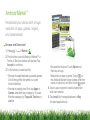
Once your device is activated, you can install
an initial ID Pack. ID Packs are bundles of
applications, ringtones, wallpapers, settings,
and more. ID Packs are installed using an
application called Sprint ID.
You can install as many as five ID Packs at any
one time in addition to the default My ID pack.
You can easily switch from one ID Pack to
another without losing any applications
already installed. For example, when you
install the Sprint ID Pack, Sprint applications
such as Sprint TV, TeleNav™ GPS Navigator,
NASCAR Sprint Cup Mobile, and Sprint
Football Live will remain in your applications.
Install Your First ID Pack
Note: Your device must be activated, your
battery should be fully charged, and you
should be in a network coverage area before
you install an ID Pack.
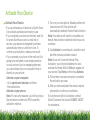
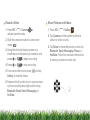
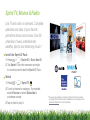
1.From the home screen, tap
.
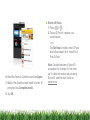
2. On the Welcome to Sprint ID screen, tap
Continue. (If the lock screen appears, unlock
it by dragging the UNLOCK icon [ ] to the
right side of the screen.)
3.Tap Get New on the Choose your ID screen.
(My ID is the default ID Pack.)
4.Tap an ID Pack on the Sprint ID screen.
5.Read the information screen for a
description of the ID Pack and tap Install.