1
Chapter 2
Configuring the Access Point for the First Time
Using the IP Setup Utility
Obtaining IPSU
IPSU is available on the Cisco web site. Click this link to browse to the Software Center on Cisco.com:
http://www.cisco.com/public/sw-center/sw-wireless.shtml
You can find IPSU in the Software Display Tables for access points that run Cisco IOS software.
Using IPSU to Find the Access Point’s IP Address
If your access point receives an IP address from a DHCP server, you can use IPSU to find its IP address.
Because IPSU sends a reverse-ARP request based on the access point MAC address, you must run IPSU
from a computer on the same subnet as the access point. Follow these steps to find the access point’s IP
address:
Step 1
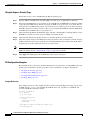
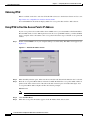
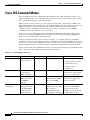
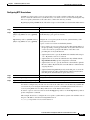
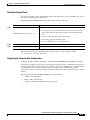
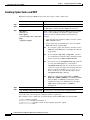
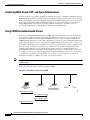
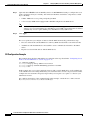
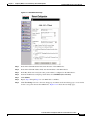
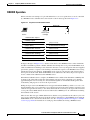
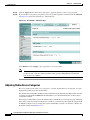
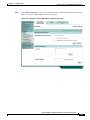
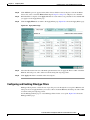
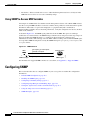
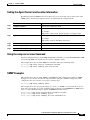
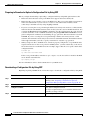
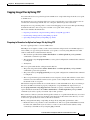
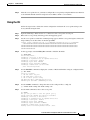
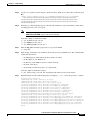
Double-click the IPSU icon on your computer desktop to start the utility. The IPSU screen appears (see
Figure 2-7).
Figure 2-7
IPSU Get IP Address Screen
Step 2
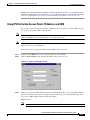
When the utility window opens, make sure the Get IP addr radio button in the Function box is selected.
Step 3
Enter the access point’s MAC address in the Device MAC ID field. The access point’s MAC address is
printed on the label on the bottom of the unit. It should contain six pairs of hexadecimal digits. Your
access point’s MAC address might look like the following example:
000164xxxxxx
Note
The MAC address field is not case-sensitive.
Step 4
Click Get IP Address.
Step 5
When the access point’s IP address appears in the IP Address field, write it down.
Cisco IOS Software Configuration Guide for Cisco Aironet Access Points
2-20
OL-5260-01