1
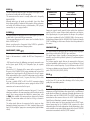
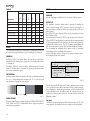
Table 4
MENU
��������
�����
�����
�������������
������
�����
����������
�����������
�����������
�����
�������
�����
�
������
���������
�
�
�
�����
�
�
�
�����������������
�����������������
��������
���������
�
�
�
�
SETUP
The setup menu contains less frequently used adjustments that may
be required during installation (e.g. the display of Test Patterns).
POWER ON
If selected (AUTO), this option allows the unit to be switched on
directly from the mains power supply once the initialisation phase
is terminated.
If disabled (STAND BY), at the end of the initialisation phase the unit
assumes Standby status and awaits the power-up command from
the remote control or keypad.
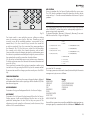
TEST PATTERNS
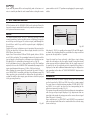
Displays a series of four test patterns, which are useful when installing
the system and checking basic functions (Fig. 11). Use the ▼ and ▲
keys to browse through the test patterns
LANGUAGE
Lists the languages available for the On Screen Display menus.
SOURCE LIST
The functions described below make it possible to modify the
inputs selection menu (INPUTS, which is called by pressing the 0
key) and adapt it so that it matches the requirements of the user
more closely.
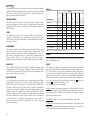
The SOURCE LIST page displays all the inputs physically present on
the DOMINO 55M.
If you want not to show in the INPUT menu an input you do not use,
select SOURCE LIST and position the cursor on the line corresponding
to the input you wish to hide. Now press the ◀ key and select deactivation of the relative source (Fig.12). Of course you will always be
able to activate again a source that has been deactivated before.
The deactivation or activation of the source results in automatic
renumbering of the remaining active sources.
Active video signal sources (shown in the inputs selection menu)
are distinguished by tick symbols.
Source list
1
2
3
4
5
6
7
VIDEO 1
S-VIDEO 2
COMPONENT / RGBS 3
COMPONENT / RGBS 4
GRAPHICS RGB 5
DVI-D 6
HDMI 7
VIDEO 1
3 Yes
S-VIDEO 4
ACTIVE
COMP RGB 5
NAME
COMP RGB 4
GRAPH RGB 5
DVI-D 6
HDMI 7
No
Fig.12
Fig.11
You can also identify the input with a more significant name for the
user (e.g. with the name of the connected device). For this purpose,
after selecting the display of a given input, select the option NAME
in the pull-down menu. To assign a name to a source you can use
up to twelve alphanumeric characters (for more details refer to the
following section).
Restores original factory settings except for POSITION, ORIENTATION,Y/C
DELAY, ZOOM and FOCUS. Confirmation will be requested prior to
executing the operation.
Text insert
Characters are entered using a specific text input menu (Fig.13). This
menu provides the facility to store text strings easily and quickly.
INITIAL SETTINGS
14