Download Crate EN55103 User guide
Transcript
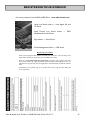
BEATGRID / SYNC / AUTO TEMPO SET A BEAT MARKER Pressing SET will place another marker at the playhead position. The Beat Marker will snap to the closest transient. SETTING A BEAT MARKER WHEN PLAYING A TRACK When you press SET when playing a track you can tap in markers. The Beat Marker will snap to the closest transient. CLEARING A MARKER If you have set an incorrect marker, or you don’t want the first cue point to be the track’s downbeat, you can clear one or more markers. To clear the closest marker to the playhead press SHIFT + SET to delete. NOTE: To clear all markers, continually press SHIFT + SET until the entire beatgrid disappears. ADJUST THE GRID Beatgrid markers may not always be correctly estimated, so you may need to make occasional adjustments. To adjust the beatgrid hold the ADJUST button and move the platter back and forth. The beatgrid will expand or contract to follow your movements from your last set Beat Marker (the red line). When you are happy with the placement of the grid, release the ADJUST button and you can stop moving the platter; the grid will stay adjusted. SLIP BEAT GRID If your beatgrid is sitting perfectly on the track’s beats but the track’s groove or feel is sounding slightly out, you may need to slip the beatgrid. This will move the entire grid slightly to get a perfect fit with the other track’s groove. To slip the grid hold down SHIFT + ADJUST and move the platter to suit. SKIP When beatgrid is set for a track, you can SKIP using the platters to move forwards and back wards in tempo synced jump divisions. Each full platter rotation will Skip 8 bars. SYNC There are two ways to Sync the tracks together: SYNC USING BPM BPM Sync is an advanced feature that will automatically align the transients (usually the drums) in the playing tracks. If neither track being synced has a beatgrid, then a one time sync is performed that aligns the Allen & Heath User Guide for XONE:DX with Serato ITCH 1.7 27