1
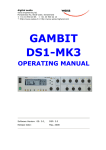
digital audio weiss engineering ltd. Florastrasse 42, 8610 Uster, Switzerland ) +41 1 940 20 06 2 +41 1 940 22 14 8 http://www.weiss.ch / http://www.weiss-highend.com GAMBIT EQ1-DYN OPERATING MANUAL Software Version: 0S: 1.1 OPERATING INSTRUCTIONS FOR GAMBIT EQUALIZER EQ1-DYN CONTENTS CONTENTS CONTENTS _______________________________________________________________________ 2 FRONT PANEL ____________________________________________________________________ 3 Front Panel Groups __________________________________________________________________________ 4 INTRODUCTION __________________________________________________________________ 5 Processing _________________________________________________________________________________ Display____________________________________________________________________________________ Snapshots _________________________________________________________________________________ Remote Control_____________________________________________________________________________ 5 5 5 5 OPERATION ______________________________________________________________________ 6 Status Display_______________________________________________________________________________ 6 Band Parameters ____________________________________________________________________________ 8 Controls __________________________________________________________________________________ 9 M/S Mode ________________________________________________________________________________ 11 Snapshots ________________________________________________________________________________ 12 Dither ___________________________________________________________________________________ 14 Display Resolution __________________________________________________________________________ 14 LCD Contrast _____________________________________________________________________________ 14 EQ Bypass ________________________________________________________________________________ 14 Remote Control____________________________________________________________________________ 15 Software Information ________________________________________________________________________ 15 Self Test__________________________________________________________________________________ 15 TECHNICAL DATA________________________________________________________________ 16 AES/EBU Input_____________________________________________________________________________ AES/EBU Output ___________________________________________________________________________ Power ___________________________________________________________________________________ Overload _________________________________________________________________________________ Filters ___________________________________________________________________________________ Parameter Table ___________________________________________________________________________ Dither ___________________________________________________________________________________ Remote Control Protocol_____________________________________________________________________ Daniel Weiss Engineering Ltd., Florastr. 42, CH-8610 Uster ) +41 1 940 20 06 2 +41 1 940 22 14 8 http://www.weiss.ch 16 16 19 19 19 20 22 23 Page 2 of 27 * [email protected] OPERATING INSTRUCTIONS FOR GAMBIT EQUALIZER EQ1-DYN FRONT PANEL FRONT PANEL • • Ž Œ Graph 1: Front Panel Elements Daniel Weiss Engineering Ltd., Florastr. 42, CH-8610 Uster ) +41 1 940 20 06 2 +41 1 940 22 14 8 http://www.weiss.ch * [email protected] Page 3 of 27 OPERATING INSTRUCTIONS FOR GAMBIT EQUALIZER EQ1-DYN FRONT PANEL Front Panel Groups The front panel of the EQ1 offers several control and display features. These can be grouped according to Graph 1: Front Panel Elements: Œ - Band Parameters • - Menu Ž - Controls • - Snapshots This manual will explain how to operate the EQ1 according to these groups. The Bypass key is discussed separately in chapter EQ Bypass (p. 14). The “gain/ data” encoder appears throughout the rest of this manual and is therefore not explained separately. Daniel Weiss Engineering Ltd., Florastr. 42, CH-8610 Uster ) +41 1 940 20 06 2 +41 1 940 22 14 8 http://www.weiss.ch Page 4 of 27 OPERATING INSTRUCTIONS FOR GAMBIT EQUALIZER EQ1-DYN INTRODUCTION INTRODUCTION Congratulations on purchasing the Weiss Gambit Series EQ1-DYN Digital Equalizer ! The EQ1-DYN is a dynamically controlled equalizer. It has four dynamic bands and three linear bands per channel, each operating at 88.2 or 96 kHz, depending on input sampling frequency (88.2kHz processing with 44.1kHz and 88.2kHz inputs, 96kHz processing with 48kHz and 96kHz inputs). A dynamic band operates similar to a compressor, with two additional features: 1. The band is sensitive to signal level in its frequency range only. There is no crossmodulation from other bands. Some compressors (like the Weiss 102 Compressor) also have this feature, called “sidechain EQ”. The exact centre frequency and bandwidth of the sidechain is dependent on the centre frequency and Q setting of the dynamic band. 2. The gain is only applied to certain frequencies, and not across the whole audio band. No compressor has this feature. In addition to the dynamic operation of the bands, the overall dynamic frequency response is displayed in real-time in the LC display. This is necessary for the proper setup of the parameters of the dynamic band, and it gives direct visual feedback on the operation of the EQ1-DYN, similar to gain reduction meters on compressors. Features of the EQ1-DYN include: Processing Four dynamic peaking filters with threshold adjustment. 24bit digital input, internal 40bit floatingpoint arithmetic, dithered output for 16bit, 20bit or 24bit wordlengths. Daniel Weiss Engineering Ltd., Florastr. 42, CH-8610 Uster ) +41 1 940 20 06 2 +41 1 940 22 14 Display Double logarithmic graph of the magnitude function of the equalizer calculated in real time Status display showing sampling frequency, channel status data handling, current workspace and snapshot number and a resetable peak-hold and over-hold per channel Band display (activated by touch) showing boost, Q/ slope and frequency settings for each band Two over-LED’s with settable number of consecutive over-samples which cause an “over” display combined with an over-hold function Snapshots 3 x 128 non-volatile snapshots where all parameters are stored A-B workspaces for quick comparison between two settings Remote Control Supports MIDI, RS-232 and RS-422 protocols Standard MIDI Continuous Controllers for parameter remote control (including overall gain) Snapshot automatization with MIDI Program Change Commands MIDI Dump of Snapshots 8 http://www.weiss.ch Page 5 of 27 * [email protected] OPERATING INSTRUCTIONS FOR GAMBIT EQUALIZER EQ1-DYN OPERATION OPERATION The following explanations assume that the equalizer is in power-up mode, i.e. no menu is active. If a menu is active, press the “menu” key repeatedly until the status display appears. Use this value to set the optimal gain for a specific session. Reset it for every session. Status Display Key A Over-Hold Key B Whenever an over is encountered, the boxes to the side of the peak-hold values are marked. Key C Key D Graph 2: Status Display The status display consists of four groups displaying audio signal properties and information about the current state of the EQ1. The groups are situated adjacent to the softkeys to the right of the LCD (Graph 2). Channel Status Group Situated adjacent to key A, displays the following information: sampling frequency in kHz: “44.1”, “ 48”, “88.2” or “96” pre-emphasis: “E” appears if pre-emphasis is set (empty if not used) input output channel status data format: “C” for consumer and “P” for professional To change the output channel status data format, press key A and select format type or loop through. Peak Group Situated adjacent to key B, this group contains a peak-hold and an over-hold for each channel. To reset these values press key B twice. The functions of the over-LED’s and the overhold both depend on the NUMBER OF CONSECUTIVE OVER-SAMPLES setting. To adjust this setting, press key B once. Use the “gain/ data” encoder to change the value, then press “menu” to return to the status display. This setting defines the number of consecutive over-samples needed for an over-indication. To indicate every over-sample, enter 1. If another value is entered, you are still able to detect a single over-sample with the peak-hold function. Over-samples are defined as exceeding the 24bit integer range. A full scale signal (0dBFS) will not be treated as over. A signal that triggered an over in a previous processor in the audio chain will therefore not trigger an over in the EQ1 (unless boosted). Remote Group Situated adjacent to key C, displays remote control protocol (“MIDI”, “RS 232” or “RS 422”), channel (“1” - “16”) and status (on/ off, displayed with check box). For remote control set-up see chapter Remote Control. Peak-Hold The numeric peak value is measured relative to 0dBFS, where 0dB equals digital full scale. Daniel Weiss Engineering Ltd., Florastr. 42, CH-8610 Uster ) +41 1 940 20 06 2 +41 1 940 22 14 8 http://www.weiss.ch Page 6 of 27 * [email protected] OPERATING INSTRUCTIONS FOR GAMBIT EQUALIZER EQ1-DYN OPERATION Snapshot Display Bottom line in the status display. Refer to this for information on current workspace and snapshot. There are two workspaces (“A” and “B”) for quick comparison of two equalizer settings. A workspace can be stored to a snapshot for later use. The number of the last recalled snapshot will be displayed. If you change any value after the recall, the “ ” will change to “ ” to symbolize that the workspace is not equal to the displayed snapshot anymore. For snapshot handling see chapter Snapshots. Dither Icon The dither icon is situated right next to key D (see Graph 2). If dither is off, the icon contains the number “24“, the word length of the output signal in bits. Turning dither on will produce arrows above and below the new word length number (“16“ or “20“). Additionally, if autoblacking is enabled, the bottom right corner of the icon is inverted. For details on dither refer to chapter Dither. Daniel Weiss Engineering Ltd., Florastr. 42, CH-8610 Uster ) +41 1 940 20 06 2 +41 1 940 22 14 8 http://www.weiss.ch Page 7 of 27 * [email protected] OPERATING INSTRUCTIONS FOR GAMBIT EQUALIZER EQ1-DYN OPERATION Band Parameters What Is A Band? The EQ1 has seven independent bands per channel. A band has the following parameters which can be adjusted separately for each band: 1. Mode 2. Boost To activate a band and see its detailed parameter values, touch any knob in a band (see Graph 1, Œ ). The active band’s parameter values will be shown in the band display (see Graph 4) replacing the status display, and its LED chain will light up, showing you where to adjust the parameter values. 3. Q/ Slope / Shape 4. Frequency Mode specifies the filter type. There are five filter types (low and high cut, low and high shelving and peaking) and a bypass mode. Each band has its own five-LED chain to indicate its active mode (see Graph 4: Band Display Depending on the setting of “Auto Switchback From Band To Status Display”, this display will hold or disappear again after having released the knob. Graph 3). To change the “Auto Switchback From Band To Status Display” setting, press the “menu” key, then select “Controls” with key B. The value can now be changed with key B. High Shelving Low Shelving Peaking Range High Cut The parameters’ range is independent of the mode and is listed at page 20. Low Cut Graph 3: Mode LEDs Daniel Weiss Engineering Ltd., Florastr. 42, CH-8610 Uster ) +41 1 940 20 06 2 +41 1 940 22 14 8 http://www.weiss.ch Page 8 of 27 * [email protected] OPERATING INSTRUCTIONS FOR GAMBIT EQUALIZER EQ1-DYN Adjusting Band Parameters Controls To adjust boost, Q/ slope or frequency simply turn the corresponding knob (see Table 1). Peaking-Filter Dynamic-Peaking Shelve-Filter Cut-Filter OPERATION See Graph 1: Front Panel Elements, Ž. “boost” “Q/ slope” “frequency” set boost set boost set boost - set Q set Q / threshold set shape set slope set centre frequency set centre frequency set 3dB frequency set -3dB frequency Table 1 To adjust the mode, activate the band. Press a key (Table 2) to change the mode value. The active mode is highlighted and the adjacent softkey is lit. Mode CH1 & CH2 These two keys patch the band controls to the according channels. The band controls can either be separate for each channel or ganged together. Key A Key B Key C Key D toggle lo- / hishelve toggle peaking /dynamic peaking toggle lo- / hi-cut bypass Table 2 If the band bypass is on (highlighted), its filter settings (type and parameters) are saved but have no effect on the audio signal. Turning bypass off will restore the previous band settings. Bypassing all bands is sonically equivalent to using the overall bypass (refer to EQ Bypass) if the gain is set to 0.0dB. Only bands 1, 2, 5, and 6 can be set into dynamic mode. This allows for linear gain adjustment before and after a dynamic band. Daniel Weiss Engineering Ltd., Florastr. 42, CH-8610 Uster ) +41 1 940 20 06 2 +41 1 940 22 14 The key is lit for the active channel. To copy CH1 settings to CH2 or vice versa, press the “copy” key and select an option (Graph 6). Ganged When this key is lit, the band controls act for both channels simultaneously. Switching channels while the “ganged” key is lit will activate CH1 and CH2 settings alternately for both channels. If ganged is off, the controls will affect the active channel only. 8 http://www.weiss.ch Page 9 of 27 * [email protected] OPERATING INSTRUCTIONS FOR GAMBIT EQUALIZER EQ1-DYN Dynamic If a dynamic peaking-filter has been selected, pressing the “dynamic” key will toggle the Qcontroller of the peaking band between Q- and Threshold-adjustment (this can also be seen in the band display, where either the Q or the threshold value is shown). How to set a dynamic band A good way to start off is by taking some material, and setting the EQ1-DYN so as to correct or pronounce all the bands which you feel need processing. Do the adjustments in normal peaking mode, not in dynamic peaking mode. Set everything so you get the feeling that this improves the “sound” of the material. Now take any band and set it to dynamic peaking mode by pressing key B. Adjust the threshold of the band until you see movement in the frequency response window of the EQ1-DYN (the threshold setting is important for the function of the dynamic EQ, very much like for a compressor). This is a good starting point for experiments! OPERATION will adjust itself to correct volume imbalances between the two instruments. De-Essing “Ess”-sounds usually occur on, but are not limited to, recordings with human vocals. They are the product of over-compression (common on TV or radio recordings), or similar effects, like saturation of magnetic mediums. These sounds are characterised by an exaggerated hiss or “s”-pronunciation (hence the name). They are mostly concentrated in the band between 1kHz - 10kHz.. Just applying attenuation by EQ in this band will render the recording dull and muffled. High frequency content is very important for hearing enjoyment, so simply attenuating will reduce programme quality. By applying dynamic cut EQ, the “ess”-sounds can be reduced, without affecting low-level high-frequency content, improving the quality. We give two examples for dynamic band usage: Correcting musical instrument volume imbalances EQing is the process of changing the spectral balance of any audio programme. By EQing, we wish to, for example, attenuate or boost a certain instrument within a complex piece of music. It is clear from our hearing experiences that most instruments overlap in their frequency ranges, so trying to affect one certain instrument by EQ without affecting others is usually impossible. This especially becomes a problem if two instruments in the same band are not in volume balance, i.e. one is too loud and masks the other. One remedy for this is to apply either some boost or cut EQ in that band (either boost the soft instrument or attenuate the loud one). Except that this process affects both instruments. However, when using dynamic EQ, the boost is only applied if the loud instrument pauses. On the other hand, one can apply some dynamic attenuation whenever the loud instrument plays. The dynamic filter Daniel Weiss Engineering Ltd., Florastr. 42, CH-8610 Uster ) +41 1 940 20 06 2 +41 1 940 22 14 8 http://www.weiss.ch Page 10 of 27 * [email protected] OPERATING INSTRUCTIONS FOR GAMBIT EQUALIZER EQ1-DYN M/S Mode A 2-channel stereo signal can be transformed from the L/R (left/right) domain into the M/S (mid/side) domain and back without any signal degradation. In the M/S domain, the two channels representing the stereo signal contain information on the Mid (mono) and Side content of the stereo signal. Equalizing in the M/S domain can, for example, just affect vocals or instruments centred in the stereo mix. Or, by boosting the S channel, result in frequency dependent stereo-base enhancement. OPERATION and the output to L/R – the eq section can be set to either, depending upon which domain one wants to eq. Another option is encoding a L/R signal to M/S for further M/S processing outside the EQ1-MK2. Then the output will have to be set to M/S and the input to L/R. Again, the eq section can operate in either domain. To compensate for different non-standardized M/S formats, there is a L/R swap option. This, as the name implies, will swap the decoded left and right channels, and will be used when decoding M/S recorded material to L/R. On/Off Press the “menu” key, then select the “System -> MS coding” option. This opens the “MS Coding Setup” menu (see Graphic 5). Graphic 5: MS Coding Setup Menu The MS mode is activated by toggling the “M/S on/off” value with key C. The M/S icon will appear in the top left corner of the frequency response window to indicate that M/S mode is active. Setup Several possible M/S configurations can be accomodated for in the EQ1. This can be achieved with the “M/S Setup” option by pressing key D. The user is then taken through a procedure to specify the setup to be used. The “back” and “next” keys help negotiating within the setup procedure. To eq a standard L/R stereo signal in the M/S domain, the input and output sections are specified as L/R, while the EQ is set to M/S. If one decides to decode a M/S recording, for example, the input would have to be set to M/S Daniel Weiss Engineering Ltd., Florastr. 42, CH-8610 Uster ) +41 1 940 20 06 2 +41 1 940 22 14 8 http://www.weiss.ch Page 11 of 27 * [email protected] OPERATING INSTRUCTIONS FOR GAMBIT EQUALIZER EQ1-DYN Snapshots See Graph 1: Front Panel Elements, •. Snapshots are copies of the EQ1 parameter settings. This allows recalling complete set-ups including all filter parameters and controls settings. Snapshots can be recalled from the front panel or by remote control (e.g. MIDI Program Change). A-B Comparison You can compare two settings by using the two workspaces “A” and “B”. To toggle between the two press the “A-B” key. Restore a snapshot or simply adjust the filters in one workspace, then switch to the other to compare. To copy workspace “A” to “B” or vice versa, press the “copy” key and select an option (Graph 6). OPERATION If the “Preview” option is not marked, the snapshots will be recalled as soon as you enter a new number. Press the “recall” key to return to the status display. “Recall 0” Snapshot 0 is used as a resetting curve. To reset the current workspace, press the “recall” key then the“ Recall 0” key. Store To store the current workspace to a snapshot, press the “store” key. With the “gain/ data” encoder enter the snapshot number where you want to store the workspace, then press key D. Snapshots can be prevented from accidental erasure by marking the “Safe” option. A setting can be stored to multiple snapshots. Press “To Range” in the “store” menu. Graph 6: "copy" menu The active workspace is shown in the status display. Graph 7: Store To Range Menu Recall To recall a snapshot press the “recall” key. Notice that the snapshot will be copied into the active workspace. If you do not want to lose these settings, switch to the other workspace by pressing the “A-B” key. Using the “gain/ data” encoder enter the number of the snapshot you want to recall. The graph of the snapshot will be displayed in preview mode (outlined) to facilitate finding a certain setting. However, the audio signal is not affected if the “Preview” option is marked. Once you have found the snapshot, press key D to restore it. Press the adjacent keys to select “Start” and “End” snapshot number, use the “gain/ data” encoder to enter a value (Graph 7). Pressing “Execute” will store the setting from the displayed workspace (“A” or “B”) to all snapshots between the Start and End value. A “Safe” snapshot will not be overwritten. Backup All 128 snapshots can be transferred to another non-volatile memory area for later reference. There is enough memory for two complete snapshot sets to be backed up. Press the “menu” key then choose the “System” and then the “Backup” option to arrive at the backup display (Graph 8). Daniel Weiss Engineering Ltd., Florastr. 42, CH-8610 Uster ) +41 1 940 20 06 2 +41 1 940 22 14 8 http://www.weiss.ch Page 12 of 27 * [email protected] OPERATING INSTRUCTIONS FOR GAMBIT EQUALIZER EQ1-DYN OPERATION Loading Graph 8: Backup Display Select “Create 1” to save the current snapshots to bank 1. Select “Restore 1” to overwrite the current snapshots with bank 1 (ditto for bank 2). To load a snapshot dump from sequencer, simply play the dump sequence. The EQ1 will automatically switch into receive mode and display statistics about the snapshots it’s receiving. If the transmission was OK and no errors occured, the program switches back to normal mode. Upon error, you have to manually switch back to normal mode. When playing back the dump sequence, always use the same speed as when the sequence was recorded. A backup will overwrite “safe” snapshots. Reset To reinstall the factory snapshots you must press the “menu” key then choose the “System” and then the “Reset all” option. This will reset the current snapshots. The snapshots that have been backed up are preserved. Dumping The settings of all 128 snapshots can be dumped to a remote control port to be stored externally. Please make sure that you have connected everything correctly and that the proper remote control port is activated (see chapter Remote Control for setup). When dumping to a MIDI-sequencer, make sure that the sequencer is not sending or receiving data other than the snapshot dump. Certain sequencers are not capable of handling the amount of data output by the EQ1 and might crash during or after the dump process. Always save the sequencer settings before recording a dump! To initiate a dump, press the “menu” key then choose the “System” and then the “Dump” option. Start the recording process on the sequencer, then press “Transmit”. This releases the dump to the sequencer. Daniel Weiss Engineering Ltd., Florastr. 42, CH-8610 Uster ) +41 1 940 20 06 2 +41 1 940 22 14 8 http://www.weiss.ch Page 13 of 27 * [email protected] OPERATING INSTRUCTIONS FOR GAMBIT EQUALIZER EQ1-DYN Dither The DS1-MK2 v2.0 is able to apply POW-R type dither algorithms to avoid distortion when requantizing from 24bit to 16bit or 20bit output word length (see TECHNICAL DATA for dither specifications). To toggle dither on/off, press key D twice. To see dither status refer to the status display (see Fehler! Verweisquelle konnte nicht gefunden werden. p. Fehler! Textmarke nicht definiert.). Word Length To set output word length, press key D and select the appropriate wordlength. Setup Press key D then chose the setup menu. This leads to the menu where the type of POW-R dither can be chosen (see TECHNICAL DATA for dither specifications). Also selectable is: Auto-Blacking OPERATION range that suits your curve and press the “menu” key again to return to the status display. LCD Contrast To change the display contrast, press the “menu” key, then select “Display”. Adjust contrast with the “gain/ data” encoder. EQ Bypass The EQ1 can be completely bypassed with the green “bypass” key below the mains switch. If the “bypass” key is lit, the EQ1 is absolutely transparent, making the output signal bit equal to the input signal. While bypass is active (key is lit), the EQ1 works in preview mode. This allows you to change parameters without actually affecting the audio signal. The frequency curve is drawn outlined over the flat bypass curve, so you still get the advantage of the graph when modifying parameters. As soon as bypass is deactivated, the outlined curve takes effect. If auto-blacking is activated by marking the “0 IN à 0 OUT“ option, dither will be turned off if the input signal is zero As soon as the input signal changes, dither will be turned on again. This ensures that pauses between programmes are still digital zero, even if dither is activated. Display Resolution The magnitude of the overall frequency response of the EQ1 is drawn on the LC display. This immensely facilitates filter parameter adjustment because it takes one look to see what the equalizer is doing instead of having to work it out from the parameter values. To obtain the maximum benefit from the graph, set the vertical display resolution to a range that just covers your settings. There are four ranges available: ± 6dB, ± 12dB, ± 18dB, ± 24dB To change the display resolution, press the “menu” key, then select “Display”. Choose a Daniel Weiss Engineering Ltd., Florastr. 42, CH-8610 Uster ) +41 1 940 20 06 2 +41 1 940 22 14 8 http://www.weiss.ch Page 14 of 27 * [email protected] OPERATING INSTRUCTIONS FOR GAMBIT EQUALIZER EQ1-DYN Remote Control All band parameters as well as control settings can be set externally. To see remote control status refer to the status display. OPERATION Software Information Press the “menu” key, then select the “System -> About” option. This displays a screen with all the relevant information on your EQ1 and how to reach us. Have this page ready when you want to report a problem. Protocol To select a remote control protocol, press key C from the status display menu. Select either “RS 232”, “RS 422” or “MIDI”. This will determine which port at the rear of the EQ1 is active. The other inactive ports will be ignored. Press the “menu” key to return to the status display if you do not want to change remote on/ off status. Self Test Press the “menu” key, then select the “System -> Selftest” option. This will start a procedure that checks the functionality of all input and display devices. When selecting a port other than MIDI you have to specify the baud rate. Refer to the remote control software manual for correct settings. The set baud rate is displayed to ensure proper setup. Channel To change the remote control channel number, press key C (adjacent to the remote control field). Use the “gain/ data” encoder to select a value between 1 and 16. Press the “menu” key to return to the status display. The EQ1 does not support poly-mode (listening on all channels). Select the same channel on the controller software as is set internally, else no remote control messages will be received. On/ Off To enable or disable remote control, press key C (adjacent to the remote control field). Press it again to toggle the “ON/ OFF”-value. While remote control is off, data will still be sent to the selected port. Also, the MIDI THRU output will always mirror the MIDI IN input data regardless of “ON/ OFF” or protocol status. Daniel Weiss Engineering Ltd., Florastr. 42, CH-8610 Uster ) +41 1 940 20 06 2 +41 1 940 22 14 8 http://www.weiss.ch Page 15 of 27 * [email protected] OPERATING INSTRUCTIONS FOR GAMBIT EQUALIZER EQ1-DYN TECHNICAL DATA TECHNICAL DATA AES/EBU Input Sampling Frequencies: Maximum Input Wordlength: Channel Status Data: Channel Status Bits forwarded to AES/EBU output: Connector: 44.1 kHz, 48.0 kHz, 88.2 kHz, 96.0 kHz 24 Bits Input accepts professional or consumer format. see table below XLR female AES/EBU Output Sampling Frequencies: Output Wordlength: Connector: 44.1 kHz, 48.0 kHz, 88.2 kHz, 96.0 kHz (always the same as the input) 24 Bits XLR male AES/EBU Channel Status Data The EQ1 allows to convert the incoming Channel Status Data as follows: From Consumer to Professional From Professional to Consumer Transparent mode, i.e. Channel Status Data is fed forward to the output without any conversion (one exception, see below) Daniel Weiss Engineering Ltd., Florastr. 42, CH-8610 Uster ) +41 1 940 20 06 2 +41 1 940 22 14 8 http://www.weiss.ch Page 16 of 27 * [email protected] OPERATING INSTRUCTIONS FOR GAMBIT EQUALIZER EQ1-DYN TECHNICAL DATA The following tables describe how the Channel Status Data bits are generated in the various conversion modes. Output selected: Consumer format. Input: Consumer format. Output: All bits fed forward (transparent), except for: Byte 1: Bits 0..6: 0000000 (category code general) Bit 7: 1 (original) Input: Professional format. Output: Byte 0: Bit 0: 0 (consumer) Bit 1: 0 (audio) Bit 2: 1 (copy allowed) Bits 3,4: Preemphasis according to input Bit 5: 0 (2 channel mode) Bits 6,7: 00 (Mode 0) Byte 1: Bits 0..6: 0000000 (category code general) Bit 7: 1 (original) Byte 2: Bits 0,1,2,3: Sampling Frequency according to input Bits 4,5: 00 (accuaracy grade II) Bits 6,7: 00 Bytes 3..23: reserved bytes Daniel Weiss Engineering Ltd., Florastr. 42, CH-8610 Uster ) +41 1 940 20 06 2 +41 1 940 22 14 8 http://www.weiss.ch Page 17 of 27 * [email protected] OPERATING INSTRUCTIONS FOR GAMBIT EQUALIZER EQ1-DYN TECHNICAL DATA Output selected: Professional format. Input: Professional format. Output: All bits fed forward (transparent), except for: Byte 2: Bits 0,1,2: 001 (max. sample length= 24bit) Bits 3,4,5: 101 (24 bit word length) Bits 6,7: 00 Input: Consumer format. Output: Byte 0: Bit 0: 1 (professional) Bit 1: 0 (audio) Bits 2,3,4: Preemphasis according to input Bit 5: 0 (source fs locked) Bits 6,7: Sampling Frequency according to input Byte 1: Bits 0,1,2,3: 0001 (two channel mode) Bits 4,5,6,7: 0000 (no user bit encoding) Byte 2: Bits 0,1,2: 001 (max. sample length= 24bit) Bits 3,4,5: 101 (24 bit word length) Bits 6,7: 00 Bytes 3..12: All bits 0 Byte 23: CRCC byte Output selected: Transparent. Input: Any format. Output: All bits fed forward (transparent), except if EQ not bypassed: Byte 2: Bits 0,1,2: 001 (max. sample length= 24bit) Bits 3,4,5: 101 (24 bit word length) Bits 6,7: 00 Daniel Weiss Engineering Ltd., Florastr. 42, CH-8610 Uster ) +41 1 940 20 06 2 +41 1 940 22 14 8 http://www.weiss.ch Page 18 of 27 * [email protected] OPERATING INSTRUCTIONS FOR GAMBIT EQUALIZER EQ1-DYN TECHNICAL DATA Power Mains Voltage: Fuse rating: Power Consumption: 110 / 220 Volts with voltage selector 500 mA slow blow 40VA max Overload Number of consecutive over-samples to cause “over” display: 1..16 settable Filters The filter topology used in the EQ1 is a very low noise filter structure for a state of the art performance. Daniel Weiss Engineering Ltd., Florastr. 42, CH-8610 Uster ) +41 1 940 20 06 2 +41 1 940 22 14 8 http://www.weiss.ch Page 19 of 27 * [email protected] OPERATING INSTRUCTIONS FOR GAMBIT EQUALIZER EQ1-DYN TECHNICAL DATA Parameter Table Frequencies (in Hertz): 13.8, 15.4, 17.3, 19.4, 21.8, 24.5, 27.5, 30.9, 34.6, 38.9, 43.7, 49.0, 50.0, 51.9, 55.0, 58.3, 60.0, 61.7, 65.4, 69.3, 73.4, 77.8, 82.4, 87.3, 92.5, 98.0, 100, 104, 110, 117, 120, 123, 131, 139, 147, 150, 156, 165, 175, 180, 185, 196, 200, 208, 220, 233, 240, 247, 250, 262, 277, 294, 300, 311, 330, 349, 360, 370, 392, 415, 440, 466, 494, 523, 554, 587, 622, 659, 698, 740, 784, 831, 880, 932, 988, 1047, 1109, 1175, 1245, 1319, 1397, 1480, 1568, 1661, 1760, 1865, 1976, 2093, 2217, 2349, 2489, 2637, 2794, 2960, 3136, 3322, 3520, 3729, 3951, 4186, 4435, 4699, 4978, 5274, 5588, 5920, 6272, 6645, 7040, 7459, 7902, 8372, 8870, 9397, 9956, 10548, 11175, 11840, 12544, 13290, 14080, 14917, 15804, 16744, 17740, 18795, 19912, 21096. Boost/Cuts, applicable to shelving and peaking filters: All numbers in dB: -39.0, -36.0, -33.0, -30.0, -27.0, -24.0, -21.0, -18.0, -17.0, -16.0, -15.0, -14.0, -13.0, -12.0, -11.5, -11.0, 10.5, -10.0, -9.5, -9.0, -8.5, -8.0, -7.5, -7.0, -6.5, -6.0, -5.5, -5.0, -4.8, -4.5, -4.3, -4.0, -3.8, -3.5, -3.3, 3.0, -2.9, -2.8, -2.7, -2.6, -2.5, -2.4, -2.3, -2.2, -2.1, -2.0, -1.9, -1.8, -1.7, -1.6, -1.5, -1.4, -1.3, -1.2, -1.1, 1.0, -0.9, -0.8, -0.7, -0.6, -0.5, -0.4, -0.3, -0.2, -0.1, 0.0, 0.1, 0.2, 0.3, 0.4, 0.5, 0.6, 0.7, 0.8, 0.9. 1.0, 1.1, 1.2, 1.3, 1.4, 1.5, 1.6, 1.7, 1.8, 1.9. 2.0, 2.1, 2.2, 2.3, 2.4, 2.5, 2.6, 2.7, 2.8, 2.9, 3.0, 3.3, 3.5, 3.8, 4.0, 4.3, 4.5, 4.8, 5.0, 5.5, 6.0, 6.5, 7.0, 7.5, 8.0, 8.5, 9.0, 9.5, 10.0, 10.5, 11.0, 11.5, 12.0, 12.5, 13.0, 13.5, 14.0, 14.5, 15.0, 15.5, 16.0, 17.0, 18.0. Q, applicable to peaking filters: 0.20, 0.25, 0.30, 0.35, 0.40, 0.45, 0.50, 0.55, 0.60, 0.65, 0.70, 0.75, 0.80, 0.85, 0.90, 0.95, 1.00, 1.05, 1.10, 1.15, 1.20, 1.25, 1.30, 1.35, 1.40, 1.45, 1.50, 1.55, 1.60, 1.65, 1.70, 1.75, 1.80, 1.85, 1.90, 1.95, 2.00, 2.10, 2.20, 2.30, 2.40, 2.50, 2.60, 2.70, 2.80, 2.90, 3.00, 3.10, 3.20, 3.30, 3.40, 3.50, 3.60, 3.70, 3.80, 3.90, 4.00, 4.10, 4.20, 4.30, 4.40, 4.50, 4.60, 4.70, 4.80, 4.90, 5.00, 5.50, 6.00, 6.50, 7.00, 7.50, 8.00, 8.50, 9.00, 9.50, 10.0, 11.0, 12.0, 13.0, 14.0, 15.0, 16.0, 17.0, 18.0, 19.0, 20.0, 22.0, 24.0, 26.0, 28.0, 30.0, 35.0, 40.0, 45.0, 50.0, 55.0, 60.0, 65.0, 70.0, 75.0, 80.0, 85.0, 90.0, 95.0, 100, 110, 120, 130, 140, 150, 160, 170, 180, 190, 200, 220, 240, 260, 280, 300, 350, 400, 450, 500, 550, 600, 650 Daniel Weiss Engineering Ltd., Florastr. 42, CH-8610 Uster ) +41 1 940 20 06 2 +41 1 940 22 14 8 http://www.weiss.ch Page 20 of 27 * [email protected] OPERATING INSTRUCTIONS FOR GAMBIT EQUALIZER EQ1-DYN TECHNICAL DATA Shape, applicable to shelving filters: 1, 2, 3, 4, 5, 6, 7, 8, 9, 10, 11, 12, 13, 14, 15, 16, 17, 18, 19, 20, 21, 22, 23, 24, 25, 26, 27, 28, 29, 30, 31, 32, 33, 34, 35, 36, 37, 38, 39, 40 ,41, 42, 43, 44, 45, 46, 47, 48, 49, 50, 51, 52, 53, 54, 55, 56, 57, 58, 59, 60, 61, 62, 63, 64, 65, 66, 67, 68, 69, 70, 71, 72, 73, 74, 75, 76, 77, 78, 79, 80, 81, 82, 83, 84, 85, 86, 87, 88, 89, 90, 91, 92, 93, 94, 95, 96, 97, 98, 99, 100, 101, 102, 103, 104, 105, 106, 107, 108, 109, 110, 111, 112, 113, 114, 115, 116, 117, 118, 119, 120, 121, 122, 123, 124, 125, 126, 127, 128 Threshold, applicable to dynamic peaking filters: All numbers in dB: 0, -1, -2, -3, -4, -5, -6, -7, -8, -9, -10, -11, -12, -13, -14, -15, -16, -17, -18, -19, -20, -21, -22, -23, -24, 25, -26, -27, -28, -29, -30, -31, -32, -33, -34, -35, -36, -37, -38, -39, -40, -41, -42, -43, -44, -45, -46, -47, -48, -49, -50, -51, -52, -53, -54, -55, -56, -57, -58, -59, -60 Slope, applicable to cut filters: 0dB/octave, 6dB/ octave, 12dB/ octave Overall Gain: All numbers in dB: - , -92.0, -89.0, -86.0, -83.0, -80.0, -77.0, -74.0, -71.0, -68.0, -65.0, -62.0, -59.0, -56.0, -53.0, -50.0, 48.0, -46.0, -44.0, -42.0, -40.0, -39.0, -38.0, -37.0, -36.0, -35.0, -34.0, -33.0, -32.0, -30.0, -29.5, -29.0, 28.5, -28.0, -27.5, -27.0, -26.5, -26.0, -25.5, -25.0, -24.5, -24.0, -23.5, -23.0, -22.5, -22.0, -21.5, -21.0, 20.5, -20.0, -19.5, -19.0, -18.5, -18.0, -17.5, -17.0, -16.5, -16.0, -15.5, -15.0, -14.5, -14.0, -13.5, -13.0, 12.5, -12.0, -11.5, -11.0, -10.5, -10.0, -9.5, -9.0, -8.5, -8.0, -7.5, -7.0, -6.5, -6.0, -5.8, -5.6, -5.4, -5.2, 5.0, -4.8, -4.6, -4.4, -4.2, -4.0, -3.8, -3.6, -3.4, -3.2, -3.0, -2.8, -2.6, -2.4, -2.2, -2.0, -1.8, -1.6, -1.4, -1.2, 1.0, -0.8, -0.6, -0.4, -0.2, 0.0, 0.5, 1.0, 1.5, 2.0, 2.5, 3.0, 3.5, 4.0, 4.5, 5.0, 5.5, 6.0, 6.5, 7.0, 7.5, 8.0, 8.5, 9.0, 9.5, 10.0 Daniel Weiss Engineering Ltd., Florastr. 42, CH-8610 Uster ) +41 1 940 20 06 2 +41 1 940 22 14 8 http://www.weiss.ch Page 21 of 27 * [email protected] OPERATING INSTRUCTIONS FOR GAMBIT EQUALIZER EQ1-DYN TECHNICAL DATA Dither Dithering algorithm is implemented using the POW-R set of algorithms. Graph shows the three algorithms at 44.1kHz and 88.2kHz sampling rates each. Graph 9: Output spectrum with 80dBFS / 1kHz sine wave, dithered to 16 Bits, using the three POW-R algorithms at 44.1kHz and 88.2kHz respectively Daniel Weiss Engineering Ltd., Florastr. 42, CH-8610 Uster ) +41 1 940 20 06 2 +41 1 940 22 14 8 http://www.weiss.ch Page 22 of 27 * [email protected] OPERATING INSTRUCTIONS FOR GAMBIT EQUALIZER EQ1-DYN TECHNICAL DATA Remote Control Protocol MIDI Implementation Parameter Remote Control All band parameters plus the controls parameters are remote controllable. Each parameter has its corresponding MIDI controller number. According to the different parameters, the controllers are limited in their range. Invalid values are replaced by the maximum allowable values. Following is a list of the supported MIDI system inclusive commands: Action MIDI Message Status Byte Data Byte(s) Comment Restore Snapshot Program Change 1100 cccc 0ppp pppp (cccc) Channel No. 0 - 127 Adjust Boost/Cut CH1 Band 1 Control Change 1011 cccc 00000000 ($00) 0vvv vvvv Adjust Q CH1 Band 1 Control Change 1011 cccc 00000001 ($01) 0vvv vvvv (cccc) Channel No. (vvvvvvv) New Value: 0 - 127 Adjust Frequency CH1 Band 1 Control Change 1011 cccc 00000010 ($02) 0vvv vvvv (cccc) Channel No. (vvvvvvv) New Value: 0 - 127 Adjust Slope CH1 Band 1 Control Change 1011 cccc 00000011 ($03) 0vvv vvvv (cccc) Channel No. (vvvvvvv) New Value: 0-2 Adjust Band Mode CH1 Band 1 Control Change 1011 cccc 00000100 ($04) 0vvv vvvv (cccc) Channel No. (vvvvvvv) New Value: 0-9 CH1 Band 2 CH1 Band 3 CH1 Band 4 CH1 Band 5 CH1 Band 6 CH1 Band 7 CH2 Band 1 CH2 Band 2 CH2 Band 3 CH2 Band 4 CH2 Band 5 CH2 Band 6 CH2 Band 7 Control Change Control Change Control Change Control Change Control Change Control Change Control Change Control Change Control Change Control Change Control Change Control Change Control Change ... ... ... ... ... ... ... ... ... ... ... ... ... $05 - $09 $0A - $0E $0F - $13 $14 - $18 $19 - $1D $1E - $22 $23 - $27 $28 - $2C $2D - $31 $32 - $36 $37 - $3B $3C - $40 $41 - $45 Overall Gain CH1 Control Change 1011 cccc $46 0vvv vvvv Daniel Weiss Engineering Ltd., Florastr. 42, CH-8610 Uster ) +41 1 940 20 06 2 +41 1 940 22 14 8 http://www.weiss.ch (ppppppp) New Prog No: (cccc) Channel No. (vvvvvvv) New Value: 0 - 127 (cccc) Channel No. (vvvvvvv) New Value: 0 - 127 Page 23 of 27 * [email protected] OPERATING INSTRUCTIONS FOR GAMBIT EQUALIZER EQ1-DYN TECHNICAL DATA Overall Gain CH2 Control Change 1011 cccc $47 0vvv vvvv (cccc) Channel No. (vvvvvvv) New Value: 0 - 127 Thresholds CH1 Control Change 1011 cccc $48..$4B 0vvv vvvv (cccc) Channel No. (vvvvvvv) New Value: 0 - 127 Thresholds CH2 Control Change 1011 cccc $4C..$4F 0vvv vvvv (cccc) Channel No. (vvvvvvv) New Value: 0 - 127 MSC Mode Control Change 1011 cccc $50 0vvv vvvv CH1 / 2 SELECT Control Change 1011 cccc $51 0vvv vvvv (cccc) Channel No. (vvvvvvv) New Value: Bit 0: on/off, 1=on Bit 1: Input: 1=MSC, 0=L/R Bit 2: EQ: 1=MSC, 0=L/R Bit 3: Output: 1=MSC, 0=L/R Bit 4: 1 = CH swap, 0= norm (cccc) Channel No. (vvvvvvv) New Value: 0, 1 Set Ganged Mode Control Change 1011 cccc $52 0vvv vvvv (cccc) Channel No. (vvvvvvv) New Value: 0, 1 Toggle A <> B Control Change 1011 cccc $53 0vvv vvvv (cccc) Channel No. (vvvvvvv) New Value: 0, 1 EQ Bypass Control Change 1011 cccc $54 0vvv vvvv (cccc) Channel No. (vvvvvvv) New Value: 0, 1 1111 1111 - Recall Snapshot 0 to WS A System Reset Daniel Weiss Engineering Ltd., Florastr. 42, CH-8610 Uster ) +41 1 940 20 06 2 +41 1 940 22 14 8 http://www.weiss.ch Page 24 of 27 * [email protected] OPERATING INSTRUCTIONS FOR GAMBIT EQUALIZER EQ1-DYN TECHNICAL DATA Dump Remote Control All System-Exklusive commands consist of a header, a message type, possible data and the EOS (end of system exclusive). Below is the format of the header: Byte Value Description Section 1 F0 Sysex Header 2 00 Manufacturer's ID 3 30 Manufacturer's ID 4 5A Manufacturer's ID 5 07 Model ID: 6 = Gambit EQ DYN 6 0000nnnn Device ID: -> Midi channel number Following is a list of the supported MIDI system exclusive commands (without header): Snapshot format for dump. A complete dump consists of 128 snapshots: Byte Value Description Section 1-6 ... ... Header 7 00000001 message = Snapshot dump Message Type 8 0nnnnnnn Package number ( 0..7F) Data 9 0nnnnnnn scale set number 10 - 265 0nnnnnnn 256 Bytes of Snapshot data 266 0ccccccc Checksum without byte one (F0 Sysex Command) Checksum 267 F7 EOS EOS Byte Value Description Section 1-6 ... ... Header 7 00000010 message = dump request Message Type 8 F7 EOS EOS Byte Value Description Section 1-6 ... ... Header 7 00000011 message = version request Message Type 8 F7 EOS EOS Byte Value Description Section 1-6 ... ... Header 7 00000100 message = send version Message Type 4 8 0vvvvvvv OS Version data 9 0vvvvvvv DSP Version Dump request: Version request: Version send: Daniel Weiss Engineering Ltd., Florastr. 42, CH-8610 Uster ) +41 1 940 20 06 2 +41 1 940 22 14 8 http://www.weiss.ch Page 25 of 27 * [email protected] OPERATING INSTRUCTIONS FOR GAMBIT EQUALIZER EQ1-DYN TECHNICAL DATA 10 0vvvvvvv Scale Version 11 0vvvvvvv Coeff. Version 12 F7 EOS EOS Workspace and Settings request: Byte Value Description Section 1-6 ... ... Header 7 00000110 message = send all parameters as single controler messages Message Type 8 F7 EOS EOS Programming Mode: NB: This command triggers the programming mode in th e EQ1. In this mode operation from the front panel is impossible! Byte Value Description Section 1-6 ... ... Header 7 00000101 message = enter programming mode Message Type 8 F7 EOS EOS Daniel Weiss Engineering Ltd., Florastr. 42, CH-8610 Uster ) +41 1 940 20 06 2 +41 1 940 22 14 8 http://www.weiss.ch Page 26 of 27 * [email protected] OPERATING INSTRUCTIONS FOR GAMBIT EQUALIZER EQ1-DYN TECHNICAL DATA RS-232 The implementation is equal to MIDI. Connector Type: D-SUB female, 9 pin, Pinout: pin 1: n.c. pin 2: RS232 output pin 3: RS232 input pin 4: connected to pins 6, 8 pin 5: ground pin 6: connected to pins 4, 8 pin 7: n.c. pin 8: connected to pins 4, 6 pin 9: n.c. RS-422 The implementation is equal to MIDI. Connector Type: D-SUB female, 9 pin, Pinout: pin 1: remote input + pin 2: remote output + pin 3: n.c. pin 4: ground pin 5: ground pin 6: remote input pin 7: remote output pin 8: ground pin 9: ground Daniel Weiss Engineering Ltd., Florastr. 42, CH-8610 Uster ) +41 1 940 20 06 2 +41 1 940 22 14 8 http://www.weiss.ch Page 27 of 27 * [email protected]