1
Chevrolet Captiva Sport Infotainment System (GMNA-Localizing-US/Canada6225549) - 2014 - 2nd crc - 9/16/13
Black plate (11,1)
Infotainment System
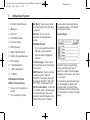
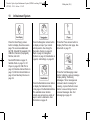
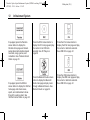
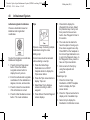
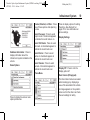
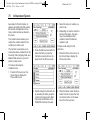
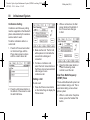
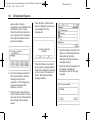
Press the Settings screen button to
display the Settings main page.
From this display, adjust features
such as time and date, radio,
phone, navigation, audio prompts,
and display. See Settings on
page 54.
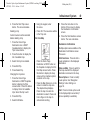
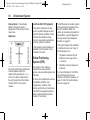
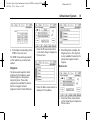
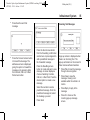
Press the Tone screen button to
display the Tone main page. Adjust
the tone and speaker’s balance by
pressing the screen buttons. There
are options such as EQ (equalizer),
Bass, Middle, Treble, and Balance.
See AM-FM Radio on page 14.
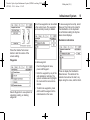
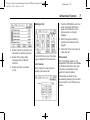
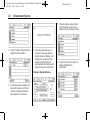
Press the Picture Viewer screen
button to view pictures on your USB
drive or SD card. Pictures on the SD
card can only be viewed through a
USB adapter. See Pictures on
page 27.
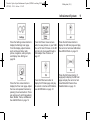
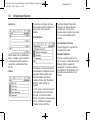
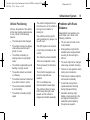
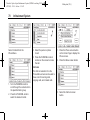
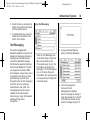
Press the FM screen button to
display the FM main page and play
the current or last tuned FM station.
See AM-FM Radio on page 14.
11
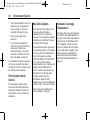
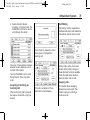
Press the AM screen button to
display the AM main page and play
the current or last tuned AM station.
See AM-FM Radio on page 14.
Press the XM screen button (if
equipped) to display the XM main
page and play the current or last
tuned SiriusXM channel. See
Satellite Radio on page 19.