1
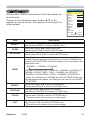
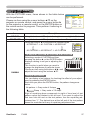
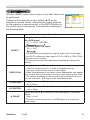
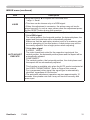
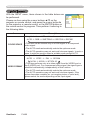
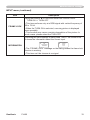
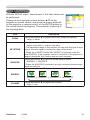
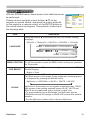
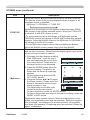
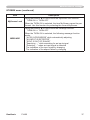
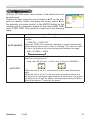
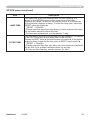
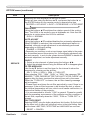
Multifunctional settings INPUT menu With the INPUT menu, items shown in the table below can be performed. Choose an item using the cursor buttons ▲/▼ on the projector or remote control, and press the cursor button ► on the projector or remote control, or the ENTER button on the remote control to progress. Then perform it referring to the following table. Item MENU [RGB] PICTURE IMAGE INPUT SETUP SCREEN OPTION EASY MENU :SELECT COLOR SPACE AUTO VIDEO FORMAT AUTO FRAME LOCK TURN OFF INFORMATION Description Using the buttons ▲/▼ switches the mode for color space. AUTO RGB SMPTE240 REC709 REC601 COLOR SPACE VIDEO FORMAT ViewSonic • This item can be chosen only at a RGB signal or a component video signal. • The AUTO mode automatically selects the optimum mode. • The AUTO operation may not work well at some signals. In such a case, it might be good to select a suitable mode except AUTO. Using the buttons ▲/▼ switches the mode for video format. AUTO NTSC PAL SECAM N-PAL M-PAL NTSC4.43 • This item performs only at a video signal from the VIDEO port or the S-VIDEO port. For a component video signal, the signal type is identified automatically, independently of this function. • The AUTO mode automatically selects the optimum mode. • The AUTO operation may not work well at some signals. If the picture becomes unstable (ex. an irregular picture, a color lack), please select the mode depending on the input signal. PJ400 32