1
Upgrading
If you experience problems with your
Palm® Treo™ 680 smart device after
performing the upgrade steps in this guide,
you may have incompatible applications or
settings that were not quarantined during
the installation process. These
Incompatible applications or settings can
lead to numerous issues, including system
resets and freezes. If you experience a
problem after upgrading, follow the steps
in this section to remove the incompatible
apps from your Treo 680 and to transfer
your other info to your new Treo 680.
NOTE If you have trouble installing a
third-party application, contact the
developer for assistance.
We recommend that you do not install
apps that do any of the following:
•
Modify phone functions, such as
ringtones, dialing, or caller ID
•
Replace organizer features, such as
Contacts or Calendar
•
Set data connection features, such as
activating or ending data connections
•
Provide web clipping features, such as
PQA files
•
Provide instant messaging features
11
CHAPTER
COMMON QUESTIONS
If you want to continue using these types
of applications, please contact the
third-party developer for software updates
and info about compatibility with your Treo
680.
WINDOWS ONLY
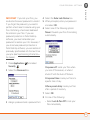
1 On your computer, click
Start>Programs>Palm>Safe HotSync.
2 Follow the instructions on the screen.
3 Locate the Old_Apps folder on your
computer. This folder is usually located
inside one of the following folders:
C:\Program Files\Palm\
C:\Program Files\palmOne\
C:\Program Files\Handspring\
4 To help you identify the app that is
causing the problem, move one app at a
time from the Old_Apps folder to the
Backup folder, and then sync.
217