1
14.6 HARDWARE TEST SOFTWARE
The Hardware Test Software can only be used with the software version it came with.
To test the Hardware:
1. Obtain a USB keyboard
2. Plug in the USB keyboard.
3. Power on the SONIX.
4. Put the system into Service Mode.
5. Press ESC to exit the exam.
Note: If this does not shutdown the software, use CTRL-ALT-DEL and Task Manager
to end the Exam application.
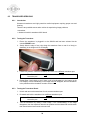
6. Press the Windows START key on the USB keyboard.
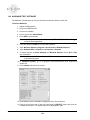
7. Open Windows Explorer (Programs > Accessories > Windows Explorer).
8. Open Notepad (Start > Programs > Accessories > Notepad).
9. To switch between the Exam, Notepad, and Windows Explorer, use the ALT + TAB
key combination.
Note: Hold down the ALT button and press TAB as many times as necessary to move
to the desired program.
10. In Windows Explorer, go to C:\Program files\Ultrasonix\Exam and double-click
Hwtest.exe.
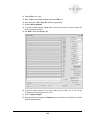
11. Click Initialize and wait for the results.
12. Click Test and use the trackball to highlight the text in the results box.
13. Point to the top left corner of the logs, hold down the SELECT button and move the
trackball to the bottom. The logs should now be highlighted in gray.
Chapter 14: Troubleshooting
SSM – 001, Revision F
122
SONIX Service Manual