1
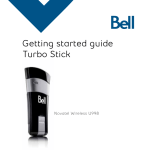
Getting started guide
3G Turbo Stick
3G Novatel Wireless
U760 USB modem
Welcome
Thank you for purchasing the 3G Novatel Wireless U760 USB modem
from Bell. This two-in-one Turbo Stick with memory storage (microSD
card sold separately) will enable you to connect to the Internet using
the 3G network and have access to storage space at your fingertips.
This guide provides an overview of your new device and details on
how to configure your computer for use with this Turbo Stick.
•
•
•
•
•
•
etting started
G
Installing the Mobile Connect Basic software
Activating your Turbo Stick
Using your Turbo Stick
Hardware overview
Troubleshooting
Getting started
Before activating your Turbo Stick, ensure you have the following:
• A
Bell wireless account with a data rate plan. (If you don’t
have an account or a data rate plan, speak with a Bell account
representative to get set up.)
• Y
our Mobile Directory Number (MDN)/
phone number
____________________
• Your Mobile Station ID (MSID)
____________________
• Your Unlock Key
____________________
• Y
our Electronic Serial Number (ESN),
located on the device bar code label
____________________
SYSTEM REQUIREMENTS
For PC users. To install and operate the Turbo Stick,
ensure your computer has the following system resources:
Operating system
Microsoft® Windows XP or Windows Vista™ 32-bit
USB ports
1 type A USB port
Communication ports
2 free COM ports
I/O Resources
1 IRQ, 4,096 bytes of I/O space
Memory
128 MB
Disk space
20 MB
SYSTEM REQUIREMENTS
For Macintosh users. To install and operate the Turbo Stick,
ensure your computer has the following system resources:
Operating system
Macintosh OS 10.4 or later with Intel CPU
USB ports
1 type A USB port
Communication ports
N/A
I/O Resources
N/A
Memory
256 MB
Disk space
20 MB
Installing the Mobile Connect Basic software
Mobile Connect Basic from Bell is a software application that allows
you to manage your wireless connections over the 3G network.
This software is preloaded onto the Turbo Stick and can be installed
on your computer; no CD required.
Windows Vista: Under the Start Menu, select Control Panel.
select User Accounts & Family Safety, then select User Accounts
and then "User Account Control on or off". Lastly, deselect "Use User
Account Control (UAC) to help protect your computer", and click OK.
You may need to restart your computer.
1.Insert the Turbo Stick into an available USB port on your computer.
You will be prompted to install Mobile Connect Basic.
Select Install/Run Mobile Connect Basic. If this prompt does
not appear, you can manually install the software by selecting
Start > Run > d:\carrier .exe
Note: The drive letter assigned to the USB modem by the computer’s
operating system may be different (e:\, f:\, g:\, etc.).
2. F
ollowtheMobileConnectBasicInstallShield®Wizard.Itwillguide
youthroughtheprocessofinstallingtheMobileConnectBasic
application. Use the Next and Back buttons to navigate through the
installation. To continue with the installation, you must click Agree to
acceptthetermsoftheLicenseAgreement.
3. Select Restart or Finish to complete the installation. Once the
installationprocedureiscomplete,youmayberequiredtorestartyour
computer.Ifarestartisnotrequired,MobileConnectBasicwilllaunch
automatically.Ifyourcomputerrestarts,launchtheMobileConnect
Basic application by clicking on the Mobile Connect Basic desktop icon.
Activating your 3G Turbo Stick
4. When Mobile Connect Basic runs, it will check if your Turbo Stick has
been activated. The modem must be activated to operate on the
Bell Mobility network. Mobile Connect Basic will begin the automatic
activation process.
The automatic activation process will make a connection to the
Bell Mobility network. Should the process fail, Mobile Connect Basic will
prompt you to retry the activation or to try manual activation.
For manual activation, you will need the following information:
• Your Mobile Directory Number (MDN) / phone number
• Your Mobile Station ID (MSID)
• Your Unlock Key
This information can be provided by your nearest Bell store, Bell
wireless dealer or account representative. Enter this information when
prompted by Mobile Connect Basic.
The Activation Wizard will prompt you to enter your Unlock Key.
Type the six-digit number into the field provided and click Next.
The Activation Wizard will also prompt you to enter your Mobile
Directory Number (MDN) and Mobile Station ID (MSID). Enter these two
numbers into the fields provided.
5. After, successful first-time activation, Mobile Connect Basic is now
ready to use. The main screen will appear.
Using your 3G Turbo Stick
To connect to the Internet, click the Connect button on the Mobile
Connect Basic main program window.
G
E
C
D
B
F
A
To disconnect, click the Disconnect button.
The Mobile Connect Basic main program window indicates the status
of the Turbo Stick and enables you to establish a network connection.
Some of the key indicators and buttons include:
A. Connect/Disconnect
Connect or disconnect from the Bell Mobility wireless network
B. Signal strength
Graphically illustrated Bell Mobility wireless network
signal status
C. Status display
Indicates the availability of the network and status of
current network connection
D. Usage counters
An overview of the data you have transmitted and received,
plus a total sum for your reference
E. Minimize button
Minimize Mobile Connect Basic to the Windows® System Tray
F. Tools menu
Select various configuration options, set preferences or
reactivate your modem
G. Roaming indicator
Notification that your network connection is with a Bell
partner network (roaming rates will apply)
Note: To disable roaming and only connect to the Bell Mobility network,
select Home Only in the Roaming Selection entry in the Tools Menu.
Inserting and removing the 3G Turbo Stick
from your computer
Now that the Mobile Connect Basic software is installed on your
computer, your Turbo Stick can be inserted or removed at any time.
As an external device, the Turbo Stick is vulnerable to damage during
transport. It is recommended that you remove and securely store the
device when transporting your computer.
To insert your Turbo Stick:
1. Remove the protective cap from the device.
2. Insert the Turbo Stick into the USB port. Do not forcibly insert the
device, as this may damage both the device and the USB port.
3. The computer will beep.
4. Start Mobile Connect Basic from the desktop or from the
AutoPlay prompt.
5. The Turbo Stick powers on when inserted.
To remove your Turbo Stick:
1. Disconnect and quit Mobile Connect Basic.
2. Carefully remove the Turbo Stick from the USB port.
3. The computer will beep.
Using your Turbo Stick on another computer: The Turbo Stick can be
used on multiple computers. Simply insert it and install the Mobile
Connect Basic software on each new computer you wish to use. Please
note that data network usage is tied to the device itself and that usage
between computers is cumulative and will be billed together.
Hardware overview
Your Turbo Stick
1.
5.
1. Protective cap
2.
2. LED indicator
3. External antenna connector
3.
4. microSD slot
5. USB connector
4.
Your new Turbo Stick must be handled with care to ensure reliable
operation. The following handling guidelines are recommended:
• D
o not apply adhesive labels to the device; they may cause the device
to overheat and may alter the performance of the antenna.
• T
he USB connector should plug easily into your computer’s Type A
USB port. Forcing the device into a port may damage the connector.
• Protect the device from liquids, dust and excessive heat.
• S
tore the device in a safe place with the protective cap on when
not in use.
Inserting and removing a microSD card
The Turbo Stick is equipped with removable, hot-swappable memory
storage. This feature gives you the convenience of wireless Internet
connectivity and the ability to store data simultaneously to an external
drive without the need for another flash drive; it’s now all in one device.
A microSD card (sold separately) is required to take advantage of the
memory storage feature.
Inserting a microSD card:
1. Locate the microSD slot.
2. R
emove the plastic microSD slot protection insert and be careful not to
lose it.
3. Align the microSD card with the slot.
4. Carefully insert the microSD card until it clicks into place.
Removing a microSD card:
1.Gently push the card in, release, and it will pop out.
2. Insert the plastic microSD slot protection insert.
Saving files to microSD
The process of saving files to the microSD memory card on your device
is similar to saving files to any external flash drive on your computer.
Saving files from an application:
1. Insert the device into your computer’s USB port.
2. The computer will detect new hardware and the Unplug/Eject icon
will appear in the taskbar.
3.Go to File > Save As.
4. Click the down arrow within the Save in box to view the contents of
the pull-down menu.
5. Select the Turbo Stick which appears as a drive letter
(e:\, f:\, g:\, etc.) [Mass Storage or Removable Storage].
6.Type a name for the file you are saving to the device and click Save.
Lanyard & keychain accessories:
The lanyard & keychain is a convenient accessory that gives you
maximum portability while on the go.
IMPORTANT: DO NOT WEAR THE LANYARD AND DEVICE AROUND
ROTATING MACHINERY OR DURING SLEEP. AN EMERGENCY RELEASE CLIP
IS CONSTRUCTED INTO THE DESIGN; HOWEVER, IN AN EMERGENCY YOU
MAY ALSO CUT THROUGH THE MATERIAL.
Affixing the lanyard or keychain to the Turbo Stick:
1. Remove the cap and locate the lanyard hook on the device and on
the cap.
2. Pinch the looped thread on the lanyard or keychain and insert the tip
of the thread into the hook hole on the cap and through the Turbo Stick,
pushing the thread until it exits on the other side of the hook hole.
3. Push the cap on the device and insert the end of the lanyard or
keychain through the loop. Pull to tighten.
Troubleshooting
Below is a list of common error messages and possible solutions
regarding the use of your Turbo Stick.
Symptoms
Solution
Intermittent connectivity
and/or low throughput
•Relocate the entire computer to a different area.
Bell core network or Bell
high speed network does
not show in the status
display
•Service may not be available in your location. Relocate the
computer to a different area. Coverage maps are available at
bell.ca/coverage
•The network may be unavailable due to maintenance. Try the
connection again at a later time.
•The Turbo Stick may not be inserted properly. Remove and reinsert
the Turbo Stick into the port.
•Your computer may not have the correct hardware drivers for
the USB port. Contact your system vendor for assistance in
installing the correct drivers.
and/or
The LED indicator on the
Turbo Stick glows red
When clicking Connect, the
message “Your connection
attempt to the network
failed” is displayed
•Service may not be available in your location. Relocate the
computer to a different area. Coverage maps are available at
bell.ca/coverage
•The network may be unavailable due to maintenance. Try the
connection again at a later time.
•The Turbo Stick may not be activated or the phone number
supplied may be incorrect. First, attempt the activation process
again, as described in the section Activating your Turbo Stick
in this guide. If this does not resolve the problem, contact Bell
Client Care.
The LED indicator on the
Turbo Stick is not lit
•The Turbo Stick may not be inserted properly. Remove and firmly
reinsert the Turbo Stick into the port.
•Your computer may not have the correct hardware drivers for
the USB port. Contact your system vendor for assistance in
installing the correct drivers.
The LED indicator on the
Turbo Stick glows amber
•Remove and firmly reinsert the Turbo Stick into the port.
•Shut down and restart the computer.
•If the above actions do not resolve this problem, contact
Bell Client Care.
Using a Macintosh with the 3G Turbo Stick
The Turbo Stick can also be used with a Macintosh computer. To do so, use the
Mobile Connect for Macintosh application included on the Turbo Stick itself.
Mobile Connect for Macintosh:
Mobile Connect for Macintosh is a full-featured connection manager that
supports the Turbo Stick. To install Mobile Connect, insert the Turbo Stick and
open the icon on your Macintosh Desktop Finder. Drag the Mobile Connect
icon to a suitable location on your hard drive. You can also drag the icon onto
your Dock in order to launch Mobile Connect quicker. When you first launch
the program, Mobile Connect for Macintosh will prompt you with instructions,
asking you to select a device. Choose the U760.
To activate the Turbo Stick, select Activation Assistant from the Mobile
Connect’s Tools menu. Ensure you have your Mobile Directory Number (MDN),
phone number and Unlock Key ready.
To connect to the Turbo Stick, click Connect in the Mobile Connect’s
main window.
You may also contact Bell Wireless Data Support at:
1 877 DATA-123 (1 877 328-2123)
Speeds may vary with your technical configuration, Internet traffic, server, environmental conditions
or other factors. Novatel Images: ©2009. Novatel Wireless, Inc. All rights reserved. Ovation, Novatel
Wireless and the Novatel Wireless logo are trademarks of Novatel Wireless, Inc. Designed in the
United States of America. Microsoft, Windows and Windows Vista are registered trademarks and/
or trademarks of Microsoft Corporation in the United States and/or other countries. InstallShield is a
registered trademark or trademark of Macrovision Corporation in the United States of America and/
or other countries. All other brands and product names are trademarks of their respective holders.
System requirements for laptops: Microsoft Windows XP or Vista 32-bit operating system, 1 Type A USB
port, 2 free COM ports; I/O resources: 1 IRQ, 4096 bytes of I/O space, memory: 128 MB and disk space:
20 MB. Macintosh OS X 10.4 and above, 1 Type A USB port, memory: 256MB and disk space: 20MB.