1
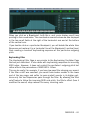
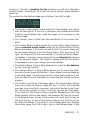
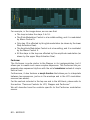
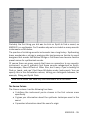
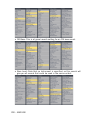
Result List to the right. Above, you will see the eight Macro Control knobs
(see section 4.2.5) as well as the Master Volume Control (see section 4.7.4).
The Browser itself is described in detail in section 4.10.1.
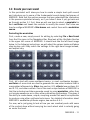
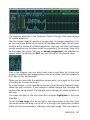
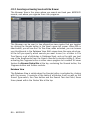
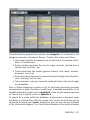
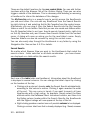
When you first open the Browser View, the Search Result List at the lower
right will show the list of all sounds available in MASSIVE. Now let’s try
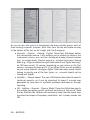
using the Attributes at the lower left of the Database View to limit the Search
Results:
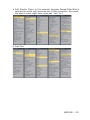
• click on one or more Attributes in any column and they will be
highlighted
• the Search Results List will update automatically to display only those
KoreSounds that match the set of active Attributes
• click a selected Attribute again to deselect it
• when no Attributes are selected, the Search Results List will display
the list of all available KoreSounds
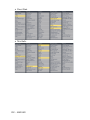
• try selecting one or more Attributes from each column left to right and
watch how the list gradually narrows; for example, try selecting (from
left to right) “Bass”, “Synthetic”, “Distorted”, “Lead” and “Drum&Bass/
Breaks” and find the sound “Rampage” on the right
• now load this patch from the Search Results List by simply doubleclicking on its name
Using the Attributes is a very convenient and powerful way to quickly find the
sound you want to use!
Play your sound
Now that you have loaded “Rampage,” try playing some notes with your MIDI
keyboard and you should hear the sound. You might try playing in the lower
range of the keyboard, as Rampage is a bass sound. Try modifying the output
with one of the Macro Control knobs, arranged in a row 1-8 just above the
Browser: while holding down a MIDI key and sustaining a sound, click on the
third Macro Control and drag the mouse upwards. The Macro Control knob
will follow the movement, and you should hear some effect, depending on
what the Macro Control is assigned to in the particular patch you are using.
(For more on the Macro Controls and how they are commonly assigned, see
section 4.2.5).
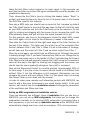
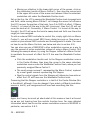
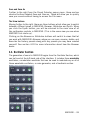
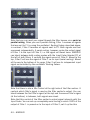
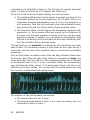
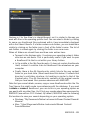
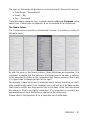
Now try using a different sound. In the bar between the Macro Controls and
the Database View, click the Reset Button (the circle-like icon within the
illustration below) and all attributes are deactivated.
MASSIVE –