1
CDM-840 Remote Router
Updating Firmware
•
Revision 2
MN-CDM840
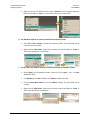
Once the Management IP Address is known – use Command-line to PING: Type “ping
xxx.xxx.xxx.xxx” at the Command-line prompt (where ‘xxx.xxx.xxx.xxx’ denotes the unit
Management IP Address).
The response should confirm whether or not the unit is properly connected and
communicating.
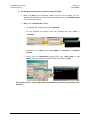
2. Use Command-line to transfer (FTP) the files from the user PC to the CDM-840:
•
Type "ftp xxx.xxx.xxx.xxx" (where ‘xxx.xxx.xxx.xxx’ denotes the unit Management IP
Address).
•
Enter the username and password assigned to the unit. The default username and
password is “comtech”.
•
Type “bin” to set the binary transfer mode.
•
Type "put FW-0000408x_CDM840.bin" (where ‘x’ denotes the revision letter) at the
Command-line prompt, without quotes, to begin the file transfer. The process
sequences through several blocks – this may take several minutes for the transfer to
occur. Once the upgrade file is transferred, the image is written to Flash memory and
the unit transmits the message “UPLOAD COMPLETE.”
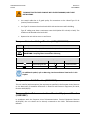
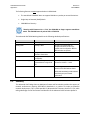
In the event you receive the “Connection closed by remote host.” message,
wait another minute before continuing. The CDM-840 update sometimes
takes longer than the FTP client allows.
•
Type "bye" to terminate the FTP session, and then close the Command-line window.
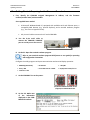
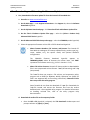
3. Use the Serial Interface or the CDM-840 Web Server Interface ‘Admin | Firmware’ page to
verify that the PC-to-Unit FTP file transfer was successful.
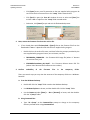
4. Use the CDM-840 Web Server Interface to select the firmware and reboot the unit:
A. Select the desired Boot Slot (Image):
•
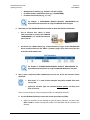
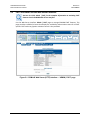
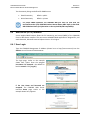
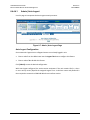
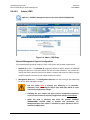
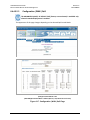
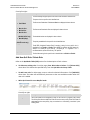
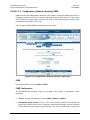
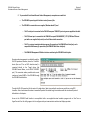
Go to the CDM-840 Web Server Interface ‘Admin | Firmware’ page.
•
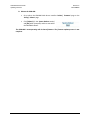
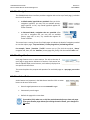
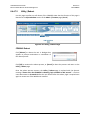
Use the ‘Boot From:’ drop-down menu to select
Latest, Slot 1, or Slot 2 (in the Firmware
Configuration section).
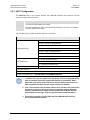
By default, the unit will boot from the Slot that stores the firmware version having
the latest date (Boot From: Latest). ‘Boot From:’ may also be set to force the unit to
boot up using either firmware image loaded in Slot #1 or Slot #2.
•
Click [Submit] to save the setting.
4–9