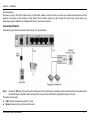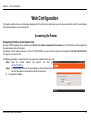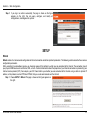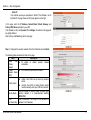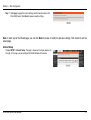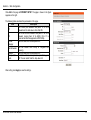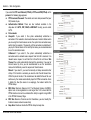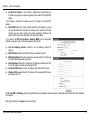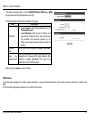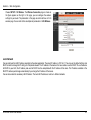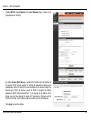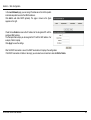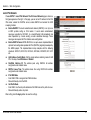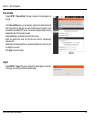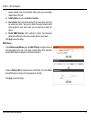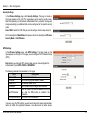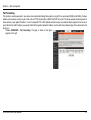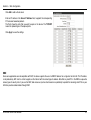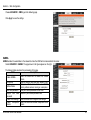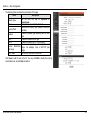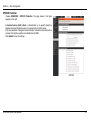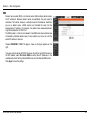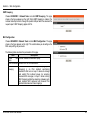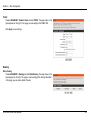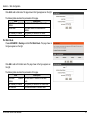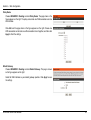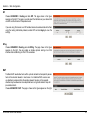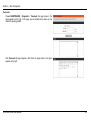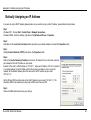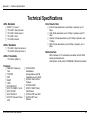
1
Table of Contents SAFETY PRECAUTION .......................................................................................................1 INTRODUCTION ..................................................................................................................1 PACKAGE CONTENTS .......................................................................................................2 SYSTEM REQUIREMENTS .................................................................................................3 Features ........................................................................................................................4 INSTALLATION ...................................................................................................................5 Before You Begin ..........................................................................................................5 Installation Notes ...........................................................................................................5 Information you will need from your ADSL service provider ..........................................7 Information you will need about your DSL-2544n ADSL Router ....................................8 Information you will need about your LAN or computer .................................................9 Hardware Description and Installation .........................................................................10 LED Indicators......................................................................................................10 Button and interfaces ........................................................................................... 11 Best location for Wireless Operation .................................................................... 11 Connecting the Router .........................................................................................12 WEB CONFIGURATION ....................................................................................................14 Accessing the router....................................................................................................14 Configuring IP Address of the Network Card ........................................................14 SETUP ...............................................................................................................................15 Wizard ..................................................................................................................15 Internet setup .......................................................................................................18 2.4G Wireless.......................................................................................................22 5G Wireless..........................................................................................................23 Local Network ......................................................................................................24 Local IPv6 Network ..............................................................................................27 Time and Date......................................................................................................28 Logout ..................................................................................................................28 ADVANCED .......................................................................................................................29 2.4G Advanced wireless.......................................................................................29 5G Advanced wireless..........................................................................................33 ALG ......................................................................................................................33 Port forwarding .....................................................................................................34 DMZ .....................................................................................................................35 SAMBA ................................................................................................................36 Parental Control ...................................................................................................37 Filtering Options ...................................................................................................39 QoS ......................................................................................................................41 SPI/DOS Protection .............................................................................................43 DNS .....................................................................................................................44 Dynamic DNS.......................................................................................................45 Storage Service ....................................................................................................46 Network Tools.......................................................................................................46 Routing .................................................................................................................50 NAT ......................................................................................................................53 Logout ..................................................................................................................54 MAINTENANCE ................................................................................................................ 55 System ................................................................................................................ 55 Firmware Update ................................................................................................. 56 Access Controls .................................................................................................. 56 Diagnostics .......................................................................................................... 58 Log Configuration ................................................................................................ 61 Logout ................................................................................................................. 61 TROUBLESHOOTING ...................................................................................................... 62 NETWORKING BASICS ............................................................................................. 64 CHECK YOUR IP ADDRESS ..................................................................................... 64 STATICALLY ASSIGNING AN IP ADDRESS .................................................................. 65 TECHNICAL SPECIFICATIONS ....................................................................................... 66 Section 1 – Product Overview Safety Precaution Follow the following instructions to prevent the device from risks and damage • Use the label-marked power. • Use the power adapter in the package. • An overburden power outlet or damaged lines and plugs may cause electric shock or fire accident. Check the power cords regularly. If you find any damage, replace it at once. • Proper space left for heat dissipation is necessary to avoid overheating. The holes on the device are designed for heat dissipation to ensure running normally. Do not cover these heat dissipation holes. • Do not put this device close to a heat source or high temperature place. Avoid the device direct exposing sunshine. • Do not put this device close to over damp place. Do not spill any fluid on this device. • Do not connect this device to PC or electronic product, unless our customer engineer or your broadband provider instructs you to do this, because any wrong connection may cause power or fire risk. • Do not place this device on an unstable surface or support. Introduction The DSL-2544N is a highly integrated ADSL2/2+ Integrated Access Device. It provides DSL uplink, Ethernet LAN and wireless LAN services. The wireless LAN is complied with the IEEE802.11b/g /n standards and supports 2T2R which can work at dual-band 2.4G and 5G. It is usually prefered to provide high access performance applications for the individual users, the SOHO, the small enterprises and so on. D-Link DSL-2544N User Manual 1 Section 1 – Product Overview Package Contents • • • • • • 1 x DSL-2544N Router 1 x Power adapter 1 x Splitter 1 x RJ11 Phone Cable 1 x RJ45 Ethernet cable 1 x Installation CD Note: Using a power supply with a different voltage rating other than the one included with the DSL-2544N may cause damage and void the warranty for this product. D-Link DSL-2544N User Manual 2 Section 1 – Product Overview System Requirements Recommended system requirements are as follows: 1. ADSL Internet service Computer with • An 10 base T/100BaseT Ethernet card is installed on your PC • A hub or switch (attached to several PCs through one of Ethernet interfaces on your router) • Operating system: Windows 8/7/VISTA/XP/2000 • MAC OS • Internet Explorer V6 or higher, Netscape V4.0 or higher, or Firefox v1.5 or higher • D-Link Click’s Connect Utility Computer with: • • Operating system: Windows 8/7/VISTA/XP/2000 CD-ROM Drive D-Link DSL-2544N User Manual 3 Section 1 – Product Overview 1 Features The device supports the following features: • Various line modes • External PPPoE dial-up access • Internal PPPoE/PPPoA dial-up access • 1483Bridged/1483Routed with dynamic ip or static ip • Dual band wireless network (2.4G and 5G). • Multiple PVCs (the number of PVCs support is eight) • DHCP server/relay • Static route • Network Address Translation(NAT) • DMZ • Virtual Server • Universal plug and play (UPnP) • Dynamic Domain Name Server(DDNS) • One-level password and username • Network Time Protocol(NTP) • Firmware upgrading through Web, TFTP, or FTP • Resetting to the factory defaults through Reset button or Web • Diagnostic test • Web interface • Telnet CLI • IP/MAC/URL Filter • Application layer service • • • • • Quality of Service (QoS) Port binding Auto upgrade Net USB Digital Living Network Alliance (DLNA) D-Link DSL-2544N User Manual 4 Section 2 – Installation Installation This section will walk you through the installation process. Placement of the Router is very important. Do not place the Router in an enclosed area such as a closet, cabinet or in the attic or garage. Before You Begin Please read and make sure you understand all the prerequisites for proper installation of your new Router. Have all the necessary information and equipment on hand before beginning the installation. Installation Notes In order to establish a connection to the Internet it will be necessary to provide information to the Router that will be stored in its memory. For some users, only their account information (Username and Password) is required. For others, various parameters that control and define the Internet connection will be required. You can print out the two pages below and use the tables to list this information. This way you have a hard copy of all the information needed to setup the Router. If it is necessary to reconfigure the device, all the necessary information can be easily accessed. Be sure to keep this information safe and private. Low Pass Filters Since ADSL and telephone services share the same copper wiring to carry their respective signals, a filtering mechanism may be necessary to avoid mutual interference. A low pass filter device can be installed for each telephone that shares the line with the ADSL line. These filters are easy to install passive devices that connect to the ADSL device and/or telephone using a standard telephone cable. Ask your service provider for more information about the use of low pass filters with your installation. Operating Systems The DSL-2544N uses an HTML-based web interface for setup and management. The web configuration manager may be accessed using any operating system capable of running web browser software, including Windows, Mac OS and Linux. D-Link DSL-2544N User Manual 5 Section 2 – Installation Web Browser Any common web browser can be used to configure the Router using the web configuration management software. The program is designed to work best with more recently released browsers such as Opera, Microsoft Internet Explorer® version 6.0, Netscape Navigator® version 6.2.3, or later versions. The web browser must have JavaScript enabled. JavaScript is enabled by default on many browsers. Make sure JavaScript has not been disabled by other software (such as virus protection or web user security packages) that may be running on your computer. Ethernet Port (NIC Adapter) Any computer that uses the Router must be able to connect to it through the Ethernet port on the Router. This connection is an Ethernet connection and therefore requires that your computer be equipped with an Ethernet port as well. Most notebook computers are now sold with an Ethernet port already installed. Likewise, most fully assembled desktop computers come with an Ethernet NIC adapter as standard. If your computer does not have an Ethernet port, you must install an Ethernet NIC adapter before you can use the Router. If you need to install an adapter, follow the installation instructions that come with the Ethernet NIC adapter. Additional Software It may be necessary to install software on your computer that enables the computer to access the Internet. Additional software must be installed if you are using the device as a simple bridge. For a bridged connection, the information needed to make and maintain the Internet connection is stored on another computer or gateway device, not in the Router itself. If your ADSL service is delivered through a PPPoE or PPPoA connection, the information needed to establish and maintain the Internet connection can be stored in the Router. In this case, it is not necessary to install software on your computer. It may however be necessary to change some settings in the device, including account information used to identify and verify the connection. All connections to the Internet require a unique global IP address. For bridged connections, the global IP settings must reside in a TCP/IP enabled device on the LAN side of the bridge, such as a PC, a server, a gateway device, such as a router, or similar firewall hardware. The IP address can be assigned in a number of ways. Your network service provider will give you instructions about any additional connection software or NIC configuration that may be required. D-Link DSL-2544N User Manual 6 Section 2 – Installation Information you will need from your ADSL service provider Username This is the Username used to log on to your ADSL service provider’s network. Your ADSL service provider uses this to identify your account. Password This is the Password used, in conjunction with the Username above, to log on to your ADSL service provider’s network. This is used to verify the identity of your account. WAN Setting / Connection Type These settings describe the method your ADSL service provider uses to transport data between the Internet and your computer. Most users will use the default settings. You may need to specify one of the following WAN Setting and Connection Type configurations (Connection Type settings listed in parenthesis): PPPoE/PPPoA (PPPoE LLC, PPPoA LLC or PPPoA VC-Mux) Bridge Mode (1483 Bridged IP LLC or 1483 Bridged IP VC Mux) IPoA/MER (Static IP Address) (Bridged IP LLC, 1483 Bridged IP VC Mux, 1483 Routed IP LLC, 1483 Routed IP VC-Mux or IPoA) MER (Dynamic IP Address) (1483 Bridged IP LLC or 1483 Bridged IP VC-Mux) Modulation Type ADSL uses various standardized modulation techniques to transmit data over the allotted signal frequencies. Some users may need to change the type of modulation used for their service. The default DSL modulation (ADSL2+ Multi-Mode) used for the Router automatically detects all types of ADSL, ADSL2 and ADSL2+ modulation. Security Protocol This is the method your ADSL service provider will use to verify your Username and Password when you log on to their network. Your Router supports the PAP and CHAP protocols. VPI Most users will not be required to change this setting. The Virtual Path Identifier (VPI) is used in conjunction with the Virtual Channel Identifier (VCI) to identify the data path between your ADSL service provider’s network and your computer. If you are setting up the Router for multiple virtual connections, you will need to configure the VPI and VCI as instructed by your ADSL service provider for the additional connections. This setting can be changed in the WAN Settings window of the web management interface. VCI Most users will not be required to change this setting. The Virtual Channel Identifier (VCI) is used in conjunction with the VPI to identify the data path between your ADSL service provider’s network and your computer. If you are setting up the Router for multiple virtual connections, you will need to configure the VPI and VCI as instructed by your ADSL service provider for the additional connections. This setting can be changed in the WAN Setup window of the web management interface. D-Link DSL-2544N User Manual 7 Section 2 – Installation Information you will need about your DSL-2544N ADSL Router Username This is the Username needed to access the Router’s management interface. When you attempt to connect to the device through a web browser you will be prompted to enter this Username. The default Username for the Router is “admin.” The user cannot change this. Password This is the Password you will be prompted to enter when you access the Router’s management interface. The default Password is “admin.” The user may change this. LAN IP addresses for the DSL-2544N This is the IP address you will enter into the Address field of your web browser to access the Router’s configuration graphical user interface (GUI) using a web browser. The default IP address is 192.168.1.1. This may be changed to suit any IP address scheme the user desires. This address will be the base IP address used for DHCP service on the LAN when DHCP is enabled. LAN Subnet Mask for the DSL-2544N This is the subnet mask used by the DSL-2544N and will be used throughout your LAN. The default subnet mask is 255.255.255.0. This can be changed later. D-Link DSL-2544N User Manual 8 Section 2 – Installation Information you will need about your LAN or computer Ethernet NIC If your computer has an Ethernet NIC, you can connect the DSL-2544N to the Ethernet port using an Ethernet cable. You can also use the Ethernet ports on the DSL-2544N to connect to other computers or Ethernet devices. DHCP Client status Your DSL-2544N ADSL Router is configured, by default, to be a DHCP server. This means that it can assign an IP address, subnet mask and a default gateway address to computers on your LAN. The default range of IP addresses the DSL-2544N will assign are from 192.168.1.2 to 192.168.1.254. Your computer (or computers) needs to be configured to obtain an IP address automatically (that is, they need to be configured as DHCP clients.) It is recommended that you collect and record this information here, or in some other secure place, in case you have to re-configure your ADSL connection in the future. Once you have the above information, you are ready to setup and configure your DSL-2544N ADSL Router. D-Link DSL-2544N User Manual 9 Section 2 – Installation Hardware Description and Installation LED Indicators Note: The figures in this document are for reference only. Figure 1 Front panel The following table describes the LEDs of the device. LED Color Status Description Green On The initialization of the system is complete. Power On The device is powered on. Red Blinking The firmware is upgrading. Off No signal is being detected. DSL Green Blinking The device is handshaking with the physical layer of the office end. On A connection is set up with the physical layer of the office end. Off The device is under the Bridge mode or powered off. Green On A successful connection has been made. Internet The authentication of the PPP dial-up has failed or MER has failed to obtain the correct IP Red On address. Off The Ethernet interface is not properly connected. LAN 1/2/3/4 Green Blinking The Ethernet interface is properly connected and data is being transmitted. On The Ethernet interface is properly connected, but no data is being transmitted. Blinking The WLAN function is enabled and data is being transmitted on the WLAN. 2.4GHz/5GHz Green On The WLAN function is enabled, but no data is being transmitted on the WLAN. Off The WLAN function is disabled. On The USB connection is set up or USB flash disk is enabled. USB Green Blinking A connection is set up and data is being transmitted. Off No signal is detected. Connection is successfully established between the router and the client, the LED would light WPS Green Solid light steady for 5 seconds. D-Link DSL-2544N User Manual 10 Section 2 – Installation LED Color Status Blinking Off WPS is successfully triggered. Device is ready for new WPS setup. Description Button and Interfaces Figure 2 Rear panel The following table describes the interfaces of the device. Interface/Button Description ON/OFF Power switch, which is used to power on or power off the device. POWER Interface for connecting the power adapter. USB USB port for connecting a USB storage device. RJ-45 interface for connecting the device to the Ethernet interface of PC or other Ethernet devices through LAN4/3/2/1 the Ethernet cable. RJ-11 interface for connecting the device to the telephone jack on the wall or the MODEM interface of the DSL splitter through a telephone line. Press and hold the button for 5 seconds to start 2.4GHz WPS negotiation. Press and hold for 5 to 10 seconds to start 5GHz WPS negotiation. WPS (on the side panel) Press and hold the button for 15 seconds to restore the factory defaults. Best Location for Wireless Operation Many environmental factors may affect the effective wireless function of the DSL Router. If this is the first time that you set up a wireless network device, read the following information: The access point can be placed on a shelf or desktop, ideally you should be able to see the LED indicators in the front, as you may need to view them D-Link DSL-2544N User Manual 11 Section 2 – Installation for troubleshooting. Designed to go up to 100 meters indoors and up to 300 meters outdoors, wireless LAN lets you access your network from anywhere you want. However, the numbers of walls, ceilings, or other objects that the wireless signals must pass through limit signal range. Typical ranges vary depending on types of materials and background RF noise in your home or business. Connecting the Router The following figure shows the connection of the Router, PC, and telephones. Step 1 Connect the DSL port of the router and the Modem port of the splitter through a telephone cable; connect the phone to the phone port of the splitter through a telephone cable; and connect the Line port of the splitter to the uplink telephone jack on the wall. The spliter has three ports: LINE: Connect to a wall phone jack (RJ-11 jack) Modem: Connect to the Line interface of the router D-Link DSL-2544N User Manual 12 Section 2 – Installation PHONE: Connect to a telephone set Step 2 Connect the LAN port of the router to the network interface card (NIC) of the PC through an Ethernet cable (MDI/MDIX). Step 3 Plug the power adapter to the wall outlet and then connect the other end of it to the Power port of the route D-Link DSL-2544N User Manual 13 Section 3 – Web Configuration Web Configuration This chapter describes how to use Web-based management of the DSL router, which allows you to configure and control all of DSL router features and system parameters in a user-friendly GUI. Accessing the Router Configuring IP Address of the Network Card Configure TCP/IP properties of your network card to Obtain an IP address automatically from modem, or set the IP address of the computer with the same network mask of the modem. For example, if the IP address of Router is 192.168.1.1/255.255.255.0, you can set the IP address of the computer to 192.168.1.x/255.255.255.0. The range for x is from 2 to 254. The following description is a detail “How-To” user guide and is prepared for first time users. Step 1 Open the Internet Explorer (IE) browser, and then go to http://192.168.1.1. Step 2 The Login page is shown as the figure appears on the right. Select admin from the drop-down list of username and enter the password. The password is admin. D-Link DSL-2544N User Manual 14 Section 3 – Web Configuration Step 3 If you log in as admin successfully, the page is shown as the figure appears on the right. You can query, configure, and modify all configurations, and diagnose the system. SETUP Wizard Wizard enables fast and accurate configuration of Internet connection and other important parameters. The following sections describe these various configuration parameters. When subscribing to a broadband service, you should be aware of the method, by which you are connected to the Internet. The connection type of your physical WAN device can be Ethernet, DSL, or both. Technical information about the properties of your Internet connection is provided by your Internet service provider (ISP). For example, your ISP should inform you whether you are connected to the Internet using a static or dynamic IP address, or the protocol, such as PPPoA or PPPoE, that you use to communicate over the Internet. Step 1 Choose SETUP > Wizard. The page is shown as the figure appears on the right. D-Link DSL-2544N User Manual 15 Section 3 – Web Configuration Step 2 Click Setup Wizard. The page is shown as the figure appears on the right. Step 3 There are four steps to configure the device. Click Next to continue. Step 4 Set the time and date, and click Next. Step 5 Configure the Internet connection. - PPPoE/PPPoA Select the country and ISP. Set the VPI and VCI. If you fail to find the country and ISP from the drop-down lists, select Others, and then click Next. If the Protocol is set to be PPPoE or PPPoA and Connection Type is LLC, the page is shown as the figure appears on the right. In this page, enter the user name and password provided by your ISP. D-Link DSL-2544N User Manual 16 Section 3 – Web Configuration - Static IP If the internet service you subscribed is Static IP, the Protocol is set to be Static IP, the page shown as the figure appears on the right. In this page, enter the IP Address, Subnet Mask, Default Gateway and Primary DNS Server provided by your ISP. If the Protocol is set to be Dynamic IP and Bridge, the content of the page will be slightly different. After settings, click Next to go to the next page. Step 6 Configure the wireless network. Enter the information and click Next. The following table describes the fields in this page. Description Field Enable Your To enable or disable wireless network Wireless connection. Network Wireless Set a name for your wireless network. Network Name (SSID) Visible: Your SSID can be found by wireless clients. Visibility status Invisible: Your SSID is hided. Wireless clients need to manually enter your SSID and connect. You can choose a security mode to protect your Security Mode wireless network. It is recommended selecting WPA2-PSK. WPA2 Enter a password. The length of the password is Pre-Shared Key between 8-63 characters. D-Link DSL-2544N User Manual 17 Section 3 – Web Configuration Step 7 Click Apply to apply the current settings and finished the setup of the DSL-2544N router. Click Back to review or modify settings. Note: In each step of the Wizard page, you can click Back to review or modify the previous settings. Click Cancel to exit the wizard page. Internet Setup Choose SETUP > Internet Setup. The page is shown as the figure appears on the right. In this page, you can configure the WAN interface of the device. D-Link DSL-2544N User Manual 18 Section 3 – Web Configuration Click Add in the page of INTERNET SETUP. The page is shown in the figure appears on the right. The following table describes the parameters in this page. Field Description The virtual path between two points in an ATM VPI network and its valid value is from 0 to 255. The virtual channel between two points in an ATM VCI network, ranging from 32 to 65535 (0 to 31 is reserved for local management of ATM traffic). Service You can select from the drop-down list. Category You can choose Strict Priority or Weighted Fair QoS Scheduler Queuing. Protocol You can select from the drop-down list. Encapsulation Select the method of encapsulation provided by your Mode ISP. You can select from the drop-down list. After setting, click Apply to save the settings. D-Link DSL-2544N User Manual 19 Section 3 – Web Configuration If you select the PPP over Ethernet (PPPoE) or PPP over ATM (PPPoA) as the protocol, the following page appears. PPP Username/Password: The correct user name and password that your ISP provides to you. Authentication Method: There are four methods available in the drop-down list: AUTO, PAP, CHAP, or MSCHAP. Usually, you can select AUTO. Dial on mode: AlwaysOn: If you select it, the system automatically establishes a connection. If the network is disconnected because of external factors when you are using the Internet access service, the system tries connection every certain time (for example, 10 seconds) until the connection is established. If you pay for Internet access in the monthly fee mode, you are recommended to use this connection mode. OnDemand: If you select it, the system automatically establishes a connection when a network access request from the LAN is received. If no network access request is sent from the LAN within the set time of Idle Timeout, the system automatically interrupts the connection. If you pay for Internet access by time, you are recommended to use this connection mode, which effectively saves the expense of Internet access. Manual: If you select it, you need to manually set dialup connection after startup. If this function is enabled, you need to enter the idle timeout time. Within the preset minutes, if the modem does not detect the flow of the user continuously, the modem automatically stops the PPPoE connection. Once it detects the flow (like access to a webpage), the modem restarts the PPPoE dialup. MRU Size: Maximum Receive Unit. The Maximum Receive Unit(MRU) option must not be negotiated to a size larger than 1492, unless both the PPPoE client and server have indicated the ability to support a larger MRU in the PPPoE Discovery Stage. MTU Size: Maximum Transmission Unit. Sometimes, you must modify this function to access network successfully. Keep Alive: Enable or disable the PPPoE dial-up to keep alive. D-Link DSL-2544N User Manual 20 Section 3 – Web Configuration Use Static IP Address: If this function is disabled, the modem obtains an IP address assigned by an uplink equipment such as BAS, through PPPoE dial-up. If this function is enabled, the modem uses this IP address as the WAN IP address. Enable NAT: Select it to enable the NAT functions of the modem. If you do not want to enable NAT and wish the modem user to access the Internet normally, you must add a route on the uplink equipment. Otherwise, the access to the Internet fails. Normally, NAT should be enabled. If you select the MAC Encapsulation Routing (MER) as the connection protocol, the page is shown as the figure appears on the right. Use the following address: Check to use the following entered IP address. WAN IP Address: Enter the WAN IP address provided by the ISP. WAN Subnet Mask: Enter the subnet mask concerned to the IP address of the WAN interface provided by your ISP. Default Gateway: Enter the IP address of the gateway provided by the ISP. It is the IP address used for connecting to the ISP. Preferred DNS Server: Enter the IP address of the primary DNS server. Alternate DNS server: Enter the IP address of the secondary DNS server provided by your ISP. For IP over ATM and Bridging, there only slight difference with protocols mentioned above, please take the descriptions of other protocols for reference. After proper settings, click Apply to save the settings. D-Link DSL-2544N User Manual 21 Section 3 – Web Configuration 2.4G Wireless Choose SETUP > 2.4G Wireless. The Wireless Connection page is shown as the figure appears on the right. In this page, you can configure the wireless settings for your router. The following table describes the parameters in this page. Field Description Enable Select this to turn Wi-Fi on. Wireless AP Isolation Select this to turn MultiAP isolation on. The Wireless Network Name is a unique name that identifies a network. All devices on a network must share the same wireless network name in order to SSID communicate on the network. If you decide to change the wireless network name from the default setting, enter your new wireless network name in this field. Select Visible, the SSID can be detected. Select Visibility Status Invisible, the SSID cannot be detected. Country Select the country you located from the drop-down list. Select the appropriate 802.11 mode based on the 802.11 Mode wireless clients in your network. It is recommended to keep it as default. Select the appropriate band of 20M or 20M/40M Band Width according to your subscribed broadband service. Wireless Select the wireless channel from the pull-down menu. It Channel is different for different country. Wireless security is vital to your network to protect the Wireless wireless communication among wireless stations, access Security Mode points and wired network. There are four security modes: None, WPA only, WPA2, and WPA/WPA2 Mixed. D-Link DSL-2544N User Manual 22 Section 3 – Web Configuration If the wireless security mode is set to be WPA/WPA2 Mixed, WPA only or WPA2, the page shown as the figure appears on the right. The following table describes the parameters in this page. Description Field Select Personal, enter the pre-shared key in the Pre-Shared Key field. Select Enterprise, enter the port, IP address, and password of the Radius server. You need to enter the username and password provided by the Radius server when the wireless client connects the modem. You can select WPA encryption to be AES or TKIP+AES. WPA Mode Encryption Mode When WPA encryption is applied, messages sent are Group Key encrypted with a password. For higher security, WPA Update Interval password is updated periodically. This value is the update interval of the WPA password. After setting, click Apply to save the settings. 5G Wireless In anti-attenuation capability, the 2.4GHz wireless connection is superior to 5GHz connection, but in signal interference the former is inferior to the latter. The 5G wireless configuration parameters are similar that of 2.4GHz. D-Link DSL-2544N User Manual 23 Section 3 – Web Configuration Choose SETUP > 5G Wireless. The Wireless Connection page is shown as the figure appears on the right. In this page, you can configure the wireless settings for your router. The parameters in this page are similar to those in 2.4G wireless page. You can refer to the description of parameters in 2.4G Wireless. Local Network You can configure the LAN IP address according to the actual application. The preset IP address is 192.168.1.1. You can use the default settings and DHCP service to manage the IP settings for the private network. The IP address of the device is the base address used for DHCP. To use the device for DHCP on your LAN, the IP address pool used for DHCP must be compatible with the IP address of the device. The IP address available in the DHCP IP address pool changes automatically if you change the IP address of the device. You can also enable the secondary LAN IP address. The two LAN IP addresses must be in different networks. D-Link DSL-2544N User Manual 24 Section 3 – Web Configuration Choose SETUP > Local Network. The Local Network page is shown as the figure appears on the right. By default, Enable DHCP Server is selected for the Ethernet LAN interface of the device. DHCP service supplies IP settings to workstations configured to automatically obtain IP settings that are connected to the device through the Ethernet port. When the device is used for DHCP, it becomes the default gateway for DHCP client connected to it. If you change the IP address of the device, you must also change the range of IP addresses in the pool used for DHCP on the LAN. The IP address pool can contain up to 253 IP addresses. Click Apply to save the settings. D-Link DSL-2544N User Manual 25 Section 3 – Web Configuration In the Local Network page, you can assign IP addresses on the LAN to specific individual computers based on their MAC addresses. Click Add to add static DHCP (optional). The page is shown as the figure appears on the right. Check the box Enable to reserve the IP address for the designated PC with the configured MAC address. The Computer Name helps you to recognize the PC with the MAC address. For example, Father’s Laptop. Click Apply to save the settings. After the DHCP reservation is saved, the DHCP reservations list displays the configuration. If the DHCP reservations list table is not empty, you can select one or more items and click Edit or Delete. D-Link DSL-2544N User Manual 26 Section 3 – Web Configuration Local IPv6 Network Choose SETUP > Local IPv6 Network. The IPv6 Local Network page is shown as the figure appears on the right. In this page, you can set an IP address for the DSL IPv6 router, enable the DHCPv6 server, enable RADVD and enable the MLD snooping function. Enable RADVD: The router advertisement daemon (RADVD) is run by Linux or BSD systems acting as IPv6 routers. It sends router advertisement messages, specified by RFC2461, to a local Ethernet LAN periodically and when requested by a node sending a router solicitation message. These messages are required for IPv6 stateless auto-configuration. Enable DHCPv6 Server: WIDE-DHCPv6 is an open-source implementation of dynamic host configuration protocol for IPv6 (DHCPv6) originally developed by the KAME project. The implementation mainly complies with the following standards: RFC3315, RFC3319, RFC3633, RFC3646, RFC4075, RFC 4272 etc. LAN Address Config Mode: Set the mode address obtaining mode of LAN PCs. You may choose Stateless or Stateful. Start/End Interface ID: The address pool using DHCPv6 for address assignment under stateful mode. DHCPv6 Lease Time: The address lease time using DHCPv6 for address assignment under stateful mode. IPv6 DNS Mode - From WAN: DNS is assigned from WAN interface. - Manual: Manually enter the DNS. Get Prefix Mode - From WAN: Use the site prefix obtained at the WAN side as the prefix to issue. - Manual: Manually add a site prefix. After setting, click the Apply button to save the settings. D-Link DSL-2544N User Manual 27 Section 3 – Web Configuration Time and Date Choose SETUP > Time and Date. The page is shown as the figure appears on the right. In the Time and Date page, you can configure, update, and maintain the correct time on the internal system clock. You can set the time zone that you are in and the network time protocol (NTP) server. You can also configure daylight saving to automatically adjust the time when needed. Select Automatically synchronize with Internet time servers. Select the specific time server and the time zone from the corresponding drop-down lists. Select Enable manual Daylight Saving, overwrite automatic rule if necessary. Set the daylight as you want. Click Apply to save the settings. Logout Choose SETUP > Logout. The page is shown as the figure appears on the right. In this page, you can log out of the configuration page. D-Link DSL-2544N User Manual 28 Section 3 – Web Configuration ADVANCED This section includes advanced features used for network management, security and administrative tools to manage the device. You can view status and other information that are used to examine performance and troubleshoot. 2.4G Advanced Wireless This function is used to modify the standard 802.11 wireless radio settings. It is recommended not to change the default settings, because incorrect settings may impair the performance of your wireless radio. The default settings provide the best wireless radio performance in most environments. Choose ADVANCED >.2.4G Advanced Wireless. The page shown as the figure appears on the right. The 2.4G Advanced Settings includes the sub items Advanced Settings, MAC Filtering, Security Settings, and WPS Setting. D-Link DSL-2544N User Manual 29 Section 3 – Web Configuration Advanced Settings In the 2.4G Advanced Wireless page, click Advanced Settings, the page is shown as the figures appear on the right. In this page, you can configure the parameters of wireless LAN clients that may connect to the device. Enable Wireless: Select the check box to turn the Wi-Fi on. Transmit Power: Adjust the transmission range here. This tool can be helpful for security purposes if you wish to limit the transmission range. Beacon Interval: A beacon is a packet of information that is sent from a connected device to all other devices where it announces its availability and readiness. A beacon interval is a period of time (sent with the beacon) before sending the beacon again. The beacon interval may be adjusted in milliseconds (ms). Default (100) is recommended. RTS Threshold: This value should remain at its default setting of 2347.Should you encounter inconsistent data flow, only minor reductions are recommended. Should you encounter inconsistent data flow, only minor reduction of the default value, 2347, is recommended. If a network packet is smaller than the preset RTS threshold size, the RTS/CTS mechanism will not be enabled. The Router sends Request to Send (RTS) frames to a particular receiving station and negotiates the sending of a data frame. After receiving an RTS, the wireless station responds with a Clear to Send (CTS) frame to acknowledge the right to begin transmission. The RTS Threshold value should remain at its default value of 2347. Fragmentation Threshold: Packets that are larger than this threshold are fragmented into multiple packets. Try to increase the fragmentation threshold if you encounter high packet error rates. Do not set the threshold too low, since this can result in reduced networking performance. DTIM Interval: (Delivery Traffic Indication Message) Enter a value between 1 and 255 for the Delivery Traffic Indication Message (DTIM.) A DTIM is a countdown informing clients of the next window for listening to broadcast and multicast messages. SSID: The Wireless Network Name is a unique name that identifies a network. All devices on a network must share the same wireless network name in order to communicate on the network. If you decide to change the D-Link DSL-2544N User Manual 30 Section 3 – Web Configuration wireless network name from the default setting, enter your new wireless network name in this field. Visibility Status: You can select Visible or Invisible. User Isolation: When many clients connect to the same access point, they can access each other. If you want to disable the access between clients which connect the same access point, you can select on to enable this service. Disable WMM Advertise: After enabling this option, the transmission performance multimedia of the voice and video data can be improved. Click Apply to save the settings. MAC Filtering In the 2.4G Advanced Wireless page, click MAC Filtering, the page is shown as the figure appears on the right. In this page, it permits access to this route from host with MAC addresses contained in the Access Control List. Choose a Wireless SSID and enable Access Control Mode. Then click Add to add a MAC Address as shown in the figure appears on the right. Click Apply to save the settings. D-Link DSL-2544N User Manual 31 Section 3 – Web Configuration Security Settings In the Wireless Settings page, click Security Settings. The page is shown as the figure appears on the right. This page allows you to select a security mode. Note that depending on the network authentication that is selected, the page will change accordingly so additional fields can be configured for the specific security mode. Select SSID: Select the SSID that you want to configure from the drop-down list. For the description of Work Mode field, please refer to the description of Wireless Security Mode in 2.4G Wireless. WPS Settings In the Wireless Settings page, click WPS Settings. The page shown as the figure appears on the right. In this page, you can configure Wi-Fi Protected Setup (WPS). Note: Before you configure WPS, please make sure you have configured the Authentication Type to WPA, WPA2 or WPA/WPA2. The following describes the parameters in this page. Field Description Wireless SSID Name of wireless network WPA Mode Set the security type of wireless network. Enable WPS To enable or disable WPS. Push Button Push the PBC button to begin communication. Enter the station PIN from the wireless client, and Input PIN Number then click the PIN button to establish the connection. WPS Session Status The status of WPS connection. If you are using the PIN method, you will need a Registrar (access point/wireless router) to initiate the registration between a new device and an active access D-Link DSL-2544N User Manual 32 Section 3 – Web Configuration point/wireless router. (Note: The PBC method may also need a Registrar when used in a special case where the PIN is all zeros) In order to use the push-button for WPS authentication, you must ensure that the network card support the function. If it supports, you need not to do any configuration. You can press the WPS button directly to enable the WPS function. 5G Advanced Settings In anti-attenuation capability, the 2.4GHz wireless connection is superior to 5GHz connection, but in signal interference the former is inferior to the latter. The 5G wireless configuration parameters are similar that of 2.4GHz. Please refer to 2.4G Advanced Wireless. ALG Select Advanced Settings > ALG to go to the following page. Select the NAT ALG and Pass-Through options, and then click Submit. D-Link DSL-2544N User Manual 33 Section 3 – Web Configuration Port Forwarding This function is used to open ports in your device and re-direct data through those ports to a single PC on your network (WAN-to-LAN traffic). It allows remote users to access services on your LAN, such as FTP for file transfers or SMTP and POP3 for e-mail. The device accepts remote requests for these services at your global IP address. It uses the specified TCP or UDP protocol and port number, and redirects these requests to the server on your LAN with the LAN IP address you specify. Note that the specified private IP address must be within the available range of the subnet where the device is in. Choose ADVANCED > Port Forwarding. The page is shown as the figure appears on the right. D-Link DSL-2544N User Manual 34 Section 3 – Web Configuration Click Add to add a virtual server. Enter an IP address in the Server IP Address field, to appoint the corresponding PC to receive forwarded packets. The Ports show the ports that you want to open on the device. The TCP/UDP means the protocol type of the opened ports. Click Apply to save the settings. DMZ Since some applications are not compatible with NAT, the device supports the use of a DMZ IP address for a single host on the LAN. This IP address is not protected by NAT and it is visible to agents on the Internet with the correct type of software. Note that any client PC in the DMZ is exposed to various types of security risks. If you use the DMZ, take measures (such as client-based virus protection) to protect the remaining client PCs on your LAN from possible contamination through DMZ. D-Link DSL-2544N User Manual 35 Section 3 – Web Configuration Choose ADVANCED > DMZ to go to the following page. Click Apply to save the settings. SAMBA SAMBA enables the workstation in the network to share the USB flash disk connected to the router. Select ADVANCED > SAMBA. The page shown in the figure appears on the right. The following table describes the parameters of this page. Field Description Select the check box to enable the samba Enable SAMBA service Workgroup Enter the name of your local area network (LAN). Enter your netbios name which is an identifier Netbios Name used by netbios services running on a computer. New SMB password Enter your samba password for user root. Retype new SMB Reconfirm your samba password here. password Enable USB Storage Select the check box to support USB storage. Enable Anonymous Select the check box to allow anonymous users Access access. D-Link DSL-2544N User Manual 36 Section 3 – Web Configuration Parental Control Choose ADVANCED > Parental Control. The Parent Control page is shown as the figure appears on the right. This page provides two useful tools for restricting the Internet access. Block Website allows you to quickly create a list of all websites that you wish to stop users from accessing. MAC Filter allows you to control when clients or PCs connected to the device are allowed to access the Internet. Block Website In the Parent Control page, click Block Website. The page is shown as the figure appears on the right. D-Link DSL-2544N User Manual 37 Section 3 – Web Configuration Click Add. The page shown in the following page appears. Enter the website to be blocked in the URL field. Select the corresponding time and days when the entered website is blocked. Click Apply to add the website to the BLOCK WEBSITE table. The page is shown as the figure appears on the right. MAC Filter In the Parent Control page, click MAC Filter. The page is shown as the figure appears on the right. D-Link DSL-2544N User Manual 38 Section 3 – Web Configuration Click Add. The page shown in the following page appears. Enter the use name and MAC address and select the corresponding time and days. Click Apply to add the MAC address to the BLOCK MAC ADDRESS table. Filtering Options Choose ADVANCED > Filtering Options. The Filtering Options page is shown as the figure appears on the right. D-Link DSL-2544N User Manual 39 Section 3 – Web Configuration IP v4 Filtering In the Filtering Options page, click IP v4 Filtering. The page is shown as the figure appears on the right. Select a security level, choose a filter direction, and then click Add a rule to display the figure appears on the right. The following table describes the parameters of this page. Field Description Connection Choose an IPv4 WAN connection. Enable Tick in the box to enable a filter rule. Choose a protocol corresponding to the rule. You Protocol may choose TCP, UDP, ICMP or TCP/UDP. Source/ Destination Original/ destination IP address. IP Source/ Destination Original/ destination mask. Mask Source/Destination Original/ end port, which is the original port range. Port Description You can describe this IPv4 filter rule. After setting the parameters, click Submit. You can also click Edit or Delete to manage the rule. Click Apply to save the settings. D-Link DSL-2544N User Manual 40 Section 3 – Web Configuration Note: The settings only apply when the firewall is enabled. IP v6 Filtering The configuration on IP v6 Filtering is similar to that on IP v4 Filtering. For the parameters description, please refer to IP v4 Filtering. QoS Choose ADVANCED > QoS. The QoS Configuration page shown in the figure appears on the right. The following table describes the parameters of this page. Field Description QOS Choose the box to enable the QOS. Direction Choose Upstream queue or Downstream queue. Queue Enable Tick in the box to enable queue. Bandwidth Total bandwidth for upstream flow Discipline Discipline type of QOS When Discipline was chosen to WRR, you can WRR weight config WRR Enable DSCP You may tick in the box to permit DSCP Mark. Mark Enable 802.1P You may tick in the box to permit 802.1P Mark. Mark After setting the parameters, click Save to save the QOS configuration. In this page, click Add Rule. The page shown in the figure appears on the right. You can configure QoS queue rule. D-Link DSL-2544N User Manual 41 Section 3 – Web Configuration The following table describes the parameters of this page. Field Description Set the QoS rule type as Upstream or Classify Type Downstream. Active Tick in the box to enable this QoS rule. Based on the Classify Type, choose a WAN/LAN Physical Ports interface. Choose a protocol type matching with the QoS Protocol rule. DSCP Choose a matched DSCP type. 802.1P Choose a matched 802.1P VLAN priority. Input a source port range and a destination port Source/ Destination range. For example, input a UDP/TCP port port range range. DSCP Mark Set a DSCP Mark for this QoS rule. Click Save to add the rule to the list. You may click Edit to modify the existing classification rule, or click Drop to delete it. D-Link DSL-2544N User Manual 42 Section 3 – Web Configuration SPI/DOS Protection Choose ADVANCED > SPI/DOS Protection. The page shown in the figure appears on the right. A denial-of-service (DoS) attack is characterized by an explicit attempt by attackers to prevent legitimate users of a service from using that service. Port scan protection is designed to block attempts to discover vulnerable ports or services that might be exploited in an attack from the WAN. Click Submit to save the settings. D-Link DSL-2544N User Manual 43 Section 3 – Web Configuration DNS Domain name system (DNS) is an Internet service that translates domain names into IP addresses. Because domain names are alphabetic, they are easier to remember. The Internet, however, is actually based on IP addresses. Each time you use a domain name, a DNS service must translate the name into the corresponding IP address. For example, the domain name www.example.com might be translated to 198.105.232.4. The DNS system is, in fact, its own network. If one DNS server does not know how to translate a particular domain name, it asks another one, and so on, until the correct IP address is returned. Choose ADVANCED > DNS. The page is shown as the figure appears on the right. If you are using the device for DHCP service on the LAN or using DNS servers on the ISP network, select IPv4 static DNS and enter these IP addresses in the available entry fields for the preferred DNS server and the alternate DNS server. Click Apply to save the settings. D-Link DSL-2544N User Manual 44 Section 3 – Web Configuration Dynamic DNS The device supports dynamic domain name service (DDNS). The dynamic DNS service allows a dynamic public IP address to be associated with a static host name in any of the many domains, and allows access to a specified host from various locations on the Internet. Click a hyperlinked URL in the form of hostname.dyndns.org and allow remote access to a host. Many ISPs assign public IP addresses using DHCP, so locating a specific host on the LAN using the standard DNS is difficult. For example, if you are running a public web server or VPN server on your LAN, DDNS ensures that the host can be located from the Internet even if the public IP address changes. DDNS requires that an account be set up with one of the supported DDNS service providers (DyndDNS.org or dlinkddns.com). Choose ADVANCED > Dynamic DNS. The page is shown as the following page appears. Click Add to add dynamic DNS. The page is shown as the figure appears on the right. DDNS provider: Select one of the DDNS registration organizations from the down-list drop. Host Name: Enter the host name that you registered with your DDNS service provider. Interface: Select the interface you want to use. Username/Password: Enter the user name and password for your DDNS account. Click Apply to save the settings. D-Link DSL-2544N User Manual 45 Section 3 – Web Configuration Storage Service Choose ADVANCED > Storage Service. The page is shown as the following page appears. Storage service allows you to use storage service with modem to be more easily accessed. Network Tools Port Mapping Choose ADVANCED > Network Tools> Port Mapping, the page shown in the figure appears on the right. In this page, you can bind the WAN interface and the LAN interface to the same group. D-Link DSL-2544N User Manual 46 Section 3 – Web Configuration Click Add to add port mapping. The page shown in the figure appears on the right. The procedure for creating a mapping group is as follows: Step 1. Enter the group name. Step 2. Select interfaces from the Available Interface list and click the <- arrow button to add them to the grouped interface list, in order to create the required mapping of the ports. The group name must be unique. Step 3. Click Apply to save the settings. IGMP Proxy Choose ADVANCED > Network Tools and click IGMP Proxy. The page shown in the figure appears on the right. IGMP proxy enables the system to issue IGMP host messages on behalf of hosts that the system discovered through standard IGMP interfaces. The system acts as a proxy for its hosts after you enable it. Click Apply to save the settings. D-Link DSL-2544N User Manual 47 Section 3 – Web Configuration IGMP Snooping Choose ADVANCED > Network Tools and click IGMP Snooping. The page shown in the figure appears on the right. When IGMP Snooping is enabled, the multicast data only transmits through the specific LAN port which has received the request report. IGMP Snooping applies to IPv4. MLD Configuration Choose ADVANCED > Network Tools and click MLD Configuration. The page shown in the figure appears on the right. This section allows you to configure the MLD setup settings of your router. The following table describes the parameters of this page. Field Description Enable Mld You can choose to enable MLD proxy. Proxy WAN Connection Choose an IPv6 WAN connection. Enable MLD Multicast Listener Discovery Snooping (MLD Snooping Snooping) is an IPv6 multicast constraining mechanism that runs on Layer 2 devices to manage and control IPv6 multicast groups. By analyzing received MLD messages, a Layer 2 device running MLD Snooping establishes mappings between ports and multicast MAC addresses and forwards IPv6 multicast data based on these mappings. D-Link DSL-2544N User Manual 48 Section 3 – Web Configuration UPnP Choose ADVANCED > Network Tools and click UPnP. The page shown in the figure appears on the right. In this page, you can configure universal plug and play (UPnP). The system acts as a daemon after you enable UPnP. UPnP is used for popular audio visual software. It allows automatic discovery of your device in the network. If you are concerned about UPnP security, you can disable it. Block ICMP ping should be enabled so that the device does not respond to malicious Internet requests. Click Apply to save the settings. ADSL Choose ADVANCED > Network Tools and click ADSL. The page shown in the figure appears on the right. In this page, you can select a DSL mode. Normally, you can keep this factory default setting. The device negotiates the modulation mode with DSLAM. Click Apply to save the settings. SNMP Choose ADVANCED > Network Tools and click SNMP. The page shown in the figure appears on the right. In this page, you can set SNMP parameters. Click Apply to save the settings. D-Link DSL-2544N User Manual 49 Section 3 – Web Configuration TR-069 Choose ADVANCED > Network Tools and click TR069. The page shown in the figure appears on the right. In this page, you can configure the TR069 CPE. Click Apply to save settings. Routing Static Routing Choose ADVANCED > Routing and click Static Routing. The page shown in the figure appears on the right. This page is used to configure the routing information. In this page, you can add or delete IP routes. D-Link DSL-2544N User Manual 50 Section 3 – Web Configuration Click Add to add a static route. The page shown in the figure appears on the right. The following table describes the parameters of this page. Field Description Destination Network The destination IP address of the router. Address Subnet Mask The subnet mask of the destination IP address. Use Gateway IP Address The gateway IP address of the router. Use Interface The interface name of the router output port. IPv6 Static Route Choose ADVANCED > Routing and click IPv6 Static Route. The page shown in the figure appears on the right. Click Add to add an IPv6 static route. The page shown in the figure appears on the right. The following table describes the parameters of this page. Field Description Destination Network The destination IP address of the static Address route. Use Gateway IP Address The gateway IP address of the static route. Use Interface The interface name of the static route. D-Link DSL-2544N User Manual 51 Section 3 – Web Configuration Policy Route Choose ADVANCED > Routing and click Policy Route. The page shown in the figure appears on the right. The policy route binds one WAN connection and one LAN interface. Click Add, and the page shown in the figure appears on the right. Choose one WAN connection and at least one LAN connection to bind together, and then click Apply to finish the settings. Default Gateway Choose ADVANCED > Routing and click Default Gateway. The page is shown as the figure appears on the right. Select the WAN interface as your default gateway specifies. Click Apply to save the settings. D-Link DSL-2544N User Manual 52 Section 3 – Web Configuration RIP Choose ADVANCED > Routing and click RIP. The page shown in the figure appears on the right. This page is used to select the interfaces on your device that use RIP and the version of the protocol used. If you are using this device as a RIP-enabled device to communicate with others using the routing information protocol, enable RIP and click Apply to save the settings. RIPng Choose ADVANCED > Routing and click RIPng. The page shown in the figure appears on the right. You can enable or disable dynamic routing of an IPv6 interface after establishing an IPv6 PVC connection. NAT Traditional NAT would allow hosts within a private network to transparently access hosts in the external network, in most cases. In a traditional NAT, sessions are uni-directional, outbound from the private network. Sessions in the opposite direction may be allowed on an exceptional basis using static address maps for pre-selected hosts. Choose ADVANCED >NAT. The page is shown as the figure appears on the right. D-Link DSL-2544N User Manual 53 Section 3 – Web Configuration Click Add to display the following page. Entry Name: the name of the host within the network. Internal IP Type: - Single IP: The special single PC in the internal network is allowed to access the external network. - IP Range: A group of PCs whose IP addresses are in the IP range are allowed to access the external network. Internal IP Address: if Single IP is selected, then you’re required to enter the IP address of the PC. Start/End Internal IP Address: if IP Range is selected, then you’re required to enter the IP Range. External IP Type: - Single IP: The single IP address the internal PC wants to access. - IP Range: The IP Range that the internal PC wants to access. External IP Address: if Single IP is selected, then you’re required to enter the external IP address the internal PC wants to access. Start/End Internal IP Address: if IP Range is selected, then you’re required to enter the external IP Range the internal PC wants to access. After setting, click Apply to save the settings. Logout Choose ADVANCED > Logout. The page is shown as the figure appears on the right. In this page, you can log out of the configuration page. D-Link DSL-2544N User Manual 54 Section 3 – Web Configuration Maintenance System Choose MAINTENANCE > System. The System page is shown as the figure appears on the right. In this page, you can reboot device, back up the current settings to a file, update and restore the settings from the file saved previously, and restore the factory default settings. The buttons in this page are described as follows: Reboot: Reboot the device. Backup Settings: Save the settings to the local hard drive. Select a location on your computer to back up the file. You can name the configuration file. Update settings: Click Browse to select the configuration file of device and click Update Settings to restore the device configuration. Restore Default Settings: Reset the device to default settings. Notice: Do not turn off your device or press the Reset button while an operation in this page is in progress. D-Link DSL-2544N User Manual 55 Section 3 – Web Configuration Firmware Update Choose MAINTENANCE > Firmware Update. The page is shown as the figure appears on the right. In this page, you can upgrade the firmware of the device. The procedures for updating the firmware are as follows: Step 1 Click Browse…to search the file. Step 2 Select Click Config. Step 3 Click Update Firmware to update the configuration file. The device loads the file and reboots automatically. Notice: Do not turn off your device or press the reset button while this procedure is in progress. Access Controls Account Password Choose MAINTENANCE > Access Controls > Account Password. The page shown as the figure appears on the right. In this page, you can change the password of the user and set time for automatic logout. It is recommended to change the default password to secure your network. Ensure that you remember the new password or write it down and keep it in a safe and separate location for future reference. If you forget the password, you need to reset the device to the factory default settings and all configuration settings of the device are lost. Enter the current and new passwords and confirm the new password, to change the password. Click Apply to apply the settings. D-Link DSL-2544N User Manual 56 Section 3 – Web Configuration LACL Choose MAINTENANCE > Access Controls > LACL. The page shown as the figure appears on the right. This page allows you to enable or disable LAN management services. For example, if the Telnet service is enabled on port 23, the remote host can access the router by Telnet through port 23. Click Submit to apply the settings. Note: If you disable HTTP service, you cannot access the configuration page of the device any more. Remote Access Control Choose MAINTENANCE > Access Controls > Remote Access Control. The page shown as the figure appears on the right. This page allows you to enable or disable WAN management services. D-Link DSL-2544N User Manual 57 Section 3 – Web Configuration IP Address Choose MAINTENANCE > Access Controls > Remote Access Control. The page shown as the figure appears on the right. In this page, you can configure the IP address for access control list (ACL). If ACL is enabled, only devices with the specified IP addresses can access the device. Note: If you enable the ACL, ensure that IP address of the host is in the ACL list. To add an IP address to the IP list, click Add. The page shown in the figure appears on the right. Click Apply to save the settings, and then choose Enable Access Control Mode to enable ACL. Diagnostics DSL Test Choose MAINTENANCE > Diagnostic > DSL Test, the page shown as the figure appears on the right. In this page, you can test your DSL connection. This page is used to test the connection to your local network, the connection to your DSL service provider, and the connection to your Internet service provider. Click Rerun Diagnostics Test to run diagnostics. D-Link DSL-2544N User Manual 58 Section 3 – Web Configuration Traceroute Choose MAINTENANCE > Diagnostic > Traceroute, the page shown in the figure appears on the right. In this page, you can determine the routers on the Internet by sending packets. Click Traceroute to begin diagnosis. After finish, the page shown in the figure appears on the right. D-Link DSL-2544N User Manual 59 Section 3 – Web Configuration Ping Choose MAINTENANCE > Diagnostic > Ping. The page shown in the figure appears on the right. In this page, you can ping the host on the Internet by sending packets. Click Ping to begin diagnosis. After finish, the page shown in the figure appears on the right. D-Link DSL-2544N User Manual 60 Section 3 – Web Configuration Log Configuration Choose MAINTENANCE > Log Configuration. The System Log page is shown as the figure appears on the right. This page displays event log data in the chronological manner. You can read the event log from the local host or send it to a system log server. In this page, you can enable or disable the system log function. To log the events, take the following steps. Step 1 Select Enable Log check box. Step 2 Select the display mode from the Mode drop-down list. Step 3 Enter the Server IP Address and Server UDP Port if the Mode is set to Both or Remote. Step 4 Click Apply to apply the settings. Step 5 Click View System Log to view the detail information of system log. Logout Choose MAINTENANCE > Logout. The page is shown as the figure appears on the right. In this page, you can log out of the configuration page. D-Link DSL-2544N User Manual 61 Section 4 - Troubleshooting Troubleshooting This chapter provides solutions to problems that might occur during the installation and operation of the DSL-2544N. Read the following descriptions if you are having problems. (The examples below are illustrated in Windows® XP. If you have a different operating system, the screenshots on your computer will look similar to the following examples.) 1. How do I configure my DSL-2544N Router without the CD-ROM? Step 1 Step 2 Step 3 Step 4 Note: Connect your PC to the Router using an Ethernet cable. Open a web browser and enter the address http://192.168.1.1 The default username is ‘admin’ and the default password is ‘admin’. If you have changed the password and cannot remember it, you will need to reset the Router to the factory default setting (see question 2), which will set the password back to ‘admin’. Please refer to the next section “Networking Basics” to check your PC’s IP configuration if you can’t see the login windows. 2. How do I reset my Router to the factory default settings? Step 1 Ensure the Router is powered on. Step 2 Press and hold the WPS/Reset button on the side of the device for approximately 10 seconds. Step 3 This process should take around 1 to 2 minutes while the device reboots. Note: Resetting the Router to the factory default settings will erase the current configuration settings. To reconfigure your settings, login to the Router as outlined in question 1, and then run the Quick Setup wizard. 3. What can I do if my Router is not working correctly? There are a few quick steps you can take to try and resolve any issues: Step 1 Follow the directions in Question 2 to reset the Router. Step 2 Check that all the cables are firmly connected at both ends. Step 3 Check the LEDs on the front of the Router. The Power indicator should be on, the Status indicator should flash, and the DSL and LAN D-Link DSL-2544N User Manual 62 Section 4 – Troubleshooting indicators should be on as well. Step 4 Please ensure that the settings in the Web-based configuration manager, e.g. ISP username and password, are the same as the settings that have been provided by your ISP. 4. Why can’t I get an Internet connection? For ADSL ISP users, please contact your ISP to make sure the service has been enabled/connected by your ISP and that your ISP username and password are correct. 5. What can I do if my Router can’t be detected by running the installation CD? Step 1 Step 2 Step 3 Step 4 Note: Ensure the Router is powered on. Check that all the cables are firmly connected at both ends and all LEDs are working correctly. Ensure only one network interface card on your PC is activated. Click on Start > Control Panel > Security Center to disable the firewall. There is a potential security issue if the firewall is disabled on your PC. Please remember to turn it back on once you have finished the whole installation procedure. This will enable you to surf the Internet without any problems. D-Link DSL-2544N User Manual 63 Appendix A – Networking Basic Networking Basics Check Your IP Address After you install your new D-Link adapter, by default, the TCP/IP settings should be set to obtain an IP address from a DHCP server (i.e. wireless router) automatically. To verify your IP address, please follow the steps below. Click on Start > Run. In the run box type cmd and click on the OK button. At the prompt, type ipconfig and press Enter. This will display the IP address, subnet mask and the default gateway of your adapter. If the address is 0.0.0.0, check your adapter installation, security settings and the settings on your router. Some firewall software programs may block a DHCP request on newly installed adapters. If you are connecting to a wireless network at a hotspot (e.g. hotel, coffee shop, airport), please contact an employee or administrator to verify their wireless network settings. D-Link DSL-2544N User Manual 64 Appendix B –Statically Assigning an IP Address Statically Assigning an IP Address If you are not using a DHCP capable gateway/router, or you need to assign a static IP address, please follow the steps below: Step 1 Windows® XP - Click on Start > Control Panel > Network Connections. Windows® 2000 - From the desktop, right-click on the My Network Places > Properties. Step 2 Right-click on the Local Area Connection which represents your network adapter and select the Properties button. Step 3 Highlight Internet Protocol (TCP/IP) and click on the Properties button. Step 4 Click on the Use the following IP address and enter an IP address that is on the same subnet as your network or the LAN IP address on your router. Example: If the router’s LAN IP address is 192.168.1.1, make your IP address 192.168.1.X where X is a number between 2 and 254. Make sure that the number you choose is not in use on the network. Set the Default Gateway to be the same as the LAN IP address of your router (192.168.1.1). Set the Primary DNS to be the same as the LAN IP address of your router (192.168.1.1). The Secondary DNS is not needed or you may enter a DNS server from your ISP. Step 5 Click on the OK button twice to save your settings. D-Link DSL-2544N User Manual 65 Appendix C – Technical Specifications Technical Specifications ADSL Standards Data Transfer Rate ANSI T1.413 Issue 2 ITU G.992.1 (G.dmt) AnnexA ITU G.992.2 (G.lite) Annex A ITU G.994.1 (G.hs) ITU G.992.5 Annex A ADSL2 Standards ITU G.992.3 (G.dmt.bis) Annex A � ITU G.992.4 (G.lite.bis) Annex A ITU G.992.5 (ADSL2+) Protocols IEEE 802.1d Spanning Tree TCP/UDP ARP RARP ICMP RFC1058 RIP v1 RFC1213 SNMP v1 & v2c RFC1334 PAP RFC1389 RIP v2 RFC1577 Classical IP over ATM D-Link DSL-2544N User Manual Media Interface � ADSL interface: RJ-11 connector for connection to 24/26 AWG twisted pair telephone line � LAN interface: RJ-45 port for 10/100BASE-T Ethernet connection ADSL2+ Standards � G.dmt full rate downstream: up to 8 Mbps / upstream: up to 1 Mbps G.lite: ADSL downstream up to 1.5 Mbps / upstream up to 512 Kbps G.dmt.bis full rate downstream: up to 12 Mbps / upstream: up to 12 Mbps ADSL full rate downstream: up to 24 Mbps / upstream: up to 1 Mbps RFC1483/2684 Multiprotocol Encapsulation over ATM Adaptation Layer 5 (AAL5) RFC1661 Point to Point Protocol RFC1994 CHAP RFC2131 DHCP Client / DHCP Server RFC2364 PPP over ATM RFC2516 PPP over Ethernet 66