1
1-1 Connecting MediaEdge-STB3
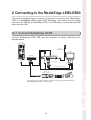
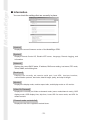
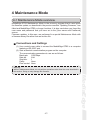
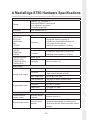
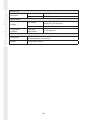
Connect MediaEdge-STB3 to the server computer, referring to the diagram below.
Keep the following verification steps in mind.
MediaEdge-SVS2/SVS3 Server
AC adapter
(Included in the package)
TV Moniter
MediaEdge-STB3
Switching HUB
Conversion connector
Ethernet cable
Ethernet cable
D - Component Conversion Adapter
Audio cable
● Verify Ethernet connection.
Verify that server PC, switching HUB, and MediaEdge-STB3 are connected.
They need to be connected by Ethernet cables.
● Verify connection to TV monitor.
Check that MediaEdge-STB3 and TV monitor are connected properly.
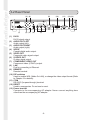
Check that MediaEdge-STB3 VIDEO OUT and AUDIO OUT are connected
to VIDEO IN and AUDIO IN of TV monitor properly.
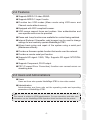
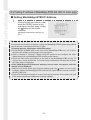
At the default setting, the video output mode is set to output 1080i (59.
94Hz) signal from the Component (Y/Pb/Pr) output terminals. Configure the
signal settings according to the monitor to be used.
Check that the attached AC adaptor for STB3 is firmly connected to the
MediaEdge-STB3 power terminal.
● Verify dongle connection.
Check that the dongle that came with the MediaEdge-SVS3 is connected to
the USB port of the server computer. Confirm that the red LED is lit in the
dongle. If not, check whether the USB port of your computer is enabled.
● Verify stream server startup.
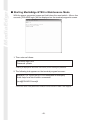
Select [Start] > [All programs] > [MEDIAEDGE] > [Server Configuration
Tool] to run "Server Configuration" tool. Make sure that Service status is
"running" on the [Service control] tab.
● Install batteries in the remote controller
Install two AAA batteries in the remote controller.
-13-
MediaEdge
● Verify STB3 AC adaptor connection.