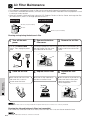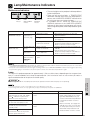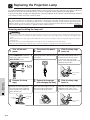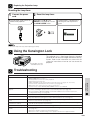
1
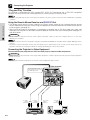
Operating the Wireless Mouse from the “Power” Remote Control
Important
Information
When operating the
projector controls
ADJ.
MOUSE
ON
MOUSE
When operating the
wireless mouse or using
the laser pointer
R/C
VOL
ON
OFF
MUTE
OFF
ADJ.
22
BLACK
SCREEN LASER
MENU
TOOLS
51
4
R-CLICK
52
ENTER
INPUT
IrCOM
FREEZE
AUTO SYNC
KEYSTONE ENLARGE
MOUSE
ADJ.
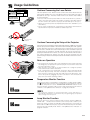
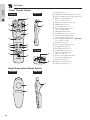
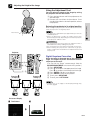
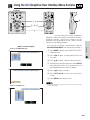
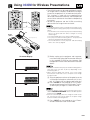
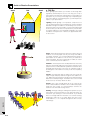
The “Power” remote control has the following three functions:
• Operation of projector controls
• Operation of wireless mouse
• Use of laser pointer
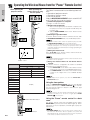
Slide the MOUSE/ADJUSTMENT switch to the MOUSE
or ADJ. position for use of the function.
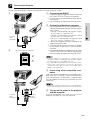
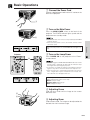
1 Connect the projector to a computer
See pages 15 and 16 for details.
2 Wireless mouse operation
1. After connecting the projector and the computer, turn
the projector on first. The computer should always be
turned on last.
2. Slide the MAIN POWER switch on the “Power” remote
control to ON.
3 Selecting the operation mode
To use the “Power” remote control as a wireless mouse, slide
the MOUSE/ADJUSTMENT switch to the MOUSE position.
ADJ.
MOUSE
LIGHT
• To use the “Power” remote control to operate the projector, slide
the MOUSE/ADJUSTMENT switch to the ADJ. position.
• The wireless mouse or RS-232C function may not operate if your
computer serial port is not correctly set up. Please refer to the
computer’s operation manual for details on setting up/installing the
correct mouse driver.
LCD PROJECTOR
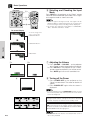
4 Moving the mouse cursor
Press ∂/ƒ/ß/© on the “Power” remote control to move the
mouse cursor around the screen.
• The supplied simple presentation remote control can also be used
for wireless mouse operation.
Mouse cursor
Button name
Position of MOUSE/ADJUSTMENT switch
MOUSE
ADJ.
LASER POINTER/MENU LASER POINTER (GREEN) MENU (RED)
BLACK SCREEN/TOOLS BLACK SCREEN (GREEN) TOOLS (RED)
RIGHT-CLICK/ENTER
RIGHT-CLICK (GREEN)
ENTER (RED)
MOUSE/ADJUSTMENT MOUSE (NOT LIT)
ADJUSTMENT (NOT LIT)
LEFT-CLICK/BACK
LEFT-CLICK (NOT LIT)
BACK (NOT LIT)
POWER ON/OFF
VOLUME /
MUTE
INPUT
IrCOM
ON (RED)
FREEZE
AUTO SYNCHRONIZATION
KEYSTONE
ENLARGE
VOL
ON
MUTE
5 Using the mouse buttons for two-button mouse
systems
The wireless mouse is configured to be used as a standard
two-button mouse (desktop mouse).
1. Use LEFT-CLICK on the back of the “Power” remote
control as the “Left Click” of a standard desktop mouse.
2. Use RIGHT-CLICK on the front of the “Power” remote
control as the “Right Click” of a standard desktop
mouse.
• For one-button mouse systems, use either the LEFT-CLICK or
RIGHT-CLICK button.
Using the laser pointer
Slide the MOUSE/ADJUSTMENT switch to the MOUSE
position, and then press LASER POINTER ( ) to activate
the laser pointer. When the button is released, the light
automatically goes off.
• For safety reasons, the laser pointer automatically goes off after
1 minute of continuous use. To turn it on again, press LASER
POINTER ( ) one more time.
OFF
BLACK
SCREEN LASER
MENU
TOOLS
R-CLICK
LASER POINTER button
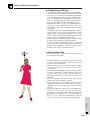
The “Power” remote control has a backlight function. When
BACKLIGHT is pressed, the remote buttons light up. Green
light refers to mouse operations, and red light to projector
adjustments.
ENTER
INPUT
IrCOM
FREEZE
AUTO SYNC
KEYSTONE ENLARGE
MOUSE
MOUSE
ADJ.
ADJ.
LIGHT
BACKLIGHT button
LCD PROJECTOR
E-11
Using the “Power” remote control in a dark
room
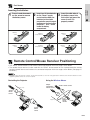
• If the MAIN POWER switch on the “Power” remote control is left on
for more than 10 minutes without operation, the power will
automatically turn off. To turn the power back on, press any button
on the remote control for more than one second.