1
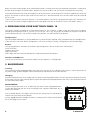
Deleting buttons
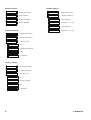
If you wish to define your own configuration, you must first delete the existing buttons. In this way, you delete all the
existing buttons in the active configuration (configuration 1 or 2):
SELECT USING ‘>’
choose by pressing ‘ , , ’.
REMOVE ALL?
REMOVE ALL?, press ‘OK’
ARE YOU SURE?
ARE YOU SURE?, press ‘ ’
YES
YES, press ‘OK’
ALL REMOVED
ALL BUTTONS HAVE BEEN DELETED.
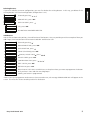
Add buttons
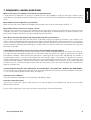
You are free to choose the position, size and function of the buttons. Here, we provide you with an example of how you
add a large (25x25mm) button with house/unit code ‘B4’ and function ‘ON’
SELECT USING ‘>’
choose by pressing ‘ ’.
ADD NEW BUTTON?
ADD NEW BUTTON?, press ‘OK’
BUTTON SIZE...
SIZE OF BUTTON, press ‘ ’
LARGE (25 X 25MM)
LARGE (25x25MM), press ‘OK’
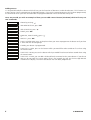
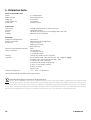
<MACRO, HOUSE>
MACRO, HOUSE CODE , press ‘ ,
’
HOUSE CODE: B
HOUSE CODE B, press ‘OK’
SET FUNCTION
CONFIRM FUNCTION, press ‘ , , , ’
UNIT 4
UNIT CODE 4, press ‘OK’
BUTTON:ON
BUTTON ON, press ‘OK’
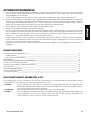
TOUCH SCREEN NOW
NOW TOUCH THE TOUCH SCREEN Press on the place where you want to programme the button
until you hear 5 short and then one long beep.*
SAVED, your button is programmed.
STORED
*Note: If you try to programme one button too close to another one, the message ‘ERROR OVERLAP!’ will appear on the
screen. You must then choose another position for the button.
Easy Touch Panel 10™
5