1
Scanning Basics
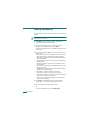
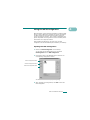
Your SCX-4x20 Series offers four ways to scan. These are:
• From the control panel on your machine to an application:
Use the Scan-to button on the control panel to initiate
scanning. Assign the TWAIN-compliant software, such as
Adobe Photo Deluxe or Adobe Photoshop, to the machine
by selecting it from the list of available applications via the
Scan-to button. Before assigning the software program,
you must configure the scan list using the Printer Settings
Utility. For details, see page 2.45.
• From the Samsung SmarThru software: Launch Samsung
SmarThru and open Scan To to begin scanning. See
page 6.4.
• From the Windows Images Acquisition (WIA) driver: Your
machine also supports the WIA driver for scanning
images. See page 6.7.
• From a USB flash drive: When you insert a USB flash drive
into the USB port in the front of your machine, you can
scan and save documents in the USB flash drive by
pressing Scan-to. For details, see page 6.8.
• From the Network Scan Program: Your machine use the
Network Scan program for scanning images. See
page 6.9.
NOTES:
• To scan with your machine, you must install the MFP driver.
• Scanning is done through the same LPT or USB port currently
assigned for your printer port.
• The maximum resolution that can be achieved depends upon
various factors, including computer speed, available disk space,
memory, the size of the image being scanned, and bit depth
settings. Thus, depending on your system and what you are
scanning, you may not be able to scan at certain resolutions,
especially using enhanced dpi.
6.2 SCANNING