1
3.4.3 ASUS Instant Music
The motherboard is equipped with a BIOS-based audio playback feature
called Instant Music. This feature is supported by the onboard audio
AC’97 CODEC and requires an optical drive (CD-ROM, DVD-ROM,
CD-RW, or DVD-RW).
•
Instant Music only supports CDs in audio format.
•
Instant Music does not work if you installed and enabled an add-on
sound card.
•
Instant Music only supports PS/2 keyboard.
•
Set the optical drive as secondary master device.
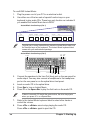
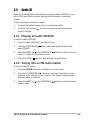
To enable ASUS Instant Music:
1.
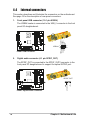
Connect the analog audio cable from the optical drive to the 4-pin CD
connector (labeled CD) on the motherboard. See page 76 for the
location of the CD connector.
Make sure to connect the optical drive audio cable. Otherwise, you
cannot control the audio volume using the Instant Music function keys.
2.
3.
4.
5.
Turn on the system and enter BIOS by pressing the Delete key
during the Power On Self-Tests (POST).
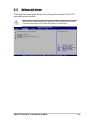
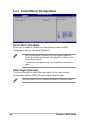
In the Instant Music Configuration menu, select the item Instant
Music and set it to Enabled. See section 5.4.1 “Instant Music
Configuration” on page 98.
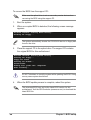
The Instant Music CD-ROM Drive item appears if you enabled
Instant Music. Highlight the item then press Enter to display the
CD-ROM options.
Save your changes and exit BIOS Setup.
•
The Scroll Lock LED is fixed to ON after enabling Instant Music.
•
The Caps Lock LED turns ON when you pause the CD playback.
•
When set to Instant Music mode, the system wake-up features
(LAN, keyboard, mouse, USB) are deactivated. In this case, power
up the system using the power switch.
•
If the system lost connection or did not detect any optical drive, the
Instant Music feature turns OFF (disabled) automatically. A “beep”
indicates this condition.
ASUS Terminator 2 barebone system
53