1
using your E814
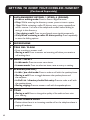
4. Press <UP/DOWN> to scroll through the CID list.
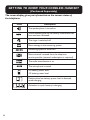
Note: The <NEW> icon will be displayed in the idle screen until all new calls have been
reviewed in the CID list.
Store a CID Number into the Directory
1. Follow steps from 1 to 3 in section View the CID.
2. To format the number for your local dialing zone (7-10-11 digits), press the
<# key> until the correct format is displayed on the screen.
3.Press <OK/MENU> to select the record to be stored; the
record will now be edited before being saved to your directory.
4.Display shows “Edit number”; key in the number using the digit keys (maximum 20
digits) OR press <OK/MENU> if no changes are needed. If you
make any mistakes, press <CLEAR/MUTE> to backspace a digit. Press <up>
or <down> to insert characters.
5. Press the <OK/MENU> button to confirm.
6.Display shows “Edit name”; key in the name using the digit keys (maximum 15
characters). If you make any mistakes, press <CLEAR/mute> to backspace a
character. Press <up> or <down> to insert characters.
7. When you have finished editing, press <OK/MENU> to confirm, and the display shows “Saved”, then it returns to the list of CID records.
Delete an Entry in the CID
1. Follow steps from 1 to 3 in section View the CID.
2. Press < x > to delete the record displayed on the screen. The record will be
deleted immediately.
Delete All Entries in the CID
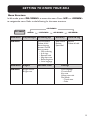
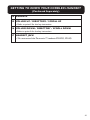
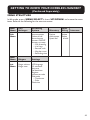
1. Press <OK/MENU> and <UP/DOWN> to select Caller ID log; press
<OK/MENU>.
2. Press <UP/DOWN> to select Delete all calls; press <OK/MENU>.
3. Display shows “Delete all?” Press <OK/MENU> to confirm, or
<CLEAR/MUTE> to cancel.
23