1
Printing photos from a memory card or USB Flash memory drive
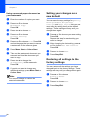
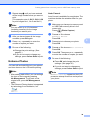
Setting your changes as a
new default
5
You can save the print settings you use most
often by setting them as the default settings.
These settings will stay until you change
them again.
a
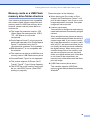
Entering Scan mode
Press a or b to choose your new setting.
Press OK.
Repeat this step for each setting you
want to change.
b
After changing the last setting, press a
or b to choose Set New Default.
Press OK.
c
d
Press + to choose Yes.
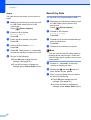
Press a or b to choose
Factory Reset.
Press OK.
b
c
Press + to choose Yes.
5
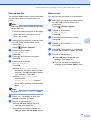
The LCD shows:
SCAN
5
Scan a document
directly to a media
card or USB
flash
memory.
Select & Press
OK
Press a or b to choose Scan to Media.
Press OK.
5
You can restore all the settings you have
changed to the factory settings. These
settings will stay until you change them again.
a
5
When you want to scan to a memory card or
USB Flash memory drive, press
(Scan).
Scan to E-mail
Scan to Image
Scan to OCR
Scan to File
Scan to Media
Press Stop/Exit.
Restoring all settings to the
factory settings
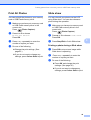
Scan to a memory card
or USB Flash memory
drive
If you are not connected to your computer
only the Scan to Media selection will appear
on the LCD.
(See Scanning for Windows® or Macintosh®
in the Software User’s Guide on the CD-ROM
for details about the other menu options.)
Press Stop/Exit.
49