1
Control panel features
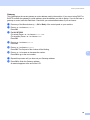
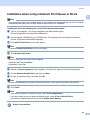
Wired Enable (For HL-3075CW wired network only)
8
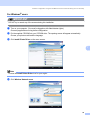
If you want to use the wired network connection, set Wired Enable to On.
a
b
Press any of the Menu buttons (+, -, OK or Back) of the control panel on your machine.
c
Press + or - to choose Wired LAN.
Press OK.
d
Press + or - to choose Wired Enable.
Press OK.
e
Press + or - to choose On or Off.
Press OK.
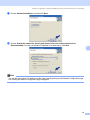
Press + or - to choose Network.
Press OK.
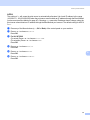
WLAN Enable (For HL-3075CW wireless network only)
8
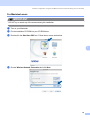
If you want to use the wireless network connection, set WLAN Enable to On.
a
b
Press any of the Menu buttons (+, -, OK or Back) of the control panel on your machine.
c
Press + or - to choose WLAN.
Press OK.
d
Press + or - to choose WLAN Enable.
Press OK.
e
Press + or - to choose On.
Press OK.
8
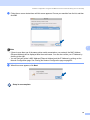
Press + or - to choose Network.
Press OK.
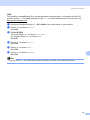
WPS or AOSS (For HL-3075CW wireless network only)
8
If your wireless access point/router supports either Wi-Fi Protected Setup (PBC 1) or AOSS™, you can
configure the machine easily without a computer. Your Brother machine has the WPS/AOSS menu on the
control panel. This feature automatically detects which mode your access point uses Wi-Fi Protected Setup
or AOSS™. By pushing a button on the wireless access point/router, you can setup the wireless network and
security settings. See the user’s guide for your wireless access point/router for instructions on how to access
one-push mode. (See Wireless configuration using WPS or AOSS from the control panel (For HL3075CW) in Chapter 6.)
1
Push Button Configuration
54