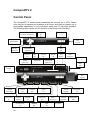
1
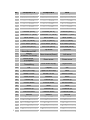
HotKey
Source
Language Selection
(V)
For Audio (Q)
Description
Enable/Disable Always-on-Top function
A
for TV window.(Oregon circle on the
upper-right corner of the TV window)
Screen Ratio Switch
(tab)
L
Sleep function
F7
Video Desktop
F8
Open snapshot dialog box
Note: Language select is only available while the
program supports it.
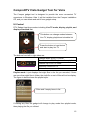
Start ComproDTV 4 and watch TV
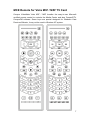
After installation, just press the yellow button of the last line on MCE remote or
double click the ComproDTV 4 icon on the desktop you will be able to watch
TV. Same as operating a normal TV set. Watch TV programs on your PC, in
full-screen mode or in a window. Channel up and down. Close ComproDTV 4
and even shutdown the computer with the full function remote control keypad.
Options
Press the Options
button to open the Options dialog box. You can change
detail settings of ComproDTV 4 here.
TV Settings
This option gives you the way to manually set the method of scanning TV
programs. Select your choice here or use default channel table to do the
scanning.
Autoscan
The first time you start ComproDTV 4, Autoscan will automatically scan for
available TV channels for TV signals. You can rescan the channels at any time
by pressing the Autoscan button.
When Autoscan is finished, detected channels are automatically enabled and
marked with the green check mark
. Channels, where a valid signal could
not be detected, are disabled and marked with a blank. However, you can
interrupt the scanning process by pressing the Stop button.
After you are finished scanning for available channels, you may select OK to
return to the display window, or customize the channel list according to your
preferences, as described below.
21