1
80
Chapter 8—Production workflows
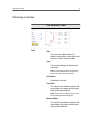
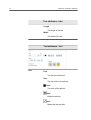
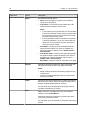
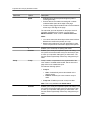
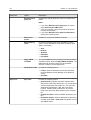
Number of sets
Sheet ID
Number of sheets in one set
●
●
●
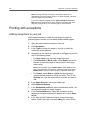
Generating a corner mark and barcode
Generate a barcode, registration mark, or corner mark, and print
the finishing marks for a near-line finisher
Requirements:
Make sure that you program the job details on the near-line
finisher that you are going to use.
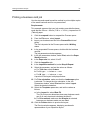
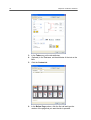
1. Open the job parameters window for the desired job.
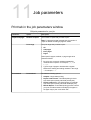
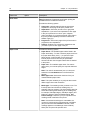
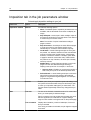
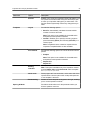
2. In the Finishing tab, select Near-line finisher.
3. In the Device list, select the finisher that you want to use—for
example, Duplo DSF-2000.
Note: Depending on the finisher you select, some of the options may
vary.
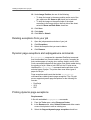
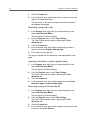
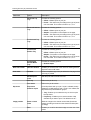
4. To print a corner mark, select the Generate corner mark
check box.
5. To print a barcode, select the Generate barcode check box.
6. In the Position list, select the area on the page on which to
place the corner mark and barcode.
7. In the Side list, select on which side to place the corner mark
and barcode.
8. To adjust the offset of the corner mark, in the Corner mark
offset boxes, enter the horizontal distance and vertical
distance.
9. To adjust the offset of the barcode, in the Barcode offset
boxes, enter the horizontal distance and vertical distance.
10. Click Save, and then submit your job for printing.
Next:
After your job finishes printing, place the pages in the near-line
finisher.