1
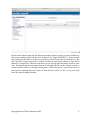
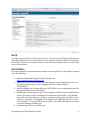
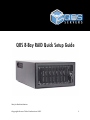
Introduction The QOS is a standalone storage array, part of a file-‐based workflow involving one or more users and one centralized storage system. The extraordinary power and versatility of the QOS is one of the key features of this product. The QOS can be used to integrate multiple users on shared storage volumes or function as a direct attached drive array. It is powered by a multi-‐core processor, which is housed inside an ultra-‐quiet, durable case. The MDC is the embedded RAID controller housed in the QOS chassis. It acts as a server that interacts with computers connected to it called clients and grants them access to the RAID storage drives. Read-‐write processes sent to the drives can be shared between mul-‐ tiple clients with the use of Rorke HyperFS SAN management, allowing instantaneous col-‐ laboration between workstations connected directly to the back or through a Fibre switch. Frontpane The front panel of the QOS allows the user to gain access to the drive bay and view the drive status indicator lights. Green lights represent OK status and a red light indicates a drive is failing. The QOS drives are hot swappable. For detailed instructions on drive re-‐ placement, please refer to the QOS 8-‐Bay Owners Manual. Backpane The backside of the QOS hosts all the adapters, Ethernet, Fibre Channel, 10GigE, power, diagnostic VGA and USB cables. Data ports such as Ethernet and Fibre Channel have green activity lights that indicate a healthy connection. On the back of the QOS there is a small power button, which can be used to initialize and shut down the device; when the activity lights on the front panel go out the unit is fully shut down. On some models a 0/1 power switch on the back panel sends power to the power supply and should be shut off before unplugging the unit, and needs to be turned on (‘1’ position) before powering on. HyperFS HyperFS is a file system supported by the QOS for hosting multiple clients and accessing the same files simultaneously. It acts much like a gatekeeper of information. HyperFS is a simple multi-‐OS solution to efficient file and block level storage. After installing the client software from the Rorke website, you can create a file system export using a Web user interface. It is possible to configure multiple export entries from a single location on the server, allowing you to customize permissions for different users. The address of the GUI is the Ethernet IP address followed by :82 (Ex: 10.0.1.100:82), which allow users to change the volume structure of the QOS. The password for the WebGUI is ‘fsadmin’ and ‘password’. The HyperFS WebGUI is only accessible after the HyperFS client software package from http://support.rorke.com/hyperfs is downloaded and installed on the computer. To create a mountable volume users go to the Export Management tab. Select the File System – there should be only one – from the drop down at the top. Then click button labeled “Create.” This entire process is outlined below. Copyright Ocean Tides Productions 2012 2