1
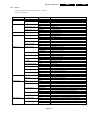
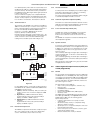
Colour television
Chassis
EM3E
AA
CL 16532044_000.eps
150501
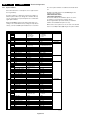
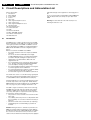
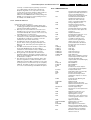
Contents
Page
Contents
1
2
Mains Switch Panel
CRT Panel
DC-Shift Panel
I/O 3rd SCART Panel
VDAF + 2nd Order S Panel
Side I/O Panel
Top Control
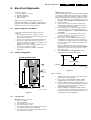
8 Electrical Alignments
9 Circuit Descriptions
List of Abbreviations
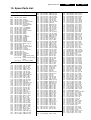
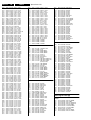
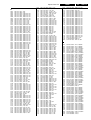
10 Spare Parts List
2
3
4
5
6
7
Technical Specifications, Connection Facilities
and Chassis Overview
Safety Instructions, Maintenance,
Warnings and Notes
Directions for Use
Mechanical Instructions
Service Modes, Error Codes,
Faultfinding and Repair Tips.
Block Diagrams
Block Diagram (Supply, Deflection)
Block Diagram (SSB Video)
Block Diagram (SSB Audio)
Supply Lines Overview
Wiring Diagram
I2C Overview
Testpoint Overviews
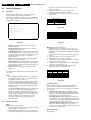
Electrical Diagrams and PWB lay-outs
Main Supply
(Diagram A1)
Stand-by Supply
(Diagram A2)
Line Deflection
(Diagram A3)
Frame Deflection E/W Drive
(Diagram A4)
Rotation Circuitry
(Diagram A5)
Audio Amplifier
(Diagram A6)
Headphone Amplifier
(Diagram A7)
Tuner, I/O, SIMM (Female)
(Diagram A8)
Front
(Diagram A10)
Inputs / Outputs
(Diagram A11)
SIMM (Male)
(Diagram B1)
IF, I/O, Video Processing
(Diagram B2)
Featurebox (PICNIC)
(Diagram B3)
Video Control (HOP)
(Diagram B4)
Teletext & Control (OTC)
(Diagram B5)
Audio Demodulator
(Diagram B6)
Falconic
(Diagram B8)
4
6
20
23
35
36
37
38
39
40
41
Diagram
42
43
44
45
46
47
46
48
49
50
57
58
59
60
61
62
62
Page
(Diagram E)
(Diagram F)
(Diagram G)
(Diagram H)
(Diagram I)
(Diagram O)
(Diagram P)
74
76
78
80
82
84
86
87
94
109
111
74-75
77
78
81
83
85
86
PWB
51-56
51-56
51-56
51-56
51-56
51-56
51-56
51-56
51-56
51-56
64-73
64-73
64-73
64-73
64-73
64-73
64-73
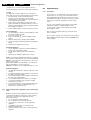
©
Copyright 2001 Philips Consumer Electronics B.V. Eindhoven, The Netherlands.
All rights reserved. No part of this publication may be reproduced, stored in a
retrieval system or transmitted, in any form or by any means, electronic, mechanical,
photocopying, or otherwise without the prior permission of Philips.
Published by CO 0066 Service PaCE
Printed in the Netherlands
Subject to modification
3122 785 11360
GB 2
1.
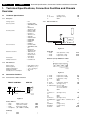
Technical Specifications, Connection Facilities and Chassis Overview
EM3E
1. Technical Specifications, Connection Facilities and Chassis
Overview
1.1
Technical Specifications
1.1.1
Reception
Tuning system
Colour systems
Sound systems
A/V connections
Channel selections
Aerial input
VCR preselections
1.1.2
1.2.2
: PLL
: PAL B/G, D/K, I
: SECAM B/G, D/K,
L/L’
: NTSC 4.43
(playback only)
: FM-mono B/G
: FM-mono D/K
: FM-mono I
: AM-mono L/L’
: 2CS B/G
: 2CS/Chez D/K
: NICAM B/G
: NICAM D/K
: NICAM I
: NICAM L
: PAL B/G, D/K, I
: SECAM B/G, D/K,
L/L’
: NTSC 4.43
(playback only)
: 100 channels
: VHF, UHF, SChannels and
Hyperband
: 75 W, Coax
: 0 and 90 - 99
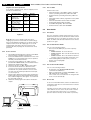
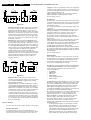
Rear Connections
EXT3
SURR.
EXT2
L
R
SERVICE
CONNECTOR
AUDIO OUT
EXT1
CL16532044_002.eps
090501
Figure 1-2
Audio Out
- - Audio
- - Audio
- - Audio
Surr. (0.5 Vrms / 1 k W)
L (0.5 Vrms / 1 kW)
R (0.5 Vrms / 1 kW)
1
Mains voltage
Mains frequency
Ambient temperature
Maximum humidity
Standby Power consumption
:
:
:
:
:
1.2
Connection Facilities
1.2.1
Front Controls / Side Connections
FRONT CONTROL
220 - 240 V (± 10 %)
50 / 60 Hz (± 5 %)
+ 5 to + 45 deg. C
90 % R.H.
1W
21
2
Figure 1-3
- Audio
- Audio
- Audio
- Audio
- Blue / U
- CVBS-status
3.5
AUDIO R
AUDIO L
VIDEO
SVHS
IR-RECEIVER
CL16532044_001.eps
260401
Figure 1-1
Audio / Video In
- - Video
- - Audio
- - Audio
- - Headphone
CVBS (1 Vpp / 75 W)
L (0.5 Vrms / 10 kW)
R (0.5 Vrms / 10 kW)
(32 - 2000 W / 10 mW)
SVHS (in)
1 2 -
GND
GND
20
CL96532137_056.eps
171199
1
2
3
4
5
6
7
8
SIDE I/O
STANDBY LED
External 1 (in/out): RGB/YUV + CVBS
Miscellaneous
SK 1
(1 Vpp / 75 W)
(0.3 Vpp / 75 W)
GND
3 -Y
4 - C / 16:9
5 -
9 1011- Green / Y
12131415- Red / V
16- RGB-status
171819- CVBS
20- CVBS
21- Earth
R (0.5 Vrms / 1 kW)
R (0.5 Vrms / 10 kW)
L (0.5 Vrms / 1 kW)
GND
GND
L (0.5 Vrms / 10 kW)
(0.7 Vpp / 75 W)
0 - 1.3 V: INT
4.5 - 7 V: EXT 16:9
9.5 - 12 V: EXT 4:3
GND
(0.7 Vpp / 75 W)
GND
GND
(0.7 Vpp / 75 W)
0 - 0.4 V: INT 1 - 3 V: EXT / 75 W
GND
GND
(1 Vpp / 75 W)
(1 Vpp / 75 W)
GND
Technical Specifications, Connection Facilities and Chassis Overview
External 2 (in/out): SVHS + CVBS (intended for VCR)
1
1
20
2
R (0.5 Vrms / 1 kW)
R (0.5 Vrms / 10 kW)
L (0.5 Vrms / 1 kW)
GND
GND
Audio
L (0.5 Vrms / 10 kW)
C
(0.7 Vpp / 75 W)
CVBS-status 0 - 1.3 V: INT
4.5 - 7 V: EXT 16:9
9.5 - 12 V: EXT 4:3
9 GND
10Easy link (P50)
111213GND
14GND
15- C
(0.7 Vpp / 75 W)
1617GND
18GND
19- CVBS
(1 Vpp / 75 W)
20- Y / CVBS
(1 Vpp / 75 W)
21GND
1.3
Audio
Audio
Audio
20
CL96532137_056.eps
171199
Figure 1-4
-
GB 3
21
CL96532137_056.eps
171199
1
2
3
4
5
6
7
8
1.
External 3 (in): CVBS
21
2
EM3E
Figure 1-5
1
2
3
4
5
6
7
8
- Audio
- Audio
- CVBS-status
9 1011121314151617181920- CVBS
21-
R (0.5 Vrms / 10 kW)
GND
GND
L (0.5 Vrms / 10 kW)
0 - 1.3 V: INT
4.5 - 7 V: EXT 16:9
9.5 - 12 V: EXT 4:3
GND
GND
GND
GND
GND
(1 Vpp / 75 W)
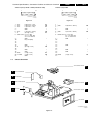
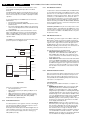
Chassis Overview
F
CRT/SCAVEM PANEL
O
SIDE I/O PANEL
B
SMALL SIGNAL BOARD
H
3rd SCART
TOP CONTROL PANEL
P
P
MAINSWITCH PANEL
E
LARGE SIGNAL PANEL
A
DAF PANEL
I
CL 16532044_004.eps
140501
Figure 1-6
GB 4
2.
EM3E
Safety & Maintenance instructions, Warnings and Notes
2. Safety & Maintenance instructions, Warnings and Notes
2.1
Safety instructions for repairs
2.3
Safety regulations require that during a repair:
• Due to the chassis concept, a very large part of this
chassis (incl. deflection) is 'hot'. Therefore the set must
be connected to the mains via an isolating transformer.
, should
• Safety components, indicated by the symbol
be replaced by components identical to the original ones.
• When replacing the CRT, safety goggles must be worn.
Warnings
•
Safety regulations require that after a repair, the set must be
returned in its original condition. In particular attention should
be paid to the following points:
• General repair instruction: as a strict precaution, we
advise you to resolder the solder joints, through which
the horizontal deflection current is flowing, in particular:
– All pins of the line output transformer (LOT);
– Fly-back capacitor(s);
– S-correction capacitor(s);
– Line output transistor;
– Pins of the connector with wires to the deflection coil;
– Other components through which the deflection
current flows.
Note: This resoldering is advised to prevent bad connections
due to metal fatigue in solder joints and is therefore only
necessary for television sets older than 2 years.
• The wire trees and EHT cable should be routed correctly
and fixed with the mounted cable clamps.
• The insulation of the mains lead should be checked for
external damage.
• The mains lead strain relief should be checked for its
function in order to avoid touching the CRT, hot
components or heat sinks.
• The electrical DC resistance between the mains plug and
the secondary side should be checked (only for sets
which have a mains isolated power supply). This check
can be done as follows:
– Unplug the mains cord and connect a wire between
the two pins of the mains plug;
– Set the mains switch to the 'ON' position (keep the
mains cord unplugged!);
– Measure the resistance value between the pins of
the mains plug and the metal shielding of the tuner or
the aerial connection on the set. The reading should
be between 4.5 MW and 12 MW.
– Switch off the TV and remove the wire between the
two pins of the mains plug.
• The cabinet should be checked for defects to avoid
touching of any inner parts by the customer.
2.2
Maintenance instructions
It is recommended to have a maintenance inspection carried
out by a qualified service employee. The interval depends on
the usage conditions:
• When the set is used under normal circumstances, for
example in a living room, the recommended interval is 3
to 5 years.
• When the set is used in circumstances with higher dust,
grease or moisture levels, for example in a kitchen, the
recommended interval is 1 year.
• The maintenance inspection contains the following
actions:
– Execute the above-mentioned 'general repair
instruction'.
– Clean the power supply and deflection circuitry on
the chassis.
– Clean the picture tube panel and the neck of the
picture tube.
In order to prevent damage to IC's and transistors, all
high-voltage flashovers must be avoided. In order to
prevent damage to the picture tube, the method shown in
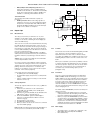
Fig. 2-1 should be used to discharge the picture tube.
Use a high-voltage probe and a multimeter (position
VDC). Discharge until the meter reading is 0 V (after
approx. 30 s).
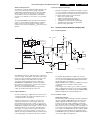
V
CL96532156_040.eps
140501
Figure 2-1
•
•
•
•
•
•
All IC's and many other semiconductors are
susceptible to electrostatic discharges (ESD). Careless
handling during repair can reduce life drastically. When
repairing, make sure that you are connected with the
same potential as the mass of the set by a wristband with
resistance. Keep components and tools also at this same
potential.
Together with the deflection unit and any multipole unit,
the used flat square picture tubes form an integrated unit.
The deflection and the multipole units are set optimally at
the factory. Adjustment of this unit during repair is
therefore not recommended.
Be careful during measurements in the high-voltage
section and on the picture tube.
Never replace modules or other components while the
unit is switched ON.
When making settings, use plastic rather than metal
tools. This will prevent any short circuits and the danger
of a circuit becoming unstable.
Wear safety goggles during replacement of the picture
tube.
Safety & Maintenance instructions, Warnings and Notes
2.4
Notes
•
•
•
•
•
•
The direct voltages and oscillograms should be
measured with regard to the tuner earth ( ) or hot earth
( ).
The direct voltages and oscillograms shown in the
diagrams are indicative and should be measured in the
Service Default Mode (see chapter 5) with a colour bar
signal and stereo sound (L: 3 kHz, R: 1 kHz unless stated
otherwise) and picture carrier at 475.25 MHz.
Where necessary, the oscillograms and direct voltages
are measured with ( ) and without ( ) aerial signal.
Voltages in the power supply section are measured both
for normal operation ( ) and in Standby ( ). These
values are indicated by means of the appropriate
symbols.
The picture tube PWB has printed spark gaps. Each
spark gap is connected between an electrode of the
picture tube and the Aquadag coating.
The semiconductors indicated in the circuit diagram and
in the parts lists are completely interchangeable per
position with the semiconductors in the unit, irrespective
of the type indication on these semiconductors.
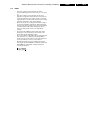
Manufactured under license from Dolby Laboratories
Licensing Corporation. DOLBY, the double D symbol and
PRO LOGIC are trademarks of Dolby Laboratories
Licensing Corporation.
EM3E
2.
GB 5
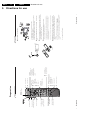
P
programme selection p. 9
Preparation
smart sound p. 10 M
smart picture p. 10 a
Peripherals p. 24 w
selection of EXT1, EXT2,
EXT3 or FRONT
V
¬
volume up/down p. 9
sound mute p. 9
p. 11
MENU
p. 15
guide on/off æ
main menu on/off
NEXTVIEW/TXT
Videorecorder selection p. 24
VCR
0
i
w
h
ACTIVE CONTROL
a
SMART
S
8
7
X
5
¬
f
2
M
‡
yÚ
4
MENU
U
Ò
1
V
æ
®
INSTANT
Q
◊
9
6
3
q
b
P
b
†
0
OK
h
π
B
Zoom p. 9
subpage selection
solution to puzzles
enlarge
i
0
◊
TXT language group selection p. 19
freeze the picture p. 10
hold teletext page p. 20
dual screen p. 14
h active control on/off p. 10
q picture format, p. 10
b
S
previous programme p. 9
video recorder function
on screen info p. 9
p. 24-25
Audio/video equipment
Colour keys
- NEXTVIEW selection p. 15
- direct teletext page or
subject selection, p. 19
X bilingual choice / sound info p. 10
OK activate your choice
Cursor to select
your choice p. 4
h
f
h
b teletext on/off
C time display
Teletext p. 19-20
Q surround modes p. 9
B switch to standby p. 9
CABLE
R6 / 1,5 V
(
‘
“
é
min.
1m
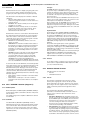
Go on to page 4, Store TV channels.
Preparation
3
Switch the TV on : Press the power switch A on the front of your TV.
A green indicator on the front of the TV lights up and the screen comes on.
If the TV is in standby mode (see p. 9), press the - P+ key on the remote
control.
The red lamp blinks every time you press a key on the remote control.
When you switch on your set for the first time, the menu LANGUAGE
automatically appears on the screen.The explanation appears in different languages
one at a time. Choose your own language and press the OK key on the remote
control.
Note: this remote control functions with TVs which use the RC6 signalling standard.
The batteries supplied do not contain the heavy metals mercury and cadmium.
Nevertheless in many countries exhausted batteries may not be disposed of with
your household waste. Please check on how to dispose of exhausted batteries
according to local regulations.
Remote control: Remove the cover of the battery compartment.
Insert the 2 batteries supplied (Type R6-1.5V).
Insert the mains plug in the wall socket having a mains voltage of 220V-240V.
To prevent damaging the mains (AC) cord which could cause a fire or electric
shock, do not place the TV on the cord.
Insert the aerial plug firmly into the aerial socket x at the back of the
TV.
For ventilation, leave at least 5 cm free all around the TV.
Do not place the TV on a carpet.
To prevent any unsafe situations, do not place any objects on top of the TV.
Avoid heat, direct sunlight and exposure to rain or water.
Place the TV on a solid surface.
EM3E
2
h
MODE
yÚ
DVD/Satellite selection p. 25
U
EasyLink p. 25
® INSTANT recording
&
Preparation
3.
Installation p. 4
Your remote control
Preparation
GB 6
Directions for use
3. Directions for use
‡
2
5
8
4
7
¬
f
yÚ
1
MENU
U
Ò
MENU
‡
f
yÚ
π
OK
h
π
9
6
3
select menu item
activate
return or switch
main menu off
1
2
3
4
5
6
L
M
‘
“
é
&
You can now search for and store the TV channels in two different ways:
using automatic installation or manual installation (tuning-in channel by
channel).
Select your choice and press the OK key.
Select Other when none of the countries applies.
Select the country where you are now located and press the OK key.
Use the cursor up/down to scroll through the list and bring up other
countries which are not displayed on the screen at present.
Select Country and press the OK key.
Select your language and press the OK key.
Use the cursor up/down to scroll through the list and to bring up other
languages which are not displayed on the screen at present.
Select Menu language and press the OK key.
First, select your language and country.
Select the menu language and country
After the new or extra TV channels have been stored, the TV automatically transfers
those TV channels to the video recorder if it is equipped with the EasyLink function.
The message EasyLink : downloading ...... appears on the screen. The
programme list of the video recorder is now the same as the one of the TV.
If the TV is connected to a video recorder which supports the NEXTVIEWLink function,
the TV also automatically transfers the language and country selections to the video
recorder.
Store TV channels
Subject
Subject
Subject
J Subject
Subject
Subject
MENU TITLE
Use the MENU key to return or to switch the menu off.
Press the OK key to activate.
é
“
Use the cursor in the up/down, left/right directions to select a menu item.
&
To use the menus
Press U and h at the same time.
Select the INSTALLATION menu
K
K
(Selection mode)
J System
System
K
Programme no.
Search
Fine tune
Store
Manual installation
1 BBC1
2 BBC2
3 CNN
....
....
J Start
Stop
Automatic installation
TV is searching
One moment please ...
Start
J Stop
Automatic installation
§
(
‘
“
é
&
& to ( to store another TV channel.
Installation
To exit from the menu press the MENU key on the remote control.
Repeat steps
To store your TV channel, select Store and press the OK key.
Fine tune
In case of poor reception, you can improve the reception by adjusting the
frequency with the cursor left/right.
Direct selection of a TV channel
If you know the frequency, the C- or S-channel number, enter it directly with
the digit keys 0 to 9.
Ask for a list from your cable company or dealer, alternatively consult the
Table of frequencies on the inside backcover of this handbook.
Search for a TV channel
Press the cursor left/right.
The frequency or the channel number increases until a TV channel is found.
5
Press the cursor down and enter the programme number with the digit keys.
Select the TV system
Select the country or part of the world from where you want to receive the
TV channel.
If you are connected to a cable system, select your country or part of the
world where you are now located.
offers the channel option (C-channels for aerial channels, S-channels for cable
channels).
You can choose either channel or frequency mode.
Selection mode is only present and lights up if the country selected also
Searching for and storing TV channels is done channel by channel.
You must go through every step of the Manual installation menu.
Manual installation
Go on to page 6.
To exit from the menu press the MENU key on the remote control.
It is possible that the cable company or the TV channel displays a broadcast
selection menu. Layout and items are defined by the cable company or the TV channel.
Make your choice with the cursor and press the OK key.
If a cable system which broadcasts ACI (Automatic Channel Installation) or a
TV channel transmitting a teletext page with the frequencies and programme
names of all the TV channels which can be received, is detected, the search is
stopped and a programme list appears.
The programme list is automatically filled with all the programme numbers
and names of the TV channels transmitted.
In the Automatic installation menu select Start and press the OK key to
activate the searching. All TV channels are searched for and stored
automatically.
3.
Installation
P
b
†
Q
B
United Kingdom
....
....
J MENU
Country
TITLE
English
....
....
J MENU
Menu TITLE
language
Menu language
†
b
◊
OK
h
Q
B
Automatic installation
EM3E
4
Ò
U
J MENU
INSTALLATION
TITLE
V
æ
®
INSTANT
æ
®
INSTANT
Installation
Directions for use
GB 7
6
Installation
0 ...
1 ...
J 2 ...
3 ....
4 ....
5 ....
Favourite programmes
EXT1
EXT2
EXT3
FRONT
0
J 1 CNN
2 BBC2
3 ....
4 ....
5 ....
No
Yes
Yes
No
No
Yes
Press the MENU key to return to the INSTALLATION menu.
Press the OK key.
Repeat the operation until all TV channels are allocated as you like.
Select the new number you want to exchange it with.
Press the OK key.
Select the programme number you want to exchange.
Select Reshuffle in the INSTALLATION menu and press the OK key.
(
é
“
‘
&
In order for NEXTVIEW to function properly, the first TV channel from the favourite list
should also broadcast the correct local date and time via teletext.
Press the MENU key to return to the INSTALLATION menu.
Repeat for every TV channel you want to make a favourite or a
non-favourite TV channel.
Select Yes or No with the cursor left/right.
Select your favourite programme number.
Select Favourite programmes in the INSTALLATION menu and press
the OK key.
After leaving the installation you can browse through the TV channels by
pressing the - P + key. Only those TV channels which are in the favourite list
will be displayed. Non-favourite TV channels can still be selected with the digit
keys. By default all stored channels are added to the favourite list.
Select Favourite TV channels
§
&
é
“
‘
(
According to your preference you can change the order of the stored TV
channels.
Reshuffle the programme list
Space, numbers and other special characters are located between Z and A.
Press the MENU key to return to the INSTALLATION menu.
Press the OK key when finished.
Select the following character.
Select the following position with the cursor right.
Select the character with the cursor up/down.
Press the OK key.
Select the programme number.
Select Give name in the INSTALLATION menu and press the OK key.
J Programme
Decoder status
Decoder/Descrambler
Digital Sources
J Decoder/Descrambler
Picture tilt
Information line
Factory settings
Auto format
Auto Surround
INSTALLATION
SETUP
J SETUP
yes/no
&
é
“
Installation
7
Auto format
Selecting Yes causes the screen to automatically fill as much of the picture as
possible when TV programmes are not carrying special signals detecting the
correct screen format.
With the q key on the remote control you can still select other picture
formats. See p. 10.
Factory settings
Select Factory settings and press the OK key to restore picture and sound
settings, predefined in the factory.
Information line
Select On and after the selection of a TV programme or after pressing the
i key on the remote control, a TV channel which broadcasts teletext may
transmit the name of the TV channel, the programme name or another
message.This is displayed on screen next to information about sound and
picture format.
When selected Off, only sound and picture format information is displayed
after the selection of a TV channel or after pressing the i key.
Picture tilt
Select Picture tilt with the cursor up/down.
Keep the cursor left/right pressed to adjust the rotation of the picture.
Select EXT2 when the decoder is connected to your EasyLink video recorder.
When selecting the decoder, the message EasyLink: downloading presets....
appears on the screen.
Press the cursor left/right to select the input used to connect to your
decoder Off, EXT1 or EXT2.
Select Off if you do not want the selected programme number being
activated as a decoder programme number.
Define Decoder/Descrambler programme numbers
If a decoder or a descrambler is connected, see p. 22 you can define one or
more programme numbers as decoder programme numbers.
Digital sources (for future use)
Use the MENU key to return or switch menu off.
Use the OK key to activate.
Use the cursor in the up/down, left/right directions to select the menu item.
The Setup menu allows you to adjust initial settings, i.e. those which are not
related to the installation of the TV channels.
The Setup menu contains items that control the settings of the TV’s functions,
features, services and peripherals you may have connected.
Install TV Setup
EM3E
Reshuffle
EXT1
EXT2
EXT3
FRONT
J 0
1 BBC1
2 BBC2
3 ....
4 ....
5 ....
Give name
SETUP
&
é
“
‘
(
§
è
!
Automatic installation
Manual installation
Give name
Reshuffle
Favourite programmes
Menu language
Country
INSTALLATION
3.
Automatic installation
Manual installation
J Give name
Reshuffle
Favourite programmes
Menu language
Country
INSTALLATION
It is possible to change the name stored in the memory or to assign a name
to a TV channel which has not yet been entered. A name with up to 5 letters
or numbers can be given to the programme numbers 0 to 99. For example
SUPER, BBC1,... Between 99 and 0 you can also name any peripherals that
are connected to a euroconnector.
Give name
GB 8
Directions for use
Installation
‘
To exit from the menu press the MENU key repeatedly.
Installation
Select Installation and press the OK key to return immediately to the
INSTALLATION menu.
guide on/off
see p. 15
Main menu on/off see p. 11
NEXTVIEW/TXT
Screen information
0
S
X
M
8
7
i
w
5
ACTIVE CONTROL
h
a
SMART
2
¬
f
yÚ
‡
4
MENU
U
Ò
1
V
æ
®
INSTANT
3
◊
9
6
q
b
P
b
†
Q
B
0
OK
h
π
0 Previous programme
The previously selected TV channel is displayed.
The ◊ indication is only video recorder.
0/9 Digit keys
To select a TV channel.
For a two digit programme number, enter the second digit within 2
seconds.
To switch immediately to a selected one digit TV channel, keep the digit
key pressed a bit longer.
Press for 5 seconds to activate/de-activate
the extended or reduced display of TV
channel and programme information on the
screen.
Press briefly to display information about the
selected TV channel and programme, the
sound reception, picture settings and the
remaining time set with the sleeptimer.
i
Programme selection
To browse through the TV channels
activated in the Favourite Programme menu.
P
Mute
Temporarily interrupt the sound or restore
it.
¬
Volume
Press + or - to adjust the volume.
V
OK Press this key to activate your choice,
when in the menus.
MENU
æ
®Ò‡π† Video recorder see p. 24
Use of the remote control
This function is not available when continuous
subtitles have been switched on.
9
Time display
The time, downloaded from the TV channel
(with teletext) stored on programme number
1 or the lowest favourite programme
number, is displayed on the screen.
U
h Zoom
Press the ZOOM h key repeatedly to select
one of the zoom magnifications (x1, x4, x9,
x16). Additionally you can shift the selected
zoom window over the screen with the
cursor.
Press i to activate/de-activate the
continuous display of the zoom magnification.
The zoom window is reset after: selecting
another TV channel, another picture format
or when another picture format is selected
automatically.
Zooming is disabled in Dual screen mode.
Teletext functions see p. 20
Teletext on/off see p. 19
fh
b
Virtual Dolby Surround enables you to
experience the effect of Dolby Surround Pro
Logic, reproducing a rear sound effect.
See Sound menu,Virtual Dolby effect, p. 12.
Virtual Dolby Surround
(optimal with Dolby Surround signals)
With stereo transmission, and when
Incredible Surround is selected, it seems as
though the loudspeakers are spread further
apart from one another.
Incredible Surround
Q Surround modes
Standby
The set is switched off.To switch the TV on
again, press - P + or the digit keys.
If your EasyLink video recorder has the
system standby function and you press the
standby key for 3 seconds, both the TV and
video recorder are switched to standby.
Your TV consumes energy in the standby mode.
Energy consumption contributes to air and water
pollution. We advise to switch off your TV
overnight instead of leaving it on standby.You
save energy.
B
3.
8
yes/no
® Instant record
If your video recorder has the EasyLink
function the INSTANT ® key for record can
be operated in the TV mode.
EM3E
‘Dolby’ ‘Pro Logic’ and the double-D symbol
are
trademarks of Dolby Laboratories Licensing Corporation.
Manufactured under license from Dolby Laboratories
Licensing Corporation.
Digital Sources
Decoder/Descrambler
Picture tilt
Information line
Factory settings
Auto format
J Auto Surround
INSTALLATION
SETUP
Auto Surround
Sometimes the broadcaster transmits special signals for Surround Sound
encoded programmes. In that case, the TV automatically switches to the
best Surround Sound mode when Auto Surround is switched on. Virtual
Dolby* Surround will be reproduced, see p. 9.
Overruling this surround mode remains possible.
Use of the remote control
Operation
Directions for use
GB 9
10
Use of the remote control
Personal refers to the personal preference
settings of picture and sound selected in the
picture and sound menu.
Remark: the moment you are in a predefined
smart sound or picture setting and you modify a
setting in the picture or sound menu, all values of
the menu will overwrite the previously made
settings.
a Smart Picture
Each time it is pressed, a different picture
setting is selected, corresponding with
specific factory settings of Contrast, Colour,
Sharpness and Dynamic Contrast.
M Smart Sound
Each time it is pressed, a different sound
setting is selected, corresponding with
specific factory settings of the equalizer.
U
S
X
◊
9
6
3
q
b
P
b
†
0
OK
h
π
Dual screen, see p. 14
Picture format
Press this key repeatedly to select another
picture format: 4:3, Movie Expand 14:9,
Movie Expand 16:9 with or without subtitling,
Wide Screen, Super Zoom or Automatic
(when Auto format is set to Yes in the
SETUP menu).
Automatic makes the picture to fill the
screen as much as possible.
Sometimes also video recorder programmes
carry special signals which will automatically
switch the TV to the correct screen format.
Auto format is disabled when in Dual screen.
When in Movie Expand 14:9 or 16:9 or
Super Zoom picture format you can make
subtitles visible with the cursor up/down.
q
b
S Freeze
To activate/de-activate the frozen picture or
to hold a teletext page.
Active control
Active control is a pro-active and automatic system.The TV continuously
measures and corrects all incoming signals in order to provide the best
picture possible.
Press the h key to select the Active Control values Off or On.
Off Sharpness and Dynamic Contrast are controlled automatically
On Sharpness, Dynamic Contrast and Noise Reduction are controlled
automatically.
Press the cursor in the up/down directions while the selected Active
Control setting information is on top of the screen.
The Active Control menu appears.
The picture settings are being adapted continuously and automatically.
The menu items cannot be selected.
Press the cursor in the up/down directions again to switch off the menu.
h
a
ACTIVE CONTROL
h
SMART
0
i
M
8
7
w
5
4
¬
f
2
MENU
‡
yÚ
1
V
æ
Ò
Q
V
1
OK
Q
3
P
b
†
MAIN MENU
2
¬
π
h
M
cursor to select
adjustments
OK key to activate
J Contrast
L
Brightness
Colour
Sharpness
Tint
Digital options
Dynamic Contrast
PICTURE
J Contrast
PICTURE
SOUND
FEATURES
PROGRAMMES
MENU
‡
f
yÚ
“
‘
(
§
&
é
Use of the menus
11
The modified adjustments for Contrast, Brightness, Colour, Sharpness,Tint,
Digital Scan and Dynamic Contrast are automatically stored for all TV
channels.
Select Factory settings in the Setup menu to restore the predefined factory
settings, see p. 7.
Dynamic Contrast
To make the contrast in the darker and the brighter picture areas more
noticeable, select the Med setting.
In certain circumstances it may be preferred to select Min, Max or Off.
Note: if the menu item Digital options is not present, first select a 4:3 picture format
with the q key.
• 100 Hz = 100 Hz only (Field flicker reduction)
• Dig. Scan = 100 Hz + Dig. Scan (Field and line flicker reduction)
• Natural Motion = 100 Hz + Dig. Scan + Natural Motion (Field and line
flicker reduction and smooth movement reproduction)
• Double lines = provides for a doubling of vertical resolution which adds
astonishing sharpness and a total absence of visible picture lines.
Motion compensation reduces jitter and offers smooth, yet sharp motion
reproduction.
Digital options
Although Natural Motion is the most ideal setting, it may be preferable to
switch back to Digital Scan and/or 100 Hz.
To make all the 3 digital options available at the same time and selectable, first
select a 4:3 picture format.
Tint
Select the colour temperature: Normal, Warm or Cool.
If an NTSC peripheral is connected to one of the euroconnectors, the option Hue
also appears.
Picture menu
Press the MENU key repeatedly to return or to switch the menu off.
Use the OK key to activate.
Use the cursor in the up/down, left/right directions to select the menu item.
Press the cursor right to activate the selected menu.
Use the cursor in the up/down directions to select the PICTURE, SOUND or
FEATURES menu or to select the PROGRAMMES.
Press the MENU key to display/cancel the MAIN MENU.
Use of the menus
EM3E
Smart Keys
To select predefined picture and sound
settings.
Select peripherals
Press this key repeatedly to select EXT1,
EXT2, EXT3 or FRONT, according to where
you connected the peripherals (p. 24).
w
®
INSTANT
B
Bilingual choice and
sound mode selection
Press this key
• to switch from Stereo to Mono sound, in
case of stereo transmission, or from
Nicam Stereo to Nicam available, in case
of digital transmission;
• to choose between language Y (Dual Y) or
language Z (Dual Z), in case of bilingual
transmission.The setting is separately
stored for each TV channel.
X
Ò
U
return or switch
main menu on/off
3.
æ
®
INSTANT
B
GB 10
Directions for use
‡
OK
h
π
P
b
†
M
cursor to select
adjustments
OK key to activate
return or switch
main menu on/off
&
é
“
‘
(
Virtual Dolby effect
Virtual Dolby enables you to experience the effect of Dolby Surround Pro
Logic without the need of having rear speakers connected or activated.
Select the level of Virtual Dolby effect with the cursor left/right.
Delta volume
Here you may adjust the volume differences of each selected TV channel or
external device separately.This can compensate volume differences between
different broadcasters.
Use the - P + keys to compare to the volume of other TV channels or
externals.
AVL (Automatic Volume Leveller)
AVL automatically controls the volume level to avoid too large level
differences, especially when switching to another programme or during
commercial breaks.
AVL will reduce the dynamics of the sound.To maintain original dynamics, use
the Delta volume feature.
Headphone volume
See Connect Peripheral Equipment, p. 23, for the connection of the
headphone.
Graphic Equalizer
Here you can select the preferred sound setting which corresponds with the
personal sound settings.
The modified adjustments for Volume, Balance, and Graphic equalizer are
automatically stored for all TV channels.
Select Factory settings in the Setup menu to restore the predefined factory
settings, see p. 7.
Press the MENU key repeatedly to return or to switch the menu off.
Use the OK key to activate.
Use the cursor in the up/down, left/right directions to select the menu item.
Use the cursor in the up/down directions to select the SOUND menu.
Press the MENU key to display/cancel the MAIN MENU.
Sound menu
MENU
U
Ò
‡
¬
f
yÚ
OK
h
π
Sleeptimer
Child lock
Subtitle
J FEATURES
V
æ
®
INSTANT
P
b
†
Q
B
Off
Off
Off
cursor to select
adjustments
OK key to activate
return or switch
main menu on/off
(
&
é
“
‘
é
“
‘
(
&
Use of the menus
Press the MENU key to switch off the Programme list.
13
Press the cursor up/down to run through the list and press OK to select the
desired TV channel.
Press the cursor right to display an overview of all the TV channels installed.
Select PROGRAMMES with the cursor up/down.
Press the MENU key to display/cancel the MAIN MENU.
Programme list
Press the MENU key to switch off the Features menu.
Subtitle
TV channels with teletext often transmit certain programmes with subtitling.
See Teletext, Continuous Subtitles, p. 21 how to select the proper subtitle
page from the teletext index.
Select Subtitle On or Off.
Child lock
If the child lock is on, the TV can only be switched on with the remote
control.The P - and + keys on top of the TV cannot be used to select a TV
channel. In this way you can prevent unauthorised use of your TV.
If the message Child lock On appears, the child lock must be switched off
before you can use the P - and + keys on top of the TV to select a TV
channel.
Sleeptimer
With the sleeptimer you can set a time period after which the TV should
switch itself to standby.
The counter runs from Off up to 180 min.
One minute before the TV is set to go to standby, the remaining seconds
appear on screen. Not visible in dual screen mode.You can always switch off
your set earlier or change the set time.
Press the MENU key repeatedly to return or to switch the menu off.
Use the OK key to activate.
Use the cursor in the up/down, left/right directions to select the menu item.
Use the cursor in the up/down directions to select the FEATURES menu.
Press the MENU key to display/cancel the MAIN MENU.
Features menu
3.
Use of the menus
J Volume
L
Balance
Graphic Equalizer
Headphone Volume
AVL
Delta volume
Virtual Dolby effect
¬
f
yÚ
Q
B
EM3E
12
MENU
U
Ò
SOUND
V
æ
®
INSTANT
Directions for use
GB 11
S
a
q
b
0
Dual Screen
ACTIVE CONTROL
h
SMART
X
M
0
w
9
8
7
i
◊
6
3
5
P
b
†
Q
B
2
¬
OK
h
π
4
MENU
f
yÚ
‡
1
V
æ
U
Ò
q
b
b
(
‘
“
When in NEXTVIEW/Teletext Guide Dual Screen, press the æ key to return
to a full picture screen or press the b key to return to a full
NEXTVIEW/Teletext Guide screen.
When in Teletext Dual Screen, press the b key to return to a full picture
screen or press the b key to return to a full Teletext screen.
Press + P - to run through the teletext pages.
Press the q key to select a vertical squeezed or a non vertical squeezed
picture size
é
MENU
æ
V
5
8
è
§
(
‘
“
0
2
7
¬
f
yÚ
4
MENU
U
1
æ
INSTANT
cursor to select
adjustments
Record
Remind
Info
é
&
BBC1
................
................ 226/3
................ 231
11.03
14.35
17.50
Press the OK key to return to the header area
again.
Press one of the colour keys to select one of the
basic functions (if available); record, remind, info.
See Basic functions further on.
Select a programme with the cursor up/down.
Press the cursor left/right to run through the
subpages.
(
“
‘
What’s on now
Preview
Themes
Ratings
18:03
Overview
NEXTVIEW
NEXTVIEW
Press the OK key to return to the header area
again.
Press one of the colour keys to select one of the
basic functions (if available); record, remind, info.
See Basic functions further on.
Select a programme with the cursor up/down.
Record
Remind
Info
BBC1
Monday 9 Oct
Channel
Theme
NEXTVIEW
15
Use the cursor in the up/down, left/right directions to select the date,
CHANNEL for the channel guide, THEME for the theme guide, OVERVIEW
for an overview of all the programmes which are marked as reminders or for
recording, the programme guide page number or to enter the programme list.
Press the æ key on the remote control to display/cancel the Teletext Guide/
NEXTVIEW menu.
Use of the Teletext Guide/NEXTVIEW menus
The broadcaster is responsible for the contents of the information.
The TV is responsible for the capture of that information and for the presentation to
the user.
Channel
Overview
BBC1
BBC2
p.202
p 01 02 ... π
Teletext Guide
◊
9
6
3
P
b
selection
NEXTVIEW
Enter the proper programme guide page number
with the digit keys or with the – P + keys.
OK
h
Q
B
Both facilities are integrated in this TV: NEXTVIEW and Teletext Programme
Guide. If a TV channel supports NEXTVIEW then the TV will automatically
present the NEXTVIEW programme schedule. If the TV channel supports just
teletext, then the TV will switch automatically to Teletext Guide.
Both facilities are offering the same functions: record, remind and info.
However in case of Teletext Guide the broadcaster is responsible if these
functions are possible.
You can search for the programmes you want to watch up to 7 days in advance.
It is also possible to search for a programme by theme, e.g. sport, movie, etc.
Once a programme has been selected it can be tagged, to remind you, or to
record on the video recorder automatically (provided the video recorder is
equipped with NEXTVIEWLink Level 2.0), once, daily, weekly or series.
Teletext Guide/NEXTVIEW also allows direct access to detailed information
about programmes if provided by the broadcaster.
EM3E
14
æ
®
Today, most broadcasters in Europe, are offering teletext pages containing
their programme schedule of today.These pages can be requested by switching
the TV to Teletext Guide.
An increasing number of broadcasters are offering an extended programme
guide service called NEXTVIEW. NEXTVIEW is a new way of presenting
programme schedules and offers more features than common teletext.
With NEXTVIEW it is possible to show for instance all the movies coming
tonight.
/ Teletext Guide
3.
INSTANT
Press the b key to switch on Dual Screen.
The TV screen is divided into 2 parts:
- the left side for the normal main picture,
- the right side for teletext broadcast by the selected TV channel or for
NEXTVIEW/Teletext Guide.
To operate NEXTVIEW/Teletext Guide, see p. 15.
To operate teletext, see p. 19.
If Dual Screen is Off, the picture, teletext or NEXTVIEW/Teletext Guide are displayed
full screen.
&
Dual Screen
NEXTVIEW
GB 12
Directions for use
14.35
17.50
BBC1
CNN
BBC1
Movie
NEXTVIEW
BBC1
CNN
TVE
BBC2
17.10
17.30
18.05
19.00
BBC1
Monday 9 Oct
Channel
Theme
BBC1
CNN
TVE
Culture
Monday 9 Oct
Channel
Theme
........
........
........
BBC1
Monday 9 Oct
Channel
Theme
NEXTVIEW
18:03
Overview
NEXTVIEW
....
18:03
Overview
NEXTVIEW
BBC2
18:03
Overview
modes to sort and represent information
Note: the TV will automatically interpret the broadcast time (as shown on the
teletext guide) of your selected programme into the correct local time and
date.
After the programme has been broadcast, all items set for once will be
deleted from the list the following day.This menu can be used to change a
reminder or recorder.
Overview
The Overview menu provides a list of programmes that are marked as
reminders or to be recorded each day.
When more than one programme to be recorded has an overlap in time,
these programmes will be marked by a red colour.
Theme
The theme guide displays a list of all programmes at the selected date, that
matches with the selected category (news, sport, culture, movies, …).
The default starting item will be the current or next programme on the
current TV channel.
The THEME selection is only present if programmes in the TV guide have
defined themes.
Channel
The Channel guide provides an overview of all programmes that are
broadcast by a single channel during one day.
Already passed programmes can be made visible via cursor up.
The list will start with the earliest broadcast programme.
With cursor left/right another favourite TV channel can be selected.
NEXTVIEW
The function items record, remind and info, corresponding with the coloured
keys, become highlighted if the displayed programme page satisfies the Video
Programming via Teletext (VPT) requirements. Select a programme item and
press one of the function keys, e.g. Record or Remind. See Basic functions
further on.
The Info item is enabled if the selected programme contains a page number
with an optional subcode referring to a page with more info about the
programme.
Every time you press the æ key, the programme guide page of the
selected TV channel will be available if the TV channel does not support
NEXTVIEW.
Record
Remind
Info
R
!
World news
Weekly Clear
time
OVERVIEW
Travel Guide
Date
THEME
CNN
Info block
17.50
Insight
............................
pOnceπ Daily
14.35
11.03
CHANNEL
é
&
“
é
&
NEXTVIEW
Press the yellow colour key again to switch off the information.
17
Info
Press the yellow colour key to activate Info.
Advertisements or information relating to the selected programme are
displayed. In some cases all of the information does not fit on the screen. Use
the cursor up/down to browse through all the information.
- a message will be displayed the moment the tagged programme
with ! starts, when watching the TV later on.
- the TV switches on the moment the tagged programme with ! starts,
when the TV is in standby.
Note: Recordings and reminders are not possible when the broadcaster does not
transmit dates and times of the programmes.
The message No TV programming possible appears.
Make sure you are on the TV programming page.
When Record R is activated:
Storing is displayed to indicate the video recorder is programmed.
When Remind ! is activated:
Press the OK key.
Use the cursor in the left/right directions to select the interval.
The colour of the tag refers to the interval.
Press the red colour key to activate Record or the green colour key to
activate Remind.
If the programme number of the broadcaster is not yet known, a message appears
with the request to input the correct programme number with the cursor left/right
and press OK.
A small menu pops up in which you can choose the interval: once, daily or
weekly, or clear an earlier made record or remind setting.The default interval
is set to Once. If a programme is an episode of a series, it is identified by the
system and the options daily and weekly are replaced by the option series. In
this case the system identifies when the next episode of the series will be
broadcast.This is not possible in the Teletext guide.
Record R or Remind !
The functions Record, Remind and Info can be activated with the
corresponding colour keys on the remote control.
If the function is not available, then the text is shown at reduced brightness.
Select a programme with the cursor up/down.
3.
16
................ 226/3
................ 231
11.03
One moment please
BBC 2
................
Theme
Overview
BBC 2
CNN
p 01 02 ... π
TV channels which broadcast teletext also transmit a page with the
programme guide of the day. For each selected TV channel the programme
guide page can be selected with the æ key:
- automatically if the selected TV channel supports services like PDC
(Programme Delivery Control) or MIP (Magazine Inventory Page).
- if automatic pre-selection is not possible then the index page is displayed
and the proper programme guide page number of the selected TV channel
has to be entered with the digit keys.
The programme guide page will be stored automatically only if it satisfies
Video Programming via Teletext (VPT) requirements.
EM3E
Record
Remind
Info
Record
Remind
Info
Record
Remind
Info
Record
Remind
Info
Channel
BBC 1
p.202
Basic functions
Teletext guide
Directions for use
GB 13
U
S
a
NEXTVIEW
INSTANT
®
DNR
SMART
X
M
0
q
b
0
b
Select Picture/NEXTVIEW-Teletext Guide
NEXTVIEW
information
NEXTVIEW
Some NEXTVIEWLink video recorders do not allow a daily programming of the
recording to start on a Saturday or Sunday. In this case the item daily will be
removed from the menu on those days.
Upload video recorder overview
When the TV is switched on, the timer recordings are uploaded to the TV to
check if any manual addition or deletions have been done.This is shown in the
overview.
The video recorder manages and removes timer recordings when performed.
The daily, weekly and series options, the number of recordings set and the
way overlapping recordings are managed, depend on the type of video
recorder you have.When all video recorder timers are full, the item Record
in the menu will not be present.
The Record item and the automatic recording will only be present and
possible if your video recorder is equipped with NEXTVIEWLink.
Your video recorder should be connected to EXTERNAL 2. See Connect
Peripheral Equipment, p. 22.
Video recorder restrictions with
Acquisition and updating of NEXTVIEW is done when you are watching a TV
channel supporting NEXTVIEW.
Acquisition and updating of
Press the æ key.
Press the b key.
The screen is divided into two parts: the left side for the normal main picture,
the right side for NEXTVIEW/Teletext Guide.
Press the b key to return to a full NEXTVIEW/Teletext guide screen, or press
the æ key to return to a full picture screen.
X
MENU
U
M
a
ACTIVE CONTROL
h
SMART
S
w
X
8
5
2
¬
f
yÚ
0
7
4
1
MENU
i
V
æ
INSTANT
◊
9
6
3
q
b
P
b
0
OK
h
Q
B
b
0
cursor to select
pages
OK key to activate
b
colour keys
to select
Press the 0 key.
Teletext
Select the previously selected teletext page
Press the cursor up/down or the - P + key to run through the previous or
the following pages.
Quickly run through the teletext pages
Select a TV channel which broadcasts teletext.
Press the b key.
The screen is divided into two parts:
the left side for the normal main picture,
the right side for teletext broadcast by the selected TV channel.
Press the b key to return to a full screen picture or press the b key to
return to a full teletext picture.
Select Picture/Teletext
With the option line
Select with the colour keys, corresponding to the coloured options at the
bottom of the screen, the desired subject.
19
With the digit keys
Enter the desired page number with the digit keys.
The page counter seeks the page or the page appears immediately when the
page number has been stored in the memory.
A message appears when you have entered a non existent or incorrect page
number. Page numbers beginning with 0 or 9 do not exist. Choose another number.
Select a Teletext page
Remark: if the displayed teletext characters on screen do not correspond with the
characters used in your language, press the X key repeatedly to select Language
group 1 or 2.
Press b to switch the teletext on or off.
The main index page appears on the screen together with two information
lines at the top and one option line at the bottom of the screen.
Switch Teletext on and off
Easy Text considerably reduces the waiting time (on condition that the
teletext broadcast of the particular TV channel is received for at least half a
minute) by :
• a direct selection of previous and following pages which are in transmission
and of the pages referred to in the options line
• a habit watcher list: frequently used pages are put automatically in a list of
preferred pages, so that they are immediately available
• the precapturing of the page numbers referred to in the displayed page
• the precapturing of all the subpages.
About Easy Text
Most TV channels broadcast information via teletext.
Each channel which broadcasts teletext transmits a page with information on
how to use its teletext system. Look for the teletext page with the main
index (usually p. 100).
Depending on the TV channel, teletext is transmitted in different systems.
The colours used in the options line correspond with the colour keys of your
remote control.
EM3E
Q
9
8
7
i
◊
6
3
P
b
5
OK
h
2
¬
f
4
MENU
Q
B
1
V
æ
yÚ
3.
18
æ
INSTANT
Teletext
GB 14
Directions for use
Ò
0
S
i
X
h
◊
9
6
3
◊
9
6
3
q
b
P
b
†
Q
B
0
OK
h
π
q
b
P
b
S
f
h
cursor to select
subpages
OK to activate
Reveal
Press f to reveal/conceal the hidden information, such as solutions to
riddles and puzzles.
Enlarge
Press h repeatedly to display the upper part, the lower part and then to
return to the normal page size.When the upper part is displayed, you can
scroll the text, line by line using the cursor up/down.
Hold
Press S to stop the automatically rotating of the subpages or to stop the
page counter from seeking when you have entered a wrong page number or
when the page is not available.
Enter another page number.
Special teletext functions
Press U again to select the subpages with the cursor left/right again.
• Automatically rotating subpages:
Press U again to cancel the entered digit key for the subpage.
Now the subpages rotate automatically.
With the U key
• Enter the subpage number yourself:
Press U. Enter the desired subpage with the digit keys : e.g. 3 for the third
page of seven subpages.
The TV searches for the selected subpage.
With the cursor left/right
The other subpage numbers appear in white as soon as the transmission has
found them.They are stored in the memory so that they are available while
the teletext page is on screen.
Select with the cursor left/right the previous or the following subpage.
When a selected teletext page consists of different subpages, one of the
subpages appears on the screen.
The coloured number in the first information line refers to the displayed
subpage.
The other subpages can be selected in 2 ways :
Select subpages
Only for T.O.P teletext broadcasts :
T.O.P orders the pages in categories and adds other possibilities of enhancing
ease of use.
Press i. A T.O.P. overview of the teletext subjects available is displayed.
Not all TV channels broadcast T.O.P. teletext.When the teletext system
is not T.O.P. teletext, a message appears at the top of the screen.
Select with the cursor up/down, left/right the desired subject and press the
OK key.
P
M
V
Teletext
The selected adjustment automatically switches off when no action has been
executed for 10 seconds.
21
Press the M key repeatedly to select Volume, Brightness, Colour, Contrast.
Press the P - or + keys to carry out the selected adjustment.
When the menu adjustment is not displayed, the P- or + keys enable you
to select the TV channels, the V - or + keys to adjust the volume.
Should your remote control be lost or broken you can still change some of
the basic picture settings with the keys on top of the TV.
Keys on top of the TV
Remark: you are in teletext mode, so only teletext functions are available.
Once subtitles have been stored and Subtitle On has been selected they will
automatically be displayed on the selected TV channel if subtitles are in the
transmission.
Select Subtitle On or Off in the Features menu, see p. 13.
The subtitle symbol j appears when Subtitle On is selected.
Switch on teletext and select the proper subtitle page from the index.
Switch off teletext.
Now the subtitle page is stored for the selected TV channel.
TV channels with teletext often transmit programmes with subtitling. For
each TV channel you can store a subtitle page which will be displayed
continuously if the programme being broadcast is transmitted with subtitles.
Select Continuous Subtitles
3.
Teletext
ACTIVE CONTROL
Q
†
0
OK
h
π
a
SMART
8
w
5
7
¬
4
M
‡
f
yÚ
2
MENU
U
1
V
æ
®
INSTANT
h
ACTIVE CONTROL
a
SMART
0
S
X
w
8
5
7
2
¬
f
4
M
‡
yÚ
1
MENU
U
Ò
i
V
æ
®
INSTANT
Press the white colour key to display the main index (usually p.100).
Select the index teletext page
EM3E
20
i
MENU
U
B
Directions for use
GB 15
22
4
VCR 1
2
3
2
2
1 2
5
VCR 1
EXTERNAL
4
EXT.
3
é
&
‘
(
“
&
é
Note: EXTERNAL 1 can handle CVBS and RGB, EXTERNAL 2 CVBS and Y/C and RGB,
EXTERNAL 3 only CVBS.
When a video recorder is connected to EXTERNAL 1 you can only record a
programme from your TV.
Only when a video recorder is connected to EXTERNAL 2 it is possible to record a
programme from your TV as well as from other connected equipment. See Record
with your video recorder, p. 26.
Look for the test signal of your peripheral in the same way as you do for
a video recorder.
Connect the aerial cables 1, 2 and 3 as shown opposite. Better picture
quality can be obtained if you also connect eurocable 5 to EXTERNAL 2
and a eurocable 4 to EXTERNAL 1 or EXTERNAL 3.
Video recorder and other peripherals (except Digital Sources)
Decoder and video recorder
Connect a eurocable 4 to your decoder and to the special euroconnector
of your video recorder. See also the video recorder handbook.
See Define Decoder/Descrambler prog. numbers, p. 7.
You can also connect your decoder directly to EXTERNAL 1 or 2 with a
eurocable.
Replace the aerial cable in the aerial socket x of your video recorder after
you have stored the test signal.
Store the test signal under programme number 0 or between 90 and 99.
Search for the test signal of your video recorder in the same way as you
searched for and stored the TV signals. See Installation, Searching for and
storing TV channels, Manual installation, p. 5.
Switch on your TV and put the video recorder on the test signal.
(See the handbook for your video recorder.)
Unplug the aerial cable 1 from the aerial socket x of your video recorder.
Connect Peripheral Equipment
1
1
Search for and store the test signal of the video recorder
If the eurocable 3 is not used the following steps are required:
DEO
AUDIO
DVD
1
1/2/3
L
EXTERNAL
S•VI
1
2
3
S-VHS quality with an S-VHS camcorder is obtained by connecting the S-VHS
cables with the S-VIDEO input 1 and AUDIO inputs 3.
For stereo equipment also connect AUDIO R 3.
Connect the equipment to VIDEO 2 and AUDIO L 3 for mono
equipment.
Connect your camera or camcorder to sockets at the right side of your TV.
In the SOUND menu select Headphone volume to adjust the headphone
volume, see p. 12.
Press ¬ on the remote control to switch off the internal loudspeakers
of the TV.
The headphone impedance must be between 8 and 4000 Ohm.
The headphone socket has a 3.5 mm jack.
Insert the plug into the headphone socket L at the right side of the TV.
Connect Peripheral Equipment
If you want to connect more equipment to your TV, consult your dealer.
You can listen to your TV sound via your audio equipment.
23
Connect the audio cables to the audio input of your audio equipment and to
AUDIO L and R at the back of your TV.
Audio equipment / Amplifier
&
é
Headphone
Note: the low quality of some digital picture material may be the cause of digital
image distortion. In this case select Eco under the SMART PICTURE a key on the
remote control as this setting is intended to improve distorted picture quality.
Connect your digital equipment with a eurocable 1 to one of the
euroconnectors (EXT1, EXT2 or EXT3), or with a cinch cable to the VIDEO
input at the right side of the TV (see illustration above).
Digital equipment (DVD, digital satellite tuner,...)
“
&
é
EM3E
CABLE
CABLE
If your video recorder is provided with the EasyLink function, the eurocable supplied
with it should be connected to EXTERNAL 2 to benefit from the EasyLink
functionality.
Connect the aerial cables 1, 2 and, to obtain the optimum picture quality,
eurocable 3 as shown opposite.
IO
VIDEO
AUD
Camera & camcorder
3.
Video recorder
There is a wide range of audio and video equipment that can be connected
to your TV.The following connection diagrams show you how to connect
them.
Connect Peripheral Equipment
GB 16
Directions for use
S
X
M
0
i
DNR
h
a
ACTIVE CONTROL
Q
◊
9
6
3
q
b
P
b
†
0
OK
h
π
B
q
b
◊
®
Ò
‡
π
†
B
for stop,
‡
for sequential programme selection from the video recorder tuner,
to select a programme number from your video recorder tuner,
to switch the video recorder to standby
- P+
0 to 9
B
If your video recorder has the EasyLink function, the key INSTANT ® for recording,
can be operated in the TV mode.
If your EasyLink video recorder has the system standby function, when you press the
B key for 3 seconds, both TV and the video recorder are switched to standby.
These keys function with equipment which use the RC5 signalling standard.
for selecting 1- or 2-digit programme numbers from the video
recorder,
for fast forward,
◊
†
for play,
for rewind,
Ò
π
for record,
®
Video recorder
Keep the VCR key on the left side of the remote control pressed and
simultaneously press:
Most of the audio and video equipment from our range of products can be
operated with the remote control of your TV.
Audio and video equipment keys
If you want to change to TV channels?
Enter the programme number of the TV channel which you want to watch
with the digit keys or press the w key repeatedly to select TV.
Equipment connected to a euroconnector or to the right side of
the TV
Press the w key repeatedly to select EXT1, EXT2, EXT3 or FRONT,
according to where you connected your equipment at the back or the right
side of your TV.
Remark : Most equipment (decoder, video recorder, satellite receiver) carries out the
switching itself.
Equipment connected with an aerial cable only :
Select the programme number under which you have stored the test signal
with the digit keys.
X
MENU
M
S
X
a
ACTIVE CONTROL
h
DNR
SMART
9
0
w
6
q
b
0
◊
8
3
P
b
†
Q
B
5
4
OK
h
π
7
2
¬
f
yÚ
‡
1
MENU
U
Ò
i
V
æ
®
INSTANT
0
b
Ò
‡
π
†
to switch the
SAT
menu on or off
to search forward
to enter the selected menu item
Connect Peripheral Equipment
These keys function with equipment which use the RC6 signalling standard.
Note: after replacing the batteries the default operational equipment is the
satellite receiver.
®, C, f, h, w have no function
OK
to select a programme number from your DVD
play
†
0-9
stop
to search down
π
to select your choice of audio language
Ò
‡
to select a DVD chapter
X
to select a DVD title
to switch the DVD menu on or off
0
b
MENU
Keep the MODE key on the left side of the remote control pressed and
simultaneously press:
25
DVD player
Press the OK simultaneously with the digit key 2.
Now you can operate your DVD player with the remote control of your TV.
These keys function with equipment which use the RC5 signalling standard.
MENU
Keep the MODE key on the left side of the remote control pressed and
simultaneously press:
3.
Connect Peripheral Equipment
w
8
7
SMART
5
4
¬
f
yÚ
‡
2
MENU
U
Ò
1
V
æ
®
INSTANT
ACTIVE CONTROL
a
9
◊
0
Satellite receiver
Press the OK key simultaneously with the digit key 1.
Now you can operate your satellite receiver with the remote control of your
TV.
EM3E
24
w
h
SMART
S
X
M
0
w
8
7
i
If the TV is connected to a video recorder with the EasyLink function, in some cases
the TV will be switched on, even when it was in standby. (E.g. playback tape,...)
This is not possible when Child lock On is selected.
To select connected equipment
Directions for use
GB 17
26
Record
®
INSTANT
V
æ
®
INSTANT
MENU
U
Ò
¬
f
yÚ
‡
OK
h
π
P
b
†
Q
B
Do not switch programme numbers or do not switch off your TV when you are
recording !
Set your video recorder to record.
You record what you are watching on the screen.
Select the right external on your video recorder.
NEXTVIEWLink
If your video recorder is equipped with NEXTVIEWLink, and you tagged one or more
programmes to be recorded automatically in the NEXTVIEW mode, it is not necessary
for the TV to be in the standby mode or switched on for the recording to start.
Record with your video recorder with
When recording a programme from a peripheral connected to EXTERNAL 1, 3 or
FRONT, you can not select another TV programme on the screen.
To watch TV programmes again, press the programme number you want to select
twice.
Attention: the recording is stopped and your video recorder switches to standby.
In TV mode, it is possible to start a direct recording of the programme which is being
displayed on the TV screen.
Press the INSTANT ® record key of the remote control.
The video recorder switches on from standby and a message of what is being
recorded appears on the screen.
The video recorder starts recording the programme you are watching.
Switching programme numbers on your TV does not disturb recording !
If you have connected an S-VHS video recorder provided with the EasyLink function,
you can record S-VHS-quality from an S-VHS peripheral connected to the right side
of the TV. (E.g. from an S-VHS camcorder.)
Record with your video recorder with EasyLink
&
é
“
a ACI, 5
active control, 10
automatic installation, 5
auto format, 7
auto surround, 8
AVL, 12
b bilingual broadcast, 10
c camcorder, 23
child lock, 13
continuous subtitles, 21
country, 4
d decoder/descrambler, 7
delta volume, 12
digital options, 11
double lines, 11
dual screen, 14
DVD, 25
dynamic contrast, 11
e easy text, 19
eurocable, 22
f factory settings, 7
favourite programmes, 6
Index
Poor Picture
• Have you selected the correct TV
system?
• Is your TV or house aerial located too
close to loudspeakers, non-earthed
audio equipment or neon lights, etc.?
• Mountains or high buildings can cause
double pictures or ghost images.
Sometimes you can improve the picture
quality by changing the direction of the
aerial.
• Is the picture or teletext
unrecognisable?
Check if you have entered the correct
frequency. See Installation, p. 5.
• Are brightness and contrast out of
adjustment? Select Factory settings in
the Setup menu, p. 7.
• Sometimes poor picture quality is
possible when having activated an S-VHS
camera or camcorder connected to the
right side of your TV and another
peripheral is connected to EXT1 or
EXT2 at the same time. In this case
switch off one of the other peripherals.
freeze, 10
frequency, 5
g give name, 6
graphic equalizer, 12
h headphone, 23
hue, 11
i incredible surround, 9
info on screen, 9
information line, 7
interrupt the sound, 9
l language, 4
m manual installation, 5
menu language, 4
n natural motion, 11
NEXTVIEW, 15
nicam, 10
p picture adjustments, 11
picture format, 10
picture tilt, 7
programme selection, 9
programme list, 13
r recording, 26
No solution
Switch your TV off and then on again
once.
Never attempt to repair a defective
TV yourself.
Menu
Have you selected the wrong menu? Press
the MENU key again to exit from the
menu.
Remote control
If your TV no longer responds to the
remote control, the batteries may be
dead.
You can still use the M key and the
-/+ keys at the top of your TV.
No sound
• No sound on any channel? Check the
volume isn’t at minimum.
• Is the sound interrupted with the mute
key ¬?
No picture
• Is the aerial connected properly?
• Are the plugs tightly connected in the
aerial socket?
• Is the aerial cable in good condition and
does it have suitable plugs?
• Are the connection facilities to a possible
second TV in good condition? If in doubt,
consult your dealer.
Tips & Index
reshuffle, 6
s satellite receiver, 26
search for TV channels, 5
setup, 7
sleeptimer, 13
smart picture and sound, 10
sound adjustments, 12
stereo, 10
store TV channels, 4
subpages teletext, 20
S-VHS, 26
switch TV on, 3
t teletext, 19
v video recorder, 22
Virtual Dolby Surround, 9
volume, 9
27
How to dispose of batteries?
The batteries supplied do not contain the
heavy metals mercury and cadmium.
Nevertheless in many countries batteries
may not be disposed of with your
household waste. Please ensure you dispose
of batteries according to local regulations.
End of life directives
Philips is paying a lot of attention to
produce environmentally-friendly in green
focal areas.Your new TV contains materials
which can be recycled and reused.
At the end of its life specialised companies
can dismantle the discarded TV to
concentrate the reusable materials and to
minimise the amount of materials to be
disposed of.
Please ensure you dispose of your old TV
according to local regulations.
Check with your dealer or call a TV
technician.
EM3E
Record a programme on your video recorder connected to
EXTERNAL 2 from Audio/Video equipment connected to
EXTERNAL 1, EXTERNAL 3 or to sockets on the right side of the TV
Switch on the equipment.
Switching programme numbers on your TV does not disturb recording !
Set your video recorder to record.
See the handbook for your video recorder.
Record a TV programme
Select the programme number on your video recorder.
Care of the screen
Clean the TV with a slightly damp soft
cloth. Do not use abrasive solvent as it
can damage the TV screen.
Tips
3.
&
é
To record S-VHS quality, connect an S-VHS peripheral directly to the video
recorder.
Record with your video recorder
GB 18
Directions for use
Glossary
Tint
TV-function to modify the general colour
balance between cool and warm and to
adjust it according to your personal
preference.
Teletext
See also Easy Text
WST:World Standard Teletext.
FLOF: Full Level one Features. System
applied by the BBC, RVE.... that provides a
fast access to the teletext pages.
TOP:Table of (Teletext) Pages. German
system for an easy access to the teletext
pages.
Picture Freeze
TV mode which allows you to “freeze” a
certain image in order to study a specific
detail at ease, e.g. to make notes of certain
programme information like phone
numbers.
Sleeptimer
Function with which you can set a time
period after which the TV should switch
itself to standby.
Smart Picture and Sound controls
Keys on the remote control to select
predefined picture and sound settings.
EASTERN EUROPE
CANAL...........FREQ (MHz)
R1....................49.75
R2....................59.25
R3....................77.25
R4....................85.25
R5....................93.25
R 6.................175.25
R 7.................183.25
R 8.................191.25
R 9.................199.25
R10................207.25
R11................215.25
R12................223.25
S1..................105.25
S2..................112.25
S3..................119.25
S4..................126.25
S5..................133.25
S6..................140.25
S7..................147.25
S8..................154.25
S9..................161.25
S10................168.25
S11................231.25
S12................238.25
S13................245.25
S14................252.25
S15................259.25
S16................266.25
S17................273.25
S18................280.25
S19................287.25
S20................294.25
H1 .................303.25
H2 .................311.25
H3 .................319.25
H4 .................327.25
H5 .................335.25
H6 .................343.25
H7 .................351.25
H8 .................359.25
H9 .................367.25
H10 ...............375.25
H11 ...............383.25
H12 ...............391.25
H13 ...............399.25
H14 ...............407.25
H15 ...............415.25
H16 ...............423.25
H17 ...............431.25
H18 ...............439.25
H19 ...............447.25
21 ..................471.25
22 ..................479.25
23 ..................487.25
24 ..................495.25
25 ..................503.25
26 ..................511.25
27 ..................519.25
28 ..................527.25
29 ..................535.25
30 ..................543.25
31 ..................551.25
32 ..................559.25
33 ..................567.25
34 ..................575.25
35 ..................583.25
36 ..................591.25
37 ..................599.25
38 ..................607.25
39 ..................615.25
40 ..................623.25
41 ..................631.25
42 ..................639.25
43 ..................647.25
44 ..................655.25
45 ..................663.25
46 ..................671.25
47 ..................679.25
48 ..................687.25
49 ..................695.25
50 ..................703.25
51 ..................711.25
52 ..................719.25
53 ..................727.25
54 ..................735.25
55 ..................743.25
56 ..................751.25
57 ..................759.25
58 ..................767.25
59 ..................775.25
60 ..................783.25
61 ..................791.25
62 ..................799.25
63 ..................807.25
64 ..................815.25
65 ..................823.25
66 ..................831.25
67 ..................839.25
68 ..................847.25
69 ..................855.25
EUROPE
CHANNEL......FREQ (MHz)
E2....................48.25
E3....................55.25
E4....................62.25
E5..................175.25
E6..................182.25
E7..................189.25
E8..................196.25
E9..................203.25
E10................210.25
E11................217.25
E12................224.25
S1..................105.25
S2..................112.25
S3..................119.25
S4..................126.25
S5..................133.25
S6..................140.25
S7..................147.25
S8..................154.25
S9..................161.25
S10................168.25
S11................231.25
S12................238.25
S13................245.25
S14................252.25
S15................259.25
S16................266.25
S17................273.25
S18................280.25
S19................287.25
S20................294.25
H1 .................303.25
H2 .................311.25
H3 .................319.25
H4 .................327.25
H5 .................335.25
H6 .................343.25
H7 .................351.25
H8 .................359.25
H9 .................367.25
H10 ...............375.25
H11 ...............383.25
H12 ...............391.25
H13 ...............399.25
H14 ...............407.25
H15 ...............415.25
H16 ...............423.25
H17 ...............431.25
H18 ...............439.25
H19 ...............447.25
21 ..................471.25
22 ..................479.25
23 ..................487.25
24 ..................495.25
25 ..................503.25
26 ..................511.25
27 ..................519.25
28 ..................527.25
29 ..................535.25
30 ..................543.25
31 ..................551.25
32 ..................559.25
33 ..................567.25
34 ..................575.25
35 ..................583.25
36 ..................591.25
37 ..................599.25
38 ..................607.25
39 ..................615.25
40 ..................623.25
41 ..................631.25
42 ..................639.25
43 ..................647.25
44 ..................655.25
45 ..................663.25
46 ..................671.25
47 ..................679.25
48 ..................687.25
49 ..................695.25
50 ..................703.25
51 ..................711.25
52 ..................719.25
53 ..................727.25
54 ..................735.25
55 ..................743.25
56 ..................751.25
57 ..................759.25
58 ..................767.25
59 ..................775.25
60 ..................783.25
61 ..................791.25
62 ..................799.25
63 ..................807.25
64 ..................815.25
65 ..................823.25
66 ..................831.25
67 ..................839.25
68 ..................847.25
69 ..................855.25
FRANCE
CANAL...........FREQ (MHz)
2 ......................55.75
3 ......................60.50
4 ......................63.75
5 ......................176.0
6 ......................184.0
7 ......................192.0
8 ......................200.0
9 ......................208.0
10 ....................216.0
B....................116.75
C....................128.75
D ...................140.75
E....................159.75
F ....................164.75
G ...................176.75
H ...................188.75
I .....................200.75
J ....................212.75
K....................224.75
L ....................236.75
M...................248.75
N ...................260.75
O ...................272.75
P....................284.75
Q ...................296.75
H1 .................303.25
H2 .................311.25
H3 .................319.25
H4 .................327.25
H5 .................335.25
H6 .................343.25
H7 .................351.25
H8 .................359.25
H9 .................367.25
H10 ...............375.25
H11 ...............383.25
H12 ...............391.25
H13 ...............399.25
H14 ...............407.25
H15 ...............415.25
H16 ...............423.25
H17 ...............431.25
H18 ...............439.25
H19 ...............447.25
21 ..................471.25
22 ..................479.25
23 ..................487.25
24 ..................495.25
25 ..................503.25
26 ..................511.25
27 ..................519.25
28 ..................527.25
29 ..................535.25
30 ..................543.25
31 ..................551.25
32 ..................559.25
33 ..................567.25
34 ..................575.25
35 ..................583.25
36 ..................591.25
37 ..................599.25
38 ..................607.25
39 ..................615.25
40 ..................623.25
41 ..................631.25
42 ..................639.25
43 ..................647.25
44 ..................655.25
45 ..................663.25
46 ..................671.25
47 ..................679.25
48 ..................687.25
49 ..................695.25
50 ..................703.25
51 ..................711.25
52 ..................719.25
53 ..................727.25
54 ..................735.25
55 ..................743.25
56 ..................751.25
57 ..................759.25
58 ..................767.25
59 ..................775.25
60 ..................783.25
61 ..................791.25
62 ..................799.25
63 ..................807.25
64 ..................815.25
65 ..................823.25
66 ..................831.25
67 ..................839.25
68 ..................847.25
69 ..................855.25
ITALY
CANALE ........FREQ (MHz)
A .....................53.75
B......................62.25
C......................82.25
D ...................175.25
E....................183.75
F ....................192.25
G ...................201.25
H ...................210.25
H1 .................217.25
S1..................105.25
S2..................112.25
S3..................119.25
S4..................126.25
S5..................133.25
S6..................140.25
S7..................147.25
S8..................154.25
S9..................161.25
S10................168.25
S11................231.25
S12................238.25
S13................245.25
S14................252.25
S15................259.25
S16................266.25
S17................273.25
S18................280.25
S19................287.25
S20................294.25
H1 .................303.25
H2 .................311.25
H3 .................319.25
H4 .................327.25
H5 .................335.25
H6 .................343.25
H7 .................351.25
H8 .................359.25
H9 .................367.25
H10 ...............375.25
H11 ...............383.25
H12 ...............391.25
H13 ...............399.25
H14 ...............407.25
H15 ...............415.25
H16 ...............423.25
H17 ...............431.25
H18 ...............439.25
H19 ...............447.25
21 ..................471.25
22 ..................479.25
23 ..................487.25
24 ..................495.25
25 ..................503.25
26 ..................511.25
27 ..................519.25
28 ..................527.25
29 ..................535.25
30 ..................543.25
31 ..................551.25
32 ..................559.25
33 ..................567.25
34 ..................575.25
35 ..................583.25
36 ..................591.25
37 ..................599.25
38 ..................607.25
39 ..................615.25
40 ..................623.25
41 ..................631.25
42 ..................639.25
43 ..................647.25
44 ..................655.25
45 ..................663.25
46 ..................671.25
47 ..................679.25
48 ..................687.25
49 ..................695.25
50 ..................703.25
51 ..................711.25
52 ..................719.25
53 ..................727.25
54 ..................735.25
55 ..................743.25
56 ..................751.25
57 ..................759.25
58 ..................767.25
59 ..................775.25
60 ..................783.25
61 ..................791.25
62 ..................799.25
63 ..................807.25
64 ..................815.25
65 ..................823.25
66 ..................831.25
67 ..................839.25
68 ..................847.25
69 ..................855.25
Frekvencie používané niektorými spoločnos9ami
televízneho prenosu sa môžu liši9 od údajov uvedených v
tomto zozname. Informujte sa bližšie u príslušnej
spoločnosti alebo v predajni, kde ste televízor kúpili.
SK
Frekvence používané některými televizními společnost−
mi se mohou lišit od údajů uvedených v tomto seznamu.
Informujte se blíže u příslušné společnosti nebo v prode−
jně, kde jste televizor koupili.
CZ
Operator sieci telewizyjnej może stosować inne
częstotliwości, niż te, które figurują na tablicy
(bardziej szczegółowych informacji na ten temat
zasięgnąć u operatora lub sprzedawcy).
PL
Egy televizió−adóállomás sugárzáshoz használt
frekvenciatartományai lehetnek a táblázatban
közöltektől eltérőek is. (Abban az esetben, ha bővebb
információkra van szüksége, forduljon az eladóhoz.)
H
Hastoty na kotoryx peredaòt telakampaniä mogut
otlihatæsä ot hastot na dannoj tablice. (Obratitæsä
k Vaπej telekampanii ili Vaπemu prodavcu za
dopolnitelænoj informaciej.
CEI
Οι συχντητες που χρησιµοποιούνται απ µια εταιρεία
τηλεµετάδοσης είναι δυνατν να είναι διαφορετικές απ αυτές
που περιέχει ο κατάλογος. (Συµβουλευθείτε την εταιρεία
τηλεµετάδοσης ή τον πωλητή για λεπτοµερέστερες πληροφορίες).
GR
Kaapeliyhtiöden käyttämät taajuudet voivat poiketa
taulukossa olevista taajuuksista. Tarkat tiedot saat
kaapeliyhtiösta tai myyjältä.
SF
Frekvenserna som används i kabel-TV-näten kan
avvika från frekvenserna i tabellen. Kontakta ditt kabelTV-bolag eller din radiohandlare för vidare information.
S
Frekvensene som benyttes pa et kabelnett kan avvike
fra de som er oppfört i tabellen. Kontakt ditt kabel-TV
selskap eller din forhandler for næmere opplysninger.
N
Frekvenser benyttet af kabel operatører kan være
afvigende fra disse, kantakt deres kabel operatør eller
forhandler for næmere informa-tion.
DK
As frequências utilizadas por uma sociedade de
teledistribuição podem ser diferentes das indicadas na
lista de frequências. Consultar a sociedade de
teledistribuição ou o vendedor para informações mais
detalhadas.
P
Las frecuencias utilizadas por las empresas de
distribución de señal por cable, pueden ser diferentes
de las que se encuentran en esta tabla. Consulte con
su compañia de distribución de televisión por cable o
con su distribuidor para que le proporcionen una
información más detallada.
E
Le frequenze usate per una società di teledistribuzione
possano essere differenti di quelle nella tabella.
Consultate la società di teledistribuzione o il vostro
rivenditore per informazione specifica.
I
De frequenties die gebruikt worden door een
kabelmaatschappij kunnen verschillen van deze op
de tabel. Raadpleeg uw kabelexploitant of uw
handelaar voor meer informatie.
NL
Les fréquences utilisées par une société de
télédistribution peuvent être différentes de celles sur
la liste des fréquences. Consultez votre société de
télédistribution ou votre revendeur pour des
informations plus détailées.
F
In Kabelfernsehanlagen können Abweichungen von
den in den Frequenztabellen aufgeführten Frequenzen
vorkommen. Bitte wenden Sie sich an Ihren
Fachhändler oder Ihre Kabelfernsehgesellschaft, die
Ihnen die zutreffenden Frequenzen mitteilt.
D
The frequencies used by a cable company may differ
from the frequencies on the table. Consult your cable
company or your dealer for detailed information.
GB
3.
Glossary
NTSC
The broadcasting system used in the USA,
Japan and parts of South America and
Southeast-Asia.
is a new feature to assist the TV
and VCR user in selecting the programmes
she or he likes to watch from a television
programme guide on the screen. It enables
the user to see a description of every
programme, and mark interesting
programmes to be reminded (auto TV on)
or recorded (NEXTVIEWLink video
recorder required).
NEXTVIEW
NEXTVIEW
Menu
On-screen display of functions and
facilities in a well-organised survey, which
you can select using your remote control.
Euroconnector
A 21-pin connector system enabling you
to simply connect various types of
audio/video and computer equipment.
Easy Text
Teletext memory that automatically
memorises Teletext pages and gives you
instant access to them.
Easy Link
Digital ‘intelligent’ ESI bus-system between
TV and VCR (Scart connection required).
Turns source selection and control into a
one-button operation.
Tabell över TV-frekvenser.
TV-taajuustaulukko.
Kατάλογος συχνοτήτων ποµπών.
Spisok hastot peredathikov.
A televizió−adóállomások frekvenciáinak a listája.
Lista częstotliwości stacji nadawczych.
Seznam frekvenčních pásem vysílačů.
Zoznam frekvenčných pásiem vysielačov.
EM3E
28
Digital Scan
If you look at a television screen you will
see small imperfections in the picture
caused by line vibration. Digital Scan (an
internal process) removes interline flicker.
When combined with 100 Hz, you will see
a totally stable image.
Child lock
Feature to prevent unauthorised use of
your TV.
Automatic Channel Installation (ACI)
Automatically installs all TV channels in
the same order as offered by your cable
company, provided of course that the data
is transmitted. It also automatically
includes programme number and
programme name.
With ACI, channel installation is fully
automatic, simple and fast.
100 Hz
100 Hertz provides a superior solution to
the problem of picture flicker which is
particularly noticeable with larger screen
sizes. In a conventional TV, the picture area
is scanned 50 times a second (50 Hertz) –
a frequency which is still detectable by the
human eye in the form of a flickering
picture. In 100 Hertz sets, the picture area
is scanned at a rate of 100 times per
second (100 Hertz). At this frequency, the
eye cannot detect flicker, resulting in a
clearer picture which is more relaxing to
the eye.
Table of TV frequencies.
Frequenztabelle der Fernsehsender.
Liste des fréquences des émetteurs.
Frequentietabel TV-Zenders.
Tabella delle frequenze delle trasmittenti.
Lista de las frecuencias de las emisoras.
Lista das frequências dos emissores.
Liste over TV senderne.
Tabell over TV-frekvenser.
Directions for use
GB 19
GB 20
4.
Mechanical Instructions
EM3E
4. Mechanical Instructions
Note: Figures below can deviate slightly from the actual
situation, due to the different set executions.
4.1
Service position 2: To get access to the bottom side (solder
side) of the LSP, do the following (see Figure 4.3):
1. To disconnect the degaussing coil from the LSP, remove
the cable from connector 1502 [1].
2. Release the wiring from their fixation clamps, in order to
get room for repositioning the LSP.
3. Flip the LSP 90 degrees clockwise [2], and place it in the
fixation hole at the left side of the bottom tray [3].
Access to the Service Connector (for
ComPair)
1. Remove the 'Service Connector' cover (see Figure 4.1).
2. Connect the ComPair cable (for more info, see chapter
5).
3. Start ComPair and perform the diagnosis.
4.2
2
Rear Cover Removal
1. Remove all fixation screws [A] of the rear cover.
2. Use a knife (or other thin blade) to release the four
fixation clamps [B] at the top of the TV-set. Press down
until you here a click.
3. Now remove the rear cover.
B
B
B
1
1502
B
A
A
4
A
A
A
3
SURR.
L
R
AUDIO OUT
A
A
CL 16532044_006.eps
140501
A
service
connector
cover
A
A
Figure 4-3 .eps
CL16532044_005.eps
090501
4.3.2
Figure 4-1 .eps
4.3
Print Removal
4.3.1
Large Signal Panel (LSP)
Service position 1: For better accessibility of the LSP, do the
following (see Figure 4.2):
1. Remove the LSP-bracket from the bottom tray by pulling
it backwards.
2. Hook the bracket in the first row of fixation holes of the
bottom tray. In other words, reposition the bracket from
[1] to [2].
3rd SCART Panel
To remove the 3rd SCART module, do the following:
1. Remove the fixation screw [1].
2. To release the fixation peg, push it towards the CRT [2].
3. At the same time, pull the complete module away from
the LSP [3]. It hinges in the LSP-bracket.
4. To remove the panel, disconnect the flat-cable from
connector 1680 and remove the four panel screws [4].
2
SSB - bracket
1
SSB
LOT - bracket
4
LSP
4
3
1
1680
2
1
2
Bottom tray
CL 16532044_010.eps
140501
CL 16532044_003.eps
100501
Figure 4-4 .eps
Figure 4-2 .eps
Mechanical Instructions
4.3.3
EM3E
4.
GB 21
Small Signal Board (SSB)
1. Once you have taken out the SSB, remove the A-side
shielding [2]. Sometimes it is necessary to unsolder
some solder-tags first [1].
2. Now replace the SSB module in the SIMM-connector in
reverse order.
In fact, there is no predefined service position for the SSB.
Most test points are located on the A-side (side that is facing
the tuner).
If you have to replace ICs, you must take the complete SSB
module out of the SIMM-connector.
To get access to the SSB test points, do the following:
1. Put the LSP in service position 1 (as described above).
2. Remove the fixation screw, which holds the SSB-bracket
[1].
3. Release the clamping jaw at the top of the SSB bracket
[2] and [3].
4. Push the two clamping lugs outwards, and pull the top of
the bracket at the same time upwards [4] and [5].
5. Now you can remove the complete bracket. Push it, at
the height of the LSP-bracket, towards the CRT [6] and
lift it out of the LSP-bracket [7].
SDM (4006)
SAM (4005)
2
1
1
CL 16532044_008.eps
090501
3
2
Figure 4-7
2
1
6
Note 1: For better access to the SSB, it is possible to order
an ‘extension board’ under number 9965 000 07933.
Note 2: If necessary for the measurement, put the LSP in
'service position 2' (as described above).
6
3
5
4
7
7
4.3.4
4
Top Control Panel
1. Remove the two fixation screws.
2. Pull the board backward.
CL 16532044_027.eps
160501
Figure 4-5 .eps
Top control board
1. Push the top of the SSB towards the LOT [1].
2. Due to the pressure, the two metal clamps at both sides
of the SIMM-connector will release [2].
3. Take the complete SSB out [3].
CL96532137_009.eps
101199
1
3
Figure 4-8
4.3.5
SSB
Side I/O Panel
1.
2.
3.
4.
Remove the two fixation screws [1].
Push the panel door inside and fix it in the lock [2].
Pull the module backward [3].
Now release the fixation clamps, in order to remove the
print from its bracket.
2
2
2
1
3
CL 16532044_007.eps
090501
1
CL 16532044_009.eps
090501
Figure 4-6 .eps
Figure 4-9 .eps
GB 22
4.3.6
4.
Mechanical Instructions
EM3E
4.4
DAF Panel
1. Remove the fixation screw [1].
2. Push down the fixation clamp [2], and pull the complete
bracket at the same time away from the CRT [3]. The
module is now free from the LSP-bracket.
3. Release the fixation clamps [4], in order to remove the
print from its bracket.
1
4
4
2
3
3
CL 16532044_011.eps
150501
Figure 4-10 .eps
4.3.7
Mains Switch / LED Panel
1. Release the two fixation clamps by pushing them upward
[1].
2. At the same time, pull the complete assy backward [2].
3. Now release the two fixation clamps [3], in order to
remove the print from its bracket [4].
3
1
3
4
2
1
CL 16532044_012.eps
090501
Figure 4-11 .eps
Note: If necessary, you can replace the light guide.
Rear Cover Assembly
Before you re-assemble the rear cover, perform the following
checks:
• Check whether the mains cord is mounted correctly in
the guiding brackets.
• Check whether all cables are placed in fixation clamps.
This is very important due to the large 'hot' area of the
set.
Service Modes, Error Codes and Fault Finding
EM3E
5.
GB 23
5. Service Modes, Error Codes and Fault Finding
Index of this chapter:
1. Test points.
2. Service Modes.
3. Problems and solving tips (related to CSM).
4. ComPair.
5. Error buffer.
6. The blinking LED procedure.
7. Protections.
8. Repair tips.
5.1
Activation can be performed in all modes, except when
the set has a problem with the main-processor.
• Via ComPair.
* Caution: If the SDM is entered via the pins, all the softwarecontrolled protections are de-activated.
After entering SDM, the following screen will be shown, with
‘Service Default’ at the lower right side for recognition.
Test Points
The chassis is equipped with test points printed on the circuit
board assemblies. They refer to the diagram letters. The
numbering is in a logical sequence for diagnostics. Always
start diagnosing (within a functional block), in the sequence
of the relevant test points for that block.
S e r v i c e
Measurements are performed under the following conditions:
• Service Default Mode.
• Video: colour bar signal.
• Audio: 3 kHz left, 1 kHz right.
5.2
CL 16532044_031.eps
140501
Figure 5-1
Service Modes
How to navigate
When you press the ‘MENU’ button on the RC transmitter,
the set will toggle between the SDM and the normal user
menu (with the SDM mode still active in the background).
Service Default Mode (SDM) and Service Alignment Mode
(SAM) offer several features for the service technician, while
the Customer Service Menu (CSM) is used for
communication between dealer and customer.
5.2.1
How to exit SDM
Use one of the following methods:
• Switch the set to STANDBY ( ) via the RC-transmitter,
or
• Press the ‘EXIT’ button on the DST.
Service Default Mode (SDM)
Purpose
• To create a pre-defined setting, to get the same
measurement results as given in this manual.
• To override SW protections.
• To start the blinking LED procedure.
Specifications
• Tuning frequency: 475.25 MHz for PAL/SECAM.
• Colour system: SECAM L for France or PAL B/G for the
rest of Europe.
• All picture settings at 50 % (brightness, colour, contrast).
• All sound settings at 50 %, except volume at 25 %.
• All service-unfriendly modes (if present) are disabled,
like:
– (sleep) timer,
– child/parental lock,
– blue mute,
– automatic volume limiter (AVL),
– auto switch-off (when no ‘IDENT’ video signal was
received for 10 minutes),
– skip/blank of non-favorite pre-sets,
– smart modes,
– auto store of personal presets,
– auto user menu time-out.
How to enter SDM
Use one of the following methods:
• Via a standard customer RC-transmitter : key in the code
‘062596’ followed by the ‘MENU’ button (it is possible
that, together with the SDM, the main menu will appear.
To switch it off, push the ‘MENU’ button again).
• When you press the ‘DEFAULT’ button on the Dealer
Service Tool (DST or RC7150) while the set is in the
normal operation mode.
• When you shorten for a moment (*) the two solder pads
on the ‘external part’ of the SSB print (see Figure 7 in
Chapter 4), with the indication SDM (item 4006).
D e f a u l t
5.2.2
Service Alignment Mode (SAM)
Purpose
• To perform alignments.
• To change option settings.
• To display/clear the error code buffer.
Specifications
• Operation hours counter.
• Software version.
• Option settings.
• Error buffer reading and erasing.
• Software alignments.
How to enter SAM
Use one of the following methods:
• Via a standard RC transmitter: key in the code ‘062596’
directly followed by the OSD [i+] button, or
• When you press the ALIGN button on the DST while the
set is in the normal operation mode, or
• When you shorten for a moment (*) the two solder pads
on the ‘external part’ of the SSB print (see Figure 7 in
Chapter 4), with the indication SAM (item 4005).
Activation can be performed in all modes, except when
the set has a problem with the main-processor.
• Via ComPair.
* Caution: If the SAM is entered via the pins, all the software
controlled protections are de-activated.
The following screen will be shown, with SAM at the upper
right side for recognition.
GB 24
5.
EM3E
Service Modes, Error Codes and Fault Finding
active in the background). To return to the SAM-menu
press the ‘OSD [i+]’ button.
When you press the ‘MENU’ key in a submenu, you will
return to the previous menu.
•
D a t e : M M M
D D
Y Y Y Y
I d : A A A B C D . D _ X X X X X
O p e r a t i o n
H o u r s :
X X X X X . X
E r r o r s :
N o
E r r o r s
D e f e c t .
M o d u l e :
How to exit SAM
Use one of the following methods:
• Press the ‘MENU’ button on the RC-transmitter, or
• Switch the set to STANDBY ( ) via the RC-transmitter,
or
• Press the ‘EXIT’ button on the DST.
U n k n o w n
S e r v i c e
R
F
A
D
e
u
l
e
s
n
i
a
e
c
g
l
t
E r
t i o n
n m e n
e r
O
r
a
t
p
o r
B u f f e r
l
T e s t
s
t i o n s
>
>
>
>
CL16532044_032.eps
140501
Figure 5-2
•
•
•
•
•
•
•
•
•
•
•
•
•
•
•
•
Date Displays the software date.
ID Displays the software version of the ROM. Example:
EM3E11.0_01234 (AAABCD.D_XXXXX)
– A = the chassis name (EM3).
– B = the region: E = Europe, A = Asia Pacific, U =
NAFTA, L = LATAM.
– C = the language cluster number.
– D = the main software version number.
– X = latest 5 digits of 12nc code software.
SAM Indication of the actual mode.
Operation Hours Displays the accumulated total of
operation hours (not the standby hours).
Errors (followed by maximal 10 errors) The most recent
error is displayed at the upper left (for an error
explanation see paragraph 5.5.4).
Defect. Module Here the module that generates the
error is displayed. If there are multiple errors in the buffer
that have not all been generated by a single module,
there is probably another defect. It will then display the
message 'Unknown' here.
Reset Error Buffer When you press the 'OK' button, the
error buffer is reset.
Functional Test All devices are tested via the 'OK'
button. Eventual errors are displayed in the error buffer.
The error buffer is not erased, the content returns when
this test is terminated.
Alignments This will activate the Alignments sub-menu.
Dealer Options Extra features for the dealers.
Errors (followed by maximal 10 errors) The most recent
error is displayed at the upper left (for an error
explanation see paragraph 5.5.4).
Defect. Module Here the module that generates the
error is displayed. If there are multiple errors in the buffer
that have not all been generated by a single module,
there is probably another defect. It will then display the
message 'Unknown' here.
Reset Error Buffer When you press the 'OK' button, the
error buffer is reset.
Functional Test All devices are tested via the 'OK'
button. Eventual errors are displayed in the error buffer.
The error buffer is not erased, the content returns when
this test is terminated.
Alignments This will activate the Alignments sub-menu.
Dealer Options Extra features for the dealers.
How to navigate
• In SAM, you can select the menu items with the
CURSOR UP/DOWN key on the RC-transmitter. The
selected item will be highlighted. When not all menu
items fit on the screen, move the CURSOR UP/DOWN
key to display the next/previous menu items.
• With the CURSOR LEFT/RIGHT keys, it is possible to:
– (De)activate the selected menu item.
– Change the value of the selected menu item.
– Activate the selected submenu.
• When you press the MENU button twice, the set will
switch to the normal user menus (with the SAM mode still
5.2.3
Customer Service Mode (CSM)
Purpose
When a customer is having problems with his TV-set, he can
call his dealer. The service technician can than ask the
customer to activate the CSM, in order to identify the status
of the set. Now, the service technician can judge the
severness of the complaint. In a lot of cases he can advise
the customer how to solve the problem, or he can decide if it
is necessary to visit the customer.
The CSM is a read only mode, therefore modifications in this
mode are not possible.
How to enter CSM
Use one of the following methods:
• Press the ‘MUTE’ button on the RC-transmitter
simultaneously with the ‘MENU’ button on the TV (top
control) for, at least 4 seconds.
• Key in the code ‘123654’ via the standard RC transmitter.
Note 1: Activation of the CSM is only possible if there is no
(user) menu on the screen !
Note 2: If you do not point the RC-transmitter correctly to the
RC-receiver in the set, and you push the ‘MENU’ button for
more than 6 s, the TV starts in ‘demo’ mode. To leave this
mode, push ‘MENU’ again for more than 6 s.
After activation of the Customer Service Menu, the following
screen (Customer Service Menu 0) will appear:
CU S T O M E R
0
S E R V I C E
M E N U
T y p e n u m b e r
0
. . . . . . . . . . .
CL16532044_033.eps
140501
Figure 5-3
•
Line 0 - Type number (e.g. 28PW8807/12) This
information is very helpful for a helpdesk/workshop as
reference for further diagnosis. In this way, it is not
necessary for the customer to look at the rear of his TVset.
By means of the 'CURSOR-DOWN' knob on the RCtransmitter the Customer Service Menu 1 will appear. By
means of the 'CURSOR-UP' knob on the RC-transmitter the
Customer Service Menu 0 will appear again.
Service Modes, Error Codes and Fault Finding
Customer Service Menu 1 represents following information:
1
2
3
4
5
6
7
8
9
10
11
11 a
S
C
C
L
L
L
L
L
S
D
S
T
W
o
o
S
S
S
S
S
h
o
u
u
V
d e
d e
V
B
C
C
H
a r
l b
r r
n e
e r
1
2
o l
r i
o n
o l
e a
p n
y
o u
r
S E R V I C E
M E N U
s i o n
u
g
t
o
d
e
m
h
r
u
p
s
e
t n e s s
a s t
r
h o n e
s
n d
M o d e
F r e q u e n c y
.
.
.
.
.
.
.
.
.
.
.
.
1
.
.
.
.
.
.
.
.
.
.
.
.
. . . . . . . . . .
.
. . .
. . .
. . .
.
. . .
. . .
. . .
. . .
. . . . . . . . . .
. . . . . . . . . .
•
CL16532044_034.eps
140501
Figure 5-4
•
•
•
•
•
•
•
•
•
Line 1 - Software version (e.g. EM3E11.0_XXXXX) The
build in software version. You will find details of the
software versions in the chapter 'Software Survey' of the
'Product Survey - Colour Television' publication. This
publication is generated four times a year.
Line 2 - Code 1 Gives the last 5 errors of the error buffer.
As soon as the built-in diagnose software has detected
an error the buffer is adapted. See paragraph 5.5.4 for a
description.
Line 3 - Code 2 Gives the first 5 errors of the error buffer.
As soon as the built-in diagnose software has detected
an error the buffer is adapted. The last occurred error is
displayed on the leftmost position of code 2. Each error
code is displayed as a 3 digit number. When less than 10
errors occur, the rest of the line(s) is (are) empty. In case
of no errors the text 'No Errors' is displayed. See
paragraph 5.5.4 for a description.
Line 4 - LS Volume Gives the Last Status of the volume
as set by the customer for this selected transmitter. The
value can vary from 0 (volume is minimum) to 36 (volume
is maximum). Volume values can be changed via the
volume key on the RC-transmitter.
Line 5 - LS Brightness Gives the Last Status of the
brightness as set by the customer for this selected
transmitter. The value can vary from 0 (brightness is
minimum) to 63 (brightness is maximum). Brightness
values can be changed via the 'CURSOR LEFT' and
'CURSOR RIGHT' keys on the RC-transmitter after
pressing the 'MENU' button and selecting 'PICTURE' and
'BRIGHTNESS'.
Line 6 - LS Contrast Gives the Last Status of the
contrast as set by the customer. The value can vary from
0 (contrast is minimum) to 63 (contrast is maximum).
Contrast values can be changed via 'CURSOR LEFT'
and 'CURSOR RIGHT' keys on the RC-transmitter after
pressing the 'MENU' button and selecting 'PICTURE' and
'CONTRAST'.
Line 7 - LS Colour Gives the Last Status of the colour
saturation, as set by the customer. The value can vary
from 0 (colour is minimum) to 63 (colour is maximum).
Colour values can be changed via 'CURSOR LEFT' and
'CURSOR RIGHT' keys on the RC-transmitter after
pressing the 'MENU' button and selecting 'PICTURE' and
'COLOUR'.
Line 8 - LS Headphone Gives the Last Status of the
headphone volume, as set by the customer. The value
can vary from 0 (volume is minimum) to 24 (volume is
maximum). Headphone volume values can be changed
via the 'CURSOR LEFT' and 'CURSOR RIGHT' keys on
the RC-transmitter after pressing the 'MENU' button and
selecting 'SOUND' and 'HEADPHONE'.
Line 9 - Sharpness Gives the sharpness value. The
value can vary from 0 (sharpness is minimum) to 7
(sharpness is maximum). In case of bad antenna signals
a too high value of the sharpness can result in a noisy
picture. Sharpness values can be changed via the
'CURSOR LEFT' and 'CURSOR RIGHT' keys on the RC-
5.
GB 25
transmitter after pressing the 'MENU' button and
selecting 'PICTURE' and 'SHARPNESS'.
Line 10 - Dolby Indicates whether the received
transmitter transmits Dolby sound (present) or not (not
present). Attention: The presence of Dolby can only be
tested by the software on the Dolby Signalling bit. If a
Dolby transmission is therefore received without a Dolby
Signalling bit, then this indicator will show 'not present'
even though such a Dolby transmission is received.
Line 11 - Surround Mode Indicates the by the customer
selected surround mode (or automatically chosen mode).
In case the set is a Non-Dolby set there will be displayed
'0'. If it is a Dolby-set then is displayed: 'Stereo', 3D
Surround’, 'Dolby Pro Logic’, ‘Dolby 3 Stereo’ or 'Hall'.
These settings can be influenced by toggling the
surround mode button on remote control (white button).
It can also have been selected automatically by
signalling bits (internal software
Line 11a - Tuner Frequency Indicates the frequency the
selected transmitter is tuned to. The tuner frequency can
be changed via the ‘CURSOR LEFT’ and ‘CURSOR
RIGHT’ keys for fine tune or by entering directly with the
digit keys 0 to 9 on the RC-transmitter after opening the
installation menu and selecting ‘MANUAL
INSTALLATION’. The installation menu can be opened
by pressing ‘TIMER’ and ‘ENLARGE’ at the same time.
•
CU S T O M E R
EM3E
•
By means of the 'CURSOR-DOWN' knob on the RCtransmitter the Customer Service Menu 2 will appear. By
means of the 'CURSOR-UP' knob on the RC-transmitter the
Customer Service Menu 1 will appear again.
Customer Service Menu 2 represents following information:
CU S T O M E R
13
14
15
16
17
18
19
20
21
22
C
D
N
D
C
T
A
T
S
D
e
N
o
i
o
V
u
u
p
i
n
R
i
g
l
d
n
e
g
t r e
s
i
o
S
i
e
a
i
e
t
u
y
o
d
k
t
S E R V I C E
M E N U
V o l u m e
.
.
.
.
.
.
.
.
.
.
F i g
a l
O
r
S y
s t e m
S y s
b i t
e r
C
a l
S
u r e
p t i o n
s t e m
t e m
o n f i g .
o u r c e s
2
.
.
.
.
.
.
.
.
.
.
.
.
.
.
.
.
.
.
.
.
.
.
.
.
.
.
.
. . . . . . . .
. . . . . . . .
CL16532044_035.eps
140501
Figure 5-5
•
•
•
•
•
•
Line 13 - Centre Volume Not valid in this chassis. Must
be 0.
Line 14 - DNR Not valid.
Line 15 - Noise Figure Gives the noise ratio for the
selected transmitter. This value can vary from 0 (good
signal) to 127 (average signal) and to 255 (bad signal).
Line 16 - Digital Option Gives the selected digital mode,
'100 HZ', 'DIGITAL SCAN', ‘NATURAL MOTION’ or
‘DOUBLE LINES’. Change via the 'CURSOR LEFT' and
'CURSOR RIGHT' keys on the RC-transmitter, after
pressing the ‘MENU' button and selecting 'PICTURE',
'DIGITAL OPTIONS'.
Line 17 - Colour System Gives information about the
colour system of the selected transmitter.
– Black and white: No colour carrier received
– PAL: PAL signal received
– SECAM: SECAM signal received
– NTSC: NTSC signal received
Line 18 - TV System Gives information about the video
system of the selected transmitter.
– BG: BG signal received
– DK: DK signal received
– I: PAL I signal received
– L: SECAM L signals received
GB 26
5.
EM3E
Service Modes, Error Codes and Fault Finding
–
•
•
•
•
M38.9: NTSC M signal received with video carrier on
38.9 MHz
Line 19 - Audio System Gives information about the
audio system of the selected transmitter.
– Sound Muted: No sound
– Dolby Pro Logic: Dolby Pro Logic sound received
– Mono: Mono sound received
– Stereo: Stereo sound received
– Dual I: Language I received
– Dual II: Language II received
– Digital Mono: Digital mono sound is received
– Digital Stereo: Digital stereo sound is received
– Digital Dual I: Digital language I is received
– Digital Dual II: Digital language II is received
Line 20 - Tuned bit Gives information about the tuning
method of the stored pre-set. If a channel is found via
’automatic installation’ you will see the value 'Off'. When
you change this (automatically found) frequency via ‘fine
tune’ adjustment (installation menu - manual installation),
the displayed value will change to ‘On’. So when you see
the value ‘On’ in this line, it is an indication that the
received channel is a non-standard signal (e.g. of a
VCR).
Line 21 - Speaker config. Gives the speaker
configuration settings. In case the set is a non-Dolby set,
it displays '0'. If it is a Dolby-set, it displays: 'FULL
INTERNAL', 'L/R EXTERNAL', 'SURROUND
EXTERNAL' or 'FULL EXTERNAL'. Change the speaker
configuration (for a Dolby-set), via the 'CURSOR LEFT'
and 'CURSOR RIGHT' keys on the RC-handset after
opening the ‘INSTALLATION’ menu and selecting
'SETUP'. Open the ‘INSTALLATION’ menu by pressing
the 'TIMER' and 'ENLARGE' buttons at the same time.
Line 22 - Digital Sources Gives the configuration
setting for the digital source. It displays: 'FRONT', 'EXT1',
'EXT2', ‘EXT3’ or 'NONE'. If one of these is selected, the
starting point is a top quality signal on that input and a
number of settings are therefore changed automatically.
Change the digital source via the 'CURSOR LEFT' and
'CURSOR RIGHT' keys on the RC-transmitter after
opening the installation menu and selecting 'SETUP'.
The installation menu can be opened by pressing
'TIMER' and 'ENLARGE' at the same time.
How to exit CSM
Use one of the following methods:
• After you press a key on the RC-transmitter (with
exception of the ‘CHANNEL’ and ‘VOLUME’ keys), or
• After you switch the TV-set ‘OFF’ with the mains switch.
5.3
Problems and Solving Tips (related to CSM)
Note: Below described problems are all related to the TV
settings. The procedures to change the value (or status) of
the different settings, are described above.
The new value(s) are automatically stored.
5.3.1
Picture Problems
Worse picture quality in case of DVD pictures
Check line 22 'Digital sources'. In case line 22 gives the
indication 'Not Present', change the setting into 'Present' (via
the ‘installation’ menu).
Snowy/noisy picture
1. Check line 15 'Noise Figure'. In case the value is 127 or
higher and the value is also high on other programs,
check the aerial cable/aerial system.
2. Check lines 9 'Sharpness' and 15 'Noise Figure'. In case
the value of line 9 is 3 or 4 and the value of line 15 is high
(127 or higher), decrease the 'Sharpness' value.
Picture too dark
1. Press 'Smart Picture' button on the RC-transmitter. In
case the picture improves, increase the ‘Brightness’ or
the ‘Contrast’ value. The new value(s) are automatically
stored (in ‘personal’ pre-set) for all TV channels.
2. Check lines 5 'LS Brightness' and 6 'LS Contrast'. If the
value of line 5 is low (< 10) or the value of line 6 is low
(< 10), increase the ‘Brightness’ or the ‘Contrast’ value.
Picture too bright
1. Press 'Smart Picture' button on the RC-transmitter. In
case the picture improves, decrease the ‘Brightness’ or
the ‘Contrast’ value. The new value(s) are automatically
stored (in ‘personal’ pre-set) for all TV channels.
2. Check lines 5 'LS Brightness' and 6 'LS Contrast'. If the
value of line 5 is high (> 40) or the value of line 6 is high
(< 50). Decrease the ‘Brightness’ value or increase the
‘Contrast’ value.
White line around picture elements and text
1. Press 'Smart Picture' button on the Remote Control. In
case the picture improves, decrease the ‘Sharpness’
value. The new value is automatically stored (in
‘personal’ pre-set) for all TV channels.
2. Check line 9 'Sharpness'. Decrease the ‘Sharpness’
value. The new value is automatically stored for all TV
channels.
No picture
Check line 20 'Tuned bit'. In case the value is ‘On’, install the
required program again. Open the installation menu by
pressing 'timer' and 'enlarge' at the same time and perform
manual installation.
Blue picture
No proper signal is received. Check the aerial cable/aerial
system.
Blue picture and/or unstable picture
A scrambled or decoded signal is received.
Black and white picture
Check line 7 'LS Colour'. In case the value is low (< 10)
increase the ‘Colour’ value. The new value is automatically
stored for all TV channels.
No colours/colour lines around picture elements
1. Check lines 17 'Colour System' and 18 'TV System'. If a
‘strange’ system pop’s up, something has gone wrong
during installation. Re-install the channel.
2. In case line 17 is ‘PAL’ and line 18 is ‘L’, the installed
system for this pre-set is ‘France’, while ‘West Europe’ is
required. Install the required program again: open the
installation menu by pressing 'timer' and 'enlarge' at the
same time and perform manual installation. Select
system ‘West Europe’.
Colours not correct
Check lines 17 'Colour System' and 18 'TV System'. In case
line 17 is ‘PAL’ and line 18 is ‘L’, the installed system for this
pre-set is ‘France’, while ‘West Europe’ is required. Install the
required program again: open the installation menu by
pressing 'timer' and 'enlarge' at the same time and perform
manual installation. Select ‘System; West Europe’.
Colours not correct/unstable picture
Check lines 17 'Colour System' and 18 'TV System'. In case
line 17 is ‘SECAM’ and line 18 is ‘BG’, the installed system
for this pre-set is ‘West Europe’, while ‘France’ is required.
Install the required program again: open the installation
menu by pressing 'timer' and 'enlarge' at the same time and
perform manual installation. Select ‘System; France’.
Service Modes, Error Codes and Fault Finding
Unstable picture
Check lines 17 'Colour System' and 18 'TV System'. In case
line 17 is ‘SECAM’ and line 18 is ‘M 38,9’, the installed
system for this pre-set is ‘West Europe’, while ‘France’ is
required. Install the required program again: open the
installation menu by pressing 'timer' and 'enlarge' at the
same time and perform manual installation. Select ‘System;
France’.
•
Menu text not sharp enough
1. Press 'Smart Picture' button on the RC-transmitter. In
case picture improves, Decrease the contrast value. The
new value(s) are automatically stored for all TV
channels.
2. Check line 7 'LS Contrast'. The value of line 7 is high (>
50). Decrease the contrast value.
5.3.2
Sound too loud for left and right speaker
1. Check line 4 'LS Volume'. The value is high. Decrease
the value of 'LS Volume'. The new value(s) are
automatically stored (in ‘personal’ pre-set) for all TV
channels.
5.4.1
Introduction
ComPair (Computer Aided Repair) is a service tool for Philips
Consumer Electronics products. ComPair is a further
development on the European DST (service remote control),
which allows faster and more accurate diagnostics. ComPair
has three big advantages:
• ComPair helps you to quickly get an understanding on
how to repair the chassis in a short time by guiding you
systematically through the repair procedures.
• ComPair allows very detailed diagnostics (on I2C level)
and is therefore capable of accurately indicating problem
areas. You do not have to know anything about I2C
commands yourself because ComPair takes care of this.
• ComPair speeds up the repair time since it can
automatically communicate with the chassis (when the
microprocessor is working) and all repair information is
directly available. When ComPair is installed together
with the SearchMan electronic manual of the defective
chassis, schematics and PWBs are only a mouse click
away.
5.4.2
for ComPair to communicate (read and write) to devices
on the I2C busses of the TV-set.
Manually (by asking questions to you): Automatic
diagnosis is only possible if the micro controller of the
television is working correctly and only to a certain
extends. When this is not the case, ComPair will guide
you through the faultfinding tree by asking you questions
(e.g. Does the screen give a picture? Click on the correct
answer: YES / NO) and showing you examples (e.g.
Measure test-point I7 and click on the correct oscillogram
you see on the oscilloscope). You can answer by clicking
on a link (e.g. text or a waveform picture) that will bring
you to the next step in the faultfinding process.
5.4.3
Stepwise Start Up / Shut Down
Under normal circumstances, a fault in the power supply, or
an error during start-up, will switch the television to protection
mode. ComPair can take over the initialisation of the
television. In this way it is possible to distinguish which part
of the start-up routine (hence which circuitry) is causing the
problem.
Stepwise start up explanation
This is realised via ComPair and is very helpful when a
protection is activated (see also chapter 5.7).
State
0
1
2
Specifications
ComPair consists of a Windows based faultfinding program
and an interface box between PC and the (defective)
product. The ComPair interface box is connected to the PC
via a serial or RS232 cable.
In case of the EM3E chassis, the ComPair interface box and
the TV communicate via a bi-directional service cable via the
service connector.
The ComPair faultfinding program is able to determine the
problem of the defective television. ComPair can gather
diagnostic information in two ways:
• Automatic (by communication with the television):
ComPair can automatically read out the contents of the
entire error buffer. Diagnosis is done on I2C level.
ComPair can access the I2C bus of the television.
ComPair can send and receive I2C commands to the
micro controller of the television. In this way, it is possible
GB 27
Beside fault finding, ComPair provides some additional
features like:
• Up- or downloading of pre-sets.
• Managing of pre-set lists.
• Emulation of the Dealer Service Tool (DST).
• If both ComPair and SearchMan (Electronic Service
Manual) are installed, all the schematics and the PWBs
of the set are available by clicking on the appropriate
hyperlink.
Example: Measure the DC-voltage on capacitor C2568
(Schematic/Panel) at the Monocarrier. Click on the
‘Panel’ hyperlink to automatically show the PWB with a
highlighted capacitor C2568. Click on the ‘Schematic’
hyperlink to automatically show the position of the
highlighted capacitor.
No sound from left and right speaker
1. Check line 4 'LS Volume'. The value is low. Increase the
value of 'Volume'. The new value(s) are automatically
stored (in ‘personal’ pre-set) for all TV channels.
ComPair
5.
By a combination of automatic diagnostics and an interactive
question / answer procedure, ComPair will enable you to find
most problems in a fast and effective way.
Sound Problems
5.4
EM3E
3
4
5
Description mode
Low power stdby:
5V2/3V3 present, uP
in stdby-mode
High power Stdby:
TV-set in stdbymode
SSB is powered by
stdby-supply
(5V/8V). Degaussing
(12 s) has been
activated.
Semi stdby-mode:
HIP, HOP, MSP and
Tuner initialized
leading to semi
stdby-mode.
All ICs are
initialized, HOP
activates the main
supply, EHTgeneration starts,
black current
stabilization is on
TV On: TV-set
operates, unblanked picture.
Display
LED (Red)
On
Enabled
protection
None
Wait 1s,
flash 1 x
None
Wait 1s,
flash 2 x
4&5
Wait 1s,
flash 3 x
Plus 1, 6 & 18
Wait 1s,
flash 4 x
Plus 2 & 16
Wait 1s,
flash 5 x
CL 16432044_036.eps
140501
Figure 5-6
GB 28
5.
Service Modes, Error Codes and Fault Finding
EM3E
Stepwise shut down explanation
In the stepwise shutdown mode, state 2 is skipped (it is not
possible to de-initialise ICs).
State
5
3
1
0
Description mode
TV On: TV-set
operates, unblanked picture
Semi stdby-mode:
SSB is powered by
the stdby-supply
High power stdby:
TV-set in stdbymode
Low power stdby:
5V2/3V3 present, uP
in stdbymode
Display
LED (Red)
Wait 1s,
flash 5 x
Disabled
protections
-
Wait 1s,
flash 3 x
18, 16, 6, 2 &
1
Wait 1s,
flash 1 x
4&5
5.4.5
ComPair order codes:
• Starter kit ComPair + SearchMan software + ComPair
interface (excluding transformer): 4822 727 21629
• ComPair interface (excluding transformer): 4822 727
21631
• Starter kit ComPair software (registration version): 4822
727 21634
• Starter kit SearchMan software: 4822 727 21635
• ComPair CD (update): 4822 727 21637
• SearchMan CD (update): 4822 727 21638
• ComPair interface cable: 3122 785 90004
On
CL 16432044_037.eps
140501
5.5
Error Buffer
5.5.1
Introduction
Figure 5-7
Note: When the set is in stepwise mode and, due to
stepping-up, a protection is activated, the set will really go
into protection (blinking red LED). The set will not leave the
stepwise-mode however. By stepping up, the set can be
activated again, until state X where the protection was
activated. At state (X-1) diagnostic measurements can be
performed.
5.4.4
How To Order
The error code buffer contains all detected errors since the
last time the buffer was erased. The buffer is written from left
to right. When an error occurs that is not yet in the error code
buffer, it is written at the left side and all other errors shift one
position to the right.
5.5.2
Use one of the following methods:
• On screen via the SAM (only if you have a picture).
Examples:
– ERROR: 0 0 0 0 0 : No errors detected
– ERROR: 6 0 0 0 0 : Error code 6 is the last and only
detected error
– ERROR: 9 6 0 0 0 : Error code 6 was first detected
and error code 9 is the last detected (newest) error
• Via the blinking LED procedure (when you have no
picture). See next paragraph.
• Via ComPair.
How To Connect
1. First install the ComPair Browser software (see the Quick
Reference Card for installation instructions).
2. Connect the RS232 interface cable between a free serial
(COM) port of your PC and the PC connector (marked
with ‘PC’) of the ComPair interface.
3. Connect the mains adapter to the supply connector
(marked with ‘POWER 9V DC’) of the ComPair interface.
4. Switch the ComPair interface ’OFF’.
5. Switch the television set ‘OFF’ with the mains switch.
6. Connect the ComPair interface cable between the
connector on the rear side of the ComPair interface
(marked with ‘I2C’) and the ComPair connector at the
rear side of the TV (situated just below the tuner input,
see also chapter 4).
7. Plug the mains adapter in a mains outlet, and switch the
interface ‘ON’. The green and red LEDs light up together.
The red LED extinguishes after approx. 1 second while
the green LED remains lit.
8. Start the ComPair program and read the ‘Introduction’
chapter.
How to Read the Error Buffer
5.5.3
How to Clear the Error Buffer
Use one of the following methods:
• By activation of the ‘RESET ERROR BUFFER’
command in the SAM menu:
• When you transmit the commands ‘DIAGNOSE’ - ‘99’ ‘OK’ with ComPair (or with a DST).
• If the content of the error buffer has not changed for 50
hours, it resets automatically.
5.5.4
Error Codes
In case of non-intermittent faults, clear the error buffer before
you begin the repair. These to ensure that old error codes are
no longer present.
If possible, check the entire contents of the error buffer. In
some situations an error code is only the result of another
error code and not the actual cause (e.g., a fault in the
protection detection circuitry can also lead to a protection).
L
EXTERNAL 2
R
AUDIO
EXTERNAL 1
SERVICE
CONNECTOR
PC
VCR
Figure 5-8
Power
9V DC
I2C
CL96532160_029.eps
110100
Service Modes, Error Codes and Fault Finding
Error
1
Device
ST24E32
2
H fail protection
3
4
5
6
SAA4978
Supply 5 V
Supply 8 V
Slow I2C-bus blocked
7
8
9
10
11
12
13
14
15
16
17
18
TDA9330
TDA9320
PCF8574
Reserved
Reserved
TDA9178
UV1316/TEDE9
MSP34xx
Reserved
Featurebox protection
Reserved
Fast I2C-bus blocked
EM3E
Description
NVM, spontaneous blinking
1-1-1..
HFB
Defective item
7011
PICNIC
5V2 protection
8V6 protection
Slow I2C-bus blocked,
spontaneous blinking 6-6-6..
HOP video control/geometry
HIP I/O video processing
Wireless expander
7709
B3
B5
B5
7301
7323
B4
B2
Video Controller
Chroma IF IO
U1200
7651
A8
B6
Video Controller
Tuner
Audio Module
B3
+3 V (FBX) supply
LTP Peaking
Tuner
Sound processor + Dolby
Featurebox protection
Diagram
B5
5.
Fast I2C-bus blocked,
spontaneous blinking 18-1818..
GB 29
Defect. module indication
Control
Horizontal Flyback
Or HW-protection due to:
ARC_PROT
BRIDGE_PROT
NON_VFB PROT
Feature Box
+5 V Supply
+8 V Supply
Slow I2C blocked
Fast I2C blocked
CL 16432044_038.eps
280501
Figure 5-9
Note: Error codes 1, 6 or 18 are protection codes and in this
case, supplies of some circuits will be switched off. Also in
protection, the LED will blink the number of times equivalent
to the most recent error code.
5.6
The Blinking LED Procedure
5.6.1
Introduction
5.6.2
Use one of the following methods:
• Enter the SDM. The blinking red front LED will show the
contents of the error buffer (this works only in ‘normal
operation’ mode).
• Transmit the commands ‘DIAGNOSE’ - ‘0’ - ‘OK’ with a
DST/ComPair (this works both in ‘Standby mode’ and
‘protection’ mode). The complete error buffer is shown.
• Via the ‘DIAGNOSE’ - ‘X’ - ‘OK’ function on the DST/
ComPair (where X is a number between 1 and 5):
1. Press the ‘DIAGNOSE’ button on the DST (possible
in all modes except SAM).
2. Press ‘1’ to view the last detected error (or ‘2’, etc. to
show the errors before).
3. Press the ‘OK’ button. The red front LED will now
give the requested error.
Via this procedure, you can make the contents of the error
buffer visible via the front LED. This is especially useful for
fault finding, when there is no picture.
When the SDM is entered, the front LED will show (blink) the
contents of the error-buffer. Error-codes ³ 10 are shown as
follows:
– a long blink of 750 ms (which is an indication of the
decimal digit),
– a pause of 1.5 s,
– n short blinks (where n = 1 - 9),
– when all the error-codes are displayed, the sequence
finishes with a LED blink of 3 s,
– the sequence starts again.
Example: Error 12 9 6 0 0.
After activation of the SDM, the red front LED will show:
– 1 long blink of 750 ms (which is an indication of the
decimal digit) followed by a pause of 1.5 s,
– 2 short blinks followed by a pause of 3 s,
– 9 short blinks followed by a pause of 3 s,
– 6 short blinks followed by a pause of 3 s,
– 1 long blink of 3 s to finish the sequence,
– the sequence starts again.
Note 1: If errors 1, 6 or 18 occur, the LED always gives the
last occurred error even if the set is NOT in service mode.
Note 2: If on the DST the text 'ERROR 2' is displayed, the
communication from the TV to the DST has failed.
How to Enter
5.7
Protections
5.7.1
Introduction
The EM3E has only one micro-processor (OTC), which
remains active during Standby. This because power of the
microprocessor and the attached memory chip set is coming
from the 3V3 supply, which is derived from the 5V Standbycircuitry (via stabiliser 7005). So in both Power-on as in
Standby mode the microprocessor is connected to this power
supply.
If a fault situation is detected, an error code will be generated
and if necessary, the set is put in protection mode. The
protection mode is indicated by the blinking of the red front
LED at a frequency of 3 Hz (or by a coded blinking in special
cases). In some error cases however, the micro processor
does not put the set in the protection mode (this is the case
with the - hardware - loudspeaker protection of the audio
amplifier).
GB 30
5.
Service Modes, Error Codes and Fault Finding
EM3E
The content of the error buffer can be read via the service
menu (SAM), the blinking LED procedure or via DST/
ComPair.
The DST/ComPair ‘diagnose’ functionality will force the set
into the ‘Service Standby’, which is alike the usual Standby,
however the microprocessor remains completely in normal
operation.
To get a quick diagnosis the EM3E has 3 service-modes
implemented:
• The Customer Service Mode (CSM).
• The Service Default Mode (SDM). Start-up of the set in a
predefined way.
• The Service Alignment Mode (SAM). In this mode items
of the set can be adjusted via a menu and with the help
of test patterns.
Both SDM & SAM modes can be entered via the 'service
pads' on the SSB (see Figure 4-7), via an RC-transmitter
(DST or standard RC) or via ComPair. It is not possible to
enter the SAM in Standby, the set has to be in ‘normal
operation’ mode.
5.7.3
If a protection is detected at an OTC input, the OTC will start
to scan all protection inputs every 200 ms for 5 times. If the
protection on one of the inputs is still active after 1 s, the m P
will put the set in the protection mode. Before the scanning
is started, a so called ‘ESD refresh’ is carried out. This is
done, because the interrupt on one of the inputs is possibly
caused either by a flash or by ESD. As a flash or ESD can
influence IC settings, the HOP, HIP, MSP, PICNIC, NVM and
Tuner are initialised again, to ensure the normal picture and
sound conditions of the set.
8 V and 5 V protection: The m P senses the presence of the
8 V and 5 V (via the ‘+5V_CON’ and ‘+8V_CON’ lines). If one
(or both) of these voltages is (are) not present, an error code
is stored in the error buffer of the NVM, and the set is put in
the protection mode.
5.7.4
7301
XPR (43)
The following protections are implemented:
• HFB (Horizontal Flyback): If the horizontal flyback is
not present, this is detected via the HOP (HFB_XRAY_PROT). One status bit is set to ‘high’. The error
code is stored in the error buffer and the set will go into
the protection mode.
• Flash detection: When a flash is detected via the EHTinfo line (via D6303 and T7303), the H-drive (and so the
Line output stage) is stopped immediately. The FLS-bit in
the HOP status register is set to ‘high’. As the duration of
a flash is very short, the FLS-bit is re-set to ‘low’ again
after the flash refresh, and via a ‘slow start’ the set will
start again.
HOP
FLS (5)
Flash detect
HFB
HFB-XRAY-PROT
I2C
7001
I2C PROTECTIONS
HIP
+8V_CON
HOP
PICNIC
HOP Related Protections
Every 200 ms, the status register of the HOP is read by the
OTC (via the I2C bus). If a protection signal is detected on
one of the inputs of the HOP, the relevant error bit in the HOP
register is set to ‘high’. If this error bit is still ‘high’ after 1 s,
the OTC will store the error code in the error buffer of the
NVM and, depending on the relevancy of the error bit, the set
will either go into the protection mode or not.
The EM3E 'Protection Diagram' shows the structure of the
protection system. See diagram below.
EHT-info
OTC Related Protections
+5V_CON
TUNER
+8V SENSE (105)
+5V SENSE (106)
NVM
DNR
OTC
MSP
5.7.5
Hardware Related Protections
TOPIC
FBX
PROTECTION
PICNIC 3V3
I2C
I2C
CL 16532044_024.eps
090501
Figure 5-10
There are several types of protections:
• I2C related protections.
• OTC related protections (via polling on I/O pins or via
algorithms).
• HOP related protections (mainly for deflection items).
• Hardware errors that are not sensed by the OTC (e.g.
BRIDGECOIL_PROT, NON_VFB, ARC_PROT).
All protections are explained below.
5.7.2
I2C Related Protections
In normal operation, some registers of the I2C controlled ICs
are refreshed every 200 ms. During this sequence, the I2C
busses and the I2C ICs are checked.
An I2C protection will take place if the SDA and SCL lines are
short-circuited to ground, or to each other. An I2C error will
also occur, if the power supply of the IC is missing (e.g.
FBX_PROT (error 16)).
Due to the architecture (with 'hot' deflection) there are some
protections that can not be sensed by the microprocessor.
Three of these protections will lead to a protection on set
level (Standby mode and blinking LED), while another will
only lead to a circuit protection.
TV-set Protection
The following fault conditions will lead to a ‘complete’ set
protection:
• BRIDGECOIL protection: This is sensed via the ‘EW’
signal going to the base of TS7652 (via R3495 and
D6499). In a normal situation, the voltage on C2498
(diagram A4) is high, TS7652 is conducting. When bridge
coil 5422 (diagram A3) is short circuited, the voltage on
C2498 changes to low, which will block TS7652. In this
case, also TS7641 will block and the voltage on 2642 will
rise until TS7443 is forced in conduction. The ‘SUPENABLE’ signal (in normal operating condition -20 V) is
shorted now to ground level, which will force the Main
Power Supply to Standby mode.
• ARC protection: If there are ‘open’ connections (e.g.
bad solder joints) in the high energy deflection circuitry,
this can lead to damaging effects (read: fire). For that
reason, the E/W current is sensed (via 3479//3480). If
this current becomes too high, the ‘thyristor’ circuit
(TS7653 and TS7654) is triggered. TS7442 is switched
‘on’ and TS7443 is forced into conduction. . The ‘SUPENABLE’ signal is shorted now to ground level, which will
force the Main Power Supply to Standby mode.
Service Modes, Error Codes and Fault Finding
•
EM3E
5.
NON_VFB (No vertical Flyback) protection. If the
frame stage generates no pulses, TS7641 will block.
TS7443 is now switched ‘on’, which will lead to Standby
mode. So in normal operation condition, TS7641 and
TS7652 are conducting, while TS7443 is blocked.
COLD
5.8
Repair Tips
5.8.1
Miscellaneous
HOT
EHT-INFO
8V
Circuit Protection
The following fault condition will lead to a ‘partly’ set
protection:
• PROT1 protection: When a DC-voltage (positive or
negative) is sensed on one of the loudspeaker outputs,
the protection circuit (TS7704, 7705, 7706 and 7707),
will put the IC7700 in Standby mode (via tri-state input
pin 6). For more details see chapter 9.
GB 31
5 START/STOP
17/39
OUT
HOP
I2C BUS
1
29 START/STOP
CUTOFF
(from
CRT panel)
5VCON
RESET
8VCON
106
2
105
OTC
7141
5V
99
POR
220 VAC
104
8V
STANDBY
low 7131/41 closed
high 7131/41 open
7131
STBY
SUPPLY
3
MAIN
SUPPLY
SUP-ENABLE
Vbat
+11D
The relay you hear when you switch the set 'on' (from
Standby or via the mains switch), is from the degaussing
circuitry. It is not used for switching the Power Supply (as
done in the MG-chassis).
POR
7445
LINE DEFL.
(BRIDGECOIL
-PROT)
(ARC-PROT)
PROTSENSING
FRAME
DEFL
(NON-VFB)
CL16532044_023.eps
140501
Take care not to touch the ‘hot’ heatsink while disconnecting
the SSB, despite the fact that the mains cord is out of the
mains socket. There can still be an annoying rest-voltage on
the heatsink for a short while. This, because the discharge
resistors 3502 and 3503 (on the LSP between hot and cold
part) are not stuffed for Europe.
Instead, discharge resistors 3066 and 3057 on the Mains
Switch panel are used, but because they are located before
the Mains switch, they only discharge when this switch is
‘on’.
Advice: when you remove the SSB, disconnect the Mains
cord, but keep the Mains switch ‘on’.
Figure 5-11
5.8.3
This chassis does not have an IR transmitting LED (as in MGsets). Therefore a ‘Service’ (ComPair) connector is
implemented at the rear side of the set, which is directly
accessible (as in EM2E-sets). In addition to this, there is also
a blinking LED procedure to show the contents of the error
buffer.
When you use ComPair, you have the possibility to activate
a ‘stepwise start-up’ mode. With this mode, you can initiate
the start-up sequence step by step. This also means that in
certain steps, some protections are not activated. This is
sometimes very convenient during repair (see also
paragraph 5.4.3).
Do not try to measure on the SSB side, which is facing the
‘hot’ heatsink. This is dangerous. Most service test points are
guided to the ‘tuner’ side and are indicated by the ‘service’
printing. Where the circuitry was too ‘crowded’ for this
printing, you can find the correct location on the ‘test point
overviews’ in this manual (chapter 6).
A very large part of the LSP is 'hot', such as:
– the primary part of the Standby Supply,
– the whole Main supply (except for the secondary Audio
supply),
– and the complete deflection circuitry (so notice that the
deflection coil is hot !!).
5.8.2
5.8.4
Protections
There are ‘service pads’ implemented on the SSB (items
4005 and 4006, outside the shielding), to force the set in
SDM or SAM (see also Fig. 7 in Chapter 4). This will overrule
the processor-controlled protections, but not the hardware
protections. This means, that the A/D-input protections (5
and 8 V) and the I2C ‘not-acknowledging’ info from the
feature box (FBX) are overruled. Caution: When doing this,
the service technician must know what he is doing, as it could
lead to damaging the set.
Start-up Sequence
The start up sequence differs from other sets (e.g. MG-sets
or EM2E-sets):
1. When the set is switched ‘on’, the 5 and 8 V lines
(‘+5V_CON’ and ‘+8V_CON’) of the standby power
supply are activated.
2. After they are sensed by the OTC, the m P will address the
HOP via the I2C-bus, to start the drive [1].
3. Via the ‘SUP-ENABLE’ signal, the Main Supply is
switched ‘on’ and will deliver the VBAT to the Line
deflection stage [2].
4. EHT generation is now started.
5. The OTC will un-blank the picture.
6. When you switch ‘off’ the set, this is done in a controlled
way via the POR signal [3].
Note: Standby is not directly achieved via the Standby line of
the microprocessor, but indirectly via the HOP circuitry.
ComPair
The ‘ARC’- and/or ‘BRIDGECOIL’ protection are hardly ever
triggered, however:
– When you suspect the ‘ARC’ protection, look for bad
solderjoints and smell. By interrupting resistor 3497, this
protection is disabled (special attention needed !).
– When you suspect the ‘BRIDGECOIL’ protection, which
can also be due to a too wide picture amplitude, shorten
G and S of of the E/W MOSFET 7480. This will disable
the protection. You will now have a minimal horizontal
amplitude. Re-align the horizontal amplitude in the SAM
menu and remove the G/S short of TS7480.
5.8.5
Main Supply
•
•
The simplest way is, to replace the components of the
Main Supply with repair kit (3122 785 90310)
More detailed way:
GB 32
5.
–
–
–
–
–
–
•
5.8.6
EM3E
Service Modes, Error Codes and Fault Finding
Replace FET 7504 and zener 6505.
Remove the SSB panel.
Short B and E of TS7529, in order to put the Main
Supply in ‘on’-mode (TS7529 is blocking then).
Caution: To prevent that this will damage R3403
and TS7443, first disable the HW-protection of
the deflection circuit. Therefor short circuit C2642
on the LSP (diagram A4)
Attach a load of 500 W to VBAT capacitor C2515 (the
supply can not work without a minimum load).
Use a variac, and slowly increase the VMAINS.
Measure over sensing resistors R3514//15 if a nice
sawtooth voltage becomes available.
Also measure the VBAT . This may never exceed
+141 V. If it does, there is something wrong in the
feedback circuitry (e.g. regulator 7506).
Note: Be careful when measuring on the gate of FET
TS7504. This circuitry is very high-ohmic and can easily
be damaged (first connect ground to measuring
equipment, than measure the gate).
Standby Supply
The simplest way is to replace the components of the
Standby Supply with repair kit 3122 785 90320.
5.8.7
Line Deflection
The simplest way is to replace the components of the Line
Deflection circuitry with repair kit 3122 785 90330.
5.8.8
Frame Deflection
Caution: When the Frame Deflection circuitry is suspected,
one must be careful. Because there is a DC-voltage on the
frame deflection, the beam current could damage the CRT
neck, leading to a defective CRT.
Best thing to do is:
1. Interrupt the resistors 3403 and 3404 on the CRT panel
(diagram F), in order to remove the ‘filament’ voltage
from the tube (no beam current, so no chance of
destroying the CRT).
2. Interrupt resistor 3403 on the LSP (diagram A4) to
disable the ‘SUP-ENABLE’ line.
3. Measure with a multimeter, or better with a oscilloscope,
the functionality of the Frame stage.
4. After you’ve found the cause, exchange the defective
component (e.g. TDA8177), and re-solder the
interrupted resistors.
Service Modes, Error Codes and Fault Finding
Phenomenon
No picture, no LED.
Possible Cause
Standby Supply defective.
No picture, no LED.
Bad connection of SSB in
SIMM-connector.
Set is in protection due to
various causes. For error
codes see error-code list.
No picture, red LED
blinking at 3 Hz.
No picture, red LED
blinking with code 6-6-6
or 18-18-18.
No communication on slow
I2C- or fast I2C-bus.
No picture, red LED
blinking with code 1-1-1.
No communication on NVMI2C bus to the µP.
No picture, no sound.
Set is making audible
squeaking sound
Supply is possibly in hiccupmode, which is audible via a
squeaking supply transformer.
No picture, no sound.
Green LED works fine
No RC-reception. Red
LED does not echo RCcommands.
Relay (degaussing) is
not audible, when set is
switched from ‘off‘ or
‘standby’ to ‘on’.
No sound, only picture.
Supply does not work
correctly.
µP circuitry or RC-receiver is
defective.
No sound at headphone
output.
Picture is rotated.
Picture is continuously
switching ‘off’ and ‘on’,
showing heavy ‘switch’
spots (set does not go
into protection).
Picture is not sharp.
Picture is not
synchronised.
Picture is distorted.
EM3E
5.
GB 33
Repair tip
Measure circuitry (see diagram A2). Start at test-point A19.
When the Mains switch is ‘on’, this voltage must always be available
In case of a bad connection, it can happen that there is no picture, and that the
Standby LED is not controllable. Re-place the SSB.
You have no picture, so:
or you read the error buffer via ComPair
or you read the blinking LED information via ‘diagnose’-‘x’-‘ok’ on DST
or you read the error code sequence via ‘diagnose’-‘0’-‘ok’ with the DST.
When you have found the error, check the circuitry related to the supply voltage
and I2C-communication or the circuitry that triggers the protection.
As processor cannot communicate with one of the 2 busses it the standby-led
spontaneously starts blinking 6-6-6… or 18-18-18….
If in the error buffer somewhere is an error 6 or 18, these will have the highest
priority starting the mentioned blinking.
Measure dependent of the error on the I2C-bus which device is loading the bus.
(use I2C -overview)
As the µP cannot communicate with the NVM I2C bus, it spontaneously starts
blinking 1-1-1. Note: when there is no access to the NVM, a lot of picture
setting can go wrong.
Possible causes:
VBAT is shorted (caused by short circuited line transistor 7421), or
Sound winding is shorted (amplifier is shortening the power supply lines),
or
D6514 is shorted (due to a too high VBAT).
Remove excessive load, to see what causes the failure, or check feedback
circuit. See repair tip ‘Main Power Supply’ (supply needs a minimal load).
If e.g. VBAT is only about 90 V, it is possible that the regulator IC (7506) is
defective.
In case the set does react on a local keyboard operation, you must check the
RC-receiver circuitry (diagram E).
µP is not working correctly.
When pin 115 is low, the
degaussing must be
activated.
Measure A7/A8 on diagram
A1. Possibly the audio
amplifier is defect (but not
shorted), or the ‘sound
enable’ line is high (diagram
A5). Further, measure the
audio signal path (HIP-MSPSwitch ICs-Amplifier).
HP amplifier (7770), or the
supply to it, malfunctions.
Rotation circuitry, or related
supply to it, malfunctions.
200 V is missing on CRT
panel.
Check RESET-circuitry on diagram B5. Check the level on pin 115 when you
switch the set ‘on’. Signal must be low initially and go to high after approx. 12 s.
Focus is possibly mis-aligned
or SCAVEM-circuitry does not
work correctly.
The sync is derived in the HIP
from xtal 1305 and/or 1308.
Check video-path in Service
Default Mode.
Re-align the ‘focus’ potmeter on the Line Output Transformer, or check the
SCAVEM circuitry on the CRT-panel (diagram F). It is also possible that the
DAF circuitry is defective (see diagram I). Check the Vdc values.
Maybe the crystals 1305 and/or 1308 are making a bad contact.
In ComPair, a beep test can determine where the signal stops (use
loudspeakers or headphone).
Possible cause is also the ‘PROT1’ protection (see diagram. A6). This is a
loudspeaker DC protection, which the µP can not sense. Via circuitry
7701/7707, this signal can put audio amplifiers 7700 and 7702 in standby mode
(tri-state input). Warning: Find out, which amplifier is causing the problem,
because it is possible, that the other one is OK.
Measure test points A64 to A67, and the supply line (+/- 16/19V) on diagram
A7.
Measure test points A52 and A53 on diagram A5.
Probably a bad connection from LSP connector 1424 to CRT connector 1224
(diagram F), or an interruption of the 200 V supply line (e.g. R3341 is
interrupted).
Investigate whether there is an error code present in the error buffer. In case
there is one, check the I2C-bus and/or supply lines (see overview supply lines).
Measure and check signal path Tuner-HIP-PICNIC-HOP-RGB amplifier.
In case it is a geometry issue, check opto-coupler 7482, OpAmps 7440/7450
and the Frame circuitry alignments or a possible corrupted NVM (7011).
Check functionality of PICNIC (7709), FALCONIC (7726) and/or field memories
(7714 and 7740). TS7726 and 7740 are suspected.
Measure test points B61to B64 on diagram B5.
Picture with horizontal
stripes.
No menu, no OSD.
Feature box processing is
malfunctioning
Probably a defective µP.
No NextView (EPG).
IC7012 defective or not
powered.
IC7007 defective or not
powered.
TS7445 possibly defective.
Check circuitry around IC7007. Check also B61to B64 around µP on diagram
B5.
Check, with a multimeter, whether transistor TS7445 is well functioning.
An interrupted fuse, NFRresistor or connection.
When no symptom or error code leads you to a specific circuitry, use the supply
lines overview (see chapter 6), for a quick scan of all supply lines.
No Teletext.
Strange switch ‘off’
behaviour
Various symptoms, due
to missing local supply
voltage.
Check circuitry around IC7012.
CL 16532044_039.eps
140501
GB 34
5.
Personal Notes:
EM3E
Service Modes, Error Codes and Fault Finding
Electrical Alignments
EM3E
8.
GB 87
8. Electrical Alignments
Index of this chapter:
1. General alignment conditions.
2. Hardware alignments.
3. Software alingnments.
4. Option settings.
Method 2 (with oscilloscope)
In the frame-blanking period of the R, G and B signals applied
to the CRT, the ‘HOP’ video processor inserts a measuring
pulse with different DC levels. Measure the black level pulse
during the vertical flyback at the RGB cathodes of the CRT.
1. Go, via the MENU key, to the normal user menu, select
PICTURE, and set CONTRAST and BRIGHTNESS to 0.
2. Activate the SAM.
3. Connect the RF output of a pattern generator to the
antenna input. Test pattern is a 'black' picture (blank
screen on CRT without any OSD info).
4. Set the channel of the oscilloscope to 50 V/div and the
time base to 0.2 ms. Use external triggering on the
vertical pulse (caution: use e.g. R3641 ,which is at the
‘cold’ side!).
5. Ground the scope at the CRT panel (‘cold’ side) and
connect a 10:1 probe to one of the cathodes of the
picture tube socket (see diagram F).
6. Measure the cut off pulse during first full line after the
frame blanking (see Fig. 8-2). You will see two pulses,
one being the cut-off pulse and the other being the white
drive pulse. Choose the one with the lowest value, this is
the cut-off pulse.
7. Select the cathode with the highest VDC value for the
alignment. Adjust the Vcutoff of this gun with the SCREEN
potentiometer on the LOT (see Fig. 8-1) to the correct
value (160 ± 3 VDC).
8. Restore CONTRAST and BRIGHTNESS to normal
(CONTRAST= 63 and BRIGHTNESS= 34).
Note: The Service Default Mode (SDM) and Service
Alignment Mode (SAM) are described in chapter 5. Menu
navigation is done with the 'CURSOR UP, DOWN, LEFT or
RIGHT' keys of the remote control transmitter.
8.1
General Alignment Conditions
Perform all electrical adjustments under the following
conditions:
• Power supply voltage: 230 VAC / 50 Hz (± 10 %).
• Connect the set to the mains via an isolation transformer
with low internal resistance.
• Allow the set to warm up for approximately 20 minutes.
• Measure the voltages and waveforms in relation to
chassis ground (with the exception of the voltages on the
primary side of the power supply).
Caution: never use the cooling fins / plates as ground.
• Test probe: Ri > 10 MW, Ci < 20 pF.
• Use an isolated trimmer/screwdriver to perform the
alignments.
8.2
Hardware Alignments
Large Signal panel (LSP)
max.
VCUTOFF [VDC]
1502
B
0V Ref.
CL 06532130_014.eps
131000
Warning
All alignments
are on hot-part !
5430
SSB
C
LOT
Focus 1
Focus 2
Screen
VG2
3642
TUNER
A
CINCH SCART
V.SHIFT
CL 16532044_013.eps
090501
Figure 8-1
8.2.1
Vg2 Adjustment
Method 1 (without oscilloscope)
1. Activate the SAM.
2. Select ‘Alignments’.
3. Select the ‘General’ sub-menu.
4. Set ‘Vg2 Test Pattern’ to ‘On’
5. First turn the Vg2 potmeter on the LOT (see Fig. 8-1) to
the left (OSD feedback will show ‘Out high’).
6. Turn the Vg2 potmeter slowly clockwise until you read ‘In
low’. This is the correct value.
Figure 8-2
8.2.2
Focusing
1. Tune the set to a circle & crosshatch test pattern (use an
external video pattern generator).
2. Choose picture mode ‘NATURAL’ with the ‘SMART
PICTURE’ button on the remote control transmitter.
3. Adjust the FOCUS 1 potentiometer (upper potmeter, see
Fig. 8-1) until the horizontal and vertical lines at 1/4 from
east and west, at the height of the centre line, are of
minimum width without visible haze.
4. Adjust the FOCUS 2 potentiometer (middle potmeter,
see Fig. 8-1) until the horizontal and vertical lines at 1/4
from north and south, at the height of the centre line, are
of minimum width without visible haze.
GB 88
8.
EM3E
8.3
Software Alignments
8.3.1
Introduction
Electrical Alignments
With the software alignments, it is possible to align the
Geometry, White Tone and Tuner IF settings.
Put the set in the SAM (see chapter 5.2.2). The SAM menu
will now appear on the screen. Select, via 'Alignments', one
of the following submenus:
brand. See table ‘Cathode parameter’ for the colour
analyser readings.
3. Select ‘Tint’ and set it to one of the three colour
temperatures (‘Cool’, ‘Normal’ or ‘Warm’)
4. Set the white levels according to the values in the table
‘White levels’.
&DWKRGHSDUDPHWHU
&57
/LJKWRXWSXWFGPð
CL 16532044_090.pdf
120601
A l i g n m e n t s
G
N
S
O
O
S
e
o
u
p
p
t
n
r
p
t
t
o
e
m
e
i
i
r
r
a
r
o
o
e
a l
l
G e o m e t r y
W i d e
G e o m e t r y
n s
n
N u m b e r s
Figure 8-4
>
>
>
>
>
>
!
#$%&'()*
:KLWHOHYHOV
&RRO
1RUPDO
"
"
CL 16532044_040.eps
150501
CL 16532044_091.pdf
120601
Figure 8-3
•
•
•
•
•
•
General: Select this sub-menu to perform general
software alignments.
Normal Geometry: Select this sub-menu to perform
standard geometry alignments.
Super Wide Geometry: Select this sub-menu to perform
geometry alignments for the 'Panorama' position in 16:9
sets (only valid for wide screen sets). Alignments can be
performed; however, it is better to set values as
mentioned below.
Options: Select this sub-menu to set the initialisation
codes of the set via text menu’s.
Option Numbers: Select this sub-menu to set all options
at once (expressed in two long numbers). The original
factory settings are printed on a sticker that is placed on
the CRT (inside the set).
Store: Select this sub-menu to store the performed
alignments.
The alignments are explained below in the sequence of the
sub-menu.
Note:
• Once all alignments/settings have been completed the
item 'Store’ must be selected to record all the values in
the permanent memory of the set.
• If the Option codes have been changed and stored, the
set has to be switched 'OFF' and 'ON' using the mains
switch to activate the new settings (when switching via
Standby, the option code settings are NOT read by the
microprocessor).
• If an empty EAROM (permanent memory) is detected, all
settings are set to pre-programmed default values.
• A built-in test pattern can be called up in various submenus. The test pattern generator can be switched on
using the item 'Test pattern on/off'. The test pattern only
appears AFTER the specific alignment has been
selected. The test patterns are generated by the
Teletext-IC (OTC).
8.3.2
'General' alignments
Drive
Method 1 (with colour analyser):
1. Select ‘Test pattern’ and turn it ‘On’. You will get a white
block in middle of the image now.
2. Select 'Cathode' and adjust the set to the correct light
output. This setting depends on the picture tube size and
:DUP
+
Figure 8-5
Method 2 (without colour analyser):
1. Without having a colour-analyser one can set some
parameters. This is the next best solution. The settingparameters are average values coming from production
(statistics).
2. Select 'Cathode' and enter the value '15' (for all picture
tubes).
3. Select ‘Tint’ and set it to one of the three colour
temperatures (‘Cool’, ‘Normal’ or ‘Warm’).
4. Set the ‘Red’, ‘Green’ and ‘Blue’ parameters according to
the values in table ‘Tint settings’.
5. ‘Red BL offset’: herewith the Black Level can be aligned
very precise. Default value is 7.
6. ‘Green BL offset’: herewith the Black Level can be
aligned very precise. Default value is 6.
5
*
%
7LQWVHWWLQJV
1RUPDO
δ&RRO
,
"
-
δ:DUP
-
,
CL 16532044_092.pdf
120601
Figure 8-6
Luminance delays
With this alignment you place the luminance information
exactly on the chrominance information (brightness is
pushed onto the colour). Use a colour bar/grey scale pattern
as test signal.
• Lum. Delay Pal: Apply a PAL colour bar/grey scale
pattern as a test signal. Adjust this parameter until the
transients of the colour part and black and white part of
the test pattern are at the same position.
• Lum. Delay Secam: Apply a SECAM colour bar/grey
scale pattern as a test signal. Adjust this parameter until
the transients of the colour part and black and white part
of the test pattern are at the same position.
• Lum. Delay Bypass: apply a NTSC colour bar/greyscale
pattern as a test signal. Adjust this value until the
transients of the colour and black & white part of the test
area are at the same position.
EHT compensation
Fixed setting: 5
Electrical Alignments
Soft clipper
Fixed setting:Pwl + 0%
IF AFC
Supply, via an external video generator (e.g. PM5518), a TV
signal with a signal strength of at least 1 mV and a frequency
of 475.25 MHz. Use system BG if possible, otherwise match
the system of your generator with the received signal in the
set.
$)&ZLQGRZ
./0
56
In
./0
$)&IUHTXHQF\YVUHIHUHQFH
1234
1234
Low
;<=
CL 16532044_093.pdf
120601
8.
GB 89
Blend intensity
Use this alignment when you replace the microcontroller or
the HOP. It aligns the level of transparency of the menupicture blended into the main-picture.
1. Position the BRIGHTNESS, CONTRAST and COLOUR
setting in the middle position (picture-menu).
2. Apply a signal with a 100 % white video-pattern.
3. Connect an oscilloscope to pin 8 of connector 1298 of the
CRT panel and measure the Red output level.
4. Align the 'Blend intensity' parameter such, that the
blended signal is 65 % of the black-white amplitude. In
practice this is about 1.3 V (blended signal) versus 2 V
(full white signal).
5. The parameter can be adjusted in between 0 and 31.
Luma gain
Fixed setting:1
Alignment procedure:
1. Go to the 'Installation' menu.
2. Select 'Manual installation'.
3. Tune the TV-set to the system and frequency described
above via 'Search' - '475' - 'OK'.
4. If the frequency, showed in the line 'Fine tune', is
between 475.18 MHz and 475.31 MHz, you don't need to
re-adjust the ‘IF AFC’.
5. If not, adjust the frequency in the 'Fine tune' line to
475.25 MHz and 'Store' the program (this is very
important because this will disable the AFC algorithm).
6. Now go to the SAM and select 'Alignments' - 'General' 'IF AFC'.
7. During the 'IF AFC'-parameter adjustment, one can see
OSD feedback in the top of the screen. This OSD
feedback can give 4 kind of messages:
EM3E
Adjust Peak White Limiter
Enter value ‘4’ for all picture tubes.
Vg2 Test Pattern
In this sub-menu, you can turn ‘On’ the OSD feedback for the
Vg2 alignment (see chapter 8.2.1).
8.3.3
'Normal Geometry' alignments
Introduction
Use for all geometry alignments, an external pattern
generator with a geometry pattern (e.g. crosshatch).
See figure below for the correct alignments.
1
VERT. SLOPE
2
VERT. SHIFT
3
VERT. AMPLITUDE
4
V.S-CORRECTION
5
HOR. SHIFT
6
HOR. AMPLITUDE
7
E/W PARABOLE
8
UPPER E/W CORNER
9
LOWER E/W CORNER
10
E/W TRAPEZIUM
11
HOR. PARALLELOGRAM
12
HOR. BOW
Figure 8-7
The first item (‘In’ or ‘Out’) informs you whether you are in or
out the AFC-window.
The second item (‘High’ or ‘Low’) informs you about whether
the AFC-frequency is too high or too low.
1. First you must align the 'IF AFC'-parameter such that you
come into the AFC-window (= 'In')
2. Then you must look for the point where the 'IF AFC'parameter changes from ‘High’ to ‘Low’. This level is the
value you are looking for.
3. After adjustment, 'Store' the value.
4. Now return to the 'Installation' menu.
5. Select 'Manual Installation' - 'Search' - '475' - 'OK' and
'Store'. This will set the AFC 'on' again.
Service tip: If you do not trust the frequency accuracy of your
service generator, connect it to a ‘good’ TV set and check it
with the 'Fine tune'-line.
Tuner AGC
1. Set the external pattern generator to a colour bar video
signal and connect the RF output to the aerial input. Set
the amplitude to 10 mV and set the frequency to 475.25
MHz.
2. Connect a DC multimeter between pin 1 and the
shielding of the Tuner (item 1200 on the LSP).
3. Adjust the ‘TUNER AGC’ value (default value is 25) with
the LEFT/RIGHT cursor keys until the voltage at pin 1 of
the tuner lies between 3.8 and 2.3 V.
4. ‘Store’ the alignment.
CL 16532044_022.eps
140501
Figure 8-8
Warning: The use of the 'Internal Test Pattern' will, at this
moment, lead to a mis-alignment of the picture geometry. So
use an external generator with a geometry pattern (e.g.
GB 90
8.
EM3E
Electrical Alignments
crosshatch) for a correct geometry alignment. Use the
'Internal Test Pattern' only for the 'Vertical slope' alignment.
V. slope
This alignment is meant to align the zero crossing of the
frame deflection to the mechanical middle of the picture tube.
1. Set 'Test Pattern’ to ‘On' (read warning above).
2. Set the 'V. S-correction' value to ‘0’ all sets (the
boundary-stripes of the test pattern should be positioned
on the edge of the picture tube).
3. Align ‘V. slope’ (when aligning, the lower half of the
picture is blanked) such, that the middle line of the test
pattern is matched with the edge of the pattern transient
in the middle of the picture.
4. Push the 'MENU' button to return to the previous menu.
Vertical alignment
1. Use 'V. amplitude' to align the vertical amplitude so that
the entire test pattern is visible.
2. Set 'V. shift' to value ‘32’.
3. Connect a voltmeter (VDC) between R3624 and ‘hot’
ground.
4. Adjust the DC voltage to ‘0’ with potmeter R3642.
5. Use 'V. shift' again to align the test pattern vertically in the
middle.
6. Repeat the the alignment if necessary.
Horizontal alignment
1. Use 'H. amplitude' to align the horizontal amplitude so
that the entire test pattern is visible.
2. Use 'H. shift' to align the picture horizontally in the
middle.
3. Repeat the 'H. amplitude' alignment if necessary.
Note: In case the horizontal linearity in wide-screen mode is
out of tolerance, add a ‘DC-shift correction’ panel (3104 328
06230) to connector 1419 of the DAF-panel [ I ]. Be sure to
switch ‘off’ the set first.
On the DC-shift panel, cut diode 6433 for correction to the
right or diode 6432 for correction to the left.
Caution: never plug in a not pre-aligned module in a set !!!
East/west alignment
1. Use 'East/West Parabola' to align the vertical lines until
straight.
2. Use 'Upper East/West corner' to align the vertical lines in
the upper corners until straight.
3. Use 'Lower East/West corner' to align the vertical lines in
the lower corners until straight.
4. Use ‘East/West Trapezium’ to align for a rectangular.
5. Use 'Horizontal Parallelogram’ to align for straight
vertical lines if necessary.
6. Use ‘Horizontal Bow' to correct the E/W parabola such,
that it becomes symmetrical. Default value is ‘31’.
7. Repeat steps 1 to 6 if necessary.
8.3.4
'Super wide geometry' alignments (only for widescreen
sets)
Note: The header of this paragraph and also the menu’s are
somewhat misleading. We only need to set the following
values (if the normal geometry alignment has been
performed correctly):
1. For ‘V. shift’ use the default value 33.
2. For ‘V. amplitude’ use the default value 25.
3. ‘V. S-Correction’, enter value of 'normal geometry'
alignment.
4. ‘H. amplitude’, enter value of 'normal geometry'
alignment subtracted by 1.
5. ‘East/west Parabola’, enter value of 'normal geometry'
alignment.
8.4
Option Settings
8.4.1
Introduction
The microprocessor communicates with a large number of
I2C ICs in the set. To ensure good communication and to
make digital diagnosis possible, the microprocessor has to
know which ICs to address. The presence / absence of these
specific ICs (or functions) is made known via the option
codes.
You can set the ‘hardware related’ options via the SAM ‘Alignments’ - ‘Options’ or ‘Option Numbers’ menu.
You can set the ‘software related’ options via the SAM ‘Dealer Options’ menu .
After you have changed the option(s), save them via the
'Store' command.
The new option setting is only active after the TV is switched
OFF and ON again via the mains switch (the EAROM is then
read out again).
Electrical Alignments
8.4.2
EM3E
8.
GB 91
Options
Select this sub-menu to set the initialisation codes (= options)
of the set via text menu’s.
Menu-item
Subjects
Options
Physically in the set
Dual screen/PIP
Aux type
Text Dual Screen
Teletext/EPG
TXT
None
Yes
No
Yes
No
Yes
No
Flashram
No Flashram
Yes
No
4:3
16:9
Yes
No
Yes
No
Yes
No
Eco
Prozonic
Falconic
1050i/1250i
2
3
Yes
No
Yes
No
Yes
No
Yes
No
Yes
No
Yes
No
Yes
No
Yes
No
Yes
No
None
Pro Logic
Corded
Virtual
Cordless
FL9 Monitor
FL9 DAS
FL12
Yes
No
On
Off
Yes
No
UV1316
TEDE9
Feauture not present.
Text Dual Screen present
Text Dual Screen not present
Teletext present
Teletext not present
NextView set
NextView not set
Flash-RAM present
Flash-RAM present
Easylink Plus set
Easylink Plus not set
4:3 picture tube
16:9 picture tube
Frame rotation circuitry present (diagram A5)
Frame rotation circuitry not present
Dynamic focus (DAF) present (diagram I)
Dynamic focus (DAF) not present
NextView present
NextView type
Communication
Easylink Plus
Picture Tube
CRT Type
Picture Rotation
Dynamic focus
One Point Control
Video repro
Featurebox type
Field memories
Lightsensor
PALplus
Combfilter
Picture improvement
Picnic
Picnic AGC
Signalling bits
Source Selection
External 3
External 4
Audio Repro
Dolby
Rear speakers
Acoustic system
Virtual Dolby
AVL
Miscellaneous
Heatsink Present
Tuner type
PROZONIC not present
PROZONIC present
FALCONIC present
Progressive scan mode
Lightsensor present
Lightsensor not present
PALplus module present
PALplus module not present
Not valid for Europe
LTP present
LTP not present
PICNIC present
PICNIC not present
In normal operation: Yes
During ‘Drive’ alignments: No
3rd EURO connector present (diagram H)
No 3rd EURO connector present
4th EURO connector present
No 4th EURO connector present
Passive surroundbox present
Virtual Dolby (without rear speakers)
Active surroundbox present
Modern design with only tweeters at both sides (monitor look)
Modern design with full range speakers at both sides
Soft design with full range speakers at both sides
Automatic Volume Limiter on
Automatic Volume Limiter off
Heatsink present on CRT/SCAVEM panel (diagram F)
Heatsink not present on CRT/SCAVEM panel (diagram F)
CL 16532044_041.eps
150501
Figure 8-9
GB 92
8.4.3
8.
Electrical Alignments
EM3E
the correct option numbers on a CRT sticker inside the TV
set.
Option numbers
Select this sub-menu to set all options at once (expressed in
two long numbers).
Example: The CRT sticker in the 32PW8870 gives the
following option numbers:
04866 04384 08001 00016
12407 00001 00000 00071
The first line indicates the hardware options 1 to 4, the
second line is reserved for the software options.
Every 5-digit number represents 16 bits (so maximum
number can be 65536 if all options are set).
An option number (or ‘option byte’) represents a number of
different options. When you change these numbers directly,
you can set all options very fast. All options are controlled via
eight option numbers.
When the EAROM is replaced, all options will require a resetting. To be certain that the factory settings are reproduced
exactly, you must set both option number lines. You can find
OB
0
1
2
3
4
5
6
7
Bit
0
1
2
3
When all the correct options are set, the sum of the decimal
values of each Option Byte (OB) will give the option number.
Option name
Cabinet
Settings (given in decimal values)
0 = FL6 (n/a)
1= FL7 (n/a)
2 = FL8 (n/a)
3 = FL9 DAS
4 = FL9 Monitor
5 = FL10 (n/a)
6 = FL11 (n/a)
7 = FL12
6
AVL
0 = Off
64 = On
0
0
1
2
3
4
5
6
CTI
Auto TV
Auto Store Mode
0 = Off
0 = Off
0 = None
4 = TXT Page
1 = On
1 = On
2 = PDC/VPS
6 = PDC/VPS/TXT Page
Picture Mute
Demo
Virgin
0 = Off
0 = Off
0 = Off
16 = On
32 = On
64 = On
12
13
0
2
3
4
5
0
1
TXT Preference
TXT Region
0 = TOP
0 = East
4096 = FLOF
8192 = West
China IF
Tuner
TXT
China TXT
EXT3
EXT4
0 = Off
0 = Philips
0 = Off
0 = Off
0 = Off
0 = Off
4 = On
8 = Alps
16 = On
32 = On
1 = On
2 = On
Dual Screen
16 = PIP
TXT/EPG/DS
Aux. Headph. Sound
Aspect Ratio
Tilt
DAF
One Point Control
Heat Sink
0 = None
32 = Dual Screen
0 = Off
0 = Off
0 = 4:3
0 = Off
0 = Off
0 = Off
0 = Off
64 = On
128 = On
1 = 16:9
512 = On
1024 = On
2048 = On
4096 = On
Home Cinema
0 = Off
16384 = On
Dolby ProLogic
Virtual Rear Spkrs
Cordless Rear Spkrs
Dolby Digital
Virtual Dolby
0 = Off
0 = Off
0 = Off
0 = Off
0 = Off
2 = On
4 = On
8 = On
16 = On
32 = On
8
P50 Easylink
0 = Off
256 = On
12
13
0
1
2
3
4
5
6
7
8
9
10
11
12
13
EPG
EPG Type
Featurebox
0 = Off
0 = Type 2
0 = Eco
2 = Melzonic (n/a)
4096 = On
8192 = Type 2C3
1 = Prozonic
3 = Falconic
Comb Filter
PALplus
Field Memories
Light Sensor
Luma Trans. Proc.
PICNIC
PICNIC-AGC
0 = Off
0 = Off
0 = 2 memories
0 = Off
0 = Off
0 = Off
0 = Off
8 = On
16 = On
32 = 3 memories
64 = On
128 = On
256 = On
512 = On
LNA
WSS
Time Constant
0 = Off
0 = Off
0 = Normal
2048 = On
4096 = On
8192 = Fast
4
5
6
7
8
9
10
11
12
13
14
0
1
2
3
4
5
Option number
Sum OB0
Sum OB1
Sum OB2
Sum OB3
Sum OB4
Sum OB5
Sum OB6
Sum OB7
CL 16532044_042.eps
150501
Figure 8-10
Electrical Alignments
8.4.4
EM3E
8.
GB 93
Dealer Options
Menu name
Picture
Subject s
CTI
Personal
Blue Mute
Virgin Mode
Opt ions
Yes
No
Yes
No
Yes
No
Auto Store Mode
Demo Menu Enable
Auto TV
Teletext
TXT Preference
East/West TXT
None
PDC-VPS
TXT page
PDC-VPS-TXT
Yes
No
Yes
No
TOP
FLOF
West
East
Physically in set
CTI enabled
CTI disabled
Blue mute activeni case no picture detected
Noise in case of no picture detected
TV starts up once with language selection menu after mains
switch on for the first time (virgin mode)
TV does not starts up once with language selection menu after
mains switch on for the first time (virgin mode)
Autostore mode disabled (not in installation menu)
Autostore mode via ATS (PDC/VPS) enabled
Autostore mode via ACI enabled
Autostore mode via ACI or ATS enabled
Demo menu enable
Demo menu disable
Auto TV mode enabled
Auto TV mode disabled
Preference to TOP Teletext
Preference to FLOF Teletext
TXT characters for non -/58 sets
TXT characters for -/58 sets
CL 16532044_043.eps
150501
GB 94
9.
EM3E
Circuit Descriptions and Abbreviation List
9. Circuit Descriptions and Abbreviation List
Index of this chapter
1. Introduction
2. Block diagram
3. Power supply
4. Control
5. Tuner & IF
6. Video: High-end Input Processor
7. Video: Feature box
8. Video: High-end Output Processor
9. Synchronisation
10. Horizontal deflection
11. Vertical deflection
12. Audio
13. Teletext / NexTView
14. CRT / SCAVEM / Rotation
15. Software related features
16. Abbreviation list
9.1
Introduction
The EM3 Europe is a higher specified chassis as the EM2
Europe. EM stands for Eco-MG, 3 for an indication that this
set is higher specified as the EM2E. So EM2E is a known
chassis with Digital Scan, EM3E is set with Natural Motion,
EM4E will be the EM3E set inclusive a Digital Reception
board. Differences between the EM3E versus EM2E:
– the start-up method is much more simple (no POR-bit
anymore)
– the set has an advanced Standby Power Supply,
including MOSFET-switches for making Semi-standby
(needed for Easylink and digital reception in future)
– added features as Natural Motion, EPG, LTP and
upgraded Auto-TV
– the sound amplifiers have symmetrical supply voltages
now. The IC is changed from TDA2616 to TDA7490
(class-D amplifier, needing very little cooling)
– the vertical amplitude hardware alignment is changed to
a software alignment via the SAM menu
– the vertical shift alignment is split into a hardware and a
software alignment (needed due to spread)
– the Frame drive signals from the HOP are symmetrical.
The architecture consist of a conventional large signal panel
(LSP) and a small signal board (SSB) module, placed into a
so called SIMM-connector (Standard Interface, 80 pins).
The LSP is built up very conventional, with hardly any surface
mounted components on the copper side. Similar with the
EM2E (but different as with the MG-chassis), the EM3E LSP
has a very large 'hot' part, including both deflection coils.
The SSB is a high tech module (2 sides reflow technology,
full SMC) with very high component density and complete
shielding for EMC-reasons. Despite this, it is designed in
such a way, that repair on component level still is possible.
To achieve this, attention was paid to:
• The position of service test lands: most of them are at the
Tuner side.
• Accessibility (Tuner side). If there are still problems with
the accessibility, one can order an extension board (see
parts list).
• Clearance around surface mounted ICs (for replacing).
• Detailed diagnostics and fault finding is possible via
ComPair.
Attention: During the first 4 to 6 months of production, the
EM3E set-software will be integrated into a Flash-RAM on
the SSB. After that period, a Mask-ROM will be used. Which
IC is used is not of interest for Service, however for both
solutions it means that Service Workshops must be equipped
with dedicated (de) solder equipment for exchanging these
ICs.
In case one must replace a Flash-RAM or a Mask-ROM in the
field, the Dealer will receive always an up-to-date FlashRAM.
Warning: Be aware that half of the LSP-circuitry is 'hot',
including the deflection coils.
Circuit Descriptions and Abbreviation List
9.2
EM3E
9.
GB 95
Block Diagram
UV13XX
TUNER
SAW
IF
IF
FILTER
SAA4978
TDA932X
VIF
HIP
YUV
TOPIC
SIF
2fH
feat
EXT
I/O
PICNIC
VIDEO
(FBX)
HA/ VA
TDA9330
TDA9178
YUV100
HOP
FRAMEDRIVE+
VERT
FRAMEDRIVE-
SC
HD100
E/W
VD100
HD
AUDIO
VSYNC
E/W
HORZ
HFB
SCAVEM
SAA5801
CVBS-TXT
TOP
CNTRL
KEYBRD
OTC
(µP)
RGB-TXT
NVM
(PROGRAM)
IR
RECEIVER
SUPPLY
R
CRT
G
+
SCAVEM B
RGB
VSYNC
HFB
TILT
ROTATION
FLASH
RAM (EPG)
COLD HOT
DRAM
(TXT)
5V2 STANDBY
VBAT (141V)
FLASH
RAM (SW)
VSOUND (+/-16V)
EHT
180V
VTUN
+11V
+8V
TDA7490
MSP34XX
SIF
AM
L/R
L/R
MSP
TDA7490
+5V
SW/C
NJM4556
HP
POWER
ON/OFF
HP
MAINS
CL 16532044_014.eps
160501
Figure 9-1
The Tuner (item 1200) is a PLL tuner and delivers the IFsignal, via audio & video SAW-filters, to the HIP (High-end
Input Processor). The HIP has the following functions:
• IF modulation.
• Video source- and record select.
• Colour decoder.
• Synchronisation.
Three SCART-connectors can be used:
– SCART1 is fully equipped,
– SCART2 is meant for VCR. Pin 10 is used for Easylink
and there is a possibility for Y/C in. The CVBS-out on pin
19 is meant for WYSIWYR (What You See Is What You
Record).
– SCART3 is a CVBS and audio L/R input.
The HIP delivers YUV and sync signals to the PICNIC. This
IC takes care of:
• Analogue to Digital conversion and vice versa.
• 50 to 100 Hz conversion.
• Panorama mode.
• Noise reduction.
• Dynamic contrast.
The ‘2fH features’-block in the diagram gives several options:
– for Digital Scan the PROZONIC is required
– for Natural Motion the FALCONIC is required.
After the PICNIC the, now 100 Hz, YUV- and H/V-signals are
fed to the HOP (High-end Output Processor). This IC handles
the video control and geometry part. The RGB-signals for
TXT/OSD (from the m P) are also inserted via the HOP. The
video part delivers the RGB signals to the CRT-panel and the
geometry part delivers the H-drive, V-drive and also a drivesignal for rotation.
Both deflection circuits are 'hot' and located on the LSP. They
are driven by the HOP. To make a galvanic separation, the
Line Drive is driven via transformer 5410 and the Frame
Drive via transformer 5621.The horizontal output stage
generates some supply voltages and the EHT-, focus- and
Vg2-voltages.
The RGB amplifiers on the CRT-panel are integrated in one
IC and are supplied with 200 V from the LOT.
The SCAVEM circuit modulates transitions of the Luminance
(Y) signal on the horizontal deflection current, giving a
sharper picture.
The sound part is built around the MSP34xx (Multi-channel
Sound Processor) for IF sound detection, sound control and
source selection. Dolby decoding is also done by the MSP.
Amplification is done via a ‘class D’ integrated power
amplifier IC, the TDA7490.
The microprocessor, called OTC (OSD, Teletext and Control)
takes care of the analogue TXT input- and output processing.
The OTC, ROM and RAM are supplied with 3.3 V, which is
derived from the +5V2STANDBY.
The NVM (Non Volatile Memory) is used to store the settings,
one Flash-RAM contains the set software, the other FlashRAM (7012) is for EPG and the DRAM is used for storing the
Teletext pages.
In EM3E there is a separate Standby Supply, in order to
reduce the Standby power consumption. During Standby, the
GB 96
9.
Circuit Descriptions and Abbreviation List
EM3E
Main Supply is switched ‘off’ (via TS7529). A relay (1550) is
used to switch the Degaussing circuit. It is switched ‘on’ after
set start-up and switched ‘off’ by the m P after 12 s.
The Main Supply, an SMPS that is based on the 'downconverter' principle, generates the 141 V (VBAT) and the +/16 V for the audio part. Difference with former MG-sets is that
VBAT is not mains isolated ('hot') and is alignment free.
9.3
S
Id
D
+
Uout
+
375V
+
S
Power Supply (diagram A1 & A2)
D
-
Isec
375V
+
96532156_020.eps
210100
Figure 9-3
Mains harmonic
diversity
•
After closing switch 'S', the current ID will increase linear
in time. The magnetic energy in the primary coil is directly
proportional with the self-inductance of the coil and
current ID (thus with the time the switch is closed). The
voltage polarity at the secondary winding is negative
(due to different winding direction), meaning that diode D
will block. Capacitor C will discharge via RL, UOUT will
decrease.
Opening switch 'S' will generate a counter-e.m.f. in the
primary winding, trying to maintain current ID. Through
this the polarity of the secondary voltage will inverse. The
magnetic energy, stored in the coil, will now be
transformed to the secondary side. Diode D will now
conduct, capacitor C will be charged and OUT will
increase.
9503
3501
9504
3551
1
3500
2
mains
3521
4M7
V
3
5511 or 5516
2507
1
5503 or
5504
4
2537
-
+375V
+
9504
2516
•
-
2
2
1
3
4
5502
CL 16532044_020.eps
140501
Figure 9-2
The mains harmonic filter has 2 functions: to prevent that
high frequency signals (harmonics) are transferred into the
mains and to protect the set from lightning damage.
Implementation
HOT
3120
6103
5102
UA
-13V
3102
1K
3107
In case of a lightning surge between the 2 phases (differential
mode) the energy is immediately bled away through the VDR
(R3509) to the other phase.
In case of a lightning surge on both phases of the mains in
relation to the aerial earth, the filter acts as a high resistance
(UEMK=L * dI/dt), as a result of which the voltage across coil
L5503/04 increases. A spark gap (1590) prevents that the
voltage increases too much, which would lead to a damaged
coil. When ignited, the current will be discharged via this
spark gap.
Resistor R3500 is used for limiting the inrush-current.
Degaussing (diagram A1)
The 5V2 is present, as soon the set is switched 'on' via the
mains switch. As the ‘DEGAUSSING’ signal from the
processor (OTC) is ‘low’, transistor 7528 will conduct and
relay 1550 is activated. Initially a considerable current will
flow, via PTC 3516, through the degaussing coil. The PTC
will heat up, resistance will rise and the current will decay
rapidly. The OTC makes the ‘DEGAUSSING’ signal ‘high’
after 12 s, which will switch the relay ‘off’.
9.3.3
Standby power supply (diagram A2)
Principle
This power supply is of a SOPS type (Self-Oscillating Power
Supply) and is regulated by the controlled switching of an
oscillator. It uses the so-called 'Flyback' principle:
2
+375V
GND-STB
UMAINS
3110
1K
1K
2104
2m2
9
2R2
3
ON
UA
t
UD
STARTUP
7102
D
V-START
G
S
3104
47R
UD
N.Usec
UMAIN
3113
22R
t
6105
15V
+
10µ
RL
OFF
IPRIM
10M
UOUT
5
3101
6105
15V
2102
+5V2
ISEC
8
2114
10n
3106
3117
47R
6111
1
3103
1K
3105
1K
COLD
5101
2101
2n2
10R
C2507 prevents that the high frequency signals, generated
by the set, are conveyed into the mains (it forms a shortcircuit).
9.3.2
RL
-
3
1501
+
C
Mains Harmonic Filter (diagram A1)
1590
Uout
+
The power supply has a number of main functions:
• Mains harmonic filter.
• Degaussing picture tube.
• Standby power supply.
• Main supply.
9.3.1
RL
C
IPRIM
7101
t
2111
6108
3125
15R
3126
10K
6106
15V
3108
//3118
ISEC
t0
t1
t2
t
GND-STB
3124
3127
5K6
68R
7100
3114
220R
7104
6122
3V9
2109 +
2149
CL 16532044_019.eps
160501
Figure 9-4
To apply this on the EM3E (diagram A2): replace switch 'S'
by FET TS7102, coil L by L5101/L5100, diode D by D6111
and C by C2104.
– Time interval t0 - t1: After switching ‘on’ the TV-set, the
gate of MOSFET TS7102 will be high (max. 15 V due to
zener diode D6105). This will drive the FET into
saturation (UDS = 0 V). The DC-voltage UMAINS will be
transposed across the primary winding of L5101 (3, 5),
resulting in a linear increasing current through this coil.
The voltage across the co-coupled coil (1, 2) is also
positive and will keep the FET into conductivity via
C2101, R3103/3105/3102 and R3117 for some time.
The self-induction of the coil and the magnitude of the
supply voltage (+375 V) determine the slope of the
primary current. The maximum current is determined by
the time the FET stays into conductance (t0 - t1). This
time is directly determined by the voltage across R3108/
Circuit Descriptions and Abbreviation List
–
–
/R3118 (= 5 W). This voltage is a measure of the current
and if it exceeds 1.4 V, TS7101 will be driven into
conductivity and consequently connects the gate of
TS7102 to earth. The FET will block. The current is: 1.4
V / 5 W = 0.28 A. The voltage across the secondary
winding (8,9) will be negative, diodes D6111 and D6107
will block.
Time interval t1 - t2: The sudden current interruption in
the primary coil will induce a counter-e.m.f. that wants to
maintain the current. The voltage on the drain of the FET
will increase. The secondary voltage (8, 9) will become
positive and will charge C2104 via D6111. All energy that
was stored in L5101 during t0 - t1 will be transferred into
the load. Due to the transformer principle, a voltage will
now be induced in the primary winding (3, 5) and the cocoupled winding (1, 2). This voltage will be N* USEC (N=
winding ratio). The voltage across the co-coupled coil will
be negative, keeping the FET blocked.
Time t2: At t2, the current through the secondary coil will
be reduced to zero, as C2104 is no longer charged. As a
consequence, the voltages will decay and will change
polarity. The gate of the FET will be again made positive,
is driven into conductivity and the cycle starts again.
Feedback and stabilisation
The Standby Power Supply always oscillates at maximum
power. The only limiting factor is the maximum primary
current, which has been pre-set with R3108//3118.
R3114, R3124, R3113 and zener diode D6122 determine
UOUT. If the voltage across R3114 exceeds the threshold
voltage of the diode of the optocoupler 7104 (± 1 V) or, in
other words, UOUT exceeds 5.2 V, the transistor of the
optocoupler will conduct.
Transistor TS7100 is now driven, and a negative voltage will
be transposed to the emitter of TS7101. When TS7101
conducts, the gate of the FET is at earth potential, forcing the
oscillator stop. Due to the load, the secondary voltage OUT will
decrease. At a certain voltage, optocoupler TS7104 will block
and the oscillator will start again.
Since there are no capacitors, and there is a high
amplification factor in the feedback circuit, the feedback is
ultra-fast. This is why the ripple on UOUT is minimal. The
negative supply voltage (-13 V) used in the feedback circuit,
originates from the co-coupling coil and is rectified through
D6103.
Stabilisation is not affected through duty-cycle control but
through burst-mode of TS7100.
Burst-mode is load dependent. If the power supply is less
loaded, the secondary voltage will have the tendency to
increase more rapidly. If the load on the power supply
increases, then the oscillator stops less often, right up to the
moment that the oscillator is operating continuously:
maximum load. If the power supply is now loaded even more,
the output voltage will decay. The maximum primary current
set by R3108//3118 determines the maximum load.
Protection
If the optocoupler would fail, the secondary voltage will
increase. This would have disastrous consequences since
many ICs (e.g. OTC, Flash-RAM and DRAM) are fed with this
5.2 V. In other words; very expensive repairs would be
required.
We already know that the negative supply is directly
dependent upon the secondary 5.2 V, as a consequence of
which the negative supply will increase proportionally as the
secondary voltage increases.
If the negative supply in the mean time reaches -15 V, D6106
will start to zener and as a consequence TS7101 will start
conducting. Basically, D6106 will take over the stabilisation
task of the optocoupler, however, with a considerable
spread: from -13 V to -15 V is a 15 % increase, thus OUT will
increase from 5.2 V to max. 6 V.
EM3E
9.
GB 97
Tuner Supply
The Standby supply produces 2 voltages for the Tuner: +33V
(VTUN) and +5VT.
• The +33V is the tuning voltage for the Tuner.
• The +5VT is derived from the +8V with stabiliser 7911,
and is used to supply the tuner only.
SSB Supply
There are several voltages going to the SSB: +8V, +5V and
+3V3.
• The +5V and +(always present) come directly from the
Standby power supply.
• The +3V3 is derived from the +5V with stabiliser 7910 (on
the LSP).
9.3.4
Main Supply (diagram A1)
Some important notes on beforehand:
• VBAT is not isolated from the main supply ('hot').
• VBAT is alignment free.
Principle
The Main Power Supply, generates the 141 V (VBAT) and the
+/- 16 V for the audio part. It is based on the so-called 'down
converter' principle.
S
L
Vin
VBAT
D
IT
+
C
RL
S
ID
L
Vin
VBAT
D
+
C
Sclosed
Sopen
IT
ID
RL
.
VBAT = VIN δT
T
δT
T
96532156_022.eps
060100
Figure 9-5
•
•
•
After closing switch 'S', the linear in time increasing
current IT, will charge capacitor C.
Opening switch 'S' will generate a counter-e.m.f. in coil L,
trying to maintain current IT. This is possible via diode D
(this diode is also called 'freewheel diode'). So after
opening 'S', the magnetic energy stored in coil L will be
transferred to electrostatic energy in capacitor C. The VIN
will only supply current during the time that 'S' is closed
while a constant current is flowing through RL.
VBAT is directly proportional with VIN and the time that 'S'
is closed and reverse proportional with period time 'T'. So
by changing the duty cycle, it will be possible to control
VBAT.
GB 98
9.
Circuit Descriptions and Abbreviation List
EM3E
Implementation
1503
375V 3513
2.5A
A
6510
3518
15V
6530
Vbat
141V
3511
7504
3508
G
S
6505
15V
7507
2503
D
7530
7502
3522
3512
6515
6501
V - MAINS
5V6
3514//15
B
6535
5
+16V
2512
5506
6536
2513
-16V
HOT
COLD
3504
141V
Vbat
3520
33k
3506
7506
3507
2515
CL 16532044_030.eps
160501
and transistor TS7502, TON of the FET is changed (will
increase). The output voltage VBAT will rise.
If the load continues to increase, the regulator will block at a
certain moment. TON will is now at maximum value. This is
the point where VBAT will go below 141 V and, at further
increasing load, is switched ‘off’ (the voltage across the cocoupled coil (4, 5) will decrease, due to the increasing load.
Therefore the voltage on the gate of TS7504 comes below
the threshold voltage. The supply switches ‘off’ and an
audible hiccuping can be heard).
On the other hand when the load decreases, VBAT will rise. As
a consequence, the input voltage of TS7506 will also rise,
resulting in a higher current. This changes the base voltage
of TS7502, and through that the TON (will decrease) of the
FET. The output voltage VBAT will be reduced.
If, for instance, VIN will decrease (e.g. UMAINS is 180 V i.s.o.
240 V), the slope of the drain-current will be flattened,
through which the FET will be longer into conductance,
keeping VOUT constant.
If, for any reason, the stabilisation circuit might fail, the output
voltage VBAT can never exceed 200 V (via D6514). D6514 will
form a short-circuit, VBAT will drop and the set will switch off
(this will result in an audible hiccuping of the supply).
Figure 9-6
At start-up of the main supply, C2515 can be assumed as
being a short-circuit. UAB will be 15 V (R3513, D6510) and
UGS of the FET will be +5.4 V. The FET will be driven into
saturation (same as closing switch 'S' ). The drain-current will
increase linear in time. With other words: resistors R3513
and R3518 will start the oscillator.
The voltage across the co-coupled coil (4, 5) is also positive
and will keep the FET into conductivity.
The drive concept of the MOSFET TS7504 has changed
(compared to the EM2E chassis). In EM2E, TS7502 was a
high-voltage semiconductor, in EM3E it is changed to a lowvoltage semiconductor. The added opto-coupler 7505 is
used to bridge the different voltage levels.
Via this opto-coupler, the DC-current through R3504 is
influenced. The changed current through R3504, changes
the VBE of TS7502, which will influence the drive of MOSFET
TS7504 (= switch ‘S’ in Fig. 5).
The sudden current interruption in the primary coil, will
induce a counter-e.m.f. that wants to maintain the current via
the 'freewheel' diode D6508. This current is linear decreasing
in time and as it is also flowing through R3414//R3415,
TS7502 will be blocked after a certain time period. The gate
of the FET will be again made positive, is driven into
conductivity and the cycle starts again.
For safety reasons, transistor TS7530 is added as a back-up
solution for TS7502. If B-E of TS7502 is shorted, TS7530
takes over its function.
Stabilisation of VBAT
The output voltage VBAT is determined by: VBAT = VIN * TON /
(TON + TOFF) = VIN * duty-cycle.
To stabilise the output voltage, a feedback loop is
implemented, which will reduce TON when VBAT increases
and vice versa.
Via a voltage divider, excisting of (1 %) resistors R3507,
R3510 and R3527, a voltage of 2.5 V (when VBAT = 141 V) is
fed to the input of precision shunt regulator 7506. This
regulator will conduct, a current will flow through the diode
part of the opto-coupler 7507. The base of TS7502 will now
be set at a certain positive voltage. As this transistor switches
the FET TS7504 on and off, this circuit can determine the
duty-cycle.
E.g. when the load increases, VBAT will decrease. As a
consequence, the input voltage of regulator 7506 will
decrease, resulting in a lower current. Via opto-coupler 7505
Switch to ‘Standby’ (via RC)
When the set is switched to 'Standby' mode via the Remote
Control, the Main supply is switched ‘off’ by the circuit around
TS7529 (see diagram A1).
During 'on'-state, the Main supply is fed with line pulses via
the ‘SUP-ENABLE’ line. They are rectified and smoothed via
D6517, D6516 and C2530 and fed to TS7529. Because they
are less than -13 V, this transistor is blocked. When these
pulses are stopped, TS7529 will be saturated and TS7502
will switch ‘off’. This will switch ‘off’ the Main supply.
Set to ‘On’ (via ‘SUP-ENABLE’)
Via the ‘STANDBY’ command from the OTC, the MOSFETS
7141 and 7131 are switched ‘on’. When the +5V and +8V are
sensed by the OTC, a command is given to the HOP to start
the drive (via I2C).
When this is sensed via the ‘SUP-ENABLE’ line (at the base
of line transistor TS7421), the main supply is switched ‘on’
via TS7529.
Audio Supply
The pulses on the secondary winding of L5506 are rectified
by D6535 (+16 V) and D6536 (-16V), and smoothed by
C2542 and C2543.
Circuit Descriptions and Abbreviation List
9.4
FLASH
(SW)
FLASH
EPG
DRAM
(TXT)
D0...D15
GB 99
NVM
(PROG)
120
P50-OUT
119
SAM
117
SEL_IN_2
SAA5801
CVBS-TXT
5
H, V
83,84
+3V3 +
RESET
+3V3
RESET
ON/OFF-LED
Via pins 105 and 106, the +8 V and the +5 V are sensed. If
one of them is not present, the Main supply is switched ‘off’
(set in protection and the red LED will blink at 3 Hz).
The OTC will generate an error code to indicate what was
wrong.
7001
+3V3
74
113
+3V3
115
DEGAUSSING
110
LIGHT SENSOR
109
STATUS SC3
108
FRONT DETECT
104
STANDBY
103
SEL_IN_1
100
RC5/RC6
99
POR
97
P50-IN
KEYBOARD
107
96
SDM
+5V
106
95
SOUND ENABLE
+8V
105
94
RESET AUDIO
81
FRAME
77,78,79,80
RGB, BLENDING
OSD/TXT
The horizontal (HD100) and vertical (VSYNC) sync pulses are
also fed to the OTC for stable OSD and TXT.
The RGB-outputs (77/78/79) together with fading (pin 80) are
fed to the HOP. The fading pin has a double function: it is
used for making a transparent menu and as fast-blanking
signal for TXT.
4005
9.4.2
I2C3
EEPROM
M24C32
NVM
TUNER UV13xx
HIP
slow
I2C0
fast
I2C1
91/92
I C Busses
In the EM3E chassis with OTC-processor there are three I C
busses used:
• Slow (max. 100 kHz) hardware I C-bus (called I C0),
used for the Tuner.
• Fast (max. 400 kHz) hardware I C-bus (called I C1),
used for all ICs.
• Separate short bus (called I C3) for the Non Volatile
Memory (NVM), to avoid data corruption.
4006
9.4.3
+3V3
9.
Control (diagram B5)
A0...A19
+5V2
EM3E
NVM
The Non Volatile Memory contains all set related data that
must be kept permanently, such as:
• Software identification.
• Operational hours.
• Error-codes.
• Option codes.
• All factory alignments.
• Last Status items for the customer + a complete factory
recall.
• Txt featuring (keeping habit watch data).
• EPG data.
85/86
87/88
HOP
MSP 3415/3451/3411
FBX PICNIC
DNR MEMORY
TOPIC
CL 16532044_016.eps
160501
Figure 9-7
9.5
9.4.1
Tuner & IF (diagram A8 & B2)
OTC
Introduction
The SAA5801 (IC7001) is called the OTC (OSD, TXT and
Control). In this IC, the microprocessor and the TXT-decoder
(level 2.5) are integrated.
Some of its functions are:
• Set control.
• TXT/OSD acquisition.
• RGB-outputs to the HOP
• Menu blending; for blending the contrast, software
controlled.
• I/O-ports for I2C, RC5/RC6, LED, and service modes.
• Error code generation.
Data Storage
The software for EM3E can be 2 MB (Megabyte).
It is possible to store 1200 TXT pages in IC7007. This is a
DRAM of 4 MBit and this IC is also used to store data of a
working set.
For EPG a Flash-RAM (7012) is used.
The Non Volatile Memory IC7011 is a 4 kB version
M24C32W6.
Power Supply
All ICs in this part are supplied with 3V3. For this voltage a
3V3 stabiliser is used (IC7005).
With the circuitry around TS7003 and 7004 (diagram B5) a
reset is generated to wake up the OTC (pin 74). During this
reset all I/O pins of the OTC are made ‘high’.
The tuner is I2C controlled, and is capable of receiving off-air,
S- (cable) and Hyperband channels:
• Low
44 - 156 MHz
• Mid
156 - 441 MHz
• High
141 - 865 MHz
The tuning is done via I2C. The reference voltage on pin 9 is
33 V. This voltage (VTUN) is derived from the secondary side
of the standby supply, via D6134 and R3116//R3115 and a
33 V zener diode (D6200). The OTC, together with the HIP,
controls the tuning procedure. There is also automatic
switching for the different video systems.
The IF-filter is integrated in a SAW (Surface Acoustic Wave)
filter. The type of this filter depends on the received
standard(s). There are two SAW filters: one for filtering
picture-IF and a second one for sound-IF. An extra filter
(5403), tuned at 40.4 MHz, is necessary for L/L’ sets (with 6.5
MHz sound), to suppress the neighbour channel.
The output of the tuner is controlled via an IF-amplifier with
AGC-control. This is a voltage feedback from pin 62 of the
HIP to pin 1 of the tuner. AGC take-over point is adjusted via
the service alignment mode ’Tuner AGC’. If there is too much
noise in the picture, it is possible that the AGC setting is
wrong. It is also possible that the AGC-setting is mis-aligned,
if the picture deforms with a perfect signal. Then the IF-circuit
amplifies too much.
The video IF-signal is fed to pins 2/3 of the PLL-controlled IFdemodulator. The voltage controlled oscillator of the PLL is
GB 100
9.
EM3E
Circuit Descriptions and Abbreviation List
adjusted via the service menu ‘IF AFC’. If the alignment is
correct, the displayed frequency in the installation menu is
the same as the applied frequency from a generator. The
external coil L5408 connected between pins 7/8 is used as
reference.
The demodulated IF-video signal is available at pin 10 of the
HIP. In this video signal, there is a rest of the sound carrier,
which is filtered out by the sound trap 1407.
Then the signal is again fed to the HIP on pin 12, where the
group delay is corrected, dependent on the standard that is
received.
The CVBS-signal is available at pin 13 for further processing
in the set. Via TS7322, the signal is supplied to EXT1
(monitor out) and again back into the HIP (pin 14) to the
source/record selection.
To realise Quasi Split Sound (QSS), the IF-signal is fed to the
HIP on pin 63/64 via SAW-filter 1405. The FM (or AM for Lnorm) -modulated signal is available on pin 5 and is fed to the
audio demodulator MSP34xx (7651).
9.6
9.6.4
Easylink supports the next features:
• Signal quality and aspect ratio matching
• One touch play
• One touch text
• Pre-set download
• WYSIWYR
• Automatic Standby
With Easylink-Plus (P50+) is added:
• Country and language installation
• System Standby
• Intelligent set top box features
• NexTView download
• Timer record control
• VCR control feature
9.6.5
Inputs
The HIP has various inputs:
• Full matrix switch with:
– 2 CVBS inputs
– 2 Y/C (or additional CVBS) inputs
– 1 CVBS front end input.
• Two RGB inputs and 2 status-inputs
The input signals from the Front I/O are fed to the HIP, and
front detection is fed to the OTC.
• EXT1 is full SCART: thus CVBS and RGB. The RGBselection is done in the HIP.
• EXT2 is meant for VCR and has therefore some
additional signals in relation to EXT1 but no RGB. EXT2
has also the possibility for Y/C_in and Easylink-Plus
(P50). Y_in is with pin 20 and Chroma in with pin 15.
Easylink is handled via pin 10 of the SCART and this is a
bi-directional communication.
• EXT3 is meant for CVBS input only.
9.6.2
9.7
Video: Feature Box (PICNIC and FALCONIC,
diagram B3)
9.7.1
Introduction
The basic function of the Feature box (FBX6) is picture
improvement, and depending on the version, several scan
conversion methods are possible. The PICNIC (SAA4978H)
is the central key component.
In the EM3E-chassis, the feature-box is integrated on the
SSB.
The PICNIC is used for the 100Hz conversion and has the
following functions:
• The ADC.
• The DAC.
• The 100 Hz conversion.
• Dual screen compression
• The Panorama mode.
• Automatic Aspect Ratio Adaptation (AARA)
• Colour Transient Improvement (CTI)
• The contrast improvement (Dynamic Contrast).
All these functions are integrated in one IC: SAA4978H, 160
pins QFP
Outputs
One can select three, separate switchable, outputs:
• 1 YUV-output, which is fed to the PICNIC
• 2 CVBS outputs, one for Teletext Dual Screen and the
other for output to EXT2 to have WYSIWYR (What You
See Is What You Record).
9.6.3
I/O Switching
The external signals are fed directly to the I/O part of the HIP
with status from pin 8 of SCART. On the HIP there are two
status inputs available (pins 15, 17) with two voltage levels:
• 4:3
-> 2.2 V
• 16:9
-> 5.5 V
Video Processing
The sandcastle-pulse of the HIP is not used for
synchronisation. The HOP will generate synchronisation
signal derived from the feature box (PICNIC) signals. If a
VCR is connected, there is also an automatic correction for
MacroVision. This is active for the external sources and the
pre-sets 0, 90-99.
The HIP itself (no external voltage) controls the Y/C switch in
the HIP.
The chrominance decoder in the HIP is full multi-standard:
PAL/SECAM/NTSC.
Two different crystals can be connected to the pins 54 & 57
without any alignment. The crystals are also used as a
reference for the synchronisation. A digital control circuit that
is locked to the reference signal of the colour decoder
determines the start-up of the sync. The original one may
only replace this crystal. If just a crystal is taken, the internal
capacitance will be different and the effect will be that there
is no colour.
In the HIP a sync separation circuit is integrated; the HIP
delivers the HA50 and VA50 to the PICNIC.
Video: High-end Input Processor (HIP,
diagram B2))
In the EM3E, the HIP TDA932xH is used, which contains the
following functions:
• IF demodulation.
• Group delay correction.
• AFC signal generation, used to track drifting transmitters.
• Sound carrier re-generation (SIF).
• AM demodulation.
• Sync acquisition, delivering HA and VA.
• Switching off IF-filtering.
9.6.1
P50
9.7.2
ADC/DAC
Analogue to Digital conversion is done with three identical 9bit ADC's.
Digital to Analogue conversion uses three identical 10-bit
DAC's.
In the PICNIC there are three 9 bits ADCs present for Y,U,V.
For digitising the Y (luminance), 9 bits are used (to realise a
Circuit Descriptions and Abbreviation List
more detailed picture). These 9 bits are only internally used.
Via dithering the 9 bits are reduced to 8 bits and this data is
stored into memory. The data in the memory is fed back to
the PICNIC and via un-dithering the data is again reproduced
to 9 bits for processing.
U/V (colour difference signals) is also sampled with 9 bits.
These two 9 bit data streams are multiplexed to 4 bits data
streams. As the perception for colours by the human eye is
less sensitive as for luminance, this reduction is allowed.
9.7.3
9.7.5
9.7.6
9.7.7
BUS B
BUS C
BUS D
Y FEAT
U FEAT
V FEAT
HD100
VD100
PICNIC/SAA4978H
I2C
100Hz CONFIGURATION
7726
7714
F
A
L
AC B
O
N
F I C
C
M
E
M
1
7740
M
E
M
2
Automatic Aspect Ratio Adaptation (AARA)
Colour Transient Improvement (CTI)
Dynamic Contrast
To make the contrast (black/white) range wider, Philips has
invented Dynamic Contrast. It uses the digital memory used
in 100 Hz sets. It measures every A-field (25 x per second),
and digitally analyses where on the greyscale most of the
image is located.
If it is a relatively dark image, the lighter part of that image is
stretched towards white, so that more contrast will become
visible in that picture.
If it is a relatively light image, the darker part of that image is
stretched towards black, so that these darker parts will have
more contrast.
When the image is in the middle of the greyscale, both dark
and light parts are stretched.
7709
BUS A
The Panorama Mode
At CVBS video signals, the bandwidth of colour signals is
limited to 1/4 of the luminance bandwidth. Transients
between areas of different colours are therefore not very
sharp.
The PICNIC can steepen these transients artificially with a
time manipulation algorithm.
M
E
M
1
Y DEC
U DEC
V DEC
HA
VA
GB 101
This feature uses data from the 'black bar detection circuit' to
adapt the vertical and horizontal amplitude to an aspect ratio
belonging to the display, without the black bars.
9.7.8
7714
9.
To fit 4:3 pictures into a 16:9 display, it is possible to apply a
panoramic horizontal distortion, to make a screen-fitting
picture without black sidebars or lost video.
The centre horizontal gain is programmable and the side gain
is automatically adapted to make a screen-fit.
100 Hz Conversion
The main task of the PICNIC is the conversion from 50Hz to
100Hz for YUV and HV-sync. In order to remove 'large area
flicker' (especially visible in a white picture), the field-rate of
the video is doubled by the FBX6. A 50/60 Hz frame
frequency is converted to 100/120 Hz. Also the line
frequency (16 kHz) is doubled (32 kHz).
Basically, when the video input contains fields A, B etc..., the
conversion provides an AABB sequence on the display. The
actual conversion is done in the first Field Memory (by
reading it twice at double speed, while writing it once.
EM3E
9.8
Video: High-end Output Processor (HOP) and
TOPIC (diagram B4)
9.8.1
General
7709
BUS A
BUS B
BUS C
BUS D
Y DEC
U DEC
V DEC
HA
VA
Y FEAT
U FEAT
V FEAT
HD100
VD100
PICNIC/SAA4978H
I2C
NATURAL MOTION
CL 16532044_015.eps
090501
The YUV-signals from the PICNIC are fed to the HOP (Highend Output Processor, TDA9330). The video and geometry
control parts are integrated in the HOP. Also the RGB-signals
for TXT/OSD (from the m P), are inserted via the HOP. The
geometry part delivers the H-drive, EW-drive, V-drive and
also a drive signal for rotation.
Figure 9-8
For extra 100 Hz features, it is possible to add an extra IC to
the PICNIC. This IC, called the ‘Field And Line CONverter IC’
(FALCONIC), has three modes:
1. 100 Hz (to eliminate field flicker). Only one memory IC
(7714) is used to store one frame. It displays an AABB
sequence.
2. Digital Scan (to additional eliminate line flicker).
Together with two memory ICs (7714 and 7740), it
displays an AA’BB’ or ABAB sequence.
3. Natural Motion (to additional eliminate movement
juddering).
Together with two memory ICs (7714 and 7740), it
displays an AB’A’B sequence.
9.7.4
Dual Screen Compression
The PICNIC can provide horizontal video compression up to
50 %. The compress mode can be used to display dual
screens with Teletext (only for wide-screen sets).
The main functions of the HOP are:
• Video control (contrast, brightness, saturation, etc.).
• Deflection drive.
• 2nd RGB interface for OSD/TXT.
• Peak White Limiting.
• Cut-off control and White Drive (RGB outputs).
• Geometry control.
The TOPIC (The most Outstanding Picture improvement IC,
item 7302, type TDA9178), is an optional IC between the
PICNIC and the HOP. It has the following (picture
improvement) functions:
• Luminance Transient Processor (LTP), for detail
enhancement.
• Chrominance delay circuitry, to compensate timing
differences between Y and C.
• Spectral processor , for improved sharpness and colour
transient improvement (CTI).
• Colour vector processor, for skintone correction, green
enhancement and blue stretch.
• Measure and detection circuitry, for AutoTV.
GB 102
9.
EM3E
Circuit Descriptions and Abbreviation List
East/West Drive
At pin 3, the E/W-drive is available. Pin 4 is a feedback input
for the EHT-info, and is used to prevent pumping of the
picture. The EHT varies also dependent on the beam current.
For wide-screen without load this is 31.5 kV and with load
(1.5 mA) 29.5 kV.
The sandcastle pulse from the HOP is fed to pin 1 of the
TOPIC, which is used as reference for timing.
9.8.2
Video Control
After source selection, the HOP controls the signals for
Saturation, Contrast and Brightness. Output is RGB again.
9.8.3
OSD/TXT Control
On pins 35 to 38 the RGB and fast blanking from the OTC
(OSD and TXT) are inserted. The sync signal VSYNC) is
derived from the ‘FRAMEDRIVE-“ signal.
9.8.4
Frame Rotation
For frame rotation, a control voltage is used from pin 25 of the
HOP. Frame rotation is only used in wide-screen sets.
9.8.8
Flash detection
When a flash occurs, the EHT-info will become negative very
fast. Via R3316/D6304/D6303, TS7303 starts to conduct.
This makes pin 5 of HOP ‘high’. The output (pin 8) is
immediately stopped.
If the H-drive stops, then also pin 5 will become ‘low’ again,
which will reset the flash detection.
A bit (FLS) is set in an output status register, so that the OTC
can see that there was a flash. This FLS-bit will be reset
when the OTC has read that register.
Peak White Limiting
On pin 43 there is a Peak White Limiting signal line (PWL). If
the beam current increases, the ‘EHT-info’ voltage will
decrease. Average limiting via R3343/C2333 controls PWL.
9.8.5
Cut-off Control
The following will happen when you switch the TV to
Standby:
1. The vertical scan is completed.
2. The vertical flyback is completed (the horizontal output is
gated with the flyback pulse, so that the horizontal output
transistor cannot be switched ‘on’ during the flyback
pulse).
3. The ‘slow stop’ of the horizontal output is started, by
gradually reducing the 'on' time at the horizontal output
from nominal to zero (this will take 50 ms).
4. At the same time, the fixed beam current is forced via the
black-current-loop for 25 ms. This is done by setting the
RGB outputs to a maximum voltage of 5.6V.
In the EM3E a 'one-point' cut-off control is used:
A current of 8 m A (for cut-off) is fed to pin 44 of the HOP. This
is done with a measurement pulse during the frame flyback.
During the 1st frame, 3 pulses are generated to adjust the
cut-off voltage at a current of 8 m A. With this measurement
the black level at the RGB-outputs is adjusted.
So at start-up there is no monitor pulse anymore. At start-up,
the HOP measures the pulses, which come back via pin 44.
The RGB-outputs have to be between 1.5 V and 3.5 V. If one
of the outputs is higher than 3.5 V or one of them lower then
1.5 V, the RGB-outputs will be blanked.
9.8.6
Geometry control
All geometry control is done via I2C and the data is stored in
the NVM (IC7011) of the SSB.
9.8.7
Deflection Control
Line Drive
The Line drive is derived from an internal VCO of 13.75 MHz.
As a reference, an external resonator is used (1301). The
internal VCO is locked with the HD100-pulse, which comes
from the PICNIC.
The 'PHI-2' part in the HOP receives the HFB_X-RAY_PROT
(pin 13) to correct the phase of the Line drive. The EHT-info
is supplied to pin 14 (DYN-PHASE-CORR) to compensate
picture breathing depending on the beam current.
Note: This is not used in the EM3E, therefore EHTcompensation in the SAM menu is put to zero.
Frame Drive
At pins 1 and 2 the symmetrical frame drive signals are
available. The VSYNC signal, for synchronisation of the OSD/
TXT, is derived from the ‘FRAMEDRIVE-‘ signal.
Protections
HFB protection
If the HFB is not present, it this detected via the HOP. The
OTC puts the TV into protection and reads a register in the
HOP. An error code is generated.
9.9
Synchronisation (diagram B2, B3 & B4)
The HIP video processor provide the vertical and horizontal
sync pulses VA and HA. They are synchronised with the
incoming CVBS signal. Then these pulses are fed to the
PICNIC, where they are doubled to be synchronous with the
100 Hz picture. The outgoing pulses, VD100 and HD100, are
fed to the HOP, which supplies the vertical and horizontal
drive pulses and the 100 Hz (2fH) sandcastle pulse.
The VD100 pulse from the PICNIC is inverted by TS7304 to
the VD signal. The OTC is synchronised on the HFB pulse
from the CRT and on the VSYNC from the HOP, for the
synchronisation of TXT/OSD/EPG
When no CVBS is offered to the video processor, the VA50
and HA50 pulses are switched ‘off’ by the HIP, and the pulses
are generated by the PICNIC (to assure a stable OSD).
Circuit Descriptions and Abbreviation List
EM3E
9.
GB 103
9.10 Horizontal (Line) Deflection (diagram A3)
9.10.1 Principle
Linearity Correction
Caused by
serial losses in
the line output stage
*1
COLD
HOT
141V
6408
5
MAIN SUPPLY +11D
S-correction
*2
5430
X
3409
STANDBY SUPPLY +5V2
6407
START
Y
X
TON
X>Y
1
3416
Deflection centre
5410
5411
NORMAL
TOFF
3411
2417
2412
2414
3417
1
7421
2420
1417
LINE
DEFL. COIL.
2
2430
2425
6423
T7421 conducting
LINEDRIVE 1
(HOP)
2492
LINEARITY
COIL. (*1)
5421
7409
3414
3406
2431
7408
141V
6406
2415
3407
3431
2432//33//34 (*2)
2421
3404
3488
+8VS
4
2
5422
3418
3
3492
1
+8VB
6480
2426
6422
3486
3
EW_DRIVE
(HOP)
3484
3412
1
7450-B
5
6
3481
7486
7480
8
7487
3490
4
ARC
PROT
6615
2
1
5
3487
3483
7482
2
3479
4
CL 16532044_018.eps
140501
Figure 9-9
The HOP (located on the SSB) generates the line-drive
pulses (LINEDRIVE1), which have a frequency of 31250 Hz
(T = 32 m s).
When the LINEDRIVE1 signal is high, TS7409 and TS7408
will conduct. A constant DC voltage will be applied across
L5410, causing a linear increasing current through this coil.
The secondary voltage of L5410 has a negative polarity so
that TS7421 will block. When the set is switched ‘on’, the
current through L5410 is supplied by the 5V2 Standby supply
(via D6407), and taken over by the +11D voltage (via D6408)
of the main supply.
When the LINEDRIVE1 signal becomes low, TS7409 and
TS7408 will block. The voltage polarity across the primary
winding of L5410 will invert. The positive voltage on the
secondary winding will now drive TS7421 into conductivity.
Because of the storage time of the line transistor (TS7421),
L5410 cannot transfer its energy immediately to the
secondary side. This may result in high voltage peaks on the
collector of TS7409 and TS7408. To prevent that these
peaks will damage the transistors, a 'snubber' circuit (C2414,
C2412 and R3411) will suppress them.
When the LINEDRIVE1 signal is high again, the above
described sequence starts again. Circuit L5411 and R3409
will increase the switch ‘off’ time of the line transistor.
The line stage is started via a 'slow start' principle. During
start-up, the HOP generates line drive pulses with a small
TON and a high frequency (50 kHz). TOFF is constant and TON
is gradually increased until the frequency is 31.25 kHz
(normal condition).
The time interval from start to normal condition takes about
150 ms.
When switching off, the same procedure is followed, but now
in reverse order.
9.10.2 Implementation
To explain the operation of the line output stage, we use the
following start conditions:
• C2433 is charged to max. 141 V (VBAT)
• TS7421 is driven into conductivity.
GB 104
9.
Circuit Descriptions and Abbreviation List
EM3E
5430
5430
I Defl
I Defl
141V
141V
t1
t2
t2
6423
2425
7421
2421
Line defl.
+
2433
-
100V
6423
t3
Line defl.
2425
7421
141V
2433
2421
2420
2420
41V
6422
2426
5422
6422
41V
2426
5422
CL 96532156_024.eps
060199
Figure 9-10
–
–
Period t1 - t2: When TS7421 is driven into conductivity,
the capacitor voltage of 141 V, will be divided across
bridge-coil L5422 and the deflection coil (connector
0317). Due to the chosen inductance values, there will be
100 V across the deflection coil and 41 V across L5422.
The linear increasing current in the deflection coil will
result in a spot moving from the centre of the picture tube
to the right. The voltage across L5422 will also charge
C2421 (41 V - 0.7 V).
Period t2 - t3: At the moment the LINEDRIVE signal
becomes high, TS7421 will stop conducting. In the coils
a voltage will be induced, trying to maintain the current.
The current through the line deflection coils continues to
flow through C2425 and C2421 and the current through
L5422 continues to flow through C2426 and C2421. The
energy stored in the line deflection coil is passed to
C2425, and the energy of L5422 to C2426. The
resonance-frequencies of these 2 LC-circuits define the
flyback time of the spot from the right side of the picture
tube to the left. On average no current flows through
C2421 and thus the voltage across this capacitor
remains constant.
5430
5430
I Defl
I Defl
141V
141V
t3 t4
6423
7421
2425
2421
2420
t4
Line defl.
2433
2426
6423
2425
6422
2426
7421
2421
2420
41V
6422
5422
Line defl.
+
- 2433
100V
141V
41V
5422
41V
Figure 9-11
–
S-correction
Since the sides of the picture are further away from the point
of deflection than the centre, a linear saw-tooth current would
result in a non-linear image (the centre would be scanned
slower than the sides).
To solve this, the deflection current for the right- and left side
is reduced.
C2433 is charged quadratic during time interval t1 - t2. Left
and right the voltage across the deflection coil decreases,
causing the deflection to slow down. In the centre, the
voltage increases and the deflection will be faster.
An S-shaped current is superimposed on the saw-tooth
current. This correction is called ‘finger-length correction’ or
’S-Correction’.
C2433 is relatively small, as a result of which the saw-tooth
current will generate a parabolic voltage with negative
voltage peaks. The current also results in a parabolic voltage
across C2421, resulting in the finger-length correction,
proportionally increasing with the picture width.
The EW-DRIVE signal will ensure the largest picture width in
the centre of the frame. Here the largest correction is applied.
The larger the picture width, the higher the deflection current
through C2433.
See also Figure 9-9-(*2).
E/W-correction
A line, written at the upper- or lower side of the screen, will
be larger at the screen centre when a fixed deflection current
is used. Therefore the amplitude of the deflection current
must be increased when the spot approaches the screen
centre. This is called East/West correction.
t5
CL 96532156_025.eps
231299
–
negligible. In order to compensate for this, a pre-magnetised
coil L5421 in series with the deflection coil is used. This coil
ensures that during time interval t1 - t3 the circuit resistance
will be higher than during t4 - t5.
L5421 is called the linearity coil. To avoid self-oscillation,
R3431 and C2431 are placed parallel to L5421.
See also Figure 9-9-(*1).
Period t3 - t4: As for the period t2 - t3; but now the
current flows in the opposite direction, since the voltage
across C2425 and C2426 is higher than the voltage
across C2433 and C2421.
Period t4 - t5: The coils want to maintain the negative
current and will charge the capacitors negative. Because
of this, D6422 and D6423 will conduct. The voltage is
100 V across the deflection coil and 41 V across L5422.
As both diodes conduct, we may consider the voltage to
be constant. A linear current flows with the same
changing characteristics as in period t1 - t2. The spot
now moves from the extreme left of the picture tube to the
centre. Before the current becomes zero, and the spot is
located in the centre of the frame, TS7421 reverts back
into conductivity. First a short negative current will flow.
The cycle starts again.
9.10.3 Corrections
Several corrections are necessary to obtain a correct picture.
Linearity Correction
A constant voltage across the horizontal deflection coil
should result in a linear increasing saw-tooth current. This is
not the case however, as the resistance of the coil is not
The EW drive signal originates in the HOP and is supplied to
TS7480 via OpAmp 7450-B and optocoupler TS7482. The
shape of this signal determines the various geometric
correction parameters:
• H amplitude
• EW-parabola
• EW-corner
• EW-trapezium
• Horizontal parallelogram
• Horizontal bow
TS7480 will charge capacitor C2421 more or less, increasing
the deflection current when reaching the centre of the screen.
The moment TS7480 is driven into saturation, C2421 will
discharge during the flyback. As a consequence of which
C2421 must be charged again during the scan via the
conduction diode D6422 (as long as C2421 is not charged to
the voltage across L5422, D6422 will conduct).
The current in the deflection coil is therefore larger than the
current flowing in L5422 (1-2). The voltage across the
deflection coil increases, so the picture width increases.
When TS7480 blocks, C2421 will not discharge anymore,
and the voltage across C2421 will remain constant.
The result is that the voltage across the deflection coil is
minimal. The voltage across coil L5422, however, is
maximal. This coil (L5422) consists of a transformer with the
following properties:
• As the current through the coil 1-2 increases (smaller
picture width), the current through coil 3-4 decreases.
Because of the transformer characteristic a higher
voltage will be subjected to coil 3-4, which will counteract
the current. The current will diminish even further.
• When the current through coil 1-2 diminishes (larger
picture width), the current through coil 3-4 increases.
Circuit Descriptions and Abbreviation List
Beam-current Correction
The ‘EHT-info’ signal at point 10 of the LOT, depends on the
value of the beam-current and the voltage from divider
R3450, R3451 and C2450. This signal is fed to the HOP to
trim the contrast, and to compensate for the changes in
picture-width as a function of the EHT-info, when EHT is
decreased. The ‘EHT-info’ is also used to correct the EWcurrent.
EM3E
9.
GB 105
9.10.4 Secondary Line Voltages
During the blocking time of TS7421, the magnetic energy of
coil 1 - 5 of the LOT, is transferred to electrical energy in the
secondary winding. Via rectifying and smoothing, the several
secondary supply voltages are generated, like:
• EHT, Focus and Vg2-voltage
• +200V for the CRT panel (pin 8 LOT)
• +11D for the line deflection (pin 12 LOT)
• +13VLOT for the frame deflection (pin 6 LOT)
• -15VLOT for the frame deflection (pin 3 LOT)
• Filament voltage (pin 9 LOT)
The ‘DYN-FASE-CORR’ signal, derived from the ‘EHT-info’
signal, is fed to the HOP via C2455 and drives a dynamic
phase correction necessary because of beam-current
variations. This is done by regulating TON of the line transistor
TS7421.
9.11 Vertical (Frame) Deflection (diagram A4)
9.11.1 Frame Stage Drive
+8V
+11V
COLD
HOP
HOT
V-SHIFT
3628
TDA 7052
1620
TILT 25
ROTATION COIL
V-SHIFT
3642
3640
+8V
5621
3631
+13VLOT
+8V
FRAME
2
FD-
3407
FRAME
DEFL.
COIL
7440-A
7450-A
1 FD+
3639
7641
-15VLOT
3623
HFB-X-RAY-PROT
7455
+8V
2653
7450-B
E/W
3
3620
E/W DRIVE
1
5
2
4
E/W
7482
E/W
CL 16532044_021.eps
140501
Figure 9-12
The HOP drives the frame output stage with a symmetrical
saw-tooth voltage. As the HOP is 'cold' and the frame output
stage is 'hot', they are galvanic isolated. This is done via a
transformer (5621). As in the MG-chassis, the HOP
generates 3 signals needed for the frame output stage:
FRAMEDRIVE+, FRAMEDRIVE- and TILT (for rotation).
The rotation circuit is kept at the ‘cold’ side of the chassis, to
avoid the costs an extra optocoupler.
The circuit around IC7440 will amplify this signal and the
output current will flow through the rotation coil.
9.11.2 Flyback Generator
The frame output stage is supplied via the +13 V and -15 V
coming from the LOT. The output of the amplifier is 0 VDC, so
a coupling capacitor is not required.
During the (forward) scan, a supply of +13 and -15 V is
sufficient to respond to the slow changing current. The
internal flyback generator puts a voltage of -15 V on pin 3.
Because of the voltage drop over zener diode D6622 (8.2 V),
C2622 will be charged to 19 V: being 13 + (15 - 8.2 - 0.7) V.
During the flyback scan, the change in current-per-time is
much larger, so a higher voltage is required. The flyback
generator will now generate a voltage of +13 V on pin 3.
Added to the charge on C2622 this will give a flyback voltage
of 32 V (depending on the CRT size, this value can differ).
The amplifier IC (IC7620, pin 5) supplies the saw-tooth
current to the frame deflection coil. The current through this
coil is measured via R3620//R3621//R3622 and fed back to
the inverting input of the amplifier.
R3624 and C2624 on the output of the amplifier, form a filter
for high frequencies and in that way also prevents
oscillations.
Peak voltages on the output, e.g. as a result of a possible
flash, are damped by the clamp circuit consisting of D6619,
C2627 and R3627. The network consisting of R3625, R3626,
R3629 and C2629 form an extra damping circuit.
9.11.3 Protection circuits
Bridge Coil Protection
The secondary voltage of the bridge coil L5422, is guarded at
the diode modulator (D6421/6422) via a 10 V zener diode
(6499 on diagram A3). When the bridge-coil is working
properly, the average voltage on D6422 is such that this
zener diode will conduct. It will drive TS7652 into saturation.
When, for any reason, the secondary side of the bridge coil
is shorted, the average voltage on D6422 will drop below the
zener-voltage, and TS7652 will block. Now capacitor C2642
is charged. Transistor TS7407 starts conducting and the
SUP-ENABLE signal is grounded via R3403. This will switch
‘off’ the main supply (see diagram A1).
GB 106
9.
Circuit Descriptions and Abbreviation List
EM3E
Frame Output Protection
Via the circuit built around TS7641 the frame output stage is
guarded. If the frame output stage is working properly,
TS7641 and TS7652 will both conduct and thereby discharge
C2642. TS7407 is blocked, so the SUP-ENABLE signal is
‘high’.
If there are frame pulses missing, TS7641 will block and
capacitor C2642 is charged. Transistor TS7407 starts
conducting and the SUP-ENABLE signal is grounded via
R3403. This will switch ‘off’ the main supply (see diagram
A1).
7651
7770
MAIN IF
HIP
50
9.12.1 Introduction
All EM3E sets contain one of ITT’s Multi-standard Sound
Processing (MSP) ICs for sound decoding. The diversity
arises because each member of the MSP-family handles its
own set of sound standards:
• MSP3411:
Virtual Dolby decoding.
• MSP3412:
Dolby ProLogic decoding.
Both versions also handle NICAM.
The MSP IC takes care of the main FM sound decoding. AM
decoding for the L system is done by the HIP. The
demodulated L sound is then again source selected and
processed in the MSP. The reason for this is the bad AM
detection performance of the MSP. However in case of
NICAM L, it is handled by the MSP.
All MSP versions contain digital audio processing, used for
the basic left/right stereo sound, such as bass, treble,
balance, incredible sound and spatial.
In addition to that, both versions are capable of Dolby
processing:
• The MSP3411can perform ‘Virtual Dolby’ processing (a
Dolby approved sound mode for surround sound
reproduction with left/right speakers only).
7651
7770
47
50
DACA_L/R
MONO-IN
HEADPHONE
CINCH
17/18
ANA_INI+
7700
L/R
DACM_L/R
44/45
EXT1 L/R
41/42
EXT2 L/R
38/39
FRONT L/R
35/36
EXT3 L/R
MICRONAS
MSP3411
SC2-OUT
HEADPHONE
ANA_IN1+
24
Surround cinch
or Phone plug
7702
DACM_SUB
DACM_L/R
23
20/21
SUB
WOOFER
7652
74HC4053
7700
MAIN
MICRONAS
MSP3412G
EXT1 L/R
FRONT L/R
EXT3 L/R
44/45
41/42
38/39
35/36
7702
DACM_C
SC1-IN
D_CTR_I/O_0
22
CENTER
"Set is center"
7653
SC2-IN
Constant Level
Variable Level
SC3-IN
SC4-IN
CL L/R
SC2-OUT
25/26
2 times
74HC4053
SEL_IN_2
7652
SCART 2
74HC4053
SC1-OUT
TUNER L/R
SCART 1 / decoder out
28/29
CL 16532044_029.eps
140501
Figure 9-14
9.12.2 Inputs / Outputs
Both versions can cover 4 stereo inputs and one AM (mono)
input. This means in practice: 3 SCART inputs, 1 side input
and 1 AM (mono) input.
Both versions have the following outputs: SCART1 (CVBS/
decoder out), SCART2 (record select/WYSIWYR out) and
headphone.
9.12.3 Source Selection
The constant level output to SCART2 is connected via a socalled 'Régimbeau' switch (IC7652) (see also Figure 9-13).
This switch is needed to prevent acoustic feedback (Larsen
effect). This effect is caused, when EXT2 is chosen as input
signal, and the output of SCART2 is selected. This means
that the main picture is also EXT2, which will cause the
Larsen effect.
To prevent this, the record select must be switched to
‘Tuner’. This is especially important when decoders are used,
behind a 'transparent' VCR connected to EXT2.
To get a constant level output if the Tuner is selected, the
SCART1 output (‘Tuner’ at any time), has to be fed back to
the input selector and selected as input for the MSP
(SCART1 input).
MAIN
20/21
SC1-IN
SC2-IN
17/18
Following amplifier configurations are possible:
• Virtual Dolby, L/R, 2 x 15 W (88XX-series)
• 3D Surround, L/R, Centre, Subwoofer, 4 x 15 W (95XXseries).
9.12 Audio (diagram B6, A6 & A7)
MAIN IF
HIP
DACA_L/R
MONO-IN
DACM_L/R
EXT2 L/R
ARC Protection
If there are ‘open’ connections (e.g. bad solder joints) in the
high energy deflection circuitry, this can lead to damaging
effects (read: fire). For that reason, the E/W current is sensed
(via 3479//3480). If this current becomes too high, the
‘thyristor’ circuit (TS7653 and TS7654) is triggered. TS7442
is switched ‘on’ and TS7443 is forced into conduction. . The
‘SUP-ENABLE’ signal is shorted now to ground level, which
will force the Main Power Supply to Standby mode
47
Constant Level
CL L/R
25/26
The MSP34XX has a separate headphone output, so sound
control be done separate from the speakers.
SC3-IN
7652
74HC4053
SC4-IN
1/3
4/15
SCART 2
2/5
9.12.4 Audio Decoding
16
SEL_IN_2
SC1-OUT
TUNER L/R
SCART 1 / decoder out
28/29
CL 16532044_028.eps
140501
Figure 9-13
•
The MSP3412 can perform ‘Dolby ProLogic’ processing
(left, right and (mono) surround).
At the input a choice can be made between two IF-signals;
SIF and SIFM.
The selected signal is fed to the AGC. After this, an ADC
converts the IF-signal to digital.
Two demodulation channels can process this digital signal.
The first one is able to handle FM and NICAM signals. The
second one can handle FM and AM signals.
Each channel contains a mixer to shift the incoming signal in
the frequency domain. This shift is determined by the value
of a DCO.
After the down-mix, the signal is fed, via a filter, to a
discriminator. From here the AM, FM or NICAM
demodulation can be performed.
Circuit Descriptions and Abbreviation List
Both channels contain an 'automatic carrier mute' function,
which automatically mutes the output of the analogue section
when no carrier is detected.
After demodulation, the FM-signals are subjected to a deemphasis operation. After that the matrix of the stereo
system is applied.
Protection
A loudspeaker DC protection is implemented. The amplifier
IC TDA7490 has a ‘standby-mute-play’ feature via the tristate input pin 6. When the voltage on pin 6 is:
• 0 - 0.7 V, the IC is in ‘standby’ mode
• 1.7 - 2.5 V, the IC is in ‘mute’ mode
• 4 - 5 V, the IC is in ‘play’ mode (normal operation).
Note: this is a ‘local’ protection, not known to the
microprocessor.
Automatic Volume Levelling (AVL)
One of the features of the MSP-family is Automatic Volume
Limiting (AVL). If used, it limits the big volume differences in
the broadcast between e.g. news transmissions and
commercials, or within a movie.
To be able to get a Dolby approval (for the Virtual Dolby sets),
the AVL feature must be switchable. Therefore, the AVL
feature is customer switchable via the menu.
This works as follows:
• During normal operation, VX is ‘low’ (0 V) and VY is ‘high’
(+5 V).
• When a positive DC-voltage is detected on a
loudspeaker output (= VX ), TS7704, TS7706 and
TS7707 will conduct, making VY ‘low’.
• When a negative DC-voltage is detected on a
loudspeaker output (= VX ), TS7705, TS7706 and
TS7707 will conduct, making VY also ‘low’.
When VY is ‘low’ (read 0 V), the tri-state input (pin 6) puts the
amplifier IC in ‘standby’ mode.
9.12.6 Audio Amplifier (diagram A6)
The audio amplifier is an integrated ‘class-D’ power amplifier
IC, the TDA7490. It delivers an output of 2 x 15 WRMS to 2
full range speakers. For the higher specified sets, a
subwoofer and centre speaker are easy to implement, by
adding a second amplifier.
+5V
10K
7700/7702
47K
33K
OUT
7706
SOUND-IC's
47K
VY
47K
2705
470N
7704
100K
7705
23
6
OUT
STANDBY-MUTE
(TRISTATE)
VX
R
7707
(PROT 1)
2778
L
10K
(RES)
10K
7703
POR
The advantage of Class D is increased efficiency (= less heat
dissipation). Class D amplifiers can drive the same output
power as a Class AB amplifier using less supply current.
The disadvantage is the large output filter that drives up cost
and size. The main reason for this filter, is that the switching
waveform results in maximum current flow. This causes more
loss in the load, which causes lower efficiency.
An LC filter with a cutoff frequency less than the Class D
switching frequency (200 kHz), allows the switching current
to flow through the filter instead of the load. The filter is less
lossy than the speaker, which causes less power dissipated
at high output power and increases efficiency in most cases.
GB 107
Mute
Sound-mute is done via the STBY-MUTE line connected to
pin 6 (tri-state input) of the amplifier IC. This line is activated
via the SOUND-ENABLE line (software controlled) and/or
POR line (hardware controlled).
This signal is inverted by TS7701 and/or TS7703, as a result
of which at a high level of the SOUND-ENABLE signal,
current is sinked from pin 2 and the IC mutes.
The sound processing in EM3E is completely done by the
MSP's:
• Volume control is done by the user via the SOUND
menu.
• Tone control in 'Stereo' sets is done via the BASS/
TREBLE control, in 'Virtual Dolby' sets via the 5-band
equaliser.
• Headphone control, the MSP has a separate Headphone
output so separate sound control is possible.
The Class D amplifier works by varying the duty cycle of a
Pulse Width Modulated (PWM) signal.
By comparing the input voltage to a triangle wave, the
amplifier increases duty cycle to increase output voltage, and
decreases duty cycle to decrease output voltage.
The output transistors of a Class D amplifier switch from full
‘off’ to full ‘on’ (saturated) and then back again, spending very
little time in the linear region in between. Therefore, very little
power is lost to heat.
If the transistors have a low ‘on’ resistance RDS(ON), little
voltage is dropped across them, further reducing losses.
9.
The supply voltage is a symmetrical voltage of +/- 16 V (or +/
- 19 V depending on the set execution), generated by the
main supply via L5512 (or L5506).
9.12.5 Audio Processing
Principle
Audio-power-amplifier systems have traditionally used linear
amplifiers, which are well known for being inefficient. In fact,
a linear Class AB amplifier is designed to act as a variable
resistor network between the power supply and the load. The
transistors operate in their linear region and the voltage that
is dropped across the transistors (in their role as variable
resistors) is lost as heat, particularly in the output transistors.
Class D amplifiers were developed as a way to increase the
efficiency of audio-power-amplifier systems.
EM3E
C/SW
10K
Sound Enable
7701
CL 16532044_017.eps
140501
Figure 9-15
9.12.7 Headphone Amplifier (diagram A7)
The headphone amplifier is a straight forward OpAmp
amplifier (7770, NJM4556). It is supplied with +/- 16 V.
9.13 Teletext and NexTView
9.13.1 Teletext
The TXT-decoder in the OTC gets its video signal directly on
pin 5 (from the HIP).
The RGB-outputs are available on pins 77/78/79. Fast
blanking is realised via pen 80.
The DRAM (IC7007) of the microprocessor is used for
storage of the TXT pages.
GB 108
9.
EM3E
Circuit Descriptions and Abbreviation List
9.13.2 NexTView
NexTView allows the user to display a program guide on the
TV screen, that contains extensive information for each
program (only when supported by the programs provider).
This information can be displayed in a number of different
summaries:
• DAY: The daily summary shows, from the current
moment, the program schedule for several stations for a
short time ahead.
• CHANNEL: The channel summary shows the program
schedule for one station.
• THEME: The theme summary shows, for each theme,
the program schedule of the various stations. These
themes consist of sport, film, culture, etc. and is
determined from the station side.
NexTView does not have to restrict itself to information about
the station that is being viewed, but also offers information
about other stations. In the various summaries 3 different
commands can be given for the various program overviews.
These commands appear as follows:
• WATCH: The set immediately switches over to the
station concerned.
• REMINDER: The start time and date and the station of
the program concerned is stored in the TV reminder list.
The TV will give an OSD-message with the program
information, or switch on the set at the correct moment
(provided the set is in Standby) and tune to the station
concerned.
• RECORD: The timer of the video recorder with ‘Easylink
Plus’ is programmed with the data of the program
concerned. There has to be a video recorder (with
Easylink Plus) connected to SCART2 otherwise the
‘RECORD’ function will not be highlighted. The
connection is via pin 10 from SCART. This means that it
has to be a full SCART or at least pin 10 has to be wired.
In order to be able to realise NexTView, two teletext type data
flows, Data stream 1 and 2, are transmitted with various subcode pages of information. This data flow can transport
limited information (max. 40 pages). Data stream 1 is quick
repeating with a repetition time of approximately 20 to 30
seconds. However, Data stream 2 has a much longer
repetition time of approximately half an hour and has a large
transport capacity.
• Data stream 1 contains information of the station that is
being viewed.
• Data stream 2 contains up to one week of advance
information from various stations that are covered by the
provider.
9.14 CRT / SCAVEM / Rotation (diagram F)
9.14.1 RGB Amplifiers
On the CRT panel, the RGB amplifier (TDA6108, IC7307) is
located. Via the outputs 7, 8 and 9 the cathodes of the picture
tube are driven.
The supply voltage for the amplifier is 200 V and is derived
from the LOT.
9.14.2 SCAVEM
The SCAn VElocity Modulation (SCAVEM) circuitry is
implemented in the layout of the picture tube panel. It is thus
not an extra module. This circuit influences the horizontal
deflection as a function of the picture content. In an ideal
square wave, the sides are limited in slope due to a limited
bandwidth (5 MHz).
Principle
SCAVEM will improve the slope as follows:
At a positive slope, a SCAVEM current is generated which
supports the deflection current. At the first half of the slope,
the spot is accelerated and the picture is darker. At the
second half of the slope, the spot is delayed and the slope
becomes steeper.
At the end of the slope, the SCAVEM-current decays to zero
and the spot is at the original position. An overshoot occurs
which improves the impression of sharpness.
At the negative slope, the SCAVEM-current counteracts the
deflection. During the first half of the slope, the spot is
delayed, the slope becomes steeper. During the second half
the spot accelerates, the SCAVEM-current is zero at the end
of the slope.
Implementation
Via the three resistors R33358, R33359 and R3360, Red,
Green and Blue are added together, buffered and offered to
the emitter of TS7300. On the collector of this transistor,
configured in a common base, the sum of these 3 signals is
obtained. Via the emitter follower formed with TS7301, this
signal is conveyed to the differentiator C2330, R3324 and
R3318. Only the high frequencies are differentiated (small
RC-time).
The positive and negative pulses of this signal drive
respectively TS7303 and TS7302 into conductivity. The DC
setting of the output stage is set by R3304, R3308, R3316
and R3319. The working voltage of the transistors is settled
at half the supply voltage.
At the positive section of the pulse, the current flows through
R3318, C2307, the SCAVEM-coil and TS7303. At the
negative section of the pulse, the current flows through
R3318, C2309, the SCAVEM-coil and TS7302.
9.14.3 Rotation
In sets with a rotation coil (wide screen sets), the amount of
frame rotation is adjusted with the DAC-output of the HOP
(see also 'Vertical Deflection').
9.15 Software Related Features
Following features are described:
• Auto TV
• ‘Switch On’ Behaviour
9.15.1 AutoTV
The AutoTV (or 'Automatic Picture Control' or 'Active
Control') aims at giving the customer the best possible
picture performance at any time. Therefor it does real time
processing of the video signal and as a result, it decides to
adapt several video parameters throughout the whole
chassis.
The AutoTV feature integrates traditional picture
performance, AutoTV functionality and 'smart controls' in
order to come to a kind of 'super smart' TV. It can be
subdivided in:
• Auto Noise Reduction. This algorithm measures the
amount of noise in the incoming video signal (this is done
by the LIMERIC part of the PICNIC). As a result of this
measurement, the amount of noise in the picture is
corrected, starting from that noise level which is
annoying for the customer. Which parameters exactly
can be used is depending on the hardware.
• Auto Sharpness. This algorithm measures the amount
of sharpness via the bandwidth of the incoming video
signal and adapts the peaking frequency in the PICNIC
according to this info. If the 'sharpness meter' sees the
video content as 'sharp', high frequency peaking will be
used. On the other hand, if the picture content is seen as
Circuit Descriptions and Abbreviation List
'not sharp', a low/mid frequency peaking is used. There
is a coupling between the Auto Noise and the Auto
Sharpness algorithm: if noise is present in the video
content, then in general the sharpness will be made less
aggressive. Special care has to be taken to the
interaction of the LIMERIC and the vertical peaking of the
PICNIC: a too big amount of vertical peaking increases
the visibility of the 2DNR artefacts.
9.
GB 109
9.16 Abbreviation List
AARA
ACI
9.15.2 ‘Switch On’ Behaviour
Below find the start-up sequence:
1. After the power is applied, the 'Standby supply' starts
oscillating, generating the +5V2 (and +3V3). A RESET is
generated and the OTC is awakened.
2. Next step is the check whether the set needs to be in
‘Standby’ mode or not. Therefore, the NVM content is
read and the Standby-bit is checked. If the set is to stay
in Standby, there is no further action.
3. If the set will switches 'on', first the degaussing will be
activated (12 seconds). Meanwhile the MSP is reset and
the Standby line is pulled low, leading to a full semi
standby mode (5 V and 8V switched on)
4. The OTC waits until the +5V and the +8 V are fully
present. This is done by checking the AD-input of the
OTC. The +5V, +8V and I2C protection-algoritms are
activated.
5. The HOP is instructed via the I2C-bus to start the drive.
Via the SUP-ENABLE signal, the main supply is
activated. The Line Deflection circuitry is supplied now
with the VBAT, and the EHT generation can start.
6. During start-up of the deflection, I C traffic must be
disabled for 250 ms to avoid data corruption. If flashes or
spikes are generated during EHT start-up, I C data could
be disturbed or corrupted.
7. After deflection is powered up completely, all the other
protection-algorithms are activated. The black current
stabilisation loop in the HOP is switched on. Some extra
checking is done to ensure that the loops are completely
stabilised. The OTC sets all the necessary parameters
for a correct sound and image and unblanks the picture.
EM3E
ADC
AFC
AGC
AM
ANR
AR
Artistic
ASF
ATV
AUDIO_C
AUDIO_L
AUDIO_R
AUDIO_SL
AUDIO-SR
AUDIO_SW
Auto TV
BG
B-SC1-IN
B-SC2-IN
B-TXT
CL
ComPair
CRT
CSM
CTI
CVBS
CVBS-TER
DAC
DBE
DC-filament
DFU
DNR
DSP
DST
DVD
DYN-FASE-COR
EHT
EHT-INFO
EPG
EW
Automatic Aspect Ratio Adaptation:
algorithm that adapts aspect ratio to
remove horizontal black bars;
keeping up the original aspect ratio
Automatic Channel Installation:
algorithm that installs TV sets
directly from cable network by
means of a predefined TXT page
Analogue Digital Converter
Automatic Frequency Control:
control signal used to tune to the
correct frequency
Automatic Gain Control: algorithm
that controls the video input of the
feature-box
Amplitude Modulation
Automatic Noise Reduction: one of
the algorithms of Auto TV
Aspect Ratio: 4 by 3 or 16 by 9
see OTC 2.5: main processor
Auto Screen Fit: algorithm that
adapts aspect ratio to remove
horizontal black bars but without
throwing away video information
See Auto TV
Audio Centre
Audio Left
Audio Right
Audio Surround Left
Audio surround right
Audio Subwoofer
Name for the combination of picture
features/improvements which work
automatically (ANR / Auto
sharpness/Auto Histo/ambient light).
System B and G
Blue SCART1 in
Blue SCART2 in
Blue teletext
Constant Level: audio output to
connect with an external amplifier
Computer aided rePair
Cathode Ray Tube or picture tube
Customer Service Mode
Colour Transient Improvement:
manipulates steepness of chroma
transients
Composite Video Blanking and
Synchronisation
CVBS terrestrial
Digital to Analogue Converter
Dynamic Bass Enhancement: extra
low frequency amplification
Filament supply voltage
Direction For Use: description for the
end user
Digital Noise Reduction: noise
reduction feature of the box
Digital Signal Processing
Dealer Service Tool: special remote
control designed for dealers to enter
e.g. service mode
Digital Versatile Disc
Dynamic phase correction
Extra High Tension
Extra High Tension information
Electronic Program Guide: system
used by broadcasters to transmit TV
guide information (= NexTView)
East West, related to horizontal
deflection of the set
GB 110
9.
EXT
FBL
FBX
FILAMENT
FLASH
FM
G-TXT
HA50
HD100
HFB
HIP
HOP
HP
Interlaced
Last Status
LDP
LED
LINE-DRIVE
LNA
LSP
MSP
MUTE
NC
NVM
O/C
ON/OFF LED
OSD
OTC
P50
PCB
PICNIC
Progressive Scan
PTP
RAM
R-TXT
RC
RC5 / RC6
RESET
ROM
SAM
SC
EM3E
Circuit Descriptions and Abbreviation List
External (source), entering the set
via SCART or via cinches
Fast Blanking: DC signal
accompanying RGB signals
Feature Box: part of small signal /
separate module which contains 100
Hz processing, extra featuring and
AutoTV algorithms
Filament of CRT
Flash memory
Field Memory or Frequency
Modulation
Green teletext
Horizontal Acquisition 1fh:
horizontal sync pulse coming out of
the HIP
Horizontal Drive 2fh: horizontal sync
pulse coming out of the feature-box
Horizontal Flyback Pulse: horizontal
sync pulse from large signal
deflection
High-end video Input Processor:
video and chroma decoder of EM3E
High-end video Output Processor:
video, sync and geometry controller
of EM3E
Headphone
Scan mode where two fields are
used to form one frame. Each field
contains half the number of the total
amount of lines. The fields are
written in ‘pairs’, causing line flicker.
The settings last chosen by the
customer and read and stored in
RAM or in the NVM. They are called
at start-up of the set to configure it
according the customers wishes
Line Deflection Protection
Light Emitting Diode
Line drive signal
Low Noise Adapter
Large signal panel
Multi-standard Sound Processor:
ITT sound decoder of EM3E
Mute-Line
Not Connected
Non Volatile Memory: IC containing
TV related data e.g. alignments
Open Circuit
On/Off control signal for the LED
On Screen Display
On screen display Teletext and
Control; also named Artistic
(SAA5800)
Project 50 communication: protocol
between TV and peripherals
Printed Circuit board
Peripheral Integrated Combined
Network IC: main IC for 100 Hz
featuring and feature processing
Scan mode where all scan lines are
displayed in one frame at the same
time, creating a double vertical
resolution.
Picture Tube Panel
Random Access Memory
Red teletext
Remote Control
Signal protocol from the remote
control receiver
Reset signal
Read Only Memory
Service Alignment Mode
Sandcastle: pulse derived from sync
signals
SCAVEM
S/C
SIF
SIMM
SNERT
SSB
STBY
SW
TXT
TXT DS
mP
U100
V100
VA50
VBAT
VD100
VFB
VL
WYSIWYR
XTAL
Y100
Y-OUT
Scan Velocity Modulation
Short Circuit
Sound Intermediate Frequency
80-fold connector between LSP and
SSB
Synchronous No parity Eight bit
Reception and Transmit
Small Signal Board
Standby
Subwoofer
Teletext
Teletext Dual Screen
Microprocessor
U from Feature Box
V from Feature Box
Vertical Acquisition 1Fh
Main supply for deflection (mostly
141 V)
Vertical Drive 2fh: vertical sync
pulse from deflection
Vertical Flyback Pulse: vertical sync
pulse coming from the feature box
Variable Level out: processed audio
output towards external amplifier
What You See Is What You Record:
record selection that follows main
picture and sound
Quartz crystal
Y from Feature Box
Luminance-signal to HOP IC
Spare Parts List
EM3E
10.
GB 111
10. Spare Parts List
Large Signal Panel [A]
Various
0010
0020
0032
0037
0045
0065
0066
2422 025 16374
4822 267 10774
4822 492 70788
3104 304 21112
4822 267 10734
3104 304 22031
3104 304 21591
3122 785 100
2P Male
2P Male
IC-SPRING
LOT SSB SUPPORT
5P MALE
LOT SPACER
SCART SUPPORT
BRACKET
FUSE HOLDER
FUSE HOLDER
2P MALE
CABLE 7P 480mm
3P Male
3P Male
3P Male
11P Male
11P FEMALE
3P MALE
3P MALE
2P MALE
5P MALE
SURGE PROTECT
RELAY 1P 5V 5A
1P
UV1316/A I U-2
80P Female SIMM
FUSE 4A
FUSE 2,5A
IC SOCKET 42P
2P
CABLE
EHT CABLE
CABLE
Supply Kit Mains Supply
EM2E
Supply Kit Standby Supply
EM2E
Line Repair Kit EM2E
0150
0153
0317
0324
0325
0735
0736
0936
0940
0943
0945
0946
0947
1001
1002
1003
1200
1205
1501
1503
1901
1902
8000
8001
8015
4822 265 11253
4822 265 11253
4822 265 20723
3104 311 01881
2422 025 16382
2422 025 16407
2422 025 16382
2422 025 12485
4822 267 10968
4822 267 10748
4822 267 10735
5322 268 90415
4822 267 10734
4822 252 60151
2422 132 07411
4822 267 10973
4822 210 10848
2422 025 16599
4822 070 34002
2422 086 10912
4822 267 10771
4822 267 10982
4822 320 12525
4822 320 20234
4822 320 20216
3122 785 100
5322 122 32818
4822 124 40248
5322 122 32531
4822 123 14025
5322 122 32531
5322 126 10223
5322 122 32818
4822 121 70162
4822 126 13482
5322 121 42498
4822 121 43526
4822 122 33127
4822 126 10206
4822 124 40196
4822 126 14076
4822 126 13473
4822 124 41584
4822 124 11575
4822 126 13751
4822 124 12255
4822 126 13751
4822 122 33575
4822 126 14076
4822 126 14237
4822 121 70594
2022 333 00086
4822 121 42634
4822 121 10526
4822 121 70435
4822 121 10653
4822 121 10658
4822 121 43343
4822 121 41857
4822 121 42077
4822 126 13599
2022 333 00086
4822 121 42634
4822 121 10526
5322 121 42578
5322 126 10511
4822 124 40784
4822 122 31177
4822 124 80061
2.2nF 10% 100V
10mF 20% 63V
100pF 5% 50V
2200mF 20% 16V
100pF 5% 50V
4.7nF 10% 63V
2.2nF 10% 100V
10nF 5% 400V
470nF 80/20% 16V
680nF 5% 63V
47nF 5% 250V
2.2nF 10% 63V
2.2nF 10% 500V
220mF 20% 16V
220nF 25V
220nF 80-20% 50V
100mF 20% 10V
47mF 20% 160V
47nF 10% 63V
10mF 20% 50V
47nF 10% 63V
220pF 5% 63V
220nF 25V
470pF 10% 2KV
1nF 5% 2KV
470nF 5% 250V
560nF 5% 250V
9N1 5% 2KV
10nF 5% 2KV
22nF 5% 630V
24nF 5% 630V
4.7nF 10% 400V
10nF 5% 250V
6.8nF 10% 400V
3.3nF 10% 500V
470nF 5% 250V
560nF 5% 250V
9N1 5% 2KV
100nF 5% 250V
1nF 5% 50V
3300mF 20% 16V
470pF 10% 500V
1000mF 20% 25V
3122 785 100
2101
2102
2103
2104
2105
2106
2107
2108
2109
2110
2111
2113
2114
2200
2201
2202
2203
2400
2412
2413
2414
2415
2417
2419
2420
2421
2421
2425
2425
2426
2426
2429
2430
2431
2431
2433
2433
2435
2450
2455
2460
2461
2462
2463
2464
2465
2468
2469
2480
2489
2490
2491
2492
2495
2499
2501
2502
2503
2505
2507
2508
2509
2510
2512
2513
2514
2515
2518
2519
2520
2521
2528
2530
2531
2535
2536
2537
2538
2600
2601
2602
2603
2604
2610
2620
2621
2622
2624
2625
2627
2642
2700
2701
2730
2731
2732
2733
2734
2735
2736
2737
2756
2760
2761
2765
2767
2782
2902
2903
2906
2909
2910
2912
2913
2915
2916
2917
2919
2920
2923
2925
2926
2927
2941
2942
2951
2952
2953
4822 122 31177
4822 124 80061
4822 122 31177
4822 124 12297
4822 122 31177
4822 121 51442
4822 124 40433
4822 122 33891
4822 124 40768
4822 126 14076
4822 126 13838
4822 126 13838
4822 126 11524
5322 122 32818
5322 121 42489
4822 126 14504
4822 126 13589
4822 126 14153
4822 126 14153
4822 124 12415
4822 124 12056
5322 122 34099
5322 122 31863
4822 124 11575
4822 126 11308
5322 122 32818
4822 126 14585
4822 122 33216
4822 126 14585
4822 126 14585
4822 122 31169
4822 121 43913
4822 126 10206
4822 124 11913
5322 126 10223
4822 121 43913
4822 121 51252
4822 124 40433
4822 122 33177
4822 124 40248
4822 122 33127
4822 126 14076
4822 126 13838
4822 124 40255
4822 121 51252
4822 121 51252
5322 124 40641
4822 124 40255
4822 124 21913
4822 124 21913
4822 124 81151
4822 124 81151
4822 124 40255
4822 124 40255
4822 124 81151
4822 124 81151
5322 122 31865
5322 122 31865
4822 126 13751
4822 124 80061
4822 124 80061
4822 124 40255
4822 124 40255
4822 126 13751
5322 122 31863
5322 122 31863
5322 122 32531
5322 122 31863
5322 122 32531
4822 124 40248
4822 126 14585
5322 122 31863
5322 122 31863
5322 122 32531
5322 122 31863
5322 122 32531
5322 122 31863
5322 122 31863
4822 124 81044
4822 124 40433
5322 122 31865
5322 122 31865
4822 124 21913
4822 126 13751
4822 126 13751
3101
4822 053 20106 10M 5% 0.25W
470pF 10% 500V
1000mF 20% 25V
470pF 10% 500V
4.7mF 20% 350V
470pF 10% 500V
2.2nF 10% 50V
47mF 20% 25V
3.3nF 10% 63V
0.47mF 20% 100V
220nF 25V
100nF 20% 50V
100nF 20% 50V
1.5nF 10% 1KV
2.2nF 10% 100V
33nF 5% 250V
3.3nF 20% 250V
470nF 275V
2.2nF 10%B 1KV
2.2nF 10%B 1KV
220mF 20% 400V
1000mF 20% 35V
470pF 10% 63V
63V 330pF 5%
47mF 20% 160V
47pF 5% 500V
2.2nF 10% 100V
100nF 10% 50V
270pF 5% 50V
100nF 10% 50V
100nF 10% 50V
1.5nF 10% 500V
470nF 10% 100V
2.2nF 10% 500V
22nF 20% 275V
4.7nF 10% 63V
470nF 10% 100V
470nF 5% 63V
47mF 20% 25V
10nF 20% 50V
10mF 20% 63V
2.2nF 10% 63V
220nF 25V
100nF 20% 50V
100mF 20% 63V
470nF 5% 63V
470nF 5% 63V
10mF 20% 100V
100mF 20% 63V
1mF 20% 63V
1mF 20% 63V
22mF 50V
22mF 50V
100mF 20% 63V
100mF 20% 63V
22mF 50V
22mF 50V
1.5nF 10% 63V
1.5nF 10% 63V
47nF 10% 63V
1000mF 20% 25V
1000mF 20% 25V
100mF 20% 63V
100mF 20% 63V
47nF 10% 63V
330pF 5% 63V
330pF 5% 63V
100pF 5% 50V
330pF 5% 63V
100pF 5% 50V
10mF 20% 63V
100nF 10% 50V
330pF 5% 63V
330pF 5% 63V
100pF 5% 50V
330pF 5% 63V
100pF 5% 50V
330pF 5% 63V
330pF 5% 63V
470mF 20% 6.3V
47mF 20% 25V
1.5nF 10% 63V
1.5nF 10% 63V
1mF 20% 63V
47nF 10% 63V
47nF 10% 63V
3102
3103
3104
3105
3106
3107
3108
3110
3113
3114
3117
3118
3120
3123
3124
3125
3126
3127
3200
3201
3250
3402
3403
3404
3406
3407
3410
3411
3414
3415
3415
3417
3418
3431
3431
3450
3450
3451
3460
3461
3462
3463
3464
3465
3466
3466
3467
3468
3475
3481
3483
3484
3485
3486
3487
3488
3488
3489
3491
3495
3496
3497
3498
3499
3500
3501
3504
3507
3508
3509
3510
3511
3512
3513
3514
3515
3516
3518
3519
3520
3521
3522
3523
3524
3525
3526
3527
3528
3529
4822 050 26801
4822 050 26801
4822 116 52195
4822 050 26801
4822 116 52256
4822 116 52256
4822 116 52182
4822 052 10109
4822 116 52182
4822 116 83872
4822 116 52195
4822 050 24708
4822 051 20109
4822 116 52176
4822 116 52199
4822 116 52182
4822 050 21003
4822 116 52289
4822 051 20101
4822 051 20101
4822 051 20223
4822 117 10837
4822 051 20101
4822 051 20471
4822 051 20101
4822 117 10833
4822 051 20479
4822 116 52193
4822 117 13577
3198 012 31590
4822 117 12836
4822 116 52176
4822 050 22704
4822 052 10101
4822 052 10221
4822 116 52303
4822 116 83961
4822 116 52257
4822 052 10108
4822 052 10108
4822 052 10108
4822 052 10108
4822 052 10108
4822 052 10108
4822 052 10688
4822 052 10828
4822 052 10108
4822 052 11688
4822 116 52175
4822 116 52175
4822 051 10102
4822 117 11139
4822 117 11454
4822 117 12955
4822 117 11449
4822 116 52272
4822 116 83874
4822 117 11449
4822 050 21504
4822 051 20683
4822 117 11507
4822 117 10834
4822 051 20472
4822 117 10837
4822 117 12074
3198 013 04710
4822 116 83883
4822 050 21604
3198 012 16820
2322 595 90021
4822 117 11951
4822 116 52276
4822 116 52297
4822 116 52272
4822 053 10108
4822 053 10108
4822 116 10075
4822 050 11204
4822 051 20223
4822 053 11333
4822 117 10118
4822 116 83961
4822 051 20105
4822 051 10102
4822 051 20479
4822 116 83303
4822 117 11454
4822 117 10833
4822 051 20472
680W 1% 0.6W
680W 1% 0.6W
47W 5% 0.5W
680W 1% 0.6W
2k2 5% 0.5W
2k2 5% 0.5W
15W 5% 0.5W
10W 5% 0.33W
15W 5% 0.5W
220W 5% 0.5W
47W 5% 0.5W
4W7 1% 0.6W
10W 5% 0.1W
10W 5% 0.5W
68W 5% 0.5W
15W 5% 0.5W
10k 1% 0.6W
5k6 5% 0.5W
100W 5% 0.1W
100W 5% 0.1W
22k 5% 0.1W
100k 1% 0.1W
100W 5% 0.1W
470W 5% 0.1W
100W 5% 0.1W
10k 1% 0.1W
47W 5% 0.1W
39W 5% 0.5W
330W 1% 1.25W
15W 5% 3W
12W 5% 3W
10W 5% 0.5W
270k 1% 0.6W
100W 5% 0.33W
220W 5% 0.33W
8k2 5% 0.5W
6k8 5%
22k 5% 0.5W
1W 5% 0.33W
1W 5% 0.33W
1W 5% 0.33W
1W 5% 0.33W
1W 5% 0.33W
1W 5% 0.33W
6W8 5% 0.33W
8W2 5% 0.33W
1W 5% 0.33W
6W8 5% 0.5W
100W 5% 0.5W
100W 5% 0.5W
1k 2% 0.25W
1k5 1% 0.1W
820W 1% 0.1W
2k7 1% 0.1W
2k2 1% 0.1W
330k 5% 0.5W
220k 5% 0.5W
2k2 1% 0.1W
150k 1% 0.6W
68k 5% 0.1W
6k8 1% 0.1W
47k 1% 0.1W
4k7 5% 0.1W
100k 1% 0.1W
1W5 10% 7W
470W 2% 1/2W
470W 5% 0.5W
160k 1% 0.6W
6.8k 1W
VDR DC 1M A/495V
2k 1% 0.1W
3k9 5% 0.5W
68k 5% 0.5W
330k 5% 0.5W
1W 5% 1W
1W 5% 1W
9W 220V
120k 1% 0.4W
22k 5% 0.1W
33k 5% 2W
1M 5% 0.5W
6k8 5%
1M 5% 0.1W
1k 2% 0.25W
47W 5% 0.1W
1W 2W
820W 1% 0.1W
10k 1% 0.1W
4k7 5% 0.1W
GB 112
3530
3531
3533
3535
3536
3537
3538
3539
3540
3541
3542
3543
3544
3600
3601
3602
3603
3605
3606
3607
3608
3609
3610
3611
3612
3613
3614
3615
3615
3616
3617
3618
3619
3620
3620
3621
3622
3623
3624
3625
3626
3627
3630
3631
3632
3633
3644
3645
3652
3701
3702
3730
3731
3732
3733
3734
3735
3736
3737
3738
3739
3740
3741
3742
3743
3756
3762
3765
3770
3771
3773
3789
3790
3792
3900
3901
3902
3903
3905
3906
3907
3908
3909
3910
3911
3913
3915
3916
3918
3919
3920
3921
3922
3923
10.
4822 116 52297
4822 117 10833
4822 051 20159
4822 051 20273
4822 117 10837
4822 117 10833
4822 051 20332
4822 117 10833
4822 117 10834
4822 117 10833
3198 012 11570
4822 051 20478
4822 051 20479
4822 050 22205
4822 050 22205
4822 051 20332
4822 101 11319
4822 051 20273
4822 051 10102
4822 051 20223
4822 051 20223
4822 101 11193
4822 051 20683
4822 051 20822
4822 051 20274
4822 051 20274
4822 050 21005
4822 050 18204
4822 116 52292
4822 116 52285
4822 050 11002
4822 051 10102
4822 051 20562
4822 116 80176
4822 116 80676
4822 116 80176
4822 116 80176
4822 117 10834
4822 052 10158
4822 116 83872
4822 116 83872
4822 050 21003
4822 051 10102
4822 051 20332
4822 117 10833
4822 050 21003
4822 117 10833
4822 116 52245
4822 051 20101
4822 117 10833
4822 117 10833
4822 117 10833
4822 117 10833
4822 051 20822
4822 051 20822
4822 117 10834
4822 117 10834
4822 051 10102
4822 051 10102
4822 117 11148
4822 117 11148
4822 051 20683
4822 051 20683
4822 116 52199
4822 116 52199
4822 117 10833
4822 051 20828
4822 117 11507
4822 117 10834
4822 116 83933
4822 116 83933
4822 051 20828
4822 051 10102
4822 051 10102
4822 116 83868
4822 117 10353
4822 117 10353
4822 117 10353
4822 116 83883
4822 116 52201
4822 051 20561
4822 116 52201
4822 116 52201
4822 116 52201
4822 116 52201
4822 116 52201
4822 116 52201
4822 051 20822
4822 051 20392
4822 051 10102
4822 051 10102
4822 117 10353
4822 117 10353
4822 117 10353
Spare Parts List
EM3E
68k 5% 0.5W
10k 1% 0.1W
15W 5% 0.1W
27k 5% 0.1W
100k 1% 0.1W
10k 1% 0.1W
3k3 5% 0.1W
10k 1% 0.1W
47k 1% 0.1W
10k 1% 0.1W
0W15 5% 1W
4W7 5% 0.1W
47W 5% 0.1W
2M2 1% 0.6W
2M2 1% 0.6W
3k3 5% 0.1W
100W LIN
27k 5% 0.1W
1k 2% 0.25W
22k 5% 0.1W
22k 5% 0.1W
47k 30% LIN 0.1W
68k 5% 0.1W
8k2 5% 0.1W
270k 5% 0.1W
270k 5% 0.1W
1M 1% 0.6W
820k 1% 0.4W
560k 5% 0.5W
470k 5% 0.5W
1k 1% 0.4W
1k 2% 0.25W
5k6 5% 0.1W
1W 5% 0.5W
1W5 5% 0.5W
1W 5% 0.5W
1W 5% 0.5W
47k 1% 0.1W
1W5 5% 0.33W
220W 5% 0.5W
220W 5% 0.5W
10k 1% 0.6W
1k 2% 0.25W
3k3 5% 0.1W
10k 1% 0.1W
10k 1% 0.6W
10k 1% 0.1W
150k 5% 0.5W
100W 5% 0.1W
10k 1% 0.1W
10k 1% 0.1W
10k 1% 0.1W
10k 1% 0.1W
8k2 5% 0.1W
8k2 5% 0.1W
47k 1% 0.1W
47k 1% 0.1W
1k 2% 0.25W
1k 2% 0.25W
56k 1% 0.1W
56k 1% 0.1W
68k 5% 0.1W
68k 5% 0.1W
68W 5% 0.5W
68W 5% 0.5W
10k 1% 0.1W
8W2 5% 0.1W
6k8 1% 0.1W
47k 1% 0.1W
15k 1% 0.1W
15k 1% 0.1W
8W2 5% 0.1W
1k 2% 0.25W
1k 2% 0.25W
150W 5% 0.5W
150W 1% 0.1W
150W 1% 0.1W
150W 1% 0.1W
470W 5% 0.5W
75W 5% 0.5W
560W 5% 0.1W
75W 5% 0.5W
75W 5% 0.5W
75W 5% 0.5W
75W 5% 0.5W
75W 5% 0.5W
75W 5% 0.5W
8k2 5% 0.1W
3k9 5% 0.1W
1k 2% 0.25W
1k 2% 0.25W
150W 1% 0.1W
150W 1% 0.1W
150W 1% 0.1W
3924
3925
3928
3929
3930
3932
3935
3936
3937
3940
3941
3942
3944
3945
3946
3970
3971
3972
3991
3992
3993
3994
3995
3996
3997
3998
4xxx
4xxx
9220
9225
9723
9724
4822 117 10353
4822 052 10688
4822 051 20101
4822 117 10833
4822 051 20561
4822 116 52201
4822 116 52201
4822 117 10353
4822 117 10353
4822 117 10353
4822 117 10353
4822 051 20822
4822 051 10102
4822 051 20392
4822 051 10102
4822 051 20471
4822 117 10833
4822 117 10833
4822 116 52175
4822 051 20101
4822 051 20101
4822 116 52175
4822 116 52175
4822 116 52175
4822 116 52175
4822 116 52175
4822 051 10008
4822 051 20008
4822 051 20008
4822 051 20008
4822 051 20008
4822 051 20008
150W 1% 0.1W
6W8 5% 0.33W
100W 5% 0.1W
10k 1% 0.1W
560W 5% 0.1W
75W 5% 0.5W
75W 5% 0.5W
150W 1% 0.1W
150W 1% 0.1W
150W 1% 0.1W
150W 1% 0.1W
8k2 5% 0.1W
1k 2% 0.25W
3k9 5% 0.1W
1k 2% 0.25W
470W 5% 0.1W
10k 1% 0.1W
10k 1% 0.1W
100W 5% 0.5W
100W 5% 0.1W
100W 5% 0.1W
100W 5% 0.5W
100W 5% 0.5W
100W 5% 0.5W
100W 5% 0.5W
100W 5% 0.5W
0W 5% 0.25W
0W 5% 0.25W
JUMPER
JUMPER
JUMPER
JUMPER
5101
5102
5103
5104
5105
5200
5400
5410
5411
5421
5421
5421
4822 146 11065
4822 157 70436
4822 526 10704
4822 157 11411
4822 526 10704
4822 157 11775
4822 157 11869
4822 146 11065
4822 157 71097
4822 157 11204
4822 157 11839
4822 157 11841
5422
5424
5430
5430
5461
5463
5465
5466
5467
5504
5505
5506
5510
5620
4822 157 71535
4822 157 63255
8204 000 73321
8228 001 33243
4822 157 11411
4822 157 11411
4822 157 11411
4822 157 71467
4822 157 11411
2422 549 43286
4822 157 11411
2422 531 98042
4822 157 11411
4822 157 11771
STANDBY TFM
8.2mH
BEAD 50MHz
BEAD 100MHz
BEAD 100MHz
6.8mH 5%
33mH 10%
TFM SIG FIX
0.56mH
COIL LINE CORR.(29")
COIL LINE CORR. (28")
COIL LINE CORR.
(28"WS,32"WS)
COIL BRIDGE
COIL BRIDGE
LOT (29")
LOT (25",28")
BEAD 100MHz
BEAD 100MHz
BEAD 100MHz
39U 10%
BEAD 100MHz
MAINS 35mH 1A5
BEAD 100MHz
TFM W8085-002 Y
BEAD 100MHz
0.09mH 10%
6103
6105
6106
6108
6109
6111
6120
6121
6122
6200
6201
6202
6203
6204
6205
6405
6406
6407
6408
6421
6422
6442
6461
6462
6464
6468
6480
4822 130 42488
4822 130 34281
4822 130 34499
4822 130 30621
4822 130 31083
4822 130 32715
4822 130 30621
4822 130 30621
3198 010 53980
9322 149 10685
4822 130 83757
4822 130 83757
4822 130 10852
4822 130 10852
4822 130 83757
4822 130 11027
4822 130 83757
4822 130 83757
4822 130 42488
4822 130 10753
4822 130 10218
9322 129 42685
4822 130 82512
4822 130 41487
5322 130 31938
4822 130 42488
4822 130 42488
BYD33D
BZX79-B15
BZX79-B20
1N4148
BYW55
SB340
1N4148
1N4148
BZX79-B3V9
BZM55-C33
BAS216
BAS216
BZX284-C6V8
BZX284-C6V8
BAS216
BZX284-C33
BAS216
BAS216
BYD33D
BY359X-1500
BY229X-800
BZM55-C15
BYV29F-400
BYV95C
BYV27-200
BYD33D
BYD33D
6481
6482
6499
6501
6502
6503
6504
6505
6506
6507
6508
6510
6511
6512
6514
6515
6516
6517
6518
6520
6521
6522
6600
6616
6619
6620
6621
6622
6623
4822 130 31024
4822 130 83757
4822 130 83757
4822 130 31083
4822 130 31083
4822 130 31083
4822 130 31083
4822 130 34281
4822 130 30621
4822 130 80791
4822 130 11415
4822 130 34281
4822 130 83757
4822 130 83757
5322 130 31932
4822 130 32904
4822 130 83757
4822 130 31983
4822 130 83757
4822 130 42488
4822 130 83757
4822 130 83757
4822 130 31983
4822 130 83757
4822 130 42488
5322 130 31938
4822 130 42488
5322 130 33635
4822 130 83757
BZX79-B18
BAS216
BAS216
BYW55
BYW55
BYW55
BYW55
BZX79-B15
1N4148
BYV28-200/20
BYV28-400/20
BZX79-B15
BAS216
BAS216
BZT03-C200
BZV85-C5V6
BAS216
BAT85
BAS216
BYD33D
BAS216
BAS216
BAT85
BAS216
BYD33D
BYV27-200
BYD33D
BZV85-C8V2
BAS216
7100
7101
7102
7104
7407
7408
7409
7421
7480
7481
7482
7499
7502
7504
7505
7506
7510
7511
7528
7529
7600
7602
7603
7605
7606
7610
7620
7641
7652
7720
7721
7722
7723
7724
7725
7730
7750
7900
7901
7905
7906
7907
4822 130 44568
4822 130 40959
4822 130 11417
4822 130 11418
4822 130 60511
9332 592 40126
4822 130 60511
4822 130 63666
4822 130 11417
4822 130 44568
4822 130 11418
4822 130 60373
4822 130 61675
9322 126 65687
4822 130 60373
4822 209 81397
4822 130 60511
4822 130 60373
4822 130 40981
4822 130 60511
4822 130 44461
4822 130 60511
4822 130 60373
4822 130 60511
4822 130 60511
4822 130 11418
4822 209 90009
4822 130 60511
4822 130 60511
4822 130 60511
4822 130 60511
4822 130 60373
4822 130 60373
4822 130 60511
4822 130 60511
4822 130 60511
4822 209 32269
4822 130 40959
4822 130 40959
9332 592 40126
4822 209 12334
4822 130 60511
BC557B
BC547B
STP3NB60FP
TCDT1102G
BC847B
BC368
BC847B
BU2520DF
STP3NB60FP
BC557B
TCDT1102G
BC856B
BF487
STP5NB60FP
BC856B
TL431CLPST
BC847B
BC856B
BC337-25
BC847B
BC546B
BC847B
BC856B
BC847B
BC847B
TCDT1102G
TDA8177
BC847B
BC847B
BC847B
BC847B
BC856B
BC856B
BC847B
BC847B
BC847B
TDA2616/N1
BC547B
BC547B
BC368
L4940V85
BC847B
Small Signal Panel [B]
Various
1001
1301
1305
1308
1405
1407
1408
1409
1651
1701
2422 543 89022
2422 540 98456
2422 543 01092
2422 543 01097
2422 549 44369
2422 549 44324
2422 549 44372
2422 025 16542
2422 543 89019
2422 543 89018
RES XTL 6M000
RES 12MHz
RES XTL 4M433619
RES XTL 3M579545
FIL SAW 38MHz
FIL TPWCC04BS
FIL SAW 38MHz
2P MALE
RES XTL 8M432
RES XTL 12MHz
Spare Parts List
2001
2002
2003
2004
2005
2006
2007
2008
2009
2010
2011
2012
2013
2014
2015
2016
2017
2019
2020
2022
2023
2024
2025
2026
2027
2028
2029
2031
2032
2033
2034
2035
2036
2037
2038
2300
2303
2304
2306
2307
2308
2313
2314
2315
2317
2318
2319
2320
2321
2322
2323
2324
2325
2328
2329
2330
2331
2332
2333
2334
2335
2336
2338
2340
2341
2350
2351
2352
2356
2357
2358
2359
2361
2362
2365
2366
2367
2368
2369
2370
2371
2372
2373
2374
2375
2376
2377
2378
2384
2406
4822 126 11671
4822 126 11669
4822 126 13879
4822 126 13879
4822 126 14305
4822 126 14305
4822 126 14305
4822 126 14305
4822 122 33777
4822 122 33777
4822 122 33777
4822 122 33777
4822 124 12095
4822 126 14305
4822 126 14305
4822 124 12095
4822 126 14305
4822 126 14305
4822 126 13883
4822 126 14305
4822 126 14305
4822 126 14305
4822 126 14305
4822 126 14305
4822 126 14305
4822 126 14305
4822 126 14305
4822 126 14305
4822 126 14305
4822 126 14226
4822 126 14226
4822 126 14226
4822 126 14226
4822 126 14226
4822 126 14305
4822 124 12095
5322 126 11583
4822 122 33741
4822 126 13881
4822 126 14305
4822 122 33741
4822 121 70159
4822 124 12095
4822 126 14305
4822 126 14491
4822 126 14494
5322 126 11583
4822 122 33741
4822 126 14305
4822 126 14305
4822 126 14305
5322 126 11583
4822 126 14305
4822 122 33761
4822 126 14305
4822 126 14305
4822 126 14305
4822 126 14305
4822 126 14491
4822 126 14491
4822 124 80349
4822 126 14491
5322 126 11583
4822 124 23002
4822 124 12095
4822 126 14305
4822 126 14305
4822 126 14305
4822 126 14305
4822 126 14305
5322 126 11579
4822 122 33752
3198 016 31580
4822 126 11663
4822 126 14305
4822 126 14305
4822 126 14305
4822 126 14305
4822 126 14305
4822 126 14305
4822 126 13193
4822 126 14043
4822 126 14305
4822 126 14491
4822 126 14494
4822 126 14305
4822 124 12095
4822 126 14305
4822 126 14305
4822 126 13883
33pF
27pF
220nF 20% 16V
220nF 20% 16V
100nF 10% 16V
100nF 10% 16V
100nF 10% 16V
100nF 10% 16V
47pF 5% 63V
47pF 5% 63V
47pF 5% 63V
47pF 5% 63V
100mF 20% 16V
100nF 10% 16V
100nF 10% 16V
100mF 20% 16V
100nF 10% 16V
100nF 10% 16V
220pF 5% 50V
100nF 10% 16V
100nF 10% 16V
100nF 10% 16V
100nF 10% 16V
100nF 10% 16V
100nF 10% 16V
100nF 10% 16V
100nF 10% 16V
100nF 10% 16V
100nF 10% 16V
82pF 5% 50V
82pF 5% 50V
82pF 5% 50V
82pF 5% 50V
82pF 5% 50V
100nF 10% 16V
100mF 20% 16V
10nF 10% 50V
10pF 10% 50V
470pF 5% 50V
100nF 10% 16V
10pF 10% 50V
0.1mF 16V
100mF 20% 16V
100nF 10% 16V
2.2mF 10V
22nF 10% 25V
10nF 10% 50V
10pF 10% 50V
100nF 10% 16V
100nF 10% 16V
100nF 10% 16V
10nF 10% 50V
100nF 10% 16V
22pF 5% 50V
100nF 10% 16V
100nF 10% 16V
100nF 10% 16V
100nF 10% 16V
2.2mF 10V
2.2mF 10V
47mF 20% 6.3V
2.2mF 10V
10nF 10% 50V
10mF 16V
100mF 20% 16V
100nF 10% 16V
100nF 10% 16V
100nF 10% 16V
100nF 10% 16V
100nF 10% 16V
3.3nF 10% 63V
15pF 5% 50V
1P5 50V
12pF
100nF 10% 16V
100nF 10% 16V
100nF 10% 16V
100nF 10% 16V
100nF 10% 16V
100nF 10% 16V
4.7nF 10% 63V
1mF 20% 16V
100nF 10% 16V
2.2mF 10V
22nF 10% 25V
100nF 10% 16V
100mF 20% 16V
100nF 10% 16V
100nF 10% 16V
220pF 5% 50V
2407
2408
2409
2410
2411
2412
2413
2417
2418
2420
2501
2502
2503
2504
2505
2508
2546
2547
2548
2549
2550
2551
2609
2610
2611
2629
2636
2637
2638
2640
2641
2642
2651
2652
2653
2654
2655
2656
2657
2658
2661
2662
2663
2664
2665
2666
2667
2668
2669
2670
2673
2674
2675
2677
2677
2678
2679
2680
2681
2682
2685
2686
2690
2691
2692
2693
2702
2703
2704
2706
2707
2708
2709
2710
2712
2713
2717
2718
2719
2720
2721
2723
2724
2725
2726
2728
2729
2730
2731
2733
2738
2743
2747
2748
4822 126 13956
3198 016 32780
4822 126 14491
4822 126 14472
4822 126 14305
4822 126 13193
4822 124 80151
3198 017 44740
4822 126 13956
4822 122 33753
4822 122 33777
4822 122 32927
4822 122 32927
4822 122 32927
4822 122 32927
4822 124 12095
4822 124 23002
4822 124 23002
4822 124 23002
4822 124 23002
4822 126 14241
5322 126 11579
3198 016 31020
4822 126 14238
5322 126 11578
4822 122 32927
4822 122 32927
4822 122 32927
4822 122 32927
4822 126 13879
4822 122 32927
4822 122 32927
4822 126 14305
4822 122 33777
4822 122 32927
4822 126 13881
4822 126 13881
4822 126 13881
4822 126 13881
4822 126 13881
4822 122 32927
4822 122 32927
4822 126 13881
4822 126 13881
4822 124 12095
4822 124 12095
3198 016 33380
3198 016 33380
4822 124 23002
5322 126 11583
3198 016 31020
3198 016 31020
4822 124 23002
3198 030 82280
4822 124 23002
4822 124 23002
4822 126 14305
4822 124 23002
4822 126 14305
4822 124 23002
3198 016 31020
3198 016 31020
4822 126 14305
4822 126 14305
4822 126 14305
4822 126 13883
4822 124 23002
4822 126 14305
4822 124 23002
4822 124 12095
4822 126 14305
4822 124 23002
4822 126 14305
4822 124 23002
4822 124 23002
4822 126 14305
4822 126 14218
4822 126 11669
4822 126 11663
4822 126 14218
4822 126 11669
4822 126 11663
4822 126 14218
4822 126 11669
4822 126 11663
4822 126 14305
4822 126 14225
4822 126 14494
4822 122 31765
4822 126 14494
4822 126 14494
4822 126 14494
4822 126 14507
4822 126 14507
68pF 5% 63V
2P7 50V
2.2mF 10V
1mF 10% 10V
100nF 10% 16V
4.7nF 10% 63V
47mF 16V
470nF 10V
68pF 5% 63V
150pF 5% 50V
47pF 5% 63V
220nF 20% 50V
220nF 20% 50V
220nF 20% 50V
220nF 20% 50V
100mF 20% 16V
10mF 16V
10mF 16V
10mF 16V
10mF 16V
330P 50V
3.3nF 10% 63V
0603 25V 1nF
2N2 50V
1nF 10% 50V
220nF 20% 50V
220nF 20% 50V
220nF 20% 50V
220nF 20% 50V
220nF 20% 16V
220nF 20% 50V
220nF 20% 50V
100nF 10% 16V
47pF 5% 63V
220nF 20% 50V
470pF 5% 50V
470pF 5% 50V
470pF 5% 50V
470pF 5% 50V
470pF 5% 50V
220nF 20% 50V
220nF 20% 50V
470pF 5% 50V
470pF 5% 50V
100mF 20% 16V
100mF 20% 16V
3P3 50V
3P3 50V
10mF 16V
10nF 10% 50V
1nF 25V
1nF 25V
10mF 16V
2U2 20% 50V
10mF 16V
10mF 16V
100nF 10% 16V
10mF 16V
100nF 10% 16V
10mF 16V
1nF 25V
1nF 25V
100nF 10% 16V
100nF 10% 16V
100nF 10% 16V
220pF 5% 50V
10mF 16V
100nF 10% 16V
10mF 16V
100mF 20% 16V
100nF 10% 16V
10mF 16V
100nF 10% 16V
10mF 16V
10mF 16V
100nF 10% 16V
3.9pF 50V
27pF
12pF
3.9pF 50V
27pF
12pF
3.9pF 50V
27pF
12pF
100nF 10% 16V
56pF 5% 50V
22nF 10% 25V
100pF 2% 63V
22nF 10% 25V
22nF 10% 25V
22nF 10% 25V
18pF 5% 50V
18pF 5% 50V
EM3E
10.
GB 113
2755
2756
2757
2758
2759
2760
2761
2762
2763
2764
2765
2766
2767
2770
2771
2772
2773
2774
2776
2785
2786
2788
2790
2792
2795
2796
2797
2798
2902
4822 126 14305
4822 126 14305
4822 124 23002
4822 126 14305
4822 126 14305
4822 126 14305
4822 126 14305
4822 126 14305
4822 126 14305
4822 126 14305
4822 126 14305
4822 126 14305
4822 126 14305
4822 126 14305
4822 126 14305
4822 126 14305
4822 126 14305
4822 126 14305
4822 126 14305
4822 126 14305
4822 126 14305
4822 126 14305
4822 126 14305
4822 126 14305
4822 126 14305
4822 126 14305
4822 126 13956
3198 016 36810
5322 126 11583
100nF 10% 16V
100nF 10% 16V
10mF 16V
100nF 10% 16V
100nF 10% 16V
100nF 10% 16V
100nF 10% 16V
100nF 10% 16V
100nF 10% 16V
100nF 10% 16V
100nF 10% 16V
100nF 10% 16V
100nF 10% 16V
100nF 10% 16V
100nF 10% 16V
100nF 10% 16V
100nF 10% 16V
100nF 10% 16V
100nF 10% 16V
100nF 10% 16V
100nF 10% 16V
100nF 10% 16V
100nF 10% 16V
100nF 10% 16V
100nF 10% 16V
100nF 10% 16V
68pF 5% 63V
680P 25V
10nF 10% 50V
3001
3002
3003
3006
3007
3008
3009
3011
3012
3013
3014
3015
3016
3017
3018
3019
3020
3021
3023
3024
3025
3026
3027
3028
3029
3030
3031
3032
3033
3034
3035
3039
3040
3041
3044
3058
3059
3060
3061
3062
3064
3073
3074
3075
3076
3077
3078
3079
3080
3081
3083
3084
3085
3086
3087
3088
3090
3091
3092
3300
3304
4822 051 30472
4822 051 30472
4822 051 30223
4822 051 30471
4822 117 13521
4822 117 13526
4822 051 30689
4822 051 30471
4822 051 30471
4822 051 30103
4822 051 30682
4822 051 30474
4822 051 30152
4822 051 30472
4822 051 30103
4822 051 30472
4822 051 30103
4822 051 30103
4822 051 30471
4822 051 30273
4822 051 30221
4822 051 30103
4822 117 12925
4822 051 30471
4822 051 30103
4822 051 30103
4822 051 30103
4822 051 30471
4822 051 30103
4822 051 30101
4822 117 13522
4822 051 30101
4822 051 30103
4822 051 30562
2120 108 92846
4822 051 30682
2322 704 66201
4822 051 30103
4822 051 30103
4822 051 30103
4822 117 13522
4822 051 30471
4822 051 30471
4822 051 30103
4822 051 30471
4822 051 30272
4822 051 30471
4822 051 30471
4822 051 30103
4822 051 30471
4822 051 30471
4822 051 30103
4822 051 30471
4822 051 30471
4822 051 30471
4822 051 30471
4822 051 30471
4822 051 30471
4822 051 30221
2322 750 63908
2322 750 63908
4k7 5% 0.062W
4k7 5% 0.062W
22k 5% 0.062W
470W 5% 0.062W
470W 5% 0.63W
150W 5% 0.63W
68W 5% 0.063W
470W 5% 0.062W
470W 5% 0.062W
10k 5% 0.062W
6k8 5% 0.062W
470k 5% 0.062W
1k5 5% 0.062W
4k7 5% 0.062W
10k 5% 0.062W
4k7 5% 0.062W
10k 5% 0.062W
10k 5% 0.062W
470W 5% 0.062W
27k 5% 0.062W
220W 5% 0.062W
10k 5% 0.062W
47k 1% 0.063W
470W 5% 0.062W
10k 5% 0.062W
10k 5% 0.062W
10k 5% 0.062W
470W 5% 0.062W
10k 5% 0.062W
100W 5% 0.062W
100W 5% 0.63W
100W 5% 0.062W
10k 5% 0.062W
5k6 5% 0.063W
4k7 5%
6k8 5% 0.062W
620W 1%
10k 5% 0.062W
10k 5% 0.062W
10k 5% 0.062W
100W 5% 0.63W
470W 5% 0.062W
470W 5% 0.062W
10k 5% 0.062W
470W 5% 0.062W
2k7 5% 0.062W
470W 5% 0.062W
470W 5% 0.062W
10k 5% 0.062W
470W 5% 0.062W
470W 5% 0.062W
10k 5% 0.062W
470W 5% 0.062W
470W 5% 0.062W
470W 5% 0.062W
470W 5% 0.062W
470W 5% 0.062W
470W 5% 0.062W
220W 5% 0.062W
3W9 5%
3W9 5%
GB 114
3306
3307
3308
3310
3311
3314
3315
3316
3317
3318
3320
3321
3322
3324
3327
3328
3329
3330
3331
3333
3334
3335
3336
3337
3338
3340
3341
3342
3343
3344
3345
3346
3347
3348
3362
3363
3364
3365
3366
3367
3370
3371
3372
3376
3377
3378
3382
3384
3385
3386
3388
3389
3390
3391
3393
3394
3400
3406
3411
3414
3415
3416
3418
3419
3435
3436
3437
3439
3441
3445
3446
3532
3533
3540
3550
3551
3552
3610
3611
3612
3613
3614
3615
3616
3617
3621
3636
3637
3638
3642
3644
3653
3654
3655
10.
4822 051 30221
4822 051 30183
4822 051 30684
4822 117 12925
4822 117 13632
4822 051 30103
4822 051 30102
4822 051 30123
4822 051 30221
4822 051 30102
4822 051 30101
4822 051 30101
4822 051 10102
4822 051 30222
4822 117 13632
4822 051 30393
4822 117 13568
4822 051 30332
4822 051 30102
4822 051 30102
4822 051 30102
4822 051 30332
4822 051 30102
4822 117 12903
4822 051 30682
4822 051 30101
4822 051 30101
4822 051 30101
4822 051 30683
4822 051 30222
4822 051 30103
4822 051 30333
4822 051 30223
4822 051 30222
4822 051 30103
4822 051 30102
4822 051 30683
4822 051 30472
4822 051 30102
4822 051 30102
4822 051 30101
4822 051 30479
4822 051 30471
4822 051 30101
4822 051 30101
4822 051 30153
4822 051 30471
4822 051 30101
4822 051 30471
4822 051 30223
4822 051 30102
4822 117 12925
4822 051 30153
4822 051 30683
4822 117 13632
4822 051 30472
4822 117 11152
4822 051 30479
4822 051 30472
4822 051 30472
4822 117 12902
4822 117 13568
4822 051 30391
4822 051 30759
4822 051 30472
4822 051 30221
4822 051 30102
4822 051 30471
4822 051 30393
4822 051 30471
4822 051 30101
4822 051 30102
4822 051 30103
4822 051 30103
4822 051 30102
4822 051 30102
4822 051 30472
4822 117 12925
4822 117 12925
4822 117 12925
4822 117 12925
4822 117 12925
4822 117 12925
4822 051 30682
4822 051 30682
4822 051 30105
4822 051 30105
4822 051 30105
4822 051 30105
4822 051 30105
4822 051 30105
3198 021 90030
3198 021 90030
4822 051 30101
Spare Parts List
EM3E
220W 5% 0.062W
18k 5% 0.062W
680k 5% 0.062W
47k 1% 0.063W
100k 1% 0.62W
10k 5% 0.062W
1k 5% 0.062W
12k 5% 0.062W
220W 5% 0.062W
1k 5% 0.062W
100W 5% 0.062W
100W 5% 0.062W
1k 2% 0.25W
2k2 5% 0.062W
100k 1% 0.62W
39k 5% 0.062W
6W8 5%
3k3 5% 0.062W
1k 5% 0.062W
1k 5% 0.062W
1k 5% 0.062W
3k3 5% 0.062W
1k 5% 0.062W
1k8 1% 0.063W
6k8 5% 0.062W
100W 5% 0.062W
100W 5% 0.062W
100W 5% 0.062W
68k 5% 0.062W
2k2 5% 0.062W
10k 5% 0.062W
33k 5% 0.062W
22k 5% 0.062W
2k2 5% 0.062W
10k 5% 0.062W
1k 5% 0.062W
68k 5% 0.062W
4k7 5% 0.062W
1k 5% 0.062W
1k 5% 0.062W
100W 5% 0.062W
47W 5% 0.062W
470W 5% 0.062W
100W 5% 0.062W
100W 5% 0.062W
15k 5% 0.062W
470W 5% 0.062W
100W 5% 0.062W
470W 5% 0.062W
22k 5% 0.062W
1k 5% 0.062W
47k 1% 0.063W
15k 5% 0.062W
68k 5% 0.062W
100k 1% 0.62W
4k7 5% 0.062W
4W7 5%
47W 5% 0.062W
4k7 5% 0.062W
4k7 5% 0.062W
8k2 1% 0.063W
6W8 5%
390W 5% 0.062W
75W 5% 0.062W
4k7 5% 0.062W
220W 5% 0.062W
1k 5% 0.062W
470W 5% 0.062W
39k 5% 0.062W
470W 5% 0.062W
100W 5% 0.062W
1k 5% 0.062W
10k 5% 0.062W
10k 5% 0.062W
1k 5% 0.062W
1k 5% 0.062W
4k7 5% 0.062W
47k 1% 0.063W
47k 1% 0.063W
47k 1% 0.063W
47k 1% 0.063W
47k 1% 0.063W
47k 1% 0.063W
6k8 5% 0.062W
6k8 5% 0.062W
1M 5% 0.062W
1M 5% 0.062W
1M 5% 0.062W
1M 5% 0.062W
1M 5% 0.062W
1M 5% 0.062W
JUMPER
JUMPER
100W 5% 0.062W
3656
3657
3658
3659
3660
3661
3662
3663
3665
3673
3676
3677
3678
3679
3680
3683
3684
3685
3688
3689
3702
3703
3705
3706
3707
3708
3709
3710
3711
3712
3713
3714
3716
3717
3718
3719
3720
3721
3722
3725
3728
3731
3732
3733
3739
3740
3741
3744
3745
3746
3747
3748
3749
3754
3755
3757
3759
3790
3791
3792
3793
3793
3794
3794
3795
3795
3796
3796
3797
3900
3901
3903
3905
3906
3907
3909
3910
3911
4822 051 30101
4822 051 30334
4822 051 30334
4822 051 30334
4822 051 30334
4822 117 11817
4822 117 11817
4822 117 11817
4822 051 30272
4822 051 30472
4822 117 11817
4822 051 30334
4822 117 11817
4822 051 30334
4822 117 11817
4822 051 30272
3198 021 90030
3198 021 90030
3198 021 90030
3198 021 90030
4822 117 12139
4822 051 30101
4822 051 30101
4822 051 30109
4822 051 30392
4822 051 30272
3198 021 90030
4822 051 30391
4822 051 30102
4822 051 30391
4822 051 30391
4822 117 12139
4822 051 30472
4822 051 30472
4822 051 30221
4822 117 13574
4822 117 13574
4822 117 13572
4822 117 13572
4822 051 30105
4822 051 30101
4822 051 30101
4822 051 10102
4822 051 30101
4822 051 30101
3198 021 90030
4822 051 30102
4822 051 30102
4822 051 30102
4822 051 30472
4822 051 30689
4822 051 30689
4822 051 30689
4822 051 30109
3198 021 90030
3198 021 90030
3198 021 90030
4822 117 13522
4822 117 13522
4822 117 13522
4822 117 12662
4822 117 13522
4822 117 12662
4822 117 13522
4822 117 12662
4822 117 13522
4822 051 30101
4822 051 30109
4822 051 30101
4822 051 30221
4822 051 30221
4822 051 30221
4822 051 30221
4822 051 30101
4822 051 30221
4822 051 30221
4822 051 30221
4822 051 30101
100W 5% 0.062W
330k 5% 0.062W
330k 5% 0.062W
330k 5% 0.062W
330k 5% 0.062W
1k2 1% 1/16W
1k2 1% 1/16W
1k2 1% 1/16W
2k7 5% 0.062W
4k7 5% 0.062W
1k2 1% 1/16W
330k 5% 0.062W
1k2 1% 1/16W
330k 5% 0.062W
1k2 1% 1/16W
2k7 5% 0.062W
JUMPER
JUMPER
JUMPER
JUMPER
22W 5% 0.062W
100W 5% 0.062W
100W 5% 0.062W
10W 5% 0.062W
3k9 5% 0.063W
2k7 5% 0.062W
JUMPER
390W 5% 0.062W
1k 5% 0.062W
390W 5% 0.062W
390W 5% 0.062W
22W 5% 0.062W
4k7 5% 0.062W
4k7 5% 0.062W
220W 5% 0.062W
1W5 5% 1206
1W5 5% 1206
22W 5% 1206
22W 5% 1206
1M 5% 0.062W
100W 5% 0.062W
100W 5% 0.062W
1k 2% 0.25W
100W 5% 0.062W
100W 5% 0.062W
JUMPER
1k 5% 0.062W
1k 5% 0.062W
1k 5% 0.062W
4k7 5% 0.062W
68W 5%
68W 5%
68W 5% 0.063W
10W 5% 0.062W
JUMPER
JUMPER
JUMPER
100W 5% 0.63W
100W 5% 0.63W
100W 5% 0.63W
10W 5%
100W 5% 0.63W
10W 5%
100W 5% 0.63W
10W 5%
100W 5% 0.63W
100W 5% 0.062W
10W 5% 0.062W
100W 5% 0.062W
220W 5% 0.062W
220W 5% 0.062W
220W 5% 0.062W
220W 5% 0.062W
100W 5% 0.062W
220W 5% 0.062W
220W 5% 0.062W
220W 5% 0.062W
100W 5% 0.062W
5301
5302
5403
5404
5405
5406
5407
5408
5409
5410
5651
5652
4822 157 11876
4822 157 11876
2422 549 44461
2422 535 95427
2422 535 95427
3198 018 33980
3198 018 56880
2422 549 44459
3198 018 51080
3198 018 33370
2422 549 43769
2422 549 43769
6.8mH 10%
6.8mH 10%
IND VAR 40mH
100mH
IND FXD 100mHz 120R
3U9 10%
6U8 10%
IND VAR 78mH
1U 10%
0U33 10%
100mH
100mH
5653
5654
5701
5702
5703
5704
5705
5706
5707
5708
5709
5710
5711
5713
5718
5720
5910
2422 549 43769
4822 157 11716
4822 157 71206
2422 535 95427
4822 157 11716
4822 157 11716
2422 535 95427
4822 157 11778
4822 157 11781
4822 157 11778
4822 157 11778
4822 157 11778
4822 157 11781
4822 157 11781
3198 018 33370
4822 157 11781
4822 157 11781
100mH
BLM21P300SPT
BLM21A601SPT
100mH
BLM21P300SPT
BLM21P300SPT
100mH
5U6 10%
BLM11A601SPT1
5U6 10%
5U6 10%
5U6 10%
BLM11A601SPT1
BLM11A601SPT1
0U33 10%
BLM11A601SPT1
BLM11A601SPT1
6001
6003
6303
6304
6306
6307
6309
6310
6311
6319
6334
6403
6652
6653
4822 130 11528
4822 130 11528
4822 130 11594
4822 130 83757
9322 129 37685
4822 130 11528
4822 130 83757
9322 129 38685
9322 149 08685
4822 130 83757
4822 130 83757
4822 130 10414
9322 129 40685
4822 130 83757
1PS76SB10
1PS76SB10
BZX284-C47
BAS216
BZM55-C5V6
1PS76SB10
BAS216
BZM55-C6V8
BZM55-C22
BAS216
BAS216
BA792
BZM55-C10
BAS216
7001
7002
7003
7004
7005
7006
9352 629 88557
5322 130 42756
3198 010 42310
3198 010 42310
9322 116 74668
3104 317 42211
7007
7008
7009
7010
7011
7301
7303
7308
7309
7310
7311
7312
7320
7322
7323
7324
7403
7407
7411
7651
7651
7652
7656
7658
7663
7674
7675
7680
7681
7701
7702
7704
7708
7709
7713
7714
7715
7716
9322 136 53668
3198 010 42310
3198 010 42310
5322 130 42756
4822 209 17377
9352 625 23518
5322 130 42756
9340 310 30215
9340 310 30215
9340 310 30215
3198 010 42310
3198 010 42310
3198 010 42310
3198 010 42310
9352 625 24518
5322 130 63679
4822 130 60511
4822 130 60373
4822 130 60511
9322 143 53671
9322 149 63671
9351 874 90118
9340 425 20115
9340 425 20115
9340 425 20115
3198 010 42310
9351 874 90118
3198 010 42310
3198 010 42310
5322 130 42756
3198 010 42310
4822 209 73852
4822 209 90034
9352 640 20557
9322 116 74668
4822 209 17307
4822 209 17307
2422 486 80737
SAA5801/011 V30
BC857C
BC847BW
BC847BW
LD1117D33
SOFTW.ASSY
310431702211
MSM51V18165D-60JS
BC847BW
BC847BW
BC857C
M24C32-WMN6/PROG
TDA9330H/N2
BC857C
PDTC144ET
PDTC144ET
PDTC144ET
BC847BW
BC847BW
BC847BW
BC847BW
TDA9321H/N2
BC847CW
BC847B
BC856B
BC847B
MSP3415D-FH-B3
MSP3451G-FH-A1
74HC4052PW
BC847BS
BC847BS
BC847BS
BC847BW
74HC4052PW
BC847BW
BC847BW
BC857C
BC847BW
PMBT2369
SAA4990H/V0
SAA4978H/V203
LD1117D33
MSM54V12222A-30JS
MSM54V12222A-30JS
IC SOCKET 32P
Main Switch Panel [E]
Various
0151
0201
0202
0923
4822 256 91766
2422 025 16268
2422 025 16374
2412 020 00724
LED HOLDER
2P MALE
2P MALE
2P MALE
Spare Parts List
0947
1910
1951
4822 267 10734 5P MALE
4822 130 91478 IR RECEIVER
4822 276 14024 2P 4/128A
2930
4822 124 41584 100mF 20% 10V
3957
3966
3978
3982
4822 053 21335
4822 053 21335
4822 051 20101
4822 117 13577
6901
3M3 5% 0.5W
3M3 5% 0.5W
100W 5% 0.1W
330W 1% 1.25W
4822 130 10859 TLDR5400
Various
0298
0340
0383
2422 500 80052 9P FEMALE
3104 311 02321 CABLE 11P 400mm
2422 025 16382 3P MALE
2300
2301
2302
2303
2304
2305
2306
2307
2308
2309
2310
2312
2313
2316
2317
2318
2320
2321
2322
2323
2325
4822 124 40764
4822 124 40196
5322 122 32286
5322 122 32268
4822 121 41856
4822 124 41751
4822 126 14585
5322 122 32654
4822 126 13486
5322 122 32654
4822 126 13689
5322 122 32658
4822 124 11565
4822 121 40518
5322 121 44356
5322 122 32654
4822 126 13838
5322 122 32531
5322 122 32531
5322 122 32531
4822 126 14585
22mF 100 V
220mF 20% 16V
3.3pF 5% 50V
470pF 10% 50V
22nF 5% 250V
47mF 20% 50V
100nF 10% 50V
22nF 10% 63V
15pF 2% 63V
22nF 10% 63V
18pF 1% 63V
22pF 5% 50V
10mF 20% 250V
100nF 10% 250V
4.7nF 5% 2KV
22nF 10% 63V
100nF 20% 50V
100pF 5% 50V
100pF 5% 50V
100pF 5% 50V
100nF 10% 50V
3300
3301
3302
3303
3304
3305
3306
3307
3308
3309
3310
3311
3312
3313
3314
3315
3316
3317
3318
3319
3320
3334
3335
3336
3337
3338
3339
3340
3341
3342
3344
3345
3347
3348
3349
3350
4822 052 10109
4822 053 12103
4822 051 20182
4822 117 10965
4822 117 11454
4822 117 13577
4822 051 20478
4822 051 20109
4822 117 11148
4822 117 10353
4822 051 10102
4822 051 20101
4822 117 11449
4822 116 83872
4822 116 83872
4822 117 11139
4822 117 11148
4822 051 20122
4822 051 20159
4822 117 11454
4822 051 10102
4822 050 11002
4822 051 10102
4822 051 10102
4822 051 10102
3198 013 01020
3198 013 01020
3198 013 01020
4822 052 10151
4822 051 20471
4822 116 52191
4822 116 52191
3198 013 01520
4822 050 11204
3198 013 01020
4822 116 83883
10W 5% 0.33W
10k 5% 3W
1k8 5% 0.1W
18k 1% 0.1W
820W 1% 0.1W
330W 1% 1.25W
4W7 5% 0.1W
10W 5% 0.1W
56k 1% 0.1W
150W 1% 0.1W
1k 2% 0.25W
100W 5% 0.1W
2k2 1% 0.1W
220W 5% 0.5W
220W 5% 0.5W
1k5 1% 0.1W
56k 1% 0.1W
1k2 5% 0.1W
15W 5% 0.1W
820W 1% 0.1W
1k 2% 0.25W
1k 1% 0.4W
1k 2% 0.25W
1k 2% 0.25W
1k 2% 0.25W
1k 2% 1/2W
1k 2% 1/2W
1k 2% 1/2W
150W 5% 0.33W
470W 5% 0.1W
33W 5% 0.5W
33W 5% 0.5W
1k5 2% 1/2W
120k 1% 0.4W
1k 2% 1/2W
470W 5% 0.5W
4822 116 83883
4822 116 83883
4822 117 11449
4822 051 20478
4822 051 10102
4822 051 20478
4822 051 10008
4822 051 20008
5300
2422 531 98035 TFM S13974-01 Y
6305
6306
6307
6310
4822 130 30842
4822 130 30842
4822 130 30842
4822 130 83757
BAV21
BAV21
BAV21
BAS216
7300
7301
7302
7303
7307
8317
8325
4822 130 44154
4822 130 42589
5322 130 41888
5322 130 41886
9352 561 40112
3104 311 01901
3104 311 01911
BF199
BF370
BD140-16
BD139-16
TDA6108
CABLE 2P 560mm
CABLE 3P 680mm
CRT Panel [F]
470W 5% 0.5W
470W 5% 0.5W
2k2 1% 0.1W
4W7 5% 0.1W
1k 2% 0.25W
4W7 5% 0.1W
0W 5% 0.25W
0W 5% 0.25W
3351
3352
3354
3355
3356
3357
4xxx
4xxx
Side I/O Panel [O]
Various
0900
0901
0902
0936
2422 026 04926
4822 267 10975
4822 267 31014
2422 025 12485
2905
2906
4822 122 33177 10nF 20% 50V
4822 122 33177 10nF 20% 50V
3901
3902
3903
3904
3905
3906
3907
3908
3909
3910
3911
3912
4822 051 20101
4822 116 52201
4822 051 20101
4822 116 52201
4822 050 11002
4822 050 11002
4822 117 10834
4822 050 11002
4822 117 10834
4822 116 52276
4822 050 21003
4822 050 21003
4P FEMALE
3P
HEADPHONE SOCKET
11P MALE
100W 5% 0.1W
75W 5% 0.5W
100W 5% 0.1W
75W 5% 0.5W
1k 1% 0.4W
1k 1% 0.4W
47k 1% 0.1W
1k 1% 0.4W
47k 1% 0.1W
3k9 5% 0.5W
10k 1% 0.6W
10k 1% 0.6W
Top Control Panel [P]
Various
0345
1701
1702
1703
1704
1705
4822 267 10748
4822 276 13775
4822 276 13775
4822 276 13775
4822 276 13775
4822 276 13775
3P MALE
SWITCH
SWITCH
SWITCH
SWITCH
SWITCH
3701
3702
3703
3704
3705
3999
4822 051 20391
4822 117 13528
4822 117 10845
4822 117 11534
4822 117 11951
4822 051 10102
390W 5% 0.1W
200W 1% 0.125W
620W 1% 0.1W
1k1 1% 0.1W
2k 1% 0.1W
1k 2% 0.25W
EM3E
10.
GB 115
Block Diagrams, Wiring and Supply Diagram and Testpoints
EM3E
6.
35
6. Block Diagrams, Wiring and Supply Diagram and Testpoints
Block Diagram LSP
SUPPLY
DEFLECTION
MAINS SWITCH
PANEL (PARTLY)
E
1051
0201
2
3
1
1
4
2
220V
MAIN SUPPLY
A1
0202
2
0202
2
1
T5A
1
COLD
5502 5511
5503 5516
5504
1501
V
3516
+t
2
1502
2
3
1
+5.2V
DEGAUSSING
6408
3415
B5
3416
A24
7409
6407
B4
A22
3414
2492
LINEDRIVE 1
6143
4-
+
3
1
A1
1503
3110
5100 OR
5101
5104
7100
7101
7105
7120
2.5A
+
2516
7102
STP3NB60
A11
G
6
3
7 5112
4
9
1
6
D
2
8
A12
5113
1
9
VTUN
3108
1417
1
LINE
OUTPUT
CIRCUIT
+8V-SWITCH
7131
A20
S
D
6148
HOR. DAF
CIRCUIT
2
+
1424
1
DYNAMIC FOCUS
2430
SUP-ENABLE
+8V
STANDBY
5103
8
FRAME DEFLECTION
E/W DRIVE
A4
-20V
EW-DRIVE 1
7103 OR 1
7104
HOP
1
A37
7482
B5
4
6111
+5V
7141
D
6122
3124
2
7480
STP16NE06
3484
A45
5
A21
S
+8V6
2
+8V
6
3456
HFB_X-RAY-PROT
HOP
5
4
A7
6535
5514
+
4
13 6536
2
HOT
2
AUDIO SUPPLY
HOP
A33
7440-A
1
3
GND-AUD
COLD
5509
5513
A8
3520
7506
TL431CZP 2
3
10
7450-A
1
COLD
HOT
6463
+13V - LOT
6462
3462
2462
3465
+8V-S
1
7613
TL431
6465
A32
3636
-15V - LOT
3
5465
6464
3464
2464
3637
2
7614
3449
A36
+8V
AUDIO SUPPLY
+8Vb
+13V LOT
A49
3498
3499
3
-12V8
PROTECTION
CIRCUIT
1495
1
2
SUP-ENABLE
ARC-PROT
COLD
HOT
SUP-ENABLE
4
+8V6
3530
3507
6620
A6
+VBATT
3510
6514
3660
2523 2515
TV
3640
3631
3642
3643
3527
3531
3526
GND-SUP
SUP-ENABLE
A5
+13V-LOT
3628
7611
GND-STB
1
7641
7643
7652
VBATT
ADJUSTMENT
3525 6509
3
2
A35
A34
1
1
6
B5
OTC
COLD
HOT
3635
A50
5621
5
A6
A31
5463
HOP
FRAMEDRIVE -
-16V-19V
3463
7455
3641
2
+
7507
3506
+16V+19V
B4
B4
2511
3
POR
AUDIO
7442
7654
765?
PROTECTION
CIRCUIT
B4
HOP
7445
POR
+13V-LOT
+8V6
2512
12
3461
HOT COLD
FRAMEDRIVE +
10
3480
POR
FLASH
3459
3658
3514
+11D
4
7450-B
7
B4
MAIN SUPPLY
A4
A29
6
2457
A3
5461 6400
3460
12
7487
3457
A16
9
FILAMENT PULSES
3
3479
FRAME DEFLECTION
6
9
7486
7441
5507
CRT
7
200V
3483
CURRENT
SOURCE
5
CONTROL
3114
5506 OR
5612
F
5
A28
6400
3400
3455
G
7140
7504
7502
STP5NB60FP
7530
D
G
CONTROL
CIRCUIT
S
A2
A47
D
A46
G
3481
S
4
+8Vb
+5V-SWITCH
6103
4
11
5467
3492
A38
7450-B
7
5
6
3113
2102
EHT-INFO
3638 7620
TDA8177
3630
3632
7612
3634
2
2622
6
THERMAL
PROTECTION
A40
4
-15V-LOT
COLD
1601
+11V
250mA
7680
TDA7052
1625
1
A43
5
OP. AMP
3623
HOT
A42
FLYBACK
GENERATOR
A39
ROTATING CIRCUITRY
3
7
1
GND-STB
TO
1224
6480
+8V-S
E/W - DRIVE
+5V2
-20V
3
3451
10
OTC
6107
START-UP
A13
5102
3450
3431
2
FILAMENT
+11D
7408
5421
B4
3118
5
HOT
6
7130
A15
LINE
DEFLECTION
COIL
COLD
1
+11V
6146
HOT GROUND
5800
6113
CONTROL
7529
2
1497
EW
CORR.
A23
3404
A8
G
ACTIVATING
CIRCUIT
2
2431
S
CONTROL
CIRCUIT
V-START
-20V
CRT
3116
6110
5
A10
6109
GND-STB
-20V
FOCUS B
1
HOP
3115
6525
GBU4J 2
F
VG2
5410
+5.2V
STAND-BY SUPPLY
7421 A26
BU2520DX
A25
+11D
OTC
A2
FOCUS A
HORIZONTAL
1418
DAF
I
1417
1
TO
COLD
7501
7528
ACTIVATING
CIRCUIT
EHT
5
HOT
COLD
4
+141V
DEG.
COIL
HOT
1550
5430
5401
+VBATT
1
MAINS
FILTER
1
HOT
+141V
3509
MAINS
SWITCH
HOT COLD
LINE DEFLECTION
A3
5620
A44
3620
TILT
B5
2
VERT.
DEFL.
COIL
OTC
1
+Vp
5
3686
2
3
7681
7682
SWITCH OFF
CIRCUIT
IN STAND-BY
2
3684
3685
8
6
6080
1620
1
3
ROTATION
DEFLECTION
COIL
CL 16532044_026.eps
060601
TO
PANEL
ON
CRT
NECK
Block Diagrams, Wiring and Supply Diagram and Testpoints
EM3E
6.
36
Block Diagram SSB Video
VIDEO
B1
B3
EF
SOUND
FILTER
7307
TDA9181
7320
EF
COMB
FILTER
12
VTUN
5403
13
AGC
13
VIF2
1408
B4
2
3
B43
29 28
36 37 38 39
41 42 43
7709
SAA4978H
RGB
MATRIX
GROUP
DELAY
COR.
PLL
DEM
B8
Y
Y PROC.
TUNER AGC
SAW FILTER
AUDIO
SIF2 64
SIF1 63
QSS
MIXER
AM
DEMO
VIDEO
SWITCH
+
CONTROL
ERR
8
U
C
C
PROC.
PSS-AM
SDL
I4
B6
Y
U
V
Y/U/V
SWITCH
3755
B7
49
50
51
B16
U-PIP-MAIN-IN
3757
B8
V-PIP-MAIN-IN
3759
SYNC
SEPAR.
CVBS-AV3-IN
10
6
CVBS-SC1-AV1-IN
Y-CVBS-SC2-AV2-IN
16
20
63
64
7
63
64
7
Y-CVBS-FRONT-IN
C-FRONT-IN
C-SC2-SVHS-IN
23
24
21
2322
U100
2321
V100
ERR
3
V-SYNC
PROC.
61
H-SYNC
PROC.
60
N.A.
B19
3733
VA50
B11
B25
29
V-SYNC
PROC.
19
28
H-SYNC
PROC.
18
B18
3728
HA50
CVBS PIP
3320
1
B29
3376
46
SCL
B
3342
42
Y-SCAVEM
25
R-CRT
G-CRT
24
G-CRT
B-CRT
23
B-CRT
9
21
CUTOFF
10
5
6
7
+8V
8
11
E/W DRIVE
3
2
V-DRIVE
PROC.
31
RAMP
GEN
FRAME
1
A4
26
FRAMEDRIVE FRAMEDRIVE +
29
28
LINEDRIVE
26
TO
BLOCK DIAGRAM
DEFLECTION
A4
B39
PH1-1
PH1-2
8
STARISTOP
H-DRIVE
A3
B38
7311, 7312
10
HFB
13 14
9
21
29
22
PULSE
FORMER
530us
5
VSYNC
B5
OTC
7303
1301
12MHz
B5
FIELD
MEMORY
1
2
3
4
41
B40
7714
MSM54V
3.57MHz
3341
B22
3453
EHT-INFO
B37
E/W
DRIVE
ERR
7
57
47
SDA
RGB
YUV
MATRIX
50Hz
1310
B13
3377
30
31
32
20
B28
33
B41
2
B27
HFB-X-RAY-PROT
B36
41
11
SCL
4
SCL
32
R-CRT
44
B49
SDA
(N.C.)
1309
34
5
26
24
4.43MHz
CVBS-SC2-MON-OUT
G
3340
40
B34
HD100
5
SDA
32
6
9
OUTPUT
AMPL.
CATHODE
CALIBR.
23
3321
54
9
Y/U/V
RGB
MATRIX
27
B33
B26
3705
R
G
B
VD100
B24
3703
4
RGB
R
INSERTION
B32
3749
V 15
A
28
Y U V
18
10
6
26
B4
43
B31
3748
U 14
B23
DECODER
PAL
NTSC
SECAM
B12
SEE
BLOCK DIAGRAM
AUDIO
3X
DAC
35 36 37 38
B35
2323
Y100
B21
SIGNAL
PROC.
3X
ADC
25
B17
V
3747
Y 12
1
1000 1923
B45
B30
B20
23
1940
B44
B42
7301
TDA9330H
HOP
B15
Y U V
Y-PIP-MAIN-IN
8
10
7313 : 7315
B7
26
14
5
9
LATCH
R G B FBL
B5
13
15
3200
1
PROM
FROM
SCART1
YSVM
14
B1
1409
SDA
B3
12
62
15
A70
3201
7720
74HC573
PICNIC
VIF1
1
4
A69
I5
SAW FILTER
VIDEO
40,4
5
7716
M27C512
A
EHT-INFO
7361
7362
(POR)
9
11
SIM CONN.
A8
16
B2
7323
TDA9320H 10
HIP
6200
BZM55-C33
ERR
13
B6
EF
A2
TUNER
TEDEG
7412
G-TXT
OTC
7322
R-TXT
CVBS-TER-OUT
1406
1407
EF
A68
IF
SIM CONN.
B1
FROM
BLOCK
DIAGRAM
CONROL
B5 CONTROL
7411
7.3
HOP
B5 CVBS-TXT
11
2
1200
B4
1, 2, 3, 4
11
+5VT
PICNIC
1000
1, 2, 3, 4
CVBS-TER-OUT
IF, I/O
VIDEOPROC.
(HIP)
HFB-X-RAY-PROT
3
B2
FBL-TXT
1205
RGB, FBL
SIM
CONN.
(MALE)
B-TXT
TUNER,
SIMM-CONNECTOR
(FEMALE)
SANDCASTLE
A8
TILT
F
B5
OTC
OTC
B14
A11 INPUT/OUTPUT (VIDEO PART)
B8
FALCONIC
7726
SAA4992
1
100Hz
27
SCART 1
3
19
TER-CVBS-OUT
R
15
G
11
20
CVBS-SC1-AV1-IN
16
SC1-FBL-IN
7
7300
7308
6300
+
SC1-STATUS
6301
F10
B5 OTC
1940
1
2
4
EF
SC2-CVBS-MON OUT
6
C-SC2-SVHS-IN
19
15
HFB_X-RAY_PROT
EF
SC2-C-OUT
7
B5 OTC
Y-SCAVEM-IN
8
G-CRT
9
B-CRT
HOT
COLD
3345
F4
9
F5
2
8
G
B
F1
F7
3340
3339
3338
F8
F9
CRT
F6
3
7
5
B5 OTC
SCAVEM
COIL
7303
F2
CUTOFF
1483
1
2
3
5300
AQUADAC
1
7
SEL-SVHS-RR-STATUS 2
5303
R
R-CRT
11
8
2309
+8V
10
P50
3329
F13
F3
7
16
5301
7307
TDA6108MF
5
Y-CVBS-SC2-AV2-IN
6
10
7908
C-FRONT-IN
20
2304
7304
4
21
3323
EHT-INFO
3
SCART 2
5
F14
F12
FALCONIC
FIELD
MEMORY
2
FBL
7902
7302
7301
8
HOT
SAVEM
F11
7740
MSM54V
RGB, FBL
B
COLD
CRT/SCAVEM PANEL
SN-DA
VG1
G2
2
EF
F
26
21
7901
CVBS-TER-OUT
SN-CL
6
+200V
SCART 3
21
20
B6
1680
VCBS-AV3-IN
O
SIDE I/O
C/16:9
1680
5
5
Y
4
6
6
3
SVHS
B5
OTC
2
1
16:9
DETECT
5
CVBS
8
STATUS SC3
FRONT
DETECT
Y
1936
2
C
4
1424
1
7
SEE
BLOCK DIAGRAM
DEFLECTION
FROM
0324
OF
FILAMENT PULSE
2
3
4
A3
5
(LINE
DEFL.)
6
7
EHT-INFO
FG-B
I/O 3RD SCART (VIDEO PART)
FG-A
H
3404
3334
+200V
1434
3349
+8V
3403
SIN
EHT
2211
8
9
10.7
CVBS-AV3 IN
Y-CVBS-FRONT-IN
1936
2
C-FRONT-IN
4
A5 FRONT-DETECT
OTC
SEE
BLOCK DIAGRAM
DEFLECTION
FROM
LOT
A3
7
CL 16532044_025.eps
070601
Block Diagrams, Wiring and Supply Diagram and Testpoints
EM3E
6.
37
Block Diagram SSB Audio
AUDIO
B2
AUDIO DEMODULATOR
B6
IF
7323
TDA9320H
5
HIP
QSS_AM
RESET AUDIO
54
SOUND
DEMODULATOR
B65
QSS_AM
2
DACM-SUB 23
DAC
50
2651
MUTE-SSB
MUTE
CIRCUIT
55
7666
16
RESET
AUDIO
B1
7675, 7668
+5V_AUD
7674
B5
SEE ALSO
BLOCK DIAGRAM
VIDEO
B76
1651
7651
MSP3452G
A8
A6
-16V-19V
SIM
SIM
CONN. CONN.
AUDIO-SW 74
3
INPUTS/
OUTPUTS
A8
6
7656
NICAMDECODER
DACM-S 24
DAC
2
AUDIO-SL 72
3
6
2
L-SC1-AV1-IN
44
2
R-SC1-AV1-IN 45
R
DSP
6
3
2
1
L-SC2-AV2-IN
58
R-SC2_AV2-IN
41
DIGITAL
SOUND
PROC.
DAC
LOUDSPEAKER
R-SC2-AV2-IN 42
L_CL_VL-OUT
6
R_CL_VL-OUT
L
B68
3
12
13
A
18
5706
23
PWM
20
21
7665
2
B69
3
12
13
R
DAC
SC2 OUT
25
26
5
3
L
OPTIONAL
-16V-19V
B71
7653
14
AUDIO-R 76
+16V+19V
7700
TDA7490
A58
1735
A59
10
5704
3
PMW
R-CL_VL-OUT 70
6
7679-A
4
STBY-MUTE
OSC
7
A57
L-CL_VL-OUT 69
18
7679-B
AUDIO-R-OUT
5703
23
PMW
6
I/O 3rd SCART
H
1680
SNDL-SC3
6
3
2
1
SNDR-SC3
1680
3
3
1
1
SNDL-SC3-IN
35
SNDR-SC3-IN
36
SIDE I/O
1936
L
R
A8
B1
SIM
CONN.
SIM
CONN.
1936
11
L
6
6
65
L-FRONT-IN
L-FRONT-IN
38
R
8
8
66
R-FRONT-IN
R-FRONT-IN
39
SDA-F
B5
AUDIO-ENABLE
3
A3
POR
7680
SELECT
SEL_IN_2
R
28
R-SC1-AV-OUT 61
L
29
L-SC1-AV-OUT 56
DAC
3655
HEADPHONE
R
17
HEADPHONE-R 68
L
18
HEADPHONE-R 67
A7
2
SOUND
ENABLE
PROT1
HEADPHONE
AMPLIFIER
+16V+19V
6701
8
A9
RECEIVER
7654
61
SELECT
AUDIO LR
SCL-F
1
5
7
60
1
MUTE
CS
OPTIONAL
3784
HEADPH-R
3773
HEADPH-L
A67
4
SELECT_AUDIO_LR
A8
2
3656
3775
A65
3
A66
7667
B5
R
B5
7770
NJM4556AM
B74
8
4
+16V+19V
7701 : 7707
4
A64
1205 1000
L
L-SC2-OUT 55
1
1936
10
SC1 OUT
-16V-19V
R-SC2-OUT 59
B78
9.10
15W/8ohm
3
B77
15
5
3
DAC
O
7652 (RES)
L
4
A56
7
2
1
15W/8ohm
2
7653 (RES)
15
R
1
AUDIO-L 75
9.10
AUDIO-L-OUT
15W/8ohm
?
7652
11
2
1
CENTRE
1
3
11
ADC
AUDIO-SL-OUT
5
1738
A61
AUDIO-C 73
B67
4
AUDIO-SL
OSC
B73
3
MUTE_CS 7664
53
L-SC2_AV2-IN
L-SC2-OUT
R-SC2-OUT
2
DACM-C 22
ADC
SCART 2
3
7663
47
STBY-MUTE
5
A60
60
R-SC1_AV1-IN
15W/8ohm
OPTIONAL
DAC
1000
52
SUBWOOFER
1
B72
7677
B66
3
2
1
R-SC1-AV1-OUT
1
1205
L-SC1_AV1-IN
5705
3
PWM
3
SIM
SIM
CONN. CONN.
SCART 1
L-SC1-AV1-OUT
2653
B1
1737
A63
10
3651
A11
+16V+19V
7702
TDA7490
A62
1000 1205
?
AUDIO AMPLIFIER
6702
A
MUTE CS
SIM
1936
10
3776
11
-16V-19V
L
R
8
9
B75
9
8.9
CONTROL
E
MAINS SWITCH PANEL
A10
FRONT
A8
SIM
CONN.
B1
SIM
CONN.
B5
OTC
7001
SAA5801H
B60
B2
CVBS-TXT
5
B61
77
R-TXT
B62
7015
SEE ALSO
BLOCK DIAGRAM
VIDEO
78
B57
B3
HFB
VSYNC
86
0241
ON/OFF LED
RC5
1
2
2
3
4
N.C.
TOP CONTROL
0245
STANDBY
A2
74
95
SOUND-ENABLE
A6
RESET
94
RESET AUDIO
B6
115
DEGAUSSING
A1
117
SEL_IN_2
B6
103
SEL_IN_1
B6
N.C.
A11
RP
STATUS_SC3
109
FRONT-DETECT
108
P50
0245
3
4
5
5
6
6
77
7009
7011
91 SDA 5 MC24C32
113
+5V2
78
B55
1001
97
ON-OFF-LED
7010
N.C.
16
17
E1
1
+5V STANDBY
P
SCL-S
104
B56
1205 1000
1050
IRRECEIVER
O
1946
1
SDA-S
B52
85
3017
RESET
FLASH
RAM
3
SCL-F
+3V3
INTOTO
7
7013, 7014
N.C.
SDA-F
B51
RESET
H
FBL-TXT
B54
1
7002 :
7004
GREEN
80
87
4
3
SEE ALSO
BLOCK DIAGRAM
VIDEO
B53
7005
MC33269D
RED
B4
B-TXT
88
7016
1
79
B64
84
+5V2_CON
6051
TLUV5300
B63
OTC
B58
B4
G-TXT
83
+3V3
RC
92
6
EEPROM
NVM.
SCL
100
7006
LH28F160BV
PROGRAM
FLASH-RAM
SET SW
7007
7012
MSM51V18165F M29W400BT
DRAM
(TXT)
EPGFLASH-RAM
RP
ERR
1
ADDRESS
DATA
KEYBOARD
2
2
KEYBOARD
7
7
8
8
9
9
79
4x
N.C.
CHANNEL+
CHANNEL-
PLUG & PLAY
VOLUME+
VOLUME-
MENU
+8V6
KEYBOARD
107
CONTROL
N.C.
+8V
CL16532044_044.eps
120601
Block Diagrams, Wiring and Supply Diagram and Testpoints
EM3E
6.
38
Supply Lines Overview
MAINS SWITCH
PANEL (PARTLY)
E
1051
0201
1
4
3
2
2
1
220V
MAIN SUPPLY
A1
0202
1
0202
2
2
5502 5511
5503 5516
5504
1501
T5A
1
V
A5
(RESERVED)
+5V2
3516
+t
2
3
1
MAINS
FILTER
1
A10
FRONT
DEGAUSSING
IF/IO
+8Vp
+11V
+5V2
1
7680
TDA7052
E
+5V2
1946
4
0241
4
+8V
2
9
1403
5404
5415
+5V2_CON
5416
+8V
MAINS SWITCH
+8V_CON
+5V_VDP
3402
+8V_VDP
3400
5405
11
45
7323
TDA9320H
HIP
T315mA
250mA
+5V2
ACTIVATING
CIRCUIT
B2
+11V
1950
RC RECEIVER
DEG.
COIL
COLD
4
ROTATING CIRCUITRY
1601
HOT
1550
7501
7528
2
3900
1502
2
3509
MAINS
SWITCH
RECEIVER
A9
+5VCOM
+5VCOM
6.5
+5V STANDBY
7307
TDA9181
+8VP
+8V6
+8V_VDP
+5VS
A8
A7
STAND-BY SUPPLY
A2
TUNER SIM CONN.
B1
1205
3115
6143
6525
GBU4J 2
4-
+
1
A1
1503
3110
+375V
5104
7100
7101
7105
7120
2.5A
3
5100 OR
5101
+
2516
6
3
7 5112
2
8
A10
7102
STP3NB60
A11
G
CONTROL
CIRCUIT
6113
1
A12
5113
+8V
+8V-SWITCH
+5VT
+5V2
+8V
5903
+8V_AUD
5904
+8V_VDP
B4
HOP
+8VS
+8V_VDP
+8V_VDP
A20
S
+8V
7130
+8V
STANDBY A8
+5V_CON
7103 OR 1
7104
5
5901
+5V_VDP
5902
+5V_AUD
6111
7141
D
+5V
44
+3V3
+5V
A21
S
+5VS
+3V3_SIM
B5
46
7910
IN
6122
3124
2
+5V_VDP
3304
+8VS2
+5V
3113
4
5302
17
39
7301
TDA9330H
HOP
3947
+5.2V
+5V-SWITCH
6103
5301
+5V_VDP
+8VS
6107
START-UP
2102
5900
3941
CONTROL
5103
3329
+5V
+8VS
7131
D
3118
A13
5102
45
9
A15
-20V
43
+5V
6146
-20V
+8V
7.3
OUT 5901
IN
G
3108
40
+11V
6148
S
V-START
6200
-C33
1000
+5V2
7911
D
6109
GND-STB
1200
TEDEG
TUNER
9
3116
6110
5
4200
VTUN
VTUN
SIM
OUT
+3V3
OTC
+3V3_INTOTC
47
+5V2_CON
G
+5V2
7140
CONTROL
3114
7005
+8V
+5V2_CON
36
STANDBY
4
7
+5V_CON
1940
+8V_CON
6
7001
SAA5801H
OTC
104
+5V_CON
A16
+8V
9,19,20,38,49,
75,101,111
+3V3_INTOTC
STANDBY
+8V_CON
STANDBY
-20V
MAIN SUPPLY
+375V
7504
7502
STP5NB60FP 7530
D
G
CONTROL
CIRCUIT
S
A2
A3
5506 OR
5612
9
6
5
3514
A4
5507
3
4
12
13 6536
2
HOT
7507
5509
3530
3776
8
7770
NJM4556AM
4
+16V+19V
A8
3507
7506
TL431CZP 2
+16V+19V
5715
4
COLD
HOT
HOT
LINE
DEFLECTION
5400 +141V
5401
COLD
3527
5
LOT
FOCUS 2
EW
3464
LINE
OUTPUT
STAGE
GND-STB
9410
8
3400
6400 +200V
5722
5716
22
1 2
7702
TDA7490
+5DA
+8V-AUD
6653
+5V
2
1424
7 +200V
2
3341
6
TO
3450
3451
6408
3461
5463
B3
7307
TDA6108
5653
+8VA
+5VF
+5V2
5669
5664
6
+3V3_FBX
31
7651
MSP3452G
AUDIO
PROC.
3303
10
7445
POR
6
+5VF
5706
+3V3_FBX
5703
FILAMENT
COLD
HOT
1946
1
3499
3
-15V-LOT
+13V-LOT
+8V-S
3635
7813
3449
+8Vb
COLD HOT
+141V
+3V3_INT
5714
+3D
149
5705
+3A
+3V3B
PANEL ON CRT
NECK
7709
SAA4978H
PICNIC
+3V3F
1
3
B8
SUP-ENABLE
+3A +3D +5VA
+5VA
5702
7529
FRAME
DEFLECTION
E/W DRIVE
PICNIC
3403
+13V-LOT
+8V
+8VC
5656
5654
SCAVEM
CIRCUIT
+11D
3465
3462
A4
4688
3412
5461 6460
12
3
3498
HOT GROUND
+5DB
5723
24
9
3463
ACTIVATING
CIRCUIT
5651
5652
CRT-SCAVEM
3460
5465
+13V-LOT
1424
7
FILAMENT
9
6462
-20V
6650
+8V_AUD
-16V-19V
1240
+8V
6
1
6464
3526
GND-SUP
+5V_AUD
+5V_AUD 3650
3300
5410
COLD
HOT
F
EHT TO ANODE CRT
HOT
COLD
-15V-LOT
GND-STB
AUDIO DEMODULATOR
+3V3_SIM
FOCUS 1
+VBATT
2523 2515
B6
5707
24
+5V2
SUP-ENABLE
LINE
DRIVE
A6
6514
5708
5711
22
1 2
7700
TDA7490
5430
+5.2V
3531
5712
4
-16V-19V
-16V-19V
+VBATT
3510
+16V+19V
-16V-19V
A3
3
6701
3644
VBATT
ADJUSTMENT
1
3757
AUDIO AMPLIFIER
A6
GND-AUD
5513
1
3525 6509
+16V+19V
-16V-19V
+
3520
3506
2
COLD
+16V+19V
2512
2511
START-UP
HEADPHONE AMPLIFIER
A7
5514
+
10
4
A7
6535
FALCONIC
+3V3-INT
+13V-LOT
2.3
7620
TDA8177
4
-15V-LOT
5738
+3V3_FBX
5732
20 39
+3V3B
5740
+3V3F
+3V3_INT
+3V3_INT
7726
SAA4992
FALCONIC
7740
FIELD
MEMORY
CL 16532044_045.eps
060601
Block Diagrams, Wiring and Supply Diagram and Testpoints
EM3E
6.
39
Wiring Diagram
P
TOP CONTROL PANEL
DEGAUSSING COIL
CRT
EHT
AQUADAG
0345
3x
ROTATING COIL
(COMPONENT VIEW)
CRT PANEL
F
1940
11x
2x
1383
3x
1235
4x
RED
BLACK
SPEAKER R
SCAVEM
3x
SPEAKER L
F
1435
1334
2x
2x
CRT
SOCKET
BROWN
2x
DEFLECTION
COIL
PANEL
BLACK
CRT PANEL
1224
7x
BLACK
BLUE
A
E
LSP(LARGE SIGNAL PANEL)
MAINS SWITCH PANEL
1620
3x
MAINS
SWITCH
0241
1146
SVHS
5x
O
SIDE
I/O PANEL
9x
N.C.
1328
1505
2x
1326
5x
LEFT (WHITE)
1936
N.C.
MAINS
CORD
9x
1327
0202
2x
2x
1946
11x
RIGHT (RED)
HEADPHONE
1502
1947
2x
0201
CVBS (YELLOW)
1735
4x
2x
2x
1205
1945
80x
10x
1000
1992
1491
1417
2x
B
11x
1680
6x
1936
SSB
(SMALL SIGNAL BOARD)
3x
LOT
N.C.
SSB
PANEL
80x
I
1940
HORIZONTAL
DAF PANEL
1424
7x
11x
3rd
SCART
1497
1491
TUNER
H
I/O 3rd SCART
6x
1680
1943
3x
compair
interface
4x
3x
CINCH
2x
SCART
1625
2x
1418
2x
1417
2x
CL 16532044_048.eps
280501
Block Diagrams, Wiring and Supply Diagram and Testpoints
EM3E
6.
40
I2C Overview
B5
OTC
+5V2_CON +5V2_CON
88
87
3044-A8
3064-D5
B2
I/O, VIDEO PROC.
B4
HOP
B6
AUDIO
DEMODULATOR
B3
PICNIC
B8
3044-B7
SDA-F
+5VP
3064-C6
SCL-F
332376
3377
ERR
18
7001
SAA58011H
47
SET
PROCESSOR
3454
46
14
3455
11
3656
3655
3320
3321
11
2
10
1
3705
5
7302
TDA9178
7301
TDA9330H
7651
MSP34XXX
7709
SAA4978H
HIP
TOPIC
HOP
AUDIO
DECODER
PICNIC
ERR
12
ERR
7
ERR
14
3735
3703
4
7323
TDA9320H
ERR
8
ERR
3
1
SN-DA
2
SN-CL
89
3702
CLK32
88
3739
CLK16
26
26
+5V2_CON +5V2-CON
85
3044-C6
3064-B7
B1
7716
M27C512
EPROM
5907
SDA-S
5908
SCL-S
ERR
6
+3V3-INTOTC
SDA
92
SCL
CONTROL
26
15
7714
MSM54V
7740
MSM54V
FIELD
MEMORY
FIELD
MEMORY
FALCONIC
SDA-S
1937
1
49
SCL-S
2
3201
5
3200
4
3261
3262
1937
1
2
3521
1943
1
15
3520
14
2
7501
PCF8574TS
3
I/O
EXPANDER
30002
5
DATA
I/O 3rd SCART
H
48
ERR
13
7011
M24C32
(NVM)
EEPROM
ADDRESS
TUNER,
SIM. CONN.
1200
TUNER
TEDE9
30001
91
A8
15
1000 1205
3044-D5
3084-A8
SIM.
CONN.
27
7726
SAA4992
RESERVED
86
FALCONIC
6
COMPAIR
CONNECTOR
FOR SERVICE
(REACHABLE VIA
HOLE IN REAR
COVER)
ERR
9
RESERVED
ERR
1
Error codes
7006
LH28F160BV
PROGRAM
FLASH-RAM
7007
MSM51V18165F
DRAM
(TXT)
7012
M29W400BT
Error
1
2
3
4
5
6
Device
ST24E32
H fail protection
SAA4978
Supply 5 V
Supply 8 V
Slow I2C-bus blocked
7
8
9
10
11
12
13
14
15
16
17
18
TDA9330
TDA9320
PCF8574
Reserved
Reserved
TOPIC TDA9178
UV1316/TEDE9
MSP34xx
Reserved
Featurebox protection
Reserved
Fast I2C-bus blocked
Description
NVM
HFB
PICNIC
5V2 protection
8V6 protection
Slow I2C-bus blocked,
spontaneous blinking 6-6-6..
HOP video control/geometry
HIP I/O video processing
Wireless expander
LTP Peaking
Tuner
Sound processor + Dolby
Featurebox protection
Defective item
7011
Diagram
B5
7709
B3
B5
B5
7301
7323
B4
B2
U1200
7651
A8
B6
B3
Fast I2C-bus blocked,
spontaneous blinking 18-18-18..
CL 16532044_047.eps
060601
Block Diagrams, Wiring and Supply Diagram and Testpoints
EM3E
6.
41
Testpoint Overviews
LSP COPPER TRACK SIDE
1
2
CRT PANEL (COPPER TRACK SIDE)
3
4
S
A20
A
A7
G
2512
G
6
A21
4
7
8
9
10
A1
A2
A3
A6
A7
A8
A10
A11
A12
A20
A21
A23
A25
A26
A28
A29
A30
A31
A32
A34
A37
A39
A40
A41
A42
A43
A45
A46
A47
A48
A49
A50
A57
A59
A60
A62
2511
-
+
D 7131
+8V
1
5
A
TUNER
A8
S 7141 D
+5V
A57
8
B
5
A59
7680
ROTATION
MAINS
TRAFO
1
7700
AUDIO
L+R
A58
VBATT
C
A66
A56
A54
7702
AUDIO
C+SUB
D
A10
D
A61
A63
A6
D
A11
A12
1
25
A35
A38
A37
A34
A23
A62
A36
A60
S
A3
D
A2
G 7504
MAIN
SUPPLY
G 7102
STANDBY
SUPPLY
C
A49
A1
S
B
A67
2
5512
1
SIM CON.
80
25
A26
A45
D
A25
E
C
A50
A39
B
A46
A31
G
E
S
7480
E/W
A42
A41
7421
LINE
A48
A47
E
A40
A32
1
A44
56
4
3
2
1
LOT
F
7620
FRAME
8
9
10
11
12
A43
D4
D4
D4
C5
A4
A5
D3
D3
D3
A2
A4
D8
D8
D8
G9
F10
G10
E9
E9
D9
D9
D10
E10
E9
E10
F10
D7
E6
E6
E6
C9
B5
D9
C6
D7
D7
A
B
C
3
3
F10
F4
F5
8
9
2
9
F12
10
7307
RGB
F9
6
F6
1
F3
12
F8
5
F1
2
F13
11
7
1
F7
F14
T
CR ET
K
C
SO
1
1940
11
A
1
SC3
B
C
F
A29
A30
G
G
A28
COLD HOT
HOT
1
2
3
4
5
6
SSB SIDE A
COLD
7
8
4
3
1001
1
2
31
B27
1
1
B29
31
40
1
121
B28
91
7008
91 40
60
21
160
B44
52
B13
7009
1
B24
32
?
48
3
4
B65
B16
1
B23
7006
9
?
25
?
1
24
B58
B57
B64
B8
B9
B12
B19
B32
B31
2
7007
1
7011
B21
1701
20
1651
B25
2
B34
1
B33
24
B10
B23
B66
B67
7302
B72
B77
20
5
41
3
B75
B74
B14
4
B20
1
4
B42
B43
B15
B17
B18
B30
21
7714
64
?
B60
7726
20
60
80
7714
B26
7001
B3
10
SSB SIDE B
B55
B2
9
12
B39
B38
13
B70
B37
B22
B49
B4
B5
CL 16532044_046.eps
060601
Electrical Diagrams and PWB’s
EM3E
7.
42
7. Electrical Diagrams and PWB’s
Large Signal Panel: Main Supply
1
2
3
4
5
6
7
8
9
BZX79-B15
33n
A2-12
2n2
33u
2522
5509
5513
2n2
6536
83R
33u
6
3
5
BZT03-C
2515 47u
2523 47u
1n
7
0V
-16V-19V
A5
PM3394B
6516
470n
TUNERGND
4505
6523
4M7
1510
N.C.
3
3
HOT
5
BAS216
47K
3532
33K
3524
4K7
BAS216
3529
6512
A8-30
E
9502 C1
3523 D6
9503 B3
1505 C 1
1510 F 2
3524 E9
3525 D6
9504 B3
9510 D5
1550 D 8
3526 E6
9511 C5
1590 C 2
3527 E7
9512 A2
2501 C 5
3528 E8
9513 A3
2502 B 5
2503 A 6
3529 E8
3530 E7
9516 C2
9517 B4
2504 B 5
3531 E4
9518 E4
2505 F 2
3532 E9
9519 E3
2506 A 3
2507 B 1
3533 F6
3534 F9
2508 B 3
3540 D7
2509 A 3
3542 E6
2510 C 6
3543 A6
2511 B 8
2512 B 8
3549 E7
3550 D3
2513 D 6
3551 C2
2514 D 6
3552 B4
2515 C 6
2516 C 3
3553 C4
4505 F5
2517 C 4
5502 B3
2518 A 6
5503 B2
2519 B 8
2520 D 2
5504 B2
5505 C5
2522 C 8
5506 C6
2523 C 6
5507 B7
2524 E 7
5509 C8
2525 B 6
2528 E 9
5511 A3
5512 B7
2530 F 5
5513 C9
2531 D 7
5514 B8
2537 B 3
2538 E 5
5515 D2
5516 A2
2540 F 6
6505 B4
2541 A 5
6506 B5
2542 B 9
2543 B 9
6508 C5
6509 D6
2544 C 4
6510 A5
3500 A 2
6511 D8
3501 C 2
6512 E8
3502 F 2
3503 F 1
6514 C6
6515 C5
470n
BC847B
6523 F5
6525 A3
3534
3508 A 6
6530 A4
3509 B 1
6533 F6
3510 E 7
6534 C5
3511 A 6
3512 B 6
6535 A8
6536 C8
3513 A 6
7501 E8
3514 B 5
7502 B6
3515 B 5
3516 E 4
7504 A4
7506 E6
3517 E 5
7507 C4
3518 A 4
7528 E8
10K
6517 E5
PM3394B
GND-SSP
COLD
CL16532044_049.eps
060601
8
3522 E5
1503 A4
3506 E 6
3507 D 7
F
7
1502 C 1
6516 F6
20V / div DC
10us / div
6
7530 C4
9501 B1
3505 B 6
A6
A2-44
7529 F4
3520 D6
3521 B1
3504 B 5
6533
10u
BAS216
3519 F5
1500 B 1
1501 A 1
2528
47K
2540
MAIN SUPPLY REPAIR KIT: 3122 785 90310
4
6511
4
1
100K
15R
HOT
COLD
D
2
3510
820R
2K
3549
A3-A4-23
BAS216
STANDBY ( )
2
7501
GND-SUP
3528
0R1
3542
About DC-voltages measured:
NORMAL
COLD
1n5
2531
3507
160K
1M
10n
3527
6K8
68K
3517
2530
BAT254
BAS216
3516
1
+t
1n5
-14V2
2K2
-15V6
7528
BC337-25
3526
0R15
3533
6517 -14V2
1550
1K
2524
10n
2538
3522
3 2V5
0V
3519
A2-43
3530
7506
2
7529
BC546B
C
5V / div DC
10us / div
50V / div DC
5us / div
16V6
1
2K2
I562
17V2
3502
2514
470p
TL431CZ
GND-SUP
PM3394B
BYV29X-500 -9V5
10
3540
3506
6K8
3531
9518
GND-AUD
GND-AUD
9
1
A4
A8
2542
13
B
2543
2
220u
12
2m2
3
2m2
11
220u
+16V+19V
2512
68K
83R
2511
4
1n
2510
BYV29F-400
6534
6508
10
33K
47R
A5
RES
E
2505
5
47K
2
9519
1
5514
9
3520
2513
+t
1
HOT
2519
5506
3525
Rs
Rp
RES
5507
8
BAS216
HEATSINK
RES
6
3
6509
2520
0043
4M7
A7
3512
22K
1n5
BAT85
2525
10n
2502
2K2
6506
143V8
19V4
VBATT
GND-STB
D
F
A
9510
3550
2 232266296
3
3503
2503
6510
3504
6530
BYV95C
17V2
22u
2 0V
50V / div DC
5us / div
BYV29X-500
5512
S419C4-01
A6
0V
100n
DEGAUSSING
COIL
50V / div DC
5us / div
4
142V7
5515
1 139V
TO
18V2
9516
1502
143V8
5505 83R
9511
RES
6514
139V
1
MAINS SWITCH
PANEL
2n2
PM3394B
6535
BC547B
BZV85-C5V6
144V
2501
2
33n
2516
139V
6515
2
10K
2544
TCET1103(G)
470R
159V
1 7507 4
3553
2517
1505
470R
3551
330u
1
2
1590
A3
PM3394B
0V
144V7502
0R47
143V7
A2
PM3394B
50V / div DC
2us / div
2n2
3523
9501
3
4
6
5
9502
3501
A1
3508 15R
0R47
7530
BC847B
COLD
3511 2K7
3515
DSP
FROM
0202 OF
4R7
47p
148V1
143V
4
1
3543
47p
3514
9504
RES
C
4
1
2541 I564 2518
22n
22n
6505
5502 3
STP
5NB60FP
2504
4
2508
BZX79-C15
2
RES
9503
9517
3
148V
HOT
330K
A4
2K2
2 5504
0V
22n
3552
4
3
1 5511 2
3
A3
7504
2509
4M7
1500
SDDF
143V
282V
22n
3521
F2,5AH-250V
2537
1
B
A2
GBU4J
6525
9512
2 5503
470n
2507
V
3509
5516
54A-0018
1503
47K
9513
A
150V
A1
3518
330n
RES
150R
2
T5A
3
2506
4
3500
1
1501
3513
3505
A2-42
A2-8
MAIN SUPPLY (LSP)
0043 D 1
9
Electrical Diagrams and PWB’s
EM3E
7.
43
Large Signal Panel: Standby Supply
1146 E10
2110 D2
2121 A1
2145 C2
3104 C2
3115 A7
3126 E2
3142 E8
3152 D2
4104 B1
6101 E3
6111 C6
6132 A9
7100 E1
7141 D10
2100 C5
2101 C2
2111 D1
2112 D3
2122 A1
2123 D4
2147 D9
2148 A6
3105 C2
3106 D1
3116 A7
3117 C2
3127 E2
3130 A8
3143 E9
3144 A8
3153 B7
3154 B5
5100 B5
5101 B5
6102 A2
6103 B1
6113 B6
6114 E2
6133 B8
6134 B8
7101 C3
7102 B3
9102 C8
9109 B3
2102 D1
2113 C6
2124 E3
2149 E7
3107 E1
3118 C4
3131 A8
3145 E3
3155 D9
5102 C1
6104 B2
6115 C3
6141 D9
7103 E6
9110 D7
2103 C1
2114 B3
2130 B9
2150 A6
3108 C4
3120 C1
3132 B9
3146 E4
3156 A9
5103 C6
6105 C3
6116 D4
6142 D3
7104 E5
9111 B7
2104 C6
2105 C1
2115 A7
2116 A6
2131 A9
2140 E8
2152 B4
2153 E4
3109 C8
3110 B3
3121 A2
3122 B2
3133 B8
3134 A9
3147 E3
3148 D3
3157 B9
3158 A9
5104 B4
5110 E7
6106 E2
6107 C6
6120 D6
6121 E6
6143 A6
6144 D2
7105 D3
7120 A2
9112 B6
2107 C6
2118 B7
2141 A8
3101 C2
3111 C1
3123 D6
3135 B9
3149 D4
3159 C8
5111 B7
6108 D2
6122 E7
6146 B1
7130 B8
2108 B4
2119 C7
2143 B6
3102 D2
3113 D7
3124 E6
3140 A8
3150 C3
4102 E5
5112 B6
6109 C2
6130 A8
6147 C4
7131 A8
2109 E7
2120 B7
2144 D3
3103 C2
3114 E6
3125 D1
3141 E8
3151 A9
4103 E5
5113 C4
6110 A6
6131 A9
6148 B6
7140 D9
5
1
2
3158
220R
3156
3R3
BZM55-C6V8
47K
3151
6132
22n
330R
3135
10n 2130
6134
2131
33K
3133
3140
100K
3153 100K
2115 22u
1m
9111
33K
3157
7141
STP16NE06 5V2 (5V3)
4
2
68R
0.6V
6141
(0V)
1.2V
3143
100R
A16
HOT
4
COLD
5
A11
PM3394B
A12
PM3394B
6
A13
PM3394B
A14
A15
1146
2V / div DC
5us / div
5V / div DC
10us / div
200mV / div DC
10us / div
500mV / div DC
5ms / div
N.C.
4
+11V
5
GND-SSP
CL16532044_050.eps
180601
8
A17
PM3394B
9
A18
PM3394B
10
A19
PM3394B
STANDBY ( )
5V / div DC
5us / div
2
3
VTUN
+5.2V
A16
5V / div DC
5ms / div
20V / div DC
5us / div
5V / div DC
5us / div
D
1
STANDBY SUPPLY REPAIR KIT: 3122 785 90320
50V / div DC
5us / div
+5V
GND-SSP
7
PM3394B
5V1 (0V)
4V5
GND-SS
P
5110
BZM55-C12
100R
3155
3141 2K7
12V
GND-SSP
0V
0V
(0V3)
0V
(0V)
4K7
0.9V
1V1
10u
3142
1
5
4102
7104
TCDT1102G
0V4
3124
2140
3
BZX79-B3V9
7103
2 0V
4103 (-1.5V)
9110
1u
1
-14V
5.2V
6122
(-4V4)
1.2V
0V8
2109
-1V3
1V1
1N4148
TCET1102
7140
BC847B
12n
2147
22R
3113
6116
+8V
5.2V
A15
4
PM3394B
C
+5V -switch
83R
A10
+5.2V
A21
GND-STB
3
VTUN
+11V
3109
3159
10R
6147
3118
5V2
1u
220R
9102
A8-47
A8-48
A1-43
2149
MCL4148
B
470p
GND-STB
5K6
BYD33D
33K
0V5
220R
-0.8V
3145
3132
7130
BC847B
A19
10
2100
(-1V)
47R
2124 10u
RES
6101
0V
MCL4148
10K
83R
5113
10R
BC557B
7105
6114
0V5
1K
GND-SSP GND-SSP
2n2
1
A8-9
STANDBY
6131
GND-SSP
GND-SSP
9
15n
-0.4V
3127
BAT254
2107
GND-SSP
3134
0V
PBYR10160
6111 SB360
0V
12V1
BZM55-C12
A
GND-STB
100n
6142
BZX79-B15
-0V8
2
3146
2144 1u
1u
6108
6106
10K
3126
0V (-0V5)
A10
11V7
1N4148
6107
5103
6133
(0V5)
6148
2113 2n2
8
I180
2n2
BY28
6
47K
6130 8V2
12V5
0.15V
10K
2123
3147 2K2
2110
3149
BZX55-C6V8
0V
(+0V5)
3150 100R 0.2V
3148 22R
0V
(0V)
2112 10n
3152 1K
6144 MCL4148
1K
A14
3
A12
7101
BC547B
2143
7
1V8 (1V)
47p
2145
BZX79-C15
GND-SSP
10
47R
1
S28990-02
5
(0V)
0V
6115BAT254 6105 0.2V 0V
BAT254
15R
3125
83R
3114
3104 47R
10M
3117
287V (326V)
-14V (-4V4)
About DC-voltages measured:
NORMAL
8
5101
2153
E
BC557B
7100
2
13V1
BYW29EX
3123
1.6V (0V)
GND-STB
0.15V
1K
1K
10u
3106
3107
2102
GND-STB
5112
6113
0V
A18
2m2
2119
(1V1)
1V9
A11
2111 47n
0.1V
7
7102 STP3NB60
GND-STB
D
3
GND-STB
BZM55-C5V6
1N5062 (COL)
2n2
6109
1K
3101
1K
2101
100p
3103
3105
100n
166V
47R
3102
A13
9112
2114 GND-STB
138V
100p
1K5 2103
2105
5102
3111 8u2
10R
3120
C
6
83R
6103
2150
2104
5104
0.2V
BYD33D
5
10n 2108
1N5062 (COL)
-19.5V
5100
S22992-02
3154
BZM55-C22
2R2
10K
6146
55V7
10n
10n 2152
3108
B
3110
6104
9109
3122
4104
A1-12
STARTUP
A1-42
V-START
39V5
A20
100R
I181 3130
2118
1n
BC547B
7120
GND-STB
10
+8V
6143 MCL4148
10R
MCL4148
6120
10R
6121
22n
10n
22n
12V3
3144 12V3
(0V)
1u
2116
2148
TO
6102
GND-SSP
4K7
BYV95C
3121
2141
3131
39V6
220R
A
2122
+8V -switch 7131
STP16NE06 (17V4)
4K7
3115
470R
6110
A1-44
2121
9
MCL4148
A17
-0V5
-20V
8
3116
COLD
5111
HOT
7
2120 1m
A1-8
STAND-BY SUPPLY
6
83R
4
2m2
3
2
1N4148
1
1V / div DC
5us / div
E
Electrical Diagrams and PWB’s
EM3E
7.
44
Large Signal Panel: Line Deflection
0V
3431
5421
470p
3u6
2419
3465
6464
1m
2462
A32
6R8
-15V-LOT
WH4D- 1
B
BYV95C
-15V2
GND-SUP
HOT
1
5430
OV2076
EHT
FILAMENT
TO
CRT PANEL
10K
10K
3451
EHT-INFO
G2
1
RES
100MHZ
12
9410
3400
BYD33D
6R8
6400
GND-SUP
A22
PM3394B
A23
3401
6n8
27R
3402
POR-CIRCUIT
6
7
D
TO
1491
VDAF
2468
A28
470p
A29
3460
1R
5461
2461
100MHZ
470p
6460
9411
RES
A30
E
+11D
1m
6
1R
3461
2401
PM3394B
CRT
PANEL
1491
2460 1K
GND-SUP
18u
GND-SUP
4
A8-20
3469
6435
BYD33J
RES
3
5401
+141V
5V8
C
EHT-INFO
4u7
2402
RES
5469
9401
+11D
3
0V 2
33K
RES
2
0V 1
9
6434
100n
2450
RES
2u2
1 CU15 2
*
3 5424 4
1 CU20 2
*
680n
4 5422 3
1u2
2421
*
470n
2422
2423
E
*
0V
0V
200V
4
*
1
0V 5
11
5
BYD33J
GND-SUP
0V
0V
8
RES 3436
*
33K
*
*
470n
33u
2400
D
2424
+141V
5400
COLD
EH-B1424
+11D
10
VBATT
4
6R8
1m
470p
1R
3450
1n2
2420
2418
220n
4417
1R
2431
RES 3435
3404
470R
0V
2465
FOCUS
680n
2434
10K
3407
220p
2415
A8-3
3n3
BC368
GND-LINEDRIVE
3464
3
-12V8
6465
GND-SUP
7408
3499
TO
CRT -ASSY
2
0V
3498
13V7
0V4
3n3
6V6
A23
0V
5465
2
100MHZ
680n
2433
MCL4148
47p
0V4
GND-SUP
1
BYV29X-500
6422
2409
1V
6406
A24
83R
330R
7409
BC847B
BYV95C
BYV29X-500
VA
A
1495
13V7
+13V-LOT
2430
5425
100R
6V6
RES 470p
3414
6462
0V
1417
13
+13V-LOT
6463
1
12
470p
1R
TO 1417
OF
47u
2492
3406
10R
C
100u
3417
LINEDRIVE1
A22
2417
47n
0V4
A8-3
100MHZ
5411
560n
2463
1R
3463
5463
220R
1K
9623
11
2464
0V1
3409
9423
*
RES
*
3462
SIN
LINE DEFLECTION
BY229X-600
1 5410 4
2412
2414
9 CE165T 6
GND-SUP
39R
3411
47n
10u
2413
B
*
7421
BU2520DX
A25
5423
0V4
A26
560n
100R
15R
3416
3415
MCL4148
5V2
6421
HOT
6407
+5.2V
10
A31
1430
220n
BY228/20
150u
A1-A4-23
220n
9
TO
RES
6R8
6423
47R
RES 10R
COLD
BYD33D
2495
2432
10V4
5402
430n
11V2
2494
8
27n
+11D
6408
3410
2426
A
7
SUP-ENABLE
LINE DEFLECTION
6
9623 B5
7445 G3
9401 E8
9410 E9
9411 E10
9423 B7
9425 C6
9426 A5
BY359X-1500
5
6462 A10
6463 A10
6464 B10
6465 B10
7408 D4
7409 C3
7421 B5
6408 A3
6421 A7
6422 C7
6423 B7
6434 E8
6435 D8
6460 E10
RES3423
4
5461 E10
5463 A9
5465 B9
5469 D9
6400 D10
6406 C2
6407 A3
5421 C7
5422 E6
5423 B6
5424 E7
5425 C6
5426 A5
5430 C9
10R
3426
3
3499 A12
4417 C5
5400 D5
5401 E8
5402 A6
5410 B4
5411 B5
3461 E9
3462 A10
3463 A10
3464 B10
3465 B10
3469 E10
3498 A11
RES 3425
2
3440 F2
3441 F2
3442 G3
3443 F3
3450 C9
3451 C10
3460 E9
3417 C5
3423 B7
3425 C6
3426 C6
3431 C8
3435 D7
3436 D7
9n1
2488
3407 C3
3409 B5
3410 A5
3411 B3
3414 C3
3415 A3
3416 A3
2494 A5
2495 A6
3400 D10
3401 F8
3402 F8
3404 D3
3406 C2
9425
1
2462 A11
2463 A10
2464 B10
2465 B10
2468 E10
2488 B6
2492 C2
11n
2435
2433 D7
2434 D7
2435 B6
2440 F3
2450 D9
2460 E10
2461 E10
2425
2423 E6
2424 D7
2425 B6
2426 B6
2430 C7
2431 C7
2432 D7
90R
2415 C2
2417 C5
2418 C6
2419 C7
2420 C5
2421 E6
2422 E6
9426
2400 D5
2401 F8
2402 E11
2409 C4
2412 B3
2413 B3
2414 B4
5426
0042 F7
1417 B8
1424 C12
1430 A9
1491 D12
1492 E12
1495 A12
+11D
1492
EH-B
1
NC
2
BYV95C
3
FILAMENT PULSES
150R
F
F
0042
3440
1u
680K
2440
3443
22K
3441
HEATSINK
1V / div DC
10us / div
A24
PM3394B
200mV / div DC
10us / div
A25
PM3394B
LINE DEFLECTION REPAIR KIT: 3122 785 90330
1
2
3
4
5
6
(See also part of kit on diagram A4)
1K
Item LSP 32" LSP 28"
2420 1N
1N8
2433 360N
390N
A6-A8-45
7445 3442
GND-SUP
470K
HOT
5V / div DC
10us / div
2V / div DC
10us / div
HOT
EW
COLD
A4-46
G
GND-SUP
BC847B
Diversity table A3
COLD
CL16532044_051.eps
060601
1
2
3
4
5
6
7
8
9
10
11
12
13
G
Electrical Diagrams and PWB’s
EM3E
7.
45
Large Signal Panel: Frame Deflection
1625 B13
2481 F9
2604 C9
2630 B9
3418 F10
3474 E13
3485 F7
3497 E13
3627 C12
3637 A9
3652 B12
3662 B6
6455 E3
6615 E5
7440-A B3
7483 E5
7653 F13
1693 A3
2482 G10
2620 C9
2633 C9
3449 F2
3475 F11
3486 E3
3610 B5
3628 A8
3638 B9
3653 C11
3688 G10
6456 F3
6616 C5
7440-B D3
7486 F9
7654 E12
2448 B12
2487 A13
2621 D10
2635 A8
3455 D2
3476 E12
3487 F3
3611 C3
3629 C12
3639 C6
3654 B4
4482 F7
6480 E10
6617 B7
7441 D3
7487 F8
9620 B10
2451 G2
2490 E8
2622 A10
2642 B11
3456 D2
3478 F11
3488 E9
3620 D11
3630 B9
3640 A7
3655 B3
4483 E7
6481 F9
6618 A7
7442 D13
7611 A7
9622 B11
2454 F3
2491 F12
2623 C3
2653 D10
3457 C4
3479 F10
3489 F10
3621 D11
3631 B8
3641 C6
3656 B3
4499 F13
6482 F8
6619 C12
7443 A13
7612 C8
2456 D2
2493 A4
2624 C11
2656 B2
3458 E3
3480 F11
3490 E5
3622 D11
3632 C8
3642 B8
3657 C3
5467 F10
6483 F10
6620 A10
7450-A B4
7613 A9
2457 E3
2497 E12
2625 C10
2659 C2
3459 E2
3481 F10
3491 F12
3623 D10
3633 C7
3643 B8
3658 C3
5620 B11
6491 E13
6621 A10
7450-B F4
7614 C5
2458 D2
2498 F14
2627 C11
2660 F11
3466 E12
3482 F9
3492 E8
3624 C11
3634 C9
3644 B12
3659 C2
5621 A5
6493 F12
6622 B10
7455 D3
7620 B10
2466 D12
2499 E13
2628 A8
3403 A13
3467 A12
3483 F9
3495 F13
3625 C12
3635 A9
3645 A11
3660 B6
6405 A12
6494 F12
6623 B11
7480 F10
7641 A11
2480 F9
2603 C6
2629 C12
3412 E5
3472 E12
3484 F8
3496 G8
3626 C12
3636 A9
3646 B12
3661 C12
6442 B12
6499 F14
6624 C13
7482 F5
7652 B13
1
2
3
4
5
6
7
8
9
10
11
12
13
14
+8V-S
3645
+8V-S
150K
6442
BZX284-C15
2487
4K7
3646
470p
6623
6624
MCL4148
RES100R
120R
3629
3625
BYD33D
6619
3661
150R
RES
100n
100R
2629
3627
22K
10u
3653
2627
RES
220n
2620
2604
100K
10u
3467
100u
1R5
3624
1u
2630
2642
6622
3637
470K
330K
3638
3630
BZV85-C
9622
100n
3R3
1R
3622
1R
3621
3620
21V7
2466
3476
3497
3n3
2499
56K
33n
3474
3472
3475
6493
100R
4K7
BAT254
GND-SUP
GND-SUP
10u
3491
47K
2491
1n
2660
GND-SUP
GND-SUP
0V3
21V6
3495
3765
BC847B
33K
BZX384-C10
6499
F
2498
3478
0V1
470n
4499
A48
4R7
6483
100K
RES
GND-SUP
GND-SUP GND-SU
P
GND-SUP
A3-46
EW
GND-SUP
E
1PS76SB10
22V8
5V9 0V2
EW
A3-46
BAT254
3688
15K
3489
GND-SUP
GND-SUP
GND-SUP GND-SUP
GND-SUP
A47
D
A46
7654
BC857B
6491
S
100R
GND-SUP
GND-SUP
G
39K
2497
6480
5467
56K
3418
2480
0V
BZX284-C15
3482
100R
3481
2n2
RES
2481
1K8
7480
STP3NB60
4n7
6481
4K7
3484
GND-SUP
GND-SUP
4K7
GND-SUP
MCL4148
RES 6494
3488 *
HOT
220K
3492
100u
0V
21V7
100n
3466
33K
5V7
0V
D
7442
BC857B
+141V
22V5
47n
2482
COLD
3483
7482
TCDT1102G
BAS216
A38
4 0V6
7486
BC847B
1V2
0V6
6482
0V
2
A45
2K7
7V8
*
22V7
3496
5
RES
1
GND-SUP
7487
BC847B
470R
4
8K2
3487
15n
3
0V7
6
1V2
2490
4483
6456
BAV99
2
1V6
2
*
3n3
4
3485
3
5
7450-B
8
LM393D
7
100u
2451
10R
2454
8Vb
C
-14V2
*
GND-SUP
4482
6K8
3486
1
7V9
A49
RES
Item LSP 32" LSP 28"
3488 680K
1M
100R
3412
1K8
3K3
6615
3490
0V7
0V
A37
EW-DRIVE
3449
DEFLECTION
3
COIL
+141V
7483
TCET1102
1
+8V
MCL4148
2448
22K
3636
100n
1 2635 2
10K
100u
2K2
3631
220p
33K
3n3
220n
2621
1K5
15n
2457
2K7
200mV / div DC
10us / div
500mV / div DC
2ms / div
EH-B
FRAME
2
A44
2653
EW - FRAME
+8V-S
Diversity table A4
0V
0V
A8-6
470n
18K
0V5
PM3394B
470n
1625
1
GND-SUP
8Vb
MCL4148
E
MCL4148
3458
6455
2K7
HFB_X-RAY-PROT
2624
B
GND-SUP
GND-SUP
7455
BC847B
47p
3459
2625
7652
BC847B
GND-SUP
-15V2
0V
PM3394B
5620
0V9
4
100R
3623
7441
BC857B
6
A43
THERMAL
PROTECTION
GND
-15V-LOT
GND-SUP
RES
A8-41
A37
7612
BC847B
A1-A3-23
SUP-ENABLE
3403
0V1
7440-B
LM358N
7
2458
A36
39K
GND-SUP
90R
0V9
A41
220R
3644
0V2
OUT 5
POWER
AMPLIFIER
0V
4
500mV / div DC
2ms / div
39K
FLYB
FLYBACK
GENERATOR
4R7
3480
5V3
3634
GND-SUP
100R
BYD33D
6K8
3456
D
0V4
7 IN+
3
VSUPO
100MHZ
8
-0V9
7614
BC847B
0V9
(SEE NOTE)
3652
A42
-13V9
13V7
3479
5
6
VSUP
3632
4V1
7V9
5V3
2
A40
GND-SUP
A39
8Vb
3457
100n
3K3
2456
3455
PM3394B
7620
TDA8177
3633
3V5
A35
3642
47K
1K5
3662
GND-SUP
56K
500mV / div DC
2ms / div
9620
1 IN7V9
2V6
2n2
8Vb
GND-SUP
10
56K
22K
2623
13V7
7641
BC847B
100u
BYV27-200
6617
MCL4148
-3V6
BYD33D
2622
6620
GND-SUP
A
GND-SUP
BZX79-C47
6621
MCL4148
2603
22K
0V
13V7
0V
7450-A
LM393D
MCL4148
3611
3657
4
2
BC847B
7413
6405
3 1V9
7613
TL431CZ
7611
BC847B
0V4
2633
3659
C
3658
2K2
A8-11
FRAMEDRIVE22n
PM3394B
A34
2659
A34
0V
1
0V4
2
2K2
1K2
3656
22n
2656
500mV / div DC
2ms / div
1V2
7440-A
LM358N
4
3
1
1
2
3660
6
5K6
6K8
A36
8 7V9
1V3
1V1
3610
4K7
1V33
RES
6618
0V2
470R
3641
A35
8
3654
12K
3655
3
5
6616
B
A33
1V1
A8-10
FRAMEDRIVE+
2628
GND-SUP
5621
S13974
RES
PM3394B
2K2
8Vb
3643
VDAF
2493
3n3
A33
HOT
(Reserved)
3639
8Vb
3640
COLD
TO
1693
RT-01T
1
22K
3626
3635
330R
PROTECTION CIRCUIT
FRAME DEFLECTION
8V2
A
F
3628
100R
+13V-LOT
A50
+141V
+13V-LOT
FRAME DEFLECTION
E/W DRIVE
G
G
A38
NOTE
A39
PM3394B
PM3394B
A40
PM3394B
A41
PM3394B
A42
PM3394B
A43
PM3394B
A44
PM3394B
A45
A46
PM3394B
PM3394B
A47
PM3394B
A48
PM3394B
BRIDGECOIL PROTECTION (5422) IS TRIGGERED VIA EW (SEE ALSO A3)
LINE DEFLECTION REPAIR KIT: 3122 785 90330
1
2
200mV / div DC
10us / div
3
4
2V / div DC
10us / div
5
200mV / div DC
2ms / div
6
200mV / div DC
2ms / div
7
20V / div DC
2ms / div
8
10V / div DC
2ms / div
9
200mV / div DC
2ms / div
10
1V / div DC
10µs / div
500mV / div DC
10µs / div
11
50V / div DC
10µs / div
12
500mV / div DC
10µs / div
13
CL16532044_052.eps
070601
14
Electrical Diagrams and PWB’s
EM3E
7.
46
Large Signal Panel: Rotation Circuitry
1601 A2
1620 C4
2601 B2
3681 D2
3682 E2
3683 D1
3687 C3
6080 C2
6081 B3
3684 B2
3685 B1
3686 B1
Large Signal Panel: Headphone Amplifier
7681 D2
7682 D2
6082 B2
6083 C4
7680 B2
1
2
3
3772 C4
3773 C4
3774 C4
3775 A3
3776 D2
2774 C1
2775 B1
2776 D2
3770 B2
3771 B3
2769 B3
2770 B1
2771 C4
2772 A4
2773 C2
4
6702 C2
7770-A B2
7770-B B4
3780 C1
3781 C2
3782 D2
3784 D3
6701 A3
1
2
3
4
+16V+19V
ROTATION CIRCUITRY
250mA
MP25
1601
A
I675
HEADPHONE-L
10K
1V3
7681
BC847B
OV6
3771
1n
10K
7682
BC368
10n
A65
3772
3773
68K
120R
2771
3774
22p
120R
3784
68R
-16V-19V
100K
D
D
68K
2776
A8-38
22p
HEADPH-R
E
E
A8-37
HEADPH-L
CL16532044_055.eps
290501
1
CL16532044_053.eps
290501
1
2
C
3782
0V1
3682
2769
3770
47K
D
0V1
2773
3776
3683
-19V
6702
470R
3681
1V2
-19V
0V
BZM55-C3V9
C
B
4
4
0V
10R
COIL
0V
6
0V
A67
7770-A
NJM4556AM
1
8
2
C
OV
D
2775
3
1n
A8-35
DEFLECTION
A66
7770-B
NJM4556AM
7
+19V4
3781
+11V
ROTATION
0V
10K
OV6 820R
1620
A64
HEADPHONE-R
470n
EH-B
2774
3687
6083
7
1
47K
F632
6
MCL4148
6080
+11V
OV6
C
2
8 6V4
4
B
3
8
470n
3780
OV6
A8-34
0V 5
OV
BZM55-C15
RES
I678
3
6081
BZM55-C15
100n
6K8
27K
56K
2601
2
B
7V5
RES
5
OV7
+19V4
2770
A53
RES
6082
RES
BAT254
13V1
1
+Vp
3686
3684
TILT
2772
10n
7680
TDA7052
A52
3685
B
FROM A8-49
A
6701
A
A
BZM55-C3V9
+11V
10R
3775
HEADPHONE AMPLIFIER
3
4
2
3
4
Electrical Diagrams and PWB’s
EM3E
7.
47
Large Signal Panel: Audio Amplifier
6
7
8
9
AUDIO AMPLIFIER
1
2
3
AUDIO-SW
A8-19
4
+16V+19V
5
5717 F8
5718 E8
2716 D3
2717 F3
3708 E5
3709 E4
5719 E7
5720 F7
2718 E2
3710 D3
5721 E8
2719 E4
3711 C4
5722 E6
2720 B2
3712 E2
5723 D6
2721 B1
2722 C1
3713 C5
3714 B5
5724 F6
7700 C3
2723 E6
3715 B5
7701 B5
2724 D1
3716 B5
7702 C8
2725 E8
2726 D2
3717 F3
3718 E4
7703 B5
7704 B4
2727 E2
3719 E9
7705 B5
2728 D2
3720 E6
7706 B5
2729 F3
3721 B1
7707 C4
2731 F2
2732 F2
3722 C1
3723 C1
2733 F8
3724 E1
2734 F6
3725 D2
2740 F8
3726 E1
2741 E7
2742 E7
3727 E4
3728 F8
2743 E7
3729 F7
2744 E8
3730 E6
2745 E8
2746 E8
3731 E9
3732 E7
2747 D9
3733 E7
2748 D9
3734 D9
2749 B8
3735 C9
220R
3719
2750 C8
2751 A8
3736 D9
3737 C9
220R
2752 A8
3738 C7
2753 B7
3739 C6
3
2754 B7
3740 B6
5705
2
2755 C7
2756 D6
3741 E7
3742 D6
33u
1
2757 D6
3790 B3
2758 F7
3791 B2
2759 E7
2760 C6
3792 B2
3793 B3
2761 C9
3794 B7
2762 B7
3795 B8
2763 B7
3796 C7
4K7
TDA7490
7702
7
3735
FEED2
470p
PWM
3734
CURREF
14
STAGE2
120K
D
2783
22n
5716
-16V-19V
2748
100n
4
+VCC1
2
5 BOOT1
2785
33n
5715
+16V+19V
22n
3 OUT1
11 T1
C
6
G=2.5
470p
IN1 10
10K
68K
2745
330p
5718
22K
3732
2725
2746
3731
+16V+19V
1n
33u
5721
22p
5717
2733
470n
100K
2740
3728
PROT1
-16V-19V
5710 D3
5711 D4
3707 C5
FEED1
SUBWOOFER
1737
EH-B
15W/8
CL16532044_054.eps
180601
8
2786 A2
2787 B7
2715 E3
9
7
5709 D2
2706 A3
2707 B2
5716 D9
3795
1K
+5V 12
PRE-AMP1
INTERGR 1
GND 13
-5V 16
OSC
8 OSC
15 T2
330p
2741
100K
PROT1
6
2785 E9
3706 E5
3738
-VCC1 1
VREG 25
23 OUT2
3729
15W/8
470n
1738
2758
33u
220n
A3-A8-45
5706
1
5708 D1
2705 A5
3705 B2
0044
POR
SOUND-ENABLE
2
5707 D1
2784 E6
2714 D3
B
3
2734
-16V-19V
PROT1
A8-6
EH-B
5724
10K
1n
3741
1n
2783 D9
2712 D4
PM3394B
2749
1u
2753
220n
8R2
INTERGR 2
PRE-AMP2
PWM
STAGE2
21 BOOT2
3733
5719
220R
33u
2759
2703 A2
2704 B2
5714 F2
5715 E9
1n
5720
2723
5705 F8
5706 F7
A59
220n
2762
3794
G=2.5
22K
2742
22n
2784
3730
5704 F2
2781 D4
2782 D6
5713 F2
3737
AUDIO-C
220n
2763
2754
1u
1K
IN2 18
19
20
100n
22 24
22n
2757
2782
4K7
56K
3706
3708
100K
3718
3709
PROT1
220n
2732
+16V+19V
100K
33u
1
EH-B
220R
220R
5701
33u
2729
5704
470n
F
3717
2
470n
220n
5714
33u
220R
2780 D3
2701 A3
2702 B3
3703 A5
3704 A4
STBY-MUTE
A63
CENTRE
2717
15W/8 L
5713
2731
5703
3720
1738 F6
2710 C4
2711 E1
17
3742
56K
22n
2780
1n
3727
33u
0045
5703 E2
5712 C4
E
2719
5702 E2
2779 D1
3702 A5
2744
33n
2778 B4
1737 F9
3701 C5
A62
2743
5722
1735 E2
3797 C8
5701 E3
2709 C5
-VCC2
+VCC2
2764 B2
2777 D1
2708 A2
1n
3797
-VCC3
+16V+19V
2715
1735
3
2756
470p
68K
3739
1K2
3713
22n
2781
2712
100n
4
-16V-19V
1n
15W/8 R
NC
5723
0044 F7
0045 E5
200mV / div DC
2ms / div
10V / div DC
2us / div
A60
FEED3
2
-16V-19V
100n
2750
FEED4
A61
+16V+19V
4
2760
470p
10K
3701
5711
3707
14
120K
470p
68K
9
5712 +16V+19V
2718
22p
10K
3712
1n
5702
1n
220R
3726
220R
3724
E
2727
10K
2709
470p
220n
2755
BC847B
3711
2751
A
22n
1n
3796
2710
2752
2787
47K
A59
2711
3740
4K7
4u7
2778
6
BC847B
2714
2716
330p
22K
3710
2728
3725
330p
47K
7706
3714
5710
A57
3716
47K
7707
OV
9V6
33n
5709
22K
33n
22n
2779
OV
+VCC1
7703
OV
CURREF
5 BOOT1
3 OUT1
11 T1
8 OSC
15 T2
23 OUT2
OV
2726
+16V+19V 5708
PWM
STAGE2
PWM
STAGE2
21 BOOT2
22 24
100n
D
OV
3715
A58a
-VCC2
+VCC2
10K
BC847B
BC857B
FEED2
-VCC3
2724
22n
OSC
5707
2777
-16V-19V
7701
7
FEED1
17
NC
A8-18
PROT1
IN1 10
+5V 12
G=2.5
-5V 16
GND 13
-VCC1 1
VREG 25
100n
2701
2706
1u
3793
1K
19
FEED3
20
56K
FEED4
OV
3723
C
2722
470p
OV
470n
BC847B
BC847B
10K
TDA7490
7700
STBY-MUTE
5V
PRE-AMP1
INTERGR 1
68K
INTERGR 2
PRE-AMP2
IN2 18
3722
G=2.5
2721
470p
OV
-19V
7705
1n
3790
A58
3791
10K
33K
3702
220n
2764
3705
8R2
1n
10K
2705
-16V-19V
2702
2707
2704
3703
7704
220n
3721
4K7
B
2720
220n
3792
1K
A56
3704
PM3394B
20V / div AC
2us / div
A58
200mV / div DC
2ms / div
22n
2786
2708
220n
2703
-16V-19V
1u
A
A8-13
AUDIO-L
A8-14
AUDIO-R
A57
A56
2761
5
2747
4
56K
3
3736
2
220n
1
9
F
Electrical Diagrams and PWB’s
EM3E
7.
48
Large Signal Panel: Tuner SIM Connector (Female)
1
2
3
4
5
7
6
8
9
10
11
12
13
TUNER SIM CONNECTOR (FEMALE)
1951
SDA-S
1
SCL-S
A68
A69
PM3394B
2
RESERVED
3
A70
PM3394B
14
PM3394B
A
+5V
4
+8V
5
A
NC
EH-B
1934
2V / div DC
50us / div
1937
R-SC1_V-IN
2
G-SC1-IN_Y-IN
3
B-SC1-IN_U-IN
4
FBL-SC1-IN
5
SCL-S
+3V3
VTUN
SC1-STATUS
1
4915
4913
4914
4936
SC1-G-IN_Y-IN
8V1
1961
10u
10K
2
C-FRONT-IN
2
Y_CVBS-FRONT-IN
4
2V7
100R
1
2V7
RESERVED
A11-68
SC2-CVBS_MON -OUT
NC
CRT
PH-B
1966
PH-B
1
10
NC
2
G
4910
A9-24
A10-25
DEGAUSSING
AUDIO-SL
H
KEYBOARD
A6-18
A6-19
AUDIO-C
A11-73
A1
--..
A11
3V
80
79
73
72
0V
I
3V3
A11-72
R-CL_VL-OUT
0V
70
0V
GND-AUD
L-CL_VL-OUT
0V
0V
68
69
0V
0V
67
66
0V
65
0V
64
71
A7-35
A11-74
HEADPHONE-R
R-FRONT-IN
HEADPHONE-L
L-FRONT-IN
C-FRONT-IN
A7-34
A9-50
FRONT-DETECT
0V8
0V
63
61
60
59
62
0V
0V
0V
58
57
55
56
54
53
52
51
50
49
48
47
46
45
44
43
42
41
40
39
38
37
36
35
34
33
32
30
31
29
28
27
26
25
24
23
22
21
20
19
18
17
16
15
14
13
12
11
10
9
8
7
6
5
3
4
2
1
Y_CVBS-FRONT-IN
R-SC1_AV1-IN
A8-58 R-SC1_AV-OUT
R-SC2-OUT
A11-56
A11-64
A11-62
GND-SCART-AV
R-SC2_AV2-IN
0V
0V
A11-61
0V
0V
0V
0V
0V
5V
5V
3V5
3V5
5V1
3V5
0V
0V
5V2
0V
L-SC1_AV-OUT
A11-57
A11-65
L-SC2_AV2-IN
GND-SCART-AV
L-SC2-OUT
0V
A6-2
A11-55
L-SC1_AV1-IN
A3-45
POR
SCL-S
SOUND-ENABLE
100n
+5V
SDA-S
3V2
2943
8V1
100n
+8V
+5.2V
2942
Y-SCAVEM
2941
100n
PIP-MONO
+3V3
0V
2947
4u7
0V
2V3
A10-31LIGHT-SENSOR
TILT
1n
STANDBY
2455
4V DYN-FASE-COR
6V
0V
1V6
GND
0V
0V9
GND-LINEDRIVE
0V
1V1
R-CRT
B-CRT
LINEDRIVE1
2V5
3V
3V
3V
0V
5V7
GND-RGB-CRT
G-CRT
CUTOFF
P50
SEL-SVHS-RR_STATUS2
0V
3V2
PIP-CVBS
A8-61SC1-STATUS
GND-PIP
0V
0V
CVBS-PIP_TUN1-2-CVBS-IN
AGC
4V1
IF-TER
GND-CVBS-OUT
0V
0V
GND-CVBS-OUT
CVBS-TER-OUT
0V
A11-59 CVBS-SC1_AV1-IN
0V
2V7
CVBS-SC2_MON-OUT
GND-CVBS-IN
0V
2V7
C-SC2_SVHS-IN
Y_CVBS-SC2_AV2-IN
0V
0V
0V
+3V3
1205
0V
0V
TO
1000
0V
0V
GND-RGB-CRT
GND-RGB-SC1_YUV
FBL-SC1-IN
R-SC1_V-IN
B-SC1-IN_U-IN
G-SC1-IN_Y-IN
c004
IRQ-DIGITAL
A2-9
A3-20
EHT-INFO
A5-49
A4-6
A4-41
EW-DRIVE
A3-3
A11-67
A11-69
HFB_X-RAY-PROT
A2-47
VTUN
22K
A9-27
5V7 11
RC
CUTOFF
3V1
9
78
8
3V
77
3V
B-CRT
A6-14
G-CRT
2u2ON-OFF-LED
7
76
3V
A6-13
R-CRT
0V
SCL-S
SDA-S
4959
PANORAMA
+8VS
7902
BC847B
1932
TO
1940
6
F
8V1
CVBS-SC2_MON-OUT
3938
AUDIO-R
5
5
2u2
0V
NC
4
Y_CVBS-SC2_AV2-IN
A11-71
2945 AUDIO-L
4
RESERVED
3
2946
6V
C-SC2_SVHS-IN
A11-70
2
3950
* components with diversity
E
3V5
2
EH-B
SCL-S
2203
4200
EH-B
6202
c002
SIM CONN MALE
A11-66
SC2-C-OUT
2944
3V6
0V
8V4
+8V
NC
*
*
7908
BC847B
75
4V9
EH-B
100R
74
1
0V 3
EHT-INFO
RESERVED
220n
1V7
560R
1935
1
SDA-S 1
3
3942
AUDIO-SW
0V
SCL-S 2
100u
BZM55-C33
6200
220n
11
c001
GND-LINEDRIVE
GND-SSP
HEADPH-R A7-38
HFB_X-RAY-PROT
1955
2929
220n
1940
H
I
10
2
5V
6201
GND
NC
3
CVBS-SC1_AV1-IN
33V
2202
220n
2201
3
4956
EH-S
3V9
1201 1
N.C.
HEADPH-L A7-37
5V
A70
1AGC
TU2
9
3
8V1
C-FRONT-IN
TER-CVBS-OUT
1V1
100R
AS
RESERVED
0V
*
MB1
6
4
EH-B
1
9
A4-11
7
SCL
1952
PIP-CVBS
8
FRAMEDRIVE-
MB2
A68
3201
100R
3200
4955
SDA-S
TEDE9
1200
4V9
+5VT
5
SDA
TUNER
IF1
A69
PIP-MONO
10K
TO 1936
OF
A3-4
NC
AERIAL
INPUT
15 14 13 12
2
GND
7
A4-10
10
11
0V
FRONT-DETECT
FRAMEDRIVE+
8
100R
FM
2V2
0V
6
GND-AUD
SCL-S 2
3261
FROM
EXTERNAL
FM
L-FRONT-IN
R-FRONT-IN
SDA-S 1
D
NC
2
1943
EH-S
100R
3262
10u
2914
10u
2915
1997
1
+8VS2
RESERVED
3
3943
6R8
3941
3947
6R8
+8VS
2
G
EH-B
1
3946
2200
3930
1953
C-FRONT-IN
3
TO
EXTERNAL
SERVICE
9906
NC
3
PH-B
1936
5
F
2
VA
1
A11-60
E
1
NC
1965
C
1948
HA
5
RESERVED
EH-B
1
TER-CVBS-OUT
+8VS2
EH-B
9903
AUDIO-SL
+8V
+8V
10
9902
NC
2
Y_CVBS-FRONT-IN
D
9901
+11V
4
L-CL_VL-OUT
A11-54
2V7
0V
9
VTUN
RESERVED
1
SC1-FBL-IN
4907
+8V
2
NC
2
SC1-B-IN_U-IN
100R
R-CL_VL-OUT
3
RESERVED
3
PH-B
2K7
10u
7V1
3929
OUT
GND
L78L05
7901
BC847B
+5VT
1
3945
5901
560R
IN
+8V
A11-51
CVBS-TER-OUT
3928
AUDIO-SL
3940
7911
7
8
1933
3939
+8VS
4906
+5V
4
SC1-R_V-IN
A11-52
B
6
PH-B
A11-53
NC
9904
+5.2V
4908
HFB_X-RAY-PROT
3948
4V9
4
5
NC
100R
7V5
4958
0V
2
EH-B
C
3
6
OUT
2940
GND
100u
IN
9907
560R
+5V
B
1960
2
NC
0V
7910
LD1086
1
SDA-S
RESERVED
10K
2V / div DC
50us / div
0V
200mV / div DC
5us / div
EH-B
1
CL16532044_056.eps
060601
1
2
3
4
5
6
7
8
9
10
11
12
13
14
1200 F2
1201 G1
1205 I2
1932 F9
1933 B7
1934 A7
1935 E9
1936 D7
1937 A13
1940 F7
1943 E5
1948 C13
1951 A13
1952 E9
1953 D9
1955 F5
1960 B3
1961 C9
1965 D7
1966 G9
1997 E3
2200 C2
2201 F1
2202 G2
2203 G3
2455 I7
2914 E2
2915 E1
2929 E11
2940 B3
2941 I8
2942 I8
2943 I8
2944 E12
2945 H13
2946 I13
2947 I7
3200 F3
3201 F3
3261 E4
3262 F4
3928 C4
3929 D4
3930 D3
3938 F10
3939 G11
3940 G11
3941 D2
3942 E11
3943 D11
3945 E11
3946 E11
3947 D1
3948 C1
3950 H3
4200 G2
4906 B12
4907 C12
4908 B11
4910 I13
4913 B6
4914 B6
4915 B6
4936 B5
4955 D8
4956 E8
4958 B11
4959 F8
5901 C2
6200 G2
6201 G3
6202 G3
7901 C3
7902 F11
7908 E12
7910 B2
7911 C1
9901 C12
9902 C12
9903 C12
9904 B12
9906 E3
9907 B11
Electrical Diagrams and PWB’s
EM3E
7.
49
Large Signal Panel: Front
1
2
1945 E3
1946 B2
1947 A2
3999 E1
9905 E2
3
FRONT
A8 A11
1947
A8-27
ON-OFF-LED
A8-24
RC
5
A
4
NC
A
3
2
+5.2V
1
1949
2
PH-B
B
A8-24
RC
NC
1946
0V
1 EH-B
2 2V
TO
0241
C
B
1
MAINS SWITCH
PANEL
A8-27
ON-OFF-LED
3 3V1
A8-24RC
4 5V2
+5.2V
5
0V
6
0V
7 3V3
8 0V
C
A8-25
KEYBOARD
A8-31
LIGHT-SENSOR
9 8V2
+8V
D
D
3999
9905
1K
A8-25
KEYBOARD
E
E
1945
TO 0345
OF
0V1
3V3 2
0V 3
CL16532044_057.eps
290501
1
2
3
Personal Notes:
Electrical Diagrams and PWB’s
EM3E
7.
50
Large Signal Panel: Inputs / Outputs
1
2
3
4
5
6
7
8
INPUTS/OUTPUTS
6956 C3
2992 B3
2993 A7
6957 B5
6958 B5
2994 A5
6959 C5
2995 A6
6960 B8
2996 A2
6961 C8
2997 A1
2998 A7
6962 C8
17A
75R
16A
100R
100p
3981
6960
3959 A2
A8-70
C-SC2_SVHS-IN
18A
SC2-CVBS_MON-OUT
A8-68
A8-59
100RCVBS-SC1_AV1-IN
3971
3969
20A
21A
3962 E2
3963 E3
3964 E2
C
19A
75R
3960 A1
3961 E3
PDZ-6.8B
3977
B
2999 A3
6961
13A
330p
12A
3K9
1911
11A
100R
A8-69
SEL-SVHS-RR_STATUS2
3982
10A
2990
3983
8K2
BZX284-C12
PDZ-6.8B
6957
100p
330p
2995
330p
6955 C4
2991 B4
1K
100R
A8-71
Y_CVBS-SC2_AV2-IN
3965 D3
3966 D2
3967 C7
3968 C3
PDZ-6.8B
PDZ-6.8B
2990 B7
A8-65
L-SC2_AV2-IN
3988
6962
6955
75R
6954
3973
75R
6956
21B
6953 B4
6954 C3
A
5A
15A
3970
20B
6951 C1
2988 E2
2989 D2
75R
PDZ-6.8B
75R
19B
PDZ-6.8B
3972
3968
A8-60
TER-CVBS-OUT
6951
C
75R
18B
3974
17B
6950 B1
2987 E2
4A
14A
100R 3976 SC1-FBL-IN
A8-54
100R
16B
1911 B7
1K
3A
9A
A8-53
SC1-R_V-IN
3978
15B
3996 A6
3997 A5
A8-64
R-SC2_AV2-IN
3994
2A
3975
14B
3995 A3
1902-C D2
1910 B3
3967
100R
1A
8A
PDZ-6.8B
75R
3979
13B
A8-67
A8-52
SC1-G-IN_Y-IN
3980
12B
3994 A7
1902-B D1
7A
PDZ-6.8B
INPUTs
P50
PDZ-6.8B
B
150R
A8-66
A8-61
100p
11B
2992
10B
150R
3K9
1910
75R
3985
9B
A8-61
6958
3986 SC1-STATUS
8B
3990
SC2-C-OUT
6953
PDZ-6.8B
6950
100R
7B
3991
1901-A
6A
1K
330p
3984
3987
L-SC2-OUT
A8-55
L-SC1_AV1-IN
3989
6B
A8-51
SC1-B-IN_U-IN
150R
2994
5B
150R
6959
4B
330p
2996
330p
2997
1K
3B
8K2
2991
150R
3992
A8-62
PDZ-6.8B
150R
A
3995
2B
100p
150R
R-SC2-OUT
A8-56
R-SC1_AV1-IN
2999
150R
A8-57
L-SC1_AV-OUT 3993
1B
3996
3997
3993 A1
1902-A D2
2998
1901-B
3959
3992 A2
1901-B A2
2993
(SCART1)
A8-58
R-SC1_AV-OUT 3960
1901-A A6
(SCART2)
3969 C7
3970 C3
3971 C5
3972 C1
2
1902-A
1902-C
5
3
1
6
4
D
OUT
D
AUDIO - SL
3966
3965
OUT
150R
150R
OUT
330p
AUDIO - R
3973 C3
3974 C3
AUDIO - L
2989
1902-B
3975 C7
3976 C4
A8-72
R-CL_VL-OUT
3977 B7
3978 B3
3979 B3
3980 B3
3963
150R
150R
3n3
2988
3964
3962
3961
150R
150R
2987
3982 B7
3983 B6
3984 B4
E
330p
3981 B8
A8-73
AUDIO-SL
E
A8-74
L-CL_VL-OUT
3986 A3
3987 A1
3988 A7
3989 A3
CL16532044_058.eps
290501
1
3985 B2
2
3
4
5
6
7
8
3990 A6
3991 A5
Electrical Diagrams and PWB’s
EM3E
7.
51
Layout LSP (Component Side)
0042 C8
0043 D5
0044 D7
0045 F5
1146 G2
1200 G10
1201 G6
1205 F8
1417 B7
1424 A10
1430 C9
1491 A8
1492 A10
1495 C10
1500 A2
1501 B2
1502 A3
1503 C3
1505 A2
1510 E5
1550 B3
1590 A3
1601 G1
1620 F1
1625 C10
1693 E9
1735 G6
1737 D7
1738 E8
1901 E10
1902 F10
1904 B1
1932 E8
1933 E10
1934 F10
1935 F9
1936 F7
1937 G8
1940 F9
1943 G10
1945 G7
1946 G5
1947 G4
1948 G7
1949 G2
1950 B1
1951 G7
1952 G9
1953 E7
1955 G8
1960 G7
1961 G7
1965 E9
1966 F8
1997 G10
2100 E3
2101 E2
2102 E1
2104 F3
2107 F3
2108 C2
2111 D2
2113 F3
2114 C2
2115 F2
2116 F2
2118 F2
2119 F3
2120 F3
2121 E2
2122 E2
2124 C2
2140 G3
2141 G3
2143 F2
2152 E3
2200 G9
2203 G9
2400 B6
2401 A7
2402 A9
2413 D8
2418 C8
2419 C7
2420 C8
2421 B6
2422 A5
2423 A6
2424 B6
2425 C7
2426 C6
2430 B7
2431 B7
2432 B6
2433 C6
2434 B6
2435 C8
2440 E8
2450 A10
2451 D10
2457 D9
2460 A10
2461 A10
2462 C10
2463 C9
2464 C10
2465 C9
2468 A9
2487 A7
2488 C8
2490 D6
2491 A6
2492 E8
2501 D4
2502 E3
2503 E3
2504 E3
2505 D5
2506 B5
2507 A2
2508 C5
2509 C5
2510 D3
2511 G5
2512 G4
2515 D4
2516 B4
2517 C4
2518 D3
2519 F3
2520 A3
2522 F4
2523 D4
2531 E4
2537 B5
2540 F4
2541 C3
2542 G5
2543 F5
2622 C10
2624 B10
2625 B10
2627 B10
2628 C10
2630 D10
2642 A6
2778 E6
2900 B1
2914 F10
2915 E9
2940 F7
2947 G2
3101 D2
3102 D2
3103 D2
3104 D2
3105 D2
3106 E1
3107 E2
3108 D2
3109 F2
3110 C2
3111 D2
3113 F3
3114 F1
3115 G2
3116 G2
3117 D2
3118 C2
3123 E2
3124 F1
3125 D1
3126 E1
3127 E1
3130 G2
3141 G3
3154 F2
3156 G2
3158 G2
3400 A9
3401 A7
3402 B7
3403 A7
3409 C9
3411 D8
3415 E8
3416 E8
3417 C8
3418 C5
3423 C7
3425 C6
3426 C7
3431 B7
3435 B6
3436 B5
3449 E9
3450 A10
3451 B10
3460 A10
3461 A10
3462 C9
3463 C9
3464 C9
3465 C9
3469 A10
3476 A7
3478 C6
3479 C6
3480 C6
3488 C5
3492 D7
3495 A6
3498 C10
3499 C10
3500 B4
3501 A3
3502 D6
3503 D6
3504 E4
3505 E4
3507 E5
3508 D4
3509 B2
3511 D3
3512 D3
3513 C3
3514 E4
3515 D5
3516 C3
3518 C3
3520 E4
3521 A2
3522 E4
3526 E5
3533 F4
3540 E4
3542 E5
3543 D3
3550 B4
3551 A3
3620 C10
3621 C10
3622 D10
3623 C10
3624 B10
3625 C10
3626 C10
3628 D9
3634 C10
3635 C9
3641 D9
3642 C10
3645 A7
3661 C10
3681 G1
3687 G1
3711 F5
3713 E6
3792 E6
3793 E6
3904 C1
3905 B1
3906 C1
3941 F10
3947 E9
3967 F10
3968 F10
3971 F10
3972 F10
3973 F10
3974 E10
3975 F10
3979 E10
3983 E10
3985 E10
3986 E10
3987 E10
3989 E10
3993 D10
3999 E1
4104 C2
5100 E2
5101 E2
5102 E2
5103 F3
5104 E3
5110 G3
5111 F2
5112 F2
5113 D2
5400 C5
5401 A7
5402 B8
5410 D9
5411 C8
5421 B7
5422 A6
5423 C7
5424 A6
5425 C6
5426 C8
5430 B10
5461 A10
5463 C9
5465 C8
5467 C6
5469 A9
5502 A4
5503 A3
5504 A3
5505 D4
5506 E5
5507 F4
5509 F5
5511 A4
5512 E4
5513 F5
5514 G4
5515 A3
5516 A5
5620 B10
5621 D10
5701 G5
5702 F6
5703 F6
5704 F5
5705 D6
5706 E7
5709 F6
5710 F5
5713 F6
5714 F5
5717 D7
5718 E6
5719 E7
5720 E7
5721 E6
5724 D7
5901 G9
6103 D2
6105 D3
6106 D1
6107 F3
6109 C2
6110 F2
6111 F3
6113 F2
6114 D2
6120 F2
6121 F1
6122 F2
6133 G2
6146 C2
6147 D3
6148 F2
6400 A9
6405 A7
6408 E8
6421 D8
6422 D7
CL 16532044_084.eps
050601
6423 C7
6434 B6
6435 C6
6460 A10
6462 C9
6463 C9
6464 C9
6465 C9
6480 C7
6505 E4
6506 E3
6508 D3
6510 C3
6514 D5
6515 D5
6525 D5
6530 D3
6534 D3
6535 G4
6536 G4
6619 B10
6620 C10
6621 C10
6622 C10
6900 B1
7100 D1
7101 D2
7102 D3
7103 E1
7104 E2
7105 C1
7120 E2
7131 G3
7141 G4
7408 D8
7421 D8
7440 D9
7480 D6
7482 D8
7483 D7
7502 E3
7504 D4
7506 E4
7507 E4
7528 B2
7529 F4
7613 D9
7620 C10
7680 F1
7682 G1
7700 F5
7702 E7
7910 G7
7911 G9
9101 C2
9102 G3
9109 C2
9110 G3
9111 F2
9112 F3
9114 D2
9116 G1
9118 F2
9119 G2
9121 G3
9122 F2
9123 E3
9401 B7
9402 B5
9403 C5
9404 C5
9406 B7
9407 E9
9408 C10
9409 A10
9410 A9
9411 A10
9412 E8
9413 E9
9414 E9
9423 C7
9425 C6
9426 C8
9501 A2
9502 A2
9503 A4
9504 A4
9510 D4
9511 C4
9512 B4
9513 B4
9516 A4
9517 E4
9518 C3
9519 B4
9551 C4
9552 F4
9554 C4
9556 E4
9557 E4
9558 E3
9563 E5
9564 C3
9566 E4
9570 F5
9571 F5
9620 C10
9622 C10
9623 C9
9650 C10
9651 C10
9654 A10
9655 A10
9656 A10
9658 C8
9659 B6
9660 B6
9661 B5
9663 B5
9664 C10
9665 C8
9666 C8
9667 C7
9669 D8
9670 C7
9671 B6
9701 E5
9703 E6
9704 E6
9708 D7
9712 E6
9714 E6
9715 D6
9716 F6
9717 E7
9718 E6
9901 G7
9902 G8
9903 G8
9904 G8
9905 F7
9906 G10
9907 G7
9908 F7
9909 F8
9910 E8
9911 E8
9912 E8
9913 E8
9914 E8
9915 E9
9916 E8
9917 E8
9918 E10
9919 E9
9920 E9
9921 E9
9922 E10
9923 E10
9924 E9
9925 E10
9926 F10
9927 F7
9928 F7
9929 G9
9930 G8
9931 F9
9932 G9
9933 F10
9934 F9
9935 G9
9936 G9
9937 G8
9938 G9
9939 F8
9940 G9
9941 G8
9942 F7
9943 G8
9944 G8
9945 G8
9946 G9
9947 G8
9948 F8
9949 F7
9950 G1
9951 G1
9952 G6
9953 G6
9954 F8
9955 G6
9956 G6
9957 B1
9958 C1
9959 F9
9960 F7
9961 F8
9962 F7
9963 G10
9964 G4
9965 G4
9966 F7
9967 G6
9968 F8
9969 F9
9970 F6
9971 G10
9972 G10
9973 F7
9974 G6
9975 G4
9976 B1
9977 E9
9999 F10
Electrical Diagrams and PWB’s
EM3E
7.
52
Layout LSP (Bottom Side Overview)
0042
0043
0044
0045
1146
1200
1201
1205
1417
1424
1430
1491
1492
1495
1500
1501
1502
1503
1505
1510
1550
1590
C3
D8
D5
E6
G9
G1
G5
F3
B3
A1
C2
A3
A1
C1
A9
B9
A8
C8
A8
D6
C8
A8
1601
1620
1625
1693
1735
1737
1738
1901
1902
1904
1932
1933
1934
1935
1936
1937
1940
1943
1945
1946
1947
1948
F10
F10
B1
E2
G5
D4
E3
E1
F1
C10
E3
E1
F2
F2
F4
G3
F3
G1
G4
G6
G7
G4
1949
1950
1951
1952
1953
1955
1960
1961
1965
1966
1997
2100
2101
2102
2103
2104
2105
2107
2108
2109
2110
2111
G9
B10
G4
G2
E3
G3
G4
G4
E2
F3
G1
E8
E9
E9
E9
F8
D9
F8
C9
E10
D10
D9
2112
2113
2114
2115
2116
2118
2119
2120
2121
2122
2123
2124
2130
2131
2140
2141
2143
2144
2145
2147
2148
2149
D9
F8
C9
F9
F9
F9
F8
F8
E9
E9
C10
C9
G9
G8
F8
G8
F9
C10
D9
G8
F8
F10
2150
2152
2153
2200
2201
2202
2203
2400
2401
2402
2409
2412
2413
2414
2415
2417
2418
2419
2420
2421
2422
2423
F8
E8
E10
G2
G1
G1
G2
B5
A4
A2
D3
D3
D3
D3
D3
C3
C3
C4
C3
B5
B5
B6
2424
2425
2426
2430
2431
2432
2433
2434
2435
2440
2448
2450
2451
2454
2455
2456
2457
2458
2460
2461
2462
2463
B5
B4
C4
B4
B4
B5
B5
B5
C4
D2
A5
A1
E1
E2
F2
D2
D3
E3
A1
A1
C1
C2
2464
2465
2466
2468
2480
2481
2482
2487
2488
2490
2491
2492
2493
2494
2495
2497
2498
2499
2501
2502
2503
2504
C1
C2
A5
A2
C5
C5
C5
A4
C4
D5
A5
E3
E2
B3
B4
A5
A5
A5
D7
E8
E8
E8
2505
2506
2507
2508
2509
2510
2511
2512
2513
2514
2515
2516
2517
2518
2519
2520
2522
2523
2524
2525
2528
2530
D6
B6
B9
C6
C6
D8
G6
G7
E7
E7
D7
C7
C7
D8
F8
A8
F7
D7
E7
E8
B9
E7
2531
2537
2538
2540
2541
2542
2543
2544
2601
2603
2604
2620
2621
2622
2623
2624
2625
2627
2628
2629
2630
2633
E7
B6
E7
F7
D8
G6
F6
D7
F10
D1
C1
C1
C1
C1
D2
B1
B1
B1
C1
C1
D1
C1
2635
2642
2653
2656
2659
2660
2701
2702
2703
2704
2705
2706
2707
2708
2709
2710
2711
2712
2714
2715
2716
2717
D2
A4
C1
E2
E3
A5
F5
F5
E5
E5
E5
F5
F5
F5
G6
F6
F5
F6
F6
F6
F6
F6
2718
2719
2720
2721
2722
2723
2724
2725
2726
2727
2728
2729
2731
2732
2733
2734
2740
2741
2742
2743
2744
2745
F5
F6
F5
F5
F5
E4
F5
E5
F5
G5
F5
F5
F5
F5
E5
E3
E5
D5
E5
E4
E5
E4
2746
2747
2748
2749
2750
2751
2752
2753
2754
2755
2756
2757
2758
2759
2760
2761
2762
2763
2764
2769
2770
2771
E5
E5
D5
D5
D4
D4
D4
E4
D4
D4
E4
D4
E4
E4
E4
E5
E4
D4
F5
E4
E4
E4
2772
2773
2774
2775
2776
2777
2778
2779
2780
2781
2782
2783
2784
2785
2786
2787
2900
2901
2902
2914
2915
2929
E4
E4
E5
E4
E4
F5
E5
F5
F6
F6
D4
E5
E4
D4
F6
D5
B10
B10
C10
F1
E2
E4
2940
2941
2942
2943
2944
2945
2946
2947
2987
2988
2989
2990
2991
2992
2993
2994
2995
2996
2997
2998
2999
3101
F4
F3
F3
G3
E1
F5
F5
G9
F1
F1
F1
E1
E1
E1
D1
D1
E1
E1
D1
D1
D1
C9
3102
3103
3104
3105
3106
3107
3108
3109
3110
3111
3113
3114
3115
3116
3117
3118
3120
3121
3122
3123
3124
3125
D9
D9
D9
D9
E9
E10
C9
F9
C9
D9
F9
F10
G9
G9
D9
C9
E9
E9
E9
E9
F10
D10
3126
3127
3130
3131
3132
3133
3134
3135
3140
3141
3142
3143
3144
3145
3146
3147
3148
3149
3150
3151
3152
3153
E10
E10
G9
G9
G9
G9
G9
G9
F9
G8
G8
G8
G8
D9
C9
D9
C9
C10
D9
G9
C9
F9
3154
3155
3156
3157
3158
3159
3200
3201
3261
3262
3400
3401
3402
3403
3404
3406
3407
3409
3410
3411
3412
3414
F9
G8
G9
G9
G9
G8
G1
G1
G1
G1
A2
A4
B4
A4
D3
D3
D3
C2
C3
D3
D2
D3
3415
3416
3417
3418
3423
3425
3426
3431
3435
3436
3440
3441
3442
3443
3449
3450
3451
3455
3456
3457
3458
3459
D3
E3
C3
C5
C4
C5
C4
B4
B5
B6
E2
D2
D2
D2
E2
A1
B1
D2
D2
D2
E3
E3
3460
3461
3462
3463
3464
3465
3466
3467
3469
3472
3474
3475
3476
3478
3479
3480
3481
3482
3483
3484
3485
3486
A1
A1
C2
C2
C2
C2
A5
A4
A1
A5
A5
A6
A4
C5
C5
C5
C5
C5
D5
D4
D3
D2
3487
3488
3489
3490
3491
3492
3495
3496
3497
3498
3499
3500
3501
3502
3503
3504
3505
3506
3507
3508
3509
3510
E2
C6
C5
D4
A5
D4
A5
D4
A4
C2
C1
B7
A8
D5
D6
D7
E7
E7
E6
D7
B9
E6
3511
3512
3513
3514
3515
3516
3517
3518
3519
3520
3521
3522
3523
3524
3525
3526
3527
3528
3529
3530
3531
3532
D8
D8
C8
E6
D6
C8
E7
C8
E7
E7
A9
E7
E7
B9
E7
E6
E6
C9
B9
E7
E7
B9
3533
3534
3540
3542
3543
3549
3550
3551
3552
3553
3610
3611
3620
3621
3622
3623
3624
3625
3626
3627
3628
3629
F7
B9
E7
E6
D8
E7
C8
A8
D7
D7
D2
E2
C1
C1
D1
C1
B1
C1
C1
B1
D2
C1
3630
3631
3632
3633
3634
3635
3636
3637
3638
3639
3640
3641
3642
3643
3644
3645
3646
3652
3653
3654
3655
3656
C1
D1
D1
D1
C1
C2
D2
D1
C1
D1
D1
D2
C1
C1
A4
A4
B1
A5
B1
E2
D2
E2
3657
3658
3659
3660
3661
3662
3681
3682
3683
3684
3685
3686
3687
3688
3701
3702
3703
3704
3705
3706
3707
3708
E2
E2
E2
D1
C1
D1
G10
G10
G10
F10
G10
G10
G10
D5
E5
E5
E6
E5
F5
G6
G6
G6
3709
3710
3711
3712
3713
3714
3715
3716
3717
3718
3719
3720
3721
3722
3723
3724
3725
3726
3727
3728
3729
3730
F6
G6
F6
F5
E6
E5
E5
E5
G5
G5
D5
E4
F5
F5
F5
F5
F5
F5
F6
D5
E4
E4
3731
3732
3733
3734
3735
3736
3737
3738
3739
3740
3741
3742
3770
3771
3772
3773
3774
3775
3776
3780
3781
3782
D5
E5
E5
D4
E5
E5
E5
E4
E4
E4
D5
E4
E4
E4
E4
E4
E4
E4
E4
E5
E4
E4
3784
3790
3791
3792
3793
3794
3795
3796
3797
3900
3901
3902
3903
3904
3905
3906
3928
3929
3930
3938
3939
3940
E4
E5
F5
E5
F5
D4
D4
D4
D4
B10
B10
B10
C10
C10
B10
C10
F1
G1
G1
F1
G1
F1
3941
3942
3943
3945
3946
3947
3948
3950
3959
3960
3961
3962
3963
3964
3965
3966
3967
3968
3969
3970
3971
3972
G1
E3
F2
F2
F2
E2
G2
G2
D1
D1
F1
F1
F1
F1
F1
F1
F1
F1
F1
F1
F1
F1
3973
3974
3975
3976
3977
3978
3979
3980
3981
3982
3983
3984
3985
3986
3987
3988
3989
3990
3991
3992
3993
3994
E1
F1
F1
F1
F1
E1
E1
E1
E1
E1
E1
E1
E1
E1
E1
E1
E1
D1
E1
D1
D1
D1
3995
3996
3997
3999
4102
4103
4104
4200
4417
4418
4420
4421
4422
4423
4425
4426
4428
4429
4431
4435
4436
4438
D1
D1
D1
E10
E10
E10
C9
G2
C3
A5
E2
E2
E3
D4
D2
E2
D2
D2
E2
D1
D2
C1
4439
4440
4441
4482
4483
4499
4501
4505
4620
4703
4704
4705
4706
4707
4708
4709
4710
4711
4713
4714
4715
4716
C5
G10
D1
D4
D4
A5
E7
F7
G10
E4
F5
F5
F5
E5
E5
E5
E5
D5
D4
D5
E4
E5
4717
4718
4719
4720
4721
4722
4723
4724
4725
4726
4727
4728
4906
4907
4908
4910
4913
4914
4915
4936
4955
4956
E3
E5
E5
D5
E5
D5
E5
E5
F6
F6
E5
E5
G3
G3
G3
F4
F1
F1
F2
F1
G2
G2
4958
4959
4963
4964
4965
4966
4968
4969
4970
4971
4972
4973
4974
4975
4976
4977
4978
4979
4980
4981
4982
4983
G4
E3
G1
G1
G9
G9
G6
G6
F1
F1
F2
F3
F1
F1
G4
G6
G6
F2
G2
F3
F1
E1
4984
4985
4986
4988
4989
4990
4995
4996
4997
4999
5100
5101
5102
5103
5104
5110
5111
5112
5113
5400
5401
5402
Part 2
CL 16532044_85b.eps
Part 1
CL 16532044_85a.eps
Part 3
CL 16532044_85c.eps
Part 4
CL 16532044_85d.eps
CL 16532044_085.eps
050601
G1
E1
F4
E3
F4
B10
E1
E1
D1
F1
E9
E9
E9
F8
E8
G8
G9
F9
D9
C6
A4
B3
5410
5411
5421
5422
5423
5424
5425
5426
5430
5461
5463
5465
5467
5469
5502
5503
5504
5505
5506
5507
5509
5511
5512
5513
5514
5515
5516
5620
5621
5701
5702
5703
5704
5705
5706
5707
5708
5709
5710
5711
5712
5713
5714
5715
5716
5717
5718
5719
5720
5721
5722
5723
5724
5901
6080
6081
6082
6083
6101
6102
6103
6104
6105
6106
6107
6108
6109
6110
6111
6113
6114
6115
6116
6120
6121
6122
6130
6131
6132
6133
6134
6141
6142
6143
6144
6146
6147
6148
6200
6201
6202
6400
6405
6406
6407
6408
6421
6422
6423
6434
6435
6442
6455
6456
6460
6462
6463
6464
6465
6480
6481
6482
6483
6491
6493
6494
6499
6505
6506
6508
6509
6510
6511
6512
6514
6515
6516
6517
6523
6525
6530
6533
6534
6535
6536
6615
6616
6617
6618
6619
6620
6621
6622
6623
6624
6701
D3
C3
B4
A5
C4
A5
C5
C4
B2
A1
C2
C3
C5
A2
B7
B8
B8
D7
F6
F7
F6
A6
F7
F6
G7
A8
A7
B1
D1
G6
G5
G5
G5
D5
E4
F5
F5
F5
F6
F6
E6
F5
F5
D4
D5
D4
E5
E4
E3
E5
D4
D4
D4
G2
G10
F10
F10
F10
D9
E9
D9
E9
E8
D10
F8
D10
C9
F9
F8
F9
D9
D9
C9
F9
F10
F9
G9
G9
G9
G9
G9
G7
C10
F9
C9
C9
D8
F9
G1
G2
G2
A2
A4
D3
E3
E3
D4
D4
C4
B5
C5
B1
E3
E2
A1
C2
C2
C2
C2
C4
C5
D4
D5
A5
A5
A5
A5
D7
E8
D8
E7
C8
B9
C9
D6
D6
E7
E7
F7
D6
D8
F8
D8
F7
F7
D4
D2
D1
D1
B1
C1
C1
C1
A5
B1
E4
6702
6900
6950
6951
6953
6954
6955
6956
6957
6958
6959
6960
6961
6962
7100
7101
7102
7103
7104
7105
7120
7130
7131
7140
7141
7408
7409
7421
7440
7441
7442
7443
7445
7450
7455
7480
7482
7483
7486
7487
7501
7502
7504
7506
7507
7528
7529
7530
7611
7612
7613
7614
7620
7641
7652
7653
7654
7680
7681
7682
7700
7701
7702
7703
7704
7705
7706
7707
7770
7901
7902
7908
7910
7911
9101
9102
9109
9110
9111
9112
9114
9116
9118
9119
9121
9122
9123
9401
9402
9403
9404
9406
9407
9408
9409
9410
9411
9412
9413
9414
9423
9425
9426
9501
9502
9503
9504
9510
9511
9512
9513
9516
9517
9518
9519
9551
9552
9554
9556
9557
9558
9563
9564
9566
9570
9571
9620
9622
9623
9650
9651
9654
9655
9656
9658
9659
9660
9661
9663
9664
9665
9666
9667
9669
9670
9671
E4
B10
E1
F1
E1
E1
E1
F1
E1
E1
F1
E1
F1
F1
D10
D9
D8
E9
E9
C10
E9
G9
G8
G7
G7
D3
D3
C3
D2
D2
A5
A4
D2
D1
E2
D5
D3
D3
D5
D5
C9
E7
D7
E7
E8
C9
F8
D8
D1
D1
D2
D1
C1
A4
B5
A5
A5
F10
G10
G10
F5
E5
E5
E6
E5
E5
E5
E5
E4
G1
F1
F2
G4
G2
C9
G8
C9
G8
F9
F9
D9
G10
F9
G9
G8
F9
E8
B4
B6
C6
C6
B3
E2
C1
A1
A2
A1
E3
E2
E2
C4
C5
C3
A9
A9
A7
A7
D7
C7
B7
B7
A7
E7
C8
B7
C7
F7
C7
E6
E7
E8
E6
C8
E7
F6
F6
C1
C1
C3
C1
C1
A1
A1
A1
C3
B5
B5
B6
B6
C1
C3
C3
C4
D4
C4
B5
9701
9703
9704
9708
9712
9714
9715
9716
9717
9718
9901
9902
9903
9904
9905
9906
9907
9908
9909
9910
9911
9912
9913
9914
9915
9916
9917
9918
9919
9920
9921
9922
9923
9924
9925
9926
9927
9928
9929
9930
9931
9932
9933
9934
9935
9936
9937
9938
9939
9940
9941
9942
9943
9944
9945
9946
9947
9948
9949
9950
9951
9952
9953
9954
9955
9956
9957
9958
9959
9960
9961
9962
9963
9964
9965
9966
9967
9968
9969
9970
9971
9972
9973
9974
9975
9976
9977
9999
E6
E6
E5
D4
E5
E5
D5
F5
E4
F5
G4
G3
G3
G3
F4
G1
G4
F4
F3
E3
E3
E3
E3
E3
E2
E3
E3
E1
E2
E2
E2
E1
E1
E2
F2
F1
F4
F4
G2
G3
F2
G3
F1
F2
G2
G2
G3
G2
F3
G2
G3
F4
G3
G3
G3
G2
G3
F2
F4
G10
G10
G5
G5
F3
G5
G5
B10
C10
F2
F4
F3
F5
G1
G7
G7
F4
G5
F2
F2
F5
G1
G1
F4
G5
G7
B10
E2
F1
Electrical Diagrams and PWB’s
EM3E
7.
53
Layout LSP (Bottom Side Part 1)
Part 1
CL 16532044_85a.eps
010601
Electrical Diagrams and PWB’s
EM3E
7.
54
Layout LSP (Bottom Side Part 2)
Part 2
CL 16532044_85b.eps
010601
Electrical Diagrams and PWB’s
EM3E
7.
55
Layout LSP (Bottom Side Part 3)
Part 3
CL 16532044_84c.eps
010601
Electrical Diagrams and PWB’s
EM3E
7.
56
Layout LSP (Bottom Side Part 4)
Part 4
CL 16532044_85d.eps
010601
1
2
( SIM CON. FEMALE )
3
4
5
6
7
8
F240
9
10
F254
11
12
13
F280
F279
F278
F277
F276
F275
68
80
79
78
77
76
75
74
73
72
71
70
69
v64
v63
v62
v61
v60
v59
v58
v57
v56
v71
v55
v54
v53
v52
v51
v50
v49
v48
v47
v46
SERVICE TIP: USE SSB-EXTENSION PANEL 9965 000 07933
14
100R
RES 3911
5908
B2-80
SCL-F
B2-81
SDA-F
100R
3906 RES
5913
600R
600R
600R
5912
600R
5911
B2-104
C-FRONT-IN
5910
B2-103
600R
5909
600R
Y-CVBS-FRONT-IN
4937
220R
3909
600R
B3-82
B3-83
SDA-F
B3/B8
SCL-F
SDA-F
SCL-F
B4-84
B4-85
SDA-F
SCL-F
DEGAUSSING
KEYBOARD
RC
ON-OFF-LED
FRONT-DETECT
B5-92
SOUND-ENABLE
SCL-S
SDA-S
POR
B4-155
PIP-MONO
IRQ-DIGITAL
STANDBY
B6-98
B6-105
B6-106
B6-107
L-FRONT-IN
R-FRONT-IN
HEADPHONE-L
B5-87
B5-86
B5-118
B5-117
B5-121
B5-116
B6-114
AUDIO-L
SCL-F
SDA-F
B6-89
B6-88
B6-115
B6-113
AUDIO-SW
AUDIO-R
B6-111
B6-112
AUDIO-C
B6-110
B6-109
AUDIO-SL
GND-AUD
R-CL_VL-OUT
L-CL_VL-OUT
HEADPHONE-R
B6-108
B6-100
B6-101
R-SC1_AV1-IN
R-SC1_AV-OUT
B6-99
R-SC2_AV2-IN
R-SC2-OUT
B6-96
B6-97
L-SC2_AV2-IN
L-SC2-OUT
B6-94
B6-95
L-SC1_AV1-IN
+3V3_SIM
+3V3_SIM
+3V3_SIM
L-SC1_AV-OUT
B5-102
B5-93
B5-91
B5-90
(n.c.)
(n.c.)
B5-141
13
100p
100p
2903
2902
100p
2900
100p
2901
4942
4941
4940
100p
2904
100p
2906
B4-78
B4-79
12
F274
F273
F272
F271
F270
F269
F268
67
66
65
64
63
62
61
60
v45
v44
v43
v42
v41
v40
v39
v38
v37
v36
5907
Y-SCAVEM
B4-76
B4-77
11
F267
F266
F265
F264
F263
F262
F261
59
58
57
56
55
54
53
52
51
50
49
v35
4935
IRQ-DIGITAL
LIGHT-SENSOR
TILT
10
F260
F259
F258
F257
F256
F255
47
48
+5V
+8V
4936
4953
4954
600R
5906
9
F253
F252
F251
F250
F249
F248
F247
F246
v65
+5V2
4966
4965
100p
4955
2905
DYN-FASE-COR
B4-74,B4-139,B4-140
B4-72
B4-73
EW-DRIVE
HFB_X-RAY-PROT
EHT-INFO
B4-71
B5-63
B5-61
8
46
45
44
43
42
41
v32
v31
v30
4964
4932
B4-69
B4-70,B4-75
FRAMEDRIVE-
FRAMEDRIVE+
GND-LINEDRIVE
B4-68
B4-67
R-CRT
LINEDRIVE1
B4-65
B4-66
B-CRT
B4-64
G-CRT
GND-RGB-CRT
CUTOFF
P50
SC1-STATUS
B
F245
F244
F243
F242
F241
40
39
38
37
v29
v28
v27
4963
4962
4945
B2-62
B4-150
7
F239
F238
F237
F236
36
35
34
v26
v25
4961
4960
4959
4931
4958
4944
4925
5905 600R
SEL-SVHS-RR_STATUS2
4920
CVBS-PIP_TUN1-2-CVBS-IN
7.
F235
F234
F233
33
32
31
v24
v23
v22
v21
v20
4957
4956
4926
100p
4934
2907
4923
4924
6
F232
30
29
28
27
26
v19
v18
v17
AGC
4922
B2-61
B2-60
IF-TER
SC1-STATUS
B2-59
CVBS-TER-OUT
4919
B2-58
CVBS-SC1_AV1-IN
4930
B2-57
CVBS-SC2_MON-OUT
4917
4915
4916
EM3E
F231
F230
F229
F228
F227
F226
25
24
23
22
21
v16
C-SC2_SVHS-IN
5
F225
F224
F223
F222
F221
F220
v15
v14
G
20
19
B2-54
B2-55
Y-CVBS-SC2_AV2-IN
4914
B2-56
B2-53
FBL-SC1-IN
C
F219
18
v13
v12
v11
v10
v9
v8
v7
v6
B2-51
B2-52
R-SC1_V-IN
4912
4913
B2-50
4
F218
17
16
15
14
13
12
11
10
9
8
7
v5
v4
v3
B-SC1-IN_U-IN
G-SC1-IN_Y-IN
4911
4918
4910
D
F217
F216
F215
F214
F213
F212
5
6
v1
v2
+8V_VDP
+8V_AUD
+5V_AUD
3
F211
F210
F209
F208
F207
F206
F205
4
3
2
5904
5903
5902
+5V_VDP
+5V_CON
2
F204
F203
TO 1205
1
100n
2912
100n
2911
100n
5901
5900
F
F202
1000
+8V
+8V
+5V
2910
100n
2909
100n
1
F201
H
+5V
+5V
2908
Electrical Diagrams and PWB’s
57
v1 G3
Small Signal Board: Sim Connector (Male)
v5 G3
v9 G4
v13 G5
v17 G6
v21 G6
v25 G7
v29 G8
v35 G9
v39 G10
v43 G11
v47 G11
v51 G12
v55 G12
v59 G13
v63 G14
0010 H15
2902 G14
2906 G10
2910 G1
3909 F10
4912 G3
4916 G4
4920 F5
4925 F6
4932 G7
4937 F11
4944 F6
4955 G8
4959 G6
4963 G7
5900 F1
5904 F2
5908 F9
5912 F14
v2 G3
v3 G3
v6 G3
v7 G4
v10 G4
v11 G5
v14 G5
v15 G5
v18 G6
v19 G6
v22 G6
v23 G7
v26 G7
v27 G7
v30 G8
v31 G8
v36 G9
v37 G10
v40 G10
v41 G10
v44 G11
v45 G11
v48 G11
v49 G12
v52 G12
v53 G12
v56 G13
v57 G13
v60 G13
v61 G13
v64 G14
v65 G8
1000 H2
2900 G13
2903 G14
2904 G10
2907 G5
2908 G1
2911 G2
2912 G2
3911 G14
4910 G3
4913 G3
4914 G3
4917 G4
4918 G3
4922 G5
4923 G5
4926 G6
4930 G5
4934 G5
4935 F8
4940 G11
4941 G11
4945 F6
4953 F8
4956 G6
4957 G6
4960 G7
4961 G7
4964 G7
4965 G8
5901 F1
5902 F2
5905 F5
5906 F8
5909 F10
5910 F13
5913 F14
v4 G3
v8 G4
v12 G5
v16 G5
v20 G6
v24 G7
v28 G7
v32 G8
v38 G10
v42 G10
v46 G11
v50 G12
v54 G12
v58 G13
v62 G14
v71 G12
2901 G13
2905 G8
2909 G1
3906 F14
4911 G3
4915 G4
4919 F5
4924 G5
4931 G6
4936 G8
4942 G12
4954 F8
4958 G6
4962 G7
4966 G8
5903 F2
5907 F9
5911 F14
14
15
SIM CONNECTOR ( MALE ) (SSB)
A
A
AUDIO DEMODULATOR
B6
FEATURE-BOX
E
CL16532044_059.eps
060601
15
B
OTC/PAINTER
B5
C
B4
VDP-HOP
D
E
B2
VDP-HIP
F
G
0010
MECHPART
H
Electrical Diagrams and PWB’s
EM3E
7.
58
Small Signal Board: IF, I/O Videoprocessing
B3-123
B3-124
VA50
HA50
0V
VA
50
2V3
U50
B3-126
51
2V2
V50
B3-127
57
2V5
D
COMB-Y_CVBS-OUT
0V
2357
4406
4319
2354
2385
100n
100n
4318
7307
TDA9181
2424
6
3 Y|CVBS2
CLAMP
2H/4H DELAY
CLAMP
ADAPTIVE
COMB FILTER
Y|CVBSO
1
2
3
4
5
6
7
8
COMB-C-OUT
11 10
OUTSEL
SYS2
FSCSEL
SYS1
8
COUT-3D
15
YOUT-3D
SYS2
100n
3301
2353
9
FSC
7307-p4
SC
SC
CVBS-TXT
FSC
SYS2
SYS1
COMB-C-OUT
COMB-Y_CVBS-OUT
2302
H
I
B5-122
CVBS-TXT
CVBS-SC2_MON-OUT
B1-56
C-FRONT-IN
B1-104
Y-CVBS-FRONT-IN
B1-103
B1-55
C-SC2_SVHS-IN
Y-CVBS-SC2_AV2-IN
B1-54
CVBS-AV3-IN
CVBS-SC1_AV1-IN
2V / div DC
200us / div
B1-57
2V / div DC
200us / div
CVBS-TER-OUT
1V / div DC
20us / div
B1-58
500mV / div DC
20us / div
BG
1V / div DC
20us / div
LMN
13 4
I
6p8
B7
COUT 16
100K
PM3394B
14
CLOCK
GEN
SYS1
100K
100K
3302
3303
6u8
5409
B14
PM3394B
FILTER
TUNING
FSC
B13
SANDCASTLE
DGND
PM3394B
12p
G
VDD
100n
AGND
B9
1V / div DC
5ms / div
2421
7307-p4
B6
5
VCC
12 Y|CVBS1
7 SC
500mV / div DC
20us / div
B11
F
+5VCOM
1 CIN
1V / div DC
10us / div
B8
PM3394B
7412
BC857BW
2423
+5VCOM
470R
3371
2V8
100n
H
E
1K
53
+5VS
3450
5V2
150R
2V5
52
100n
54
7V6
150p
B12
5311 100MHZ YOUT-3D
55
100R
3446
PM3394B
2428
B10
2 INPSEL
B10
10p
1
56
4K7
PM3394B
B3-125
B9
2356
SCOUT
Y50
68u
NC
2420
B5
2
2V7
5310 100MHZ COUT-3D
3
B8
4326
49
3414
7403
BC847B
2427
5309 100MHZCVBS-TXT
5411
BC847BW
6u8
5407
1V / div DC
10us / div
10p
100n
2370
100n
40
1 4 5 6 9 101314151811 16
12 17
G
4
NOT
CONNECTED
43
28 29 25 27 30 59
100R
3370
B5
100n
2369
SVBCOUT
YCOMBIN
COMBOUT
CVBSOUT
3V3
PIPOUT
2V8
3V5
0V1
C4
Y_CVBS4
C3
0V1
CVBS2
2367
100n
100n
2368
3385
470R
4K7
SEC_DEC
2426
5
42
+8VP
7320
3382
470R
X4.43
COL_PLL
16 18 20 21 23 24 32 34 26
B4
3V5
CVBSINT
3V5
14
Y_CVBS3
I/O SWITCH
41
10p
270R
3452
X3.575
C
1303
2422
OUT
B1-53
3451
X3.579
B1-50
FBL-SC1-IN
100n
1p2
13
B-SC1-IN_U-IN
1308
3V4
GROUP
IN DELAY COR.
100n
HC-49/U
3M57954
12
B1-51
2352
12p
2361
UOUT
0V
G-SC1-IN_Y-IN
1p5
YOUT
39
B1-52
2351
2362
FBL2IN
VCO2
2V2
R-SC1_V-IN
100n
1305
4V1
HPLL
HA
B2IN
38
2350
HC-49/U
3M57954
VCO1
G2IN
2V
15p
2360
4V9
0V3
4V9
SCL
SDA
0V
0V
SW0
7323
TDA9320H
R2IN
1V2
37
3n3
4V9
2384
470R
3439
3445
100R
B1-81
B1-80
SCL-F
3377SDA-F
3376
100R
BG
SC1-STATUS
PLLRILT
LUMA & CHROMA PROC.
2V7
7407
BC857B
SW01
0V
0V
0V
ADSEL
AV2
0V
DEC
AGCDEC
X3.582
3435
1409-B OFWK9656L
MT
SEL-SVHS-RR_STATUS2
2u2
2373
5V1
DIGDEC
DIGGND
4V1
7V8
0V
GND_1
+8_1
GND_2
VIF2
4322
6403
BA792
FBL1IN
100n
3
470R
2K7
3411
1V / div DC
10us / div
B4
PM3394B
VIF1
B1IN
36
2359
B2
470n
+8VP
7322
BC847BW
7V6
+8VP
8
HIP
IF DEM
62
TUNERAGC
10
VIFOUT
3V9
3
G1IN
2417
2
SAW-FILTER AUDIO
2
7
SYNC
R1IN
SYS2
5406
1409-A
OFWK9656L
CTRL
4n7
100K
2358
3V4
58 61 60
B
1u
2371
100n
8
7V8
B14
3V8
+8_2
3V3
7
48 15 17 19 22 46 47
SIF1
AGCSIF
2372
100n
3393
6K8
220R
3436
3419
6
3V8
15K
VOUT
B3
B1 B6
B11
1K
2V4
1
B12
SIF2
CVBS1
47u
2413
3437
4
2V7
1V5
DEMODULATOR COIL 7411
BC847B
COIL 40.4 SUPPRESSION
100n
100n
12p
5V4
3u9
1407
TPW
F
2378
2418
3
SUPPLY
14
13
B13
SYS1
4
390R
2
45 11 44 35 33 31
12
A
3378
CCOMBIN
5
3
3418
10u
100n
11
OUTP SWITCH
2411
1
9
3V5
6R8
3416
4416
2p7
2408
4V7
3417
2407
5
2
E
1V / div DC
10us / div
B3
PM3394B
4V7
2410
5CCE
5408
6
3
2
8
1
4
6
20mV / div AC
10us / div
B2
PM3394B
63
5
100n
7
8
7
1
D
5CCE
5403
4V7
4V7
+8V_VDP
NC
1 4 5 6 9 101314151811 16
12 17
PM3394B
2u2
8
1408-BOFWK3953L
MT
B1
64
3V7
B1
0u56
5410
39K
220p
3
4V7
2409
47R
47R
6u8
1408-A SAW-FILTER VIDEO
OFWK3953L
2
7
2406
3406
4n7
C
3441
100u
2412
IF-TER
10
5405
68p
B1-59
2425
3402
FROM
+8VP
100R
+5VCOM
+5V_VDP
F440
100n
3R9
B
6u8
100u
2377
10K
4R7
3384
2375
5404
+8V_VDP
22n
3400
c002
+5VS
100n
2391
100n
2390
FROM
+8V_CON
2376
+8V
+5V2_CON
2374
5416
5415
3415
1403
+5V2
T 315mA
441
QSS_AM
AGC
B1-60
A
B1-61
B6-119
IF,I/O VIDEOPROCESSING
9
LMN
8
B1-62
7
6
AV1
5
47R
3372
4
2365
3
2366
2
QSS_AM
1
CL16532044_060.eps
180601
9
10
11
12
13
14
1303 C13
1305 E11
1308 E12
1403 A1
1407 E6
1408-A C3
1408-B C3
1409-A F3
1409-B G3
2302 H14
2350 C11
2351 C11
2352 C11
2353 I12
2354 G12
2356 E11
2357 F11
2358 E11
2359 F11
2360 F11
2361 F12
2362 F12
2365 F8
2366 F8
2367 F8
2368 F8
2369 F8
2370 F8
2371 B11
2372 B11
2373 B8
2374 B8
2375 B8
2376 B7
2377 B6
2378 B7
2384 F7
2385 G13
2390 B1
2391 B3
2406 C2
2407 C2
2408 D2
2409 C7
2410 C7
2411 C6
2412 C1
2413 D5
2417 E6
2418 D6
2420 G8
2421 F14
2422 E13
2423 F14
2424 G10
2425 B1
2426 C14
2427 C14
2428 D14
3301 I12
3302 H11
3303 H10
3370 F9
3371 G9
3372 G9
3376 B10
3377 A10
3378 B11
3382 F7
3384 B5
3385 F7
3393 E11
3400 B6
3402 B1
3406 C2
3411 F2
3414 G2
3415 B5
3416 D5
3417 D7
3418 C7
3419 D6
3435 F5
3436 D6
3437 D7
3439 F6
3441 B5
3445 F6
3446 G8
3450 E14
3451 F13
3452 F14
4318 G11
4319 G11
4322 F8
4326 D11
4406 F13
4416 D5
5309 C14
5310 C14
5311 D14
5403 D2
5404 B7
5405 B7
5406 E6
5407 G2
5408 C6
5409 H8
5410 C1
5411 F14
5415 A2
5416 A3
6403 F2
7307 G11
7320 F9
7322 E7
7323 D9
7403 G2
7407 F5
7411 D6
7412 F14
c002 A8
Electrical Diagrams and PWB’s
EM3E
7.
59
Small Signal Board: PICNIC
1
2
3
4
5
6
7
8
B15
9
B16
PM3394B
10
B17
PM3394B
11
12
13
B19
B18
PM3394B
B20
14
0013 K12
1701 J3
PM3394B
2703 C10
2704 C11
PICNIC
2706 B11
10u
2703
100n
2704
9
8
7
6
5
4
E(3)
E(4)
E(5)
E(6)
E(7)
E(3)
E(4)
E(5)
E(6)
E(7)
10R
B27
3 VSSO6
390R
B20
27p
B23
27p
390R
B24
3716
2730
4K7
22n
1V5
14 U-OUT
1V5
15 V-OUT
2771
16 VSSA2
100n
B15
100n
B16
1V1
22 VDDA2
0V
23 Y-IN
FM1I(4)
FM1I(3)
YC1
YC0
VDDO2
UVC8
UVC7
UVC6
UVC5
UVC4
UVC3
UVC2
UVC1
UVC0
VSSO5
VSSD3
EAN
VDDD4
PSEN
ALE
VSSD4
P2-7
P2-6
P2-5
P2-4
P2-3
P2-2
P2-1
P2-0
P0-7
P0-6
P0-5
P0-4
P0-3
P0-2
P0-1
P0-0
INT0
INT1
T0
26 VIN
FRONT
END
CLK
30 HREF-EXT
YD8 109
PRO(15)
YD7 108
PRO(14)
YD6 107
PRO(13)
UVD8 99
PLL
TIMING
TIMING
TBC/SRC
RSTW
SRCK
RSTR
WE
RE
IE
OE
NC2
VSS2
VCC1
VCC2
5711
600R
100n
2713
4724
DOUT0
32
FM1O(12)
2766 I4
2767 K6
31
FM1O(13)
2771 G4
30
FM1O(14)
2772 H4
2774 J11
29
FM1O(15)
2776 D6
28
FM1O(16)
27
FM1O(17)
FROM 88-7709
CLK-32
FROM 9-7709
RSTR
26
25
24
C
FM1O(18)
22
2798 B10
2799 B13
21
3702 I11
3703 E4
E
PM3394B
B28
PM3394B
F
PRO(5)
UVD5 96
PRO(4)
UVD4 95
PRO(3)
UVD3 94
PRO(2)
UVD2 93
PRO(1)
UVD1 92
PRO(0)
500mV / div DC
10us / div
B23
PM3394B
3733 J1
1V / div DC
20us / div
B29
PM3394B
3735 E4
3736 C2
3739 J11
3740 C3
3741 B2
G
VDDD2 87
1V6
35 OSC-O
VSSO3 86
0V
36 TEST
CLK-AS 85
37 TRST
UVB0 84
1V / div DC
20us / div
B30
PM3394B
3748 F2
3749 G2
3754 I1
3755 J2
H
100R
3V2
4710 C4
1V / div DC
250ns / div
4724 B14
4725 B13
4731 E13
4732 E14
4733 K4
5702 C10
I
1V6
5707 H1
5711 B14
5712 H2
5714 D5
CLK-16 (TO .15-7714)
5715 D4
5720 A5
5730 B5
J
7709 E4
7714 B12
7716 A6
7722 C5
0013
UVB4
UVB5
UVB6
UVB7
UVB8
YB0
YB1
YB2
YB3
YB4
YB5
YB6
YB7
YB8
WE-B
VSSD1
VDDD1
VSSO2
WE-A
YA8
YA7
YA6
YA5
TCK
YA4
UVB3 81
YA3
40 TDO
MECHPART
41 42 43 44 45 46 47 48 49 50 51 52 53 54 55 56 57 58 59 60 61 62 63 64 65 66 67 68 69 70 71 72 73 74 75 76 77 78 79 80
2767
K
4
TCK
TDO
TMS
TRST
3
+3D
100n
+3D
5
6
CL16532044_061.eps
180601
7
8
9
10
7701 B2
7702 B3
7704 H1
UVB2 82
BUS B
5703 B10
5705 C10
5706 A10
CLK-32 (TO .26-7714, .15-7740, .26-7740)
1V6
+3D
3759 J2
4702 D5
4703 F4
1V / div DC
10us / div
B25
UVB1 83
BUS A
3744 C3
3745 B2
3747 F2
500mV / div AC
10us / div
B24
PM3394B
1V / div DC
5ms / div
34 OSC-I
BST
3717 H2
3718 H4
3725 J4
PRO(6)
3739 22R
38 TMS
3704 D8
3705 F4
3714 H1
3716 H2
3V2
2
2797 B10
23
PRO(7)
CLK16 88
1V8
1
2795 B5
2796 C2
100n
UVD6 97
CLK
OSC
2788 E11
2794 C4
3757 J2
+3D
3V2
33 VSSX
3V2
B1 B6
2785 D9
2786 H11
D
3711 C2
VSSD2 90
MUX
2755 B5
2756 C2
TO
DIAGRAM
2786
3702
K
SWCK
DOUT1
FM1O(11)
3709 C3
B21
UVD0 91
0V
39 TDI
4733
PRO(16)
CLK32 89
3V2
DIN0
DOUT2
33
2749 J12
2750 J12
3728 J1
RE-D 110
VDDD3 100
BUS D
31 VDDA4
3V2
100R
FM1I(13)
YD0 101
NOISE
REDUCTION
3 X ADC
32 VSSA4
0V1
100R
3733
B2-123
VA50
ANALOG
PROCESSING
YA2
3725
CX-5F
8M4672
1701
22n
3728
FM1I(12)
IE-C 112
UVD7 98
YA1
100R
B2-124
HA50
18p
22n
2743
18p
2748
22n
2738
100R
3759
3V2
1V5
2747
B2-127
V-PIP+MAIN-IN
100R
3757
WE-C 113
END
HISTOGRAM
YA0
100p
2731
B2-126
U-PIP+MAIN-IN
MID
21 DIFFIN
+3A
2733
3755
FM1I(11)
PRO(8)
100n
B30
B2-125
Y-PIP+MAIN-IN
J
2766
YC8 114
YD1 102
29 V-A
DIN1
DOUT3
FM1O(10)
FM1I(9)
19 V-D
28 H-A
DIN2
DOUT4
34
YC6 116
0V
0V0
18
DIN3
DOUT5
FM1O(9)
3707 B3
3708 B2
PRO(9)
0V3
17
16
DIN4
DOUT6
FM1O(8)
35
FM1I(8)
YD2 103
VDDO1
B19
1R
FM1I(12)
15
DIN5
DOUT7
2748 J3
36
YC5 117
18 H-D
27 VSSA3
3754
13
DIN6
2743 J2
2747 J3
3706 D8
3V
1M
B4-132
VD100
FM1I(10)
DIN7
DOUT8
FM1O(7)
FM1I(7)
PRO(10)
1V0 25 U-IN
100n
2727
I
12
DIN8
37
YC4 118
YD3 104
1V0
FM1I(9)
DOUT9
FM1O(6)
FM1I(6)
17 BGEXT
B18
11
DIN9
2740 C4
38
YC3 119
PRO(11)
3V2 24 VDDA3
B17
FM1I(8)
DOUT10
2738 J2
39
FM1I(5)
PRO(12)
UVA8
27p
10
DIN10
2731 I1
2733 J2
YC2 120
FM1I(10)
MUX
UVA7
8u2
2728
FM1I(7)
19
YC7 115
3 X DAC
UVA6
5712
TIMING
PEAKING
UVA5
4K7
47R
3717
3714
56p
2729
+3A
9
100n
YD4 105
220R
FM1I(6)
20
CLK
3718 1V3 20 AGND
2772
8
FM1I(13)
YD5 106
+3A
0V
H
3V2
BACK END
UVA4
0V9
12 Y-OUT
13 VSSA1
0V
7704
PMBT2369
1V2
B21
B25
B4-148,B5-148 5707
HD100
600R
11 VDDA1
UVA3
3749
FM1I(5)
VCC3
DOUT11
VSSO4 111
3V2
UVA2
2721
B4-130
V100
2725
+3A
UVA1
3748
390R
7
14
2788
PICNIC
UVA0
B4-129
U100
7 WD-RST
TO 16-7714 AND 7715
0V 8 RSTW
RSTW
TO 25-7714 AND 7715 0V 9 RSTR
TO 25-7726 RSTR
4703 * 5V 10 FBL
27p
2718
F
0V
FM1I(4)
NC1
DIN11
2730 H4
B
4725 **
100n
B26
6 UP-RST
6
2750
3747
0V
VSSO1
B4-128
Y100
+3D
P2
MICRO-PROCESSOR
PSP
5 SDA
4V8
100R
5
FM1I(3)
100n
100R 3705
1V2
BUS C
4 SCL
4V7
FM1I(2)
FM1I(11)
FROM 88-7709
CLK-16
FROM 8-7709
RSTW
2749
3703
0V
FM1I(2)
3V2
0V
FM1I(1)
FM1I(0)
3706
100n
1K
0V
0V
100n
TO 27-7726
B1-83,B3SCL-F
B1-82,B3SDA-F
2 SN-CL
10u
E(2)
E(2)
2709
E(1)
E(1)
2776
3704
P0
3V1
100n
2710
E(0)
E(0)
600R
5714
100n
interne SW
2774
SN-CL
100n
2799
1D
2
3
C1
11
+5VA
1 SN-DA
3V1
2727 I2
4732
10u
2708
100n
2798
12
13
14
15
16
17
18
19
10
GND
20
Vcc
EN
FM1O(18)
+3D
VDDO3
E
G
T1
4K7
3735
B28
FM1I(1)
4
+3A
600R
7709
SAA4978H 160 159 158 157 156 155 154 153 152 151 150 149 148 147 146 145 144 143 142 141 140 139 138 137 136 135 134 133 132 131 130 129 128 127 126 125 124 123 122 121
TO 26-7726
SN-DA
3
+3D
120R
5V0
B29
FM1I(0)
VSS3
40
4731
2
5703
VSS1
FIELD MEMORY
10u
2706
100n
G_
A15
2797
7714
MSM54V12222A
2785
2V2
2725 G2
2728 H2
2729 H1
1
4702
600R
5715
+5VA
2713 B14
+5VA
+3V3_FBX
2709 C10
2710 C11
2718 F2
2721 G2
5u6
5705
D
+3V3F
5706
+5VF
2
A14
A13
E_
25
23
31
30
500mV / div DC
5us / div
16
NC
VSS
26
17
1
A11
A12
3
A9
A10
27
24
28
A8
29
A7
4
A6
5
A5
6
A4
7
A3
8
A2
9
12
E(7)
E(6)
22
Q7
E(5)
21
Q6
E(3)
E(2)
E(4)
20
Q5
19
Q4
18
Q3
15
Q2
14
E(0)
32
Q1
A1
PROM
600R
5730
1V / div DC
5ms / div
1V / div DC
20us / div
500mV / div DC
10us / div
5702
1
7722
74HC573 100n
100n
2740
2794
1R
470R
1R
3744
LATCH
3740
100n
2796
100n
1K
2756
100K
3711
500mV / div DC
10us / div
120R
4710
3736
C
7716
M27C512
500mV / div DC
10us / div
A
+3V3_INT
3709
2K7
3708
7702
BC847BW
VCC Q0 13
11
+5VA
7701
BC857BW
B
A0
100n
100n
2795
1K
2755
3K9
3707
3741
820R
3745
10
+3V3B
5720
+3V3B
600R
+5VA
+5VA
E(1)
2708 B11
* RESERVED
A
11
12
13
14
Electrical Diagrams and PWB’s
EM3E
7.
60
Small Signal Board: HOP
B30a
2322
26
V
FBL-TXT
1K
4K7
3358
100n
0V
0V7 4V0
0V7
B46
1
1301
22
29
5
0V
0V
2K2
3459
RES
3399
10n
2312
100K
3312
+8VS
+8VS
+8VS
7303
BC857BW
6303
6304
BZM55-C47
MCL4148
220R
G
FRAMEDRIVE+
6314
3316
B1-68
GND-LINEDRIVE
B1-69
B1-139
H
12K
MCL4148
2306
LINEDRIVE1
EHT-INFO
470p
10p
10n
3311
100K
2304
22K
2324
3337
68p
RES
3323
100K
RES
2311
6334
MCL4148
BZM55-C22
+5V_VDP
3R9
3304
3351 A9
1301 G4
1304 H3
3352 A8
3353 A10
2301 C2
3354 A10
2303 E9
2304 H6
3355 B8
3356 B10
2306 H9
2307 F3
3357 B9
3358 A11
2308 G9
3359 B8
2309 D3
2310 E3
3360 B9
3361 I7
2311 H5
2312 E11
3362 F11
3363 F3
2313 F8
2314 E1
3364 F10
3365 F12
2315 E2
3366 F9
2317 E2
2318 E3
3367 F10
3370 D12
2319 F10
2320 G3
3371 D12
3386 F11
2321 C3
2322 C3
3387 G2
3388 B11
2323 B3
3390 D9
2324 H6
2325 G5
3391 G11
3394 E8
2328 B7
2329 B6
3395 C3
3396 D2
2330 B6
3397 D2
2331 B6
2332 E2
3398 D2
3399 B12
2333 D10
2334 E8
3453 C2
3454 B1
2336 E8
2340 I11
3455 C1
3459 B11
2341 E1
4301 C3
2342 A9
2343 B8
4302 A3
4303 A3
2344 H2
2345 H2
4304 A3
5301 E2
2346 H2
5302 E2
2347 I2
2348 I2
5303 H2
5304 H2
2349 I2
2363 F3
5305 H2
5306 I2
2371 D12
2386 F11
5307 I2
5308 I2
2392 G11
6301 E12
2395 D3
2396 D2
6303 G8
6304 G8
2397 D3
2398 A2
6306 I5
6307 I5
2399 B10
6308 C2
3304 I11
3305 C2
6309 D10
6310 D9
3306 E8
3307 E9
6311 D10
6312 G7
3308 E9
3310 E9
6313 H8
6314 H8
3311 H6
6319 D8
3312 E11
3313 E11
6334 H4
6370 D11
3314 H7
3315 G8
7301 B4
7302 A1
3316 H9
7303 G7
3317 G9
3318 F9
7304 F2
7311 F11
3319 E12
3320 D3
7312 G12
7313 A11
3321 E3
3322 D11
7314 B9
7315 B9
3323 H5
7318 E10
3324 I5
3326 G5
7340 B12
7361 I7
3327 G5
3328 F8
7362 I6
C001 H12
c003 I6
c200 F1
3329 E1
3331 G3
1V / div DC
10us / div
B31
1V / div DC
10us / div
B32
1V / div DC
10us / div
B33
1V / div DC
5ms / div
B34
1V / div DC
10us / div
B35
PM3394B
1V / div DC
10us / div
B36
PM3394B
1V / div DC
10us / div
B37
PM3394B
1V / div DC
10us / div
B39
PM3394B
500mV / div DC
5ms / div
B40
PM3394B
500mV / div DC
5ms / div
B41
PM3394B
3334 H4
3336 G6
3337 H6
3338 G6
+5VS
MECHPART
10u
3339 C3
2340
POR
HFB
SANDCASTLE
7
B1-92
I
DYN-FASE-COR
6
B1-76
10p
2349
0011
7361
PDTC144EU
c003
0011 I10
3333 G3
I
3340 B9
3341 C9
3342 C9
3343 D10
500mV / div DC
5ms / div
B46
PM3394B
3344 D10
3345 D8
TILT
NOT CONNECTED
5
47K
4
3361
10p
7362
BC847BW
POR_FLASH
2348
6307
10p
BAT254
100MHZ 5308
2347
BZM55-C5V6
VD
3
4K7
6306
100MHZ 5307
6313
B1-71
2
3324
HD100
10p
C001
+8VS
HFB_X-RAY-PROT
FBL_2FH 100MHZ 5306
10p
2346
B5-141
7312
BC847BW
1K
3315
6312
MCL4148
22K
RES
3338
22K
3327
100K
2325
100n
RES 3326
10p
VSYNC
3317
3314
B3-73
B_2FH
1304
F
4K7
1n5
3
12M
B1-73
+8VS
3375
22K
+8VS
2
E
7311
BC857BW
10K
2319
3365
3364
+5VS
220p
1V1
13 14
HFB_X-RAY-PROT
470p
1V1
9
1K
21
3336
B34
20
+8VS
2386
PHI-2
SC
+5VS
22K
PHI- 1
Hsel
B1-74
FRAMEDRIVE-
2313
100n
8 2V4
START/STOP
H-DRIVE
MCL4148
1K
RES 2392
12
15 3V8 39K
GENERATOR
B1-72
EHT-INFO
220R
3386
24
RAMP
3319
3367
B39
4K7
0V7
4V9
47K
B40
16 3V9 3328
3391
23
EW-DRIVE
B1-70
DIGGND
0V
100K
680K
470p
2363
B33
1 1V2
3362
6
FRAME
DIGSUP
+8VS
3366
0V
ANAGND
33K
6301
3313
7318
BC857BW
2 1V0
1K
7
MCL4148
220K
3V3
10p
5V0
1K
3373
3308
B41
4
RGB
BANDGAP
B1-140
B1-77
18K
18
6311
6370
3306
3 1V5
B1-64
TILT
3310
EW
6309
3322
4K7
+8VS 220R
2303
39
4V8
1
2345
C
D
MCL4148 BZM55-C22
220R
1K
100MHZ 5304
100MHZ 5305
B1-65
1u
3390
25 2V3
2334
HOP
3334
G_2FH
B-CRT
68K
2379
6310
6319
2u2
3394
6-BITS
DAC
H
10p
B1-66
EHT-INFO
10K
2344
G-CRT
33K
3343
3374
CALIBR'N
43 3V6
CSTCV
100MHZ 5303
B1-67
2K2
10K
220K
LIMITER
3345
44 4V6
2u2
CATHODE
2K2
CONTIN'S
SYNC+GEO
7V6
1K
G
R_2FH
10K
3354
470p
2399
1K
3359
Y-SCAVEM
10R
3351
100K
3352
2331 100n
PWL +
BEAM CURR
BLACK
STRETCH
MATRIX
17
3331
HD100
2320
R-CRT
CUTOFF
3344
RGB-YUV
B38
1K
3333
100R
B3-148
10R
3348
CONTR
1u
3307
10p
22n
2318
2307
3363
3387
B
3342
V
+5VS
VD
B5-120
100R
+8VS
3346
U
2
I C
0V 19
4K7
7304
PDTC144EU
100K
3V0
2336
RES
2309
RES
2310
2u2
2317
100n
2V0
42 B
B49
100n
VD100
41 G
WHITE P.
3349
+5VS
100R
3318
c200
B
4V7 11
1K
B3-132
G
10
B22
GND-RGB-CRT
F
B
OUTPUT
AMPL
+ BUFFER
+ BLUE
STRETCH
3V0
MCL4148
7V6
2315
100n
6u8
2332
100u
100u
2314
RES
2341
1V2
6u8
5302
WHITE
POINT
CONTROL
G
SAT
100n
5301
+8VS
BCL
3341
40 R
2308
3329
*
R
BRIGHT
3321
100R
RGB-INSERTION
B37
34
R
B
100R
2333
1V2 B1 32
+8V_VDP
38
B36
BZM55-C6V8
1V5 G1
2397
3320
0V2
220R
100n
100n
SDA-F
CONTROL
*
3340
R
G
*
22K
2396
3398
SCL-F
E
31
100R
100R
B1-84
30
3397
100R
B1-85
1V2 R1
100R
D
BRIGHTNESS
Y
Y
2395
10p
B_2FH
B
33
4301
FBL_2FH
G_2FH
G
RES
7340
BC847BW
3356 *
100R
RES
3388
3347
100R
3396
U
SWITCH
CONTRAST
AND
B1 B6
A
0V
33K
R_2FH
100n 2330
2329
100n
27
SATUR'N
CONTROL
COLOUR
DIFF
MATRIX
3360
YSVM
Y100
3395
3V8
3V8
R
13
+8VS
*
7313*
PMBT2369
1K
7315
BC847BW
3357
22p
0V
35 36 37
Y
*
B35
3V7 3V7 3V7
28
3V5
+8VS
2328
2u2
SANDCASTLE
7301
TDA9330H
12
*
SUPPLY
3453
100n
2323
1
2321
3305
MCL4148
*
B42
6308
HD100
U100
B31
100n
7314* PMBT2369
10R
16
B32
11
3353*
2342*
3355*
100n
B45
SC
100R
LIGHT-SENSOR
C
*2343
17
6K8
3455
5
4
68K
B3-148
15 3
100n
SCL-F
B1-79
14 11 7
B48
2301
100R
+8VS
*
*RES : RESERVED
19
10
9
+8VS
*
B30a
AD3
3454
ADC
B44
8
: DIVERSITY
21
WINDOW
3339
B47
SDA-F
CONTROL
SDA
B
AD2
9 VIN
22 CF
AD1
8 UIN
DEC
B3-129
U100
ADR
6 YIN
10 23 24 18 20
GND VCC
NC
SOUT
LUMA
YOUT
PROCESSING
SPECUOUT
TRAL
CHROMA
PROC
VOUT
PROCESSING
SCL
B3-128
Y100
V100
B3-130
4302
13 12 2
100n
RES
7302
TDA9178
B43
4304
+8VS
100n
A
4303
2398
V100
HOP
7
B1-155
6
YSVM
5
B5-137
4
G-TXT
B5-135
B-TXT
B5-136
FBL-TXT
3
B5-134
R-TXT
2
1
1
2
3
4
5
B1-77
B5-92
B5-148
3346 C9
6
7
CL16532044_062.eps
180601
8
9
10
11
12
13
3347 D9
3348 D9
3349 F2
500mV / div DC
5ms / div
Electrical Diagrams and PWB’s
EM3E
7.
61
Small Signal Board: OTC
8
AA(6)
AA(6)
3 3051-C 6 A(6)
100R
A(9)
7
AA(7)
AA(7)
1 3051-A 8 A(7)
100R
A(10)
6
A9 62
AA(8)
AA(8)
4 3052-D 5 A(8)
100R
A(11)
5
113 P3-0|LED0
A10 60
AA(9)
AA(9)
2 3051-B 7 A(9)
100R
A(12)
4
0V
110 P2-7|ADC5
A11 58
AA(10)
AA(10)
4 3051-D 5 A(10)
100R
A(13)
3
109 P2-6|ADC4
A12 56
AA(11)
AA(11)
2 3050-B 7 A(11)
100R
A(14)
2
4 3050-D 5 A(12)
100R
A(15)
1
AA(13)
2 3049-B 7 A(13)
100R
A(16)
48
470R
2 3078-B7
A15 48
AA(14)
AA(14)
4 3049-D 5 A(14)
100R
A(17)
17
2 3048-B 7 A(15)
100R
A(18)
16
AA(16)
4 3048-D 5 A(16)
100R
A(19)
9
0V
99 P1-6|INT3
A18 63
AA(17)
AA(17)
3 3052-C 6 A(17)
100R
3V2
98 P1-5|INT2
A19 65
AA(18)
AA(18)
1 3052-A 8 A(18)
100R
AA(19)
AA(19)
2 3052-B 7 A(19)
100R
100R
47K
DD(10)
DD(10)
D11 22
DD(11)
DD(11)
4 3057-D 5 D(11)
DD(12)
DD(12)
1 3057-A 8 D(12)
100R
DD(13)
DD(13)
1 3056-A 8 D(13)
100R
1V1
1V2
6 CVBS1_R
1 IREF_DEC
1V2
2 IREF
4002
5
TEST4
0V
470R
AA(9)
25
AA(5)
26
AA(3)
27
AA(1)
28
RAS
RAS
14
CASL
CASL
31
CASH
30
WE
13
CASH
WE
RAM_CS
RAM_OE
RAM_OE
CASL
29
A2
A3
12
MSM51V18165F
2
DQ2
DQ4
A4
DQ5
A5
DQ6
A6
DQ7
A7
DQ8
A8
DQ9
A9
DQ10
RAS_
DQ11
LCAS_
DQ12
DQ13
UCAS_
WE_
DQ14
OE_
DQ15
DQ16
NC
15
WE
3
DD(3)
4
DD(5)
5
DD(2)
7
DD(6)
8
DD(1)
9
36
2022 E2
2023 A4
3050-D C7
3051-A B7
B51
39
2024 A4
3051-B C7
2025 A5
2026 A5
3051-C B7
3051-D C7
2027 A6
2028 A6
3052-A D7
3052-B D7
2029 A6
3052-C D7
2031 A9
2033 H8
3052-D C7
3053 D7
2034 H8
2035 H8
3054-A G7
3054-B E7
2036 H8
2037 H9
3054-C F7
3054-D F7
2038 E9
3055-A G7
2039 H12
2040 A12
3055-B E7
3055-C F7
2052 J10
2053 I10
3055-D F7
3056-A G7
2054 J11
3056-B E7
2055 J11
2056 J12
3056-C F7
3056-D F7
2057 J12
3001 G2
3057-A G7
3057-B E7
3002 G3
3003 J3
3057-C E7
3057-D F7
3004 F12
3058 C1
3005 C2
3006 J5
3059 B1
3061 E9
3007-A J5
3007-B J6
3062 A10
3064-A F3
3007-C J6
3064-B E3
3007-D J6
3008-A I6
3064-C E3
3064-D E3
3008-B I6
3008-C I7
3065 H13
3066 H13
3008-D I7
3009 J7
3067 H12
3068 C2
3010 I7
3074 F3
3011 I7
3012-A I8
3075 C1
3076-A F3
3012-B I8
3012-C I8
3076-B D4
3076-C D3
3012-D I8
3076-D D4
3013 F13
3014 G12
3078-A D3
3078-B C4
3015 G12
3016 G12
3078-C C3
3078-D C4
3017 G13
3018 A3
3079 A4
3080 B2
3019 A3
3081 B4
3020 A3
3021 A3
3088 C4
3090 B3
3022 B1
3024 D2
3091 B4
3093 D12
3025 E1
3026 E3
3094 H1
3095 I1
3027 E2
3096 J1
3029 D9
3031 D9
3097 F2
3098 I10
3033 C4
3034-A H6
4001 H1
4002 I1
3034-B H7
4003 G1
3034-C G7
3034-D G6
4004 G1
4005 B3
3035-A H7
3035-B H6
4006 E4
4007 F12
3035-C H7
3035-D H6
4008 I11
4009 I12
3039 B3
4010 I12
3040 I1
3041 H1
4011 I12
4012 J10
3042 I1
3044-A E2
4013 J10
6001 E2
41
C
43
45
A(0)
B
16
13
14
D
9
10
DD(7)
10
DD(0)
33
DD(8)
34
DD(11)
35
DD(15)
36
DD(14)
IN
3
OUT 6
7
GND-ADJ
3013
10K
6K8
3015
7003
BC847BW
470K
RESET
7004
BC847BW
+3V3_INTOTC
38
DD(12)
39
DD(10)
40
DD(13)
41
F
3V3
+3V3_INTOTC
3014
DD(9)
NC 32
7014
BC857BW
47K
7013
BC847BW
470K
G
+3V3_INTOTC
3066
3067
16
H
37 42
B62
R-TXT
B4-135
G-TXT
B4-136
B-TXT
4009
100R
I
4010
5 3012-D4
B4-137 FBL-TXT
3098
100R
3045
4012
100R
8
B4-134
4008
100R
7
7016 I2
D
34
NC
BC857BW
7002
73012-B 2
TxD
6
3050-B C7
3050-C B7
1
8 3012-A 1
100R
0V
7014 H13
7015 H2
2019 F10
2020 D1
32
B61
6 3012-C 3
0V
4
5V2
DD(4)
DQ1
DQ3
DRAM
(TXT)
11
100R
3009
470R3007-A
1
8
470R3007-B
2
7
470R3007-C
6
3
470R3007-D
4
5
470R 3006
4
24
21
7007
22
0V
FADING 80
TEST3
TEST2
TEST1
TEST0
VSSP3
VSSD3
VSSD2
VSSP2
VSSP1
VSSD1
VSSA
220n
220n
2003
24K
2004
100n
3003
100n
2006
100n
2005
3
23
AA(7)
6
3011
RES
B 79
10 21 39 50 76 102 112 11 12 13 14 15
2
AA(8)
A1
100R
G 78
DATA 81
CVBS-TXT
1
E
RAM_OE
CASH
3 3035-C 6
0V
R 77
J
B2-122
AA(6)
20
A0
+3V3_INTOTC
VIDEOn
2007
47K
4K7
100R
100R 2V0
19
RAS
1 3035-A 8
3V3
3010
8 STN|BLACK
7016
PMBT2369
3096
EAn 73
3 REF+
3042
VSYNC
4 CVBS0_R
1V2
47K
B4-141
WEn 70
7 CVBS1
3095
+3V3_INTOTC
2V0
5 CVBS0
DISPLAY
INTERFACE
1V1
100n
TXT
EPG
CLOSE CAPTION
USA
TXT
2008
100R
100R
18
AA(4)
100R
ROM_CS
2 3034-B 7
3V3
CASHn 71 2 3035-B 7
4K7
3040
I
CASLn 72
7015
PMBT2369
4K7
100R
100R
AA(2)
100R
ROM_OE
RASn 69 4 3035-D 5
B60
3041
HFB
100R
100R
100R
D10 26
ROM_CSn 43 1 3034-A 8 1V2
B58
4001
B3-148
4 3055-D 5 D(9)
4 3056-D 5 D(10)
RAM_CSn 42
H
DD(9)
1V8
B57
3094
+3V3_INTOTC
1
17
AA(0)
E
82 FRAME
3049-D C7
3050-A B7
D(0)
30
9
B64
J
FOR FTV/PTV
NOT CONNECTED
CL16532044_063.eps
060601
2055
10p
10
B63
4011
10p
+3V3_INTOTC
7013 H12
2016 F13
2017 G12
44
B
100u
4 3054-D 5 D(8)
3 3034-C 6
7011 G2
7012 A12
3049-C B7
D(1)
2016
DD(8)
3V3
3049-A B7
3049-B C7
2013 F12
D(2)
42
4K7
DD(8)
100R
2011 I9
2012 I9
D(3)
40
3017
D8 34
RAM_OEn 41
7009 D3
7010 C3
38
4K7
100R
RES 15K
100R
3 3054-C 6 D(7)
ROM_OEn 40 4 3034-D 5
3048-C A7
3048-D D7
2
2057 100R
84 VSYNC
7007 F10
7008 E1
2009 I8
2010 I9
D(4)
7005
MC33269D
100R
83 HSYNC
7006 A10
3048-A B7
3048-B D7
D(5)
35
1K5
3 3055-C 6 D(6)
DD(7)
C
2019
3016
DD(6)
DD(7)
100n
A
3065
DD(6)
D7 35
B
10p 3046-D
B56
3047 B2
2007 J3
2008 H3
33
+5V2_CON
100n
D6 31
+3V3_INTOTC
2056
74 RESET
2006 J3
D(6)
STABILISER
+3V3_INTOTC
+3V3_INTOTC
2038
9
0V
7004 G13
7005 F13
D(7)
31
100n
100R
1 3054-A 8 D(15)
3046-C I11
3046-D J12
E
100n
4007
RES
3004
100R
3 3056-C 6 D(5)
DD(15)
7002 G12
7003 G12
2004 J4
2005 J3
A
29
A(20)
2017
3 3057-C 6 D(4)
DD(5)
DD(15)
7001 A4
3046-A I11
3046-B J11
27 46
2039
DD(4)
DD(5)
D15 37
3045 J10
2002 G3
2003 J4
GND
NC
27 46
10
10
18 OSCGND
0V
2001 G3
WP_
3061
2054
27p
RP_
10p
3V3
0V
OE_
MCL4148
DD(4)
D5 27
1 3055-A 8 D(14)
RY|BY_
15
100u
D4 23
DD(14)
E
6002
100R
DD(14)
D(15)
2013
100R
2 3057-B 7 D(3)
D14 33
17 OSCIN
1V5
D(14)
45
2053
+3V3_INTOTC +3V3_INTOTC
RESET
2002
D(13)
43
1
M24C32 SCL
6
7011
3V3
SDA
E2
5
3
NVM E1
2
E0
VCC
1
8 3V3
41
2
3001
MECHPART
2 3056-B 7 D(2)
DD(3)
D13 29
1V6 16 OSCOUT
CLOCK GENERATOR
AND
DISPLAY TIMING
0012
33p
7
CX-5F
6M
SCL-F
WC_
DD(2)
DD(3)
B55
1001
RES
4K7
4004
SCL-S
4K7
SDA-F
2001
3002
4 0V
VSS
DD(2)
D12 25
D(12)
100R
RES
39
6003 E3
6004 C2
100R
D3 24
DD(9)
D(11)
3046-C
OTC
4003
SDA-S
2 3055-B 7 D(1)
D2 28
D9 30
RxD
DD(1)
36
100R
470R
TxD
DD(1)
D(10)
RAM_CS
WE_
10K
100R
D(9)
34
6002 F12
3044-C E3
3044-D E3
8
3V2
2 3054-B 7 D(0)
D(8)
32
RES
1401
470R
3097
94 P1-1|T1
0V
DD(0)
30
3046-A
93 P1-0|T0
3074
470R
D1 32
DD(0)
+3V3_INTOTC
D(7)
CE_
10p
85 P0-0|SCL0
D0 36
D
D(6)
44
BYTE_
2052
86 P0-1|SDA0
14
C
47p
4V9
1 3064-A 8100R 4V9
A23 68
D(5)
42
3046-B
88 P0-3|SDA1
87 P0-2|SCL1
12
2012
4 3064-D5 4V8
100R
4V6
3 3064-C 6
100R 2 3064-B7
10K
D(4)
40
7
3V289 P0-4|RxDo
ROM_OE
38
10p
90 P0-5|TxDo
3V2
100R
28
D(3)
6
91 P0-6|CORN
3V3
A(20)
35
5
92 P0-7
0V
+3V3_INTOTC 3029
D(2)
4
A22 67
11
ROM_CS
D(1)
33
3
0V 95 P1-2|T2
3053
AA(20)
AA(20)
26
VCC3
A21 66
47
10K
VCC2
3V296 P1-3|INT0
3031
VSS3
A20 64
E
82p
SDM
3026
97 P1-4|INT1
0V
+3V3_INTOTC
47p
470R
4K7
4K7
4 3044-D 5
AA(15)
AA(16)
2011
2 3076-B7
AA(15)
A17 44
82p
2037
470R
470R
A16 46
100 P1-7|RC
3V
2010
3 3076-C6
3V2 103 P2-0|PWM0
82p
2036
4 3076-D5
RES
470R
470R
104 P2-1|PWM1
82p
2035
1 3078-A8
0V
VCC1
A8 61
114 P3-1|LED1
1 3076-A8 100R
SOUND-ENABLE
A7 59
3V2
2009
27K
3024
116 P3-3
31
NC
A(8)
D(0)
3044-B E3
1001 G3
1401 J10
VSS2
100R
29
VSS1
1 3050-A 8 A(5)
PROGRAM
A3 FLASH-RAM
DQ0
A4 (Set SW)
DQ1
A5
DQ2
A6
DQ3
A7
DQ4
A8
DQ5
A9
DQ6
A10
DQ7
A11
DQ8
A12
DQ9
A13
DQ10
A14
DQ11
A15
DQ12
A16
DQ13
A17
DQ14
A18
DQ15
A19
10K
AA(5)
D
0012 G1
2040
3093
AA(5)
A2
VSS2
100n 2028
A6 57
AA(12)
SCL-S
RESET-AUDIO
VDDP3
117 P3-4
AA(13)
B52
SDA-S
100n 2029
100n 2027
VDDD3
VDDD2
18
AA(12)
B51
HD@HOME
G
100n 2026
100n 2025
19
A(7)
82p
2034
F
A(6)
100R
2033
B1-93
B6-147
100R
3 3050-C 6 A(4)
150R
B1-87
1 3049-A 8 A(3)
AA(4)
150R
4 3008-D 5
B1-86
B54
SDA-F
SCL-F
20
7006
A1 LH28F160BV
13
+3V3_INTOTC
100n
7012
37
M29W400BT
25
A(1)
VCC
DQ0
A0
24
A(2)
A1
DQ1
23
A(3)
DQ2
A2
EPG22
A(4)
DQ3
A3
FLASH-RAM
21
A(5)
DQ4
A4
20
A(6)
DQ5
A5
19
A(7)
DQ6
A6
18
A(8)
DQ7
A7
8
A(9)
DQ8
A8
7
A(10)
DQ9
A9
6
A(11)
DQ10
A10
5
A(12)
A11
DQ11
4
A(13)
DQ12
A12
3
A(14)
A13
DQ13
2
A(15)
A14
DQ14
1
A(16)
A15
DQ15|A-1
48
A(17)
A16
17
A(18)
A17
15
RB_
RAM_CS 26
E_
RAM_OE 28
G_
11
WE
W_
12
RP_
47
BYTE_
A0
68R
B1-91
4K7
3 3044-C 6
B1-90
B53
A(5)
A14 52
7009
BC847BW
4K7
2 3044-B 7
220R
E
100n
1 3044-A 8
2022
3025
100R
A13 54
1PS76SB10+5V2_CON
1PS76SB10
21
2V7 107 P2-4|ADC2
6003
6001
47K
3027
220p
7008
BC847BW
A(4)
3V3 108 P2-5|ADC3
+3V3_INTOTC
2020
100R
470R
+5V2_CON
P50
22
4 3078-D5
IRQ-DIGITAL
B1-63
3 3049-C 6 A(2)
23
A(3)
10K
37
13
VCC VPP
RxD
2K7
POR_FLASH
AA(2)
150R
3 3008-C 6
B1-B4-92
D
AA(2)
A(2)
100R
3 3078-C6
STANDBY
SEL_IN_1
A3 51
150R
2 3008-B 7
B6-144
AA(1)
1 3008-A 8
B1-141
FRONT-DETECT
KEYBOARD
AA(1)
24
0V8
4006
RES
B1-117
3068
10K
A2 47
3 3048-C 6 A(0)
1 3048-A 8 A(1)
A(1)
AA(3)
3V3
3088
AA(0)
25
AA(4)
115 P3-2
470R
AA(0)
A(0)
AA(3)
3V3
+3V3_INTOTC
3005
3075
B
A
OTC
12
B
3062
A5 55
3V3
10K
111
11
2031
A4 53
3033
390R
BC857BW
+3V3_INTOTC
6K8
10
+3V3_INTOTC
118 P3-5|TTD
470R
7010
9
B
100n
A1 45
EXTERNAL CODE AND DATA INTERFACE
+3V3_INTOTC
3058 RES
RES
4K7
3019
10K
3021
4K7
3080
3059
620R
3039
C
B1-102
3081
470R
8
3V2119 P3-6|TTC
0V8
ON-OFF-LED
RC
101
120 P3-7|CBB
0V
3090
DEGAUSSING
+5V2_CON
B1-121
470R
SEL_IN_2
RES 4K7
B1-116
75
3V2
BAT54WS
B1-118
49
470R 106 P2-3|ADC1
4005 RES
SAM
3047
STATUS_SC3
38
2V6
470R
6004
B6-145
2V6
3091
470R
B6-160
7
+3V3_INTOTC
20
3079 105 P2-2|ADC0
4K7
LNA_AGC
B
19
VDDP2
7001
SAA5801H
+3V3_INTOTC +3V3_INTOTC
RES
3022
100n 2024
100n 2023
10K
9
VDDN1
LIGHT-SENSOR
10K
B1-B2-79
3020
A
3018
+5V_CON
VDDA
OTC
6
VSS1
5
3V3
47p
4
+8V_CON
4013
3
VDDP1
2
VDD1
1
11
12
13
PM3394B
2V / div DC
100us / div
B52
PM3394B
2V / div DC
100us / div
B53
PM3394B
2V / div DC
5ms / div
B54
PM3394B
2V / div DC
5ms / div
B55
PM3394B
2V / div DC
250ns / div
B57
PM3394B
500mV / div AC
10us / div
B58
PM3394B
1V / div DC
5ms / div
B60
PM3394B
500mV / div DC
10us / div
Electrical Diagrams and PWB’s
EM3E
7.
62
Small Signal Board: Audio Demodulator
D/A
HEADPHONE R
SCART-L
D/A
SC1_IN_L
SCART Switching Facilities
4632
SC2-OUT-L
26 3V8
4633
SC1_OUT_R
28 3V8
SC1_OUT_L
29 3V8
A
+5DA
54
2V2
B67
B2/B3-126
4683
5658
2
4684
5659
2674
MUTE_CS
MUTE_CS
2558
2557
2556
4609
3680
1n
3663
1n
4610
1n
2574
1n
2575
3521
1n
2576
10u
3613
100R
2581
47K
1n
B5-145
SEL_IN_2
3616
7680
BC847BW
2K7
14
MUXDX
A
11
1y1
B77
2548
15
2y1
2V / div DC
20ms / div
B1-99
R-SC2-OUT
3573
5666
8
9
2
5
9
3y0
1683
5665
+3V3_FBX 5664
2549
3y1
VEE GND
RES
2
+3V3_SIM 5669
1682
B78
3
1
7
4
10u
8
0V
RES
2586
2587
100R
N.C.
10
2561
10u
10
2y0
5
7
2559
PIP_AUD_IN
B1-97
10n L-SC1_AV-OUT
13
RES
5662
3569
6
G3
1y0
2585
4687
RES
2573
47K
4642
3636
VCC
12
100n
4686
V-PIP+MAIN-IN
100R
47K
7652
74HC4053
16
50mV / div DC
50us / div
2584
U-PIP+MAIN-IN
RES
2572
3659
RES
RES
3547
RES
2509
3675
RES
3544
3698
1K2
3520
3637
A
100p
3553
RES
RES
3545
3681
RES
1n
47K
1K2
3671
150K
100K
3667
1n
PM3394B
3
5660
5661
3612
1
2560
3555
4608
4607
RES
7667
RES
4685
10u
2547
R-SC1_AV-OUT
B1-101
2580
10K
4
Y-PIP+MAIN-IN
A
4
B2/B3-127
3568
3673
+8VA
6
3552
A
3
U50
RES
SELECT_AUDIO_LR
COMPONENTS WITH DIVERSITY
1
V50
MUTE_CS
1n
C100
5657
3628
7654-B
RES
PM3394B
2V / div DC
20ms / div
B75
PM3394B
4682
B1-112
AUDIO-C
1n
B76
B2/B3-125
2579
2546
55 13 14 15
Y50
100R
100R
8V
CX-5F
18M432
100R
3566
3563
A
1651
2V4
MUTE_SSB
B1-115
AUDIO-R
2577
B1-108
1n HEADPHONE-R
2578
B1-107
1n HEADPHONE-L
A
3565
2687
NC6
NC4
61 64 49
+8VA
1n
2595
2
100K
1n
2644
25 3V7
NC5
XTAL_IN
AVSUP
NC3
D-CTR-IO0
D-CTR-IO1
NC2
57 58 59 60
5V
A
RES
+8VA
A
3666
SC2-OUT-R
3530 1K
BC847BS
4611
53
NC1
AUD-CL-OUT
TESTEN
11
2667
56
DVSS
TP1
AVSS
ASG0
ASG1
ASG2
AHVSS
VREF1
VREF2
RES
RES
2698
470p
2697
330n
RES
2555
3626
A
B74
AUDIO PLL
8
47K
SC1_IN_R
44
7
A
B1-96
L-SC2-OUT
3575
100R
47K
470p
45
3V7
B69
A
D/A
SCART-R
SELECT_AUDIO_LR
7678-B
VEE GND
A
for MSP3410D only
SC2_IN_L
3V7
1K2
3615
41
100R
3614
SC2_IN_R
D/A
HEADPHONE L
SCART-R
100R
10u
3y1
HEADPHONE
A/D
9
3y0
3
1n
42
18
5
MUTE_SSB
BC847BS
B1-110
L-CL_VL-OUT
2511 3561
2582
3V7
330n
4
3529 1K
1n
SC3-IN-L
DACA-L
6
3
7665-A
BC847BPN
1 3670
2
7678-A
2583
SCART-L
17
2y1
100R
22K
SC3-IN-R
38
A
B67
DACA-R
2645
1
5
B70
39
3V7
100R
3643
B66
A/D
3V7
21 0V2
10u
4
7665-B
10
3683
D/A
3642
BC847BPN
B1-109
R-CL_VL-OUT
3559
15
330n
B1-114
AUDIO-L
3558
100R
11
4645
DACM_L
20 0V2
A
3669
SC4-IN-L
RES
1
3657
CAPL-M
LOUDSPEAKER
A
2680
B71
A
2
220R
35
50mV / div DC
50us / div
1n
2594
*
6
14
MUXDX
2y0
47K
3V7
7654-A
RES
2593
J
12
A
RES
SC4-IN-R
3554
22K
6K8
A
G3
2510
34
AUDIO-C
B1-112
47K
AGNDC
7653
RES
VCC
2649
3668
36
PM3394B
2503
22K
2569
I
1n
100R
3685
3687
3574
16
1y1
2679 100n
1K
MUTE_SSB
+8VA
1K2
47K
23
3528
BC847BW
3522
DACM-SUB
AUDIO-SL
B1-111
7677
10u
24
D/A
LOUDSPEAKER R
DSP
IDENT
LOUDSPEAKER L
RES
330n
1n
2673
DACM-S
2686
1K
3550
470p
3V7
3627
6K8
470p
100R
150K
3658
22
NICAM A
NICAM B
MONO_IN
470p
470p
2553
2502
2554
3684
3686
3572
1n
2568
B1-94
L-SC1_AV1-IN
3527
10u
DACM-C
AUDIO-C
A
B68
1y0
1n
NICAM
DECODER
B65
500mV / div DC
2us / div
B66
PM3394B
330n
22K
16
B1-100
R-SC1_AV1-IN
100R
BZX284-C10
1n
6652
10u
2677
2678
AHVSUP
I2S-DA-IN2
I2S-DA-IN1
FM2
SCART 2
2505
3691
RESETQ
DACM_R
3V7
2552
22K
3690
330n
1n
2567
10 5V
I2SL/R
SCART 3
2664
22K
3652
2565
1n
2504
6K8
1n
2566
3688
6K8
DVSUP
2694
ANA_IN1+
330n
3570
100R
63 5V
B1-112
100R
RES
100R
A
SCART 1
3689
STANDBYQ
4
7664-B
BC847BPN
3
1n
47p 50
2662
100R
3571
+5DB
FM1
DEMODULATOR
19 27 33 37 40 43 48
B1-95
L-SC2_AV2-IN
32
XTAL_OUT
330n
I2SL/R
IDENT
B65
B1-98
R-SC2_AV2-IN
6V9
30
3p3
6K8
6K8
7V0
2668
100R
ANA_IN-
ANA-IN2+
470p
2661
100R
31
SCART 4
2660
3654
3653
12
I2S INTERFACE
VREFTOP
47p
2501 52
47
2663
3564
3567
100u
2609
2508
4691
6
I2S-DA-OUT1
5
for MSP3415D only
B1-105
L-FRONT-IN
10u
RES
1K
3532
220n
10u
2591
I2S-CL
ADR-CL
ADR-DA
3
5
6
7664-A
BC847BPN
1 3546
2
330n
100n
330p
470p
100n
10u
2682
6651
3n3
2681
2651
2652 51
330n
22K
1n
4
*
13
2550
2659
22K
3694
0R
22K
2564
B1-106
R-FRONT-IN
I2C_DA
2507
3693
1n
2563
100R
2
+8VC
8V
9
2643
1V / div DC
250ns / div
*
3557
2646
+8VA
330n
3695
3562
SNDL-SC3-IN
0R
1n
2562
100R
4V8
46
2506
3651
E
*
3692
I2C_CL
330n
2551
4652
RES
3560
SNDR-SC3-IN
1
RES
4688
PM3394B
4
7663-B
RES
5
6
3
B73
7663-A
BC847BPN
1 3664
3556
2
330n
A
2590
RES
PIP_AUD_IN
4V7
*
B72
RES
A
2653
3551
PIP_AUDIO
7
ADR-WS
100p
*
470p
B2-119
QSS_AM
B74
TUNER SIM/CONNECTOR
2654
*
2589
100p
2588
D
B75
5653
62
7651
MSP3411G-FH-B8 8
N.C.
3
BAT254
4690
RES
A
1
2
2
220R
RES
A
6653
1R5
CAPL-A
A
1681 RES
B3-124 5667
HA50
5668
VA50
B3-123
I2S-WS
*
3644
+8V_AUD
ADR_SEL
RES
RES
4
7656-B
RES
3
5
6
7656-A
RES
1 3682
+8VA
100n
B76
+8VA
A
2691
2632
2
1
3639
100p
2571
*
1n
*
1M5
14
+8VA
A
RES
I/O 3d SCART
6
2570
*
2K7
3576
8K2
680K
RES
BC847BW
A
2634
5
3630
*
3531
6
7666-A
RES
3634
5663
7674
5
*
100n
RES
4
STATUS_SC3
B5-160
3526
2629
2640
3625
RES
3699
RES
2696
RES
3624
4
7666-B
RES
3
TO 1680
3
B2-156
CVBS-AV3-IN
RES
3525
RES
RES
SNDL-SC3-IN
2637
2690
100R
1
2
*
4521
7675-A
BC847BS
6658
MCL4148
13
RES
100R
3655
B1-88
SDA-F
H
1n
2n2
2611
+8VA
MCL4148
+8VA
6654
+8VA
10K
3656
3533
10K
1n RES
SNDR-SC3-IN
G
100u
2610
3577
2592
PDZ-2.7B
7675-B
BC847BS
4520
MCL4148
3540
1680
F
100u
2666
220p
2693
A
12
6657
RES 6656
4689
11
+5V_AUD
RES 4523
+5DB
SCL-F B1-89
C
10K
+5V2
220n
2513
4603
3519
10
2512
4604
7668
BC857BW
+5V2
3p3
A
+5V_AUD
ANTI-PLOP CIRCUIT
9
3524
RES
+5V2
8
100K
RES
5652
+5DB
+5VF
+5V
100n
100u
2695
4606
RES
2670
+8VA
6u8
B5-147
RESET-AUDIO
B1-113
AUDIO-SW
B
6650
5654
+8VC
B1 B6
+5DA
2665
5656
A
5651
3650
7
15n
AUDIO DEMODULATOR
6
4522
5
2514
4
3523
3
100K
2
MUTE_SSB
1
4676 RES
4677 RES
TUNER SIM/CONNECTOR
ALL RESERVED
CL16532044_064.eps
120601
5
6
7
8
9
10
11
12
13
14
1651 H8
1680 B2
1681 C2
1682 H8
1683 I11
2501 E4
2502 H2
2503 I2
A 2504 G2
2505 H2
2506 E2
2507 E2
2508 C8
2509 C12
2510 D13
2511 E13
2512 B9
2513 B10
2514 B8
2546 G13
2547 G13
B 2548 H13
2549 I13
2550 E3
2551 E2
2552 G2
2553 H2
2554 I2
2555 I2
2556 I7
2557 I7
2558 I8
2559 J7
2560 J7
C 2561 J8
2562 E1
2563 F1
2564 F1
2565 G1
2566 G1
2567 H1
2568 I1
2569 I1
2570 C1
2571 C2
2572 C14
2573 C13
D 2574 D14
2575 E13
2576 F13
2577 F14
2578 F14
2579 F14
2580 G14
2581 G14
2582 I14
2583 I14
2584 J10
2585 J10
2586 J10
E 2587 J8
2588 D1
2589 D1
2590 J9
2591 B6
2592 B1
2593 I3
2594 I3
2595 J3
2609 C8
2610 A5
2611 A5
2629 B11
F 2632 C5
2634 C5
2637 A11
2640 B6
2643 C10
2644 D10
2645 E10
2646 C10
2649 E10
2651 E4
2652 E4
2653 D2
2654 E3
G 2659 E2
2660 F2
2661 F2
2662 G2
2663 F2
2664 G2
2665 A5
2666 A5
2667 H7
2668 H8
2670 A2
2673 B11
2674 A11
H 2677 C8
2678 C8
2679 E9
2680 E9
2681 E4
2682 E3
2686 F9
2687 G9
2690 B6
2691 C6
2693 A3
2694 F10
2695 A2
I 2696 B5
2697 I3
2698 I3
3519 A7
3520 C12
3521 E13
3522 F13
3523 A8
3524 A9
3525 A9
3526 A10
3527 B10
3528 C14
J 3529 E14
3530 E14
3531 C1
3532 B6
3533 B5
3540 A6
3544 B11
3545 B12
3546 D11
3547 C13
3550 E3
3551 D2
3552 I4
3553 I5
3554 I5
3555 J5
3556 B14
3557 C13
3558 D14
3559 E13
3560 E1
3561 E13
3562 E1
3563 F13
3564 F1
3565 F12
3566 F12
3567 G1
3568 G14
3569 G14
3570 G1
3571 H1
3572 H1
3573 H14
3574 I1
3575 I14
3576 C1
3577 B2
3612 G13
3613 G13
3614 I14
3615 I14
3616 G14
3624 B5
3625 B5
3626 I4
3627 H4
3628 I5
3630 C5
3634 C5
3636 D11
3637 C11
3639 C4
3642 E9
3643 E9
3644 C7
3650 A4
3651 F2
3652 G2
3653 G2
3654 F2
3655 B3
3656 B3
3657 D11
3658 C11
3659 B13
3663 C13
3664 B13
3666 E10
3667 E10
3668 F10
3669 F11
3670 E11
3671 E11
3673 G12
3675 B12
3680 B13
3681 A11
3682 B12
3683 H13
3684 H2
3685 I2
3686 I2
3687 I2
3688 G2
3689 H2
3690 G2
3691 H2
3692 E2
3693 E2
3694 E2
3695 F2
3698 C11
3699 C5
4520 A8
4521 A8
4522 B9
4523 A7
4603 A4
4604 A4
4606 A1
4607 I6
4608 I6
4609 I6
4610 D13
4611 G11
4632 F9
4633 G9
4642 D13
4645 F13
4652 E1
4676 J12
4677 J12
4682 H7
4683 H7
4684 I7
4685 I7
4686 I7
4687 I7
4688 C7
4689 A6
4690 C7
4691 C7
5651 A5
5652 A5
5653 C7
5654 A3
5656 A1
5657 H7
5658 H7
5659 I7
5660 I7
5661 I7
5662 I7
5663 C1
5664 I9
5665 I10
5666 J7
5667 D1
5668 D1
5669 I9
6650 A4
6651 E3
6652 C8
6653 C7
6654 B6
6656 A7
6657 A10
6658 A10
7651 D4
7652 H12
7653 D13
7654-A H4
7654-B I4
7656-A B12
7656-B B12
7663-A B13
7663-B B14
7664-A C11
7664-B C11
7665-A E11
7665-B E11
7666-A C4
7666-B B4
7667 I5
7668 A6
7674 B6
7675-A A8
7675-B A9
7677 C14
7678-A E14
7678-B E14
7680 G13
C100 J3
Electrical Diagrams and PWB’s
EM3E
7.
63
Small Signal Board: Falconic
1
3
2
5
4
6
8
7
10
9
11
12
2702 B3
2705 H2
2711 G2
FALCONIC
2715 I8
* RESERVED
2716 I9
2732 A9
FB(0)
FB(1)
FB(2)
FB(3)
FB(4)
FB(5)
FB(6)
FB(7)
FB(8)
FB(9)
2735 A7
FB(12)
+3V3_INT
FB(10)
A
FB(11)
2734 A8
2736 E5
A
2737 E5
27
UVC3
UVC3
13
REC
14
15
+3V3F
21
17
2736
18
100n
19
20
*
2737
22
100n
23
24
RSTR
3V2
FROM 9-7709
25
3V2
26
SN-DA
FROM 1-7709
SN-CL
FROM 2-7709
B29
3V2
27
28
B28
29
30
+3V3B
3795
+3V3B 3794
47K
47K
3793
33
47K
34
32
+3V3B 3796
35
47K
36
5740
37
1K
100n
10u
2783
2705
3787
+3V3F
30R
38
39
H
B29
PM3394B
100n
2732
100n
2734
+3V3F
+3V3F
YE0
VSS-E1
YE1
YE2
YE3
YE4
YE5
YE6
YE7
UVE0
UVE1
UVG1
UVG2
SNERT
INTER
UVG3
SN-CL
UVG4
CONTROL
VSS-S
UVG5
RAMTST2
UVG6
VERTICAL
PEAKING
TEST
TRST
UVG7
VDD-G
TMS
YG0
BST
TDI
YG1
VECTORS
TDO
YG2
TCK
YG3
VSS-AL
YG4
VERTICAL ZOOM
UVA0
YG5
DNR
UVA1
YG6
UVA2
YG7
UVA3
C
114
113
+3V3F
112
111
110
109
108
D
107
106
105
104
103
VSS-G1
101
3V3
+3V3F
99
98
97
96
95
94
F
93
92
91
3V3
+3V3F
89
88
87
G
86
85
84
83
82
81
H
2716
PRO(8)
PRO(9)
PRO(10)
PRO(11)
PRO(12)
PRO(13)
PRO(14)
PRO(16)
PRO(15)
100n
2715
FM1O(18)
FM1O(17)
FM1O(16)
FM1O(15)
FM1O(14)
FM1O(13)
FM1O(12)
FM1O(11)
FM1O(10)
FM1O(9)
FM1O(8)
FM1O(7)
FM1O(6)
TCK
TDO
I
CL16532044_065.eps
060601
1
2
3
E
100
90
4
5
6
7
8
9
10
11
5740 G2
7726 B5
7740 B1
3V3
41 42 43 44 45 46 47 48 49 50 51 52 53 54 55 56 57 58 59 60 61 62 63 64 65 66 67 68 69 70 71 72 73 74 75 76 77 78 79 80
TMS
1V / div DC
20 s / div
UVE2
IE-E
UVE3
VSS-E2
VDD-7
VSS-K
VDD-K
VSS-B1
WE-B
UVB3
UVB2
UVB1
UVB0
YB7
YB6
VDD-B
YB5
YB4
YB3
YB2
YB1
VSS-7
UVG0
SN-RST
PM3394B
TRST
1V / div DC
20 s / div
I
VSS-5
VSS-G2
+3V3F
B28
VDD-5
RAMTSTL
SN-DA
5738 B3
115
102
UPCONVERSION
VSS-2
UVA4
40
VDD-2
5732 G2
116
CLK-32
G
31
VECTORS
VDD-6
4740 E3
PRO(0)
+3V3B
JUMP1
VSS-6
PRO(1)
100n
120R
2711
+3V3_FBX
+3V3B
JUMP0
MOTION ESTIMATOR
PRO(2)
5732
VDD-1
21
+3V3F
F
VSS-1
WE-D
VSS-DI
PRO(3)
E
VSS-C2
16
PRO(4)
22
UVD3
PRO(5)
23
UVD2
VECTORS
RE-C
PRO(6)
REC
UVC3
100n +3V3F
RSTR
FROM 9-7709
24
UVD1
PRO(7)
FROM 89-7709
CLK-32
DEINTERLACER
UVC2
4739 E2
117
2n2
12
UVD0
4738 B3
118
2780
UVC2
YD7
PIXEL
PEAK
4737 B2
119
2n2
UVC2
UVC1
3796 G3
120
2782
28
UVC0
VSS-CLK
11
CLK32
UVC1
YD6
VSS-F2
UVC1
YC7
UVF0
29
9
UVF1
10
UVF2
1V5
UVC0
UVF3
YC7
UVC0
UVF4
YC7
30
VDD-D
RIGHT MPRAM
31
YC6
UVF5
8
UVF6
1V5
UVF7
YC6
VDD-F
YC6
YD5
YF0
32
YC5
YF1
1V5
YD4
YF2
YC5
YC4
YF3
YC5
7
YF4
33
YF5
6
YF6
1V5
25
YB0
VSS-B2
YC4
26
100n
+3V3F 2735
100n
2702
100n
YC4
YD3
YF7
VSS2
VCC2
34
YC3
RE-F
OE
5
VSS-FL
RE
1V5
VSS-4
RSTR
YC3
VDD-4
SRCK
YC3
YD2
VDD-3
DOUT0
35
YC2
VSS-3
FB(12)
DIN0
FROM 89-7709 15
SWCK
CLK-32
16
RSTW
RSTR
FROM 9-7709 17
WE
18
IE
19
NC2
20
VCC1
DOUT1
1V5
VSS-A2
14
DOUT2
YC2
3794 G3
3795 G4
YD1
RE-A
FB(0)
DIN1
DOUT3
3789 E4
3793 G4
B
VSS-D2
COMPRESS
YC1
YA7
13
DIN2
YC2
4
YA6
FB(1)
DIN3
36
LEFT MPRAM
12
DOUT4
3
YA5
FB(2)
DIN4
1V5
YA4
11
YC1
YA3
10
FB(3)
DOUT5
3788 E4
YD0
YA2
FB(4)
DIN5
3787 G5
YC0
YA1
9
DOUT6
2784 B3
FALCONIC
YA0
FB(5)
DIN6
DOUT7
YC1
VSS-C1
UVA7
FB(6)
8
DIN7
DOUT8
2783 H2
DECOMPRESS
7
DIN8
37
YC0
2
UVA6
FB(7)
DOUT9
DIN9
YC0
1V5
UVA5
6
DOUT10
38
+3V3B
FB(8)
DIN10
DOUT11
1
47K
FB(9)
5
DIN11
39
47K +3V3B
3789
4
VCC3
4737 **
3788
FB(10)
NC1
40
2782 G12
7726
SAA4992 160 159 158 157 156 155 154 153 152 151 150 149 148 147 146 145 144 143 142 141 140 139 138 137 136 135 134 133 132 131 130 129 128 127 126 125 124 123 122 121
4740
D
FB(11)
3
VSS3
4739
2
VSS1
FIELD MEMORY
1
2784
7740
MSM54V12222A
B
C
4738
5738
600R
2780 D12
12
Electrical Diagrams and PWB’s
EM3E
7.
64
Layout SSB (LOT Side Overview)
1000
1001
1303
1305
C3
A2
A1
B2
1308
1403
1407
1651
B2
C1
C1
B4
1680
1681
2001
2002
B4
B4
A2
A2
2004
2005
2006
2007
A2
A2
A2
A2
2008
2009
2010
2011
A2
A3
A2
A3
2012
2016
2020
2023
A2
A1
A3
A2
2025
2027
2028
2029
A2
A3
A2
A3
2034
2035
2037
2039
A1
A1
A1
A1
2040
2301
2314
2315
A1
B3
B2
B2
2317
2318
2324
2329
B2
B2
C3
B3
2330
2331
2332
2333
B3
B3
B2
C3
2334
2336
2340
2341
B3
B3
B3
B3
2346
2347
2348
2349
A1
A1
A1
B1
2350
2351
2352
2353
C2
C2
C2
C2
2356
2357
2358
2363
B2
B2
B2
B2
2365
2366
2367
2368
C1
C1
C1
C2
2373
2376
2377
2390
C2
B2
B2
C1
2391
2395
2396
2397
C1
B2
B2
B2
2398
2406
2407
2408
B3
B1
B1
B1
2409
2410
2411
2412
B1
B1
B1
B1
2417
2418
2427
2428
Part 1
Part 2
Part 4
Part 4
CL16532044_083.eps
180601
B1
B1
A1
A1
2508
2514
2546
2547
2548
2549
2562
2563
2564
2565
2566
2567
2568
2569
2570
2571
2572
2573
2574
2575
2576
2577
2578
2579
2580
2581
2582
2583
2588
2589
2590
2591
2592
2593
2594
2609
2665
2666
2667
2668
2670
2677
2678
2680
2682
2687
2693
2695
2697
2698
2704
2705
2708
2713
2729
2733
2735
2738
2743
2749
2750
2767
2771
2772
2774
2776
2780
2782
2785
2786
2799
2912
3003
3004
3005
3010
3011
3012
3018
3019
3020
3021
3024
3025
3026
3027
3029
3031
3033
3034
3035
3039
3048
3049
3050
3051
3052
3053
3054
3055
3056
3057
3058
3059
C3
C4
C4
C4
C4
C3
B4
B4
C4
C4
C4
C4
C4
C3
B4
B4
C4
C4
C4
C4
C4
C4
C4
C4
C4
C4
C4
C4
B4
B4
C4
B4
C4
B4
C3
C3
B4
B3
B4
B4
B4
B4
C4
B4
B4
B4
C4
B4
B4
B4
A4
A3
A4
A4
B3
A3
A4
A3
A3
A4
A4
A3
A3
A3
A4
A3
A4
A4
A4
A4
A4
C3
A2
B1
A3
A2
A2
A2
A3
A3
A3
A2
A3
A3
A3
A3
A1
A1
A3
A2
A2
A3
A1
A1
A1
A1
A2
A1
A1
A1
A1
A2
A3
A3
3062
3065
3066
3067
3068
3074
3075
3076
3078
3079
3080
3081
3088
3090
3091
3093
3097
3301
3304
3317
3318
3320
3321
3322
3329
3336
3337
3343
3344
3345
3346
3347
3348
3349
3361
3363
3364
3365
3370
3371
3372
3376
3377
3387
3390
3393
3394
3395
3396
3397
3398
3400
3402
3406
3411
3414
3417
3418
3437
3519
3520
3523
3524
3525
3526
3527
3528
3529
3530
3531
3552
3553
3554
3555
3560
3562
3576
3612
3613
3614
3615
3616
3626
3627
3628
3642
3643
3655
3656
3673
3683
3702
3703
3704
3705
3706
3714
3716
3717
3728
3733
3735
3739
3755
A1
A1
B1
B1
A3
A3
A3
A3
A2
A3
A3
A3
A2
A3
A2
A1
A3
C2
B3
C2
B2
B2
B2
C3
C3
C3
C3
C3
B3
C3
C3
C3
C3
B2
C2
B2
B3
B3
C2
C2
C2
B2
B2
B2
B2
B2
B2
B3
B2
B2
B2
B2
C2
B1
B1
B1
B1
B1
B1
C4
C4
C4
C4
C4
B4
B4
C4
C4
C4
B4
C4
B4
B4
C4
B4
B4
B4
C4
C4
C4
C3
C4
B4
B4
B4
B4
B4
B4
B4
C4
C4
A4
A3
A4
A3
A3
A3
A3
B3
A3
A3
A3
A4
A3
3757
3759
3906
3909
3911
4301
4302
4303
4304
4322
4326
4520
4521
4522
4523
4606
4607
4608
4609
4611
4632
4633
4642
4645
4677
4682
4683
4684
4685
4686
4687
4688
4689
4724
4725
4731
4732
4919
4920
4925
4935
4937
4944
4945
4953
4954
5301
5302
5309
5310
5311
5403
5405
5407
5410
5415
5416
5653
5656
5663
5667
5668
5707
5711
5714
5715
5902
5903
5904
5905
5906
5907
5908
5909
5910
5911
5912
5913
6001
6003
6004
6309
6310
6311
6319
6403
6652
6653
6656
6657
6658
7001
7005
7008
7009
7010
7012
7013
7014
7304
7312
7320
7323
7361
A3
A3
C3
C3
C3
B3
B3
B3
B3
C1
B2
C4
C4
C4
C4
B3
B3
B3
B3
C4
B4
B4
C4
B4
B4
B3
B3
B3
B3
B3
B3
C3
C4
A4
A4
A4
A4
C2
C1
C2
C3
C3
C2
C2
C1
C3
B2
B2
A1
A1
B1
B1
B2
B1
B1
C1
C1
C3
B3
B4
B4
B4
A3
A4
A3
A3
C3
C3
C3
C3
C3
C3
C3
C3
C3
C3
C3
C3
A3
A3
A3
B3
C3
C3
B3
B1
B3
C3
C4
C4
B4
A2
A1
A3
A3
A3
A1
A1
B1
B3
B3
C2
B2
C2
7362
7403
7652
7653
7654
7667
7668
7675
7677
7678
7680
7704
7709
7714
7740
C2
B1
B4
B4
B4
B4
C4
C4
C4
C4
C4
A3
A3
A4
A4
Electrical Diagrams and PWB’s
SSB (LOT Side Part 1)
EM3E
7.
65
Electrical Diagrams and PWB’s
SSB (LOT Side Part 2)
EM3E
7.
66
Electrical Diagrams and PWB’s
SSB (LOT Side Part 3)
EM3E
7.
67
Electrical Diagrams and PWB’s
EM3E
7.
68
SSB (LOT Side Part 4)
CL16532044_083.eps
180601
Electrical Diagrams and PWB’s
EM3E
7.
69
SSB (Tuner Side Overview)
1301
1304
1401
1408
B3
A4
A4
B4
1409
1682
1683
1701
B4
B1
B1
A1
2003
2013
2017
2019
A3
A4
B3
A3
2022
2024
2026
2031
A2
A3
A3
A4
2033
2036
2038
2052
A3
A3
A3
A4
2053
2054
2055
2056
A4
A4
A4
A4
2057
2302
2303
2304
A4
C4
B3
B3
2306
2307
2308
2309
C3
B3
B3
B3
2310
2311
2312
2313
B3
B3
C3
B3
2319
2320
2321
2322
B3
B3
B3
B3
2323
2325
2328
2342
B3
B3
B2
C2
2343
2344
2345
2354
C2
A4
A4
C3
2359
2360
2361
2362
B3
B3
B3
B3
2369
2370
2371
2372
C3
C3
B3
B3
2374
2375
2378
2379
C3
C3
B3
C2
2384
2385
2386
2392
B3
C3
C3
C2
2399
2413
2420
2421
C2
C4
C3
C4
2422
2423
2424
2425
C4
C4
C3
C3
2426
2501
2502
2503
A4
B1
B1
B1
2504
2505
2506
2507
B1
B1
B1
B1
2509
2510
2511
2512
Part 2
Part 1
Part 4
Part 3
CL16532044_082.eps
180601
C1
C1
C1
C1
2513
2550
2551
2552
2553
2554
2555
2556
2557
2558
2559
2560
2561
2584
2585
2586
2587
2595
2610
2611
2629
2632
2634
2637
2640
2643
2644
2645
2646
2649
2651
2652
2653
2654
2659
2660
2661
2662
2663
2664
2673
2674
2679
2681
2686
2690
2691
2694
2696
2702
2703
2706
2709
2710
2711
2715
2716
2718
2721
2725
2727
2728
2730
2731
2732
2734
2736
2737
2740
2747
2748
2755
2756
2766
2783
2784
2788
2794
2795
2796
2797
2798
2900
2901
2902
2903
2904
2905
2906
2907
2908
2909
2910
2911
3001
3002
3006
3007
3008
3009
3013
3014
3015
3016
3017
3022
3040
3041
C1
B1
B2
B1
B1
B1
B1
B1
B1
B1
B1
B1
B1
B1
B1
B1
C1
C1
B1
B1
B1
C1
B1
B1
B1
B1
B1
B1
C1
C1
B1
B1
B2
B1
B1
B1
B1
B1
B1
B1
B1
B1
B1
B1
B1
B1
B1
B1
C1
A1
A1
A1
A2
A2
A1
A1
A1
B2
A2
B2
A2
A2
A2
A2
A1
A1
A1
A1
A2
A2
A2
A2
A2
A2
A1
A1
A1
A2
A2
A2
A1
B1
C2
C2
C2
C2
C2
C2
C2
C2
C3
C2
C2
C2
A3
A3
A3
A3
A3
A3
A4
B4
A4
B3
A3
A2
A3
B3
3042
3044
3045
3046
3047
3061
3064
3094
3095
3096
3098
3302
3303
3305
3306
3307
3308
3310
3311
3312
3313
3314
3315
3316
3319
3323
3324
3326
3327
3328
3331
3333
3334
3338
3339
3340
3341
3342
3351
3352
3353
3354
3355
3356
3357
3358
3359
3360
3362
3366
3367
3373
3374
3375
3378
3382
3384
3385
3386
3388
3391
3399
3415
3416
3419
3435
3436
3439
3441
3445
3446
3450
3451
3452
3453
3454
3455
3459
3521
3522
3532
3533
3540
3544
3545
3546
3547
3550
3551
3556
3557
3558
3559
3561
3563
3564
3565
3566
3567
3568
3569
3570
3571
3572
3573
3574
3575
3577
A2
A3
A4
A4
A2
A4
A3
A3
A3
A2
A4
C3
C3
B2
B3
B3
C3
B3
B3
C3
C3
B3
C3
C3
C3
B3
B3
B3
B3
B3
B3
B3
B3
C2
C2
B2
B2
B2
C2
C2
C2
C2
C2
C2
C2
C2
C2
C2
B3
B2
B2
C2
C2
B2
B3
B3
B3
B3
C2
C2
C3
C2
B3
C4
B4
B4
B4
B4
B3
B4
C3
C4
C4
C4
B2
B2
B2
C2
C1
C1
B1
B1
B1
B1
B1
B1
B1
B1
B2
C1
C1
C1
C1
C1
C1
C1
C1
C1
C1
C1
C1
C1
C1
C1
C1
C2
C1
C1
3624
3625
3630
3634
3636
3637
3639
3644
3650
3651
3652
3653
3654
3657
3658
3659
3663
3664
3666
3667
3668
3669
3670
3671
3675
3680
3681
3682
3684
3685
3686
3687
3688
3689
3690
3691
3692
3693
3694
3695
3698
3699
3707
3708
3709
3711
3718
3725
3736
3740
3741
3744
3745
3747
3748
3749
3754
3787
3788
3789
3793
3794
3795
3796
4001
4002
4003
4004
4005
4006
4007
4008
4009
4010
4011
4012
4013
4318
4319
4406
4416
4603
4604
4610
4652
4676
4690
4691
4702
4703
4710
4733
4737
4738
4739
4740
4910
4911
4912
4913
4914
4915
4916
4917
4918
4922
4923
4924
C1
C1
C1
C1
B1
B1
C1
C2
C2
B1
B1
B1
B1
B1
C1
B1
B1
B1
C1
C1
C1
B1
C1
C1
B1
B1
B1
B1
B1
B1
B1
B1
B1
B1
B1
B1
B1
B1
B1
B1
C1
C1
A2
A2
A2
A2
A2
A2
A2
A2
A2
A2
A2
B2
A2
A2
A2
A1
A1
A1
A1
A1
A1
A1
B3
A2
A2
A3
A4
A4
A4
A3
A3
A3
A3
A3
A3
C3
C3
C4
B4
C2
C2
C1
B2
B1
C2
C2
A2
A2
A2
A2
A1
A1
A1
B1
C3
C3
C3
C3
C3
C3
C4
C4
C3
C3
C4
C4
4926
4930
4931
4932
4934
4936
4940
4941
4942
4955
4956
4957
4958
4959
4960
4961
4962
4963
4964
4965
4966
5303
5304
5305
5306
5307
5308
5404
5406
5408
5409
5411
5651
5652
5654
5657
5658
5659
5660
5661
5662
5664
5665
5666
5669
5702
5703
5705
5706
5712
5720
5730
5732
5738
5740
5900
5901
6002
6301
6303
6304
6306
6307
6308
6312
6313
6314
6334
6370
6650
6651
6654
7002
7003
7004
7006
7007
7011
7015
7016
7301
7302
7303
7307
7311
7313
7314
7315
7318
7322
7340
7407
7411
7412
7651
7656
7663
7664
7665
7666
7674
7701
7702
7716
7722
7726
C3
C3
C3
C3
C2
C2
C2
C2
C2
C2
C3
C3
C3
C3
C3
C3
C3
C3
C3
C4
C2
A4
A4
A4
A4
A4
B4
B3
B4
B3
C2
C4
C2
C2
C1
B1
B1
B1
B1
B1
B1
B1
B1
C1
C1
B1
B1
A2
A1
A2
A2
A2
B1
B1
B1
C3
C2
A4
C3
C3
C3
B3
B3
B2
B3
C3
C3
B3
C3
C2
B1
B1
B4
B4
B3
A4
A3
A3
B3
A3
B2
B2
C3
C3
B2
C2
C2
C2
C3
B3
C2
B4
B4
C4
B1
B1
B1
C1
C1
C1
B1
A2
A2
A2
A2
A1
Electrical Diagrams and PWB’s
SSB (Tuner Side Part 1)
EM3E
7.
70
Electrical Diagrams and PWB’s
SSB (Tuner Side Part 2)
EM3E
7.
71
Electrical Diagrams and PWB’s
SSB (Tuner Side Part 3)
EM3E
7.
72
Electrical Diagrams and PWB’s
EM3E
7.
73
SSB (Tuner Side Part 4)
CL16532044_082.eps
180601
Electrical Diagrams and PWB’s
EM3E
7.
74
Mains Switch Panel
Layout Mains Switch Panel (Top View)
1
2
3
4
0201 A2
0202 A4
MAINS SWITCH PANEL
SDDF MAINS SWITCH
1051
3
1
MAINS
AC
IN
2
4
0202
0245 E4
1050 C1
TO
1505
OF
2
2
1
1051 A2
2051 C1
2070 E1
2071 F1
3050 B1
1
5
6
0201
A
3M3
3066
A
3057 A2
3061 D1
0240
3M3
3066 A2
1
3070 F1
3071 E1
3072 F2
3073 F2
1K5
1K5
3084
3082
1K5
3083
3074 E3
B
3079 F2
3081 D1
3082 B3
2 GREEN
3055
5K6
3085
1050 RC-RECEIVER
4003
3083 B3
3084 B3
4002
RED
3076
6K8
3
470R
4
10K
3051
5
3061
6
3K3
D
50Hz/60Hz
2
GND 3
M2
5
3077
M1
4
OUT 1
DEM
1
7
6053
BC327-25
7050
IR-LED
6052
1
3
TSIP5201
3063
3064
4R7
4R7
4003 C3
4004 B1
6051 B1
6052 E1
6053 D2
RC5
6054 E1
6055 B1
+5V STANDBY
6070 F1
IR-LED
6071 C1
7050 D1
GND KEYBOARD
7070-A E1
7070-B F3
D
LIGHT SENSOR
9
8V6
4001 D3
4002 C2
ON/OFF LED
KEYBOARD
8
BZX284-C3V3
4000 D2
C
0241
4001
BAND
PASS
PIN AGC
4000
2051 100u
3081 2K2
BZX79-C3V3 6071
VS 2
CTRL
CIRCUIT
3085 C3
3998 F4
TO
1946
OF
E1
INP
3075 F3
3076 C3
3077 D3
3078 F3
3 6051
TLUV5300
4004
3050
2
8V6
TLDR5400
1
C
3063 E2
3064 E2
N.C.
3054
560R
330R
B
3051 C3
3054 B2
3055 C2
3057
6055
0201
0202
0240
0241
0245
1050
1051
2051
2071
3057
3063
3064
3066
3998
6051
6052
6054
6070
6071
7050
7070
9002
9003
9004
9005
0240 A4
0241 C4
+8V6
2070
220n
0245
3071
3074
330K
7070-A
LM358N
2
4
4K7
8V6
E2
5
8
3
8
N.C.
E
GND KEYBOARD
KEYBOARD
GND KEYBOARD
E3
3075
4K7
F
4
CL16532044_074.eps
060601
1K
3072
10K
1K
3073
3K3
3079
10u
2071
330K
3070
BPW46
6070
7070-B
LM358N
7
6
8V6
LIGHT
SENSOR
2
3
1
F
1
3078
E
CL16532044_066.eps
060601
1
2
3
4
A2
A2
B2
B1
C1
B1
A1
B2
C1
B2
B1
B1
A2
B2
B1
B1
C1
C1
B2
C1
C1
B1
A2
B1
B1
Electrical Diagrams and PWB’s
EM3E
7.
Layout Mains Switch Panel (Bottom View)
75
Personal Notes:
2070
3050
3051
3054
3055
3061
3070
3071
3072
3073
3074
3075
3076
3078
3079
3081
3082
3083
3084
3085
4000
4001
4002
4003
4004
4005
4006
4007
6053
C1
B1
B1
B1
B1
B1
C1
C1
C1
C1
C1
C1
B1
C1
C1
B1
B1
B1
B1
B1
C1
B1
A1
B1
B1
A1
B1
B1
C1
4002
4005
4001
4000
3050
3085
4003
3081
4006
3076
3051
3077
4007
4004
3055
3084
3082
3054
3083
3061
3070
3078
3074
3075
6053
3073
2070
3071
3079
3072
CL16532044_073.eps
180601
Electrical Diagrams and PWB’s
EM3E
7.
76
CRT / SCAVEM Panel
0031 F6
1298-I G9
2304 A8
2319 G8
2333 C2
2409 C6
3304 A8
3319 C8
3338 F7
3351 E6
3370 H11
3413 C4
4405 C3
6305 E6
7304 C6
1298-A G11
1298-B G11
1298-C E9
1424 H1
1434 H13
1435 D9
2306 C6
2307 B8
2309 C8
2320 F5
2321 E4
2322 E4
2334 D2
2336 G8
2403 H6
2410 B2
2411 B4
2412 C4
3306 B6
3307 B6
3308 B8
3323 B6
3324 B7
3325 B5
3339 E7
3340 E7
3341 F3
3352 F6
3354 F6
3355 A9
3401 G3
3402 G6
3403 H2
3414 B3
3416 A7
3999 B12
4406 B3
5300 B8
5301 A9
6306 E6
6307 F6
6310 F5
7307 E5
7308 B4
9310 A9
1298-D G11
1298-E F9
1298-F G9
1483 B10
1940 D1
2300 A7
2313 F4
2315 B5
2316 F4
2323 F4
2324 H12
2325 A7
2404 H5
2405 H5
2406 H5
2420 A6
3300 A5
3301 A7
3310 B10
3311 C5
3312 C6
3329 B6
3334 H10
3335 E4
3342 D4
3345 G7
3347 H12
3356 B9
3357 C8
3358 C2
3404 G2
3405 C6
3410 B3
4300 F3
4301 E2
4400 G5
5302 A8
5303 C9
5400 H3
6401 H5
7300 A5
7301 A6
9311 B9
9316 A9
9317 B8
1298-G G9
1298-H E9
2301 A5
2302 A5
2317 H12
2318 H10
2330 B7
2332 C2
2407 G5
2408 H6
3302 A6
3303 A6
3316 C8
3318 C7
3336 F4
3337 E4
3349 H10
3350 E6
3359 C2
3360 D2
3411 B3
3412 A4
4401 G3
4402 G4
6300 B6
6301 B6
7302 A10
7303 C9
9318 C8
9400 G6
9401 H5
F1
PM3394B
F2
1V / div DC
5us / div
3
4
5
6
7
CRT/SCAVEM
11
50V / div DC
5us / div
F10
PM3394B
10K
3304
820R
22u
2300
1483
1
1K
3310
10
GND_LS1
7303
RES
BCP56
0V
AQUADAC
1435
3V
9
0V
10
68p RES
F2
B-CRT
3335
3V 1 VI1
VO1 9
3V 2 VI2
VO2 8 136V
3V 3 VI3
560R
2322
GND_RGB
11
G
CUT OFF
F3
F5
G
3351
136V
F6
3352
R
Diversity table F
470R
0V7
3354
136V
0031
1V / div DC
5us / div
F14
PM3394B
F7
1298-H
3340
Blue
11
CB
1K
E
F8
1298-C
3339
CRT
Green
6
CG
1K
10V / div DC
10us / div
SC3
PM3394B
F9
1298-E
3338
Red
8
CR
1K
+8V
F
100n
2K2
2320
6310
MCL4148
150R
100n
2313
Item PTP 32" PTP 28"
3999 1K
2K2
3341
10u
2316
68p RES
RES
136V
470R
B
560R
2323
311V
470R
VO3 7
GND
4
3350
GND_RGB
9
10
5
6401RES
0V
0V
7 200V
F15
RES
BYV29X-500
7
G2
1298-D
5
G1
V
1298-B
1K
2318
3349
1K
GND_RGB
GND_SSB
GND_LS1
3334
22n
2336
10n
3n3
2408
+8V
2322593
6V
GND_LS1
6
RES
GND_LS1
9401
0V
4 EHT-INFO
LINE DEFLECTION
10n
470p
150R
3370
3
22u
1R
GND
GND_RGB
2403
2 Filament Pulses0V
2405 RES
5400
2404
100u
1424
3403
0V
100u
1 GND LS2
2406
1224
G
FROM
LOT
12
33R
3402
100R
EHT
H2
1298-I
3345
RES
2319
10n
9400
4400
2407 RES
RES
3401
1R
4402
4401
3404
10n
G
H
VG2
VG1
1298-F
H1
1298-G
FOCUSA
GND_RGB
FROM
2V / div AC
2us / div
RES
*
*
RES
3347
1K5
200V
1
PCB-TAB4.8x0.5
1434
LINE DEFLECTION
GND_LS1
1
2
3
4
5
6
7
8
9
10
11
12
FROM LOT
TO
2
2317
G-CRT
F4
134V
2324
8
B
FOCUSB
3V
R
1
R-CRT
G3
7
1298-A
3V
F1
560R
2321
+8V
BAV21
4301
BAV21
Y-SCAVEM ln
7307
220V 5V7
TDA6108JF 6
VDD
IOM 5
1V / div DC
5us / div
F13
PM3394B
1599
220V
470R
3337
68p RES
3336
F
D
RGB AMPLIFIER
3342
6305
GND_SSB
EHT-INFO
+8V
1V / div DC
5us / div
F12
PM3394B
GND_RGB
HFB_X-RAY-PROT
6
5V6
GND_RGB
GND_SSB
GND_RGB
6306
E
C
9320
0V5
1
5
0V
TUNER and
SIM CONN.
200mV / div DC
20us / div
F11
PM3394B
1K2
COIL
5303
9318
56K
3316
15R
10R
22n
GND_RGB
0V
GND_RGB
BAV21
0V
4
3999
GND_RGB
1
0V
B
3
3357
GND_RGB
6307
FROM
1940
TO
SCAVEM
2
1K
56K
3308
SC3
9311
10K
3
PM3394B
41V
39R
470n
41V
6
1
2309
GND_RGB
5
5300
3
S13974
22n
3318
7304
BF824
2409
2K2
100n
3312
2306
39R
3311
330p
1K
2412
3413
4405
F14
9316
2307
F13
220p
1V8
F9
18p
3360
2
PM3394B
50V / div DC
5us / div
84V
5301
3356
3324
560p
4R7
10K
2334
0V
13
3301
100n
39R
2325
3416
2420
390R
470n
4R7
2330
3306
2V5
GND_RGB
9310
9317
18p
3359
0V
F7
50V / div DC
5us / div
F8
PM3394B
22n
3319
7308
RES
D
PM3394B
50V / div DC
5us / div
50V / div DC
5us / div
12
F6
A
5302
2304
220R
F10
10K
2333
1940
50V / div DC
5us / div
PM3394B
83V
10R
GND_RGB
820R
RES
0V7
220R
2315
GND_RGB
4406
3411
100K
10R
3325
10R
18p
3358
C
F5
PM3394B
BCP53
3355
2V5
3414
2410
3307
3329
470n
F11
MCL4148
BFS20
GND_RGB
F12
GND_RGB
100n
2411
3410
100K
47p
7300
BFS20
MCL4148
2302 1V8
6300
+8V
8V1
7301
BFS20
2V5
3V2
6301
15R
3412
GND_RGB
2332
10
7302
3323
A
220u
2301
+8V
10K
3302
3303
3300
10R
CRT PANEL
1V / div DC
5us / div
1V / div DC
5us / div
9
F4
PM3394B
200V
+8V
B
8
F3
SCAVEM
4R7
2
3405
1
PM3394B
CL16532044_067.eps
060601
13
H
Electrical Diagrams and PWB’s
EM3E
7.
77
C3
C3
C2
C2
B1
2318
2320
2321
2322
2323
A1
A2
A1
A1
A1
2325
2330
2332
2333
2334
C3
B2
A1
A1
A1
2408
2409
2410
2411
2412
B2
C3
B1
B1
B1
2420
3302
3303
3304
3306
B3
C2
C3
C2
B2
2420
3302
3303
3304
3306
B3
C2
C3
C2
B2
3307
3308
3310
3311
3312
C3
C2
C1
C3
C3
3316
3318
3319
3324
3325
C1
C2
C2
C2
B1
3335
3336
3337
3354
3355
A1
A1
A1
A1
C2
3356
3357
3358
3359
3360
C1
B1
A1
A1
A1
3410
3411
3412
3413
3414
B1
B1
B1
B1
B1
3416
3999
4301
4400
4401
B3
C3
A1
B2
B3
4402
4405
4406
6300
6301
B3
B1
B1
C3
C3
6310
7300
7301
7302
7303
3307
A2 7304 C2
C3 7308 B1
C2
C2
B2
3999
3311
7300
2302
2306
2307
2309
2315
2306
C2
B3
B2
A1
3303
9318
9320
9400
9401
2420
2302
4402
2409
7301
7304
6300
2325
6301
3306
3304
3302
3355
3318
3324
2309
2330
2307
3308
3319
7303
7302
3357
3325
2412
2318
3316
C3
B3
A3
B1
B2
C2
C3
2315
3413
7308
9311
9312
9313
9314
9315
9316
9317
2411
B1
C1
A3
C2
A1
B3
C3
3360
2334
3412
3411
3414
9302
9303
9304
9305
9306
9307
9310
4400
A1
A1
A1
A1
A2
A3
B1
4401
6305
6306
6307
6401
7307
9300
9301
2408
C1
B1
C3
C2
C3
C2
A1
4406
4405
3356
3310
3410
2410
2332
3405
3416
5300
5301
5302
5303
5400
CL16532044_075.eps
070601
3358
A2
A2
B3
B1
B2
B1
B1
2320
3351
3352
3370
3401
3402
3403
3404
6310
A2
A1
A2
A3
A2
A3
A2
3354
3340
3341
3342
3345
3347
3349
3350
2321
B1
C1
C2
C2
A3
A1
A2
2322
3300
3301
3323
3329
3334
3338
3339
3335
A2
A2
A1
A1
A1
B2
B2
3337
2324
2336
2403
2404
2405
2406
2407
2323
C2
B1
C2
A1
A2
B2
A3
3336
2300
2301
2304
2313
2316
2317
2319
2333
A2
A3
B1
A1
A3
C3
A3
3359
0031
1298
1424
1434
1435
1483
1940
CRT/SCAVEM Panel (Bottom Side)
3312
CRT/SCAVEM Panel (Top Side)
4301
CL16532044_080.eps
070601
Electrical Diagrams and PWB’s
EM3E
7.
78
DC-Shift
Layout DC-Shift Panel (Top Side)
1
2
3
4
DC-SHIFT
318
A
N.C.
A
1430
1
400mA
MP 40
2
TO 1419
OF
317
318
A3
A2
1430 A2
2430 A2
2431 A1
2493 A3
5430 A1
5493 A3
6430 A2
6431 A2
6432 A2
6433 A2
9493 A3
5430
9493
317 B1
318 A1
1430 A3
2430 B3
2431 B4
2493 B2
5430 A3
5493 B2
6430 B3
6431 B4
6432 B3
6433 B4
1
2
4
5493
3
317
BYD33V
6433
470p
6431
2431
470p
2430
BY228/20
68n
BY228/20
2493
6430
2
BYD33V
CU15
6432
1
B
C
B
C
CL16532044_068.eps
050601
1
2
3
4
CL16532044_076.eps
300501
Electrical Diagrams and PWB’s
Personal Notes:
EM3E
7.
79
Personal Notes:
Electrical Diagrams and PWB’s
EM3E
7.
80
I/O 3rd SCART Panel
1
2
3
4
5
6
7
8
9
10
11
12
13
14
1301 D3
1339 H13
1500 B3
I/O 3rd SCART
1501 C2
1502 C3
1503 H13
A
A
1680 H1
1690 C13
1937 H8
(OPTIONAL)
1992
GND
2508
6K8
680n
3509
1n
2503
100n
2502
1n
2507
100n
1690
H4
SDA2_TM
1
SCL2_TM
2
3510
+5V_IO
4502
4
GND_AUD_SC
3511
2301
3512
100n
100R
AUDIO_SL_S_TM
7504
BC847B
100K
3502 A4
3503 B7
TRANSMITTER
3504 B4
3505 B11
5
3506 B8
6
3507 C3
3508 C4
2511
D
GND_AUD
8
7506
BC327-25
+11V_IO
9
3512 D5
3513 D12
3514 G10
10K
Res
10n
3522
GND
2515
GND
GND
3509 C4
3510 D7
3511 D7
10
GND_AUD
STATUS_SC3
3301 D4
3500 A11
WIRELESS
7
GND
75R
3301
PDZ-6.8B
6506
1301
GND
I2C_MUTE
10K
C
3501 A3
3
GND GND_AUD_SC
CVBSin
21
100u
2501
3506
100K
3503
2515 E8
H3
GND
20
2506 B12
2507 B12
2513 H12
2514 H3
GND
19
D
2505 B11
2508 C4
2509 C3
470R
3526
17
18
100R
GND
3508
3513
GND
16
100K
1R5
GND_AUD_SC
BZX284-C6V8 BZX284-C6V8
6502
6503
15
2509
6507
13
14
1502
C
+11V_IO
2511 D12
1K
GND
B
3505
GND_AUD_SC
100p
11
12
H6
+11V
3507
BZX284-C12
3rd
SCART
2503 B12
2504 B3
220p
GND
1501
9
10
2502 B12
GND
BC847B
7503
BC847B
7502
2506
GND
2500 A4
2501 B11
+5V_IO
1R5
100u
7
8
680n
3500
2505
SND_Lin
6K8
+5V
22K
6500
6501
GND
6
100p
5
1500
4
2504
3
2500
3504
1K
SND_Rin
3502
22K
2
BZX284-C6V8 BZX284-C6V8
3501
1
B
1992 A1
2301 D4
H5
3515 F7
3516 G7
GND_VID
3517 H12
3999
E
3523
1K
4K7
E
3520 G3
3521 H3
3522 E9
3519
+5V_IO
3523 E9
3524 F8
10K
3524
4501
3526 D2
3999 E5
Res
47K
3525
F
3525 F9
7507
BC847CW
100K
F
6501 B4
100K
6502 C4
6503 C4
PILOT_MUTE
I/O EXPANDER
3516
100K
100R
3521
15 SDA
INPUT
FILTER
100R
TO
1680
+5V_IO
16 VDD
GND_AUD_SC
100n
1
2
P1
5
10
P2
6
P3
7
SHIFT 8 BIT I/O
P4
REGISTER
PORTS
H2
1680
2514
H
I2C BUS
CONTROL
GND_AUD
+11V
9
+5V
4
1937
9
3517
3518
8
150R
150R
7
6
HFB-X-RAY_PROT
P6 11
8 VSS
VFB
P7 12
3
AUDIO-S DPL
7503 B8
7504 D7
P5 10
POWER-ON
RESET
5
N.C.
SC_STATUS4
GND
GND
c002
c003
2
6
7505 G7
1339
YKB21-5165
3
GND
GND_VID
5
c001
7506 D9
7507 F9
c001 I11
SURROUND JACK
H
1
GND
I
GND_AUD
GND GND_VID
GND GND_AUD_SC
GND_AUD
GND
GND
GND_AUD
I
CL16532044_069.eps
070601
1
2
3
4
5
6
7
8
6507 C2
7501 G4
7502 B7
GND
AUDIO_SL_S_TM
BZX284-C6V8 BZX284-C6V8
1503
14 SCL
4
6505
3520
P0
6504
3 A2
H1
GND
220p
2 A1
6506 D3
G
LP FILTER
2513
INTERRUPT
LOGIC
3514
1 A0
G
6504 H12
6505 H12
7505
BC847B
470R
7501
PCF8574T
13 INT_
4501 F7
4502 D9
6500 B4
3515
+5V_IO
+5V_IO
3518 H12
3519 E7
9
10
11
12
13
14
c002 I10
c003 I9
EM3E
7.
81
B2
A1
C1
C1
A2
C1
B1
A1
A1
B2
3512
3999
3508
6502
2515
2301
6507
3301
6503
6506
3523
6501
3501
3502
6500
3509
2509
3504
2504
1339
1680
1690
1937
1992
2501
2505
3526
7506
9501
2508
Layout I/O 3rd SCART Panel (Bottom Side)
3507
Layout I/O 3rd SCART Panel (Top Side)
2500
3505
3522
2507
2506
7507
3517
3514
3513
2511
4503
2513
6505
3503
7504
2502
4507
2503
3510
4506
2514
3520
4505
3516
3511
7501
7505
3500
4502
7503
3519
7502
4501
3515
3506
3525
3524
3518
4504
6504
3521
Electrical Diagrams and PWB’s
CL16532044_081.eps
070601
CL16532044_077.eps
180601
2301
2500
2502
2503
2504
2506
2507
2508
2509
2511
2513
2514
2515
3301
3500
3501
3502
3503
3504
3505
3506
3507
3508
3509
3510
3511
3512
3513
3514
3515
3516
3517
3518
3519
3520
3521
3522
3523
3524
3525
3999
4501
4502
4503
4504
4505
4506
4507
6500
6501
6502
6503
6504
6505
6506
6507
7501
7502
7503
7504
7505
7507
A2
A1
C2
C2
A1
B2
B2
A1
A1
B2
B2
C1
B2
A2
C2
A1
A1
B1
A1
B2
C1
A1
A1
A1
C2
C1
A2
B2
B2
C2
C1
B2
B2
C1
C1
C1
B2
A2
C1
C1
A2
C1
C2
B2
B1
C1
C1
C2
A1
A1
A1
A1
B1
C1
A2
A1
C1
C2
C1
C2
C2
B1
Electrical Diagrams and PWB’s
EM3E
7.
82
VDAF + 2nd Order S Panel
3
4
6
(OPTIONAL)
-VERTICAL DAF-
7
3809
2816
100u
2809
1K8
3832
1K8
3831
47K
4K7
2823
4u7
3811
3814
4M7
100K
I2
1
4K7
3816
27K
2813
470K
C
3812
3827
3813
6812
4K7
BC857B
7823
7822
BC847B
1n
2818
3826
BC857B
7821
B
1490
10u
7818
BC847B
4K7
1K
BZX79-C22
1
1693
3815
1u
7810
STP3NB80
2
1
3
5K6
3818
N.C.
4K7
7820
BC847B
3K3
2825
3833
2824
2814
I3
4K7
4K7
3819
3824
N.C.
3
V_Parabool
100R
TO
DEFLECTION
COIL
1497
DAF OUTPUT
2
2
RES
2322592
E
DAF GND
TO
0318
OF
1491
9803
V_Parabool
TO
1491
VDAF SIGNAL
2
4 5801 3
F
F
-2ND ORDER S1 CU15 2
2821
68n
CL16532044_070.eps
070601
1
2
3
4
5
6
7
8
1490 C8
1491 E9
1492 A9
1497 D9
1693 C1
2800 E4
9804 E2
2820 A3
2821 F2
2822 A5
2823 B4
2824 C4
2825 B5
2890 E5
2891 E5
2892 B3
3808 A8
3809 A6
3810 A7
9
3818 C1
3819 B2
3820 C2
3821 A3
3822 A3
3823 A3
3824 B3
3826 C4
3827 C4
3830 B4
3831 B5
3832 A5
3833 C5
3897 E2
3898 D5
3899 E5
3998 C9
5800 E3
5801 F2
1
1419
1
D
330p
2891
270p
2890
330p
RES
3
S21975
5800
2322592
4
2803
2
330p
5
2800
1
V
1
1R
3897
9804
1417
6
V
1
3899
E
FROM :
1417
OF
TO dynamic
focus input
of LOT
1
2
3898
D
-HORIZONTAL DAF-
7823 C5
9800 D2
9803 F2
3811 B6
3812 C7
3813 C6
3814 B7
3815 B6
3816 C7
3998
9800
1418
1417 E1
1418 D1
1419 F1
2803 E4
2809 A5
2812 A7
2813 C7
2814 B8
2816 A7
2818 C1
1
2
10u
2892
3830
I1
A
3808
2 CU15 1
4K7
470K
3822
3 5810 4
BYD33V
10n
100n
B
3820
22R
1492
2812
100n
47K
RES
220p
3810
2822
9
11V DC
6810
2820
3821
C
8
10R
VDAF +
2ND ORDER S
3823
A
5
1n
2
4u7
1
5810 A8
6810 A7
6812 C5
7810 B7
7818 C2
7820 C3
7821 C3
7822 C5
Electrical Diagrams and PWB’s
EM3E
7.
83
Layout VDAF + 2nd Order S Panel (Top Side)
Layout VDAF + 2nd Order S Panel (Bottom Side)
1417
1418
1419
1490
1491
1492
1497
1693
2800
2803
2809
2812
2813
2814
2816
2820
2821
2822
2823
2824
2825
2890
2891
2892
3808
3809
3810
3811
3812
3813
3814
3815
3816
3897
3898
3899
3998
5800
5801
5810
6810
6812
7810
9800
9803
9804
CL16532044_086.eps
060601
2818
3818
3819
3820
3821
3822
3823
3824
3826
3827
3830
3831
3832
3833
7818
7820
7821
7822
7823
A1
A1
A1
C2
A3
C3
A3
B3
A3
A3
B3
C2
C3
B2
C3
B3
B1
B3
B3
B3
B3
A3
A3
A3
C3
B3
B3
B3
C3
C3
B3
B3
C3
A2
A3
A3
B1
A2
A1
B2
C2
B3
B3
B3
A2
A2
CL16532044_087.eps
180601
B1
B1
A1
A1
A1
A1
B1
B1
B1
B1
B1
B1
B1
B1
B1
B1
B1
C1
C1
Electrical Diagrams and PWB’s
EM3E
7.
84
Side I/O Panel
1
2
3
4
5
SIDE I/O
10K
75R
3K3
3849
3801
6807
100u
3
8
9810
33n
GND
4804
2813
3K9
2u2
39K
3811
3813
7811
BC857B
2K2
2810
3812
150K
3810
39R
39R
7812
BC857B
100u
680K
3816
3815
2811
9
DETECT
10
R
11
1
C
2
Y
2
2804
33K
3805
100p
3K9
(LSP SSP)
D
GNDB
2805
33K
10
11
E
GNDB
3829 120R
GNDB
10n
2832
1346
EH-B
L
2
N.C.
3
GNDB
10n
2834
10K
3830
4803
1344
EH-B
3999
9800
SOUND R-HEADPHONE-OUT
150R
GNDB
SOUND L-HEADPHONE-OUT
GNDB
3
1
F
GNDB
1
8
R
1803
2841
GNDB
680p
GNDB
GNDB
R
GND_AUD
3828 120R
1
YKB21-5101A
7
3827 120R
1802
8
DETECT
3826 120R
GNDB
680p
2840
7
F
GND_AUD
10K
GNDB
6
SOUND R-HEADPHONE-OUT
3842
2
3
1K
3806
6805
1327
L
SOUND L-HEADPHONE-OUT
1804
4
3804
GND_AUD
5
HEADPHONE-OUT
FROM/TO
1936
OF
5
9
BZX284-C10
GND_AUD
E
4
C
GND_AUD
GND_AUD
6806 BZX284-C10
9
1800
8
4801
R
680p
6803
1326-C
680p
D
1936
EH-B
3
3835
GND_AUD
7
B
L
100p
4800
2803
6
2806
5
GND
7
1K
BZX284-C10
GND_AUD
6804 BZX284-C10
L
1801
1326-B
N.C.
+8V6
3803
4
GND
GND
5
Y
RES (SDM-EMG_S)
CVBS
2
C
6801
2
A
5800
4
3814
C
+8V6
+8V6
75R
1
1326-A
BZX284-C6V8
1805
6802 BZX284-C6V8
1328
5
YKF51-5564
1
1333
EH-B
6
3802
SVHS
CVBS
9
16/9
7813
BC847B
3808
6808
1
220n
BZX284-C6V8
3
3809
10K
BZX284-C6V8
Y
B
8
5K6
4K7
3848
3847
3846
1806
3845
2807
A
2
7
+8V6
c/ 16/9
4
6
GNDB
4
GND_AUD
5
1
2
N.C.
3
CL16532044_071.eps
070701
GNDB
6
7
8
9
1326-A C1
1326-B C1
1326-C D1
1327 E2
1328 B1
1333 A9
1344 F9
1346 E9
1800 E2
1801 C2
1802 F2
1803 F2
1804 E3
1805 B2
1806 A2
1936 C9
2803 C3
2804 C4
2805 D4
2806 D3
2807 A3
2810 B4
2811 B5
2813 C6
2832 E6
2834 F4
2840 F2
2841 F2
3801 A3
3802 C3
3803 C4
3804 D4
3805 C3
3806 D3
3808 B4
3809 A3
3810 C4
3811 C4
3812 B4
3813 B5
3814 C5
3815 C3
3816 B3
3826 E5
3827 E5
3828 F3
3829 F3
3830 F4
3835 D5
3842 E5
3845 A3
3846 A4
3847 A4
3848 A5
3849 A5
3999 F7
4800 D2
4801 D2
4803 F5
4804 C6
5800 A8
6801 B3
6802 C2
6803 C3
6804 D2
6805 D3
6806 E2
6807 A3
6808 B2
7811 B4
7812 B5
7813 A5
9800 F6
9810 B6
Electrical Diagrams and PWB’s
EM3E
Layout Side I/O Panel (Top Side)
85
Layout Side I/O Panel (Bottom Side)
1326
1327
1328
1333
1344
1346
1936
2811
2813
3802
3803
3804
3826
3827
3828
3829
3830
3835
3842
3999
5800
9800
9802
9803
9810
CL16532044_088.eps
060601
7.
B1
A1
C1
A1
A1
A1
A1
B1
A1
C1
B1
B1
A1
A1
A1
A1
A1
A1
A1
A1
A1
B1
A1
A1
A1
1326
1327
1328
1333
1344
1346
1936
2811
2813
3802
3803
3804
2803
2804
2805
2806
2807
2810
2834
2840
2841
3801
3805
3806
3808
3809
3810
3811
3812
3813
3814
3815
3816
3826
3827
3828
3829
3830
3835
3842
3845
3846
3847
3848
B1
A1
C1
A1
A1
A1
A1
B1
A1
C1
B1
B1
B1
B1
B1
B1
C1
C1
A1
A1
A1
C1
B1
B1
C1
C1
C1
B1
C1
B1
B1
C1
C1
A1
A1
A1
A1
A1
A1
A1
C1
C1
C1
C1
3849
3999
4800
4801
4802
4803
4804
5800
6801
6802
6803
6804
6805
6806
6807
6808
7811
7812
7813
9800
9802
9803
9810
CL16532044_089.eps
070601
C1
A1
B1
B1
A1
A1
B1
A1
C1
C1
B1
C1
B1
B1
C1
C1
C1
B1
C1
B1
A1
A1
A1
Electrical Diagrams and PWB’s
EM3E
7.
86
Top Control Panel
0345 A4
1701 B3
1702 B3
1703 B2
1704 B1
1705 B1
1
Layout Top Control Panel (Top Side)
3701 B3
3702 B2
3703 B2
3704 B1
0345
1701
1702
1703
1704
1705
3701
3702
3703
3704
3705
3999
3705 B1
3999 B4
2
3
4
TOP CONTROL
A
VOLUME -
VOLUME +
0345
1
2
TO 1945 OF
3
2
1701
1702
B
3999
1K
1
3701
390R
1
200R
3702
3703
620R
1
1704
1703
2
2
CHANNEL1K1
3704
1
1705
2
MENU
2
2K
3705
1
B
CHANNEL+
A
A1
A1
A1
A1
A1
A1
A1
A1
A1
A1
A1
A1
C
C
CL16532044_079.eps
010601
CL16532044_072.eps
070601
1
2
3
Layout Top Control Panel (Bottom Side)
4
CL16532044_078.eps
010601
Colour Television
Chassis
EM3E
AA 02.01
CHANGES IN COURSE OF PRODUCTION
ÄNDERUNGEN BEI DER PRODUKTION
INTRODUCTION OF NEW L.O.T.
During production (from AG02 onwards), a new Line Output
Transformer (from Eldor) is introduced. Together with this change, the
LSP is changed to version 4, and some components on LSP and PTP
panel are changed (see table).
The new L.O.T. is pin-compatible with the current one.
EINFÜHRUNG DES NEUEN L.O.T.
Während der Produktion (ab AG02) wird ein neuer
Zeilenablenkungstransformer (engl. Line Output Transformer) von
Eldor eingeführt. Zusammen mit dieser Änderung wird das GroßsignalPanel auf Version 4 aktualisiert, und einige Bauteile auf dem
Großsignal-Panel und dem Bildröhren-Panel werden geändert (siehe
Tabelle).
Der neue L.O.T. ist Pin-kompatibel zu dem derzeitigen.
Betroffene Geräte:
• 28PW8807.
• 32PW8807.
• 32PW9556.
• 32PW9566.
• 32PW9576.
Involved sets:
• 28PW8807.
• 32PW8807.
• 32PW9556.
• 32PW9566.
• 32PW9576.
EM3E
Philips L.O.T.
(3128 138 21531)
28PWxxxx 3403: not present (1)
3404: 1R (2)
(1)
32PWxxxx 2420: 1n0
3403: not present (1)
3404: 1R (2)
Eldor L.O.T. 1392.9002D
(2422 531 02532)
3403 : 3R3 (4822 052 11338).
3404 : 3R3 (4822 052 11338).
2420: 1n2 (4822 121 70595).
3403: 3R3 (4822 052 11338).
3404: 3R3 (4822 052 11338).
In the NVM, EHT compensation has been set to 12 iso 9.
1. In regular font: Changes on LSP (Large Signal Panel)
2. In bold font: Changes on PTP (Picture Tube Panel).
Note:
• On the Eldor L.O.T., the 2 focus wires are inverted. A yellow dot on
top of the L.O.T. marks the place where the red wire has to be
inserted.
• Also, the potmeters for static and dynamic focus have switched
place and the turn direction is contrary to the one on the Philips
L.O.T.
EM3E
Philips L.O.T.
(3128 138 21531)
Eldor L.O.T. 1392.9002D
(2422 531 02532)
28PWxxxx 3403: not present (1)
3404: 1R (2)
3403 : 3R3 (4822 052 11338).
3404 : 3R3 (4822 052 11338).
32PWxxxx 2420: 1n0 (1)
3403: not present (1)
3404: 1R (2)
2420: 1n2 (4822 121 70595).
3403: 3R3 (4822 052 11338).
3404: 3R3 (4822 052 11338).
Im nicht-flüchtigen Speicher
wurde die Höchstspannungskompensation auf 12 iso 9
eingestellt.
1. In normaler Schrift: Änderungen am Großsignal-Panel.
2. In Fettschrift: Änderungen am Bildröhren-Panel.
Hinweis:
• Beim Eldor L.O.T. sind die beiden Fokusdrähte vertauscht. Ein
gelber Punkt auf dem L.O.T. markiert die Stelle, an der das rote
Kabel eingesteckt werden muss.
• Außerdem haben die Potentiometer für den statischen und den
dynamischen Fokus die Plätze getauscht, und die Drehrichtung ist
entgegengesetzt zu der beim Philips-L.O.T
©
Copyright 2002 Philips Consumer Electronics B.V. Eindhoven, The Netherlands.
All rights reserved. No part of this publication may be reproduced, stored in a
retrieval system or transmitted, in any form or by any means, electronic,
mechanical, photocopying, or otherwise without the prior permission of Philips.
Published by JA 0262 Service PaCE
Printed in the Netherlands
Subject to modification
3122 785 40600
2
EM3E AA 02.01
MODIFICATIONS EN COURS DE PRODUCTION
CAMBIOS DURANTE LA PRODUCCIÓN
INTRODUCTION D’UN NOUVEAU TRANSFORMATEUR LOT.
Un nouveau transformateur de sortie de ligne (Eldor) a été introduit au
cours de la production (à partir d’AG02). Cette modification
s’accompagne d’un changement de version (version 4) pour la platine
forts signaux (LSP), et certains composants de la platine forts signaux
(LSP) et de la platine tube-image (PTP) ont été modifiés (voir tableau).
Le brochage du nouveau transformateur LOT est compatible avec
l’existant.
INTRODUCCIÓN DEL NUEVO L.O.T.
Durante la producción (desde AG02 en adelante), se ha introducido un
nuevo transformador de salida de línea (de Eldor). Conjuntamente con
este cambio, se ha cambiado el LSP a la versión 4 y algunos
componentes de los paneles LSP y PTP han cambiado (véase la
tabla).
El nuevo L.O.T. es compatible con el actual a nivel de patillas.
Equipos involucrados:
•
28PW8807.
•
32PW8807.
•
32PW9556.
•
32PW9566.
•
32PW9576.
Postes concernés :
•
28PW8807.
•
32PW8807.
•
32PW9556.
•
32PW9566.
•
32PW9576.
EM3E
EM3E
Philips L.O.T.
(3128 138 21531)
28PWxxxx 3403: not present
3404: 1R (2)
(1)
(1)
32PWxxxx 2420: 1n0
3403: not present (1)
3404: 1R (2)
Eldor L.O.T. 1392.9002D
(2422 531 02532)
3403 : 3R3 (4822 052 11338).
3404 : 3R3 (4822 052 11338).
2420: 1n2 (4822 121 70595).
3403: 3R3 (4822 052 11338).
3404: 3R3 (4822 052 11338).
Dans la NVM, la compensation THT a été réglée à 12 au
lieu de 9.
1. En caractères normaux : modifications apportées à la platine forts
signaux (LSP)
2. En caractères gras: modifications apportées à la platine tubeimage (PTP).
Note :
•
Sur le transformateur LOT Eldor, les deux fils de la commande de
mise au point ont été inversés. Un point jaune sur le LOT marque
l’endroit où le fil rouge doit être placé.
•
En outre, les potentiomètres de mise au point statique et
dynamique ont changé de place, et leur sens de rotation est
contraire à celui du transformateur LOT Philips.
Philips L.O.T.
(3128 138 21531)
Eldor L.O.T. 1392.9002D
(2422 531 02532)
28PWxxxx 3403: not present (1)
3404: 1R (2)
3403 : 3R3 (4822 052 11338).
3404 : 3R3 (4822 052 11338).
32PWxxxx 2420: 1n0 (1)
3403: not present (1)
3404: 1R (2)
2420: 1n2 (4822 121 70595).
3403: 3R3 (4822 052 11338).
3404: 3R3 (4822 052 11338).
En la NVM, la compensación
EHT se ha fijado en 12 en vez
de 9.
1. Con letra normal: cambios del LSP (panel de señales fuertes)
2. Con letra negrita: cambios del PTP (panel del tubo de imagen).
Nota:
•
En el L.O.T. de Eldor, se han invertido los 2 hilos del foco. Un punto
amarillo en la parte superior del L.O.T. marca el lugar donde debe
introducirse el hilo rojo.
•
Además, los potenciómetros del foco estático y dinámico han
cambiado de lugar y la dirección de giro es inversa a la del L.O.T.
de Philips
EM3E AA 02.01
MODIFICHE IN CORSO DI PRODUZIONE
INTRODUZIONE DEL NUOVO TRASFORMATORE DI USCITA DI
LINEA (L.O.T.)
Durante la produzione è stato introdotto (da AG02 in poi), un nuovo
trasformatore di uscita di linea (della Eldor). Assieme a questa
modifica, l'LSP è stato modificato alla versione 4 ed alcuni componenti
sull'LSP e sul pannello PTP sono stati cambiati (fare riferimento alla
tabella).
Il nuovo L.O.T. è compatibile con i piedini di quello attuale.
Apparecchi interessati:
•
28PW8807.
•
32PW8807.
•
32PW9556.
•
32PW9566.
•
32PW9576.
EM3E
Philips L.O.T.
(3128 138 21531)
Eldor L.O.T. 1392.9002D
(2422 531 02532)
28PWxxxx 3403: not present (1)
3404: 1R (2)
3403 : 3R3 (4822 052 11338).
3404 : 3R3 (4822 052 11338).
32PWxxxx 2420: 1n0 (1)
3403: not present (1)
3404: 1R (2)
2420: 1n2 (4822 121 70595).
3403: 3R3 (4822 052 11338).
3404: 3R3 (4822 052 11338).
In NVM, la compensazione
EHT è stata impostata su 12
iso 9.
1. In caratteri regolari: modifiche sull'LSP (Large Signal Panel,
pannello a segnale largo)
2. In grassetto: modifiche sul PTP (Picture Tube Pane, pannello del
cinescopio).
Nota
•
Sull'LOT Eldor i due fili del fuoco sono invertiti. Un punto giallo
sopra il trasformatore di uscita di linea, contrassegna il punto in cui
inserire il filo rosso.
•
Inoltre, i potenziometri per il fuoco statico e quello dinamico sono
stati collocati in posizioni diverse e la direzione di giro è all'opposto
rispetto a quella dell' LOT della Philips.
3