1
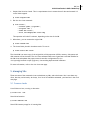
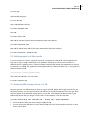
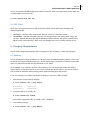
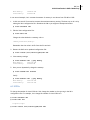
Dell Inc. 12 KVM Virtualization in RHEL 6 Made Easy You can now access the USB storage device directly from your VM at /dev/vdb. When you are done with it, simply detach it from your VM: # virsh detach-disk vm1 vdb 5.4 GUI Tools Ok so now I will mention a couple of GUI tools which I admit can be useful when managing and interacting with VMs. virt-viewer – Launches a VNC window that gives you access to a VMs main console. virt-manager – Launches a window where you can manage all your VMs. Among other things, you can start, pause & shutdown VMs, display VM details (VCPUs, memory, disk space), add devices to VMs and even create new VMs. I don‟t cover virt-manager here, but it is rather intuitive to use. 6. Changing VM parameters You can easily change VM parameters after creating them, such as memory, VCPUs and disk space. 6.1 Memory You can dynamically change the memory in a VM up to what its maximum memory setting is. Note that by default the maximum memory setting in a VM will always equal the amount of memory you specified when you created the VM with the ram parameter in virt-install. So for example if you created a VM with 1 GB of memory, you can dynamically reduce this amount without having to shut down the VM. If you want to increase the memory above 1 GB, you will have to first increase its maximum memory setting which requires shutting down the VM first. In our first example, let‟s reduce the amount of memory in vm1 from 1 GB to 512 MB: 1. View the VM‟s current memory settings: # virsh dominfo vm1 | grep memory Max memory: Used memory: 1048576 kB 1048576 kB 2. To dynamically set to 512 MB, run: # virsh setmem vm1 524288 Value must be specified in KB, so 512 MB x 1024 = 524288 KB 3. View memory settings: # virsh dominfo vm1 | grep memory