1
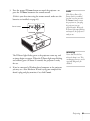
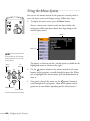
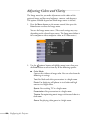
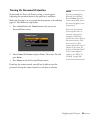
2. Use the
pointer button to highlight menu items, then press
the Enter button to select from any of the following options:
■
Auto Setup (computer images)
Leave this setting On to automatically optimize the computer
image when you switch to a computer source. Turn it Off if
you want to save adjustments you have made to the video
settings below.
■
Tracking (computer images)
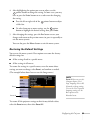
note
You can also use the remote
control’s Auto button to
automatically reset the
projector’s tracking, sync,
and position settings.
Removes unwanted vertical lines from a computer image by
matching the projector’s internal clock to various computer
signals. See page 102 for more information about adjusting
the tracking setting.
■
Sync. (computer images)
Corrects fuzziness or screen flicker by synchronizing the
projector with the tracking signal sent from the computer.
See page 102 for more information about adjusting the sync.
setting.
■
Position
Use the
pointer button to move the image on the screen
left, right, up, or down.
■
Progressive
Leave this setting On when viewing S-Video or composite
video so that interlaced-to-progressive conversion is carried
out (best for fast-moving pictures). If you notice flickering
while viewing still images, switch this setting to Off.
■
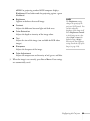
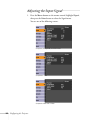
Computer1 Input
Selects the signal from equipment connected to the
Computer1 port. If your image colors look wrong, try
changing this setting to Auto, or to Component Video for
component video sources.
■
Computer2 Input
Selects the signal from equipment connected to the
Computer2 port. If your image colors look wrong, try
changing this setting from Auto to RGB for computer or
RGB video sources, or to Component Video for component
video sources.
Configuring the Projector 57