1
REMOTE OPERATION
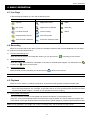
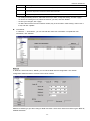
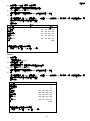
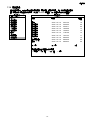
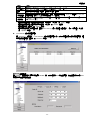
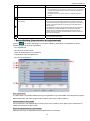
(Search)
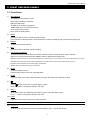
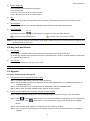
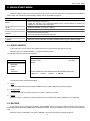
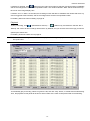
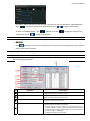
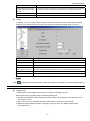
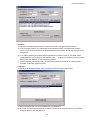
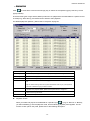
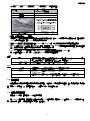
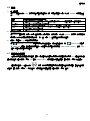
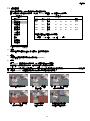
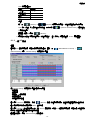
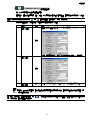
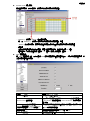
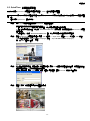
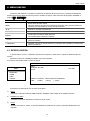
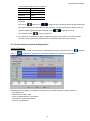
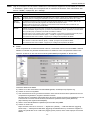
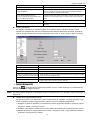
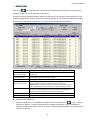
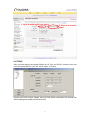
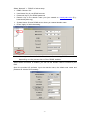
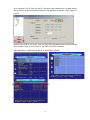
Click to search and view the available IP address(es) for the DVR connection. You can choose one
address to add into the address book, edit the details, or update the address list.
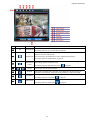
NO.
Button
Function
Description
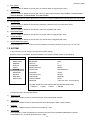
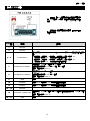
Select from the available IP address list, and click this button to add the
selected address to the address book.
4
Add into address
book
5
Setting
Select from the available IP address list, and click this button to edit the setting.
6
Refresh
Click to update the available IP address list.
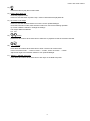
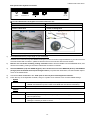
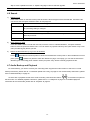
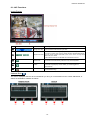
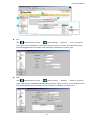
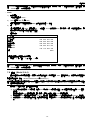
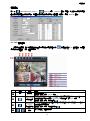
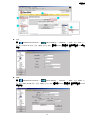
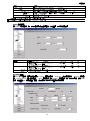
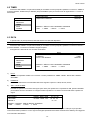
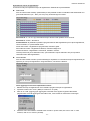
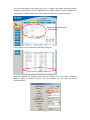
Miscellaneous Control
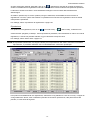
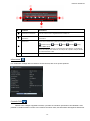
Click “
NO.
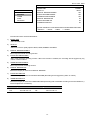
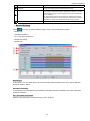
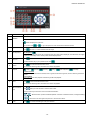
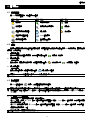
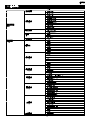
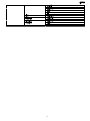
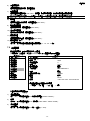
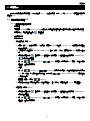
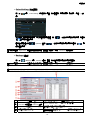
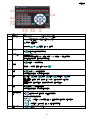
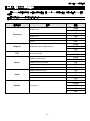
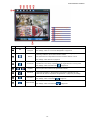
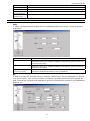
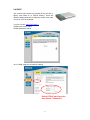
” (Miscellaneous Control) on the AP control panel, and 7 functions are available as follows:
Button
Function
Description
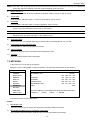
1
Audio Volume Control
To adjust the volume of the audio channel, press and drag
the volume slider.
2
Color Setting
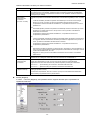
Click this button to adjust the brightness / contrast / hue /
saturation for a single channel or the whole channels. For
details, please see “Color Setting” at page 38.
3
Backup
To make a video backup remotely, click this button, and you
will go to the download setting page. For details, please see
“Network Backup” at page 34.
4
Record Setting
Click to go to the detailed record setting. Please refer to
“Record Setting” at page 40 for details.
5
Server Setting
Click to go into the detailed DVR setting. Please refer to
“Server Setting” at page 40 for details.
6
Tools
Click to update the firmware version, multilingual OSD and
boot display of your DVR remotely. Please refer to “Tools”
at page 51 for details.
7
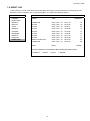
Status List
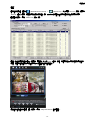
Click to view all event and recording logs, search the desired
log(s) by date, or playback the recording of the selected log.
For details, please refer to “Status List” at page 54 .
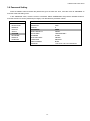
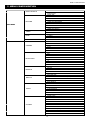
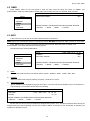
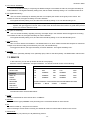
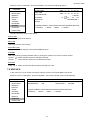
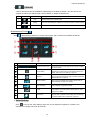
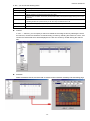
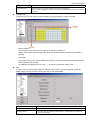
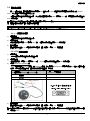
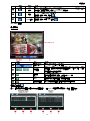
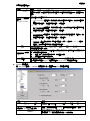
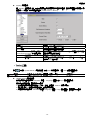
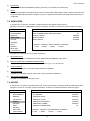
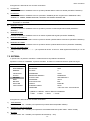
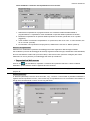
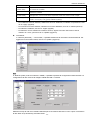
Color Setting
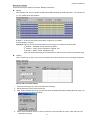
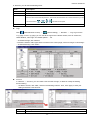
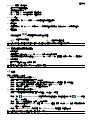
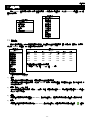
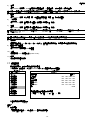
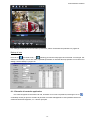
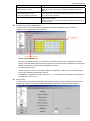
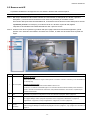
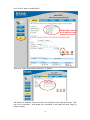
Click “
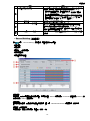
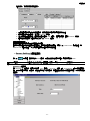
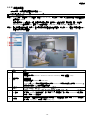
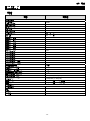
” to go into the “Color Setting” page, and you can adjust the brightness / contrast / hue /
saturation for a single channel or all channels.
~38~