1
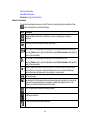
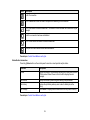
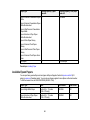
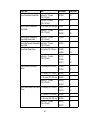
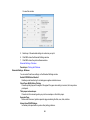
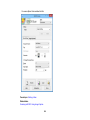
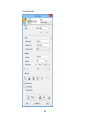
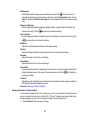
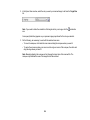
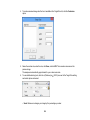
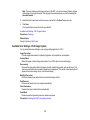
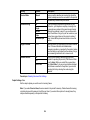
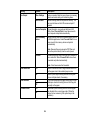
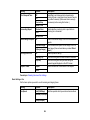
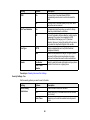
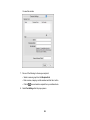
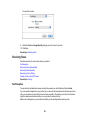
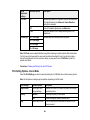
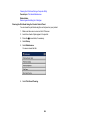
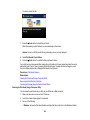
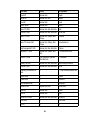
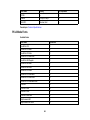
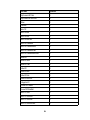
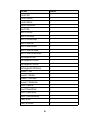
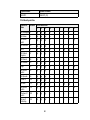
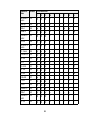
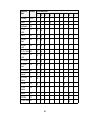
Available Image Adjustments - Office Mode
Related topics
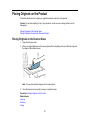
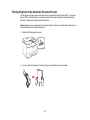
Placing Originals on the Product
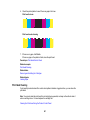
Line of Dots Appears in All Scanned Images
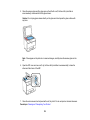
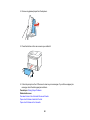
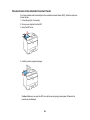
If a line of dots appears in all your scanned images, clean the scanner glass with a soft, dry, lint-free
cloth or use a small amount of glass cleaner on the cloth, if necessary. Paper towels are not
recommended.
Caution: Do not spray glass cleaner directly on the scanner glass.
Parent topic: Solving Scanned Image Quality Problems
Related tasks
Cleaning Your Product
Straight Lines in an Image Appear Crooked
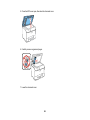
If straight lines in an original appear crooked in a scanned image, make sure to place your original
straight when you scan it.
Parent topic: Solving Scanned Image Quality Problems
Related topics
Placing Originals on the Product
Image is Distorted or Blurry
If a scanned image appears distorted or blurry, try these solutions:
• Make sure your original is not wrinkled or warped. This may prevent the original from laying flat on the
scanner glass.
• Do not move your original or your product during scanning.
• Your product will not operate properly while tilted at an angle. Place it on a flat, stable surface that
extends beyond the base of the product in all directions.
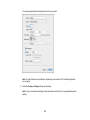
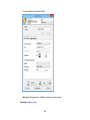
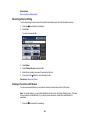
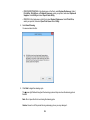
• Adjust these Epson Scan settings (if available) and try scanning again:
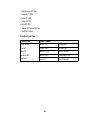
• Select the Unsharp Mask setting.
• Adjust the Auto Exposure setting.
• Increase the Resolution setting.
321