1
Dell Precision™ Workstation 490
Quick Reference Guide
Model DCTA
w w w. d e l l . c o m | s u p p o r t . d e l l . c o m
Notes, Notices, and Cautions
NOTE: A NOTE indicates important information that helps you make better use of your computer.
NOTICE: A NOTICE indicates either potential damage to hardware or loss of data and tells you how to avoid
the problem.
CAUTION: A CAUTION indicates a potential for property damage, personal injury, or death.
Abbreviations and Acronyms
For a complete list of abbreviations and acronyms, see the Glossary in your User’s Guide.
If you purchased a Dell™ n Series computer, any references in this document to Microsoft® Windows®
operating systems are not applicable.
____________________
Information in this document is subject to change without notice.
© 2006 Dell Inc. All rights reserved.
Reproduction in any manner whatsoever without the written permission of Dell Inc. is strictly forbidden.
Trademarks used in this text: Dell, the DELL logo and Dell Precision are trademarks of Dell Inc.; Intel, Xeon, and Pentium are registered
trademarks of Intel Corporation; Microsoft and Windows are registered trademarks of Microsoft Corporation.
Other trademarks and trade names may be used in this document to refer to either the entities claiming the marks and names or their products.
Dell Inc. disclaims any proprietary interest in trademarks and trade names other than its own.
Model DCTA
January 2006
P/N PD055
Rev. A00
Contents
Finding Information
. . . . . . . . . . . . . . . . . . . . . . . . . . . . . . . .
Setting Up Your Computer (Tower Orientation)
. . . . . . . . . . . . . . . . . .
14
. . . . . . . . . . . . . . . . . . . . . . . . . . . . . .
19
. . . . . . . . . . . . . . . .
19
21
22
24
25
26
27
28
29
. . . . . . . . . . . . . . . . . . . . . . . . . . .
29
Front View (Tower Orientation) . . . . . . .
Back View (Tower Orientation) . . . . . . .
Back Panel Connectors . . . . . . . . . . .
Front View (Desktop Orientation) . . . . . .
Back View (Desktop Orientation) . . . . . .
Inside View . . . . . . . . . . . . . . . . .
Inside View – Hard Drive Bay Rotated Out .
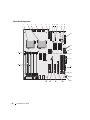
System Board Components . . . . . . . . .
Cable Colors. . . . . . . . . . . . . . . . .
Locating Your User’s Guide
. . . . . . . . . . . . . . . .
. . . . . . . . . . . . . . . .
. . . . . . . . . . . . . . . .
. . . . . . . . . . . . . . . .
. . . . . . . . . . . . . . . .
. . . . . . . . . . . . . . . .
. . . . . . . . . . . . . . . .
. . . . . . . . . . . . . . . .
. . . . . . . . . . . . . . . . . . . . . . . . .
30
. . . . . . . . . . . . . . . . . . . . . . . . . . . .
32
. . . . . . . . . . . . . . . . . . . . . . . . . . . . . . . .
32
Removing the Computer Cover .
Caring for Your Computer
Solving Problems
. . . . . . . . . . .
32
32
33
34
35
36
. . . . . . . . . . . . . . . . . . . . . . . . . . . . . . . . . . .
36
Troubleshooting Tips . . . . . . . . . . . . . . . . .
Resolving Software and Hardware Incompatibilities
Using Microsoft® Windows® XP System Restore . .
Using the Last Known Good Configuration . . . . . .
Dell Diagnostics . . . . . . . . . . . . . . . . . . . .
Before You Start Testing . . . . . . . . . . . . . . .
Beep Codes .
Diagnostic Lights.
. . . . . . . . . . .
. . . . . . . . . . .
. . . . . . . . . . .
. . . . . . . . . . .
. . . . . . . . . . .
. . . . . . . . . . . . . . . . . . . . . . . . . . . . . .
38
. . . . . . . . . . . . . . . . . . . . . . . . . . . . . . . .
38
Error Messages .
Diagnostic Light Codes Before POST .
Diagnostic Light Codes During POST .
. . . . . . . . . . . . . . . . . . .
38
40
. . . . . . . . . . . . . . . . . . . . . . . . . .
43
. . . . . . . . . . . . . . . . . . . . . . . . . . . . . . . . . . . . . . . .
45
Frequently Asked Questions .
Index .
9
. . . . . . . . . . . . . . . .
Setting Up Your Computer (Desktop Orientation)
About Your Computer.
5
. . . . . . . . . . . . . . . . . . .
Contents
3
4
Contents
Finding Information
NOTE: Some features or media may be optional and may not ship with your computer. Some features or media may
not be available in certain countries.
NOTE: Additional information may ship with your computer.
What Are You Looking For?
Find It Here
•
•
•
•
•
A diagnostic program for my computer
Drivers for my computer
My computer documentation
My device documentation
Desktop System Software (DSS)
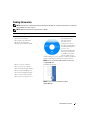
Drivers and Utilities CD (also known as Resource CD)
•
•
•
•
•
•
•
How to set up my computer
How to care for my computer
Basic troubleshooting information
How to run the Dell Diagnostics
Error codes and diagnostic lights
How to remove and install parts
How to open my computer cover
Quick Reference Guide
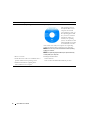
Documentation and
drivers are already
installed on your
computer. You can use
the CD to reinstall drivers,
run the Dell Diagnostics,
or access your
documentation. Readme
files may be included on
your CD to provide lastminute updates about
technical changes to your computer or advanced technicalreference material for technicians or experienced users.
NOTE: Drivers and documentation updates can be found
at support.dell.com.
NOTE: This document is available as a PDF at
support.dell.com.
Quick Reference Guide
5
What Are You Looking For?
Find It Here
•
•
•
•
•
•
Warranty information
Terms and Conditions (U.S. only)
Safety instructions
Regulatory information
Ergonomics information
End User License Agreement
Dell™ Product Information Guide
•
•
•
•
How to remove and replace parts
Specifications
How to configure system settings
How to troubleshoot and solve problems
User’s Guide
Microsoft®Windows® XP Help and Support Center
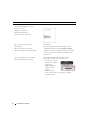
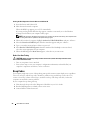
1 Click the Start button and click Help and Support
2 Click User’s and system guides and click User’s Guide
The User’s Guide is also available on the Drivers and
Utilities CD.
• Service Tag and Express Service Code
• Microsoft Windows License Label
6
Quick Reference Guide
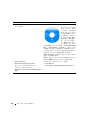
Service Tag and Microsoft® Windows® License
These labels are located on your computer.
• Use the Service Tag to
identify your computer
when you use
support.dell.com or
contact technical
support.
• Enter the Express
Service Code to direct your call when contacting
technical support.
What Are You Looking For?
Find It Here
• Solutions — Troubleshooting hints and tips, articles
from technicians, and online courses, frequently
asked questions
• Community — Online discussion with other
Dell customers
• Upgrades — Upgrade information for components,
such as memory, the hard drive, and the
operating system
• Customer Care — Contact information, service call
and order status, warranty, and repair information
• Service and support — Service call status and
support history, service contract, online discussions
with technical support
• Reference — Computer documentation, details on
my computer configuration, product specifications,
and white papers
• Downloads — Certified drivers, patches, and
software updates
• Desktop System Software (DSS)— If you reinstall
the operating system for your computer, you should
reinstall the DSS utility prior to installing any of the
drivers. DSS provides critical updates for your
operating system and support for Dell™ 3.5-inch
USB floppy drives, optical drives, and USB devices.
DSS is necessary for correct operation of your Dell
computer. The software automatically detects your
computer and operating system and installs the
updates appropriate for your configuration.
Dell Support Website — support.dell.com
NOTE: Select your region or business segment to view the
appropriate support site.
NOTE: Corporate, government, and education customers
can also use the customized Dell Premier support website at
premier.support.dell.com. The website may not be available
in all regions.
• How to use Windows XP
• How to work with programs and files
• Documentation for devices (such as modem)
Windows Help and Support Center
1 Click the Start button and click Help and Support.
2 Type a word or phrase that describes your problem
and click the arrow icon.
3 Click the topic that describes your problem.
4 Follow the instructions on the screen.
Quick Reference Guide
7
What Are You Looking For?
Find It Here
• How to reinstall my operating system
Operating System CD
The operating system is
already installed on your
computer. To reinstall
your operating system, use
the Operating System CD.
See your User’s Guide for
instructions. After you
reinstall your operating
system, use the Drivers and
Utilities CD (Resource CD)
to reinstall drivers for the
devices that came with your computer. Your operating
system product key label is located on your computer.
NOTE: The color of your CD varies based on the operating
system you ordered.
NOTE: The Operating System CD may be optional and may
not ship with your computer.
• How to use Linux
• E-mail discussions with users of Dell Precision™
products and the Linux operating system
• Additional information regarding Linux
and my Dell Precision computer
8
Quick Reference Guide
Dell Supported Linux Sites
• Linux.dell.com
• Lists.us.dell.com/mailman/listinfo/linux-precision
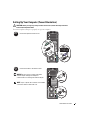
Setting Up Your Computer (Tower Orientation)
CAUTION: Before you begin any of the procedures in this section, follow the safety instructions
in the Product Information Guide.
You must complete all steps to properly set up your computer.
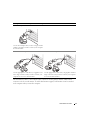
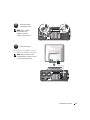
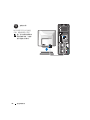
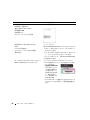
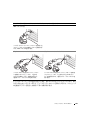
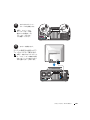
1
Connect the keyboard and the mouse.
2
Connect the modem or the network cable.
NOTICE: Do not connect a modem cable to the
network adapter. Voltage from telephone
communications can damage the network adapter.
NOTE: If your computer has a network card installed,
connect the network cable to the card.
Quick Reference Guide
9
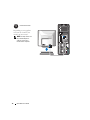
3
Connect the monitor.
Depending on your graphics
card, you can connect your
monitor in various ways.
NOTE: You may need to use
the provided adapter or
cable to connect your
monitor to the computer.
10
Quick Reference Guide
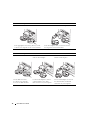
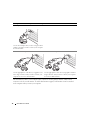
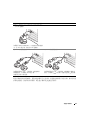
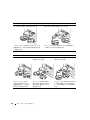
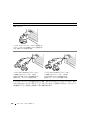
For single- and dual-monitor capable cards with a single connector
One VGA adapter:
VGA
Use the VGA adapter when you have a single-monitor
graphics card and you want to connect your computer
to a VGA monitor.
Dual VGA Y cable adapter:
VGA
Dual DVI Y cable adapter:
DVI
VGA
Use the appropriate Y cable when your graphics card
has a single connector and you want to connect your
computer to one or two VGA monitors.
DVI
Use the appropriate Y cable when your graphics card has a
single connector and you want to connect your computer
to one or two DVI monitors.
The dual-monitor cable is color-coded; the blue connector is for the primary monitor, and the black
connector is for the second monitor. To enable dual-monitor support, both monitors must be attached
to the computer when you start the computer.
Quick Reference Guide
11
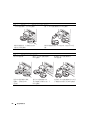
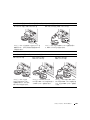
For dual-monitor capable cards with one DVI connector and one VGA connector
One DVI connector and one VGA connector:
Two VGA connectors with one VGA adapter:
DVI
VGA
VGA
VGA
Use the appropriate connector(s) when you want
to connect your computer to one or two monitors.
Use the VGA adapter when you want to connect
your computer to two VGA monitors.
For dual-monitor capable cards with two DVI connectors
Two DVI connectors:
Two DVI connectors
with one VGA adapter:
DVI
Two DVI connectors
with two VGA adapters:
DVI
DVI
VGA
Use the DVI connectors
to connect your computer
to one or two DVI monitors.
12
Quick Reference Guide
Use the VGA adapter to connect
a VGA monitor to one of the
DVI connectors on your computer
VGA
VGA
Use two VGA adapters to connect
two VGA monitors to the DVI
connectors on your computer.
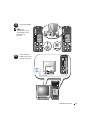
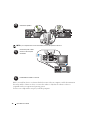
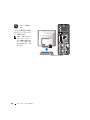
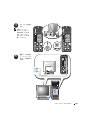
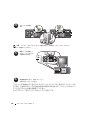
4
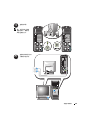
Connect the speakers.
NOTE: If your
computer has a sound
card installed, connect
the speakers to
the card.
5
Connect the power
cables and turn on the
computer and monitor.
Quick Reference Guide
13
6
Install additional software or devices.
Before you install any devices or software that did not come with your computer, read the documentation
that came with the software or device or contact the vendor to verify that the software or device is
compatible with your computer and operating system.
You have now completed the setup for your tower computer.
Setting Up Your Computer (Desktop Orientation)
CAUTION: Before you begin any of the procedures in this section, follow the safety instructions in
the Product Information Guide.
You must complete all steps to properly set up your computer.
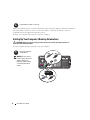
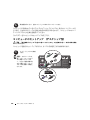
1
Connect the keyboard
and the mouse.
NOTICE: Do not connect a
modem cable to the network
adapter. Voltage from
telephone communications
can damage the network
adapter.
14
Quick Reference Guide
2
Connect the modem
or the network cable.
NOTE: If your computer
has a network card
installed, connect the
network cable to the card.
3
Connect the monitor.
Depending on your graphics card, you
can connect your monitor in various ways.
NOTE: You may need to use the
provided adapter or cable to connect
your monitor to the computer.
Quick Reference Guide
15
For single- and dual-monitor capable cards with a single connector
VGA adapter:
VGA
Use the VGA adapter when you have a single monitor
graphics card and you want to connect your computer
to a VGA monitor.
Dual VGA Y cable adapter:
VGA
Dual DVI Y cable adapter:
DVI
VGA
Use the appropriate Y cable when your graphics card
has a single connector and you want to connect your
computer to one or two VGA monitors.
DVI
Use the appropriate Y cable when your graphics card has a
single connector and you want to connect your computer
to one or two DVI monitors.
The dual-monitor cable is color-coded; the blue connector is for the primary monitor, and the black
connector is for the second monitor. To enable dual-monitor support, both monitors must be attached
to the computer when you start your computer.
16
Quick Reference Guide
For dual-monitor capable cards with one DVI connector and one VGA connector
One DVI connector and one VGA connector:
Two VGA connectors with one VGA adapter:
DVI
VGA
VGA
VGA
Use the appropriate connector(s) when you want
to connect your computer to one or two monitors.
Use the VGA adapter when you want to connect your
computer to two VGA monitors.
For dual-monitor capable cards with two DVI connectors
Two DVI connectors
with one VGA adapter:
Two DVI connectors:
DVI
Two DVI connectors
with two VGA adapters:
DVI
DVI
VGA
Use the DVI connector(s)
to connect your computer
to one or two DVI monitors.
Use the VGA adapter to connect
a VGA monitor to one of the DVI
connectors on your computer.
VGA
VGA
Use two VGA adapters to connect
two VGA monitors to the DVI
connectors on your computer.
Quick Reference Guide
17
4
Connect the speakers.
NOTE: If your computer has a sound card installed, connect the speakers to the card.
5
Connect the power cables
and turn on the computer
and monitor.
6
Install additional software or devices.
Before you install any devices or software that did not come with your computer, read the documentation
that came with the software or device or contact the vendor to verify that the software or device is
compatible with your computer and operating system.
You have now completed the setup for your desktop computer.
18
Quick Reference Guide
About Your Computer
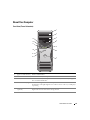
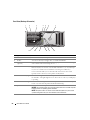
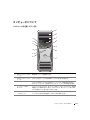
Front View (Tower Orientation)
1
2
13
12
3
4
11
5
10
6
9
8
7
1
upper 5.25-inch drive bay Holds a CD/DVD drive.
2
lower 5.25-inch drive bay You can use this bay for an optional CD/DVD drive.
3
FlexBay
You can use this bay for an optional third hard drive (SATA or SAS), a floppy
drive or Media Card Reader.
4
hard-drive activity light
The hard drive light is on when the computer reads data from or writes data to
the hard drive. The light might also be on when a device such as your CD player
is operating.
5
IEEE 1394 connector
(optional)
Use the optional IEEE 1394 connector for high-speed data devices such as
digital video cameras and external storage devices.
Quick Reference Guide
19
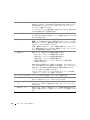
6
USB 2.0 connectors (2)
Use the front USB connectors for devices that you connect occasionally, such as
flash memory keys or cameras, or for bootable USB devices (see "System Setup"
in your User’s Guide for more information on booting to a USB device).
It is recommended that you use the back USB connectors for devices that
typically remain connected, such as printers and keyboards.
7
Dell™ rotatable badge
8
power button
To rotate the Dell badge for tower-to-desktop conversion; remove the front
panel, turn it over, and rotate the plastic handle behind the badge.
Press to turn on the computer.
NOTICE: To avoid losing data, do not use the power button to turn off the computer.
Instead, perform an operating system shutdown.
NOTE: The power button can also be used to wake the system or to place it into
a power-saving state. See "Power Management" in your User’s Guide for
more information.
9
power light
The power light illuminates and blinks or remains solid to indicate different
states:
• No light — The computer is turned off.
• Steady green — The computer is in a normal operating state.
• Blinking green — The computer is in a power-saving state.
• Blinking or solid amber — See "Power Problems" in your User’s Guide.
To exit from a power-saving state, press the power button or use the keyboard or
the mouse if it is configured as a wake device in the Windows Device Manager.
For more information about sleep states and exiting from a power-saving state,
see your User’s Guide.
See "Diagnostic Lights" on page 38 for a description of light codes that can help
you troubleshoot problems with your computer.
20
10
headphone connector
Use the headphone connector to attach headphones.
11
microphone connector
Use the microphone connector to attach a personal computer microphone for
voice or musical input into a sound or telephony program.
12
network link light
The network link light is on when a good connection exists between a 10-Mbps,
100-Mbps, or 1000-Mbps (or 1-Gbps) network and the computer.
13
diagnostic lights (4)
Use these lights to help you troubleshoot a computer problem based on the
diagnostic code. For more information, see "Diagnostic Lights" on page 38.
Quick Reference Guide
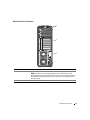
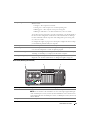
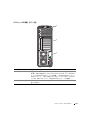
Back View (Tower Orientation)
1
2
3
1
power connector
Insert the power cable.
2
card slots
Access connectors for any installed PCI, PCI-X, or PCI Express cards.
NOTE: The center four slots support full-length cards: one PCI-X slot, one PCI
Express x8 slot (wired as x4), one PCI Express x16 slot, and one PCI slot); and the top
and bottom slots support half-length cards: one PCI-X slot and one PCI Express x8
slot (wired as x4).
3
back panel connectors
Plug serial, USB, and other devices into the appropriate connectors.
Quick Reference Guide
21
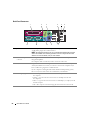
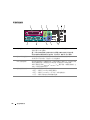
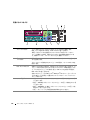
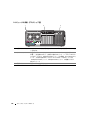
Back Panel Connectors
1
11
2
10
3
4
9
8
5
6
7
1
parallel connector
Connect a parallel device, such as a printer, to the parallel connector. If you have
a USB printer, plug it into a USB connector.
NOTE: The integrated parallel connector is automatically disabled if the computer
detects an installed card containing a parallel connector configured to the same
address. For more information, see your User’s Guide.
2
line-out/ headphone
connector
Use the green line-out connector to attach headphones and most speakers with
integrated amplifiers.
On computers with a sound card, use the connector on the card.
3
PS/2 mouse connector
Plug a standard mouse into the green mouse connector. Turn off the computer
and any attached devices before you connect a mouse to the computer. If you
have a USB mouse, plug it into a USB connector.
If your computer is running the Microsoft® Windows® XP operating system,
the necessary mouse drivers have been installed on your hard drive.
4
22
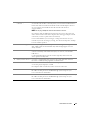
link integrity light
Quick Reference Guide
• Green — A good connection exists between a 10-Mbps network and
the computer.
• Orange — A good connection exists between a 100-Mbps network and
the computer.
• Yellow — A good connection exists between a 1000-Mbps (or 1-Gbps) network
and the computer.
• Off — The computer is not detecting a physical connection to the network.
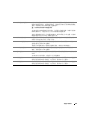
5
network adapter
connector
To attach your computer to a network or broadband device, connect one end
of a network cable to either a network jack or your network or broadband device.
Connect the other end of the network cable to the network adapter connector
on your computer. A click indicates that the network cable has been
securely attached.
NOTE: Do not plug a telephone cable into the network connector.
On computers with an additional network connector card, use the connectors
on the card and on the back of the computer when setting up multiple network
connections (such as a separate intra- and extranet).
It is recommended that you use Category 5 wiring and connectors for your
network. If you must use Category 3 wiring, force the network speed to 10 Mbps
to ensure reliable operation.
6
network activity light
Flashes a yellow light when the computer is transmitting or receiving network
data. A high volume of network traffic may make this light appear to be in a
steady "on" state.
7
USB 2.0 connectors (5)
It is recommended that you use the front USB connectors for devices that you
connect occasionally, such as flash memory keys or cameras, or for bootable
USB devices.
Use the back USB connectors for devices that typically remain connected,
such as printers and keyboards.
8
PS/2 keyboard connector If you have a standard keyboard, plug it into the purple keyboard connector.
If you have a USB keyboard, plug it into a USB connector.
9
line-in connector
Use the blue line-in connector to attach a record/playback device such
as a cassette player, CD player, or VCR.
10
serial connector
Connect a serial device, such as a handheld device, to the serial port. If necessary,
the address for this port can be modified through system setup. See your
User’s Guide for more information.
11
serial connector
Connect a serial device, such as a handheld device, to the serial port. If necessary,
the address for this port can be modified through system setup. See your
User’s Guide for more information.
On computers with a sound card, use the connector on the card.
Quick Reference Guide
23
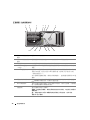
Front View (Desktop Orientation)
1
2
13
3
12
4
11
5
6
10
7
9
8
1
upper 5.25-inch drive bay Holds a CD/DVD drive.
2
lower 5.25-inch drive bay You can use the bay for an optional CD/DVD drive, or a SATA hard drive.
3
FlexBay
You can use the bay for a floppy drive, or a Media Card Reader.
4
IEEE 1394 connector
(optional)
Use the optional IEEE 1394 connector for high-speed data devices such as digital
video cameras and external storage devices.
5
USB 2.0 connectors (2)
Use the front USB connectors for devices that you connect occasionally, such as
flash memory keys or cameras, or for bootable USB devices (see "System Setup"
in your User’s Guide for more information on booting to a USB device).
It is recommended that you use the back USB connectors for devices that
typically remain connected, such as printers and keyboards.
6
hard-drive activity light
The hard drive light is on when the computer reads data from or writes data to
the hard drive. The light might also be on when a device such as your CD player
is operating.
7
Dell™ rotatable badge
To rotate the Dell badge for tower-to-desktop conversion; remove the front panel,
turn it over, and rotate the plastic handle behind the badge.
8
power button
Press to turn on the computer.
NOTICE: To avoid losing data, do not use the power button to turn off the computer.
Instead, perform an operating system shutdown.
NOTE: The power button can also be used to wake the system or to place it into
a power-saving state. See your User’s Guide for more information.
24
Quick Reference Guide
9
power light
The power light illuminates and blinks or remains solid to indicate
different states:
• No light — The computer is turned off.
• Steady green — The computer is in a normal operating state.
• Blinking green — The computer is in a power-saving state.
• Blinking or solid amber — See "Power Problems" in your User’s Guide.
To exit from a power-saving state, press the power button or use the keyboard or
the mouse if it is configured as a wake device in the Windows Device Manager.
For more information about sleep states and exiting from a power-saving state,
see your User’s Guide.
See "Diagnostic Lights" on page 38 for a description of light codes that can help
you troubleshoot problems with your computer.
10
headphone connector
Use the headphone connector to attach headphones.
11
microphone connector
Use the microphone connector to attach a personal computer microphone for
voice or musical input into a sound or telephony program.
12
network link light
The network link light is on when a good connection exists between a 10-Mbps,
100-Mbps, or 1000-Mbps (or 1-Gbps) network and the computer.
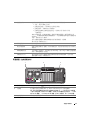
13
diagnostic lights (4)
Use these lights to help you troubleshoot a computer problem based on the
diagnostic code. For more information, see "Diagnostic Lights" on page 38.
Back View (Desktop Orientation)
1
2
3
1
back panel connectors Plug serial, USB, and other devices into the appropriate connector.
2
card slots
Access connectors for any installed PCI, PCI-X, or PCI Express cards.
NOTE: The slot farthest to the left and the two slots on the right support half-length
cards: one PCI Express x8 slot (wired as x4) and two PCI-X slots. The center three slots
support full-length cards: one PCI Express x16 slot, one PCI Express x8 slot (wired as x4)
and one PCI slot.
3
power connector
Insert the power cable.
Quick Reference Guide
25
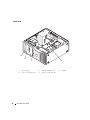
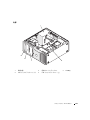
Inside View
1
5
4
3
26
2
1
power supply
2
rotatable hard drive bay
4
lower 5.25-inch drive bay
5
upper 5.25-inch drive bay
Quick Reference Guide
3
FlexBay
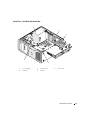
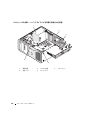
Inside View – Hard Drive Bay Rotated Out
1
2
3
5
4
1
power supply
2
system board
4
front fan
5
card fan
3
memory fan
Quick Reference Guide
27
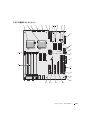
System Board Components
1
2
3
4
5
6
7
8 9
10
11
12
13
14
15
27
16
17
26
18
19
20
21
25
28
Quick Reference Guide
24
23
22
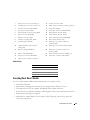
1
primary processor connector (CPU_0)
15
Flexbay connector (USB)
2
secondary processor connector (CPU_1)
16
SATA connectors (SATA_2, SATA_1, SATA_0)
3
front fan connector (FAN_FRONT)
17
floppy drive (DSKT)
4
card cage fan (FAN_CCAG)
18
front panel connector (FRONTPANEL)
5
internal speaker connector (INT_SPKR)
19
PCI-X card slot (SLOT6_PCIX)
6
power connector (POWER2)
20
PCI-X card slot (SLOT5_PCIX)
7
IDE drive connector (IDE)
21
chassis intrusion header (INTRUDER)
8
standby power light (AUX_PWR)
22
PCI card slot (SLOT4_PCI)
9
password jumper (PSWD)
23
PCI-Express x8 card slot, wired as x4
(SLOT3_PCIE)
10
auxiliary hard-drive LED connector
(AUX_LED)
24
PCI-Express x16 card slot (SLOT2_PCIE)
11
RTC reset jumper (RTCRST)
25
PCI-Express x8 card slot, wired as x4
(SLOT1_PCIE)
12
battery socket (BATTERY))
26
memory module connectors (DIMM_1-8)
13
main power connector (POWER1)
27
memory fan connector (FAN_MEM)
14
SATA connectors (SATA_4, SATA_3)
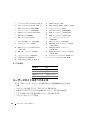
Cable Colors
Device
Color
SATA Hard drive
blue cable
Floppy drive
black pull-tab
CD/DVD drive
orange pull-tab
front panel
yellow pull-tab
Locating Your User’s Guide
Your User’s Guide contains additional information about your computer such as:
•
Technical specifications
•
Information for changing the orientation of your computer from a desktop to a tower
•
Front and back views of your computer, including all of the available connectors
•
Inside views of your computer, including a detailed graphic of the system board and the connectors
•
Instructions for cleaning your computer
•
Information on software features, such as Legacy Select Technology control, using a password,
and system setup options
Quick Reference Guide
29
•
Tips and information for using the Microsoft Windows XP operating system
•
Instructions for removing and installing parts, including memory, cards, drives, the microprocessor,
and the battery
•
Information for troubleshooting various computer problems
•
Instructions for using the Dell Diagnostics and reinstalling drivers
•
Information on how to contact Dell
You can access the User’s Guide from your hard drive or the Dell Support website at support.dell.com.
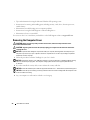
Removing the Computer Cover
CAUTION: Before you begin any of the procedures in this section, follow the safety instructions in the
Product Information Guide.
CAUTION: To guard against electrical shock, always unplug your computer from the electrical outlet before
removing the cover.
NOTICE: To prevent static damage to components inside your computer, discharge static electricity from your
body before you touch any of your computer’s electronic components. You can do so by touching an unpainted
metal surface on the computer.
1 Follow the procedures in "Before You Begin" in your User’s Guide.
NOTICE: Opening the computer cover while the computer is running could result in a shutdown without warning
and a loss of data in open programs. The computer cooling system cannot function properly while the cover
is removed.
2 If you have installed a security cable, remove it from the security cable slot.
NOTICE: Ensure that sufficient space exists to support the removed cover—at least 30 cm (1 ft) of desk top space.
NOTICE: Ensure that you are working on a level, protected surface to avoid scratching either the computer or the
surface on which it is resting.
3 Lay your computer on a flat surface with the cover facing up.
30
Quick Reference Guide
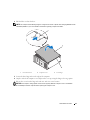
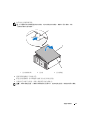
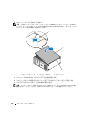
4 Pull back the cover latch release.
NOTE: The computer in the following images is configured as a tower computer. See "Changing Between Tower
and Desktop Modes" in your User’s Guide for information regarding computer orientation.
1
2
3
1
cover latch release
2
computer cover
3
cover hinges
5 Locate the three hinge tabs on the edge of the computer.
6 Grip the sides of the computer cover and pivot the cover up, using the hinges as leverage points.
7 Release the cover from the hinge tabs and set it aside in a secure location.
NOTICE: The computer cooling system cannot function properly while the computer cover is not installed.
Do not attempt to boot the computer before replacing the computer cover.
Quick Reference Guide
31
Caring for Your Computer
To help maintain your computer, follow these suggestions:
•
To avoid losing or corrupting data, never turn off your computer when the hard drive light is on.
•
Schedule regular virus scans using virus software.
•
Manage hard drive space by periodically deleting unnecessary files and defragmenting the drive.
•
Back up files on a regular basis.
•
Periodically clean your monitor screen, mouse, and keyboard (see your User’s Guide for more information).
Solving Problems
Troubleshooting Tips
Perform the following checks when you troubleshoot your computer:
•
If you added or removed a part before the problem started, review the installation procedures
and ensure that the part is correctly installed.
•
If a peripheral device does not work, ensure that the device is properly connected.
•
If an error message appears on the screen, write down the exact message. The message may help
technical support personnel diagnose and fix the problem(s).
•
If an error message occurs in a program, see the program’s documentation.
•
If the recommended action in the troubleshooting section is to see a section in your User’s Guide,
go to support.dell.com (on another computer if necessary) to access your User’s Guide.
Resolving Software and Hardware Incompatibilities
If a device is either not detected during the operating system setup or is detected but incorrectly configured,
you can use the Hardware Troubleshooter to resolve the incompatibility.
To resolve incompatibilities using the Hardware Troubleshooter:
1 Click the Start button and click Help and Support.
2 Type hardware troubleshooter in the Search field and click the arrow to start the search.
3 Click Hardware Troubleshooter in the Search Results list.
4 In the Hardware Troubleshooter list, click I need to resolve a hardware conflict on my computer,
and click Next.
32
Quick Reference Guide
Using Microsoft® Windows® XP System Restore
The Microsoft Windows XP operating system provides System Restore to allow you to return your
computer to an earlier operating state (without affecting data files) if changes to the hardware, software,
or other system settings have left the computer in an undesirable operating state. See the Windows Help
and Support Center for information about using System Restore (see "Finding Information" on page 5
for information about accessing the Windows Help and Support Center).
NOTICE: Make regular backups of your data files. System Restore does not monitor your data files or recover them.
Creating a Restore Point
1 Click the Start button and click Help and Support.
2 Click System Restore.
3 Follow the instructions on the screen.
Restoring the Computer to an Earlier Operating State
NOTICE: Before you restore the computer to an earlier operating state, save and close any open files and exit any
open programs. Do not alter, open, or delete any files or programs until the system restoration is complete.
1 Click the Start button, point to All Programs→ Accessories→ System Tools, and then click System Restore.
2 Ensure that Restore my computer to an earlier time is selected and click Next.
3 Click a calendar date to which you want to restore your computer.
The Select a Restore Point screen provides a calendar that allows you to see and select restore points.
All calendar dates with available restore points appear in boldface type.
4 Select a restore point and click Next.
If a calendar date has only one restore point, then that restore point is automatically selected.
If two or more restore points are available, click the restore point that you prefer.
5 Click Next.
The Restoration Complete screen appears after System Restore finishes collecting data
and then the computer restarts.
6 After the computer restarts, click OK.
To change the restore point, you can either repeat the steps using a different restore point, or you can
undo the restoration.
Quick Reference Guide
33
Undoing the Last System Restore
NOTICE: Before you undo the last system restore, save and close all open files and exit any open programs.
Do not alter, open, or delete any files or programs until the system restoration is complete.
1 Click the Start button, point to All Programs→ Accessories→ System Tools, and then click System Restore.
2 Click Undo my last restoration and click Next.
3 Click Next.
The System Restore screen appears and the computer restarts.
4 After the computer restarts, click OK.
Enabling System Restore
If you reinstall Windows XP with less than 200 MB of free hard-disk space available, System Restore
is automatically disabled. To see if System Restore is enabled:
1 Click the Start button and click Control Panel.
2 Click Performance and Maintenance.
3 Click System.
4 Click the System Restore tab.
5 Ensure that Turn off System Restore is unchecked.
Using the Last Known Good Configuration
1 Restart your computer and press <F8> when the message Please select the operating
system to start appears.
2 Highlight Last Known Good Configuration, press <Enter>, press <l>, and then select your
operating system when prompted.
Other Options to Help Resolve Additional Device or Software Conflicts
NOTICE: The following processes erase all of the information on your hard drive.
34
•
Reinstall your operating system using the operating system installation guide and Operating System CD.
During the operating system reinstallation, you can select to delete the existing partitions and reformat
your hard drive.
•
Reinstall all drivers, beginning with the chipset, using the Drivers and Utilities CD.
Quick Reference Guide
Dell Diagnostics
CAUTION: Before you begin any of the procedures in this section, follow the safety instructions
in the Product Information Guide.
When to Use the Dell Diagnostics
If you experience a problem with your computer, perform the checks in "Solving Problems" on page 32
and run the Dell Diagnostics before you contact Dell for technical assistance.
It is recommended that you print these procedures before you begin.
NOTICE: The Dell Diagnostics works only on Dell™ computers. Using this program with other computers
can cause incorrect computer responses or result in error messages.
The Dell Diagnostics allow you to:
•
Perform quick checks or extensive tests on one or all devices
•
Choose how many times a test is run
•
Display or print test results or save them in a file
•
Suspend testing if an error is detected or terminate testing if a certain number of errors occur
•
Access online Help screens that describe the tests and how to run them
•
Read status messages that tell you whether tests completed successfully
•
Receive error messages if problems are detected
Starting the Dell Diagnostics From Your Hard Drive
1 Turn on (or restart) your computer.
2 When the DELL™ logo appears, press <F12> immediately.
NOTE: If you see a message stating that no diagnostics utility partition has been found, see "Starting
the Dell Diagnostics From the Drivers and Utilities CD" in your User’s Guide
If you wait too long and the operating system logo appears, continue to wait until you see the
Microsoft Windows desktop. Then shut down your computer and try again. For more information
on shutting down your computer, see your User’s Guide.
3 When the boot device list appears, highlight Boot to Utility Partition and press <Enter>.
4 When the Dell Diagnostics Main Menu appears, select the test you want to run. For more information
on the tests, see your User’s Guide.
Quick Reference Guide
35
Starting the Dell Diagnostics From the Drivers and Utilities CD
1 Insert the Drivers and Utilities CD.
2 Shut down and restart the computer.
When the DELL logo appears, press <F12> immediately.
If you wait too long and the Windows logo appears, continue to wait until you see the Windows
desktop. Then shut down your computer and try again.
NOTE: The next steps change the boot sequence for one time only. On the next start-up, the computer boots
according to the devices specified in the system setup program.
3 When the boot device list appears, highlight Onboard or USB CD-ROM Drive and press <Enter>.
4 Select the Boot from CD-ROM option from the menu that appears and press <Enter>.
5 Type 1 to start the menu and press <Enter> to proceed.
6 Select Run the 32 Bit Dell Diagnostics from the numbered list. If multiple versions are listed,
select the version appropriate for your computer.
7 When the Dell Diagnostics Main Menu appears, select the test you want to run.
Before You Start Testing
CAUTION: Before you begin any of the procedures in this section, follow the safety instructions in the
Product Information Guide.
•
Turn on your printer if one is attached.
•
Enter system setup, review your computer’s configuration information, and enable all of your
computer’s components and devices, such as connectors.
Beep Codes
Your computer might emit a series of beeps during start-up if the monitor cannot display errors or problems.
This series of beeps, called a beep code, identifies a problem. One possible beep code (code 1-3-1)
consists of one beep, a burst of three beeps, and then one beep. This beep code tells you that the
computer encountered a memory problem.
If your computer beeps during start-up:
1 Write down the beep code on the "Diagnostics Checklist" in your User’s Guide.
2 Run the Dell Diagnostics to identify a more serious cause.
3 Contact Dell for technical assistance.
36
Quick Reference Guide
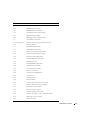
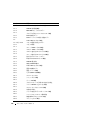
Code
Cause
1-1-2
Microprocessor register failure
1-1-3
NVRAM read/write failure
1-1-4
ROM BIOS checksum failure
1-2-1
Programmable interval timer failure
1-2-2
DMA initialization failure
1-2-3
DMA page register read/write failure
1-3
Video Memory Test failure
1-3-1 through 2-4-4
Memory not being properly identified or used
1-3-2
Memory problem
3-1-1
Slave DMA register failure
3-1-2
Master DMA register failure
3-1-3
Master interrupt mask register failure
3-1-4
Slave interrupt mask register failure
3-2-2
Interrupt vector loading failure
3-2-4
Keyboard Controller Test failure
3-3-1
NVRAM power loss
3-3-2
Invalid NVRAM configuration
3-3-4
Video Memory Test failure
3-4-1
Screen initialization failure
3-4-2
Screen retrace failure
3-4-3
Search for video ROM failure
4-2-1
No timer tick
4-2-2
Shutdown failure
4-2-3
Gate A20 failure
4-2-4
Unexpected interrupt in protected mode
4-3-1
Memory failure above address 0FFFFh
4-3-3
Timer-chip counter 2 failure
4-3-4
Time-of-day clock stopped
4-4-1
Serial or parallel port test failure
4-4-2
Failure to decompress code to shadowed memory
4-4-3
Math-coprocessor test failure
4-4-4
Cache test failure
Quick Reference Guide
37
Error Messages
NOTE: If the message is not listed, see the documentation for either the operating system or the program that was
running when the message appeared.
If an error occurs during start-up, a message may be displayed on the monitor identifying the problem.
See "Error Messages" in your User’s Guide for suggestions on resolving any problems.
Diagnostic Lights
CAUTION: Before you begin any of the procedures in this section, follow the safety instructions in the
Product Information Guide.
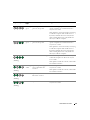
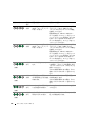
To help you troubleshoot a problem, your computer has four lights labeled "1," "2," "3," and "4" on the
front. The lights can be "off" or green. When the computer starts normally, the lights flash. If the
computer malfunctions, the pattern of the lights and also that of the power button help to identify the
problem.These lights also indicate sleep states.
Diagnostic Light Codes Before POST
Diagnostic Lights
Power
Light
Problem Description
Suggested Resolution
off
No electrical power is
supplied to the computer.
Connect the computer to an electrical outlet.
Ensure that the front-panel power light is on.
If the power light is off, ensure that the
computer is connected to a working electrical
outlet and then press the power button.
If the problem is still not resolved, contact
Dell for technical assistance.
off
The computer is in a normal
off condition; the computer is
connected to an electrical
outlet.
Press the power button to turn the computer on.
If the computer does not turn on, ensure that
the front-panel power light is on. If the power
light is off, ensure that the computer is
connected to a working electrical outlet and
then press the power button.
If the problem is still not resolved, contact
Dell for technical assistance.
38
Quick Reference Guide
Diagnostic Lights
Power
Light
Problem Description
Suggested Resolution
blinking
green
The computer is in a reduced Use one of the appropriate methods to "wake
power or "sleep" state.
up" the computer. See "Advanced Features"
in your User’s Guide.
If the problem is not resolved and you are trying
to wake the computer with a USB mouse or
keyboard, substitute the mouse or keyboard
with a working PS/2 mouse or keyboard and
then try to wake the computer.
blinking
green
The computer is in a reduced Use one of the appropriate methods to "wake
power or "sleep" state.
up" the computer. See "Advanced Features"
in your User’s Guide.
If the problem is not resolved and you are trying
to wake the computer with a USB mouse or
keyboard, substitute the mouse or keyboard
with a working PS/2 mouse or keyboard and
then try to wake the computer.
amber
The BIOS is not executing.
(blinking)
Ensure that the processor is seated correctly and
restart the computer. See "Processor" in your
User’s Guide.
If the problem is still not resolved, contact Dell
for technical assistance.
blinking
amber
A possible power supply or
power cable failure has
occurred.
Perform the procedure in "Power Problems"
in your User’s Guide.
amber
A possible system board
failure has occurred.
Contact Dell for technical assistance.
amber
A processor mismatch exists.
Perform the procedure in "Processor Problems"
in your User’s Guide.
(blinking)
If the problem is still not resolved, contact Dell
for technical assistance.
(blinking)
(blinking)
Quick Reference Guide
39
Diagnostic Lights
Power
Light
Problem Description
Suggested Resolution
amber
A possible failure has been
detected in a plug-in
component such as a graphics
riser card or memory
riser card.
Verify that any required power cables are
connected to the memory and graphics
riser cards.
A possible power supply
failure has occurred.
Verify that both power supply cables are
plugged in to the motherboard.
(blinking)
amber
Perform the procedure in "Power Problems"
in your User’s Guide.
(blinking)
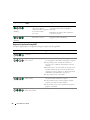
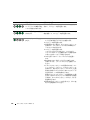
Diagnostic Light Codes During POST
The power light displays a solid green for diagnostic light codes during POST.
Light Pattern
Problem Description
Suggested Resolution
A possible processor failure has
occurred.
Reinstall the processor and restart the computer.
A possible expansion card failure
has occurred.
1 Determine if a conflict exists by removing a card
(not the graphics card) and then restarting the computer.
2 If the problem persists, reinstall the card that you
removed, remove a different card, and then restart the
computer.
3 Repeat this process for each card. If the computer starts
normally, troubleshoot the last card removed from the
computer for resource conflicts (see "Resolving Software
and Hardware Incompatibilities" on page 32).
4 If the problem persists, contact Dell.
A possible graphics card failure
has occurred.
A possible floppy or hard drive
failure has occurred.
40
Quick Reference Guide
1 If the computer has a graphics card, remove the card,
reinstall it, and then restart the computer.
2 If the problem still exists, install a graphics card that
you know works and restart the computer.
3 If the problem persists or the computer has integrated
graphics, contact Dell.
Reseat all power and data cables and restart the computer.
Light Pattern
Problem Description
Suggested Resolution
A possible USB failure
has occurred.
Reinstall all USB devices, check cable connections,
and then restart the computer.
No memory modules
are detected.
1 Reseat the memory modules to ensure that your computer
is successfully communicating with the memory.
2 Restart the computer.
3 If the problem still exists, remove all the memory modules
and install one memory module in memory module
connector DIMM_1.
4 Restart the computer.
A message appears stating that because your memory
is not paired, the system will operate with reduced
performance and reduced error-correction capability
5 Press <F1> to boot to the operating system.
6 Run the Dell Diagnostics. See your User’s Guide for more
information.
7 If the memory module passes, shut down the computer,
remove the memory module, and then repeat the process
with the remaining memory modules until a memory error
occurs during start-up or diagnostic testing.
If the first memory module tested is defective, repeat the
process with the remaining modules to ensure that the
remaining modules are not defective.
8 When the defective memory module is identified, contact
Dell for a replacement.
No memory modules
are detected.
• If you have one memory module installed, reinstall it
and restart the computer.
• If you have two or more memory modules installed,
remove the modules, reinstall one module, and then
restart the computer). If the computer starts normally,
reinstall an additional module. Continue until you have
identified a faulty module or reinstalled all modules
without error.
• If available, install properly working memory of the same
type into your computer.
• If the problem persists, contact Dell.
System board failure
has occurred.
Contact Dell for technical assistance.
Quick Reference Guide
41
Light Pattern
Problem Description
Suggested Resolution
Memory modules are detected,
but a memory configuration or
compatibility error exists.
• Ensure that no special memory module/memory
connector placement requirements exist.
• Verify that the memory modules that you are installing
are compatible with your computer.
• Reinstall the memory modules and restart the computer.
• If the problem persists, contact Dell.
Routine system activity
preceding video initialization.
Watch your monitor for on-screen messages.
A possible expansion card failure
has occurred.
1 Determine if a conflict exists by removing a card
(not a graphics card) and restarting the computer.
2 If the problem persists, reinstall the card that you
removed, remove a different card, and then restart the
computer.
3 Repeat this process for each card. If the computer starts
normally, troubleshoot the last card removed from the
computer for resource conflicts (see "Resolving Software
and Hardware Incompatibilities" on page 32).
4 If the problem persists, contact Dell.
Routine system activity
preceding video initialization.
Watch your monitor for on-screen messages.
None.
The computer is in a normal
operating condition after POST.
NOTE: The diagnostic lights
flicker briefly; they are turned off
after the computer successfully
boots to the operating system.
42
Quick Reference Guide
Frequently Asked Questions
How Do I...
Solution
Where to Find Additional Information
Set up my computer to use
two monitors?
If your computer has the required
graphics card to support dual-monitor
setup, then look in your shipping box
for a Y-cable. The Y-cable has a single
connector on one end (plug this
connector into the back panel) and
branches into two connectors
(plug these connectors into the
monitor cables).
See "Setting Up Your Computer
(Tower Orientation)" on page 9 or
"Setting Up Your Computer
(Desktop Orientation)" on page 14
for information on connecting dual
monitors to your computer.
Connect my monitor when the
monitor cable connector doesn’t
seem to fit the connector on the
back of my computer?
If your graphics card has a DVI
connector but your monitor has a VGA
connector, then you need to use an
adapter. An adapter should be included
in the shipping box.
See "Setting Up Your Computer
(Tower Orientation)" on page 9
or "Setting Up Your Computer
(Desktop Orientation)" on page 14
for information on connecting
monitors to your computer. For
more information, contact Dell.
For information on contacting Dell,
see your User’s Guide.
Quick Reference Guide
43
How Do I...
Solution
Where to Find Additional Information
Connect my speakers?
If you have a sound card installed,
See the documentation that came
connect the speakers to the connectors with your speakers for more
on the card. "Setting Up Your
information.
Computer (Tower Orientation)" on
page 9 or "Setting Up Your Computer
(Desktop Orientation)" on page 14.
Find the right connectors for
my USB or IEEE 1394 devices?
Your tower computer has eight USB
connectors (two on the front, one
internal, and five on the back) and an
optional front IEEE 1394 connector.
See "About Your Computer" on
page 19 for illustrations of the front
and back views of your computer.
Locate information about the
hardware and other technical
specifications for my computer?
Your User’s Guide has a specifications
table that provides more detailed
information about your computer and
the hardware. To locate your User’s
Guide, see "Finding Information" on
page 5.
Go to the Dell Support website at
support.dell.com and use one of the
following support tools: read white
papers on the latest technology or
communicate with other Dell users
at the Dell forum chat room.
Find documentation for
my computer?
The following documentation is
available for your computer:
• User’s Guide
• Product Information Guide
• System Information Label
If you lose your documentation, it is
available on the Dell Support website
at support.dell.com.
For help locating your User’s Guide,
Your desktop computer has eight USB see "Finding Information" on page 5.
connectors (two on the front, one
internal, and five on the back) and an
optional front IEEE 1394 connector.
This connector is only available if you
purchased an IEEE 1394 card. To
purchase a card, contact Dell. For more
information on the IEEE 1394 card,
see your User’s Guide.
To locate these documents, see
"Finding Information" on page 5.
44
Quick Reference Guide
Index
B
D
H
beep codes, 36
Dell
support site, 7
hard drive
activity light, 19-20, 24-25
Dell Diagnostics, 35
hardware
beep codes, 36
conflicts, 32
Dell Diagnostics, 35
C
cards
slots, 21, 25
CDs
operating system, 8
computer
beep codes, 36
restore to previous state, 33
conflicts
software and hardware
incompatibilities, 32
connectors
headphone, 20, 25
keyboard, 23
line-in, 23
line-out, 22
mouse, 22
network adapter, 23
parallel, 22
power, 21, 25
serial, 23
sound, 22-23
USB, 20, 23-24
Dell Premier Support
website, 6
diagnostics
beep codes, 36
Dell, 35
lights, 20, 25, 38
documentation
End User License
Agreement, 6
ergonomics, 6
online, 7
Product Information Guide, 6
Quick Reference, 5
regulatory, 6
safety, 6
User’s Guide, 6
warranty, 6
Hardware Troubleshooter, 32
headphone
connector, 20, 25
Help and Support Center, 7
help file
Windows Help and
Support Center, 7
I
IRQ conflicts, 32
K
E
keyboard
connector, 23
End User License
Agreement, 6
ergonomics information, 6
L
error messages
beep codes, 36
diagnostic lights, 38
labels
Microsoft Windows, 6
Service Tag, 6
Index
45
46
Index
lights
back of computer, 38
diagnostic, 20, 25, 38
hard drive activity,
19-20, 24-25
link integrity, 22
network, 22-23
network activity, 23
power, 20, 25
problems
beep codes, 36
conflicts, 32
Dell Diagnostics, 35
diagnostic lights, 38
restore to previous state, 33
Product Information Guide, 6
R
T
troubleshooting
conflicts, 32
Dell Diagnostics, 35
diagnostic lights, 38
Hardware Troubleshooter, 32
Help and Support Center, 7
restore to previous state, 33
M
regulatory information, 6
U
Microsoft Windows label, 6
ResourceCD
Dell Diagnostics, 35
USB
connector, 23
connectors, 20, 24
mouse
connector, 22
S
N
safety instructions, 6
network
connector, 23
Service Tag, 6
O
operating system
CD, 8
reinstalling, 8
P
power
button, 20, 24
connector, 21, 25
light, 20, 25
46
Index
software
conflicts, 32
sound connectors
line-in, 23
line-out, 22
support website, 7
System Restore, 33
User’s Guide, 6
W
warranty information, 6
Windows XP
Hardware Troubleshooter, 32
Help and Support Center, 7
reinstalling, 8
System Restore, 33
Dell Precision Workstation 490
快速参考指南
型号:DCTA
w w w. d e l l . c o m | s u p p o r t . d e l l . c o m
注、注意和警告
注:注表示可以帮助您更好地使用计算机的重要信息。
注意:注意表示可能会损坏硬件或导致数据丢失,并告诉您如何避免此类问题。
警告:警告表示可能会导致财产损失、人身伤害甚至死亡。
缩写词和缩略词
有关缩写词和缩略词的完整列表,请参阅《用户指南》中的“词汇表”。
如果您购买的是 Dell n Series 计算机,则本说明文件中有关 Microsoft® Windows® 操作系统的所有参考信息
均不适用。
____________________
本说明文件中的信息如有更改,恕不另行通知。
© 2006 Dell Inc. 版权所有,翻印必究。
未经 Dell Inc. 书面许可,严禁以任何形式进行复制。
本文中使用的商标:Dell、DELL 徽标和 Dell Precision 是 Dell Inc. 的商标; Intel、Xeon 和 Pentium 是 Intel Corporation
的注册商标; Microsoft 和 Windows 是 Microsoft Corporation 的注册商标。
本文件中述及的其它商标和产品名称是指拥有相应商标和名称的公司或其制造的产品。Dell Inc. 对本公司的商标和产品名称之外
的其它商标和产品名称不拥有任何专有权。
型号:DCTA
2006 年 1 月
P/N PD055
修订版 A00
目录
查找信息 .
. . . . . . . . . . . . . . . . . . . . . . . . . . . . . . . . . . . .
51
安装计算机 (塔式机箱方向)
. . . . . . . . . . . . . . . . . . . . . . . .
55
安装计算机 (台式机箱方向)
. . . . . . . . . . . . . . . . . . . . . . . .
60
. . . . . . . . . . . . . . . . . . . . . . . . . . . . . . . . . . .
65
关于计算机
正面视图(塔式机箱方向) . . . . .
背面视图(塔式机箱方向) . . . . .
背面板连接器 . . . . . . . . . . . . .
正面视图(台式机箱方向) . . . . .
背面视图(台式机箱方向) . . . . .
内部视图 . . . . . . . . . . . . . . . .
内部视图 — 已旋出硬盘驱动器托架
系统板组件 . . . . . . . . . . . . . . .
电缆颜色 . . . . . . . . . . . . . . . .
. . . . . . . . . . . . . . . . . .
. . . . . . . . . . . . . . . . . .
65
67
68
70
71
72
73
74
75
. . . . . . . . . . . . . . . . . . . . . . . . . . . . . .
76
卸下主机盖
. . . . . . . . . . . . . . . . . . . . . . . . . . . . . . . . . . .
76
维护计算机
. . . . . . . . . . . . . . . . . . . . . . . . . . . . . . . . . . .
78
. . . . . . . . . . . . . . . . . . . . . . . . . . . . . . . . . . . .
78
查找 《用户指南》 .
解决问题 .
. . . . . . . . . . . . . . . . . .
. . . . . . . . . . . . . . . . . .
. . . . . . . . . . . . . . . . . .
. . . . . . . . . . . . . . . . . .
. . . . . . . . . . . . . . . . . .
. . . . . . . . . . . . . . . . . .
. . . . . . . . . . . . . . . . . .
故障排除提示 . . . . . . . . . . . . . . .
解决软件与硬件不兼容的问题 . . . . . .
使用 Microsoft® Windows® XP 系统还原
使用最后一次正确的配置 . . . . . . . .
Dell 诊断程序 . . . . . . . . . . . . . . . .
开始检测之前 . . . . . . . . . . . . . . .
哔声代码 .
. . . . . . . . . . . . . . . .
78
78
79
80
81
82
. . . . . . . . . . . . . . . . . . . . . . . . . . . . . . . . . . . .
82
错误信息
诊断指示灯.
. . . . . . . . . . . . . . . .
. . . . . . . . . . . . . . . .
. . . . . . . . . . . . . . . .
. . . . . . . . . . . . . . . . . . . . . . . . . . . . . . . . . .
84
. . . . . . . . . . . . . . . . . . . . . . . . . . . . . . . . . . .
84
开机自测 (POST) 之前的诊断指示灯代码
开机自测 (POST) 期间的诊断指示灯代码
. . . . . . . . . . . . . . . .
. . . . . . . . . . . . . . . .
84
86
. . . . . . . . . . . . . . . . . . . . . . . . . . . . . . . . . .
88
. . . . . . . . . . . . . . . . . . . . . . . . . . . . . . . . . . . . . . . . .
91
常见问题解答
索引
. . . . . . . . . . . . . . . .
. . . . . . . . . . . . . . . .
目录
49
50
目录
查找信息
注:某些功能部件或介质可能是可选的,并未随您的计算机一起提供。某些国家或地区可能并未提供某
些功能部件或介质。
注:此外,您的计算机还可能附带了其它信息。
您查找的内容
可以找到的位置
•
•
•
•
•
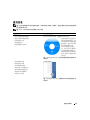
适用于计算机的诊断程序
适用于计算机的驱动程序
计算机说明文件
设备说明文件
桌面系统软件 (DSS)
Drivers and Utilities CD(也称为 Resource CD)
•
•
•
•
•
•
•
如何安装计算机
如何维护计算机
基本故障排除信息
如何运行 Dell 诊断程序
错误代码和诊断指示灯
如何卸下和安装部件
如何打开主机盖
快速参考指南
您的计算机中已经安装了
说明文件和驱动程序。您
可以使用此 CD 重新安装
驱动程序、运行 Dell 诊断
程序或查看说明文件。
CD 中可能包含自述文
件,介绍了有关计算机技
术更改的最新更新信息,
或者为技术人员或有经验
的用户提供了高级技术参
考资料。
注:在 support.dell.com 上可以找到更新的驱动程序和说
明文件。
注:在 support.dell.com 上可获得以 PDF 格式提供的此说
明文件。
快速参考指南
51
您查找的内容
可以找到的位置
•
•
•
•
•
•
保修信息
条款和条件(仅限于美国)
安全说明
管制信息
人机工程学信息
最终用户许可协议
Dell 产品信息指南
•
•
•
•
如何卸下和装回部件
规格
如何配置系统设置
如何排除故障并解决问题
用户指南
Microsoft®Windows® XP 帮助和支持中心
1 单击 Start(开始)按钮,然后单击 Help and Support
(帮助和支持)
2 单击 Users and system guides(用户和系统指南),
并单击 User’s Guide(用户指南)
《用户指南》还可以在 Drivers and Utilities CD 上获得。
• 服务标签和快速服务代码
• Microsoft Windows 许可证标签
52
快速参考指南
服务标签和 Microsoft® Windows® 许可证
这些标签均位于计算机上。
• 当您使用
support.dell.com 或与
技术支持人员联系时,
技术支持人员将使用
此服务标签来识别您
的计算机。
• 与技术支持人员联系
时,请输入快速服务代码以转接您的电话。
您查找的内容
可以找到的位置
• 解决方案 — 故障排除提示和技巧、技术人员发表
的文章以及在线课程、常见问题解答
• 团体 — 与其他 Dell 客户进行在线讨论
• 升级 — 内存、硬盘驱动器和操作系统等组件的升
级信息
• 客户服务 — 联系信息、服务请求和订单状态、
保修以及维修信息
• 服务和支持 — 服务请求状态和支持历史记录、
服务合同、与技术支持人员在线讨论
• 参考资料 — 计算机说明文件、关于计算机配置的
详情、产品规格和白皮书
• 下载 — 认证的驱动程序、补丁和软件更新
• 桌面系统软件 (DSS) — 如果您为计算机重新安装
了操作系统,在安装任何驱动程序之前,应重新
安装 DSS 公用程序。DSS 为操作系统提供了关键
更新,并为 Dell 3.5 英寸 USB 软盘驱动器、光盘
驱动器以及 USB 设备提供支持。要使 Dell 计算机
正常,DSS 是必不可少的。该软件自动检测您的
计算机和操作系统,并安装与配置相对应的更新。
Dell 支持 Web 站点 — support.dell.com
注:选择您所在地区或您的业务领域以查看相应的支持
站点。
注:公司、政府和教育机构客户还可以使用定制的
Dell 客户特选支持 Web 站点 premier.support.dell.com。
并非所有地区均可访问此 Web 站点。
• 如何使用 Windows XP
• 如何使用程序和文件
• 设备说明文件(如调制解调器)
Windows 帮助和支持中心
1 单击 Start(开始)按钮,并单击 Help and Support
(帮助和支持)。
2 键入说明问题的字词,然后单击箭头图标。
3 单击说明问题的主题。
4 并按照屏幕上的说明进行操作。
快速参考指南
53
您查找的内容
可以找到的位置
• 如何重新安装操作系统
操作系统 CD
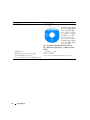
您的计算机已经安装了操
作系统。要重新安装操作
系统,请使用操作系统
CD。有关说明,请参阅
《用户指南》。重新安装
操作系统之后,请使用
Drivers and Utilities CD
(Resource CD) 为计算机
附带的设备重新安装驱动
程序。操作系统产品密钥
标签位于计算机上。
注:CD 的颜色视订购的操作系统不同而有所不同。
注:操作系统 CD 可能是可选的,并未随您的计算机一
起提供。
• 如何使用 Linux
• 通过电子邮件与 Dell Precision 产品和
Linux 操作系统的用户进行讨论
• 有关 Linux 和 Dell Precision 计算机的其它信息
54
快速参考指南
Dell 支持的 Linux 站点
• Linux.dell.com
• Lists.us.dell.com/mailman/listinfo/linux-precision
安装计算机(塔式机箱方向)
警告:在开始本节中的任何过程之前,请先参阅《产品信息指南》中的安全说明。
为了正确安装计算机,请务必完成所有步骤。
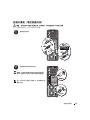
1
连接键盘和鼠标。
2
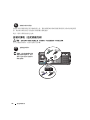
连接调制解调器或网络电缆。
注意:请勿将调制解调器电缆连接至网络适配
器。电话通信产生的电压可能会损坏网络适配器。
注:如果您的计算机已安装网卡,请将网络电缆
连接至此卡。
快速参考指南
55
3
连接显示器。
您可以采用不同方式连接显
示器,视您的图形卡而定。
注:您可能需要使用附带
的适配器或电缆,才能将
显示器连接至计算机。
56
快速参考指南
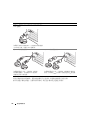
配备单个连接器并支持单显示器和双显示器的插卡
一个 VGA 适配器:
VGA
如果您具有单显示器图形卡,并且想将计算机连接
至一台 VGA 显示器,请使用 VGA 适配器。
双 VGA Y 型电缆适配器:
VGA
双 DVI Y 型电缆适配器:
DVI
VGA
如果您的图形卡只有一个连接器,而您想将计
算机连接至一台或两台 VGA 显示器,
请使用适当的 Y 型电缆。
DVI
如果您的图形卡只有一个连接器,而您想将计算机连
接至一台或两台 DVI 显示器,请使用适当的 Y 型电缆。
双显示器电缆具有彩色编码,蓝色的连接器用于主显示器,黑色的连接器用于次显示器。要启用双显
示器支持功能,当您启动计算机时,两台显示器必须已连接至计算机。
快速参考指南
57
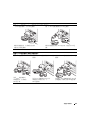
配备 1 个 DVI 连接器和 1 个 VGA 连接器并支持双显示器的插卡
一个 DVI 连接器和一个 VGA 连接器:
配备一个 VGA 适配器的两个 VGA 连接器:
DVI
VGA
VGA
VGA
要将计算机连接至一台或两台显示器,
请使用适当的连接器。
要将计算机连接至两台 VGA 显示器,请使用 VGA 适
配器。
配备 2 个 DVI 连接器并支持双显示器的插卡
两个 DVI 连接器:
配备一个 VGA 适配器的两个
DVI 连接器:
DVI
配备两个 VGA 适配器的两个
DVI 连接器:
DVI
DVI
VGA
使用 DVI 连接器将计算机
连接至一台或两台 DVI
显示器。
58
快速参考指南
使用 VGA 适配器将 VGA
显示器连接至计算机上的一个
DVI 连接器
VGA
VGA
使用两个 VGA 适配器将两台 VGA 显
示器连接至计算机上的 DVI 连接器。
4
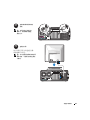
连接扬声器。
注:如果您的计算机
已安装声卡,请将扬
声器连接至此卡。
5
连接电源电缆并打开
计算机和显示器。
快速参考指南
59
6
安装附加软件或设备。
安装并非计算机附带的任何设备或软件之前,请先阅读随该软件或设备附带的说明文件或与制造商联
系,确认软件或设备是否与您的计算机和操作系统兼容。
现在,塔式计算机的安装已完成。
安装计算机(台式机箱方向)
警告:在开始本节中的任何过程之前,请先参阅《产品信息指南》中的安全说明。
为了正确安装计算机,请务必完成所有步骤。
1
连接键盘和鼠标。
注意:请勿将调制解调器电
缆连接至网络适配器。电话
通信产生的电压可能会损坏
网络适配器。
60
快速参考指南
2
连接调制解调器或网络
电缆。
注:如果您的计算机已安
装网卡,请将网络电缆连
接至此卡。
3
连接显示器。
您可以采用不同方式连接显示器,
视您的图形卡而定。
注:您可能需要使用附带的适配
器或电缆,才能将显示器连接至
计算机。
快速参考指南
61
配备单个连接器并支持单显示器和双显示器的插卡
VGA 适配器:
VGA
如果您具有单显示器图形卡,并且想将计算机连接
至 VGA 显示器,请使用 VGA 适配器。
双 VGA Y 型电缆适配器:
VGA
双 DVI Y 型电缆适配器:
DVI
VGA
如果您的图形卡只有一个连接器,而您想
将计算机连接至一台或两台 VGA 显示器,
请使用适当的 Y 型电缆。
DVI
如果您的图形卡只有一个连接器,而您想将计算机连
接至一台或两台 DVI 显示器,请使用适当的 Y 型电缆。
双显示器电缆具有彩色编码,蓝色的连接器用于主显示器,黑色的连接器用于次显示器。
要启用双显示器支持功能,当您启动计算机时,两台显示器必须已连接至计算机。
62
快速参考指南
配备 1 个 DVI 连接器和 1 个 VGA 连接器并支持双显示器的插卡
一个 DVI 连接器和一个 VGA 连接器:
配备一个 VGA 适配器的两个 VGA 连接器:
DVI
VGA
VGA
VGA
要将计算机连接至一台或两台显示器,
请使用适当的连接器。
要将计算机连接至两台 VGA 显示器,请使用 VGA 适
配器。
配备 2 个 DVI 连接器并支持双显示器的插卡
两个 DVI 连接器:
配备一个 VGA 适配器的两个 DVI 连
接器:
DVI
配备两个 VGA 适配器的两个 DVI 连
接器:
DVI
DVI
VGA
使用 DVI 连接器将计
算机连接至一台或两台
DVI 显示器。
使用 VGA 适配器将 VGA 显示
器连接至计算机上的一个
DVI 连接器。
VGA
VGA
使用两个 VGA 适配器将两台 VGA 显
示器连接至计算机上的 DVI 连接器。
快速参考指南
63
4
连接扬声器。
注:如果您的计算机已安装声卡,请将扬声器连接至此卡。
5
连接电源电缆并打开计算
机和显示器。
6
安装附加软件或设备。
安装并非计算机附带的任何设备或软件之前,请先阅读随该软件或设备附带的说明文件或与制造商联
系,确认软件或设备是否与您的计算机和操作系统兼容。
现在,台式计算机安装已完成。
64
快速参考指南
关于计算机
正面视图(塔式机箱方向)
1
2
13
12
3
4
11
5
10
6
9
8
7
1
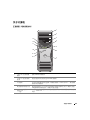
上部 5.25 英寸驱动器
托架
容纳 CD/DVD 驱动器。
2
下部 5.25 英寸驱动器
托架
使用此托架可以安装可选 CD/DVD 驱动器。
3
灵活托架
可以使用该托架安装可选的第三块硬盘驱动器(SATA 或 SAS)、软盘驱动
器或介质卡阅读器。
4
硬盘驱动器活动指示灯
硬盘驱动器指示灯在计算机从硬盘驱动器读取数据或向其写入数据时亮起。
CD 播放器等设备运行时,该指示灯也会亮起。
5
IEEE 1394 连接器
(可选)
可选的 IEEE 1394 连接器用于连接高速数据设备,如数码摄像机和外部存储
设备。
快速参考指南
65
6
USB 2.0 连接器 (2)
正面的 USB 连接器用于不经常连接的设备(如闪存钥匙或照相机)或可引导
的 USB 设备(有关引导至 USB 设备的详情,请参阅《用户指南》中的“系
统设置程序”)。
对于通常保持连接的设备(例如打印机和键盘),建议您使用背面的 USB 连
接器。
7
Dell 可旋转徽章
8
电源按钮
要在将计算机从塔式转换至台式时旋转 Dell 徽章,请卸下前面板,并将其翻
转,然后旋转徽章后面的塑料手柄。
按下此按钮可以打开计算机。
注意:为避免丢失数据,请勿使用电源按钮关闭计算机,而应执行关闭操
作系统操作。
注:电源按钮还可以用于唤醒系统或使系统处于节能状态。有关详情,
请参阅《用户指南》中的“电源管理”。
9
电源指示灯
电源指示灯通过亮起、闪烁或稳定不变来表示不同的状态:
• 不亮 — 表示计算机已关闭。
• 呈绿色稳定亮起 — 计算机处于正常运行状态。
• 呈绿色闪烁 — 计算机处于节能状态。
• 呈琥珀色闪烁或呈琥珀色稳定亮起 — 请参阅《用户指南》中的
“电源问题”。
要退出节能状态,请按电源按钮,或者使用键盘或鼠标(如果该设备已在
Windows 设备管理器中配置为唤醒设备)。有关休眠状态和退出节能状态的
详情,请参阅《用户指南》。
有关可帮助您排除计算机故障的指示灯代码的说明,请参阅
第 84 页的“诊断指示灯”。
66
10
耳机连接器
此耳机连接器用于连接耳机。
11
麦克风连接器
此麦克风连接器用于连接个人计算机麦克风,将语音或音乐输入至声音或电
话程序。
12
网络链路指示灯
当计算机与 10 Mbps、100 Mbps 或 1000 Mbps(或 1 Gbps)网络之间连接良
好时,网络链路指示灯亮起。
13
诊断指示灯 (4)
使用这些指示灯可以帮助您根据诊断代码排除计算机的故障。有关详情,
请参阅第 84 页的“诊断指示灯”。
快速参考指南
背面视图(塔式机箱方向)
1
2
3
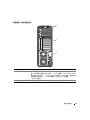
1
电源连接器
用于连接电源电缆。
2
卡插槽
用于操作任何已安装的 PCI 卡、PCI-X 卡或 PCI Express 卡的连接器。
注:中间的四个插槽支持全长插卡:一个 PCI-X 插槽、一个 PCI Express x8 插
槽(按 x4 方式接线)、一个 PCI Express x16 插槽和一个 PCI 插槽;顶部和底部
的插槽支持半长插卡:一个 PCI-X 插槽和一个 PCI Express x8 插槽
(按 x4 方式接线)。
3
背面板连接器
用于将串行设备、USB 设备和其它设备连接至相应的连接器。
快速参考指南
67
背面板连接器
1
2
11
10
3
4
9
8
5
6
7
1
并行连接器
此并行连接器用于连接并行设备(例如打印机)。如果您使用 USB 打印机,
请将其插入 USB 连接器。
注:如果计算机检测到已安装的插卡包含配置为相同地址的并行连接器,
则计算机将自动禁用集成并行连接器。有关详情,请参阅《用户指南》。
2
输出/耳机连接器
此绿色输出连接器用于连接耳机和大多数带有集成放大器的扬声器。
对于配有声卡的计算机,请使用声卡上的连接器。
3
PS/2 鼠标连接器
绿色鼠标连接器用于连接标准鼠标。将鼠标连接至计算机之前,请关闭计算机
和所有连接的设备。如果您使用 USB 鼠标,请将其插入 USB 连接器。
如果计算机运行的是 Microsoft® Windows® XP 操作系统,则硬盘驱动器上已
安装了所需的鼠标驱动程序。
4
68
链路完整性指示灯
快速参考指南
•
•
•
•
绿色 — 计算机与 10 Mbps 网络连接良好。
橙色 — 计算机与 100 Mbps 网络连接良好。
黄色 — 计算机与 1000 Mbps(或 1 Gbps)网络连接良好。
不亮 — 计算机未检测到与网络的物理连接。
5
网络适配器连接器
要将计算机连接至网络或宽带设备,请将网络电缆的一端连接至网络插孔、
网络设备或宽带设备。将网络电缆的另一端连接至计算机上的网络适配器连
接器。听到咔嗒声表示网络电缆已连接稳固。
注:切勿将电话线插入网络连接器。
对于配有其它网络连接器卡的计算机,在设置多个网络连接(如独立的内部
网和外部网)时,请使用该卡上以及计算机背面的连接器。
建议在您的网络中使用 5 类电缆和连接器。如果必须使用 3 类电缆,请将网
络速率强行设置为 10 Mbps 以确保运行可靠。
6
网络活动指示灯
黄色指示灯,当计算机在传输或接收网络数据时闪烁。网络通信量较大时,
此指示灯可能会处于稳定“亮起”状态。
7
USB 2.0 连接器 (5)
对于不经常连接的设备(例如闪存钥匙或照相机)或可引导的 USB 设备,
建议您使用正面的 USB 连接器。
背面的 USB 连接器用于通常保持连接的设备(例如打印机和键盘)。
8
PS/2 键盘连接器
如果使用的是标准键盘,请将其连接至紫色的键盘连接器。如果您使用 USB
键盘,请将其插入 USB 连接器。
9
输入连接器
此蓝色输入连接器用于连接录音/播放设备,例如磁带播放机、CD 播放器或
VCR。
10
串行连接器
用于将串行设备(例如掌上设备)连接至串行端口。如果需要,可以通过系
统设置程序修改该端口的地址。有关详情,请参阅《用户指南》。
11
串行连接器
用于将串行设备(例如掌上设备)连接至串行端口。如果需要,可以通过系
统设置程序修改该端口的地址。有关详情,请参阅《用户指南》。
对于配有声卡的计算机,请使用声卡上的连接器。
快速参考指南
69
正面视图(台式机箱方向)
1
2
13
3
12
4
5
11
10
6
7
9
8
1
上部 5.25 英寸驱动器
托架
容纳 CD/DVD 驱动器。
2
下部 5.25 英寸驱动器
托架
使用此托架可以安装可选 CD/DVD 驱动器或 SATA 硬盘驱动器。
3
灵活托架
可以使用该托架安装软盘驱动器或介质卡阅读器。
4
IEEE 1394 连接器
(可选)
可选的 IEEE 1394 连接器用于连接高速数据设备,如数码摄像机和外部存储
设备。
5
USB 2.0 连接器 (2)
正面的 USB 连接器用于不经常连接的设备(例如闪存钥匙或照相机)或可引
导的 USB 设备(有关引导至 USB 设备的详情,请参阅《用户指南》中的
“系统设置程序”)。
对于通常保持连接的设备(例如打印机和键盘),建议您使用背面的 USB 连
接器。
6
硬盘驱动器活动指示灯
硬盘驱动器指示灯在计算机从硬盘驱动器读取数据或向其写入数据时亮起。
CD 播放器等设备运行时,该指示灯也会亮起。
7
Dell 可旋转徽章
要在将计算机从塔式转换至台式时旋转 Dell 徽章,请卸下前面板,并将其翻
转,然后旋转徽章后面的塑料手柄。
8
电源按钮
按下此按钮可以打开计算机。
注意:为避免丢失数据,请勿使用电源按钮关闭计算机,而应执行关闭操作
系统操作。
注:电源按钮还可以用于唤醒系统或使系统处于节能状态。有关详情,
请参阅《用户指南》。
70
快速参考指南
9
电源指示灯
电源指示灯通过亮起、闪烁或稳定不变来表示不同的状态:
• 不亮 — 表示计算机已关闭。
• 呈绿色稳定亮起 — 计算机处于正常运行状态。
• 呈绿色闪烁 — 计算机处于节能状态。
• 呈琥珀色闪烁或呈琥珀色稳定亮起 — 请参阅《用户指南》中的
“电源问题”。
要退出节能状态,请按电源按钮,或者使用键盘或鼠标(如果该设备已在
Windows 设备管理器中配置为唤醒设备)。有关休眠状态和退出节能状态的
详情,请参阅《用户指南》。
有关可帮助您排除计算机故障的指示灯代码的说明,请参阅
第 84 页的“诊断指示灯”。
10
耳机连接器
此耳机连接器用于连接耳机。
11
麦克风连接器
此麦克风连接器用于连接个人计算机麦克风,将语音或音乐输入至声音或电
话程序。
12
网络链路指示灯
当计算机与 10 Mbps、100 Mbps 或 1000 Mbps(或 1 Gbps)网络之间连接良
好时,网络链路指示灯亮起。
13
诊断指示灯 (4)
使用这些指示灯可以帮助您根据诊断代码排除计算机的故障。有关详情,
请参阅第 84 页的“诊断指示灯”。
背面视图(台式机箱方向)
1
1
背面板连接器
2
卡插槽
2
3
用于将串行设备、USB 设备和其它设备连接至相应的连接器。
用于操作任何已安装的 PCI 卡、PCI-X 卡或 PCI Express 卡的连接器。
注:最左边的插槽和右边的两个插槽支持半长插卡:一个 PCI Express x8 插槽
(按 x4 方式接线)和两个 PCI-X 插槽。中间的三个插槽支持全长插卡:一个 PCI
Express x16 插槽、一个 PCI Express x8 插槽(按 x4 方式接线)和一个 PCI 插槽。
3
电源连接器
用于连接电源电缆。
快速参考指南
71
内部视图
1
5
4
3
72
2
1
电源设备
2
可旋转的硬盘驱动器托架
4
下部 5.25 英寸驱动器托架
5
上部 5.25 英寸驱动器托架
快速参考指南
3
灵活托架
内部视图 — 已旋出硬盘驱动器托架
1
2
3
5
4
1
电源设备
2
系统板
4
前面风扇
5
卡风扇
3
内存风扇
快速参考指南
73
系统板组件
1
2
3
4
5
6
7
8 9
10
11
12
13
14
15
27
16
17
26
18
19
20
25
74
快速参考指南
24
23
22
21
1
主处理器连接器 (CPU_0)
15
灵活托架连接器 (USB)
2
次处理器连接器 (CPU_1)
16
SATA 连接器(SATA_2、SATA_1、SATA_0)
3
前面风扇连接器 (FAN_FRONT)
17
软盘驱动器 (DSKT)
4
插卡固定框架风扇 (FAN_CCAG)
18
前面板连接器 (FRONTPANEL)
5
内部扬声器连接器 (INT_SPKR)
19
PCI-X 卡插槽 (SLOT6_PCIX)
6
电源连接器 (POWER2)
20
PCI-X 卡插槽 (SLOT5_PCIX)
7
IDE 驱动器连接器 (IDE)
21
机箱防盗接头 (INTRUDER)
8
备用电源指示灯 (AUX_PWR)
22
PCI 卡插槽 (SLOT4_PCI)
9
密码跳线 (PSWD)
23
PCI-Express x8 卡插槽,按 x4 方式接线
(SLOT3_PCIE)
10
辅助硬盘驱动器 LED 连接器 (AUX_LED)
24
PCI-Express x16 卡插槽 (SLOT2_PCIE)
11
RTC 重设跳线 (RTCRST)
25
PCI-Express x8 卡插槽,按 x4 方式接线
(SLOT1_PCIE)
12
电池槽 (BATTERY)
26
内存模块连接器 (DIMM_1-8)
13
主电源连接器 (POWER1)
27
内存风扇连接器 (FAN_MEM)
14
SATA 连接器(SATA_4、SATA_3)
电缆颜色
设备
颜色
SATA 硬盘驱动器
蓝色电缆
软盘驱动器
黑色拉舌
CD/DVD 驱动器
橙色拉舌
前面板
黄色拉舌
快速参考指南
75
查找《用户指南》
《用户指南》中包含有关计算机的以下附加信息:
•
技术规格
•
有关将计算机方向从台式更改至塔式的信息
•
计算机正面和背面视图,包括所有可用连接器
•
计算机内部视图,包括系统板和连接器的详细图形
•
计算机清洁说明
•
关于软件功能的信息,如 Legacy Select Technology(传统选择技术)控制、密码使用以及系统设
置选项
•
有关使用 Microsoft Windows XP 操作系统的提示和信息
•
卸下和安装部件的说明,包括内存、插卡、驱动器、微处理器和电池
•
排除各种计算机故障的信息
•
使用 Dell 诊断程序和重新安装驱动程序的说明
•
有关如何与 Dell 联系的信息
可以从硬盘驱动器或 Dell 支持 Web 站点 support.dell.com 上访问《用户指南》。
卸下主机盖
警告:在开始本节中的任何过程之前,请先参阅《产品信息指南》中的安全说明。
警告:为防止触电,请始终在卸下主机盖之前断开计算机与电源插座的连接。
注意:为防止静电损害计算机内部组件,请在触摸计算机的任何电子组件之前,先导去身上的静电。
您可以通过触摸计算机上未上漆的金属表面来导去身上的静电。
1
按照《用户指南》中“开始之前”部分的过程操作。
注意:在计算机运行时打开主机盖可能会导致系统不发出警告而关闭,并导致已打开程序中的数据丢失。
如果卸下主机盖,计算机冷却系统将无法正常工作。
2
如果您已经安装了安全缆线,请将其从安全缆线插槽中卸下。
注意:确保有足够的空间来容纳卸下的主机盖 — 即桌面顶部至少要有 30 厘米(1 英尺)的空间。
注意:请确保在受保护的水平表面上操作,以避免刮伤计算机或放置计算机的表面。
3
76
将计算机放置在平坦的平面上,使主机盖朝上。
快速参考指南
4
向后拉动主机盖释放闩锁。
注:以下图像中的计算机配置为塔式计算机。有关计算机方向的信息,请参阅《用户指南》中的
“更改塔式模式与台式模式”。
1
2
3
1
主机盖释放闩锁
2
主机盖
3
5
找到计算机边缘的三个铰接卡舌。
6
抓住主机盖的两侧,并以铰链作为杠杆支点向上转动主机盖。
7
从铰接卡舌中松开主机盖,并将主机盖保存在安全的地方。
主机盖铰链
注意:如果未安装主机盖,计算机冷却系统将无法正常工作。在放回主机盖之前,请勿尝试引导计算机。
快速参考指南
77
维护计算机
为帮助维护计算机,请遵循以下建议:
•
为避免丢失或损坏数据,切勿在硬盘驱动器指示灯仍然亮起时关闭计算机。
•
定期使用防病毒软件扫描病毒。
•
定期删除不需要的文件并清理驱动器碎片,管理好硬盘驱动器空间。
•
定期备份文件。
•
定期清洁显示器屏幕、鼠标和键盘(有关详情,请参阅《用户指南》)。
解决问题
故障排除提示
在排除计算机故障时,请执行以下检查:
•
如果您在问题出现之前添加或卸下了计算机部件,请复查安装过程并确保已正确地安装了该部件。
•
如果外围设备无法工作,请确保该设备已正确地连接。
•
如果屏幕上显示错误信息,请准确无误地将其记下。此信息可以帮助技术支持人员诊断和解决
问题。
•
如果程序中显示错误信息,请参阅程序的说明文件。
•
如果故障排除部分中建议的措施涉及到《用户指南》中的章节,则转到 support.dell.com
(如果需要,可以使用另一台计算机),以便访问《用户指南》。
解决软件与硬件不兼容的问题
如果在操作系统安装过程中未检测到某个设备,或者虽已检测到该设备但配置不正确,则可以使用
Hardware Troubleshooter(硬件疑难解答)来解决不兼容的问题。
要使用硬件疑难解答来解决不兼容问题,请:
78
1
单击 Start(开始)按钮,并单击 Help and Support(帮助和支持)。
2
在 Search(搜索)字段中键入 hardware troubleshooter(硬件疑难解答),然后单击箭头开始
搜索。
3
在 Search Results(搜索结果)列表中,单击 hardware troubleshooter(硬件疑难解答)。
4
在 hardware troubleshooter(硬件疑难解答)列表中,单击 I need to resolve a hardware conflict
on my computer(我需要解决计算机上的硬件冲突),然后单击 Next(下一步)。
快速参考指南
使用 Microsoft® Windows® XP 系统还原
Microsoft Windows XP 操作系统提供了系统还原功能。如果在更改计算机硬件、软件或其它系统设置
后计算机进入不希望出现的运行状态,则该功能使您可以将计算机恢复至先前的运行状态(不影响数
据文件)。有关使用系统还原的信息,请参阅 Windows 帮助和支持中心(有关访问 Windows 帮助和
支持中心的信息,请参阅第 51 页的“查找信息”)。
注意:请定期备份数据文件。系统还原功能不会监控或恢复数据文件。
创建还原点
1
单击 Start(开始)按钮,并单击 Help and Support(帮助和支持)。
2
单击 System Restore(系统还原)。
3
并按照屏幕上的说明进行操作。
将计算机还原为较早的操作状态
注意:将计算机还原至先前的运行状态之前,请保存并关闭所有打开的文件,退出所有打开的程序。
完成系统还原之前,请勿更改、打开或删除任何文件或程序。
1
单击 Start(开始)按钮,指向 All Programs(所有程序)→ Accessories(附件)→ System Tools
(系统工具),然后单击 System Restore(系统还原)。
2
确保已选定 Restore my computer to an earlier time(恢复我的计算机到一个较早的时间),
然后单击 Next(下一步)。
3
要将计算机还原到某个日期,请在日历中单击该日期。
Select a Restore Point(选择一个还原点)屏幕提供了一个日历,以便您查看和选择还原点。
所有包含可用还原点的日历日期均以粗体显示。
4
选择一个还原点并单击 Next(下一步)。
如果日历日期只有一个还原点,则会自动选择该还原点。如果提供了两个或更多还原点,
请单击需要的还原点。
5
单击 Next(下一步)。
系统还原完成数据收集后,系统将显示 Restoration Complete(还原完成)屏幕,然后计算机将重
新启动。
6
计算机重新启动后,请单击 OK(确定)。
要更改还原点,您可以使用不同的还原点重复以上步骤,也可撤消还原。
快速参考指南
79
撤消上次系统还原
注意:在撤消上次系统还原之前,请保存并关闭所有打开的文件,退出所有打开的程序。完成系统还原
之前,请勿更改、打开或删除任何文件或程序。
1
单击 Start(开始)按钮,指向 All Programs(所有程序)→ Accessories(附件)→ System Tools
(系统工具),然后单击 System Restore(系统还原)。
2
单击 Undo my last restoration(撤销我上次的还原)并单击 Next(下一步)。
3
单击 Next(下一步)。
系统将显示 System Restore(系统还原)屏幕,然后计算机重新启动。
4
计算机重新启动后,请单击 OK(确定)。
启用系统还原
如果您重新安装 Windows XP 时的可用硬盘空间小于 200 MB,系统还原将自动被禁用。要查看是否已
启用系统还原,请:
1
单击 Start(开始)按钮并单击 Control Panel(控制面板)。
2
单击 Performance and Maintenance(性能和维护)。
3
单击 System(系统)。
4
单击 System Restore(系统还原)选项卡。
5
确保未选取 Turn off System Restore(在所有驱动器上关闭系统还原)。
使用最后一次正确的配置
1
重新启动计算机,并在显示 Please select the operating system to start(请选择要启动的
操作系统)信息时按 <F8> 键。
2
高亮度显示 Last Known Good Setting(最后一次正确的配置),按 <Enter> 键,接着按 <l>,
然后在出现提示时选择操作系统。
有助于解决附加设备或软件冲突的其它选项
注意:以下过程将清除硬盘驱动器上的所有信息。
80
•
使用操作系统安装指南和操作系统 CD 重新安装您的操作系统。
在重新安装操作系统期间,可以选择删除现有分区并重新格式化硬盘驱动器。
•
使用 Drivers and Utilities CD,从芯片集的驱动程序开始,重新安装所有驱动程序。
快速参考指南
Dell 诊断程序
警告:在开始本节中的任何过程之前,请先参阅《产品信息指南》中的安全说明。
何时使用 Dell 诊断程序
如果计算机出现问题,请在与 Dell 联系寻求技术帮助之前,先执行第 78 页的“解决问题”中的检查
并运行 Dell 诊断程序。
建议您在开始之前先打印这些过程。
注意:Dell 诊断程序仅适用于 Dell™ 计算机。如果在其它类型的计算机上使用此程序,会导致计算机回
应不正确或产生错误信息。
Dell 诊断程序允许您执行以下操作:
•
快速或全面检测一个或全部设备
•
选择运行多少次检测程序
•
显示或打印检测结果,或者将检测结果存入文件
•
在检测到错误时暂停检测,或者在出现一定数量的错误时停止检测
•
访问联机 Help(帮助)屏幕,其中介绍了检测程序及其运行方法
•
读取状态信息,了解已成功完成哪些检测程序
•
在检测到问题时接收错误信息
通过硬盘驱动器启动 Dell 诊断程序
1
打开(或重新启动)计算机。
2
系统显示 DELL 徽标时,立即按 <F12> 键。
注:如果您看到表明未找到诊断公用程序分区的信息,请参阅《用户指南》中的
“从 Drivers and Utilities CD 启动 Dell 诊断程序”
如果您等待太长,并且屏幕上已显示操作系统徽标,请继续等待,直至看到 Microsoft Windows
桌面。然后,关闭计算机并再试一次。有关关闭计算机的详情,请参阅《用户指南》。
3
当系统显示引导设备列表时,请高亮度显示 Boot to Utility Partition(引导至公用程序分区)
并按 <Enter> 键。
4
当系统显示 Dell 诊断程序 Main Menu(主菜单)时,选择要运行的检测程序。有关检测程序的详
情,请参阅《用户指南》。
快速参考指南
81
通过 Drivers and Utilities CD 启动 Dell 诊断程序
1
插入 Drivers and Utilities CD。
2
关闭并重新启动计算机。
系统显示 DELL 徽标时,立即按 <F12> 键。
如果您等待的时间太长,并且屏幕上显示了 Windows 徽标,请继续等待直至显示 Windows 桌面。
关闭计算机,然后再试一次。
注:以下步骤只更改当次启动的引导顺序。下一次启动时,计算机将按照系统设置程序中指定的设
备进行引导。
3
当系统显示引导设备列表时,高亮度显示 Onboard or USB CD-ROM Drive(机载或 USB CD 驱
动器)并按 <Enter> 键。
4
从系统显示的菜单中选择 Boot from CD-ROM(从 CD-ROM 引导)选项,然后按 <Enter> 键。
5
键入 1 以启动菜单,然后按 <Enter> 键继续。
6
从编号列表中选择 Run the 32 Bit Dell Diagnostics(运行 32 位 Dell 诊断程序)。如果列出了多
个版本,请选择适用于您的计算机的版本。
7
当系统显示 Dell 诊断程序 Main Menu(主菜单)时,选择要运行的检测程序。
开始检测之前
警告:在开始本节中的任何过程之前,请先参阅《产品信息指南》中的安全说明。
•
如果连接了打印机,请将其打开。
•
进入系统设置程序,查阅计算机的配置信息,然后启用所有计算机组件和设备(如连接器)。
哔声代码
如果无法在显示器上显示错误或问题,则计算机可能会在启动期间发出一连串哔声。 这一连串哔声称为
哔声代码,用于标识问题。例如,某哔声代码(代码 1-3-1)为:一声哔声、接着连续三声哔声,然后
又是一声哔声。它表示计算机出现内存故障。
如果计算机在启动期间发出哔声,请:
82
1
在《用户指南》的“诊断程序核对表”中记下哔声代码。
2
运行 Dell 诊断程序以确定更严重的原因。
3
与 Dell 联系寻求技术帮助。
快速参考指南
代码
原因
1-1-2
微处理器寄存器出现故障
1-1-3
NVRAM 读/写失败
1-1-4
ROM BIOS 校验和失败
1-2-1
可编程间隔计时器出现故障
1-2-2
DMA 初始化失败
1-2-3
DMA 页面寄存器读/写失败
1-3
视频内存检测程序失败
1-3-1 至 2-4-4
未正确识别或使用内存
1-3-2
内存问题
3-1-1
从 DMA 寄存器出现故障
3-1-2
主 DMA 寄存器出现故障
3-1-3
主中断屏蔽寄存器出现故障
3-1-4
从中断屏蔽寄存器出现故障
3-2-2
中断向量载入失败
3-2-4
键盘控制器检测程序失败
3-3-1
NVRAM 断电
3-3-2
无效的 NVRAM 配置
3-3-4
视频内存检测程序失败
3-4-1
屏幕初始化失败
3-4-2
屏幕回扫失败
3-4-3
搜索视频 ROM 失败
4-2-1
无计时器嘀嗒信号
4-2-2
关闭系统失败
4-2-3
A20 门电路出现故障
4-2-4
保护模式中出现意外中断
4-3-1
0FFFFh 以上地址出现内存故障
4-3-3
计时器芯片计数器 2 出现故障
4-3-4
计时时钟停止
4-4-1
串行或并行端口检测失败
4-4-2
无法将代码解压缩至阴影内存
4-4-3
数学协处理器检测失败
4-4-4
高速缓存检测失败
快速参考指南
83
错误信息
注:如果信息未在其中列出,请参阅显示该信息时所运行操作系统或程序的说明文件。
如果计算机在启动期间出现错误,显示器屏幕将会显示一则说明问题的信息。有关解决任何问题的建
议,请参阅《用户指南》中的“错误信息”。
诊断指示灯
警告:在开始本节中的任何过程之前,请先参阅《产品信息指南》中的安全说明。
为帮助您排除故障,计算机前面板配备了四个指示灯,分别标有“1”、“2”、“3”和“4”。这些
指示灯可能处于“熄灭”状态或呈绿色。计算机正常启动时,这些指示灯将闪烁。如果计算机出现故
障,可以根据指示灯及电源按钮的模式帮助确定问题所在。这些指示灯还可以指示休眠状态。
开机自测 (POST) 之前的诊断指示灯代码
诊断指示灯
电源指
示灯
问题说明
建议的解决方案
熄灭
计算机未接通电源。
将计算机连接至电源插座。确保前面板上的
电源指示灯亮起。如果电源指示灯不亮,请
确保计算机已连接至可正常工作的电源插座,
然后按电源按钮。
如果仍未解决问题,请与 Dell 联系获得技术
帮助。
熄灭
计算机处于正常关机状态, 按电源按钮即可打开计算机。
并且已连接至电源插座。
如果计算机无法打开,请确认前面板的电源
指示灯是否已亮起。如果电源指示灯熄灭,
请确保将计算机连接至可以正常供电的电源
插座,然后按下电源按钮。
如果仍未解决问题,请与 Dell 联系获得技术
帮助。
呈绿色
闪烁
计算机处于节能或“休眠” 使用其中一种合适的方法来“唤醒”计算机。
状态。
请参阅《用户指南》中的“高级功能”。
如果仍未解决问题,并且您尝试使用 USB 鼠
标或键盘来唤醒计算机,请将鼠标或键盘替
换为可以正常工作的 PS/2 鼠标或键盘,然后
尝试唤醒计算机。
呈绿色
闪烁
计算机处于节能或“休眠” 使用其中一种合适的方法来“唤醒”计算机。
状态。
请参阅《用户指南》中的“高级功能”。
如果仍未解决问题,并且您尝试使用 USB 鼠
标或键盘来唤醒计算机,请将鼠标或键盘替
换为可以正常工作的 PS/2 鼠标或键盘,然后
尝试唤醒计算机。
84
快速参考指南
诊断指示灯
电源指
示灯
问题说明
呈琥珀色 BIOS 无法运行。
亮起
建议的解决方案
请确保处理器已正确放置到位,然后重新启动
计算机。请参阅《用户指南》中的“处理器”。
如果仍未解决问题,请与 Dell 联系获得技术
帮助。
(闪烁)
呈琥珀色 电源设备或电源电缆可能出 请执行《用户指南》的“电源问题”中所述
闪烁
现故障。
的过程。
如果仍未解决问题,请与 Dell 联系获得技术
帮助。
(闪烁)
呈琥珀色 系统板可能出现故障。
亮起
请与 Dell 联系获得技术帮助。
呈琥珀色 处理器不匹配。
亮起
请执行《用户指南》的“处理器问题”中所
述的过程。
(闪烁)
(闪烁)
(闪烁)
呈琥珀色 可能检测到插件部件的故
验证所需的电源电缆是否已连接至内存提升
亮起
障,如图形提升卡或内存提 卡或图形提升卡。
升卡。
请执行《用户指南》的“电源问题”中所述
的过程。
呈琥珀色 可能出现电源故障。
亮起
验证是否已将电源电缆插入母板。
(闪烁)
快速参考指南
85
开机自测 (POST) 期间的诊断指示灯代码
电源指示灯在开机自测 (POST) 期间呈绿色稳定亮起,以显示诊断指示灯代码。
指示灯模式
问题说明
建议的解决方案
可能是处理器出现故障。
重新安装处理器并重新启动计算机。
可能出现扩充卡故障。
1 卸下某个插卡(不是图形卡)并重新启动计算机,确定
可能出现图形卡故障。
1 如果计算机配备了图形卡,请卸下并重新安装图形卡,
是否存在冲突。
2 如果问题仍然存在,请重新安装您卸下的插卡并卸下另
一个插卡,然后重新启动计算机。
3 对每一个插卡重复此过程。如果计算机正常启动,可以
确定最后从计算机中卸下的插卡是造成资源冲突的原因
(请参阅 第 78 页的“解决软件与硬件不兼容的问题”)。
4 如果问题仍然存在,请与 Dell 联系。
然后重新启动计算机。
2 如果问题仍然存在,请安装已知能够正常工作的图形卡
并重新启动计算机。
3 如果问题仍然存在,或者计算机配备了集成图形,请与
Dell 联系。
86
快速参考指南
可能出现软盘驱动器或硬盘驱
动器故障。
重新安装所有电源电缆和数据电缆并重新启动计算机。
可能出现 USB 故障。
重新安装所有 USB 设备,检查电缆连接,然后重新启动
计算机。
指示灯模式
问题说明
未检测到内存模块。
建议的解决方案
1 重置内存模块以确保计算机可以成功地与内存进行通信。
2 重新启动计算机。
3 如果问题仍然存在,请卸下所有内存模块,然后在内存
连接器 DIMM_1 中安装一个内存模块。
4 重新启动计算机。
屏幕将显示一则信息,表示因为内存未成对,系统将会
降低性能并降低纠错功能
5 请按 <F1> 键引导操作系统。
6 运行 Dell 诊断程序。有关详情,请参阅《用户指南》。
7 如果内存模块通过检测,则关闭计算机并卸下该内存模
块,然后对剩下的内存模块重复执行此过程,直至在启
动期间或诊断检测期间出现内存错误。
如果检测的第一个内存模块就存在缺陷,请对剩下的模
块重复此过程,确保这些模块没有缺陷。
8 找出存在缺陷的内存模块后,请与 Dell 联系要求更换。
未检测到内存模块。
• 如果系统中安装了一个内存模块,请重新安装此内存模
块并重新启动计算机。
• 如果系统中安装了两个或多个内存模块,请卸下这些内
存模块,并重新安装一个模块,然后重新启动计算机。
如果计算机启动正常,请重新安装其它模块。继续该步
骤直至您找到出现故障的模块,或者重新安装所有模块
都未发现故障。
• 请在计算机中安装类型相同且能够正常工作的内存
(如果有)。
• 如果问题仍然存在,请与 Dell 联系。
系统板出现故障。
与 Dell 联系寻求技术帮助。
检测到内存模块,但是存在内
存配置或兼容性错误。
•
•
•
•
视频初始化之前的例行系统
活动。
查看显示器屏幕是否显示信息。
确保内存模块/内存连接器无特殊安装要求。
验证您要安装的内存模块与计算机兼容。
重新安装内存模块并重新启动计算机。
如果问题仍然存在,请与 Dell 联系。
快速参考指南
87
指示灯模式
问题说明
建议的解决方案
可能出现扩充卡故障。
1 卸下某个插卡(不是图形卡)并重新启动计算机,
以确定是否存在冲突。
2 如果问题仍然存在,请重新安装您卸下的插卡并卸下另
一个插卡,然后重新启动计算机。
3 对每一个插卡重复此过程。如果计算机正常启动,可以
确定最后从计算机中卸下的插卡是造成资源冲突的原因
(请参阅 第 78 页的“解决软件与硬件不兼容的问题”)。
4 如果问题仍然存在,请与 Dell 联系。
视频初始化之前的例行系统
活动。
查看显示器屏幕是否显示信息。
计算机在 POST 后进入正常操 无。
作状态。
注:诊断指示灯快速闪烁;当
计算机成功引导至操作系统之
后,指示灯关闭。
常见问题解答
如何才能 ...
解决方法
将计算机安装为使用两台显示器? 如果计算机配备了支持双显示器设置
所需的图形卡,请在包装箱中找到 Y
型电缆。Y - 型电缆的一端是一个连
接器(将此连接器插入背面板),另
一端分支为两个连接器(将这两个连
接器插入显示器电缆)。
在何处查找其它信息
有关将两台显示器连接至计算机的信
息,请参阅第 55 页的“安装计算机
(塔式机箱方向)”或第 60 页的
“安装计算机(台式机箱方向)”。
在显示器电缆连接器无法插入计 如果图形卡使用 DVI 连接器,而显示 有关将显示器连接至计算机的信息,
算机背面的连接器时连接显示器? 器使用的是 VGA 连接器,则必须使用 请参阅第 55 页的“安装计算机(塔
适配器。包装箱中应该附带了适配器。 式机箱方向)”或第 60 页的“安装
计算机(台式机箱方向)”。有关详
情,请与 Dell 联系。有关与 Dell 联
系的详情,请参阅《用户指南》。
连接扬声器?
88
快速参考指南
如果您已安装声卡,请将扬声器连接 有关详情,请参阅随扬声器附带的
至插卡上的连接器。请参阅第 55 页 说明文件。
的“安装计算机(塔式机箱方向)”
或第 60 页的“安装计算机(台式机
箱方向)”。
如何才能 ...
解决方法
在何处查找其它信息
找到适用于 USB 或 IEEE 1394 设 塔式计算机具有八个 USB 连接器(两 有关计算机正面视图和背面视图的
备的正确连接器?
个在前面,一个在内部,五个在背面) 图示,请参阅第 65 页的“关于计算
和一个可选的前面 IEEE 1394 连接器。 机”。
台式计算机具有八个 USB 连接器(两 有关查找《用户指南》的帮助,请
个在前面,一个在内部,五个在背面) 参阅第 51 页的“查找信息”。
和一个可选的前面 IEEE 1394 连接器。
仅当您购买了 IEEE 1394 卡,才可使
用该连接器。要购买该卡,请与 Dell
联系。有关 IEEE 1394 卡的详情,
请参阅《用户指南》。
找到用于计算机的硬件相关信息 《用户指南》中包含规格表,其中提 转至 Dell 支持 Web 站点
和其它技术规格?
供了有关计算机和硬件的更为详细的 support.dell.com ,然后使用以下一
信息。要查找《用户指南》,请参阅 种支持工具:阅读有关最新技术的
白皮书,或者在 Dell 论坛聊天室内
第 51 页的“查找信息”。
与其他 Dell 用户进行交流。
查找适用于计算机的说明文件? 以下说明文件可用于您的计算机:
• 用户指南
• 产品信息指南
• 系统信息标签
如果您丢失了说明文件,可以在 Dell
支持 Web 站点 support.dell.com
上找到它们。
要找到这些说明文件,请参阅
第 51 页的“查找信息”。
快速参考指南
89
90
快速参考指南
索引
A
安全说明 , 52
B
帮助和支持中心 , 53
帮助文件
Windows 帮助和
支持中心 , 53
保修信息 , 52
哔声代码 , 82
错误信息
哔声代码 , 82
诊断指示灯 , 84
D
Dell
支持站点 , 53
Dell 客户特选支持 Web
站点 , 52
Dell 诊断程序 , 81
标签
服务标签 , 52
Microsoft Windows, 52
电源
按钮 , 66, 70
连接器 , 67, 71
指示灯 , 66, 71
C
E
CD
操作系统 , 54
耳机
连接器 , 66, 71
操作系统
CD, 54
重新安装 , 54
F
操作系统 CD , 54
服务标签 , 52
插卡
插槽 , 67, 71
产品信息指南 , 52
冲突
软件与硬件不兼
容的问题 , 78
G
故障排除
帮助和支持中心 , 53
冲突 , 78
Dell 诊断程序 , 81
故障排除 (续)
恢复为先前的状态 , 79
硬件疑难解答 , 78
诊断指示灯 , 84
管制信息 , 52
J
IRQ 冲突 , 78
计算机
哔声代码 , 82
恢复为先前的状态 , 79
键盘
连接器 , 69
L
连接器
并行 , 68
串行 , 69
电源 , 67, 71
耳机 , 66, 71
键盘 , 69
声音 , 68-69
鼠标 , 68
输出 , 68
输入 , 69
USB, 66, 69-70
网络适配器 , 69
索引
91
92
À˜“″
M
W
Z
Microsoft Windows 标签 , 52
Windows XP
帮助和支持中心 , 53
系统还原 , 79
硬件疑难解答 , 78
重新安装 , 54
诊断程序
哔声代码 , 82
Dell, 81
指示灯 , 66, 71, 84
USB
连接器 , 66, 69-70
支持 Web 站点 , 53
R
ResourceCD
Dell 诊断程序 , 81
人机工程学信息 , 52
软件
冲突 , 78
S
声音连接器
输出 , 68
输入 , 69
鼠标
连接器 , 68
说明文件
安全 , 52
保修 , 52
产品信息指南 , 52
管制 , 52
快速参考 , 51
联机 , 53
人机工程学 , 52
用户指南 , 52
最终用户许可协议 , 52
网络
连接器 , 69
问题
哔声代码 , 82
冲突 , 78
Dell 诊断程序 , 81
恢复为先前的状态 , 79
诊断指示灯 , 84
X
系统还原 , 79
Y
硬件
哔声代码 , 82
冲突 , 78
Dell 诊断程序 , 81
硬件疑难解答 , 78
用户指南 , 52
索引
指示灯
电源 , 66, 71
计算机背面 , 84
链路完整性指示灯 , 68
网络 , 68-69
网络活动 , 69
硬盘驱动器活动 ,
65-66, 70-71
诊断 , 66, 71, 84
最终用户许可协议 , 52
硬盘驱动器
活动指示灯 , 65-66, 70-71
92
诊断指示灯 , 84
Dell Precision™ Workstation 490
クイックリファレンスガイド
モデル DCTA
w w w. d e l l . c o m | s u p p o r t . d e l l . c o m
メモ、注意、警告
メモ: コンピュータを使いやすくするための重要な情報を説明しています。
注意: ハードウェアの損傷やデータの損失の可能性を示し、その危険を回避するための方法を説明してい
ます。
注意: 物的損害、けが、または死亡の原因となる可能性があることを示します。
略語について
略語の説明は、『ユーザーズガイド』の「用語集」を参照してください。
Dell™ n シリーズコンピュータをご購入された場合、このマニュアル内の Microsoft® Windows®
オペレーティングシステムに関する記述は適用されません。
____________________
本書の内容は予告なく変更されることがあります。
© 2006 すべての著作権は Dell Inc. にあります。
Dell Inc. の書面による許可のない複写は、いかなる形態においても厳重に禁じられています。
本書で使用されている商標について:Dell、DELL ロゴ、および Dell Precision は Dell Inc. の商標です。Intel、Xeon、および
Pentium は Intel Corporation の登録商標です。Microsoft および Windows は Microsoft Corporation の登録商標です。
本書では、必要に応じて上記以外の商標や会社名が使用されている場合がありますが、これらの商標や会社名は、
一切 Dell Inc. に帰属するものではありません。
モデル DCTA
2006 年 1 月
P/N PD055
Rev. A00
目次
情報の検索
. . . . . . . . . . . . . . . . . . . . . . . . . . . . . . . . . . .
コンピュータのセットアップ(タワー型).
. . . . . . . . . . . . . . .
コンピュータのセットアップ(デスクトップ型).
コンピュータについて.
106
. . . . . . . . . . . . . . . . . . . . . . . . . . .
111
. . . . . . . . . .
. . . . . . . . . .
. . . . . . . . . .
. . . . . . . . . .
. . . . . . . . . .
. . . . . . . . . .
. . . . . . . . . .
. . . . . . . . . .
. . . . . . . . . . . . . . . . . . . .
122
. . . . . . . . . . . . . . . . . . . . . .
123
. . . . . . . . . . . . . . . . . . . . . . .
125
. . . . . . . . . . . . . . . . . . . . . . . . . . . . . . . . . .
125
コンピュータカバーの取り外し
コンピュータのメンテナンス
. . . . . . . . . .
トラブルシューティングのヒント . . . . . . . . . .
ソフトウェアとハードウェアの非互換性の解決 . .
Microsoft® Windows® XP システムの復元の使い方 .
前回正常起動時の構成機能の使い方 . . . . . . . . .
Dell Diagnostics(診断)プログラム . . . . . . . . .
テストを始める前に . . . . . . . . . . . . . . . . . .
ビープコード
. . . . . . . .
. . . . . . . .
125
125
126
127
128
129
. . . . . . . . . . . . . . . . . . . . . . . . . . . . . . . . .
129
エラーメッセージ.
. . . . . . . .
. . . . . . . .
. . . . . . . .
. . . . . . . .
. . . . . . . . . . . . . . . . . . . . . . . . . . .
131
. . . . . . . . . . . . . . . . . . . . . . . . . . . . . . . . . .
131
POST 前の診断用ライト . . . . . . .
POST 実行中の診断用ライトコード
. . . . . . . . . . . . . . . . .
. . . . . . . . . . . . . . . . .
131
133
. . . . . . . . . . . . . . . . . . . . . . . . . . . . . . . . .
136
. . . . . . . . . . . . . . . . . . . . . . . . . . . . . . . . . . . . . . . .
139
よくある質問
索引
111
113
114
116
118
119
120
121
122
ユーザーズガイドを見つけるには .
診断ライト
101
. . . . . . . . . . .
コンピュータの正面(タワー型). . . . . . . . .
コンピュータの背面(タワー型). . . . . . . . .
背面パネルコネクタ . . . . . . . . . . . . . . . .
コンピュータの正面(デスクトップ型). . . . .
コンピュータの背面(デスクトップ型). . . . .
内部 . . . . . . . . . . . . . . . . . . . . . . . . . .
コンピュータの内部 ― ハードドライブベイを
外側に回転させた状態 . . . . . . . . . . . . . . .
システム基板のコンポーネント . . . . . . . . .
ケーブルの色 . . . . . . . . . . . . . . . . . . . .
問題の解決
97
目次
95
96
目次
情報の検索
メモ: 一部の機能やメディアはオプションであり、同梱されていないコンピュータもあります。
一部の機能やメディアは、国によってはご利用になれない場合があります。
メモ: 追加情報がコンピュータに同梱されている場合があります。
何をお探しですか ?
こちらをご覧ください
•
•
•
•
•
コンピュータの診断プログラム
コンピュータのドライバ
コンピュータのマニュアル
デバイスのマニュアル
Desktop System Software(DSS)
『Drivers and Utilities CD』
(『Resource CD』とも 呼ばれます)
•
•
•
•
•
•
•
コンピュータのセットアップ方法
クイックリファレンスガイド
コンピュータのメンテナンス方法
基本的なトラブルシューティング情報
Dell Diagnostics(診断)プログラムの実行方法
エラーコードと診断ライト
部品の取り外しおよび取り付け方法
コンピュータカバーの開き方
マニュアルおよびドライ
バは、コンピュータにプ
リインストールされてい
ます。この CD は、ドラ
イバの再インストール、
Dell Diagnostics(診断)
の実行、またはマニュア
ルのアクセスに使用しま
す。CD に収録されてい
る Readme ファイルに
は、マニュアルの作成後
にシステムに追加された変更や、技術者や専門知識を
お持ちのユーザーを対象とするテクニカルリファレン
スなどが記載されています。
メモ: ドライバとマニュアルのアップデートに関して
は、support.jp.dell.com をご覧ください。
メモ: このマニュアルは support.jp.dell.com から PDF 形
式で入手できます。
クイックリファレンスガイド
97
何をお探しですか ?
こちらをご覧ください
•
•
•
•
•
•
保証に関する情報
契約条項(米国内のみ)
安全にお使いいただくために
認可機関の情報
快適な使い方
エンドユーザーライセンス契約
Dell™ 『製品情報ガイド』
•
•
•
•
部品の取り外しおよび取り付け方法
仕様
システムの設定方法
トラブルシューティングおよび問題
解決の方法
ユーザーズガイド
Microsoft®Windows® XP のヘルプとサポートセンター
1 スタート ボタンをクリックして、ヘルプとサポート
をクリックします。
2 ユーザーズガイドおよびシステムガイド をクリック
し、『ユーザーズガイド』をクリックします。
『ユーザーズガイド』は、『Drivers and Utilities CD』
にも含まれています。
• サービスタグとエクスプレスサービスコード
• Microsoft Windows ライセンスラベル
98
クイックリファレンスガイド
サービスタグと Microsoft® Windows® ライセンス
ラベルはお使いのコンピュータに貼付されています。
• サービスタグは、
support.jp.dell.com
のデルサポートサイ
トを利用する際やテ
クニカルサポートへ
のお問い合わせの際
に、お使いのコン
ピュータを識別する
ために使います。
• テクニカルサポートに連絡したときにエクスプレス
サービスコードを入力すると、通話が直接接続され
ます。
何をお探しですか ?
こちらをご覧ください
• 技術情報 ― Q & A 検索、トラブル解消ナビ、
Diagnostics(診断)プログラム、インストール
ガイド、お問い合わせの多い質問
• アップグレード ― メモリ、ハードドライブ、ま
たはオペレーティングシステムなどのコンポー
ネントに関するアップグレード情報
• 各種サービスのご案内 ― サービスプラン、
登録内容変更申込、リサイクル買取サービス、
引き取り修理状況確認など
• サービスおよびサポート ― サービスコールの状
況とサービス履歴、サービス契約
• 参照資料 ― マニュアル、コンピュータの設定に
関する詳細情報、製品仕様、ホワイトペーパー
など
• ダウンロード ― 認定ドライバ、パッチ、ソフト
ウェアのアップデート
• デスクトップシステムソフトウェア(DSS) ―
コンピュータにオペレーティングシステムを再
インストールする場合、DSS ユーティリティも
再インストールする必要があります。DSS は、
オペレーティングシステムの重要なアップデー
ト、Dell™ 3.5 インチ USB フロッピードライ
ブ、オプティカルドライブ、および USB デバイ
スに関するサポートを提供します。DSS は、
Dell コンピュータが正しく動作するために必要
です。このソフトウェアは、お使いのコン
ピュータとオペレーティングシステムを自動的
に判別し、構成に合わせて適切なアップデート
分をインストールします。
デルサポートサイト ― support.jp.dell.com
メモ: お住まいの地域または事業区分を選択し、
お近くのサポートサイトを表示します。
メモ: 企業、政府および教育関係のユーザーには、
カスタマイズされた Dell Premier サポートウェブサイト
premier.dell.co.jp/premier もご利用いただけます。
• Windows XP の使い方
• プログラムとファイルの使い方
• モデムなどのデバイスのマニュアル
Windows ヘルプとサポートセンター
1 スタート ボタンをクリックして、ヘルプとサポート
をクリックします。
2 問題に関連する用語やフレーズを 検索 ボックスに入
力して、矢印アイコンをクリックします。
3 問題に関連するトピックをクリックします。
4 画面の指示に従います。
クイックリファレンスガイド
99
何をお探しですか ?
こちらをご覧ください
• オペレーティングシステムの再イン
ストール方法
『オペレーティングシステム CD』
• Linux の使用方法
• Dell Precision™ 製品および Linux
オペレーティングシステムのユーザー
との E メールディスカッション
• Dell Precision および Linux に関するその他の
情報
100
クイックリファレンスガイド
オペレーティングシステ
ムは、コンピュータにプ
リインストールされてい
ます。オペレーティング
システムを再インストー
ルするには、『オペレー
ティングシステム CD』
を使います。操作手順
は、『ユーザーズガイ
ド』を参照してくださ
い。オペレーティングシ
ステムを再インストールした後、『Drivers and Utilities
CD』(『ResourceCD』)を使用して、コンピュータ
に付属しているデバイス用のドライバを再インストー
ルします。オペレーティングシステムのプロダクトキー
ラベルは、コンピュータに貼付されています。
メモ: CD の色はご注文になったオペレーティングシス
テムによって異なります。
メモ: 『オペレーティングシステム CD』はオプション
なので、同梱されていないコンピュータもあります。
デルがサポートする Linux サイト(英語)
• Linux.dell.com
• Lists.us.dell.com/mailman/listinfo/linux-precision
コンピュータのセットアップ(タワー型)
警告:『製品情報ガイド』の「安全にお使いいただくために」の注意事項に従い、本項の手順を開始
してください。
コンピュータを適切にセットアップするには、すべての手順を完了する必要があります。
1
キーボードとマウスを接続します。
2
モデムまたはネットワークケーブルを
接続します。
注意:モデムケーブルを誤ってネットワーク
アダプタに接続しないでください。モデムの通
信回路で発生する電圧はネットワークアダプタ
を損傷する原因となります。
メモ:コンピュータにネットワークカードが装
着されている場合は、ネットワークケーブルは
カードに接続してください。
クイックリファレンスガイド
101
3
モニターを接続し
ます。
モニターの接続方法はお使
いのグラフィックカードに
よって異なります。
メモ: お使いのモニター
によっては、コンピュー
タへの接続に付属のモニ
ターケーブルまたはアダ
プタが必要になることが
あります。
102
クイックリファレンスガイド
シングルコネクタ付きシングルモニターおよびデュアルモニター対応カード
VGA アダプタ 1 個
VGA
シングルモニターグラフィックカードを装着した
コンピュータに 1 台の VGA モニターを接続する
には、VGA アダプタを使います。
デュアル VGA Y ケーブルアダプタ
VGA
デュアル DVI Y ケーブルアダプタ
DVI
VGA
シングルコネクタ付きのグラフィックカー
ドを装着したコンピュータに、1 台また
は 2 台の VGA モニターを接続するには、
適切な Y ケーブルアダプタを使います。
DVI
シングルコネクタ付きのグラフィックカードを装着
したコンピュータに、1 台または 2 台の DVI モニ
ターを接続するには、適切な Y ケーブルアダプタを
使います。
デュアルモニターケーブルは色分けされています。青いコネクタはプライマリモニター用で、黒い
コネクタはセカンドモニター用です。デュアルモニターサポートを有効にするには、コンピュータ
の起動前にモニターを両方とも接続しておく必要があります。
クイックリファレンスガイド
103
DVI コネクタ 1 個と VGA コネクタ 1 個が付いたデュアルモニター対応カード
DVI コネクタ 1 個と VGA コネクタ 1 個
VGA コネクタ 2 個と VGA アダプタ 1 個
DVI
VGA
VGA
VGA
コンピュータに 1 台または 2 台のモニターを
接続するには、それぞれ対応する適切なコネ
クタを使います。
コンピュータに 2 台の VGA モニターを接続するに
は、VGA アダプタを 1 個使います。
DVI コネクタが 2 個付いたデュアルモニター対応カード
DVI コネクタ 2 個
DVI コネクタ 2 個と
VGA アダプタ 1 個
DVI
DVI コネクタ 2 個と
VGA アダプタ 2 個
DVI
DVI
VGA
コンピュータに 1 台ま
たは 2 台の DVI モニター
を接続するには、それぞれ
DVI コネクタを使います。
104
コンピュータの DVI コネク
タの 1 個に VGA アダプタを
取り付けて VGA モニター
を接続します。
クイックリファレンスガイド
VGA
VGA
コンピュータの 2 個の DVI コネクタ
に 2 個の VGA アダプタを取り付け
て、2 台の VGA モニターを接続し
ます。
4
スピーカーを接続し
ます。
メモ: コンピュー
タにサウンドカード
が装着されている場
合は、サウンドカー
ドにスピーカーを接
続してください。
5
電源コードを接続し
て、コンピュータと
モニターの電源を入
れます。
クイックリファレンスガイド
105
6
周辺機器を取り付け、追加ソフトウェアがあればインストールします。
コンピュータに同梱されていないデバイスやソフトウェアについては、取り付け / インストールを
行う前に、それぞれのマニュアルを読むか製品の販売元に問い合わせて、コンピュータやオペレー
ティングシステムとの互換性を確認してください。
これでタワー型コンピュータのセットアップは完了です。
コンピュータのセットアップ (デスクトップ型)
警告:『製品情報ガイド』の「安全にお使いいただくために」の注意事項に従い、本項の手順を開始
してください。
コンピュータを適切にセットアップするには、すべての手順を完了する必要があります。
1
キーボードとマウスを接続
します。
注意: モデムケーブルを
誤ってネットワークアダプ
タに接続しないでくださ
い。モデムの通信回路で発
生する電圧はネットワーク
アダプタを損傷する原因と
なります。
106
クイックリファレンスガイド
2
モデムまたはネットワー
クケーブルを接続します。
メモ: コンピュータに
ネットワークカードが装
着されている場合は、ネッ
トワークケーブルはカー
ドに接続してください。
3
モニターを接続します。
モニターの接続方法はお使いのグラ
フィックカードによって異なります。
メモ: お使いのモニターによって
は、コンピュータへの接続に付属
のモニターケーブルまたはアダプ
タが必要になることがあります。
クイックリファレンスガイド
107
シングルコネクタ付きシングルモニターおよびデュアルモニター対応カード
VGA アダプタ
VGA
シングルモニターグラフィックカードを装着した
コンピュータに 1 台の VGA モニターを接続する
には、VGA アダプタを使います。
デュアル VGA Y ケーブルアダプタ
VGA
デュアル DVI Y ケーブルアダプタ
DVI
VGA
シングルコネクタ付きのグラフィックカー
ドを装着したコンピュータに、1 台ま
たは 2 台の VGA モニターを接続するには、
適切な Y ケーブルアダプタを使います。
DVI
シングルコネクタ付きのグラフィックカー
ドを装着したコンピュータに、1 台また
は 2 台の DVI モニターを接続するには、
適切な Y ケーブルアダプタを使います。
デュアルモニターケーブルは色分けされています。青いコネクタはプライマリモニター用で、黒い
コネクタはセカンドモニター用です。デュアルモニターサポートを有効にするには、コンピュータ
の起動前にモニターを両方とも接続しておく必要があります。
108
クイックリファレンスガイド
DVI コネクタ 1 個と VGA コネクタ 1 個が付いたデュアルモニター対応カード
DVI コネクタ 1 個と VGA コネクタ 1 個
VGA コネクタ 2 個と VGA アダプタ 1 個
DVI
VGA
VGA
VGA
コンピュータに 1 台または 2 台のモニターを
接続するには、それぞれ対応する適切なコネ
クタを使います。
コンピュータに 2 台の VGA モニターを接続するに
は、VGA アダプタを 1 個使います。
DVI コネクタが 2 個付いたデュアルモニター対応カード
DVI コネクタ 2 個
DVI コネクタ 2 個と
VGA アダプタ 1 個
DVI
DVI コネクタ 2 個と
VGA アダプタ 2 個
DVI
DVI
VGA
コンピュータに 1 台ま
たは 2 台の DVI モニター
を接続するには、それぞれ
DVI コネクタを使います。
コンピュータの DVI コネクタ
の 1 個に VGA アダプタを取り付け
て VGA モニターを接続します。
VGA
VGA
コンピュータの 2 個の DVI コネク
タに 2 個の VGA アダプタを取り付
けて、2 台の VGA モニターを接続
します。
クイックリファレンスガイド
109
4
スピーカーを接続し
ます。
メモ: コンピュータにサウンドカードが装着されている場合は、サウンドカードにスピー
カーを接続してください。
5
6
電源コードを接続して、
コンピュータとモニター
の電源を入れます。
周辺機器を取り付け、追加ソフトウェア
があればインストールします。
コンピュータに同梱されていないデバイスやソフトウェアについては、取り付け / インストールを
行う前に、それぞれのマニュアルを読むか製品の販売元に問い合わせて、コンピュータやオペレー
ティングシステムとの互換性を確認してください。
これでデスクトップ型コンピュータのセットアップは完了です。
110
クイックリファレンスガイド
コンピュータについて
コンピュータの正面(タワー型)
1
2
13
12
3
4
11
5
10
6
9
8
7
1
5.25 インチドライブベ
イ(上)
CD/DVD ドライブ を格納します。
2
5.25 インチドライブベ
イ(下)
このベイはオプションの CD/DVD ドライブ用に使用できます。
3
FlexBay
このベイはオプションの 3 台目のハードドライブ(SATA または SAS)、
フロッピードライブ、またはメディアカードリーダー用に使用できます。
4
ハードドライブ動
作ライト
ハードドライブライトは、コンピュータがハードドライブからデータを読
み書きしている際に点灯します。このライトは、CD プレーヤーなどのデ
バイスが動作しているときにも点灯します。
5
IEEE 1394 コネクタ
(オプション)
オプションの IEEE 1394 コネクタは、デジタルビデオカメラや外部スト
レージデバイスなどの高速データデバイスに使用します。
クイックリファレンスガイド
111
6
USB 2.0 コネクタ(2) フラッシュメモリキー、カメラ、起動可能な USB デバイスなど、時々接
続するデバイスには、正面の USB コネクタを使用します(USB デバイス
の起動の詳細については、『ユーザーズガイド』の「セットアップユー
ティリティ」を参照してください)。
プリンタやキーボードなど通常接続したままのデバイスには、背面の USB
コネクタを使用することをお勧めします。
7
Dell™ 回転バッチ
8
電源ボタン
タワー型をデスクトップ型に転換するために Dell バッジを回転させるに
は、正面パネル を取り外して裏返し、バッジの裏側にあるプラスチック製
のハンドルを回します。
このボタンを押して、コンピュータに電源を入れます。
注意: データの損失を防ぐため、電源ボタンを使ってコンピュータの電
源を切らないでください。電源ボタンを押さずに、オペレーティングシス
テムのシャットダウンを実行してください。
メモ: 電源ボタンを押して、システムを省電力状態からウェイクアップし
たり、省電力状態にすることもできます。詳細については、『ユーザーズガ
イド』の「電源の管理」を参照してください。
9
電源ライト
電源ライトは、点滅と点灯とで異なる状態を示します。
• 点灯しない ― コンピュータの電源が切れています。
• 緑色の点灯 ― コンピュータは通常の動作状態です。
• 緑色の点滅 ― コンピュータは省電力状態です。
• 黄色の点滅または点灯 ― 『ユーザーズガイド』の「電源の問題」
を参照してください。
省電力状態から復帰するには、電源ボタンを押すか、デバイスマネージャ
ウィンドウで復帰デバイスに設定されている場合は、キーボードかマウス
を使います。休止状態および省電力状態からの復帰の詳細については、
『ユーザーズガイド』を参照してください。
コンピュータのトラブルシューティングに役立つライトコードの説明は、
「診断ライト」(131 ページ)を参照してください。
112
10
ヘッドフォンコネクタ
ヘッドフォンコネクタを使用してヘッドフォンを接続します。
11
マイクコネクタ
マイクコネクタにパーソナルコンピュータ用マイクを接続し、音声や音楽
をサウンドまたはテレフォニープログラムに入力します。
12
ネットワークリンクラ
イト
10 Mbps、100 Mbps、または 1000 Mbps(または 1 Gbps)のネットワー
クとコンピュータが正しく接続されていれば、ネットワークリンクライト
が点灯します。
13
診断ライト(4)
診断ライトは、診断コードを基にコンピュータの問題を解決するのに役立
ちます。詳細については、「診断ライト」(131 ページ)を参照してくだ
さい。
クイックリファレンスガイド
コンピュータの背面(タワー型)
1
2
3
1
電源コネクタ
電源ケーブルを差し込みます。
2
カードスロット
装着する PCI、PCI-X または PCI Express カードのコネクタを差し込みます。
メモ: 中央の 4 個のスロットはフルレングスカードをサポートし(PCI-X スロッ
ト× 1、PCI Express x8 スロット× 1(x4 配線)、PCI Express x16 スロット× 1、
PCI スロット× 1)、上部と下部のスロットはハーフレングスカードをサポー
トします(PCI-X スロット× 1、PCI Express x8 スロット× 1(x4 配線))。
3
背面パネルコネクタ
シリアル、USB、およびその他のデバイスのプラグを 対応するコネクタ に
差し込みます。
クイックリファレンスガイド
113
背面パネルコネクタ
1
2
11
10
3
4
9
8
5
6
7
1
パラレルコネクタ
プリンタなどのパラレルデバイスをパラレルコネクタに接続します。
USB プリンタをお使いの場合、USB コネクタに差し込みます。
メモ: 同じアドレスに設定されたパラレルコネクタを持つカードをコン
ピュータが検出した場合、内蔵パラレルコネクタは自動的に無効になりま
す。詳細については、『ユーザーズガイド』を参照してください。
2
ライン出力ヘッドフォ
ンコネクタ
緑色のライン出力コネクタにヘッドフォンやほとんどのアンプ内蔵型スピー
カーを接続します。
サウンドカードが搭載されたコンピュータの場合は、カードのコネクタを
使用します。
3
PS/2 マウスコネクタ
標準マウスをお使いの場合は、緑色のマウスコネクタに差し込みます。コ
ンピュータおよび取り付けられているすべてのデバイスの電源を切ってか
ら、マウスをコンピュータに接続します。USB マウスをお使いの場合は、
USB コネクタに差し込みます。
お使いのコンピュータで Microsoft® Windows® XP オペレーティングシス
テムを実行している場合、必要なマウスドライバはハードドライブにイン
ストール済みです。
4
114
リンク保全ライト
• 緑色 ― 10 Mbps のネットワークとコンピュータが正しく接続されている
ことを示します。
• 橙色 ― 100 Mbps のネットワークとコンピュータが正しく接続されている
ことを示します。
• 黄色 ― 1000 Mbps(1 Gbps)のネットワークとコンピュータが正しく接
続されていることを示します。
• 消灯 ― ネットワークとの物理的な接続が検知されていません。
クイックリファレンスガイド
5
ネットワークアダプタ
コネクタ
コンピュータをネットワークやブロードバンドデバイスに接続するには、
ネットワークケーブルの一方の端をネットワークジャックやブロードバン
ドデバイスに接続します。ネットワークケーブルのもう一方の端をコン
ピュータのネットワークアダプタコネクタに接続します。カチッという音
がすれば、ネットワークケーブルはしっかり接続されています。
メモ: ネットワークコネクタにモデムケーブルを接続しないでください。
追加のネットワークコネクタカードが搭載されたコンピュータで、イント
ラネットとエクストラネットを別々にするなど、複数のネットワーク接続
を設定する場合は、カードのコネクタとコンピュータ背面のコネクタを使
用します。
ネットワークには、カテゴリ 5 の配線とコネクタを使用することをお勧め
します。カテゴリ 3 の配線を使用する必要がある場合、信頼性のあるオペ
レーションを保証するために、ネットワーク速度を 10 Mbps に設定してく
ださい。
6
ネットワーク動作
ライト
黄色のライトは、コンピュータがネットワークデータを送信、または受信
している際に点滅します。ネットワークトラフィックが多い場合、このラ
イトが「点灯」の状態に見えることがあります。
7
USB 2.0 コネクタ(5) フラッシュメモリキー、カメラ、または起動可能な USB デバイスなど、
時々接続するデバイスには、正面 USB コネクタを使用することをお勧めし
ます。
プリンタやキーボードなど、通常接続したままのデバイスには背面 USB コ
ネクタを使用します。
8
PS/2 キーボードコ
ネクタ
標準のキーボードをお使いの場合は、紫色のキーボードコネクタにキー
ボードケーブルを差し込みます。USB キーボードをお使いの場合は、
USB コネクタに差し込みます。
9
ライン入力コネクタ
青色のライン入力コネクタにカセットプレーヤー、CDプレーヤー、または
VCR(ビデオカセットレコーダー)などの録音 / 再生デバイスを接続します。
サウンドカードが搭載されたコンピュータの場合は、カードのコネクタを
使用します。
10
シリアルコネクタ
ハンドヘルドデバイスなどのシリアルデバイスをシリアルポートに接続し
ます。必要に応じて、このポートのアドレスはセットアップユーティリ
ティで変更できます。詳細については、『ユーザーズガイド』を参照して
ください。
11
シリアルコネクタ
ハンドヘルドデバイスなどのシリアルデバイスをシリアルポートに接続し
ます。必要に応じて、このポートのアドレスはセットアップユーティリ
ティで変更できます。詳細については、『ユーザーズガイド』を参照して
ください。
クイックリファレンスガイド
115
コンピュータの正面(デスクトップ型)
1
2
3
13
12
4
11
5
10
6
7
9
8
1
5.25 インチドライブベ
イ(上)
CD/DVD ドライブ を格納します。
2
5.25 インチドライブベ
イ(下)
このベイはオプションの CD/DVD ドライブまたは SATA ハードドライブ用
に使用できます。
3
FlexBay
このベイはフロッピードライブまたはメディアカードリーダー用に使用で
きます。
4
IEEE 1394 コネクタ
(オプション)
オプションの IEEE 1394 コネクタは、デジタルビデオカメラや外部ストレー
ジデバイスなどの高速データデバイスに使用します。
5
USB 2.0 コネクタ(2) フラッシュメモリキー、カメラ、起動可能な USB デバイスなど、時々接続
するデバイスには、正面の USB コネクタを使用します(USB デバイスの起
動の詳細については、『ユーザーズガイド』の「セットアップユーティリ
ティ」を参照してください)。
プリンタやキーボードなど通常接続したままのデバイスには、背面の
USB コネクタを使用することをお勧めします。
116
6
ハードドライブ動
作ライト
ハードドライブライトは、コンピュータがハードドライブからデータを読
み書きしている際に点灯します。このライトは、CD プレーヤーなどのデ
バイスが動作しているときにも点灯します。
7
Dell™ 回転バッチ
タワー型をデスクトップ型に転換するために Dell バッジを回転させるに
は、正面パネル を取り外して裏返し、バッジの裏側にあるプラスチック製
のハンドルを回します。
クイックリファレンスガイド
8
電源ボタン
このボタンを押して、コンピュータに電源を入れます。
注意: データの損失を防ぐため、電源ボタンを使ってコンピュータの電
源を切らないでください。電源ボタンを押さずに、オペレーティングシス
テムのシャットダウンを実行してください。
メモ: 電源ボタンを押して、システムを省電力状態からウェイクアップし
たり、省電力状態にすることもできます。詳細については、『ユーザーズガ
イド』を参照してください。
9
電源ライト
電源ライトは、点滅と点灯とで異なる状態を示します。
• 点灯しない ― コンピュータの電源が切れています。
• 緑色の点灯 ― コンピュータは通常の動作状態です。
• 緑色の点滅 ― コンピュータは省電力状態です。
• 黄色の点滅または点灯 ― 『ユーザーズガイド』の「電源の問題」
を参照してください。
省電力状態から復帰するには、電源ボタンを押すか、デバイスマネージャ
ウィンドウで復帰デバイスに設定されている場合は、キーボードかマウス
を使います。休止状態および省電力状態からの復帰の詳細については、
『ユーザーズガイド』を参照してください。
コンピュータのトラブルシューティングに役立つライトコードの説明は、
「診断ライト」(131 ページ)を参照してください。
10
ヘッドフォンコネ
クタ
ヘッドフォンコネクタを使用してヘッドフォンを接続します。
11
マイクコネクタ
マイクコネクタにパーソナルコンピュータ用マイクを接続し、音声や音楽
をサウンドまたはテレフォニープログラムに入力します。
12
ネットワークリ
ンクライト
10 Mbps、100 Mbps、または 1000 Mbps(または 1 Gbps)のネットワー
クとコンピュータが正しく接続されていれば、ネットワークリンクライト
が点灯します。
13
診断ライト(4)
診断ライトは、診断コードを基にコンピュータの問題を解決するのに役立ち
ます。詳細については、「診断ライト」(131 ページ)を参照してください。
クイックリファレンスガイド
117
コンピュータの背面(デスクトップ型)
1
1
背面パネルコネクタ
2
カードスロット
2
3
シリアル、USB、およびその他のデバイスのプラグを 対応するコネクタ に差
し込みます。
装着する PCI、PCI-X または PCI Express カードのコネクタを差し込みます。
メモ: 一番左側のスロットと右側の 2 個のスロットは、ハーフレングスのカー
ドをサポートします(PCI Express x8 スロット× 1(x4 配線)および PCI-X スロッ
ト× 2)。中央の 3 個のスロットはフルレングスのカードをサポートします
(PCI Express x16 スロット× 1、PCI Express x8 スロット× 1(x4 配線)および
PCI スロット× 1)。
3
118
電源コネクタ
電源ケーブルを差し込みます。
クイックリファレンスガイド
内部
1
5
4
3
2
1
電源装置
2
回転式ハードドライブベイ
4
5.25 インチドライブベイ(下)
5
5.25 インチドライブベイ(上)
3
FlexBay
クイックリファレンスガイド
119
コンピュータの内部 ― ハードドライブベイを外側に回転させた状態
1
2
3
5
4
120
1
電源装置
2
システム基板
4
前面ファン
5
カードファン
クイックリファレンスガイド
3
メモリファン
システム基板のコンポーネント
1
2
3
4
5
6
7
8 9
10
11
12
13
14
15
27
16
17
26
18
19
20
21
25
24
23
22
クイックリファレンスガイド
121
1
プライマリプロセッサコネクタ(CPU_0)
15
FlexBay コネクタ(USB)
2
セカンドプロセッサコネクタ(CPU_1)
16
SATA コネクタ(SATA_2、SATA_1、SATA_0)
3
前面ファンコネクタ(FAN_FRONT)
17
フロッピードライブ(DSKT)
4
カードケージファン(FAN_CCAG)
18
正面パネルコネクタ(FRONTPANEL)
5
内蔵スピーカーコネクタ(INT_SPKR)
19
PCI-X カードスロット(SLOT6_PCIX)
6
電源コネクタ(POWER2)
20
PCI-X カードスロット(SLOT5_PCIX)
7
IDE ドライブコネクタ(IDE)
21
シャーシイントルージョンヘッダー
(INTRUDER)
8
スタンバイ電源ライト(AUX_PWR)
22
PCI カードスロット(SLOT4_PCI)
9
パスワードジャンパ(PSWD)
23
PCI-Express x8 カードスロット、x4 配線
(SLOT3_PCIE)
10
補助のハードドライブ LED コネクタ
(AUX_LED)
24
PCI-Express x16 カードスロット
(SLOT2_PCIE)
11
RTC リセットジャンパ(RTCRST)
25
PCI-Express x8 カードスロット、x4 配線
(SLOT1_PCIE)
12
バッテリーソケット(BATTERY)
26
メモリモジュールコネクタ(DIMM_1-8)
13
主電源コネクタ(POWER1)
27
メモリファンコネクタ(FAN_MEM)
14
SATA コネクタ(SATA_4、SATA_3)
ケーブルの色
デバイス
色
SATA ハードドライブ 青色のケーブル
フロッピードライブ
黒色のプルタブ
CD/DVD ドライブ
橙色のプルタブ
正面パネル
黄色のプルタブ
ユーザーズガイドを見つけるには
『ユーザーズガイド』には、コンピュータに関する次のような詳細情報が記されています。
122
•
仕様
•
コンピュータの向きをデスクトップからタワーに変更する方法
•
装備されているすべてのコネクタの位置を示すコンピュータの正面と背面の図
•
システム基板とコネクタを含む詳細なコンピュータの内部を示す図
•
コンピュータのクリーニング手順
クイックリファレンスガイド
•
パスワードやセットアップユーティリティオプションを使用した Legacy Select Technology
コントロールなどのソフトウェア機能についての情報
•
Microsoft Windows XP オペレーティングシステムの使用に関する情報
•
メモリ、カード、ドライブ、プロセッサ、バッテリーを含む、部品の取り付けと取り外しの手順
•
さまざまなコンピュータ問題のトラブルシューティング情報
•
Dell 診断プログラムの使用およびドライバの再インストール手順
•
デルへのお問い合わせ方法
『ユーザーズガイド』へは、お使いのコンピュータのハードドライブ、またはデルサポートサイト
support.jp.dell.com からアクセスできます。
コンピュータカバーの取り外し
警告:『製品情報ガイド』の「安全にお使いいただくために」の注意事項に従い、本項の手順を開始
してください。
警告:感電防止のため、カバーを開く前に、必ずコンピュータの電源プラグをコンセントから抜いて
ください。
注意: コンピュータ内の部品の静電気による損傷を防ぐため、コンピュータの電子部品に触れる前
に、身体から静電気を逃がしてください。コンピュータシャーシの塗装されていない金属面に触れる
ことにより、静電気を逃がすことができます。
1
『ユーザーズガイド』の「作業を開始する前に」の手順に従います。
注意: コンピュータの動作中にコンピュータカバーを開くと、警告なしにシステムがシャットダウ
ンし、開いているプログラムのデータが失われることがあります。カバーを取り外した状態では、
コンピュータの冷却システムが正常に機能しません。
2
セキュリティケーブルが取り付けられている場合は、セキュリティケーブルスロットから取り
外します。
注意: カバーを開いて作業できるように、高さ 30 cm 以上の十分なスペースが作業台上にあることを
確認してください。
注意: コンピュータまたはコンピュータが載っている表面を傷つけないように、保護された水平な
表面で作業するようにしてください。
3
カバーの面が上になるように、コンピュータを平らな場所に置きます。
クイックリファレンスガイド
123
4
カバーリリースラッチを後方へ引きます。
メモ: 下図のコンピュータは、タワーコンピュータとして構成されています。コンピュータの向きに
ついては、『ユーザーズガイド』の「Changing Between Tower and Desktop Modes」(タワーモードとデ
スクトップモードの間の転換)を参照してください。
1
2
3
1
カバーラッチリリース
2
コンピュータカバー
3
カバーヒンジ
5
コンピュータの端にある 3 つのヒンジタブの位置を確認します。
6
コンピュータカバーの側面をつかみ、ヒンジをてこの支点にしてカバーを上に回転します。
7
ヒンジタブからカバーを外し、安全な場所に保管します。
注意: コンピュータカバーが取り付けられていない状態では、コンピュータの冷却システムが正常に
機能しません。コンピュータカバーを取り付けるまではコンピュータを起動しないでください。
124
クイックリファレンスガイド
コンピュータのメンテナンス
次の指針に従ってコンピュータのメンテナンスを行ってください。
•
データ消失や破損を防止するため、ハードドライブのライトが点灯しているときは、コンピュー
タの電源を切らないでください。
•
ウイルス対策ソフトウェアを使用して定期的にウイルススキャンを行ってください。
•
定期的に不要なファイルの削除やドライブのデフラグをおこなって、ハードドライブの空き容
量を管理してください。
•
定期的にファイルをバックアップしてください。
•
モニターの画面、マウス、キーボードは定期的に清掃してください(詳細については『ユーザー
ズガイド』を参照)。
問題の解決
トラブルシューティングのヒント
コンピュータのトラブルシューティングについては、次のチェック項目を参考にしてください。
• 問題が発生し始める前に部品の取り付け / 取り外しを行った場合は、その手順を再度確認して、
取り付け / 取り外しが正しく行われたか確認します。
• 周辺機器が機能しない場合は、その機器が適切に接続されているか確認します。
• エラーメッセージが画面に表示される場合は、そのメッセージを正確に書き留めておきます。
エラーメッセージは、テクニカルサポート担当者が問題を分析し、解決するのに役立ちます。
• エラーメッセージがプログラム上で発生する場合は、プログラムのマニュアルを参照してくだ
さい。
• トラブルシューティングの対処方法で、『ユーザーズガイド』の参照が推奨されている場合、
(必要なら別のコンピュータから)support.jp.dell.com にアクセスして、『ユーザーズガ
イド』を参照することができます。
ソフトウェアとハードウェアの非互換性の解決
オペレーティングシステムのセットアップ中にデバイスが検知されないか、検知されたが正しく設
定されていない場合は、ハードウェアに関するトラブルシューティングを使って非互換性を解決で
きます。
ハードウェアに関するトラブルシューティングを使って非互換性を解決するには、次の手順を実行
します。
1 スタート ボタンをクリックして、ヘルプとサポート をクリックします。
2 検索 領域で、ハードウェアに関するトラブルシューティング と入力し、矢印をクリックして検索
を開始します。
3 検索結果 一覧で、ハードウェアに関するトラブルシューティング をクリックします。
4 ハードウェアに関するトラブルシューティング 一覧で、コンピュータにあるハードウェアの競
合を解決する必要があります をクリックして、次へ をクリックします。
クイックリファレンスガイド
125
Microsoft® Windows® XP システムの復元の使い方
ハードウェア、ソフトウェア、またはその他のシステム設定を変更したために、コンピュータが正
常に動作しなくなってしまった場合は、Microsoft Windows XP オペレーティングシステムのシス
テムの復元を使用して、コンピュータを以前の動作状態に復元することができます(データファイ
ルへの影響はありません)。システムの復元の使い方については、Windows ヘルプとサポートセ
ンターを参照してください(Windows ヘルプとサポートセンターへのアクセス方法については、
「情報の検索」(97 ページ)を参照)。
注意: データファイルのバックアップを定期的に作成してください。システムの復元は、データファ
イルの変更を監視したり、データファイルを復元することはできません。
復元ポイントの作成
1
スタート ボタンをクリックして、ヘルプとサポート をクリックします。
2
システムの復元 をクリックします。
3
画面の指示に従います。
コンピュータを以前の動作状態に復元する方法
注意: コンピュータを以前の動作状態に復元する前に、開いているファイルをすべて保存してから
閉じ、実行中のプログラムをすべて終了します。システムの復元が完了するまで、いかなるファイル
またはプログラムも変更したり、開いたり、削除しないでください。
1
スタート ボタンをクリックし、すべてのプログラム → アクセサリ → システム ツール → システ
ムの復元 の順にクリックします。
2
コンピュータを以前の状態に復元する が選択されていることを確認して、次へ をクリックし
ます。
3
コンピュータを以前の状態に復元する時点の日付をクリックします。
復元ポイントの選択 画面に、復元ポイントが選べるカレンダーが表示されます。復元ポイント
が利用できる日付は太字で表示されます。
4
復元ポイントを選んで、次へ をクリックします。
日付に復元ポイントが 1 つしか表示されない場合、その復元ポイントが自動的に選ばれます。
複数の復元ポイントが利用できる場合は、希望する復元ポイントをクリックします。
5
次へ をクリックします。
システムの復元がデータの収集を完了した後、復元は完了しました 画面が表示され、コンピュー
タは再起動します。
6
コンピュータが再起動したら、OK をクリックします。
復元ポイントを変更するには、別の復元ポイントを使って手順を繰り返すか、または復元を取り消
すことができます。
126
クイックリファレンスガイド
以前のシステムの復元の取り消し
注意: 最後のシステムの復元を元に戻す前に、開いているファイルをすべて保存してから閉じ、実
行中のプログラムをすべて終了します。システムの復元が完了するまで、いかなるファイルまたはプ
ログラムも変更したり、開いたり、削除しないでください。
1
スタート ボタンをクリックし、すべてのプログラム → アクセサリ → システム ツール → システ
ムの復元 の順にクリックします。
2
以前の復元を取り消す をクリックして、次へ をクリックします。
3
次へ をクリックします。
システムの復元 画面が表示されて、コンピュータが再起動します。
4
コンピュータが再起動したら、OK をクリックします。
システムの復元の有効化
空き容量が 200 MB 未満のハードディスクに Windows XP を再インストールした場合、システムの
復元は自動的に無効に設定されています。システムの復元が有効になっているかどうかを確認する
には、次の手順を実行します。
1
スタート ボタンをクリックして、コントロールパネル をクリックします。
2
パフォーマンスとメンテナンス をクリックします。
3
システム をクリックします。
4
システムの復元 タブをクリックします。
5
すべてのドライブでシステムの復元を無効にする のチェックマークが外されていることを確認
します。
前回正常起動時の構成機能の使い方
1
コンピュータを再起動し、オペレーティングシステムの選択 というメッセージが表示されたら <F8>
を押します。
2
前回起動時の構成 を選択し、<Enter> を押して、<l> を押します。プロンプトが表示されたら
オペレーティングシステムを選択します。
追加のデバイスまたはソフトウェアのコンフリクトを解消するその他のオプション
注意: 以下のプロセスを実行すると、ハードドライブのすべての情報が消去されます。
•
オペレーティングシステムのインストールガイドと『オペレーティングシステム CD』を使っ
て、オペレーティングシステムを再インストールします。
オペレーティングシステムの再インストール中に、既存のパーティションの削除を選択し、
ハードドライブを再フォーマットすることができます。
•
『Drivers and Utilities CD』を使用して、(チップセットドライバを最初に)すべてのドライ
バを再インストールします。
クイックリファレンスガイド
127
Dell Diagnostics(診断)プログラム
警告:『製品情報ガイド』の「安全にお使いいただくために」の注意事項に従い、本項の手順を開始
してください。
Dell Diagnostics(診断)プログラムを使用する場合
コンピュータに問題が発生した場合は、デルテクニカルサポートにお問い合わせになる前に、
「問題の解決」(125 ページ)のチェック事項を実行してから、Dell Diagnostics(診断)プログラ
ムを実行してください。
作業を始める前に、これらの手順を印刷しておくことをお勧めします。
注意: Dell Diagnostics(診断)プログラムは Dell™ コンピュータでのみ機能します。このプログラム
を他のコンピュータで使用すると、コンピュータが誤って反応したり、エラーメッセージが表示され
たりします。
Dell 診断プログラムでは、次のことができます。
•
1 つまたはすべてのデバイスのクイックチェックまたは全体テストの実行
•
テストの実行回数の選択
•
テスト結果の画面への表示、印刷、ファイルへの保存
•
エラーが検出された場合のテストの中断、または特定の数のエラーが発生した場合のテストの
終了
•
テストおよび実行方法を説明するオンラインの ヘルプ 画面へのアクセス
•
テストが正常に完了したかどうかを知らせるステータスメッセージの表示
•
問題が検出された場合のエラーメッセージの表示
ハードドライブからの Dell Diagnostics(診断)プログラムの起動
1
コンピュータの電源を入れます(または再起動します)。
2
DELL™ ロゴが表示されたら、すぐに <F12> を押します。
メモ: 診断ユーティリティパーティションが見つからないことを知らせるメッセージが表示さ
れた場合は、『ユーザーズガイド』の「『Drivers and Utilities CD』からの Dell Diagnostics(診断)
プログラムの起動」を参照してください。
キーを押すタイミングが遅れて、オペレーティングシステムのロゴが表示されてしまったら、
Microsoft Windows デスクトップが表示されるまでそのまま待機します。デスクトップが表示
されたら、コンピュータをシャットダウンして、操作をやりなおしてください。コンピュータ
のシャットダウン方法の詳細については、『ユーザーズガイド』を参照してください。
128
3
起動デバイスの一覧が表示されたら、Boot to Utility Partition(ユーティリティパーティ
ションから起動)をハイライト表示して、<Enter> を押します。
4
Dell Diagnostics(診断)プログラムの Main Menu(メインメニュー)が表示されたら、実
行するテストを選択します。これらのテストの詳細については、『ユーザーズガイド』を参照
してください。
クイックリファレンスガイド
『Drivers and Utilities CD』からの Dell Diagnostics(診断)プログラムの起動
1
『Drivers and Utilities CD』をセットします。
2
コンピュータをシャットダウンし、再起動します。
DELL ロゴが表示されたら、すぐに <F12> を押します。
キーを押すタイミングが合わず、Windows ロゴが表示されてしまったら、Windows デスク
トップが表示されるまで待ちます。デスクトップが表示されたら、コンピュータをシャットダ
ウンして、操作をやりなおしてください。
メモ: 次の手順では、起動順序を 1 回だけ変更します。次回の起動時には、コンピュータは
セットアップユーティリティで指定したデバイスから起動します。
3
起動デバイス一覧が表示されたら、Onboard or USB CD-ROM Drive(内蔵または USB CDROM ドライブ)をハイライト表示して、<Enter> を押します。
4
表示されたメニューから Boot from CD-ROM(CD-ROM から起動)オプションを選び、<Enter>
を押します。
5
1 と入力して メニューを起動し、<Enter> を押して続行します。
6
番号の付いた一覧から Run the 32 Bit Dell Diagnostics(32 ビットのデル診断を実行)を
選びます。複数のバージョンが表示されている場合、お使いのコンピュータに適切なバージョ
ンを選びます。
7
Dell Diagnostics(診断)プログラムの Main Menu(メインメニュー)が表示されたら、
実行するテストを選択します。
テストを始める前に
警告:『製品情報ガイド』の「安全にお使いいただくために」の注意事項に従い、本項の手順を開始
してください。
•
プリンタが接続されている場合はプリンタの電源を入れます。
•
セットアップユーティリティを起動して、コンピュータの設定情報を確認し、コネクタなどの
コンピュータのすべてのコンポーネントやデバイスを有効にします。
ビープコード
お使いのコンピュータの起動時に、モニターにエラーメッセージまたは問題を表示できない場合、
ビープ音が連続して鳴ることがあります。この連続したビープ音はビープコードと呼ばれ、問題を
特定します。ビープコードには、ビープ音がまず 1 回鳴り、次に連続して 3 回鳴ってから、1 回鳴
るものがあります(コード 1-3-1)。このビープコードは、コンピュータにメモリの問題が発生し
ていることを示します。
起動時にコンピュータがビープ音を発する場合、次の手順を実行します。
1
『ユーザーズガイド』の「診断チェックリスト」にビープコードを書き込みます。
2
より重大な原因を調べるには、Dell Diagnostics(診断)プログラムを実行します。
3
テクニカルサポートを受けるには、デルにお問い合わせください。
クイックリファレンスガイド
129
130
コード
原因
1-1-2
マイクロプロセッサレジスタ障害
1-1-3
NVRAM 読み書き障害
1-1-4
ROM BIOS チェックサムエラー
1-2-1
プログラム可能インターバルタイマー障害
1-2-2
DMA 初期化エラー
1-2-3
DMA ページレジスタ読み / 書きエラー
1-3
Video Memory テスト障害
1-3-1 から 2-4-4
メモリの認識 / 使用上のエラー
1-3-2
メモリの問題
3-1-1
スレーブ DMA レジスタ障害
3-1-2
マスター DMA レジスタ障害
3-1-3
マスター割り込みマスクレジスタ障害
3-1-4
スレーブ割り込みマスクレジスタ障害
3-2-2
割り込みベクトルロードエラー
3-2-4
Keyboard Controller テスト障害
3-3-1
NVRAM 電力損失
3-3-2
無効な NVRAM 構成
3-3-4
Video Memory テスト障害
3-4-1
画面の初期化エラー
3-4-2
画面リトレース障害
3-4-3
ビデオ ROM の検索障害
4-2-1
タイマーチックなし
4-2-2
シャットダウン障害
4-2-3
ゲート A20 障害
4-2-4
プロテクトモードで予期しない割り込み発生
4-3-1
アドレス 0FFFFh 以上のメモリ障害
4-3-3
タイマ-チップカウンタ 2 の障害
4-3-4
内部時計が停止
4-4-1
シリアルまたはパラレルポートテスト障害
4-4-2
シャドウメモリへのコード解凍不能
4-4-3
数値演算コプロセッサテスト障害
4-4-4
キャッシュテスト障害
クイックリファレンスガイド
エラーメッセージ
メモ: メッセージがリストにない場合は、メッセージが表示されたときに実行していたオペレーティ
ングシステムまたはプログラムのマニュアルを参照してください。
起動中にエラーが発生した場合は、問題の内容を示すメッセージがモニターに表示されることがあ
ります。問題の解決のアドバイスについては、『ユーザーズガイド』の「エラーメッセージ」を参
照してください。
診断ライト
警告:『製品情報ガイド』の「安全にお使いいただくために」の注意事項に従い、本項の手順を開始
してください。
問題のトラブルシューティングを容易にするため、正面に「1」、「2」、「3」、および「4」とラ
ベルのついた 4 つのライトがあります。これらのライトは、消灯または緑色です。コンピュータの
起動プロセスが正常に開始すると、これらのライトが点滅します。コンピュータが誤動作している
場合は、ライトと電源ボタンのパターンによっても問題を識別できます。これらのライトは休止状
態も示します。
POST 前の診断用ライト
診断ライト
電源ラ
イト
問題の説明
推奨される処置
オフ
コンピュータに電源が供給 コンピュータを電源コンセントに接続しま
されていません。
す。正面パネルの電源ライトが点灯してい
ることを確認します。電源ライトがオフの
場合は、コンピュータが動作しているコン
セントに接続されていることを確認してか
ら、電源ボタンを押します。
それでも問題が解決しない場合は、デルに
連絡してテクニカルサポートを受けてくだ
さい。
オフ
コンピュータは電源コンセ 電源ボタンを押してコンピュータの電源をオ
ントに接続されており、通 ンにします。
常のオフの状態です。
コンピュータの電源が入らない場合、正面
パネルの電源ライトが点灯していることを
確認します。電源ライトがオフの場合は、
コンピュータが動作しているコンセントに
接続されていることを確認してから、電源
ボタンを押します。
それでも問題が解決しない場合は、デルに
連絡してテクニカルサポートを受けてくだ
さい。
クイックリファレンスガイド
131
診断ライト
電源ラ
イト
問題の説明
推奨される処置
緑色が
点滅
コンピュータは省電力状態 適切な手順に従って、コンピュータを「ウェ
または「スリープ」モード イクアップ」します。詳細については、
になっています。
『ユーザーズガイド』の「アドバンス機能」
を参照してください。
問題が解決せず、USB マウスまたはキー
ボードを使用してコンピュータをウェイク
アップしようとしている場合は、マウスま
たはキーボードを PS/2 マウスまたはキー
ボードに取り替えて、コンピュータをウェ
イクアップしてください。
緑色が
点滅
コンピュータは省電力状態 適切な手順に従って、コンピュータを「ウェ
または「スリープ」モード イクアップ」します。詳細については、
になっています。
『ユーザーズガイド』の「アドバンス機能」
を参照してください。
問題が解決せず、USB マウスまたはキー
ボードを使用してコンピュータをウェイク
アップしようとしている場合は、マウスま
たはキーボードを PS/2 マウスまたはキー
ボードに取り替えて、コンピュータをウェ
イクアップしてください。
黄色が
点灯
BIOS が実行されていま
せん。
(点滅)
プロセッサが正しく取り付けられているこ
とを確認し、コンピュータを再起動します。
『ユーザーズガイド』の「プロセッサ」を
参照してください。
それでも問題が解決しない場合は、デルに
連絡してテクニカルサポートを受けてくだ
さい。
黄色に
点滅
電源装置または電源ケーブ 『ユーザーズガイド』の「電源の問題」
ルに問題が発生した可能性 の手順を実行します。
があります。
それでも問題が解決しない場合は、デルに
連絡してテクニカルサポートを受けてくだ
さい。
黄色が
点灯
システム基板に問題が発生 デルに連絡してテクニカルサポートを受け
した可能性があります。
てください。
黄色が
点灯
仕様の異なるプロセッサが 『ユーザーズガイド』の「プロセッサの問
取り付けられています。
題」の手順を実行します。
(点滅)
(点滅)
(点滅)
132
クイックリファレンスガイド
診断ライト
電源ラ
イト
問題の説明
推奨される処置
黄色が
点灯
グラフィックライザーカー
ドまたはメモリライザー
カードなどのプラグインコ
ンポーネントに障害発生の
可能性があります。
必要な電源ケーブルがメモリとグラフィッ
クのライザーカードに接続されていること
を確認します。
(点滅)
黄色が
点灯
『ユーザーズガイド』の「電源の問題」
の手順を実行します。
電源装置に障害が発生した 両方の電源装置ケーブルがマザーボードに
可能性があります。
接続されていることを確認します。
(点滅)
POST 実行中の診断用ライトコード
電源ライトは、POST 実行中に診断ライトコードとして緑色に点灯します。
ライトパターン
問題の説明
推奨される処置
プロセッサに障害が発生した
可能性があります。
プロセッサを取り付けなおし、コンピュータ再起動し
ます。
拡張カードに問題が発生した
可能性があります。
1 (グラフィックカード以外の)カードを 1 つ取り外し
グラフィックカードに障害
が発生している可能性があ
ります。
1 コンピュータにグラフィックカードがある場合、カー
て、コンピュータを再起動します。
2 問題が解決しない場合は、取り外したカードを取り付
け、別のカードを取り外して、コンピュータを再起動
します。
3 それぞれのカードについて、この手順を繰り返しま
す。コンピュータが正常に起動する場合は、コンピュー
タから取り外した最後のカードのリソースコンフリク
トのトラブルシューティングを行います(「ソフト
ウェアとハードウェアの非互換性の解決」(125 ペー
ジ)を参照)。
4 問題が解決しない場合は、デルにお問い合わせくだ
さい。
ドを取り外して、取り付けなおし、コンピュータを再
起動します。
2 問題が解決しない場合は、動作確認済みの別のグラ
フィックカードを取り付け、コンピュータを再起動し
ます。
3 それでも問題が解決しない場合、またはグラフィック
機能がオンボードの場合は、デルにお問い合わせくだ
さい。
クイックリファレンスガイド
133
ライトパターン
問題の説明
推奨される処置
フロッピードライブまたは
ハードドライブに障害が発生
している可能性があります。
すべての電源ケーブルおよびデータケーブルを接続し
なおし、コンピュータを再起動します。
USB に問題が発生した可能性 すべての USB デバイスを取り付けなおし、ケーブル接
があります。
続を確認して、コンピュータを再起動します。
メモリモジュールが検出され
ません。
134
クイックリファレンスガイド
1 メモリモジュールを装着しなおし、コンピュータがメ
モリと正常に通信していることを確認します。
2 コンピュータを再起動します。
3 問題が解決しない場合は、すべてのメモリモジュール
を取り外し、メモリモジュールコネクタ DIMM_1 に
メモリを 1 つ取り付けます。
4 コンピュータを再起動します。
メモリがペアになっていないので、システムがパ
フォーマンスもエラー訂正機能も低下した状態で動作
することを示すメッセージが表示されます。
5 <F1> を押してオペレーティングシステムを起動し
ます。
6 Dell Diagnostics(診断)プログラムを実行します。
詳細については、『ユーザーズガイド』を参照してく
ださい。
7 テストしたメモリモジュールに問題がなければ、コン
ピュータをシャットダウンし、そのメモリモジュール
を取り外し、残りのメモリモジュールについて、起動
時または診断プログラムのテスト時にメモリエラーが
発生するまで、この手順を繰り返します。
最初にテストしたメモリモジュールに問題があった場
合でも、残りのメモリモジュールに問題がないか確認
するため、すべてのメモリモジュールに対し、同じ手
順を繰り返します。
8 問題のあるメモリモジュールが判明したら、デルに連
絡して交換を依頼してください。
ライトパターン
問題の説明
推奨される処置
メモリモジュールが検出され
ません。
• 取り付けているメモリモジュールが 1 つの場合、その
モジュールを 取り付けなおして コンピュータを再起
動します。
• 取り付けているメモリモジュールが 2 つ以上の場合、
モジュールを取り外し、モジュールの 1 つを取り付け
なおして、コンピュータを再起動します。コンピュー
タが正常に起動する場合は、別のモジュールを取り付
けなおします。障害のあるモジュールが見つかるま
で、またはエラーなしですべてのモジュールを取り付
けなおすまで続けます。
• 同じ種類の正常に動作しているメモリがある場合、
そのメモリをコンピュータに取り付けます。
• 問題が解決しない場合は、デルにお問い合わせくだ
さい。
システム基板に問題が発生し
ました。
デルに連絡してテクニカルサポートを受けてください。
メモリモジュールは検出され
ましたが、メモリ構成または
互換性エラーが存在します。
• 特別なメモリモジュールやメモリコネクタ装着の要件
がないか確認します。
• 取り付けたメモリモジュールにシステムとの互換性が
あることを確認します。
• メモリモジュールを取り付けなおして、コンピュータ
を再起動します。
• 問題が解決しない場合は、デルにお問い合わせくだ
さい。
ルーチンのシステム動作がビ
デオ初期化よりも先に行われ
ています。
モニターに表示されるメッセージを待ちます。
拡張カードに問題が発生した
可能性があります。
1 (グラフィックカード以外の)カードを 1 つ取り外し
て、コンピュータを再起動します。
2 問題が解決しない場合は、取り外したカードを取り付
け、別のカードを取り外して、コンピュータを再起動
します。
3 それぞれのカードについて、この手順を繰り返しま
す。コンピュータが正常に起動する場合は、コンピュー
タから取り外した最後のカードのリソースコンフリク
トのトラブルシューティングを行います
(「ソフトウェアとハードウェアの非互換性の解決」
(125 ページ)を参照)。
4 問題が解決しない場合は、デルにお問い合わせくだ
さい。
クイックリファレンスガイド
135
ライトパターン
問題の説明
推奨される処置
ルーチンのシステム動作がビ
デオ初期化よりも先に行われ
ています。
モニターに表示されるメッセージを待ちます。
POST 後、コンピュータは通 なし。
常の動作状態にあります。
メモ: 診断ライトが短時間ち
らつきます。オペレーティング
システムが正常に起動すると消
灯します。
よくある質問
質問
解決方法
その他の情報
モニター 2 台を使用してコンピ デュアルモニターセットアップに対 コンピュータにデュアルモニター
ュータをセットアップするには? 応するグラフィックカードがコンピ を接続する方法については、「コ
ュータに装備されている場合は、同 ンピュータのセットアップ(タワー
梱の Y- ケーブルを使います。Y ケー 型)」(101 ページ)または、「コ
ブルには、一端に 1 個のコネクタが ンピュータのセットアップ (デス
付いており(このコネクタを背面パ クトップ型)」(106 ページ)を
ネルに接続)、もう一端に 2 個のコ 参照してください。
ネクタが付いてます(これらのコネ
クタにモニターケーブルを接続)。
モニターケーブルがコンピュータ グラフィックカードには DVI コネク
背面のコネクタにはまらない場合 タが付いていて、お使いのモニターに
に、モニターを接続するには? は VGA コネクタが付いている場合
は、アダプタを使用する必要があり
ます。アダプタは同梱されています。
スピーカーを接続するには?
136
コンピュータにモニターを接続す
る方法については、「コンピュー
タのセットアップ(タワー型)」
(101 ページ)または、「コン
ピュータのセットアップ (デスク
トップ型)」(106 ページ)を参
照してください。詳細について
は、デルにお問い合わせくださ
い。デルへのお問い合わせ方法に
ついては、『ユーザーズガイド』
を参照してください。
サウンドカードを取り付けている場 詳細については、スピーカーに同梱
合は、スピーカーをサウンドカード のマニュアルを参照してください。
のコネクタに接続します。「コン
ピュータのセットアップ(タワー
型)」(101 ページ)、または 「コ
ンピュータのセットアップ (デスク
トップ型)」(106 ページ)を参照
してください。
クイックリファレンスガイド
質問
解決方法
その他の情報
USB または IEEE 1394 デバイス お使いのタワーコンピュータには、 コンピュータの正面および背面図
に対応した正しいコネクタを見 8 個の USB コネクタ(正面に 2 個、 は、「コンピュータについて」
つけるには?
内部に 1 個、背面に 5 個)と、オプ (111 ページ)を参照してください。
ションの正面 IEEE 1394 コネクタ 1 『ユーザーズガイド』を見つける
個が付いています。
には、「情報の検索」(97 ペー
お使いのデスクトップコンピュータ ジ)を参照してください。
には、8 個の USB コネクタ(正面に
2 個、内部に 1 個、背面に 5 個)
と、オプションの正面 IEEE 1394 コ
ネクタ 1 個が付いています。
このコネクタは、IEEE 1394 カード
を購入された場合にのみ利用できま
す。カードを購入する場合は、デル
にお問い合わせください。IEEE 1394
カードの詳細については、『ユーザー
ズガイド』を参照してください。
コンピュータのハードウェア情 『ユーザーズガイド』には、コン
報や技術仕様を参照するには? ピュータとハードウェアについての
詳細が記載された仕様表がありま
す。『ユーザーズガイド』を見つけ
るには、「情報の検索」(97 ペー
ジ)を参照してください。
デルサポートサイト
support.jp.dell.com にアクセス
すると、サポートメニューを使っ
て、最新技術についてのホワイト
ペーパーなどを参照することがで
きます。
コンピュータのマニュアルを見 次のマニュアルをご利用いただけ
つけるには?
ます。
• 『ユーザーズガイド』
• 『製品情報ガイド』
• 『システム情報ラベル』
マニュアルをなくした場合は、
デルサポートサイト
support.jp.dell.com でご覧いた
だけます。
これらの文書を見つけるには、
「情報の検索」(97 ページ)
を参照してください。
クイックリファレンスガイド
137
138
クイックリファレンスガイド
索引
C
W
か
CD
オペレーティングシス
テム , 100
Windows XP
再インストール , 100
システムの復元 , 126
ヘルプとサポートセンター, 99
カード
スロット , 113, 118
D
Dell Diagnostics(診断)
プログラム , 128
Dell Premier サポートウェブ
サイト , 98
I
あ
安全にお使いいただくた
めに , 98
え
IRQ コンフリクト , 125
エラーメッセージ
診断ライト , 131
ビープコード , 129
M
エンドユーザーライセンス
契約 , 98
Microsoft Windows ラベル , 98
R
ResourceCD
Dell Diagnostics(診断)
プログラム , 128
U
USB
コネクタ , 112, 115, 116
お
オペレーティングシステム
CD, 100
再インストール , 100
オペレーティングシステム
CD, 100
快適な使い方 , 98
き
キーボード
コネクタ , 115
こ
コネクタ
USB, 112, 115, 116
キーボード , 115
サウンド , 114, 115
シリアル , 115
電源 , 113, 118
ネットワークアダプタ , 115
パラレル , 114
ヘッドフォン , 112, 117
マウス , 114
ライン出力 , 114
ライン入力 , 115
コンフリクト
ソフトウェアおよびハード
ウェアの非互換性 , 125
コンピュータ
以前の状態の復元 , 126
ビープコード , 129
索引
139
140
索引
さ
と
へ
サービスタグ , 98
トラブルシューティング , 128
以前の状態の復元 , 126
診断ライト , 131
ヘルプとサポートセンター, 99
ヘッドフォン
コネクタ , 112, 117
サウンドコネクタ
ライン出力 , 114
ライン入力 , 115
サポートサイト , 99
に
ヘルプファイル
Windows ヘルプとサポート
センター, 99
認可機関の情報 , 98
し
システムの復元 , 126
診断プログラム , 128
ビープコード , 129
ライト , 112, 117, 131
ほ
ね
ネットワーク
コネクタ , 115
診断ライト , 131
は
せ
製品情報ガイド , 98
そ
ソフトウェア
コンフリクト , 125
て
電源
コネクタ , 113, 118
ボタン , 112, 117
ライト , 112, 117
デル
サポートサイト , 99
140
ヘルプとサポートセンター, 99
索引
ハードウェア
Dell Diagnostics(診断)
プログラム , 128
コンフリクト , 125
ビープコード , 129
ハードウェアに関するトラブ
ルシューティング , 125
ハードドライブ
動作ライト , 111, 112, 116, 117
ひ
ビープコード , 129
保証に関する情報 , 98
ま
マウス
コネクタ , 114
マニュアル
安全について , 98
エンドユーザーライセンス
契約 , 98
オンライン , 99
快適な使い方 , 98
規制 , 98
クイックリファレンス , 97
製品情報ガイド , 98
保証 , 98
ユーザーズガイド , 98
も
問題
Dell Diagnostics(診断)
プログラム , 128
以前の状態の復元 , 126
コンフリクト , 125
診断ライト , 131
ビープコード , 129
ゆ
ユーザーズガイド , 98
ら
ライト
コンピュータの背面 , 131
診断 , 112, 117, 131
電源 , 112, 117
ネットワーク , 114, 115
ネットワーク動作 , 115
ハードドライブ動作 , 111,
112, 116, 117
リンク保全 , 114
ラベル
Microsoft Windows, 98
サービスタグ , 98
索引
141
142
索引
142
索引