1
Creating Your Own Startup Screen
You can transfer any image from your computer or video source to the
projector and then use it as your startup screen. You can also use it as
the screen displayed when the projector is not receiving a signal or
when you press the A/V Mute button. The image can be a company
logo, slogan, photograph, or any other image you want to use.
Capturing the Image
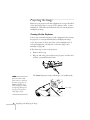
Follow these steps to capture the image and transfer it to the projector:
1. Display the image you want to use from either a computer or
video source, such as a DVD player.
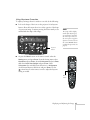
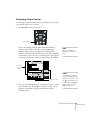
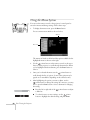
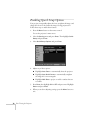
2. Press the Menu button on the remote control, highlight the
Extended menu, and press Enter.
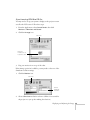
3. Highlight User’s Logo and press Enter.
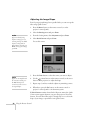
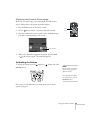
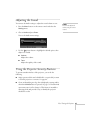
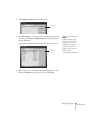
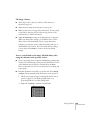
4. When you see a message asking whether you accept the present
image as the user’s logo, select Yes and press Enter. A selection
box displays over the image.
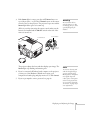
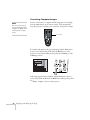
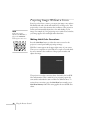
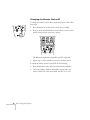
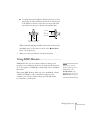
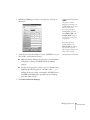
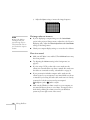
5. Use the
pointer button to select the area of the image you
want to use. Then press Enter.
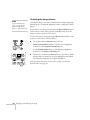
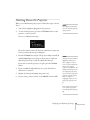
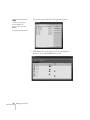
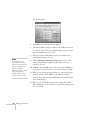
6. When you see the message Select this Image?, highlight Yes
and press Enter.
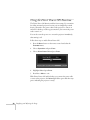
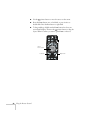
7. Use the arrow buttons to select a zoom rate (display size) and press
Enter.
Fine-Tuning the Projector 71