1
Epson PowerLite Home 10+ Projector
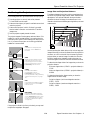
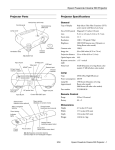
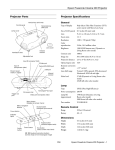
Projector Parts
Projector Specifications
General
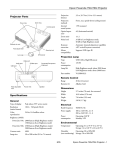
Control panel
Ventilation slots
Type of display
Poly-silicon Thin Film Transistor (TFT)
active matrix with Micro Lens Array
Size of LCD panels
Diagonal: 0.55 inches (14 mm)
Lens
F=1.7 to 2.1 mm, f=13.9 to 21.4 mm
Focus adjustment
Manual
Zoom ratio
Digital 1.1 to 1.54, lens at maximum size
Resolution
854 × 480 pixels (480p native resolution)
Color
reproduction
24 bit, 16.7 million colors
Focus lever
Infrared
receiver
Zoom lever
Lens
Adjustable foot
S-video
port
Video port
(composite
video)
Input B
(computer)
Input A
(component
video)
Infrared
receiver
Brightness
1200 ANSI lumens (Dynamic color
mode)
Contrast ratio
800:1 (Theatre Black color mode)
Image size
Tele: 44.9 to 458.7 in.(1.14 to 11.65 m )
Wide: 30 to 300 in. (0.73 to 7.6 m)
Projection distance
Tele: 3.7 to 38 ft (1.1 to 11.6 m)
Wide: 2.5 to 25 ft (0.73 to 7.6 m)
Projection methods Front, rear, upside-down (shelf or ceiling
mount)
Speaker
Sound output
1W monaural
Optical aspect ratio 16.9
Keystone correction
angle
± 15° vertical
Keystone correction
ratio
9.6:1
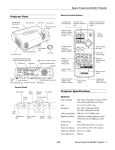
Remote
control
holder
Audio ports
RS-232 port
Security lock
Power
inlet
Noise level
29 dB (Theatre Black color mode)
38 dB (all other color modes)
Supported video
interface standards
Ceiling mount holders
Air filter intake vent
Rubber foot
HDTV, NTSC, NTSC4.43, PAL,
M-PAL, N-PAL, PAL60, SECAM
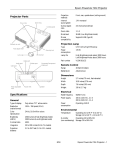
Projection Lamp
Lamp cover
Type
UHE (Ultra High Efficiency)
Power consumption 130W
Lamp life
About 3000 hours (Theatre Black
color mode)
About 2000 hours (other color modes)
Part number
V13H010L29
Remote Control
Adjustable feet
3/04
Range
20 feet (6 meters)
Battery
Lithium (CR2025)
Epson PowerLite Home 10+ Projector - 1
Epson PowerLite Home 10+ Projector
Dimensions
Computer
Height
4.5 inches (114 mm)
Width
15.8 inches (402 mm)
Depth
11.6 inches (294 mm)
Weight
approximately 7.9 lb (3.6 kg)
Signal
Refresh
Rate (Hz)
Resolutio
n
Normal Aspect
Mode
VGA
60
640 × 480
4:3: 640 × 480
VGAEGA
70
640 × 350
854 × 468
VESA
72 / 75 / 85,
iMac*
640 × 480
4:3: 800 × 600
SVGA
56 / 60 / 72 /
75 / 85, iMac*
800 × 600
4:3: 640 × 480
XGA
43i / 60 / 70 /
75 / 85, iMac*
1024 × 768
4:3: 640 × 480
MAC13”
67
640 × 480
4:3: 640 × 480
MAC16”
75
832 × 624
4:3: 640 × 480
MAC19”
75
1024 × 768
4:3: 640 × 480
MAC19-60”
59
1024 × 768
4:3: 640 × 480
MAC21”
75
1152 × 870
4:3: 636 × 480
SDTV (480i)
60
640 × 480
4:3: 640 × 480
SDTV (480p)
60
640 × 480
4:3: 640 × 480
SDTV (575i)
50
768 × 576
4:3: 640 × 480
SDTV (575p)
50
768 × 576
4:3: 640 × 480
HDTV (720p)
60
1280 × 720
16:9: 854 × 480
HDTV (1080i)
50/ 60
1920 × 1080
16:9: 854 × 480
Electrical
Rated frequency
50/60 Hz
Power supply
100 to 120 V model: 100 to 120 VAC,
2.3 A
200 to 240 V model: 200 to 240 VAC,
1.0 A
Power consumption Operating: 200 W at 100 VAC
Standby: 5 W at 100 VAC
Environmental
Temperature
(non-condensing)
Humidity
Operating: 41 to 95° F (5 to 35° C),
Storage: 14 to 140° F (–10 to 60° C)
Operating: 20 to 80% RH,
non-condensing
Storage: 10 to 90% RH, non-condensing
Safety
United States
FCC Part 15B Class B
UL1950 Rev. 3
* Connection is not possible if the equipment does not have a VGA
output port.
Canada
ICES-003 Class B
CSA C22.2 No. 950-95 (cUL)
Component Video
CE Marking
Directive 89/336/EEC
EN 55022, 1998 Class B
EN 55024, 1998
Compatible Video Formats
The projector supports the video formats listed in the following
tables. To project computer images, the computer’s video card
must be set at a refresh rate that’s compatible with the projector.
See your computer documentation for details.
Note: It may be possible to project signals which are not listed in
these tables. However, not all functions may be supported.
Resolutions
Normal Aspect
Mode
TV (NTSC)*
640 × 480
4:3: 640 × 480
TV (PAL, SECAM)*
768 × 576
4:3: 640 × 480
* Includes NTSC 4:43, N-PAL, M-PAL, and PAL-60
2 - Epson PowerLite Home 10+ Projector
Refresh
Rate (Hz)
Resolution
Normal
Aspect Mode
HDTV (720p)
60
1280 × 720
16:9: 854 × 480
HDTV (1080i)
60
1920 × 1080
16:9: 854 × 480
HDTV (1080i)
50
1920 × 1080
16:9: 854 × 480
SDTV (480i)
60
640 × 480
4:3: 640 × 480
SDTV (480p)
60
640 × 480
4:3: 640 × 480
SDTV (575p)
50
768 × 576
4:3: 640 × 480
SDTV (575i)
50
768 × 576
4:3: 640 × 480
SCART (4 RCA/ RGB Video)
Composite Video/S-Video
Signal
Signal
3/04
Signal
Refresh
Rate (Hz)
Resolution
Normal
Aspect Mode
SDTV (480i)
60
640 × 480
4:3: 640 × 480
SDTV (480p)
60
640 × 480
4:3: 640 × 480
SDTV (575i)
50
768 × 576
4:3: 640 × 480
SDTV (575p)
50
768 × 576
4:3: 640 × 480
Epson PowerLite Home 10+ Projector
Image Size and Projection Distance
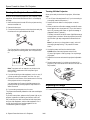
Positioning the Projector
The distance between the projector and the screen determines
the size of the projected image, as shown below. Because other
adjustments—such as those made with the Aspect button—
also affect the size of the image, the numbers shown in the
illustration should be considered as general guidelines, not exact
measurements.
Follow these guidelines to get the best results when projecting:
❏ Place the projector on a sturdy, level surface, between
2.5 and 38 feet from the screen.
❏ Make sure there is plenty of space for ventilation around and
under the projector.
❏ Make sure the projector is within 10 feet of a grounded
electrical outlet or extension cord and within 5 feet of the
image source.
❏ Face the projector squarely toward the screen.
The projector supports 5 viewing setups, as shown below. If it is
installed in a rear or overhead position, you need to select the
correct Projection option from the Setting menu after you turn
it on. If you mount the projector on the ceiling, professional
installation is recommended.
Table
Convenient for temporary front
projection. Choose Front from
the menu.
Use the formulas given below either to find out how large your
image will be when you know the distance from the projector to
the screen, or to find out how far from the screen to place the
projector when you want an image of a certain size. Since the
size of the image can be changed by rotating the zoom ring,
formulas are given for both the minimum and maximum sizes.
Shelf
Attach the three rubber feet that
came with the projector to the
top of the projector, then turn the
projector upside-down. Choose
Front/Ceiling from the menu.
To determine the diagonal size of an image when you know the
projection distance:
Minimum diagonal size = (0.39421 × projection distance) +
1.2116
Ceiling
Professional installation
recommended. Choose
Front/Ceiling from the menu.
(You can purchase ceiling mounting
equipment from Epson; see page
12.)
Maximum diagonal size = (0.25690 × projection distance) +
0.69164
To determine the projection distance when you know the
diagonal size of the screen image:
Projection distance = (minimum diagonal screen size ×
2.5367) - 3.0735
Rear
For permanent installation behind a
translucent screen. Choose Rear
from the menu.
Projection distance = (maximum diagonal screen size ×
3.8925) - 2.6922
Rear/Ceiling
Professional installation behind a
translucent screen recommended.
Choose Rear/Ceiling from the menu.
(You can purchase special ceiling
mounting equipment from Epson;
see page 12.)
If the projector is tilted in the front or the back, you may need
to adjust the image shape. See page 5.
3/04
Epson PowerLite Home 10+ Projector - 3
Epson PowerLite Home 10+ Projector
Turning Off the Projector
Turning the Projector On and Off
When you’re ready to shut down the projector, follow these
steps:
Once you’ve connected the projector to your computer or other
equipment, follow these instructions to turn it on and display
an image:
1. Turn off your video equipment first. (If you’re connecting to
a computer, leave the computer on.)
1. Make sure the power is turned off for the projector and any
sources connected to it.
2. Press the P Power button on the projector or remote
control.
2. Remove the lens cover.
3. When you see the confirmation message, press the P Power
button again to turn the projector off. (If you don’t want to
turn it off, press any other button or ignore the message. It
disappears in about 7 seconds.)
3. Connect one end of the power cord to the projector and plug
the other end into a grounded electrical outlet.
The lamp is turned off and the P Power light flashes orange
as the projector cools down. When the projector has cooled,
the P Power light stays orange and the exhaust fan shuts
off.
Note: If you want to turn the projector on again, wait until
the orange light stops flashing. Then press the P Power
button.
4. Unplug the power cord from the electrical outlet.
The P Power light on the projector turns orange, indicating
that the projector is receiving power, but is not yet turned
on.
Caution: Never disconnect the power cord while the
P power light is green or flashing orange. You may damage
the projector.
Orange
5. Replace the lens cover and retract the projector’s adjustable
feet.
6. Store the remote control in its holder on the back of the
projector. (Part of the remote control will stick out when it’s
fully inserted.)
Note: The projector will not respond to any buttons on the
control panel or remote control while the power light is
flashing orange.
4. If you are connecting to video equipment, turn it on now. (If
you are connecting to a computer, don’t turn it on yet.)
5. Press the P Power button on the remote control or the top
of the projector to turn on the projector.
You hear a beep, the P Power light flashes green as the
projector warms up, and the projection lamp comes on in
about 45 seconds.
Adjusting the Image
6. If you are using a computer, turn it on now.
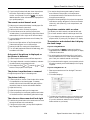
1. To raise the picture, turn the projector’s front feet.
The projector automatically detects the video source and begins
projecting.
If you don’t see a picture, make sure the P power light on the
projector is green and not flashing, and the lens cover is off.
Also, make sure your cable is connected to both the projector
and your video equipment, and the video equipment is on. If
you still don’t see a picture, see the suggestions in the
Troubleshooting section on page 6.
4 - Epson PowerLite Home 10+ Projector
3/04
Epson PowerLite Home 10+ Projector
❏ Squeeze
Best for projecting wide-screen format (16:9) images;
when images output in 4:3 format are projected, they are
elongated horizontally.
2. If your image looks like
or
, press the
and
buttons on the projector’s control panel until the image is
corrected.
Note: You can only correct vertical distortion with this
function. Also, the screen image becomes smaller when you
perform keystone correction.
❏ Zoom
Crops images ouput in 4:3 format at the top and bottom
and projects them in 16:9 format.
If the images become uneven in appearance, decrease the
Sharpness setting in the projector’s Picture Quality menu.
Note: Standard images have an aspect ratio of 4:3, and
HDTV and DVD images have an aspect ratio of 16:9.
3. Rotate the focus ring to sharpen the picture, or the zoom
ring to reduce or enlarge it.
Zoom lever
Adjusting the Volume
Use the buttons on the projector’s control panel or remote
control to adjust the volume of the projector’s audio system or
speakers connected directly to the projector’s Audio ports:
Focus
lever
4. To optimize color settings, press the Color Mode button on
the remote control to choose from these four pre-set color
modes:
❏ Press the
button to decrease the volume.
❏ Press the
button to increase the volume.
Turning Off the Picture and Sound
You can use the A/V Mute button on the remote control to
darken your screen and turn off the sound. This is useful if you
pause the video. When you’re ready to resume, press A/V Mute
again.
❏ Dynamic
Images are modulated and made crisper to emphasize
brightness and increase color intensity. This is
❏ Living Room
Ideal for projecting images or playing video games in
rooms with a lot of ambient light.
Use your video equipment’s controls to pause the video. If you
don’t pause it, it continues to play even though you can’t see or
hear it. When you press the A/V Mute button again, playback
won’t resume exactly where you stopped it.
❏ Theatre
For projecting movies or images with dark tones. This is
the default color mode for component video sources.
❏ Theatre Black
For projecting movies or images in a dark room; lamp
brightness decreases and image contrast increases.
Freezing the Action
To freeze the action temporarily on the screen, press the Still
button on the remote control. This freezes any moving images
until you press the Still button again.
5. To change the picture’s aspect ratio (ratio between length
and height), press the Aspect button on the remote control
to move through these options:
Like the A/V Mute feature, the video and audio input continue
while the moving images are paused, so when you press the Still
button again, playback doesn’t resume exactly where you
stopped it.
❏ Normal
Maintains the aspect ratio of the image source and the
projected image on a 16:9 (wide-screen format) screen;
when images output in 4:3 format are projected, black
bands appear on the sides, but the image’s normal aspect
ratio is maintained.
3/04
Epson PowerLite Home 10+ Projector - 5
Epson PowerLite Home 10+ Projector
Light
Switching Between Picture Sources
You can connect the projector to multiple video sources and use
the buttons on the projector or remote control to switch
between them:
❏ Press the Source button on the projector to move through
all the video source options.
❏ On the remote control, press the Input A/B button to
select a computer or component video source. Press the
S-Video/Video button to select a composite or S-video
source.
After you select a source, the screen goes dark for a moment
before the image appears. The name of the source appears
briefly on the screen.
Status
Action
flashing
orange
The projector lamp is off and the projector is
cooling down. Wait until the light stops
flashing. Then, if you want to turn it off,
unplug it. If you want to turn it on, press the
Power button. (You can’t turn the projector
on, and you should never unplug it, when the
light is flashing orange.)
red
The projector is too hot and the lamp has
turned off. Wait 5 minutes, then unplug the
projector. Make sure nothing is blocking the
air filter. If it continues to overheat, clean the
air filter; see page 10 for instructions.
flashing red
at 0.5second
intervals
The lamp cover is not closed securely, or the
lamp is broken or has burned out. Secure the
lamp cover or replace the lamp; see page 10
for instructions.
flashing
orange
The projector has turned off automatically
because it has overheated. Let it cool for a
few minutes, then turn it back on. Make sure
nothing is blocking the air filter. If it continues
to overheat, clean the air filter; see page 10
for instructions.
flashing red
at 1-second
intervals
There is an internal problem with the
projector. Turn off the projector. Wait for the
P power light to stop flashing, then unplug
the projector from the electrical outlet and
contact Epson for help.
Projector Status Lights
If your projector isn’t working correctly, first turn it off, wait for
the
warning light to turn a steady orange, and unplug it.
Then plug the power cord back in and turn on the projector. If
this doesn’t solve the problem, check the lights on top of the
projector. They alert you to problems with projector operations.
Power light
Troubleshooting
You see a blank screen or a No Signal
message
❏ Make sure the P power light on the projector is green and
not flashing and the lens cover is off.
Warning light
Light
Status
Action
off
Make sure the power cable is connected
securely at both ends, then press the
Power button to turn on the projector. If
you’ve just replaced the lamp, make sure the
cover is securely fastened.
❏ Make sure your cable is connected to both the projector and
your video source.
❏ Make sure your video equipment is on. If it isn’t, turn the
projector off. Then turn it on again after you’ve turned on
your video equipment.
orange
The projector is in sleep (or standby) mode.
You can unplug it to turn it off or press the
Power button to turn it on.
❏ Press the Source button on the projector or the Input A/B
or S-Video/Video button on the remote control until you
see your picture.
flashing
green
The projector is warming up. Warming up
takes about 45 seconds. When warming up is
complete, the indicator changes to steady
green.
❏ If you’ve just turned the projector off, let it cool down for a
few minutes before turning it on again.
green
The projector is operating normally.
❏ Press the A/V Mute button on the remote control to make
sure the picture hasn’t been turned off temporarily.
❏ If you’re connecting to a computer, restart the computer.
6 - Epson PowerLite Home 10+ Projector
3/04
Epson PowerLite Home 10+ Projector
❏ If you’re using Windows,® hold down the Fn key and press
the function key that lets you display on an external
monitor. It may have an icon such as
, or it may be
labelled CRT/LCD. (Allow a few seconds for the projector to
sync up after pressing it.)
❏ You may be using the wrong source setting. Press the
Source button on the projector, or the Input A/B or
S-Video/Video buttons on the remote control to move
through the source settings.
❏ Adjust the following settings in the projector’s Image menu
under Picture Quality: Brightness, Contrast, Saturation
(video only), Tint (video only), Color Temperature, and
Flesh Tone.
The remote control doesn’t work
❏ Make sure you’ve removed the battery insulating tape. See
the Quick Setup sheet for instructions.
❏ Make sure you’re within 20 feet of the projector.
The picture contains static or noise.
❏ Point the remote control at one of the projector’s two
infrared receivers. You should be within range of the infrared
receivers (about 30° left or right, and 15° above or below).
❏ Make sure your cable is securely connected at both ends.
❏ Don’t use an extension cable or a cable longer than 6 feet.
❏ If you’re displaying the same image on your computer and
projector screen, try turning off your laptop’s LCD display.
❏ You may need to replace the remote control’s battery. See
page 9 for details.
❏ Dim the room lights and turn off any fluorescent lights.
Make sure the projector is not in direct sunlight.
The projector and notebook don’t display
the same image
❏ Remove the clear film covering the infrared receivers.
If you’re using Windows:
❏ Turn off nearby equipment that emits infrared energy, such
as a radiant room heater.
❏ On most systems, the
or CRT/LCD key lets you
toggle between the LCD screen and the projector, or display
on both at the same time.
Only part of the picture is displayed, or
the picture is distorted.
❏ You might need to use the Display utility in the Control
Panel to enable both the LCD screen and external monitor
port. Check your notebook’s manual or online help.
❏ Press the Aspect button to select a different aspect ratio.
❏ If you have dual monitor support, you may need to uncheck
the option to extend your Windows desktop in the Display
Properties.
❏ If the image is distorted or contains interference, make sure
the cable is securely connected at both ends.
❏ If the image looks like
or
, press the
buttons on the projector’s control panel.
and
If you’re using Mac OS® X:
1. Select System Preferences from the Apple® menu and
click Displays.
The picture is upside-down or reversed.
Change the Projection option in the setting menu.
2. Click Detect Displays.
The picture is blurry
❏ There may be dirt on the lens. Clean the lens with a canister
of compressed air or lens-cleaning paper. If necessary,
moisten a soft cloth with lens cleaner and gently wipe the
lens surface. Never rub the lens with abrasive materials.
❏ Adjust the focus ring.
Click here
❏ Adjust the Sharpness setting on the Image menu.
❏ If you’re projecting from a computer, press the Auto button
on the remote control to automatically optimize the image.
3. To display the entire desktop on both your projector screen
and LCD screen, click the Arrangement or Arrange tab.
(If you don’t see this tab, make sure it isn’t hidden by
another window on your screen.)
The colors on the screen don’t look right
❏ Press the Color Mode button on the remote control to move
through the different color mode settings.
❏ If the picture looks too dark, you may need to replace the
lamp. See page 10 for details.
3/04
Epson PowerLite Home 10+ Projector - 7
Epson PowerLite Home 10+ Projector
❏ The battery is weak or not installed correctly
4. Click Mirror Displays in the lower corner of the screen.
One of the monitor icons automatically moves on top of
the other.
❏ Ambient light is too bright, or fluorescent light is shining
into the infrared receiver
❏ Other equipment emitting infrared energy is present (such as
a radiant room heater)
Switch between
different video sources
Click here
Changes the
picture’s
aspect ratio
If you’re using Mac OS 9.x or earlier:
1. From the Apple menu, select Control Panels, then click
Monitors and Sound.
Navigate menus
and select menu
items; adjust
volume
2. Click the Arrange icon, and then drag one monitor icon on
top of the other.
Displays or hides
projector’s menus
Click here
Turns off audio
and video
Turns projector on
and off
Cycles through
4 pre-set color
modes
Recalls
settings made
in projector’s
menus
Exits the
current menu
or function
Optimizes
images from a
computer
Freezes the picture
and sound
Drag one monitor
icon on top of
the other
Using the Menus
The on-screen menus let you adjust and customize the projector
features from the remote control:
Note: If the Arrange option isn’t available, you may need to select
one of the Simulscan resolution settings. Click the Monitor icon
and then select a Simulscan resolution from the Resolution box.
(Allow a few seconds for the projector to sync up.)
❏ Image controls the look and quality of the projected image
(from a computer or video source).
❏ Setting lets you set the child lock or sleep mode, adjust the
position and size of the picture, select front or rear
projection, and customize other projector features.
❏ Info provides information about the current projector and
lamp settings.
Using the Remote Control
❏ Reset lets you reset the lamp timer and the projector’s
memory, or return all the menu settings to their factory
defaults.
The remote control uses a line-of-sight infrared signal. It lets
you access the projector’s features from anywhere in the room—
up to 20 feet away. (This distance may be shorter if the remote
control batteries are low.) The projector may not respond to
remote control commands in these conditions:
❏ You’re too far away—not within 20 feet (6 meters)—or not
within 30° to the left or right or 15° above or below the front
or rear infrared receiver
8 - Epson PowerLite Home 10+ Projector
3/04
Epson PowerLite Home 10+ Projector
Changing Menu Settings
If you see a line menu or slider bar, press the left or right
arrow button on the remote control, or the
or
button
on the projector to change the setting.
You can use the buttons on the projector or remote control to
display the menus and change settings.
5. Press the Esc button to return to the previous menu.
1. Press the Menu button on the projector or remote control.
You see a screen similar to the one below (the screen you see
depends on the equipment you’ve connected):
6. Press the Menu button to exit the menu system.
Replacing the Remote Control Battery
When the battery in the remote control runs out, follow the
steps below to replace it. You’ll need a CR2025 lithium battery,
which you can obtain commercially.
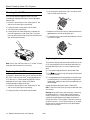
1. Press the catch in as you pull the battery holder out
The four menus are shown on the left, and the options
available to the highlighted menu are shown on the right.
Press here and slide
out battery holder
Note: If nothing is connected to the projector, some options
may not be available.
2. Remove the old battery and insert the new one. Make sure
the + side of the battery is facing up, as shown.
2. Press the up or down arrow button on the remote control or
the
or
button on the projector’s control panel to
move to the menu you want. When your menu is
highlighted, press the Select button. You see the options for
the selected menu on the right. The highlight moves to the
first option on the list.
New battery
3. Press the up or down arrow button on the remote control or
the
or
button on the projector’s control panel to
move through the list of options. When the option you want
to change is highlighted, press the Select button.
Old battery
3. Slide the battery holder back
into the remote control until it
clicks into place.
You may see a list of settings, a submenu providing
additional options, or a line menu or slider bar similar to the
one below:
Caution:
When replacing the battery, follow these guidelines:
4. If you see a list of settings, use the arrow buttons on the
remote control or the
or
button on the projector’s
control panel to move to the setting you want, then press the
Select button. Enabled settings are indicated by a green
light, while disabled ones are gray.
❑
Replace the battery as soon as it runs out.
❑
If the battery leaks, wipe away battery fluid with a soft cloth. If
fluid gets on your hands, wash them immediately.
❑
Remove the battery if you will not be using the remote for a
long period of time.
❑
Dispose of the used battery in accordance with local
regulations.
If an option has a submenu, press the Select button to
display it, then select the setting you want.
3/04
Epson PowerLite Home 10+ Projector - 9
Epson PowerLite Home 10+ Projector
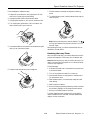
3. Turn the projector upside-down. Push in the tab on the air
filter cover and remove the cover.
Cleaning the Air Filter
If the air filter becomes clogged with dust, it can cause
overheating and damage the projector. Follow these steps to
clean the filter:
1. Press the P Power button to turn the projector off, and
wait for the P power light to stop flashing.
2. Unplug the power cord and disconnect any cables.
3. Turn the projector upside-down
4. Replace the air filter with a new one. Make sure there are no
gaps between the air filter and the plastic grill.
4. Use a small vacuum cleaner designed for computers and
other office equipment to clean the air filter. If you don’t
have one, gently clean the filter using a very soft brush (such
as an artist’s camel-hair brush).
5. To replace the cover, insert the tabs and press down until the
cover clicks into place.
Replacing the Lamp
The projection lamp typically lasts for about 2000 hours of use.
(If you use Theatre Black color mode almost exclusively, the
lamp lasts about 3000 hours.) It is time to replace the lamp
when:
Note: If the air filter is difficult to clean or if it is broken, it should
be replaced. See the next section for instructions.
❏ The projected image gets darker or starts to deteriorate.
Replacing the Air Filter
❏ The
warning light on top of the projector flashes red at
0.5-second intervals.
If you need to replace the air filter, you can call Epson at (800)
873-7766, or visit the Epson StoreSM at www.epsonstore.com
(U. S. sales only). In Canada, please call (800) 463-7766 for
dealer referral. Ask for part number V13H134A04.
❏ The message Replace the lamp appears on the screen when
you start projecting. To maintain projector brightness and
image quality, replace the lamp as soon as possible after you
see the message.
Follow these steps to replace the air filter:
Request replacement lamp part number V13H010L29.
1. Press the P Power button to turn the projector off, and
wait for the P power light to stop flashing.
Note: To view the number of hours your lamp has been used, check
the Info menu.
2. Unplug the power cord and disconnect any cables.
Warning: Be very careful when removing the lamp. Let the lamp
cool before replacing it. If the lamp breaks, handle the shards
carefully to avoid injury. In the unlikely event that the bulb has
ruptured, small glass fragments may be present and should be
removed with caution. If your projector is mounted on the ceiling,
you should unmount it. This will make it easier for you to replace
the lamp and minimize the chance of any small glass fragments
dropping from the projector.
10 - Epson PowerLite Home 10+ Projector
3/04
Epson PowerLite Home 10+ Projector
7. Carefully insert the new lamp and tighten the retaining
screws.
Follow these steps to replace the lamp:
1. Press the P Power button to turn the projector off, then
wait for the P power light to stop flashing.
8. To replace the lamp cover, insert the tabs and then snap the
cover into place.
2. Unplug the power cord and disconnect any cables.
3. If the projector has been on, let it cool for at least one hour.
4. Turn the projector upside-down. Push in the tabs on the
lamp cover and push it up to remove it.
Note: Make sure the lamp cover is securely fastened. The
warning light flashes and the projector lamp won’t turn on if
the cover is open.
5. Use a small screwdriver to loosen the two screws securing the
lamp; you can’t remove the screws.
After replacing the lamp, you need to reset the lamp timer, as
described in the next section.
Resetting the Lamp Timer
After you install a new lamp, you need to reset the timer so the
projector can keep track of how many hours it has been used.
Note: Reset the lamp timer only after you install a new lamp. If you
reset it at any other time, the projector will not indicate the correct
number of lamp usage hours.
Follow these steps:
1. Make sure the power cord is connected to the projector and
to an electrical outlet.
6. Grasp the lamp as shown and pull it straight out.
2. Turn on the projector and wait for it to warm up.
3. Press the Menu button on the projector or remote control.
You see the main menu.
4. Select the Reset menu. You see the lamp usage hours and
other settings.
5. Select Lamp Hours Reset.
6. When you see a prompt asking whether you want to execute
the command, highlight Yes and press the Select button.
7. When you’re finished, press Esc or Menu.
The lamp usage timer doesn’t register until you’ve used the
lamp for at least 10 hours. After that, the timer updates lamp
usage in one hour increments.
3/04
Epson PowerLite Home 10+ Projector - 11
Epson PowerLite Home 10+ Projector
You can purchase these accessories from your dealer, by calling
Epson at (800) 873-7766, or by visiting the Epson Store at
www.epsonstore.com (U.S. sales only). In Canada, please call
(800) 463-7766 for dealer referral.
Transporting the Projector
When shipping the projector for repairs, use the original
packaging material if possible. If you do not have the original
packaging, use equivalent materials, placing plenty of
cushioning around the projector. Be sure the carrier is capable
of transporting fragile equipment and that it is aware that the
projector is fragile.
Related Documentation
CPD-17911
Epson PowerLite Home 10+ Projector
Quick Setup poster
Storing the Projector
CPD-17904
Epson PowerLite Home 10+ Projector
User’s Guide
If you need to store the projector for awhile, do the following:
CPD- 17916
Epson Extra CareSM Home Service
warranty
❏ Make sure the temperature and humidity of the storage area
are within the recommended range for the projector (14 to
140 °F and 10 to 90% relative humidity).
❏ Attach the lens cover and retract the feet.
❏ Remove the battery from the remote control
❏ Store the remote control in the holder on the back of the
projector.
❏ Package the projector in its original or equivalent packaging.
Optional Accessories
Epson provides the following optional accessories:
Product
Product number
V13H010L29
Replacement lamp
V13H134A04
Replacement air filter
V12H007T12
Projector remote control
ELPSC06
50” Portable screen (4:3 aspect ratio)
ELPSC07
60” Portable pop-up screen (4:3 aspect ratio)
ELPSC08
80” Portable pop-up screen (4:3 aspect ratio)
ELPAP01
Mac adapter set (used to convert a Macintosh Dsub 15-pin plug into a mini
D-sub 15-pin plug)
ELPMB42
Ceiling mount
ELPMBAPL
Suspension adapter
ELPMBFCP
False ceiling plate
ELPSV01
S-video cable
ELPKS35
Samsonite® wheeled softcase
ELPKS43
Samsonite soft shoulder case
ELPSL01
Kensington® security lock
12 - Epson PowerLite Home 10+ Projector
3/04