1
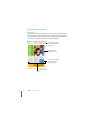
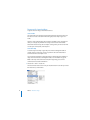
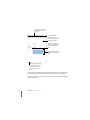
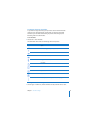
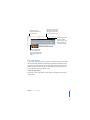
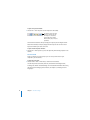
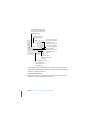
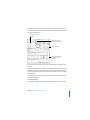
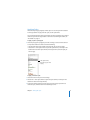
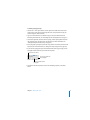
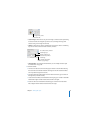
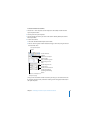
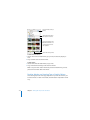
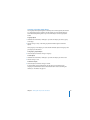
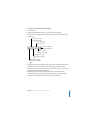
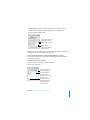
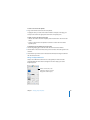
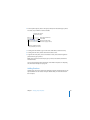
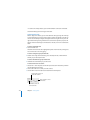
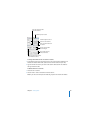
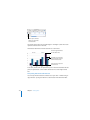
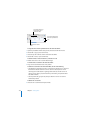
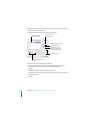
To change a tab to a different type:
m Control-click the tab icon and choose an option from the shortcut menu. Or doubleclick the tab icon in the ruler repeatedly until the type of tab you want appears.
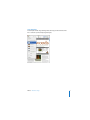
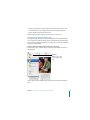
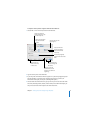
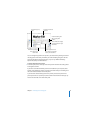
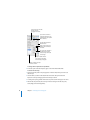
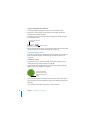
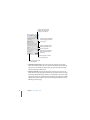
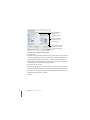
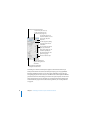
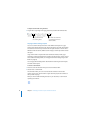
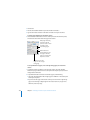
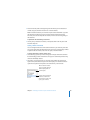
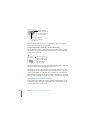
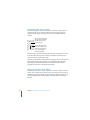
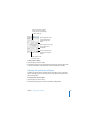
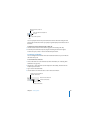
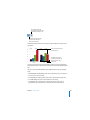
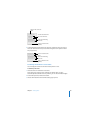
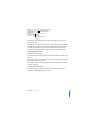
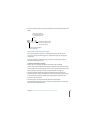
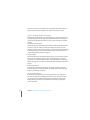
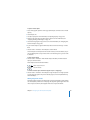
Choose from among
these tab types.
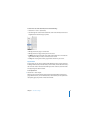
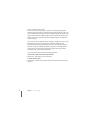
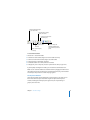
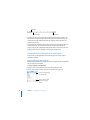
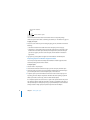
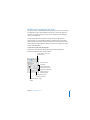
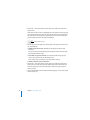
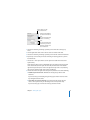
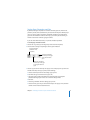
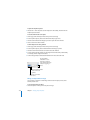
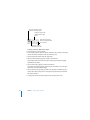
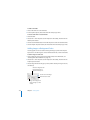
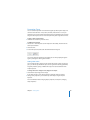
Here is a description of what each tab type does:
 Left Tab: Aligns the left side of text with the tab stop
 Center Tab: Places the center of text at the tab stop
 Right Tab: Aligns the right side of text with the tab stop
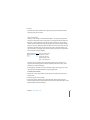
 Decimal Tab: For numbers, aligns the decimal point with the tab stop (You can set
a different text character to serve as the decimal tab character; see “Setting Tab
Stops Using the Text Inspector” below.)
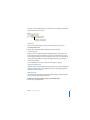
To delete a tab from the ruler:
m Drag it off the ruler.
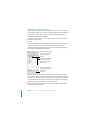
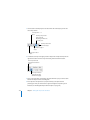
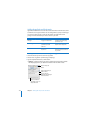
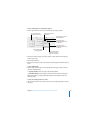
Setting Tab Stops Using the Text Inspector
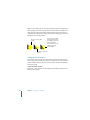
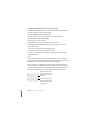
Every document has built-in tab stops, usually spaced half an inch apart across the
page. In the Tabs pane of the Text Inspector, you can change the default tab spacing
or the decimal tab character for the entire document. You can also set additional tab
stops in any paragraph, or add a leader line, so that when you press the Tab key, a
dashed or dotted line extends across the tabbed distance. This is useful, for example,
for inserting dashed lines between a chapter title and its page number in a table of
contents.
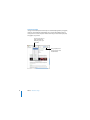
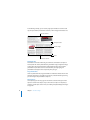
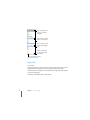
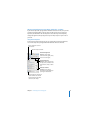
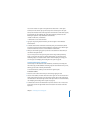
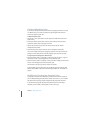
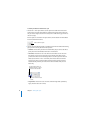
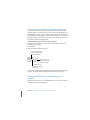
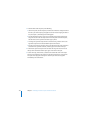
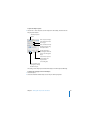
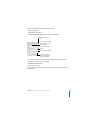
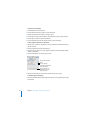
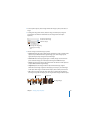
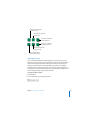
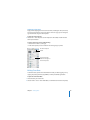
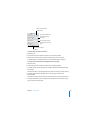
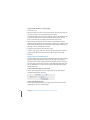
To open the Tabs pane of the Text Inspector:
1 Choose View > Show Inspector (or click Inspector in the toolbar).
2 Click the Text Inspector button, and then click Tabs.
Chapter 3 Formatting Text and Paragraphs
59