1
Linux commands can be
joined together to create
scripts. These scripts allow
you to create programs which
can be just as powerful as any
other programs on the
Raspberry Pi.
Scripts can be very useful to hold commands
that you need to type regularly. It can be very
inconvenient to have to type the same
command again and again, especially if the
command is long and complex.
Let's take an example of a useful command
that you may need to enter regularly. We will
use the example of a command to save a
copy of all of your files in a safe place.
Before we start writing the script, we need a
safe place to put all of your files. Your files are
normally in /home/pi (assuming that you are
using the username "pi"), therefore the safe
place must be somewhere else. We will
create a special directory called "/backup" by
using the commands:
sudo mkdir /backup
sudo chown pi /backup
18
What do these commands do?
The mkdir command makes a new directory.
By default, the user pi can only write to files in
/home/pi, this is to prevent accidental
damage to other users or to the system files.
By adding sudo to the mkdir command, the
user pi gains the authority to create a
directory outside the normal working area.
Creating the directory is not enough, to be
able to completely control this directory, the
chown command is used to change
ownership of the directory. Now the user pi is
in full control of this directory.
Now we are ready to create the script. By
using the nano editor, we can create a file
named "backup":
nano backup
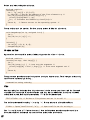
and we can add this (as one line) to the file:
cp -r -v /home/pi/backup
To save the file, press the CTRL and O keys
together, followed by Enter. To exit the editor,
press the CTRL and X keys. This script now
contains the command to copy files from
/home/pi to /backup. The "-r" option is
"recursive" and means keep drilling down into
directories to find files. The "-v" option is
"verbose" and means we want to be told what
is happening.
Now we can try to run the script by entering:
bash backup
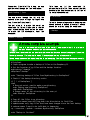
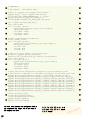
You should see a list containing each file in
your directory with an arrow to the respective
backup file.
A script can contain more than one command,
so we will add text messages at the beginning
and end to inform us what is happening. Edit
the file again and change the file to contain:
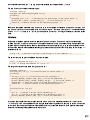
echo "Starting backup"
cp -r -v /home/pi/backup
echo "Backup is finished"
Try running the script again by entering the
command:
bash backup