1
PRINTING FROM MAKERBOT DESKTOP
HOW TO PAUSE OR CANCEL A PRINT
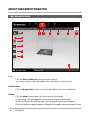
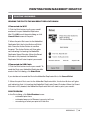
To Pause: While the MakerBot Replicator Mini is printing, press the Action Button once to
pause. The Action Button color will turn from red to blue. Press the Action Button again to
resume printing. You can also pause by opening the print monitor panel in MakerBot Desktop
and then clicking Pause.
To Cancel: While the MakerBot Replicator Mini is heating or printing, press and hold the
Action Button to cancel the print. You can also cancel by opening the print monitor panel in
MakerBot Desktop and then clicking Cancel.
4
POST PRINT STEPS
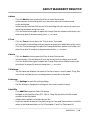
REMOVE RAFT
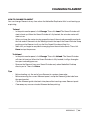
When your print finishes, wait for the Smart Extruder to cool, then remove the build plate
from the MakerBot Replicator Mini. Remove the print from the build plate, and peel off the
raft from the bottom of the print. Every object printed on your MakerBot Replicator Mini
will be built on a raft. The raft acts as a base for your print and any support structures, and
ensures that everything adheres well to the build plate. The raft will be easily removable
once you remove your finished print from the build plate.
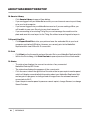
SHARE ON THINGIVERSE
If you are printing a file from Thingiverse, it’s nice to let the model’s designer know. In the
Explore tab of MakerBot Desktop, click on View in Browser, which will open up your default
web browser to the model’s thing page. Then click I Made One. You’ll have the opportunity
to upload photos of your print and add a description. When you’re ready, click Create to link
your photos to the original design’s thing page.
Caution: Never turn off the MakerBot Replicator Mini during or immediately after printing.
Wait until the Smart Extruder has cooled to 50° C before powering down.
22
REFERENCE