1
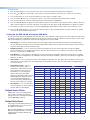
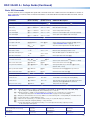
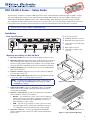
DSC 3G-HD A • Setup Guide (Continued) Front Panel Overview Extron INPUT RATE CONFIG 1 2 OUTPUT UNKNOWN SYNC 2.97 Gbps HDTV 1.485 Gbps PC 270 Mbps AUDIO 3 4 DSC 3G-HD A MENU AUTOIMAGE ENTER HOLD 5 FOR XGA 720 P 6 a Status LED — Lights steadily amber when there is power but no signal, blinks amber every 3 seconds when the unit is in standby mode, and lights steadily green when both power and an input signal are present. b USB configuration port — Connect a control system or computer to this mini USB port (cable not supplied) for device configuration, control, and firmware upgrading. c Input Rate LEDs — One signal LED (2.97 Gbps, 1.485 Gbps, or 270 Mbps) lights to indicate the type of signal that is present. The Unknown LED lights if the signal does not reference SMPTE 259M, 292M, or 424M. d Output LEDs — Light to indicate the presence of sync and other output signal information: zz HDTV: Indicates 2k, 1080p, 1080i, 720p, 480p, 576p, or custom rates. zz PC: Indicates VESA standard or custom computer rates. zz Audio: Audio is embedded in the signal. zz Sync: Sync is present (does not light if video sync is muted). e Menu and Enter buttons — Let you access the OSD and select submenus and options from the menus. f Navigation buttons — Press these right , left , up , and down arrow buttons to step through the OSD submenus, to lock the front panel (see the next section), perform Auto-Image (press ), and reset the output rate (hold for 5 seconds). Locking the Front Panel (Executive Mode) To prevent unauthorized access or accidental changes to DSC settings, you can lock the front panel controls, making control available only by SIS commands. (The default state is unlocked.) You can lock and unlock the front panel as follows: zz zz Using the front panel buttons: To lock, press the Menu and buttons simultaneously and hold them until the OSD displays Executive Mode Enabled (approximately 5 seconds). To unlock, repeat this process. SIS commands: To lock (enable executive mode), enter 1X. To unlock (disable executive mode), enter 0X. Configuring the DSC 3G-HD A The DSC 3G-HD A can be configured through a host connected to the RS-232 or USB port, using Extron PCS Windows-based control software (available at no charge at www.extron.com) or SIS commands (see page 4 for a selection of basic commands). You can also configure it using the OSD menu system, described below. On-Screen Display (OSD) Menu System The OSD menu system consists of seven submenus and two information screens. To access the menus, press the front panel Menu button. With the main menu displayed, use the arrow buttons to step through the submenus and submenu options. Press the Enter button to select items that you highlight. Communication and Device Info screens are read-only and do not provide selections. • Quick Setup • User Presets • Picture Controls • Input • Output • Audio • Advanced • Communication • Device Info. NOTE: The OSD times out and closes after 1 minute if no buttons are pressed. 2