1
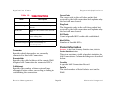
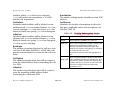
Titlepae
Motorola Vanguard
Supports Management Module SM-MOT1000
Device Management
Copyright Notice
Document 3607. Copyright © 2002-present by Aprisma Management
Technologies, Inc. All rights reserved worldwide. Use, duplication, or
disclosure by the United States government is subject to the restrictions
set forth in DFARS 252.227-7013(c)(1)(ii) and FAR 52.227-19.
Liability Disclaimer
Aprisma Management Technologies, Inc. (“Aprisma”) reserves the right to
make changes in specifications and other information contained in this
document without prior notice. In all cases, the reader should contact
Aprisma to inquire if any changes have been made.
The hardware, firmware, or software described in this manual is subject to
change without notice.
IN NO EVENT SHALL APRISMA, ITS EMPLOYEES, OFFICERS,
DIRECTORS, AGENTS, OR AFFILIATES BE LIABLE FOR ANY
INCIDENTAL, INDIRECT, SPECIAL, OR CONSEQUENTIAL DAMAGES
WHATSOEVER (INCLUDING BUT NOT LIMITED TO LOST PROFITS)
ARISING OUT OF OR RELATED TO THIS MANUAL OR THE
INFORMATION CONTAINED IN IT, EVEN IF APRISMA HAS BEEN
ADVISED OF, HAS KNOWN, OR SHOULD HAVE KNOWN, THE
POSSIBILITY OF SUCH DAMAGES.
Trademark, Service Mark, and Logo Information
SPECTRUM, IMT, and the SPECTRUM IMT/VNM logo are registered
trademarks of Aprisma Management Technologies, Inc., or its affiliates.
APRISMA, APRISMA MANAGEMENT TECHNOLOGIES, the APRISMA
MANAGEMENT TECHNOLOGIES logo, MANAGE WHAT MATTERS,
DCM, VNM, SpectroGRAPH, SpectroSERVER, Inductive Modeling
Technology, Device Communications Manager, SPECTRUM Security
Manager, and Virtual Network Machine are unregistered trademarks of
Aprisma Management Technologies, Inc., or its affiliates. For a complete
list of Aprisma trademarks, service marks, and trade names, go to
http://www.aprisma.com/manuals/trademark-list.htm.
All referenced trademarks, service marks, and trade names identified in
this document, whether registered or unregistered, are the intellectual
property of their respective owners. No rights are granted by Aprisma
Management Technologies, Inc., to use such marks, whether by
implication, estoppel, or otherwise. If you have comments or concerns
Device Management
about trademark or copyright references, please send an e-mail to
[email protected]; we will do our best to help.
Restricted Rights Notice
(Applicable to licenses to the United States government only.)
This software and/or user documentation is/are provided with
RESTRICTED AND LIMITED RIGHTS. Use, duplication, or disclosure by
the government is subject to restrictions as set forth in FAR 52.227-14
(June 1987) Alternate III(g)(3) (June 1987), FAR 52.227-19 (June 1987),
or DFARS 52.227-7013(c)(1)(ii) (June 1988), and/or in similar or
successor clauses in the FAR or DFARS, or in the DOD or NASA FAR
Supplement, as applicable. Contractor/manufacturer is Aprisma
Management Technologies, Inc. In the event the government seeks to
obtain the software pursuant to standard commercial practice, this
software agreement, instead of the noted regulatory clauses, shall control
the terms of the government's license.
Virus Disclaimer
Aprisma makes no representations or warranties to the effect that the
licensed software is virus-free.
Aprisma has tested its software with current virus-checking technologies.
However, because no antivirus system is 100 percent effective, we
strongly recommend that you write-protect the licensed software and
verify (with an antivirus system in which you have confidence) that the
licensed software, prior to installation, is virus-free.
Contact Information
Aprisma Management Technologies, Inc.
273 Corporate Drive
Portsmouth, NH 03801
Phone:
603-334-2100
U.S. toll-free:
877-468-1448
Web site:
http://www.aprisma.com
Page 2
Motorola Vanguard
Contents
INTRODUCTION
Encoder Queue Statistics View ............................. 21
Decoder Queue Statistics View ............................. 22
Motorola Configuration Applications
(MotConfigApps) ................................................ 22
CSIS Software Key and NUI Password
Tables View .................................................... 23
Software Key Table ............................................ 23
NUI Password Table .......................................... 23
Authorization Tables View ..................................... 23
Software Authorization Table ............................. 23
Port Authorization Table..................................... 24
NS Channel Information View................................ 24
Channel Configuration........................................ 24
Channel Statistics............................................... 25
Switched Service Configuration Table View .......... 25
Call ID Statistics ................................................. 28
Backup Port Statistics Table View ......................... 28
Port Statistics Table View ...................................... 29
Monitored Port.................................................... 29
Calling ID............................................................ 30
TFTP Statistics View.............................................. 30
TFTP Download ................................................. 30
Last TFTP Transfer Status ................................. 31
SVC Calls Table View............................................ 31
PVC Setup Configuration Table View .................... 32
Route Selection Configuration Table View ............ 32
LAN Connection Configuration Table View ........... 33
7
Purpose and Scope ........................................................7
Required Reading ...........................................................7
Supported Devices..........................................................8
The SPECTRUM Model ..................................................9
DEVICE VIEWS
10
Interface Device View ...................................................10
Interface Icons ...........................................................11
Interface Icon Subviews Menu Options ..............12
Interface Status View.................................................13
Secondary Address Panel .........................................13
Port Icons ..................................................................13
Port Labels.............................................................14
Port Label Icon Subviews Menu .........................14
APPLICATION VIEWS
15
Supported Applications .................................................16
Common Applications................................................16
Device-Specific Applications .....................................16
Motorola Bandwidth Management Applications
(MotBWMgmtApps) ............................................17
Data Compression General Statistics View ...........17
Queue Statistics View ............................................18
DC Controls View...................................................19
Data Compression Channel Statistics View...........19
Device Management
Page 3
Motorola Vanguard
Contents
Contents
WAN Bridge Link Info View ................................... 59
Address Table Parameters View........................... 60
802.1d Static Link Table View ............................... 61
SRB WAN Bridge Link Table View........................ 62
Static Routes Info View ......................................... 62
Static Route Table ............................................. 62
Dynamic Route Table ........................................ 63
RIP Information .................................................. 63
IP Interchange Table View .................................... 64
Output Table ...................................................... 64
Input Table......................................................... 65
Filter/Gateway/Priority Info View ........................... 65
Traffic Info.......................................................... 66
Filter Table......................................................... 66
Default Gateway Table ...................................... 66
IP BOOTP Server Info View .................................. 67
Motorola Node Management Application
(MotNodeMgmtApp) .......................................... 67
SNMP Agent Details View..................................... 67
Node Configuration View....................................... 68
General Node Information ................................. 68
Thresholds ......................................................... 70
Alarms................................................................ 70
Billing ................................................................. 71
Traffic ................................................................. 71
Codex Proprietary Information........................... 72
Node Statistics View.............................................. 72
Last Occurrences............................................... 73
PVC Connections .............................................. 73
Reset Buttons .................................................... 73
Data Summary Statistics View...............................36
Call Information......................................................37
Packet Information .................................................38
Adaptor Control Table View ...................................39
Motorola LAN Applications (MotLANApps)................40
Bridge Statistics View ............................................40
Port Stats............................................................40
Link Stats............................................................41
Base Port Stats Table ........................................41
Transparent Bridge Link Stats Table View.............42
Transparent Bridge Port Stats Table View.............44
Spanning Tree Bridge Link Stats Table View ........45
SRB Port Statistics Table View..............................46
SRB WAN Bridge Link Stats View .........................46
MAC Address & Protocol Filtering
Stats Table View .............................................48
WAN Bridge Link Stats Table View........................49
Local Termination Stats Table View ......................49
ARP Cache Table View .........................................50
IP Access Control Table View................................51
IP Interface Table View..........................................52
Advertise Routes....................................................54
Bridge Configuration Information View ..................54
Base Port Info.....................................................55
STP Port Info ......................................................55
Base Port Configurables ....................................55
Local Termination Table View................................57
Filtering Information View ......................................58
MAC Address Filter Table ..................................58
Protocol Filter Table ...........................................59
Device Management
Page 4
Motorola Vanguard
Contents
Board Statistics View .............................................74
Port Statistics View ................................................75
Board Table View...................................................76
Voice Application (MotVoiceApp) ..............................77
Voice Port Configuration Table View .....................77
Voice Switch Configuration Table View .................90
Port Statistics Table View ......................................92
Motorola WAN Applications (MotWANApps).............96
Virtual Port Mapping Table ....................................96
X.25 Configuration Table View ..............................98
PDN Information View..........................................101
Call Statistics View...............................................103
Packet/Frame Statistics View ..............................104
Channel Statistics View .......................................105
Logical Channel Statistics ................................105
Timer Statistics .................................................105
X.25 Statistics Table View ...................................106
ISDN Call Statistics Table View ...........................107
Data Statistics View .............................................108
Char Info...........................................................109
Packet Info .......................................................109
Frame Info ........................................................110
Translation Configuration Table View ..................110
Inbound ............................................................110
Outbound..........................................................111
Address ............................................................111
Motorola Vanguard Frame Relay Applications
(MotFRDTEApp and MotFRDCEApp) ..............111
Frame Relay DTE Application..............................111
Port Configuration ............................................111
Device Management
Contents
Port Statistics ................................................... 112
Station Configuration ....................................... 112
Station Statistics .............................................. 112
Model Information ............................................ 112
Frame Relay DCE Application............................. 112
Port Configuration Table.................................. 112
Port Statistics Table ......................................... 112
Station Configuration Table ............................. 112
Station Statistics Table .................................... 113
Model Information ............................................ 113
CONFIGURATION VIEWS
114
Device Configuration View ......................................... 114
Interface Configuration View ...................................... 115
TRAPS, EVENTS, AND ALARMS
116
Standard Trap Support............................................... 116
Vanguard 300/320 Trap Support ................................ 116
Vanguard 6400 and 6500 Trap Support ..................... 118
ADVANCED APPLICATION INTEGRATIONS
119
Motorola Vanguard Frame Relay Integration ............. 119
Motorola Vanguard Frame Relay
DTE DLCI Port Model ...................................... 120
Information .......................................................... 120
Port Performance ................................................ 120
Port Configuration ............................................... 121
Port Threshold..................................................... 121
Service Information ............................................. 121
Page 5
Motorola Vanguard
Contents
Contents
Port Statistics .......................................................121
Motorola Vanguard Frame Relay DCE
DLCI Port Model ...............................................121
Information ...........................................................122
Port Configuration ................................................122
Port Threshold .....................................................122
Service Information ..............................................122
Port Statistics .......................................................122
INDEX
Device Management
123
Page 6
Motorola Vanguard
Introduction
This section introduces the SPECTRUM Device Management documentation for Motorola Vanguard devices.
This introduction to the Device Management
documentation for Motorola Vanguard devices
contains the following information:
•
•
•
•
Purpose and Scope (Page 7)
Required Reading (Page 7)
Supported Devices (Page 8)
The SPECTRUM Model (Page 9)
Purpose and Scope
about device management using SPECTRUM and
for explanations of basic SPECTRUM functionality
and navigation techniques, refer to the topics
listed under Required Reading (Page 7).
Required Reading
To use this documentation effectively, you must
be familiar with the information covered by the
other SPECTRUM online documentation topics
listed below.
Use this documentation as a guide for managing
Motorola Vanguard devices with the SPECTRUM
management module SM-MOT1000. The
documentation describes the icons, menus, and
views that enable you to remotely monitor,
configure, and troubleshoot Motorola Vanguard
devices through software models in your
SPECTRUM database.
• Getting Started with SPECTRUM for
Operators
• Getting Started with SPECTRUM for
Administrators
• How To Manage Your Network with
SPECTRUM
• SPECTRUM Views
• SPECTRUM Menus
• SPECTRUM Icons
• SPECTRUM Software Release Notice
Only information specific to the supported
management module is included under this
documentation topic. For general information
Device Management
Page 7
Motorola Vanguard
Introduction
Supported Devices
Supported Devices
Motorola Vanguard 6560 MPRouter PRO.
This device extends the 6520 MPRouter capabilities for large branch offices with higher
throughput needs, offering voice relay
options for analog and digital voice applications as well as all the features and options
of the 6520.
The SPECTRUM management module SMMOT1000 currently lets you model the Motorola
Vanguard devices described below.
Vanguard 6435 Multiservice Access Router.
A compact, desktop router with an Ethernet
interface and three expansion slots. Two
slots can be used for Enhanced Daughter
Cards for high bandwidth applications.
Motorola Vanguard 300/320. A network
access device that allows Ethernet LANs and
a combination of terminals, PCs, workstations, and controllers to access public or private network services such as ISDN, Frame
Relay, and X.25. The Vanguard 320 is the new
and improved, next generation of the Vanguard 300 and is fully compatible with the
Vanguard 300.
Vanguard 6455 Multiservice Access Router.
A desktop or rack-mountable router with an
Ethernet interface and five expansion slots.
Two slots can be used for Enhanced Daughter Cards for high bandwidth applications.
Note:
Note:
Support for the Vanguard 6400 series
of devices does not include complete
proprietary MIB support as of
SPECTRUM 6.6 SP4.
Motorola Vanguard 6520 Multimedia
Periphery Router (MPRouter). A WAN
access product optimized for branch offices
that require consolidation of legacy traffic
with LAN traffic over dedicated or switched
X.25, Frame Relay, point-to-point, multipoint,
and ISDN circuits.
Device Management
Page 8
Motorola Vanguard
Introduction
The SPECTRUM Model
The SPECTRUM Model
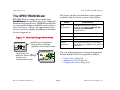
SPECTRUM uses a single device model type,
MotMPRouter, for modeling any of the supported
Motorola Vanguard devices. MotMPRouter models
are represented in SpectroGRAPH views by Device
icons. As Figure 1 shows, the appearance of the
Device icon varies slightly depending on the kind
of view it appears in.
Figure 1:
Model Name
Small and Large Device Icons
Small Device icon appears in
Topology, Device Topology,
Application, and Container views.
The device-specific Icon Subviews menu options
available from the Device icon are listed below.
Option
Accesses the...
Fault
Management
Fault Management view, which is
described in the How to Manage Your
Network with SPECTRUM
documentation.
Device
Device Views (Page 10)
Application
Application Views (Page 15)
Configuration
Configuration Views (Page 114)
Primary
Application
Menu options that let you select either
Gen Bridge App or MIB-II as the primary
application.
Vanguard6455
Model Name
Large Device icon
appears in Device Topology,
Location, and
Interface Device views.
Device Management
The rest of this document covering management
module SM-MOT1000 is organized as follows:
• Device Views (Page 10)
• Application Views (Page 15)
• Configuration Views (Page 114)
Vanguard6455
Page 9
Motorola Vanguard
Device Views
This section describes the Device views and subviews available for models of Motorola Vanguard devices in
SPECTRUM.
Device views use icons and labels to represent the
modeled device and its components, such as
modules, ports, and applications. There are two
types of Device views for MotMPRouter models.
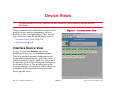
Figure 2:
Interface Device View
• Interface Device View (Page 10)
• Port Icons (Page 13)
Interface Device View
Access: From the Icon Subviews menu for the
MotMPRouter Device icon, select Device > Interface.
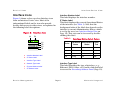
This view provides dynamic configuration and
performance information for each of the device’s
serial/network I/O ports, which are represented
by Interface icons in the bottom panel of the view,
as shown in Figure 2. The middle panel of the
view also displays a Device icon, which allows you
to monitor device operation and access other
device-specific views.
Device Management
Page 10
Motorola Vanguard
Device Views
Interface Device View
Interface Icons
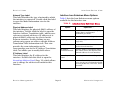
Figure 3 shows a close-up of an Interface icon
from an Interface Device view. Most of the
informational labels on the icon also provide
double-click access to other views, as explained in
the following label descriptions.
Figure 3:
(a)
Interface Icon
(b)
1 ON
ISO88023
Motorola 65
0:0:30:68:6F:1B
0:0:0:0
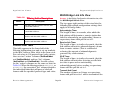
IF Status Label
This label displays the current Operational Status
of the interface (see Table 1). Note that the
background color of the label also depends on the
interface’s current Administrative Status, which
is set by the user (see Interface Status View on
Page 13). This view can be accessed by doubleclicking this label.
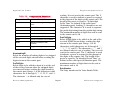
Table 1:
(c)
(d)
(e)
(f)
a
Interface Number Label
b
IF Status Label
c
Interface Type Label
d
Network Type Label
e
Physical Address Label
f
IP Address Label
Device Management
Interface Number Label
This label displays the interface number.
Color
Interface Status Label Colors
Operational Administrative
Status
Status
Label
Text
Green
ON
ON
ON
Blue
OFF
OFF
OFF
Yellow
OFF
ON
OFF
Red
Testing
Test
TST
Interface Type Label
This label identifies the type of interface—e.g.,
Ethernet, FDDI, Other, etc. Double-click this label
to access the Secondary Address Panel (Page 13).
Page 11
Motorola Vanguard
Device Views
Interface Device View
Network Type Label
This label identifies the type of network to which
the interface is connected. Double-click this label
to open the Model Information view for the
interface.
Physical Address Label
This label displays the physical (MAC) address of
the interface. Double-click the label to open the
Interface Address Translation table, which crossreferences network addresses (IP addresses) to
physical (MAC) addresses for selected nodes
between networks. Double-clicking on any
column entry opens an address-specific Address
Translation Table Information view. This view
provides the same information as the
corresponding row for the IF Address Translation
table, but allows you to modify field values.
IP Address Label
This label displays the IP address for the
interface. Double-click this label to open the
Secondary Address Panel (Page 13), which allows
you to change the address and mask for this
interface.
Device Management
Interface Icon Subviews Menu Options
Table 2 lists the Icon Subviews menu options
available for the Interface icon.
Table 2:
Interface Icon Subviews Menu
Option
Opens the . . .
Detail
Interface Detail view, which displays
Packet, Error, and Discard
Breakdown pie charts.
IF Status
Interface Status View (Page 13).
IF Configuration
Interface Configuration View
(Page 115).
Model Information Associated Model Information views
for the selected interface.
IF Address
Translation Table
Interface Address Translation Table
view, which shows the Physical and
Network address for each interface.
Secondary Address Secondary Address Panel (Page 13).
Panel
Thresholds
Page 12
Interface Threshold view, which allows
you to set the on/off alarm thresholds
for load, packet rate, error rate, and %
discarded.
Motorola Vanguard
Device Views
Interface Device View
Interface Status View
Secondary Address Panel
Access: From the Icon Subviews menu for the Interface
icon in the Interface Device view, select IF Status.
Access: From the Icon Subviews menu for the Interface
icon in the Interface Device view, select Secondary
Address Panel.
This view provides information on the operational
status of the interface and allows you to enable or
disable the port.
Operational Status
The current state of the interface. Valid values
are: On, Off, or Testing.
Administrative Status
This button allows you to select the desired
operational state of the interface. Valid values are:
On, Off, or Testing.
This panel provides a table of IP addresses and
masks obtained from the Address Translation
table within the device’s firmware. You can
change the current address displayed in the IP
Address field by selecting an entry from the table
in this panel and clicking the Update button.
Port Icons
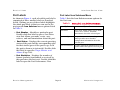
Figure 4 shows a close-up of a Port icon from a
Chassis Device view.
Figure 4:
Port Icon
Port Number
6
Port Labels
Up
0
Port Status
Port Statistics
Device Management
Page 13
Motorola Vanguard
Device Views
Interface Device View
Port Labels
Port Label Icon Subviews Menu
As shown in Figure 4, each selectable port label is
comprised of three smaller labels as described
below. Clicking on any of these labels highlights
the whole port label so that you can access the
port-specific Icon Subviews menu options listed
in Table 3.
Table 3 lists the Icon Subviews menu options for
the Port icon.
• Port Number - Identifies a particular port.
Double-click this label to open a Port Notes
view that allows you make, revise, save,
retrieve, and mail annotations about the port.
• Port Status - Displays the current operating
status of the port and the corresponding color
for that status (green if the port is up, red if
the port is down or in test mode). Double-click
this label to open the Traps, Events, and
Alarms (Page 116).
Table 3: Port Label Icon Subviews Menu
Option
Port Notes
Opens the . . .
Notes view, which allows you to make,
revise, save, retrieve, and mail
annotations about the selected port.
Port Configuration Traps, Events, and Alarms (Page 116),
which provides more detailed
configuration information about the
selected port.
Port Performance
Provides statistical information about
packet traffic through the selected port.
• Port Statistics - Displays the number of
frames (packets) transmitted or received by
this port since the last reset. Double-click this
label to open the Port Performance View.
Device Management
Page 14
Motorola Vanguard
Application Views
This section describes the main Application view and the associated application-specific subviews available for
models of Motorola Vanguard devices in SPECTRUM.
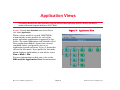
Figure 5:
Access: From the Icon Subviews menu for the Device
icon, select Application.
Application View
When a device model is created, SPECTRUM
automatically creates models for each of the
major and minor applications supported by the
device. The main Application view identifies all of
these application models, shows their current
condition status, and provides access to
application-specific subviews. Figure 5 shows this
view in the Icon mode. If you prefer the List mode,
which displays applications as text labels, select
View > Mode > List.
For more information on this view, refer to the
MIBs and the Application View documentation.
Device Management
Page 15
Motorola Vanguard
Application Views
Supported Applications
Supported Applications
Device-Specific Applications
SPECTRUM’s applications can be grouped within
two general categories as follows:
SPECTRUM imports the following device-level
proprietary MIBs into its database:
•
•
•
•
•
•
•
•
•
•
•
•
•
•
•
•
•
•
• Applications associated with non proprietary
MIBs. See Common Applications (Page 16)
below.
• Applications associated with device-specific
MIBs. See Device-Specific Applications
(Page 16).
Common Applications
In general, common applications represent the
non-proprietary MIBs supported by SPECTRUM.
The SPECTRUM common applications documents
are listed below.
These documents are available for
viewing at:
Note:
Note:
•
•
•
•
•
www.aprisma.com/manuals/
Routing Applications
Bridging Applications
Transmission Applications
MIB II Applications
Technology Applications
Device Management
BCST-OPT-MIB
BRIDGE-OPT-MIB
CDX-6500-COMMON-MIB
DC-OPT-MIB
DCP-OPT-MIB
DSD-OPT-MIB
FRDCE-OPT-MIB
FRDCTE-OPT-MIB
ISDN-OPT-MIB
MX25-OPT-MIB
NS-OPT-MIB
ROUTER-OPT-MIB
SS-OPT-MIB
T1E1-OPT-MIB
TBOP-OPT-MIB
TFTP-OPT-MIB
WAN-OPT-MIB
X25_OPT-MIB
These MIBs can be used in conjunction with
SPECTRUM’s optional customization products
(referred to as the Level I Tool Kits) to create views
that display the condition of selected MIB objects.
Page 16
Motorola Vanguard
Application Views
Note:
Note:
Supported Applications
Motorola Bandwidth Management
Applications (MotBWMgmtApps)
Aprisma Management Technologies
can provide training, technical
assistance, and custom engineering
support services for creating
application models and their
associated views.
This major application (model type
MotBWMgmtApps) has a single minor application:
the Motorola Data Compression Application
(model typeMotDCApp). The Icon Subviews menu
for this application provides access to the
following application-specific subviews:
The views and subviews available for Motorola
Vanguard device-specific applications are
described in the rest of this section, grouped by
major application as listed below:
• Motorola Bandwidth Management Applications
(MotBWMgmtApps) (Page 17)
• Motorola Configuration Applications
(MotConfigApps) (Page 22)
• Motorola LAN Applications (MotLANApps)
(Page 40)
• Motorola Node Management Application
(MotNodeMgmtApp) (Page 67)
• Voice Application (MotVoiceApp) (Page 77)
• Motorola WAN Applications (MotWANApps)
(Page 96)
• Motorola Vanguard Frame Relay Applications
(MotFRDTEApp and MotFRDCEApp) (Page 111)
Device Management
• Data Compression General Statistics View
(Page 17)
• Data Compression Channel Statistics View
(Page 19)
Data Compression General Statistics
View
Access: From the Icon Subviews menu for the
MotBWMgmtApp Application icon, select General
Statistics.
This view provides descriptive information about
the data compression (DC) module installed in the
modeled device’s motherboard and general
statistical information applicable to all DC
channels. Buttons at the bottom of the view
provide access to subviews for Encoder/Decoder
Queue Statistics and DC Channel Controls. The
DC general statistics are displayed in the
following read-only fields:
Page 17
Motorola Vanguard
Application Views
Supported Applications
DSPStatus
Indicates whether there is a DC SIMM DSP
installed in the motherboard and, if so, the
current status (up = installed and operational;
down = installed but non-functional; missing =
no DC SIMM DSP is installed).
The following two buttons are located at the
bottom of the Data Compression General
Statistics view:
Soft-Rev
The revision number of the DC handler software.
This button accesses both current and historical
information about the encoder and decoder
queues— see Queue Statistics View (Page 18).
Encoder and Decoder Queue Statistics
Firm-Rev
The DC function revision number (e.g., the DSP
firmware revision number).
DC Channel Controls
DCChan
The maximum number of DC channels
supported.
This button accesses a view that lets you control
statistics and history buffer reset parameters for
individual DC channels—see DC Controls View
(Page 19).
ChanInUse
The number of DC channels currently in use.
SmltChanUse
The highest number of DC channels in use at any
one time since the last stats reset.
ConnRejects
Number of call requests rejected due to the
unavailability of DC channels.
AggCRatio
Ratio of incoming characters to outgoing
characters for all DC channels over the past
minute.
Device Management
Queue Statistics View
Access: In the Data Compression General Statistics view,
click the Encoder and Decoder Queue Statistics button.
This view provides the following information
about the encoder and decoder queues.
EncFrames
Current number of frames in the encoder queue,
waiting to be compressed.
Page 18
Motorola Vanguard
Application Views
Supported Applications
MaxEncQueue
Highest number of frames that were in the
encoder queue at any one time since the last stats
reset.
TimeOfMaxEnc
Time when the current MaxEncQueue value was
registered.
DecFrames
Current number of frames in the decoder queue,
waiting to be decompressed.
MaxDecQueue
Highest number of frames that were in the
decoder queue at any one time since the last stats
reset.
TimeOfMaxDec
Time when the current MaxDecQueue value was
registered.
DC Controls View
Access: In the Data Compression General Statistics view,
click the Encoder and Decoder Queue Statistics button.
This view contains a table that lets you determine
whether the statistics and the vocabulary/history
buffer for each channel will be automatically reset
when the channel is active. Column headings are
described below:
Device Management
Channel Number
Index number identifying a particular channel.
Channel Status
Indicates whether DC statistics will be
automatically reset for this channel when it is
active. Possible values are: reset or noreset.
History Buffer
Indicates whether the vocabulary/history buffer
will be automatically reset for this channel when
it is active. Possible values are: reset or
noreset.
Data Compression Channel Statistics
View
Access: From the Icon Subviews menu for the
MotBWMgmtApp Application icon, select Channel
Statistics.
This view provides the data compression (DC)
statistics listed below for individual channels.
Buttons at the bottom of the view provide access
to subviews for Encoder/Decoder Queue
Statistics and DC Channel Controls. Column
headings are as follows:
Number
Index number identifying a particular channel.
Page 19
Motorola Vanguard
Application Views
Supported Applications
Time Reset
Time when node was restarted or statistics were
reset by a CTP/SNMP Manager command.
Table 4: Channel State Descriptions
State
State
Current activity state of the channel. See Table 4
for expanded descriptions of possible states.
Device Management
Page 20
Description
dsp-down
DSP is down.
idle
DSP is ready to be assigned to a
connection.
negotiating
Source has accepted the Call Request
and is waiting for a Call Accept from
the destination node.
data-passing
Normal data passing state.
ap-clearing
Call Clear request arrived from access
side.
np-clearing
Call Clear request arrived from
network side.
clearing-call
A call collision or a Call Clear along
with an X.25 reset or a “start buffer
discarding.”
flushing-on-clr
Call has been cleared with FLUSH;
waiting for packets to flush from DC
Handler rings.
flushing-data
Waiting for x.25 confirm.
flushing-dc-ring
Waiting for the data on the DC Handler
ring to be flushed after an x.25 confirm
or stop discard.
clearing
Call has been cleared.
Motorola Vanguard
Application Views
SourceChan
Access Protocol’s identity string.
DestChan
Network Protocol’s identity string.
XmitRatio
Actual compression ratio for outgoing data. This
is a 60 second snapshot. Range is 1 - 9.2.
The following three buttons are located at the
bottom of the Data Compression Channel
Statistics view.
Supported Applications
Encoder Queue Statistics View
Access: In the Data Compression Channel Statistics view,
click the Encoder Queue Statistics button.
This view contains a table of encoder queue
statistics for individual DC channels. Column
headings are described below:
ChanNo
Index number identifying a particular channel.
EncFrames
Number of frames received from the Access
Protocol to be compressed.
Encoder Queue Statistics
This button accesses a view providing encoder
queue information for individual DC channels—
see Encoder Queue Statistics View (Page 21).
Decoder Queue Statistics
This button accesses a view providing decoder
queue information for individual DC channels—
see Decoder Queue Statistics View (Page 22).
DC Channel Controls
This button accesses a view that lets you control
statistics and history buffer reset parameters for
individual DC channels—see DC Controls View
(Page 19).
Device Management
CharIN
Number of bytes pushed into the encoder to be
compressed.
CharOUT
Number of compressed bytes produced by the
encoder.
AEChange
Number of times the encoder switched from
compressed mode to anti-expansion mode.
AEFrames
Number of anti-expansion frames sent by the
encoder.
AEstatus
Indicates whether anti-expansion mode is on.
Page 21
Motorola Vanguard
Application Views
Decoder Queue Statistics View
Access: In the Data Compression Channel Statistics view,
click the Decoder Queue Statistics button.
This view contains a table of decoder queue
statistics for individual DC channels. Column
headings are described below:
ChanNo
Index number identifying a particular channel.
DecFrames
Number of frames received from the Network
Protocol to be decompressed.
CharIN
Number of bytes pushed into the decoder to be
decompressed.
CharOUT
Number of decompressed bytes produced by the
decoder.
AEChange
Number of times the decoder switched from
compressed mode to anti-expansion mode.
Supported Applications
BadFrames
Number of decoded frames detected by the
decoder that have been corrupted. This includes
frames with bad headers.
BadHeaders
Number of decoded frames detected by the
decoder that have a bad header.
PktDiscard
Number of packets discarded while processing an
X.25 reset or during node congestion.
Motorola Configuration
Applications (MotConfigApps)
This major application (model type
MotConfigApps) has six minor applications (model
types MotCSISApp, MotNSApp, MotSSApp,
MotTFTPApp, MotVCApp, and MotWANApp). The
Icon Subviews menus associated with these
applications provide access to the following
application-specific views:
• MotCSISApp
- CSIS Software Key and NUI Password
Tables View (Page 23)
- Authorization Tables View (Page 23)
• MotNSApp
- NS Channel Information View (Page 24)
AEFrames
Number of anti-expansion frames received.
AEstatus
Indicates whether anti-expansion mode is on or
off.
Device Management
Page 22
Motorola Vanguard
Application Views
Supported Applications
• MotSSApp
- Switched Service Configuration Table View
(Page 25)
- Backup Port Statistics Table View (Page 28)
- Port Statistics Table View (Page 29)
• MotTFTPApp
- TFTP Statistics View (Page 30)
• MotVCApp
- SVC Calls Table View (Page 31)
- PVC Setup Configuration Table View
(Page 32)
- Route Selection Configuration Table View
(Page 32)
• MotWANApp
- LAN Connection Configuration Table View
(Page 33)
- Data Summary Statistics View (Page 36)
CSIS Software Key and NUI Password
Tables View
• NUI Password Table (Page 23)
Software Key Table
This table displays key values for optional
software. Entries are numbered sequentially
starting with 1.
NUI Password Table
This table lists the Network User Identification
(NUI) password for each user account and
specifies which entry in the PAD Prompt Table is
used as a PAD prompt after the user has entered
a valid password. “0” indicates the standard
asterisk prompt.
Authorization Tables View
Access: From the Icon Subviews menu for the
MotCSISApp Application icon, select Authorization Tables.
This view provides port-specific information about
optional software installed on the modeled device.
It contains the following two tables:
Access: From the Icon Subviews menu for the
MotCSISApp Application icon, select Key/NUI Table.
This view provides software key and password
configuration information for optional software
installed on the modeled device. It contains the
following two tables:
• Software Key Table (Page 23)
Device Management
• Software Authorization Table (Page 23)
• Port Authorization Table (Page 24)
Software Authorization Table
For each software option installed, this table
indicates the maximum number of ports
supported (or the value 65535 if unlimited), the
Page 23
Motorola Vanguard
Application Views
Supported Applications
number of ports actually being used, and whether
all use of the option was authorized or any use
was unauthorized. Any attempts to use the option
on more than the number of supported ports
constitutes unauthorized usage.
Port Authorization Table
For each port (1 through 54), this table indicates
whether usage has been authorized or
unauthorized. Any attempted use of the port for a
particular software option that would exceed the
port limit listed in the Option column of the
Software Authorization table constitutes
unauthorized usage.
NS Channel Information View
Number
The Network Services Configuration Table entry
being configured by the other parameters in the
record.
PortStnId
The port and station on which the Network
Services Data Compression feature will be
enabled. The wild card (match anything)
character is * and can also be part of the entry.
Valid port types are: X25, FRA, LCON, TCOP, and
TBOP.
Used
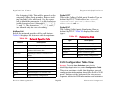
This parameter specifies the Network Services
features level. Table 5 displays the valid
parameters and descriptions:
Access: From the Icon Subviews menu for the MotNSApp
Application icon, select NS Channel.
This view lets you initiate and monitor channel
information for the modeled device. The view has
the following two defined areas:
• Channel Configuration (Page 24)
• Channel Statistics (Page 25)
Channel Configuration
This section displays the following information:
Device Management
Page 24
Motorola Vanguard
Application Views
Supported Applications
Table 5: NS Features
Parameter
Description
disable
The feature is not requested.
negotiate
Negotiate for the feature. The feature is
desired, but if not available bring up the
virtual circuit anyway, without the
feature.
required
Required for call. Bring up the
connection only if the feature is available
on both ends.
forceOn
The feature is required for the circuit to
come up.
Channel Statistics
This section displays the following information:
UsedChan
The number of NS Channels in use.
MaxChan
The maximum number of NS Channels used.
UnavailChan
The number of NS Channels not available for
allocation.
Device Management
Switched Service Configuration Table
View
Access: From the Icon Subviews menu for the MotSSApp
Application icon, select Configuration Table.
This view lists the Configuration parameters that
makeup the Switched Service/LBU Table.
Column headings are as follows:
Number
The particular Switched Service/LBU Table entry
being configured. The number of instances
defined by this entry depends on the configured
value of the Maximum Switch Service Entry
parameter in the Node record (up to a maximum
of 1024 entries). If this value is 0, no switched
Service/backup links may be configured i.e. this
table will be empty.
Destination
A unique name that identifies this entry.
Monitored Port
The X.25 port to be monitored for link failure.
This is the port whose calls are rerouted in the
event of port failure. The format must be the
following: X25-n, FRI-nSm OR BRI-nCp where n
is the port number, m is the station number and
p is BRI channel number.
Page 25
Motorola Vanguard
Application Views
Supported Applications
Backup Port
The port or channel that acts as the backup when
there is a port failure on the port specified by the
parameter Monitored port, or primary destination
port (activated by call). The format must be the
following: X25-n or BRI-nCm, where n is the port
number and m is the channel number.
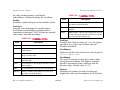
Act Mode
This specifies how the switched service/backup
port will be activated. Table 6 displays the
activation modes and descriptions:
Table 6:
Mode
Dialed No.
The telephone numbers that will be dialed when
the backup port is activated. To enter your own
telephone number, use any combination of the
following characters:
0-9
Decimal
:
Wait Tone
<
Pause
=
Separator 3
>
Separator 4
P or p Dialing to be continued in PULSE
mode.
T or t Dialing to be continued in DTMF mode.
&
Flash
To have the modem dial one of its preprogrammed telephone numbers, enter:
Activation Mode
Description
fail
Activate the backup port upon
link failure.
call
Activate the backup port upon a
call request.
either
Activate the backup port upon
link failure or a call request.
newvalFail
Same functionality as ’fail,’ new
enumeration added for RFC1155
compatibility.
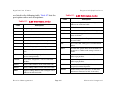
Deact Mode
This specifies how the switched service/backup
port is deactivated after the original link is up.
Table 7 displays the deactivation modes and
descriptions:
#n
where ’n’ identifies the pre-programmed
telephone number stored in the modem.
Device Management
Page 26
Motorola Vanguard
Application Views
Supported Applications
Table 7: Deactivation Modes
Mode
Description
none
Backup port can only be deactivated by
operator intervention.
busyout
The backup port is deactivated after all
the calls on that port are cleared for a
predetermined amount of time. This
substitutes the value assigned to the
parameter Link Hold Time with the
value assigned to the parameter Idle
Disconnect Time in the X.25 Port
Record. The Idle Disconnect Time will
then work as described in the
Operators Guide. When Deactivation
Mode = BUSY OUT and Link Hold Time
= 0 (zero) the overall effect is the same
as setting this entry to NONE.
imm
The backup link is terminated
immediately when the monitored port is
restored regardless of how many calls
are present.
newvalNone
Same functionality as ’none.’
Device Management
Hold Time
This replaces the value of the parameter Idle
Disconnect Timer in the X.25 Port Record and
specifies how long (in seconds) the backup link
remains active after the original link is back up.
Password
The password used by the remote station to
determine if dial access is authorized.
Redial Time
The time in seconds between dial attempts when
bringing up a switched service call.
Redial Counter
The number of times that the Switched Service
will attempt to redial when redial timer is expired.
A value of zero will allow unlimited attempts.
Security
This specifies under what conditions the
port/channel authorizes call request. Table 8
displays the security channel and descriptions:
Page 27
Motorola Vanguard
Application Views
Supported Applications
Call ID Statistics
Table 8: Security Channels
Channel
Access: From the Switched Service Configuration Table
View, select the Call ID Statistics Table button.
Description
none
A call request cannot be rejected based
on password of calling party id
validation.
This view lists the Configuration calling IDs that
makeup the Calling ID Table. Column headings
are as follows:
password
A call request will only be accepted if
the password it provides matches the
switched services password configured
in the node record
Call Number
The particular calling ID Table entry being
configured by the other parameters in the record.
callingId
A call request will only be accepted if
the calling party id of the caller
matches one of the entries found in the
calling party id table.
both
A call request is accepted only if both
the password and the calling party id
are valid.
newvalNone
Same functionality as ’none.’
Call String
Each calling id entry is a numeric value which
may contain periods or dashes. Only calls
matching these ids will be allowed when calling id
security is enabled.
Backup Port Statistics Table View
Access: From the Icon Subviews menu for the MotSSApp
Application icon, select Restoral Port Statistics.
Call ID Statistics Table
This button accesses a view containing the call ID
statistics—see Call ID Statistics (Page 28).
This view lists the statistics parameters for the
Switch Service/Link Backup port, station, and
channel. Column headings are as follows:
Port No.
The backup port number, used as an index to
access Switched Service/LBU statistics.
Port Type
The port type of the backup port.
Device Management
Page 28
Motorola Vanguard
Application Views
Supported Applications
Conn. Type
The connection type of the backup port.
Redial
The number of times that the Switched Service
will attempt to redial when the redial timer is
expired. A value of zero will allow unlimited
attempts.
Status
The status of the backup port. Valid values are:
down, up, activating, redial, idle,
deactivating, and newvalDown.
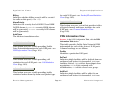
Reason
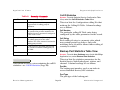
The reason that the backup port is active. Table 9
displays the valid reasons and descriptions:
LastActivate
The last time the backup port was activated.
LastDialedNo
The phone number dialed the last time the
backup port was activated.
Table 9: Reasons
Reason
Description
none
Backup port is deactivated.
call
A call request was made on the backup
port.
fail
Due to a link failure on the monitored
port.
remote
A call request was made to the backup
port.
cto
Backup port was activated from the
control terminal.
newvalNone
Same functionality as ’none’.
Port Statistics Table View
Access: From the Icon Subviews menu for the MotSSApp
Application icon, select Link Statistics.
This view lists the statistics parameters for the
Link Backup’s monitored port. The view has the
following two defined areas:
• Monitored Port (Page 29)
• Calling ID (Page 30)
Monitored Port
This section displays the following information:
Index Port
The backup port number, used as a primary
index to access monitored port statistics.
Device Management
Page 29
Motorola Vanguard
Application Views
Supported Applications
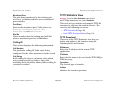
TFTP Statistics View
Monitored Port
The port being monitored by the backup port,
used as a secondary index to access monitored
port statistics.
Access: From the Icon Subviews menu for the
MotTFTPApp Application icon, select Statistics.
This view lets you initiate and monitor TFTP file
transfers to and from the modeled device. The
view has the following two areas:
Port State
State of the monitored port. Valid values are:
down, up, activating, redial, idle,
deactivating and newvalDown.
• TFTP Download (Page 30)
• Last TFTP Transfer Status (Page 31)
Dial No.
Phone number that the backup port will dial
when a monitored port has a link failure.
TFTP Download
This area of the TFTP Statistics view lets you
define and initiate a file transfer using the
following fields and buttons:
Calling ID
This section displays the following information:
Call Number
The particular calling ID Table entry being
configured by the other parameters in the record.
Call String
Each calling id entry is a numeric value which
may contain periods or dashes. Only calls
matching these ids will be allowed when calling id
security is enabled.
IPAddress
Enter the IP address of the remote TFTP
application.
FileName
Enter the file name to be used in the TFTP RRQ or
WRQ message.
Operation
The desired type of transfer.
Initiate
Initiates the transfer operation.
Device Management
Page 30
Motorola Vanguard
Application Views
Supported Applications
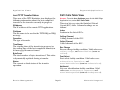
Last TFTP Transfer Status
SVC Calls Table View
This area of the TFTP Statistics view displays the
following information about the last completed
transfer or the transfer currently in progress:
Access: From the Icon Subviews menu for the MotVCApp
Application icon, select SVC Calls Table.
This view lets you view the Switched Virtual
Circuit (SVC) calls. Column headings are as
follows:
IPAddress
The IP address of the remote TFTP application.
FileName
The file name to be used in the TFTP RRQ or WRQ
message.
Operation
The type of transfer.
ByteCount
The total number of bytes transferred. This value
is dynamically updated during a transfer.
Device Management
Calling Channel
Calling channel of the SVC.
Called Channel
Called channel of the SVC.
TimeStamp
The starting time of the transfer in progress (or
the ending time of the last completed transfer) in
dd-mm-yyyy hh:mm:ss format.
Status
The current or final status of the transfer
operation.
Index
Position in the list of SVCs.
Rev Charge
Reverse charge facility condition. Valid values are:
refuse, accept, and newvalRefuse (same as
refuse).
Fast Select
Fast select facility condition. Valid values are:
noFastSelect, fastSelect, and
newvalNoFastSelect (same as noFastSelect).
NetUserId
Net user identification facility condition. Valid
values are: notRequested, requested, and
newvalNotRequested (same as NotRequested).
Page 31
Motorola Vanguard
Application Views
Supported Applications
CUG
Closed User Group facility on/off. Valid values
are: notRequested, requested, and
newvalNotRequested (same as notRequested).
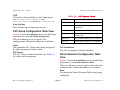
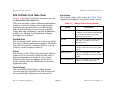
Table 10: PVC Source Codes
PVC Source
Conn_UpTime
Time at which the connection was up.
PVC Setup Configuration Table View
Access: From the Icon Subviews menu for the MotVCApp
Application icon, select PVC Setup Configuration.
This view allows you to set-up the PVC
configuration. Column headings are as follows:
Description
BCST
Route calls to the broadcast module.
MX25-2s3(2)
Route calls to MX25 port 2, station 3,
channel 2.
PAD-5
Route calls to PAD port 5.
P54S9(22)
Route calls to port 54, station 9,
channel 22.
SDLC-4s5
Route calls to SDLC port 4, station 5.
X25-1(5)
Route calls to X25 port 1, channel 5.
Index
The particular PVC Table entry being configured
by other parameters in the record.
PVC Destination
The PVC destination channel identifier.
PVC Source
The PVC source channel identifier. See Table 10
for codes and descriptions:
Route Selection Configuration Table
View
Access: From the Icon Subviews menu for the MotVCApp
Application icon, select Route Selection Table.
This view allows you to set-up the route selection
configuration. Column headings are as follows:
Num
The particular Route Selection Table entry being
configured.
Device Management
Page 32
Motorola Vanguard
Application Views
Supported Applications
SVC Addr
Network address for calls routed beyond this
node. A route selection entry is not needed for
calls destined within this node: PAD port or node
resource (for example, control port) calls. The wild
card (match anything) character is *, and can also
be part of the entry. When set to (blank), this
parameter is ignored.
ConnNo
A specific LAN Connection Record within the
table.
Forwarder
This parameter specifies the type of forwarders
communicating over this LAN Connection.
Table 11: Type of Forwarders
Destn 1 through 8
The network address to which calls are routed.
Forwarder
Priority 1 through 8
The priority for call forwarding to ports within the
Route Selection Table. Call forwarding is
determined by a combination of priority and load
conditions. 0 is the backup port. Values 1-15 are
also valid, 1 being the highest priority, and 15 the
lowest.
LAN Connection Configuration Table
View
Access: From the Icon Subviews menu for the
MotWANApp Application icon, select LAN Configuration.
This view contains the Configuration parameters
for each LAN Connection. Column headings are
as follows:
Device Management
Description
brid
Bridging Forwarders.
rout
Routing Forwarders.
brout
Bridging and Routing Forwarders.
nc
Skipped during configuration.
newvalBrid
Same as ‘brid’.
BridgeLnk
The Bridge-Link that is using this LAN
Connection.
RouterIf
The Router Interface that is using this LAN
Connection.
Page 33
Motorola Vanguard
Application Views
Supported Applications
AutocallAdd
If configured, the Autocall Mnemonic references a
remote address which will be called by the LAN
Connection.
Table 12: Billing
Billing
AutocallTime
The time interval in seconds between call
attempts when auto calling.
AutocallAttempt
The number of times that the LAN Connection will
attempt to autocall a remote destination. A value
of zero will allow unlimited attempts.
ConnectionID
The number of the remote LAN Connection or the
FRA Station number that this LAN connection will
attempt to connect to if configured for autocall.
Billing
This controls whether billing (accounting) records
will be created for calls on this LAN Connection.
Table 12 displays the valid options and
descriptions:
Description
off
Billing records will not be created.
on
Billing records will be created.
nc
Skipped during configuration.
newvalOff
Same functionality as “off”.
TrafficPriority
The Traffic Priority of this LAN Connection. Valid
values are: low, med, high, exp (Expedite
Priority), nc, and newvalLow (same as low).
ConnQueue
The maximum number of bytes that will be
queued for this LCON before transmission on the
WAN link. It is recommended that this parameter
be set for two seconds of data on the WAN link.
Encap
The data encapsulation type used over this LAN
Connection. Valid values are: codex, rfc1294,
rfc877, nc, and newvalCodex (same functionality
as codex).
StartupConn
Controls whether the circuit is established at
startup or established when required for data
Device Management
Page 34
Motorola Vanguard
Application Views
Supported Applications
passing. Valid values are: disabled, enabled, nc
and newvalDisabled (same as disabled).
ConnTime
The amount of time in seconds the circuit will
remain connected without passing any data
before being brought down. Setting this
parameter to zero keeps the circuit up
indefinitely.
Conntype
Specifies whether the LAN Connection defines a
point to point connection across the WAN, or is
part of a group of LAN Connections. Valid options
are: ptToPt, group, nc, and newvalPtToPt (same
functionality as ptToPt).
NextHopIp
The IP address of the Router Interface on the
other end of this LAN Connection, which is the
next hop on the path to the final destination. A
setting of 0.0.0.0 causes this parameter to be
ignored.
NextHopIpx
The IPX node number of the Router on the other
end of this LAN Connection, which is the next hop
on the path to the final destination. A setting of 0
causes this parameter to be ignored.
Device Management
MaxSVC
The maximum number of parallel connections
that can be established to the remote destination.
Parallel SVCs are established when congestion
thresholds are reached on active connections.
Threshold
The number of outstanding data bytes that will
trigger the establishment of a Parallel SVC. If this
number of data bytes has been transmitted
without acknowledgment, the receipt of additional
data for transmission will trigger Parallel SVC
establishment. Note that this parameter must be
configured with a value less than the LCON
Queue Limit parameter.
ParallelPort
The port that Parallel SVCs should be brought up
over. The parameter can be in two forms. It can be
in the form of a port identifier string. It can also
be in the form of a Switched Services Table
destination name, if the port that the Parallel
SVCs are to come up over is a dial on demand
port. A value of (blank) will cause Parallel SVCs to
be brought up over the same port as the main
connection.
BroadCast
This parameter specifies whether broadcast
datagrams should be transmitted over this LAN
connection to the remote destination. Valid values
Page 35
Motorola Vanguard
Application Views
are: disabled, enabled, nc, and
newvalDisabled (same as disabled’).
Data Summary Statistics View
Access: From the Icon Subviews menu for the
MotWANApp Application icon, select DATA Statistics.
This view provides information on data packets
transmitted, received, queued and discarded.
Column headings are described below.
ConnNo
A specific LAN Connection Record.
LastReset
The date and time of the last statistics reset.
AvgPktSizeTx
The average size of the packets sent on the WAN,
in bytes.
PktQueued
The current number of packets queued awaiting
transmission on the WAN.
MaxQueue
The maximum number of packets queued
awaiting transmission on the WAN.
Device Management
Supported Applications
TimeMaxQueue
The date and time when the number of packets
queued awaiting transmission on the WAN
reached its maximum.
AvgPktSizeRcv
The average size of the packets received on the
WAN.
PktDisDelay
The number of packets discarded due to packets
exceeding the maximum allowed delay through
the node.
PktDisCong
The number of packets discarded due to severe
congestion.
PktDisMaxFrm
The number of packets discarded due to packets
exceeding the maximum allowed frame size.
PktDisCLrReq
The number of packets discarded due to Clear
Requests Received.
PktDisCallFail
The number of packets discarded due to Call
Establishment Failure.
Page 36
Motorola Vanguard
Application Views
Supported Applications
ConnType
Specifies whether the connection is a Permanent
Virtual Circuit (PVC) or a Switched Virtual Circuit
(SVC).
OutstandingTxBy
Count of outstanding transmit bytes.
Call Statistics
This button accesses a view containing the call
statistics—see Call Information (Page 37).
Encap
This parameter specifies the data encapsulation
type used over this LAN Connection. Valid values
are: codex, rfc1294, rfc877, and newvalCodex
(same as codex).
Packet Statistics
This button accesses a view containing packet
information—see Packet Information (Page 38).
Adaptor Control Tables
This button accesses a view for WAN adaptor
controls for LAN Connection—see Adaptor Control
Table View (Page 39).
ConnStat
The current state of the PVC or a SVC. Table 13
displays the valid options and descriptions:
Table 13: Connection States
State
Call Information
Access: In the Data Summary Statistics view, click the Call
Statistics button.
This view contains a table of call statistics for
individual LAN connections. Column headings are
described below:
ConnNo
A specific LAN Connection Record.
Device Management
Page 37
Description
unconfigured
Initialization state.
backinHeap
LCONCB has been returned to
memory heap.
notConnected
Completed Init, waiting for startup,
or failed autocall SVC.
disabled
Connection is Disabled.
calling
Autocall SVC trying to complete
call.
waitForCall
Non-autocall SVC waiting for call.
handshaking
PVC in reset handshake process.
Motorola Vanguard
Application Views
Supported Applications
Table 13: Connection States
State
connected
Description
Connection is established.
CauseCode
The cause code in the call clear packet last
received by the LAN connection and explains why
the last call was cleared.
wfccRecall
Wait for Clr Conf Re-Call, autocall
SVC.
DiagCode
The diagnostic code in the call clear packet last
received by the LAN connection and explains why
the last call was cleared.
wfccWaitForCall
Wait for Clr Conf Wait for Call nonauto calling SVC.
SVCEstab
Count of parallel SVCs with calls established.
wfccDisabled
Wait for Clr Conf go to Disabled.
MaxSVCNo
Number of Parallel SVCs.
connectedCongested Connection has reached congestion
thresh.
newvalUnconfigured Same functionality as
unconfigured.
Packet Information
Forwarder
Specifies which forwarders are currently
connected to this LAN Connection.
RemoteAddr
Specifies the called address of the remote WAN
Adaptor LAN Connection for connected SVCs.
CallAttempt
Specifies the number of times autocall was
attempted before either succeeding or failing in
establishing the connection.
Device Management
Access: In the Data Summary Statistics view, click the
Packet Statistics button.
This view contains a table of packet statistics for
LAN Connections. Column headings are described
below:
ConnNo
A specific LAN Connection Record.
DataTx
The total number of Data Packets sent on the
WAN.
Page 38
Motorola Vanguard
Application Views
Supported Applications
DataRcv
The total number of Data Packets received from
the WAN.
ClearConfRcv
The total number of Clear Confirm Packets
received from the WAN.
CallReqTx
The total number of Call Request Packets sent on
the WAN.
ResetReqTx
The total number of Reset Request Packets sent
on the WAN.
CallReqRcv
The total number of Call Request Packets received
from the WAN.
ResetReqRcv
The total number of Reset Request Packets
received from the WAN.
CallAcceptT
The total number of Call Accept Packets sent on
the WAN.
ResetConfTx
The total number of Reset Confirm Packets sent
on the WAN.
CallAcceptR
The total number of Call Accept Packets received
from the WAN.
ResetConfRcv
The total number of Reset Confirm Packets
received from the WAN.
ClearReqTx
The total number of Clear Request Packets sent
on the WAN.
Adaptor Control Table View
ClearReqRc
The total number of Clear Request Packets
received from the WAN.
ClearConfTx
The total number of Clear Confirm Packets sent
on the WAN.
Device Management
Access: In the Data Summary Statistics view, click the
Adaptor Control Tables button.
This view contains the Wan Adaptor control
tables for LAN Connection. Column headings are
described below:
LanConnN
A specific LAN Connection Record.
Page 39
Motorola Vanguard
Application Views
Supported Applications
• MotRouterApp
- ARP Cache Table View (Page 50)
- IP Access Control Table View (Page 51)
- IP Interface Table View (Page 52)
- Static Routes Info View (Page 62)
- IP Interchange Table View (Page 64)
- Filter/Gateway/Priority Info View (Page 65)
- IP BOOTP Server Info View (Page 67)
LanConn
This command enables or disables a specified
LAN connection. Valid values are: enable,
disable, newvalEnable (same functionality as
’enable’).
ConnBoot
Writing to this causes the LAN connection record
to be booted.
ResetStat
When this command is entered, the resettable
statistics parameters are reset for the specified
LAN Connection Number.
Motorola LAN Applications
(MotLANApps)
This major application (model type MotLANApps)
has two minor applications (model types
MotBridgeApp and MotRouterApp). The Icon
Subviews menus associated with these
applications provide access to the following
application-specific views:
Bridge Statistics View
Access: From the Icon Subviews menu for the
MotBridgeApp Application icon, select Bridge Statistics.
In addition to providing button access to a
number of subviews, the Bridge Statistics view
contains the following three areas:
• Port Stats (Page 40)
• Link Stats (Page 41)
• Base Port Stats Table (Page 41)
Port Stats
This area of the Bridge Statistics view displays the
following totals for all ports associated with the
device’s transparent bridging function:
• MotBridgeApp
- Bridge Statistics View (Page 40)
- Bridge Configuration Information View
(Page 54)
Device Management
• The number of end station addresses learned.
• The number of available entries in the
Forwarding Table.
Page 40
Motorola Vanguard
Application Views
Supported Applications
• The maximum number of entries being used
in the Forwarding Table since the last node
boot.
Table 14:
Status
Link Status Descriptions
Description
Link Stats
inactive
This area of the Bridge Statistics view displays the
total number of WAN Bridge Links that have been
configured.
Configured link - ready for use but
not active.
active
Configured and active.
Base Port Stats Table
This area of the Bridge Statistics view identifies
the current Link Status and time of the last LAN
port statistics reset for each port associated with
the transparent, source-route, or srt bridging
functions of this device. See Table 14 for
expanded descriptions of possible Link Status
values:
The following eight buttons are located at the
bottom of the Bridge Statistics view:
Transparent Bridge Link Stats
This button accesses a table providing statistical
information for each bridge link associated with
the device’s transparent bridging function—see
Transparent Bridge Link Stats Table View
(Page 42).
Transparent Bridge Port Stats
Table 14: Link Status Descriptions
Status
Description
unconfig
Not configured.
configerr
Configuration error on link.
swDisabled
Physical errors on link.
userDisabled
User shut down link.
congested
WAN congested condition.
Device Management
This button accesses a table providing statistical
information for each port associated with the
device’s transparent bridging function—see
Transparent Bridge Port Stats Table View
(Page 44).
Spanning Tree Bridge Link Stats
This button accesses a table containing bridgeLink-specific information for the Spanning Tree
Page 41
Motorola Vanguard
Application Views
Supported Applications
Protocol—see Spanning Tree Bridge Link Stats
Table View (Page 45).
Local Termination Stats
This button accesses a table providing traffic
statistics broken down by frame type for Local
Termination sessions—see Local Termination
Stats Table View (Page 49).
SRB Port Statistics
This button accesses a table providing statistical
information for each port associated with the
device’s source route bridging function—see SRB
Port Statistics Table View (Page 46).
Transparent Bridge Link Stats Table
View
SRB WAN Bridge Link Stats
This button accesses a table providing statistical
information for each WAN Bridge Link associated
with the device’s source route bridging function—
see SRB WAN Bridge Link Stats View (Page 46).
MAC Addr and Protocol Filtering
This button accesses a table providing MAC
address and protocol filtering information broken
down by port—see MAC Address & Protocol
Filtering Stats Table View (Page 48).
WAN Bridge Links Stats
This button accesses a table providing statistical
information for each of the device’s WAN Bridge
Links—see WAN Bridge Link Stats Table View
(Page 49).
Device Management
Access: In the Bridge Statistics view, click the Transparent
Bridge Link Stats button.
This view contains a table providing statistical
information for each bridge link associated with
the device’s transparent bridging function.
Column headings are as follows:
LinkNo
Number identifying a particular bridge link.
MaxInfo
The maximum size of the INFO (non-MAC) field
that this port will receive or transmit.
InFrames
The number of frames that have been received by
this bridge link from its segment. Note that a
frame received on the interface corresponding to
this bridge link is only counted by this field if it is
Page 42
Motorola Vanguard
Application Views
Supported Applications
for a protocol being processed by the local
bridging function.
OutFrames
The number of frames that have been transmitted
by this bridge link to its segment. Note that a
frame transmitted on the interface corresponding
to this bridge link is only counted by this field if it
is for a protocol being processed by the local
bridging function.
BroadcastRx
The number of Broadcast Frames received on this
WAN Bridge Link.
BroadcastTx
The number of Broadcast Frames transmitted on
this WAN Bridge Link.
InBoundDisc
The number of frames discarded due to receive
Link State not being set to “forwarding.”
Discards
Count of valid frames received that were
discarded (i.e., filtered) by the Forwarding
Process.
OutBoundDisc
The number of frames discarded due to transmit
Link State not being set to “forwarding.”
UnicastRx
The number of Unicast Frames received on this
WAN Bridge Link.
ULPInBoundDisc
The number of frames discarded due to “Unicast
Link Protect” being set on the incoming link.
UnicastTx
The number of Unicast Frames transmitted on
this WAN Bridge Link.
ULPOutBoundDisc
The number of frames discarded due to “Unicast
Link Protect” being set on the outgoing link.
MulticastRx
The number of Multicast Frames received on this
WAN Bridge Link.
MLPInBoundDisc
The number of frames discarded due to “Multicast
Link Protect” being set on the incoming link.
MulticastTx
The number of Multicast Frames transmitted on
this WAN Bridge Link.
MLPOutBoundDisc
The number of frames discarded due to “Multicast
Link Protect” being set on the outgoing link.
Device Management
Page 43
Motorola Vanguard
Application Views
Supported Applications
Transparent Bridge Port Stats Table
View
Access: In the Bridge Statistics view, click the Transparent
Bridge Port Stats button.
This view contains a table providing statistical
information for each port associated with this
device’s transparent bridging function. Column
headings are as follows:
BroadcastTx
The number of Broadcast Frames transmitted on
this LAN link.
InboundDisc
The number of frames discarded due to “Receive
Link State” not being set to “forwarding.”
OutboundDisc
The number of frames discarded due to “Receive
Link State” not being set to “forwarding.”
PortNo
Number identifying a particular port.
ULPInboundDisc
The number of frames discarded due to “Unicast
Link Protect” being set on the incoming link.
UnicastRx
The number of Unicast Frames received on this
LAN link.
ULPOutboundDisc
The number of frames discarded due to “Unicast
Link Protect” being set on the outgoing link.
UnicastTx
The number of Unicast Frames transmitted on
this LAN link.
MulticastRx
The number of Multicast Frames received on this
LAN link.
MulticastTx
The number of Multicast Frames transmitted on
this LAN link.
MLPInBoundDisc
The number of frames discarded due to “Multicast
Link Protect” being set on the incoming link.
MLPOutBoundDisc
The number of frames discarded due to “Multicast
Link Protect” being set on the outgoing link.
BroadcastRx
The number of Broadcast Frames received on this
LAN link.
Device Management
Page 44
Motorola Vanguard
Application Views
Supported Applications
Spanning Tree Bridge Link Stats Table
View
Access: In the Bridge Statistics view, click the Spanning
Tree Bridge Link Stats button.
DesignatedRoot
The unique Bridge Identifier of the Bridge
recorded as the Root in the Configuration BPDUs
transmitted by the Designated Bridge for the
segment to which the bridge link is attached.
This view contains a table providing statistical
information for individual Spanning Tree bridge
links. Column headings are as follows:
LinkNo
Number identifying a particular bridge link.
Priority
Port priority value (as derived from second octet of
Port ID object).
LinkState
The bridge link’s current state as defined by
application of the Spanning Tree Protocol. When
LinkStatus is “disabled,” the Link State value is
also “disabled.” When LinkStatus is “enabled,”
the Link State value determines what action a
bridge link takes upon receiving a frame. Possible
values are: blocking, listening, learning,
forwarding, and broken.
LinkStatus
The status of the bridge link. Valid values are:
enable, or disable.
Device Management
PathCost
The contribution of this bridge link to the path
cost towards the spanning tree root that includes
this bridge link.
DesignatedCost
The path cost of the Designated Port of the
segment connected to this bridge link.
DesignatedBridge
The Bridge Identifier of the bridge which this
bridge link considers to be the Designated Bridge
for this bridge link’s segment.
DesignatedPort
The Port Identifier of the bridge link on the
Designated Bridge for this bridge link’s segment.
FwdTransition
The number of times this port has transitioned
from the “Learning” state to the “Forwarding”
state.
Page 45
Motorola Vanguard
Application Views
Supported Applications
SRB Port Statistics Table View
SRB WAN Bridge Link Stats View
Access: In the Bridge Statistics view, click the SRB Port
Statistics button.
Access: In the Bridge Statistics view, click the SRB WAN
Bridge Link Stats button.
This view contains a table providing statistical
information for each port associated with the
device’s source route bridging function. Column
headings are as follows:
This view contains a table that provides statistical
information about every WAN Bridge Link
associated with this source route bridge. Column
headings are as follows:
Port Index
The Bridge Identifier of the bridge which this
bridge link considers to be the Designated Bridge
for this bridge link’s segment.
LinkNo
Identifies a particular WAN bridge link.
FramesRx
The Port Identifier of the bridge link on the
Designated Bridge for this bridge link’s segment.
STESpanMode
Indicates how the link port deals with Spanning
Tree Explorer (STE) frames. Table 15 displays
possible values and descriptions:
FramesTx
The number of times this port has transitioned
from the “Learning” state to the “Forwarding”
state.
RingNo.
The number of times this port has transitioned
from the “Learning” state to the “Forwarding”
state.
Device Management
Page 46
Motorola Vanguard
Application Views
Supported Applications
APEInFrms
The number of All Paths Explorer (APE) frames
that have been received by this bridge link from
its segment.
Table 15: Spanning Modes
Spanning Mode
disabled
forced
auto-span
Description
The port will not accept or send STE
frames; any STE frames received will
be discarded.
APEOutFrms
The number of APE frames that have been
transmitted by this bridge link on its segment.
Indicates the port will always accept
and propagate STE frames. This allows
a Spanning Tree to be manually
configured for this class of packet.
Unlike transparent bridging, this is
not catastrophic to the network if there
are loops.
STEOutFrms
The number of Spanning Tree Explorer (STE)
frames that have been transmitted by this bridge
link on its segment.
STEInFrms
The number of STE frames that have been
received by this bridge link on its segment.
Indicates that the bridge implements
the Spanning Tree Protocol and has it
enabled on this port. However,
handling of STE frames still depends
on the Link State setting. If the port is
in the “forwarding” state, the frame
will be accepted or propagated.
Otherwise it will be discarded.
SegMisDisc
The number of explorer frames that have been
discarded by this bridge link because the routing
descriptor field contained an invalid adjacent
segment value.
DupSegDisc
The number of frames that have been discarded
by this bridge link because the routing descriptor
field contained a duplicate segment identifier.
SpecInFrms
The number of specifically routed frames that
have been received from this bridge link’s
segment.
SpecOutFrms
The number of specifically routed frames that this
bridge link has transmitted on its segment.
Device Management
HopCountExcDisc
The number of explorer frames that have been
discarded by this bridge link because the Routing
Page 47
Motorola Vanguard
Application Views
Supported Applications
Information Field has exceeded the maximum
route descriptor length.
TotFrmsRx
The sum of ARE, STE and SRF frames received on
this bridge link.
TotFrmsTx
The sum of ARE, STE and SRF frames
transmitted on this bridge link.
NextRingNo
The Next Ring number of the WAN bridge link to
which the bridge route is bridging. This is the ring
number to which the Codex remote bridge half is
attached.
MAC Address & Protocol Filtering
Stats Table View
Access: In the Bridge Statistics view, click the MAC Addr &
Protocol Filtering button.
This view contains a table that provides MAC
address and protocol filtering information on a
port-by-port basis. Column headings are as
follows:
Port No
Number identifying a particular port.
Device Management
SrcAddrFiltIn
The number of inbound frames on this port that
were not forwarded because of Source MAC
Address filtering.
SrcAddrFiltOut
The number of outbound frames on this port that
were not forwarded because of Source MAC
Address filtering.
DestAddrFiltIn
The number of inbound frames on this port that
were not forwarded because of Destination MAC
Address filtering.
DestAddrFiltOut
The number of outbound frames on this port that
were not forwarded because of Destination MAC
Address filtering.
ProtFiltIn
The number of inbound frames on this port that
were not forwarded because of Protocol filtering.
ProtFiltOut
The number of outbound frames on this port that
were not forwarded because of Protocol filtering.
TotFiltIn
The sum of Source MAC Address, Destination
MAC Address, and Protocol inbound frames on
this port not forwarded because of filtering.
Page 48
Motorola Vanguard
Application Views
Supported Applications
TotFiltOut
The sum of Source MAC Address, Destination
MAC Address, and Protocol outbound frames on
this port not forwarded because of filtering.
LinkStatus
Current status of the WAN Bridge Link. Possible
values are listed in Table 14, Link Status
Descriptions, on Page 41.
WAN Bridge Link Stats Table View
LastStatReset
The time of the last LAN port statistics reset.
Access: In the Bridge Statistics view, click the WAN Bridge
Links Stats button.
This view contains a table that provides statistical
information for each of the device’s WAN Bridge
Links. Column headings are as follows:
LinkNo
Number identifying a particular WAN Bridge Link.
IFIndex
The index number of the interface corresponding
to this WAN Bridge Link.
Local Termination Stats Table View
Access: In the Bridge Statistics view, click the Local
Termination Stats button.
This view contains a table of Local Termination
session statistics. Column headings are as
follows:
Index
Number (1-64) identifying a particular session.
LinkCkt
A unique value distinguishing a WAN Bridge Link
from others on the same bridge that might share
the same IFIndex. For example, in the case where
multiple ports correspond one-to-one with
multiple X.25 virtual circuits, this value might
identify an (e.g., the first) object instance
associated with the X.25 virtual circuit
corresponding to this port.
DataCharIn
The number of data bytes received.
DataCharOut
The number of data bytes transmitted.
DataFrIn
The number of data frames received.
DataFrOut
The number of data frames transmitted.
FrRrIn
The number of Receiver Ready frames received.
Device Management
Page 49
Motorola Vanguard
Application Views
FrRrOut
The number of Receiver Ready frames
transmitted.
FrRnrIn
The number of Receiver Not Ready frames
received.
FrRnrOut
The number of Receiver Not Ready frames
transmitted.
FrXidIn
The number of ID Exchange frames received.
FrXidOut
The number of ID Exchange frames transmitted.
FrRejIn
The number of Reject frames received.
FrRejOut
The number of Reject frames transmitted.
FrSabmeIn
The number of SABME frames received.
FrSabmeOut
The number of SABME frames transmitted.
TotFrInData
The sum of Data Frames, Receiver Ready,
Receiver Not Ready, Reject, SABME and ID
Exchange frames received.
Device Management
Supported Applications
TotFrOutData
The sum of Data Frames, Receiver Ready,
Receiver Not Ready, Reject, SABME and ID
Exchange frames transmitted.
StatsBoot
This command is used to boot a Local
Termination session when set to “Boot.”
ARP Cache Table View
Access: From the Icon Subviews menu for the
MotRouterApp Application icon, select ARP Cache.
This view contains a table of Address Resolution
Protocol configuration information. Column
headings are as follows:
TableIndex
Number (1-256) identifying a particular table
entry.
InterfaceNo.
Number (1-36) identifying a particular router
Interface Number as assigned in the Interface
Configuration Table.
ProtocolType
Identifies the type of routing protocol in effect for
this interface.
Page 50
Motorola Vanguard
Application Views
Supported Applications
SourceAddr
IP source address to compare against a received
packet’s source IP address field. Matches are
determined in conjunction with SourceAddMask.
IPAddr
The IP address of a particular node on the
network attached to the indicated interface.
MacAddr
The hardware MAC address of the node with the
indicated IP address.
SourceAddrMask
This value is logically AND-ed with SourceAddr
and compared with the Source Address of a
received packet. For example, a mask of 255.0.0.0
with a result of 129.0.0.0 will match any address
with 129 in the first byte. A mask of
255.255.255.255 with a result of 129.122.3.26
matches only the IP host 129.122.3.26. A mask of
0.0.0.0 with a result of 0.0.0.0 is a wild card, and
matches any IP address.
IP Access Control Table View
Access: From the Icon Subviews menu for the
MotRouterApp Application icon, select IP Access Control
Table.
This view contains a table of IP Access Control
information. Column headings are as follows:
TableIndex
Number (1-256) identifying a particular table
entry.
AccessType
Each received IP packet is compared with all
Access Control list entries in order of TableIndex
number. If the value of the first matching entry is
included, the packet is forwarded. If the value is
excluded, or if no matching entry is found, the
packet is dropped. An entry matches a packet
when the source IP address, destination IP
address, IP Protocol number range, and TCP/UDP
port number range all match the packet.
Device Management
DestAddr
IP destination address to compare against a
received packet’s source IP address field. Matches
are determined in conjunction with
DestAddMask.
DestAddrMask
This value is logically AND-ed with SourceAddr
and compared with the DestAddr of a received
packet. For example, a mask of 255.0.0.0 with a
result of 129.0.0.0 will match any address with
129 in the first byte. A mask of 255.255.255.255
with a result of 129.122.3.26 matches only the IP
host 129.122.3.26. A mask of 0.0.0.0 with a
Page 51
Motorola Vanguard
Application Views
Supported Applications
result of 0.0.0.0 is a wild card, and matches any
IP address.
IP Interface Table View
FirstProtocol/LastProtocol
A received packet’s IP protocol byte must fall
within the range described by these two column
entries in order to be considered a match. The
FirstProtocol value must be less than or equal to
the Last Protocol field value. A First Protocol of 0
and a Last Protocol of 255 will match all IP
packets. Commonly used IP protocol numbers are
1 for ICMP, 6 for TCP, 8 for EGP, 17 for UDP and
89 for OSPF.
FirstPort/LastPort
A received packet’s UDP or TCP port number
must fall within the range described by these two
column entries in order to be considered a match.
An entry with a First Port value of 0 and a Last
Port value of 65535 will match all packets.
Commonly used port numbers are 21 for FTP, 23
for Telnet, 25 for SMTP, 513 for rlogin, 520 for RIP
(Routing Information Protocol), and 600 for X.
Access: From the Icon Subviews menu for the
MotRouterApp Application icon, select IP Interface Table.
This view contains a table of IP router interface
information. Column headings are described
below. Heading names prefixed by “Advt” are
contained in a subview accessed via the Advertise
Routes button at the bottom of this view.
TableIndex
Identifies the type of routing protocol in effect for
this interface.
I/FNo.
Number identifying a particular routing interface.
Number 1 is for the LAN port. Numbers 5 through
36 are reserved for Lan connections, which are
virtual circuit links over WAN networks such as
X.25 or Frame Relay to other routers.
IPAddr
The 32-bit IP host address of the router on the
associated interface.
AddrMask
This parameter is entered in dotted notation and
configures the 32-bit IP Subnetwork Address
Mask associated with network to which the
interfaces attaches. The subnetwork address
mask has 1 bit for the bits which form the
network and subnetwork portions of the IP
Device Management
Page 52
Motorola Vanguard
Application Views
Supported Applications
address. For example, if the interface is on a class
B network such as 128.185.0.0, and the third
byte is used to select a subnet (such as
128.185.100.0), the mask should be set to
255.255.255.0. All IP devices on a subnetted
network must be configured with the same
subnetwork address mask.
OverrideDefRte
When set to enabled, this parameter allows the
router to override the configured Default Gateway
when it receives a RIP update from another router
advertising the default route of 0.0.0.0 with a
cheaper metric.
OverrideStaticRte
When set to enabled, this parameter allows the
router to override statically configured routing
information with less costly RIP information
received on this interface.
LearnNetworkRte
This setting enables/disables the learning of new
network-level routes received from neighboring
routers on this interface’s network.
LearnSubnetRte
This setting enables/disables the learning of new
subnet-level routes received from neighboring
routers on this interface’s network.
Device Management
AcceptRIP.
This setting enables/disables the processing of
RIP updates received on this interface.
ASNo.
The Autonomous System (AS) number to be used
as a tag for RIP information received on this
interface. Tags are used to group routes together
for later readvertisement via EGP, where the tag is
treated as if it were a route’s source Autonomous
System. Tags are also propagated by the OSPF
routing protocol.
BcastStyle
Specifies the convention for addressing IP
broadcasts to all other hosts on the attached
network. If style value is local, the Broadcast Fill
Pattern (BcastFillPattern, described below) fills all
32 bits of the IP broadcast address. If the Stle
value is network, the network and subnetwork
portions of the IP broadcast address is set to the
interface’s network number, and the Broadcast
Fill pattern fills only the host portion. Examples:
“local” 1-fill = 255.255.255.255; “local” 0-fill =
0.0.0.0; “network”1-fill = 128.185.255.255;
“network” 0-fill =128.185.0.0. All IP devices on a
network must be configured with the same IP
broadcast address convention.
Page 53
Motorola Vanguard
Application Views
Supported Applications
BcastFillPattern
Specifies the IP broadcast fill pattern (either ones
or zeroes) that the router will use when
broadcasting on this interface.
AdvtNetworkRte
Enables/disables advertising directly-attached
networks and learned IP network routes on RIP
updates transmitted on this interface.
MTUsize
Specifies the Maximum Transmission Unit to be
used.
AdvtSubnetRte
Enables/disables the inclusion of all subnet
routes within RIP updates sent on this interface.
RIPSplitHorizon
Enables/disables the IP RIP split horizon.
AdvtStatic/DirectRte
Enables/disables the inclusion of all statically
configured and directly connected routes within
RIP updates sent on this interface.
RIFfield
Enables/disables the IP use of a RIF field in
Token Ring networks for ARPs and RIPs.
Advertise Routes
This button accesses a table providing advertise
routes —see Advertise Routes (Page 54).
Advertise Routes
Access: From the IP Interface Table view, click the
Advertise Routes button.
Bridge Configuration Information View
Access: From the Icon Subviews menu for the
MotBridgeApp Application icon, select Bridge
Configuration.
In addition to providing button access to a
number of subviews, the Bridge Configuration
Information view contains the following three
defined areas:
• Base Port Info (Page 55)
• STP Port Info (Page 55)
• Base Port Configurables (Page 55)
Column headings are as follows:
AdvtDefRte
Enables/disables advertising the default route of
0.0.0.0 on this interface.
Device Management
Page 54
Motorola Vanguard
Application Views
Supported Applications
Base Port Info
STP Port Info
This area of the Bridge Configuration Information
view includes the following user-configurable
settings:
This area of the Bridge Configuration Information
view displays the following settings:
Wan Data Priority
This menu button lets you set the transmission
priority for bridged data over the WAN as low,
medium, or high.
Learn Period (Sec)
The time, in seconds, that a bridge will be
prevented from forwarding frames after the
forwarding is cleared due to node boot.
Bad Hello Threshold
If the Stp Control value described above is set to
Man, an event (report) is generated when the
number of Bad Hellos exceeds this value.
Bridged Protocols
This menu button lets you specify the routable
protocols that are allowed to be bridged. Valid
values are: IP, IPX, IPIPX, or None.
Bad Hello Timeout
The amount of time in minutes between Bad Hello
counter resets.
Virtual Ring Number
Number identifying a virtual ring (used to support
the LSS in its path trace function and in IP
tunneling for Token Ring networks.)
Max Bridge Links
The maximum number of bridge links that will be
allowed.
Device Management
Stp Control
Auto indicates that the bridge participates in STP
and automatically calculates the STE (Single
Route Broadcast) frame path. Man indicates the
spanning tree is manually configured via the
Configure Bridge Link parameter.
Base Port Configurables
This area of the Bridge Configuration Information
view is a table of user-configurable settings for
each port associated with the device’s bridging
functions. Column headings are as follows:
BaseIndex
Number identifying a particular port.
Page 55
Motorola Vanguard
Application Views
Supported Applications
Termination sessions—see Local Termination
Table View (Page 57).
AddFiltAction
Determines whether the link will pass or block
frames with a MAC address that are not listed in
the MAC Address Filter Table. A setting of none
indicates no MAC address filtering will be
performed for this link.
MAC Address Filtering
PortFiltAction
Determines whether the link will pass or block
frames with a Protocol value that are not listed in
the Protocol Filter Table. A setting of none
indicates no MAC address filtering will be
performed for this link.
StpState
Determines whether to forward or block an STE
(or Single Route Broadcast) frame when Stp
Control is set to Man.
The following six buttons are located at the
bottom of the Bridge Configuration Information
view.
Local Termination Config
This button accesses a table providing traffic
statistics broken down by frame type for Local
Termination sessions—see Filtering Information
View (Page 58).
WAN Bridge/Link Info
This button accesses a table providing traffic
statistics broken down by frame type for Local
Termination sessions—see WAN Bridge Link Info
View (Page 59).
Permanent Address Table
This button accesses a table providing traffic
statistics broken down by frame type for Local
Termination sessions—see Address Table
Parameters View (Page 60).
This button accesses a table providing traffic
statistics broken down by frame type for Local
802.1d Static Link Table
This button accesses a table providing traffic
statistics broken down by frame type for Local
Device Management
Page 56
Motorola Vanguard
Application Views
Supported Applications
received from the LAN port or destination SAP of a
frame received from the WAN for the session to be
spoofed.
Termination sessions—see 802.1d Static Link
Table View (Page 61).
SRB Wan Bridge Links
ProfileName
The name of the local termination profile
configured for this station (see LIcName below).
This name is used to obtain the associated
timeout and count values.
This button accesses a table providing traffic
statistics broken down by frame type for Local
Termination sessions—see SRB WAN Bridge Link
Table View (Page 62).
Local Termination Table View
Access: In the Bridge Configuration Information view, click
the Local Termination Config button.
This view contains two tables of local termination
information. The upper table lists up to 64
stations. Column headings are as follows:
StnNumber
Number (1-64) identifying a particular station.
MacAddr
The MAC address of the station; this value must
match the source MAC address of the frame
received from the LAN port or the destination
MAC address of a frame received from the WAN
for the session to be spoofed.
SAP
The SAP (Service Access Point) of the station. This
value must match the source SAP of the frame
Device Management
The lower table defines up to 8 local termination
profiles that may apply to link stations listed in
the upper table. Column headings are as follows:
Number
Number (1-8) identifying a particular local
termination profile.
LIcName
The name of the local termination profile
configured for this station (see ProfileName
above). This name is used to obtain the associated
time-out and count values.
AckTimer
The length of time in seconds after which the link
station will determine that a remote station has
failed to acknowledge an outstanding I frame or
supervisory frame with poll bit set to 1.
Page 57
Motorola Vanguard
Application Views
Supported Applications
Filtering Information View
RcvAckTimer
The length of time in tenths of seconds that the
link station will wait to acknowledgment a frame
from a remote station. (This is a method of
reducing the amount of acknowledgments
generated by a link station.)
Access: In the Bridge Configuration Information view, click
the MAC Address Filtering button.
This view contains the following two tables:
• MAC Address Filter Table (Page 58)
• Protocol Filter Table (Page 59)
IdleTime
The length of time, in tenths of seconds, that the
station will wait after detecting an idle link (no
data to pass and no outstanding
acknowledgments) before sending a supervisory
frame with the poll bit set to 1.
MAC Address Filter Table
ProfN2
The number of times an I frame or supervisory
frame with poll bit set to 1 will be transmitted due
to acknowledgment time-out, before the logical
link will be declared down (inoperative).
ProfN3
The number of times an I frame or supervisory
frame with poll bit set to 1 will be transmitted due
to acknowledgment time-out, before the logical
link will be declared down (inoperative).
TxWindSize
The maximum number of I frames a station may
transmit without acknowledgment.
Device Management
This table appears in the upper half of the
Filtering Information view. For each of up to 300
MAC address entries, there are four “action”
columns and four “list” columns. The “action”
columns display the filtering action (see Table 16)
that will be taken depending on whether the
address is the source of an incoming frame
(InSrcLkAct), the source of an outgoing frame
(OutSrcLkAct), the destination for an incoming
frame (IncDestLkAct), or the destination for an
outgoing frame (OutDestLkAct). In cases where
the filtering action is PASSLIST or BLOCKLIST, the
associated “list” column (InSrcLkList,
OutSrcLkList, OutDestList, or OutDestList)
identifies the individual links that will pass or
block frames in that category. Links are specified
by number and may contain a range (e.g., “1, 3, 4,
7-10” means links 1,3,4,7,8,9, and 10).
Page 58
Motorola Vanguard
Application Views
Supported Applications
WAN Bridge Link Info View
Table 16:
Filtering Action Descriptions
Action
Access: In the Bridge Configuration Information view, click
the WAN Bridge/Link Info button.
Description
PASS
All links will pass frames with the indicated MAC address.
BLOCK
All links will block frames with the indicated MAC address.
PASSLIST
Only links on the associated list will pass
frames with this MAC address.
BLOCKLIST
Only links on the associated list will block
frames with this MAC address.
The top upper right portion of this view lists the
following link station configuration settings that
apply to all bridge links:
Acknowledge Timer
The length of time, in seconds, after which the
link station will determine a remote station has
failed to acknowledge an outstanding I frame or
supervisory frame with poll bit set to 1.
Protocol Filter Table
This table appears in the lower half of the
Filtering Information view and is set up similarly
to the MAC Address Filter table in the same view.
For each of up to 100 protocol type/value entries,
there are two “action” columns (IncProtLkAct
and OutProtLkAct) and two “list” columns
(IncProtList and OutProtList). Possible values
for the “action” columns are the same as listed in
Table 16. When the filtering action is PASSLIST or
BLOCKLIST, the associated “list” column identifies
the individual links that will pass or block all
frames with the specified protocol type and value.
Device Management
Receive Ack Timer
The length of time, in tenths of seconds, that the
link station will wait to acknowledgment a frame
from a remote station. (This is a method of
reducing the amount of acknowledgments
generated by a link station.)
IDLE Timer
The length of time, in tenths of seconds, that the
link station will wait after detecting an idle link
(no data to pass and no outstanding
acknowledgments) before sending a supervisory
frame with the poll bit set to 1.
Transmit Ack Count
The number of times an I frame or supervisory
frame with poll bit set to 1 will be transmitted due
Page 59
Motorola Vanguard
Application Views
Supported Applications
to acknowledgment time-out, before the logical
link will be declared down (inoperative).
indicates no MAC address filtering will be
performed for this link.
Receive Ack Count
The number of frames the link station will receive
from the remote station before acknowledging
receipt.
ProtFiltAction
Determines whether the link will pass or block
frames with a Protocol value that are not listed in
the Protocol Filter Table. A setting of none
indicates no MAC address filtering will be
performed for this link.
Tx Window Size
The maximum number of I frames a station may
transmit without acknowledgment.
Tx Data Priority
The transmission priority of the LLC LT data over
WAN.
The bottom portion of the WAN Bridge Link Info
view is the 802.1d Base Link Group table, which
lists settings for individual bridge links. Column
headings are as follows:
LnkManState
Determines whether to forward or block an STE
(or Single Route Broadcast ) frame when the Stp
Control parameter is set to Man.
Address Table Parameters View
Access: In the Bridge Configuration Information view, click
the Permanent Address Table button.
This view contains a table with entries for up to
8000 permanent MAC addresses that are loaded
into the Forwarding Table after a table or node
boot. Each entry identifies the bridge link
(LinkNum) to which frames with the given MAC
address will be forwarded.
LnkIndex
Number (5-36) identifying a particular WAN
bridge link.
LnkType
Identifies the type of bridging employed on this
link.
AddrFiltAction
Determines whether the link will pass or block
frames with a MAC address that are not listed in
the MAC Address Filter Table. A setting of “none”
Device Management
Page 60
Motorola Vanguard
Application Views
Supported Applications
802.1d Static Link Table View
Access: In the Bridge Configuration Information view, click
the 802.1d Static Link Table button.
EntryStatus
The current status of the entry. See Table 17 for
expanded descriptions of possible status values.
This view contains a table of filtering information
configured into the bridge by local or network
management specifying the set of WAN bridge
links to which frames received from a specific
bridge link and containing a specific destination
address are allowed to be forwarded. Column
headings are as follows:
DestMACAddr
The destination MAC address in a frame to which
this entry’s filtering information applies. This field
can take the value of a unicast address, a group
address, or the broadcast address.
RxPort
The number of the WAN bridge link from which a
frame must be received in order for this entry’s
filtering information to apply. A value of zero
indicates that this entry applies on all of the
device’s bridge links for which there is no other
applicable entry.
Table 17: Entry Status Descriptions
Status
Description
other
Entry is currently in use, but the
conditions under which it will remain
so are different from each of the
following status values.
invalid
Entries will be removed from table if
this value is written to the corresponding field.
permanent
Entry is currently in use and will
remain so after the next reset of the
bridge.
deleteOnReset
Entry is currently in use and will
remain so until the next reset of the
bridge.
deleteOnTimeout
Entry is currently in use and will
remain so until it is aged out.
FwdFrmToLnk
The set of WAN bridge links to which frames
received from the specified port and destined for
the specified MAC address can be forwarded.
Device Management
Page 61
Motorola Vanguard
Application Views
Supported Applications
SRB WAN Bridge Link Table View
Static Routes Info View
Access: In the Bridge Configuration Information view, click
the SRB Wan Bridge Links button.
Access: From the Icon Subviews menu for the
MotRouterApp Application icon, select Routing
Information.
This table contains configuration information
about each WAN bridge link that is associated
with the device’s source route bridging function.
Column headings are as follows:
This view contains the following three areas:
• Static Route Table (Page 62)
• Dynamic Route Table (Page 63)
• RIP Information (Page 63)
LinkNo
Number identifying a particular WAN bridge link.
HopCount
The maximum number of routing descriptors
allowed in an All Paths or Spanning Tree Explorer
frame.
BridgeNo
Number (0-15) uniquely identifying a particular
bridge when more than one bridge is used to span
the same two segments. A value of 65535 signifies
that no bridge number is assigned to this bridge.
TargetSeg
Number (0-4095) identifying the target segment
this link port is considered to be connected to by
the bridge. A value of 65535 signifies that no
target segment is assigned to this port.
LargestFrame
The maximum size of the INFO field (LLC and
above) that this port can send/receive.
Device Management
Static Route Table
This area of the Static Routes Info view provides
configuration information about static routes
known to the device’s routing function. Column
headings are as follows:
Index
Value identifying a particular table entry.
IpNetwork
The IP address of a destination network or subnetwork (Host addresses are not included in the
route table).
IpMask
The mask associated with the IP Network/Subnet
address. For example: if the destination is a
subnet of a class B network and the third byte of
the IP address is used as the subnet portion, the
address mask would be set to 255.255.255.0.
Page 62
Motorola Vanguard
Application Views
Supported Applications
NextHop
The IP address of the next hop to the destination.
The next hop itself must be on an IP network
directly connected to the router.
Metrics
Enables/disables the inclusion of all subnet
routes within RIP updates sent on this interface.
Dynamic Route Table
This area of the Static Routes Info view lists IP
addresses of destination networks/subnetworks
for dynamic routes. Host addresses are not
included.
Route Cache Size
The maximum number of entries that may be
stored in the IP route cache. The IP route cache
holds the destination addresses of recently
received packets and for each entry maintains a
count of packets forwarded to that destination.
RIP Information
This area of the Static Routes Info view displays
the following RIP configuration settings:
RIP Status
Indicates whether RIP processing is globally
enabled/disabled for the router.
Directed Broadcast
Indicates whether forwarding of IP packets whose
destination is a non-local (remote LAN) broadcast
address is enabled/disabled.
IP Access Control
Globally enables/ disables operation of the IP
Access Control table for this router.
Device Management
Internal NetMask
This IP Address overrides the Router ID to become
the default IP address for the router. The default
IP address is used as the IP source address of
PING and ICMP frames originated from the router.
IP address is reported in SNMP trap frames. If
both Router ID and this internal IP address are
left undefined (as 0.0.0.0), the default IP address
is the IP address of the lowest numbered
operational interface of the router.
Originate Default Route
Indicates whether origination and RIP
advertisement of the default IP route 0.0.0.0. are
enabled/disabled for the router. Default route
advertisements must also be explicitly enabled for
each interface. The router will originate the
default route only when it has EGP-derived or
external OSPF routes in its routing table.
Reassembly Buffer Size
The size (in bytes) of the IP fragment reassembly
buffers. The setting must be greater than the size
Page 63
Motorola Vanguard
Application Views
Supported Applications
of the largest IP packet to be transmitted on the
organization’s network.
Advertised Default Hops
The cost metric (usually the number of hops) that
RIP will advertise for the default route of 0.0.0.0.
A metric of 16 advertises that the default route is
unreachable.
Routing Table Size
The maximum number of routes that may be
stored in the IP routing table.
IP Interchange Table View
Default Gateway
The IP address of the default gateway this router
will use when a packet’s destination route is
otherwise unknown. The next hop must be to a
router on a directly attached network.
Access: From the Icon Subviews menu for the
MotRouterApp Application icon, select IP Interchange
Table.
Default Gateway Metric
The cost metric for a transmission to this router’s
default gateway, usually given as the number of
network hops.
Default IPAddress
Unless overridden by the Internal NetMask, the
Router ID is used as the default IP address of the
router. This is the principal management address
of the router, and is the IP source address of
SNMP Trap, PING and other ICMP frames
originated from the router. If both the Router ID
and Internal NetMask are left undefined (as
0.0.0.0), the default IP address is the IP address
of the lowest numbered operational interface of
the router.
Device Management
This view contains the following two tables on
routing interchange information:
• Output Table (Page 64)
• Input Table (Page 65)
Output Table
This area of the IP Interchange Table view has the
following column headings:
Index
Number identifying a particular output route.
NeighAS
The AS number assigned to an EGP neighbor. If
nonzero, the value must match a Neighboring AS
number entered in the IP EGP AS Information
Table. A value of 0 adds the route to the default
Output Exchange Table, which is reported to all
Page 64
Motorola Vanguard
Application Views
Supported Applications
new EGP neighbors learned and not otherwise
entered in the IP EGP AS Information table.
Index
Number identifying a particular input route.
SourceAS
A value of 0 indicates the route should be
advertised regardless of the Autonomous System
(AS) it was received from. A value other than 0
indicates the route should only be advertised if
the route was received from the specified AS.
NeighAS
A neighboring AS to which route information will
be readvertised via OSPF and RIP. A value of 0
adds the route to the default Input Exchange
Table.
IPNetwork
The IP address of a network for which EGP
received routing information.
IPNetwork
The address of the local IP network for which
routing information will be advertised.
IGPMetric
This value, along with Metric, determines the
cost reported to EGP of accessing the internal IP
network. If this value is on, the cost advertised to
EGP will be identical to the locally reported
routing table cost (from RIP or OSPF). If this value
is off, Metric is reported.
EGPMetric
Defines the source of the internally readvertised
costs of reaching the external IP network for this
entry. If value is on, the readvertised cost will be
identical to the cost received by the EGP protocol.
If value is off, Metric is reported.
Metric
A configured cost of the route.
Metric
A configured cost of the route to the interior
network, interpreted as a hop count. This cost is
reported to EGP if IGPMetric is off.
Filter/Gateway/Priority Info View
Input Table
This view has the following three defined areas:
Access: From the Icon Subviews menu for the
MotRouterApp Application icon, select Filter/Gateway Info.
This area of the IP Interchange Table view has the
following column headings:
Device Management
Page 65
• Traffic Info (Page 66)
• Filter Table (Page 66)
• Default Gateway Table (Page 66)
Motorola Vanguard
Application Views
Supported Applications
Traffic Info
This area of the Filter/Gateway/Priority Info view
provides the following information:
Ip Traffic Priority
The priority for IP traffic relative to the rest of the
traffic transmitted over WAN virtual circuits.
Default value is high. Other possible values are
low, medium, and expedite.
Ipx Traffic Priority
The priority for IPX traffic relative to the rest of
the traffic transmitted over WAN virtual circuits.
Default value is high. Other possible values are
low, medium, and expedite.
Filter Table
This table within the Filter/Gateway/Priority Info
view has the following column headings:
DestIPAddr
IP address of a network/subnet to filter. All
packets destined for a filtered network are
Device Management
AddrMasks
Network (or subnetwork) address mask
associated with the network/subnet address to
filter.
Default Gateway Table
This table within the Filter/Gateway/Priority Info
view has the following column headings:
Index
Number identifying a particular default subnet
gateway.
Max Ip Interfaces
The maximum number of IP interfaces that can
be supported by the router.
Index
Number identifying a particular filter.
discarded, and no route to the filtered network is
advertised.
SubnetAddr
The top-level IP address for the gateway. This
must be a class A, B, or C IP address. If this
router receives a packet destined to an unknown
subnet of that top-level net, it will forward the
packet to the default subnet router for that net.
NextHopAddr
The IP address of the next hop towards a router
performing subnet routing for the top-level net of
this record. This next hop must be to an IP
address on a network directly connected to this
router.
Page 66
Motorola Vanguard
Application Views
Supported Applications
Metric
The cost metric for a transmission to the default
subnet gateway, usually the number of network
hops to reach that other router.
Bootp Idle Time (sec)
The number of seconds the router will wait for a
BOOT request to be repeated before forwarding
the request to BOOTP Server.
IP BOOTP Server Info View
Motorola Node Management
Application (MotNodeMgmtApp)
Access: From the Icon Subviews menu for the
MotRouterApp Application icon, select IP BOOTP Server
Table.
This view contains a table that lists IP addresses
for BootP servers to which the router will forward
BootP requests if BootpForwarding is enabled for
the router. The view also displays the following
three settings.
This major application (model type MotNode
MgmtApp) provides the following applicationspecific subviews:
•
•
•
•
•
•
BOOTPServerAddr
The BootP server address.
BootpForwarding
Indicates whether BootP forwarding is
enabled/disabled for this router. BOOTP (Boot
Parameters) is a protocol that allows workstations
to obtain their startup operating system software
and other parameters from a BOOTP server host
on the IP network.
Bootp Max Hops
The maximum cost metric (hop count) a BootP
request is allowed to attain before being
discarded.
Device Management
SNMP Agent Details View (Page 67)
Node Configuration View (Page 68)
Node Statistics View (Page 72)
Board Statistics View (Page 74)
Port Statistics View (Page 75)
Board Table View (Page 76)
SNMP Agent Details View
Access: From the Icon Subviews menu for the
MotNodeMgmtApp Application icon, select SNMP Agent
Details.
This view provides the following information
about the device’s SNMP agent:
Primary UDP Port
The primary User Datagram Protocol (UDP) port
used by the SNMP Agent. Default value is 161.
Page 67
Motorola Vanguard
Application Views
Supported Applications
Secondary UDP Port
The secondary UDP port used by the SNMP Agent.
Default value of 162.
Trap Send
Enables/disables the SNMP agent’s trap send
capability.
Node Configuration View
Access: From the Icon Subviews menu for the
MotNodeMgmtApp Application icon, select Node
Configuration.
This view (and a continuation accessed via the
More button at the bottom of the view) provides
node configuration information in the following
areas:
SNMP Agent Timer
An internal timer used by the SNMP agent, in
units of 20 ms.
• General Node Information (Page 68)
(unlabeled)
• Thresholds (Page 70)
• Alarms (Page 70)
• Billing (Page 71)
• Traffic (Page 71)
• Codex Proprietary Information (Page 72)
Boot Agent
This menu button lets you determine whether the
SNMP agent will boot. Valid values are: boot,
noboot.
Reset Statistics
This menu button lets you determine whether the
SNMP agent will reset all its statistics. Valid
values are reset, noreset.
Generic Traps Type
This menu button lets you select a type of generic
trap.
Last Trap Info
The interesting information portion of the last
trap PDU issued by the SNMP Agent.
General Node Information
This area (located just below the banner of Node
Configuration View) contains the following
information:
Node Name
Up to 8 alphanumeric characters identifying the
modeled node. This name appears at the top of
control terminal menus and reports.
Node Number
Number identifying the node for X.25 routing
purposes to prevent routing loops.
Device Management
Page 68
Motorola Vanguard
Application Views
Supported Applications
Node Address
The main part of the X.25 network address for
this node. Incoming calls with this value as the
first part of the network address are routed to this
node. The subaddress portion of the network
address (Control Port Subaddress, etc.) routes the
incoming call to a specific destination in the node.
Node Date Stamp
Date used for date stamps of events and traps, in
yyyymmmdd format.
Chassis Type
Identifies the chassis type of the node. Valid
values are: standalone, modulus8, modulus18,
modulus9, modulus19, and chassis6520.
Broadcast Port Subaddress
The broadcast subaddress for this node. Incoming
broadcast messages with a network address
consisting of the Node Address and this
Broadcast Port Subaddress arrive at this port in
this node. No Routing Table entry is needed.
No. of Broadcast Input Chans
The number of simultaneous broadcast messages
that can be received.
Maximum Routing Hops
The maximum number of nodes a call may pass
through before reaching its destination.
Max simultaneous calls
The maximum number of simultaneous calls that
can be handled. Limiting the number of calls
eliminates data loss in extreme traffic conditions.
A value of zero indicates unlimited calls.
Time Stamp
The node time, in hh:mm:ss format, used for time
stamps of events and traps.
Device Management
No. of Broadcast Networks
The number of Broadcast Networks to which this
node can send broadcast messages. A value of
zero means the broadcast function is disabled for
this node.
Ctrl Port Idle DisconnectTime
The number of minutes of inactivity that can
occur before the control terminal is automatically
disconnected.
Control Port Subaddress
The Control Terminal Port (CTP) subaddress for
this node. Incoming calls with a network address
consisting of the node address for this node and
this Control Port Subaddress arrive at this node’s
CTP.
Page 69
Motorola Vanguard
Application Views
Supported Applications
Thresholds
Alarms
This area of the Node Configuration view displays
the following threshold settings:
This area of the Node Configuration view displays
the following alarms settings:
Port Utilization Threshold
Sets the alarm level for traffic on every port in a
node. The traffic is checked over a 64-second
interval to determine average characters per
second, which is compared to the port’s clock rate
to determine this threshold. If the percent of
utilization exceeds the setting, an alarm is
generated. Port utilization records are kept for
each port, and the port in question is noted in the
report.
Alarm Distribution
Specifies where alarm and event reports will be
sent. Possible values are: none (if no reports are
to be sent) or any combination of ctp (control
terminal port), prin (printer—see Alarm Printer
Mnemonic, described below), or log (the node’s
log, which may save up to 60 alarms).
Buffer Utilization Threshold
The percentage of temporary storage buffer usage
above which an alarm will be generated.
CPU Utilization Threshold
The percentage of CPU time spent performing
non-diagnostic functions above which an alarm
will be generated.
Port Error Threshold
The number of port errors (such as parity or
framing errors) that can be detected before a
medium severity alarm is generated.
Device Management
Alarm Printer Mnemonic
The mnemonic name for the destination of alarms
sent by the node if Alarm Distribution is set to
“prin.”
Alarm Threshold Timer
The amount of time that must elapse after
generation of an alarm before the node can
generate that alarm again.
Alarm Selection
The types of alarms and events that are reported
by the node. Possible values are: none, low,
medium, high, conn (connection events), and
code (alarms from Codex 6000 Statistical
Multiplexer devices).
Page 70
Motorola Vanguard
Application Views
Supported Applications
Billing
This area of the Node Configuration view displays
the following billing settings:
Billing Printer Mnemonic
The mnemonic name of the logging device port to
which the node sends billing records.
Billing Record Call Threshold
The maximum number of billing records that can
be stored in an internal buffer before they are
sent to the logging device.
Max Billing Records
The maximum number of billing records the node
stores if the logging device cannot receive the
records for printing. After the number of records
exceeds this value, old records are deleted from
the buffer as new records are stored.
Billing Record Timer (minutes)
The number of minutes billing records are stored
before they are automatically sent to a logging
device for printing.
PVC Billing Record Timer (minutes)
The number of minutes billing records for PVCs
(with billing activated) are stored before they are
automatically sent to a logging device for printing.
Device Management
General Product Feature Set
Identifies a general class of feature set for the
product.
PAD Bulletin Message
Specifies the message that appears when a
terminal connects to a PAD port and enters
command mode. A value of blank indicates no
message will appear.
PAD Banner Message
Specifies the message that PAD ports send to
attached terminals that enter command mode.
Traffic
This area of the Node Configuration view displays
the following traffic settings:
Traffic Priority
The default traffic priority for the node. Possible
settings are: low, medium, high, and exp.
Traffic Priority Step
The number of packets to be transmitted for each
lower priority packet transmitted.
Page 71
Motorola Vanguard
Application Views
Supported Applications
Codex Proprietary Information
This area of the Node Configuration view displays
the following Codex proprietary information:
Codex Group Facility
The facility used in call packets on Codex 6500
links for passing CODEX PRIVATE facilities other
than Hop Count and DCP facilities between 4.xx
nodes. This should be the same on all nodes in
the network. It only needs to be changed if it
interferes with some other private network
facility.
Codex Proprietary Protocol ID
This value is put in the first byte of the Protocol
Identifier field of the CUD in the Call Request
packets for protocols that have not been assigned
a standardized value by the CCITT.
Link - Max Frame Size
The largest datalink level frame that will ever be
received on any link. On WAN links, this does not
include space that is reserved internally for
trailers.
Hop Count Facility
The facility used in call packets on X.25 links
with the INL option for network routing. This
should be the same in all nodes in the network. It
need only be changed if it interferes with some
other private network facility.
Device Management
DCP Facility Code
This value is used in call request and call accept
packets on X.25 links to carry DCP information at
call setup and reconnection time. The code must
be the same for all nodes in the network. The
default value should be changed only when it
interferes with some other facility. This value
must not be the same as Hop Count Facility.
RouteLanSubaddr
Calls with network address composed of the node
address and this subaddress will be routed to a
LAN connection in this node.
Alarm Selection
Specifies the types of alarms and events that are
reported by the node. Possible values are: none,
low, medium, high, conn (connection events), and
code (alarms from Codex 6000 Statistical
Multiplexer devices).
Node Statistics View
Access: From the Icon Subviews menu for the
MotNodeMgmtApp Application icon, select Node Statistics.
In addition to providing button access to a
number of subviews, the Node Statistics view
contains the following three defined areas:
Page 72
• Last Occurrences (Page 73)
• PVC Connections (Page 73)
Motorola Vanguard
Application Views
Supported Applications
• Reset Buttons (Page 73)
Last Occurrences
Max PVC connections since last reset
The highest number of permanent virtual circuit
connections in place since the last reset.
This area of the Node Statistics view provides the
following information:
Reset Buttons
This area of the Node Statistics view contains the
following information:
Node Turn-on
The last time the node was turned on.
Reset All Statistics
Toggling this menu button to reset resets all
statistics for the node. The noreset setting has
no effect.
Reset Time
The last time the reset button was pressed.
Watchdog Timer Expiry
The last time the watchdog timer expired.
Set Default Node
This menu button lets you keep the current
configuration of the entire node (nodefault) or
change back to the default settings (default).
Node Reboot
The last time the configuration memory was
changed or downloaded.
Fan Status
The operational status of the cooling fan. Possible
values are: notmonitored, operational, and
impaired.
PVC Connections
Caution:
If you change this setting to
“default,” communications are
disrupted and data could be lost after
a boot. In addition, configuration
settings are lost unless they have
been saved to an external device.
This area of the Node Statistics view displays the
following information:
Current number of PVC connections
The number of permanent virtual circuit
connections currently in place.
Device Management
Page 73
Motorola Vanguard
Application Views
The following four access buttons are located at
the bottom of the Node Statistics view.
Memory Statistics
Supported Applications
Reset Node Stats Table
This button accesses a table that lists all of the
node’s ports and allows statistics to be reset on a
port-by-port basis.
This button accesses a subview providing the
following memory statistics:
•
•
•
•
•
Compressed Config Memory Available
Compressed Config Memory in use
Uncompressed Config Memory Available
Uncompressed Config Memory in use
Last Occurrence of Config Memory change
Node Throughput Statistics
This button accesses a subview providing the
following throughput statistics for the node:
•
•
•
•
X25 specific statistics
This button accesses a subview providing the
following x.25 statistics:
•
•
•
•
Number of Calls currently in place
Number of Calls since last reset
Number of Calls/sec
Max no. of calls/sec
Current characters/sec
Current packets/sec
Max characters/sec since last reset
Max packets/sec since last reset
Board Statistics View
Access: From the Icon Subviews menu for the
MotNodeMgmtApp Application icon, select Board
Statistics.
This view contains a table of statistical
information about the boards installed in the
modeled device. Column headings are as follows:
Board No.
Identifies a particular board in the modeled
device.
DataBuffAvail
The number of data buffers available.
Device Management
Page 74
Motorola Vanguard
Application Views
Supported Applications
separate tables for receive, transmit, and error
statistics. Column headings for the main table are
as follows:
DataBuffInUse
The number of data buffers in use.
DataBuffGauge
The maximum number of data buffers in use
since last reset.
PortNo.
Identifies a particular port on the modeled device.
MemAvailOnCard
Amount of memory available on the processor
card in bytes.
MemUsedForDataBuff
Amount of memory used for data buffers in bytes.
FlashModuleSize
The size of the flash module in bytes. This refers
to the currently selected bank of flash when there
is an alternate bank of flash installed.
CPUutil
Percentage of time the CPU processed traffic data
(as opposed to performing diagnostic tests or
processing node-control data) in the last 64
seconds.
Port Statistics View
Access: From the Icon Subviews menu for the
MotNodeMgmtApp Application icon, select Port Statistics.
This view contains a table of statistical
information about the modeled device’s ports.
Three buttons at the bottom of the view access
Device Management
PortType
The type of port. Valid values are: illegal, null,
pad, x25, mux, test, spare2, spare3, spare4,
mx25, spare, bsc2780, bsc3270, vip, pos, sdlc,
ncrbsc, fri, xdlc, bstd, rs366, spare5, spare6,
ibm2260, vap, tbop, n270, tcop, tr, sl, and eth.
PortStatus
Current status of the port. Valid values are:
disabled, enabled, busyOut, up, and down.
PortState
Current state of the port. The value x28 indicates
command mode; pad indicates data mode.
PortSpeed
This is the speed of the port when Clock=Int; this
is detected clock speed if Clock=Ext. If Port Speed
is 0, Clock=Ext but clocking is not being received
from attached device.
PktsQueued
Number of packets currently queued for output.
Page 75
Motorola Vanguard
Application Views
Supported Applications
Receive
This button at the bottom of the Port Statistics
view accesses the Port Receive Statistics table,
which provides the following statistics for each
port:
•
•
•
•
•
•
•
Port Utilization (% of bandwidth being used)
Total Characters Received
Total Packets Received
Total Frames Received
Average Characters Received per second
Average Packets Received per second
Average Frames Received per second
Transmit
This button at the bottom of the Port Statistics
view accesses the Port Transmit Statistics table,
which provides the following statistics for each
port:
•
•
•
•
•
•
•
Port Utilization (% of bandwidth being used)
Total Characters Sent
Total Packets Sent
Total Frames Sent
Average Characters Sent per second
Average Packets Sent per second
Average Frames Sent per second
Device Management
Errors
This button at the bottom of the Port Statistics
view accesses the Port Errors table, which
provides the following statistics for each port:
•
•
•
•
•
Overrun Errors
Underrun Errors
CRC Errors
Parity Errors
Framing Errors
Board Table View
Access: From the Icon Subviews menu for the
MotNodeMgmtApp Application icon, select Board Table.
This view contains a table that provides
configuration and status information about the
boards installed in the modeled device. Column
headings are as follows:
BoardNo.
Identifies a particular board in the modeled
device.
BoardType
Describes the type of board (e.g., motherboard,
ethernet, modem, etc.).
Page 76
Motorola Vanguard
Application Views
Supported Applications
No.of I/OPort
The number of I/O ports for this board.
DSPM/FXS, DSPM/HC, and DSPM/SM. The
following column headings are displayed:
BoardStatus
Describes the current status of the board.
PortNumber
The voice port number.
SerialNo.
The serial number of the board.
PortType
The port type. A value of voice signifies this is a
voice port.
I/FType(DIM1)
The type of interface specified by DIM 1.
I/FType(DIM2)
The type of interface specified by DIM 2.
InterfaceType
The physical interfaces being used for this port.
The entry must match the hardware. Table 18
lists possible Interface Types:
Voice Application (MotVoiceApp)
Table 18:
This major application (model type MotVoiceApp)
provides the following application-specific
subviews:
Interface Type
Interface Types
Description
eAndM2
2 wire E&M (Ear and Mouth)
Interface. Only displayed for
port numbers 1..54.
eAndM4
4 wire E&M (Ear and Mouth)
Interface.
fxo
FXO (Foreign Exchange Office)
Interface.
Voice Port Configuration Table View
fxs
Access: From the Icon Subviews menu for the
MotVoiceApp Application icon, select Port Configuration.
FXS (Foreign Exchange
Station) Interface.
nc
Skipped during configuration.
• Voice Port Configuration Table View (Page 77)
• Voice Switch Configuration Table View
(Page 90)
• Port Statistics Table View (Page 92)
This table contains the port configuration
parameters to configure the DSPM/E&M,
Device Management
Page 77
Motorola Vanguard
Application Views
Supported Applications
signallingType
Select the E&M signalling type. Valid values are:
i, ii, iii, v, and nc. This parameter is displayed
for DSPM/E&M and skipped for FXS, FXO, and
all virtual port types.
Table 19:
Filter
ELeadFilter
Selection for E lead filter enable or disable option.
This parameter is displayed for DSPM/E&M and
skipped for FXS, FXO, and all virtual port types.
Valid values are: enabled, disabled, and nc.
HybridFXS
Hybrid balance filters and termination type based
on country. Table 19 displays the valid filters:
Table 19:
Hybrid FXS Filters
Filter
Description
sixHundred
600 ohm interface for USA, Japan and
Ireland.
Canada
600 ohms with 2.16 uF.
Device Management
Hybrid FXS Filters
Description
Germany
220 ohms in series with (820 ohms in
parallel with 115nF).
UK
300 ohms in series with (1K ohms in
parallel with 220nF).
Belgium
150 ohms in series with (830 ohms in
parallel with 72nF).
France
215 ohms in series with (1K ohms in
parallel with 137nF).
nc
Skipped during configuration.
This parameter is displayed for DSPM/FXS and
skipped for DSPM/E&M, DSPM/HC(FXO) and all
virtual port types.
HybridEAndM2
Hybrid balance filters and termination type based
on country. (Only for E&M-2wire interfaces.)
Table 20 displays valid filters and descriptions:
Page 78
Motorola Vanguard
Application Views
Supported Applications
Table 20: HybridEAndM2 Filters
Filter
Description
sixHundred
600 ohm interface for USA, Japan and
Ireland.
Germany
370 ohms in series with (620 ohms in
parallel with 310nF).
nc
Skipped during configuration.
Description
Digits are transmitted immediately.
wink
Digits are transmitted after the
WINK pulse.
transparent
The voice signalling states are
transmitted end to end without
interpreting the signalling state.
delay
Digits are transmitted after the end
of the Delay Dial signal.
masterColisee
65xx is simulating Colisee master
mode.
slaveColisee
Allows signalling to pass end to end
and signalling will be used to control
circuit state and packet flow.
65xx is simulating Colisee slave
mode.
seizureAcknowledge
A permanent voice path is established
and packet flow is always enabled, but
no signalling will be passed through.
Transmit Seizure acknowledge
immediately after receiving a
Seizure signal from the PBX.
nc
Skipped during configuration.
Table 21:
signalling Mode
nc
Mode
immediate
signallingMode
Select the voice signalling mode. Table 21
displays the valid signalling modes:
node
Table 22: Signalling Control Transmission
220 ohms in series with (820 ohms in
parallel with 115nF).
UK
normal
signallingContro
Select signalling control transmission mode in
E&M interface type. Table 22 displays valid
signalling control modes:
Signalling Mode
Description
Skipped during configuration.
This value will be nc for FXO & FXS type
interface.
Device Management
Page 79
Motorola Vanguard
Application Views
Supported Applications
NoOfDigitsToCol
Select number of digits to collect before making a
call.
NoOfRings
Number of rings to be received before a call can be
accepted. This parameter is displayed for FXO
and skipped for E&M and FXS interface types. A
value of 0 implies that this parameter was
skipped during configuration.
in normal mode and only displayed when DEBUG
is turned on.
EchoReturnsLoss
Select echo return loss in dBm. Valid values are:
minus3, minus6, minus9, minus12, and nc.
TxInputSignalLe
Enter the input signal level. To be specified in
steps of 0.5 dBm.
PCMMode
Select the PCM encoder/decoder mode. Valid
values are: aLaw and muLAW.
Table 23:
CompressionRate
Select the voice compression rate to be used by
the DSP. Valid values are: cD8K, c16k, cBD8K,
cB16k, cE8Kb, cE16Kb, and nc.
600 Ohms
+6.0 to -2.5dbm
600 Ohms
Adaptive
+6.0 to -2.5dbm
Type
DSIControl
Select if the Digital Speech Interpolation (Silence
Detector) will be used with this channel. Valid
values are: enabled, disabled, and nc.
SmoothingDelay
Select maximum inter packet arrival jitter due to
network in milliseconds.
EchoControl
Select echo control. Valid values are: disabled,
enabled, and nc. This parameter will be skipped
Device Management
Page 80
FXO Interface Type
Input Signal Level
Table 24:
FXS Interface Type]
Type
Input Signal Level
600 Ohms
+6.0 to -6.0dbm
Canada
+6.0 to -5.5dbm
UK
+4.5 to -7.5dbm
Germany
+4.0 to -8.0dbm
France
-2.0 to -9.0dbm
Belgium
+4.0 to -8.0dbm
Motorola Vanguard
Application Views
Supported Applications
Table 25: E&M Interface Type
Type
Table 27:
Input Signal Level
FXS Interface Type
Type
Input Signal Level
4-Wire/600
+7.0 to -16.0dbm
600 Ohms
+0.0 to -9.0dbm
2-Wire/600
+7.0 to -16.0dbm
Canada
+0.0 to -9.0dbm
2-Wire/UK
+5.0 to -16.0dbm
UK
-1.5 to -9.0dbm
2-Wire/Germany +5.0 to -16.0dbm
Germany
-2.0 to -9.0dbm
Virtual Ports(100 +8.0 to -6.0dbm
and above)
France
-1.5 to -9.0dbm
Belgium
Entering a negative number for the “Input Signal
Level” will result in the DSPM card amplifying the
signal by that many dB. Level will result in the
DSPM card attenuating the signal by that many
dB.
RxOutputSingalL
Enter the output signal level. To be selected in
steps of 0.5 dBm.
+0.0 to -8.0dbm
600 Ohms
Adaptive
+0.0 to -8.0dbm
Device Management
E&M Interface Type
Type
Input Signal Level
4-Wire/600
+7.0 to -16.0dbm
2-Wire/600
+3.0 to -16.0dbm
2-Wire/UK
+1.0 to -16.0dbm
Virtual Ports(100
and above)
Input Signal Level
600 Ohms
Table 28:
2-Wire/Germany +0.0 to -16.0dbm
Table 26: FXO Interface Type
Type
1.5 to -9.0dbm
6.0 to -8.0dbm
Entering a negative number for the “Output
Signal Level” will result in the DSPM card
attenuating the signal by that many dB. Entering
Page 81
Motorola Vanguard
Application Views
Supported Applications
a positive number for the “Output Signal Level”
will result in the DSPM card amplifying the signal
by that many dB.
Table 29:
Method
FaxSupport
Selects whether the FAX data is to be supported.
Valid values are: disabled, enabled, and nc.
FaxRates
The speed to switch to, when FAX data is
detected. This parameter is ignored if Fax support
was disabled. Valid values are: fr9600, fr4800,
and nc.
BandDetect
Modem data detection. Valid values are: yes, no,
and nc. This parameter will be skipped in normal
mode, and displayed only when DEBUG is turned
on.
AutoCallMnemoni
This mnemonic name is used to originate the call.
It consists of 0 - 8 alphanumeric characters.
CallControl
Select calling method. Table 29 displays the valid
methods and descriptions:
Device Management
Calling Methods
Description
offhook
Call only when Offhook. Disconnect on
Onhook.
auto
SVC does not depend on On/Offhook
condition. It remains established
permanently after the power-up.
switched
Call only when interface goes offhook
and disconnect call when interface goes
onhook. Destination is determined by
the DTMF digits received.
nc
Skipped during configuration.
AutoCallTimeout
Time interval between two successive calls in case
of failure of previous call. Used only in “Auto” call
control mode. This parameter will be skipped if
CallControl is “Offhook” or “Switched.”
CallRetries
Enter maximum number of call retries when
previous call failed. Used only in Auto Call
Control mode. The value 0 means try forever. This
parameter will be skipped if CallControl is
“Offhook” or “Switched.”
Page 82
Motorola Vanguard
Application Views
Supported Applications
ABAB signalling bits. The range is from 0000 to
1111.
GroupSubaddress
Specifies a port subaddress that is shared by
several Voice ports. Incoming calls with this
subaddress are routed to one of several ports
sharing this subaddress. Another name for the
group of ports with the same Group Subaddress
is Hunt Group.
Billing
This controls whether billing (accounting) records
will be created for calls on this port. Valid values
are: enabled, disabled, and nc.
RxsignallingStat
The amount of time to declare a valid supervisory
signalling state change. The granularity is 10
milliseconds.
T1E1RxIdleOnhoo
The signalling state that represents the idle state.
For E1 ports and T1 ESF ports, these bits
represent the ABCD signalling bits on the
interface. For T1 SF ports these bits represent
ABAB signalling bits. The value X means don’t
care. The range is from 0000 to 1111.
T1E1TxIdleOnhoo
The signalling state that represents the idle state.
For E1 ports and T1 ESF ports, these bits
represent the ABCD signalling bits on the
interface. For T1 SF ports these bits represent
Device Management
T1E1RxActiveOff
The signalling state that represents the active
state. For E1 ports and T1 ESF ports, these bits
represent the ABCD signalling bits on the
interface. For T1 SF ports these bits represent
ABAB signalling bits.The value X means don’t
care. The range is from 0000 to 1111.
T1E1TxActiveOff
The signalling state that represents the active
state. For E1 ports and T1 ESF ports, these bits
represent the ABCD signalling bits on the
interface. The range is from 0000 to 1111.
T1E1RingingStat
The signalling state that represents the ringing
state. For E1 ports and T1 ESF ports, these bits
represent the ABCD signalling bits on the
interface. For T1 SF ports, these bits represent
ABAB signalling bits.The value X means don’t
care. The range is from 0000 to 1111.
T1E1NoRingingSt
The signalling state that represents the no ringing
state. For E1 ports and T1 ESF ports, these bits
represent the ABCD signalling bits on the
interface. For T1 SF ports these bits represent
Page 83
Motorola Vanguard
Application Views
Supported Applications
ABAB signalling bits. The value X means don’t
care. The range is from 0000 to 1111.
TxWinkWidth
The width of the transmitted wink pulse.
Granularity is 10 milliseconds.
RxWinkStartTime
The maximum time to wait for the beginning of
the wink signal from the PBX before declaring a
wink start malfunction. Granularity is 50
milliseconds.
TxDigitDelay
The time delay before transmitting the first DTMF
digit after a wink is received. Granularity is 10
milliseconds.
RxMinimumReceiv
The amount of time required to declare a valid
wink. Granularity is 10 milliseconds.
TxDigitOn
The time DTMF digits are transmitted.
Granularity is 10 milliseconds.
RxCalledEndGlar
The length of time when a wink pulse will be
detected as a glare condition. Granularity is 50
milliseconds.
TxInterdigitTim
The time between transmitting DTMF digits.
Granularity is 10 milliseconds.
RxInterringWait
The maximum time to wait for subsequent receive
rings before declaring a call abandoned condition.
Granularity is 1 second.
RxFirstDigitTim
The maximum time (in seconds) to wait for the
first DTMF digit before declaring a “busyout”
state. Granularity is 1 second.
RxInterdigitTim
This is the maximum time (in seconds) to wait for
a subsequent receive digit before declaring a
misdial. Granularity is 1 second.
TxWinkDelay
The time delay from receiving a valid Offhook
state to start transmitting a wink. Granularity is
10 milliseconds.
Device Management
RxRingStateChan
The amount of time to declare the change in the
ring state. Granularity is 50 milliseconds.
TxRingerOffLong
This timer is the “long off” period for ringer
cadences that have a short and long off period.
For the cases where the ring cadence defines one
off period, the Tx Ringer Off Long must be equal
Page 84
Motorola Vanguard
Application Views
Supported Applications
to Tx Ringer Off Short. Granularity is 50
milliseconds.
TxRingerOffShor
This timer is the “short off” period for ringer
cadences that have a short and long off period.
For the cases where the ring cadence defines one
off period, the Tx Ringer Off Long must be equal
to Tx Ringer Off Short. Granularity is 50
milliseconds.
TxRingerOn
The time of the ringer on pulse. Granularity is 50
milliseconds.
RxDisconnectTim
The amount of time required to receive idle
signalling to disconnect a call. For an analog FXO
port, RX idle signalling is the loss of loop current.
For a FXS port, RX idle signalling is when the
interface goes onhook. For an analog E&M port,
RX idle signalling is when the “M” lead goes idle.
For digital interfaces, the RX idle state is defined
by the ’T1/E1 Rx Idle (on-hook) State’ parameter.
RxCalledEndDisc
The additional amount of time beyond the Rx
Disconnect filter the calling end must be Onhook
to disconnect a call. Granularity is 1 second.
Device Management
LineErrorRecove
The length of time voice will be suppressed after
LOS or OF condition clears. Granularity is 10
milliseconds. This parameter will be displayed for
virtual ports only.
signallingSample
The time between sampling received signalling
states and line states. Granularity is 1
millisecond. This parameter will be displayed only
when the DEBUG flag is set.
WaitForParams
The amount of time to wait for a message to set
the parameters after receiving a disconnect
message (messages occur in the form of an event)
before busying out the port. Granularity is 1
second. This parameter will be displayed only
when the DEBUG flag is set.
SpareTimer1
Spare timer number 1. Granularity is 1
millisecond. This parameter will be displayed only
when the DEBUG flag is set.
SpareTimer2
Spare timer number 2. Granularity is 1
millisecond. This parameter will be displayed only
when the DEBUG flag is set.
Page 85
Motorola Vanguard
Application Views
Supported Applications
TxInterdigitPau
The time between transmitting DTMF digits.
Enter in steps of 10 msec.
RxMinimumFlashH
The shortest length of time required to be onhook
to be recognized as a flash-hook. This value must
be less than RxMaximumFlashH for flash-hook
to be recognized.
RxMaximumFlashH
The longest length of time required to be onhook
to be recognized as a flash-hook. This value must
be greater than RxMinimumFlashH for flashhook to be recognized.
TransparentSign
The received signalling state that represents the
idle state. For E1 ports and T1 ESF ports, these
bits represent the ABCD signalling bits on the
interface. The value X means don’t care. For E&M
analog ports, Onhook is assumed for the idle
state. The range is 0000 to 1111.
TransparentRxDi
The time the received signalling state must be
equal to the idle state to disconnect the voice call.
Zero value disables idle state disconnect and
maintains the voice call in the answered state.
Time is entered in minutes.
Device Management
TrsprntSingalin
The received signalling state that represents the
Busyout state. For E1 ports and T1 ESF ports,
these bits represent the ABCD signalling bits on
the interface. For E&M analog ports, Offhook is
assumed for the busyout/alarm state. The range
is 0000 to 1111.
XlateSig0000Fro - XlateSig1111Fro
Translate the signalling information received from
the remote end to a value to be transmitted out
the local port. If the local port is a T1/ESF or E1
port enter the ABCD values, for a T1/SF port,
enter the AB(AB) value. If the local port is an
analog E&M port, enter 0000 for idle (Onhook)
and 1111 for active (Offhook). The range is 0000
to 1111.
XlateSig1000Fro
Translate the signalling information received from
the remote end to a value to be transmitted out
the local port. If the local port is a T1/ESF or E1
port enter the ABCD values, for a T1/SF port,
enter the AB(AB) value. If the local port is an
analog E&M port, enter 0000 for idle (Onhook)
and 1111 for active (Offhook). The range is 0000
to 1111.
XlateSig0100Fro
Translate the signalling information received from
the remote end to a value to be transmitted out
Page 86
Motorola Vanguard
Application Views
Supported Applications
the local port. If the local port is a T1/ESF or E1
port enter the ABCD values, for a T1/SF port,
enter the AB(AB) value. If the local port is an
analog E&M port, enter 0000 for idle (Onhook)
and 1111 for active (Offhook). The range is 0000
to 1111.
DialUpFreAmplit
The amplitude of the upper frequency to generate
the dial tone. To be specified in steps of 0.5dB, 30dB turn off output. The range is from -30dBm
to -3dBm.
XlateSig1100Fro
Translate the signalling information received from
the remote end to a value to be transmitted out
the local port. If the local port is a T1/ESF or E1
port enter the ABCD values, for a T1/SF port,
enter the AB(AB) value. If the local port is an
analog E&M port, enter 0000 for idle (Onhook)
and 1111 for active (Offhook). The range is 0000
to 1111.
DialLwFre
The lower of the two frequencies needed to
generate the dial tone.
DialLwFreAmplit
The amplitude of the lower frequency to generate
the dial tone. To be specified in steps of 0.5dB, 30dB turn off output. The range is from -30dBm
to -3dBm.
DialupoFre
The higher of the two frequencies needed to
generate the dial tone.
Device Management
RingBackLwFre
The lower of the two frequencies needed to
generate the Ringback tone.
RingBackLwFreAm
The amplitude of the lower frequency to generate
the Ringback tone. To be specified in steps of
0.5dB, -30dB turn off output. The range is from 30dBm to -3dBm.
RingBackUpFre
The higher of the two frequencies needed to
generate the Ring-back tone.
RingBackUpFreAm
The amplitude of the upper frequency to generate
the Ringback tone. To be specified in steps of
0.5dB, -30dB turn off output. The range is from 30dBm to -3dBm.
BusyLwFre
The lower of the two frequencies needed to
generate the Busy tone.
Page 87
Motorola Vanguard
Application Views
Supported Applications
BusyLwFreAmplit
The amplitude of the lower frequency to generate
the Busy tone. To be specified in steps of 0.5dB, 30dB turn off output. The range is from -30dBm
to -3dBm.
BusyUpFre
The higher of the two frequencies needed to
generate the Busy tone.
BusyUpFreAmplit
The amplitude of the upper frequency to generate
the Busy tone. To be specified in steps of 0.5dB, 30dB turn off output. The range is from -30dBm
to -3dBm.
TxBusyOffTime
Timer for the Busy tone off state. Granularity is
50 milliseconds.
TxBusyOnTime
Timer for the busy tone on state. Granularity is
50 milliseconds.
0.5dB, -30dB turn off output. The range is from 30dBm to -3dBm.
FastBusyUpFre
The higher of the two frequencies needed to
generate the Fast Busy tone.
FastBusyUpFreAm
The amplitude of the upper frequency to generate
the Fast Busy tone. To be specified in steps of
0.5dB, -30dB turn off output. The range is from 30dBm to -3dBm.
TxFastBusyOffTi
Timer for the Fast Busy tone off state.
Granularity is 50 milliseconds.
TxFastBusyOnTime
Timer for the Fast Busy tone on state. Granularity
is 50 milliseconds.
FastBusyLwFre
The lower of the two frequencies needed to
generate the Fast Busy tone.
HybridFXO
Hybrid balance filters. Valid values are:
sixHundred, adaptive, and nc. This parameter
is displayed for DSPM/HC (FXO) and skipped for
DSPM/E&M, DSPM/FXS and all virtual port
types.
FastBusyLwFreAm
The amplitude of the lower frequency to generate
the Fast Busy tone. To be specified in steps of
TxPulse
The width of the transmitted Seizure, PTS, or
Answer pulse in msec.
Device Management
Page 88
Motorola Vanguard
Application Views
Supported Applications
RxMinPulse
The minimum pulse width to declare a valid
received Seizure, PTS, or Answer pulse.
RxMaxSlaveClear
The maximum pulse width to declare a valid
received Slave Clear-Forward or Clear-Back.
RxMaxPulse
The maximum pulse width to declare a valid
received Seizure, PTS, or Answer.
TxSlaveRelease
The width of the transmitted Slave Release Guard
pulse in msec.
TxMasterClear
The width of the transmitted Master ClearForward, Clear-Back, or Release Guard pulse in
msec.
RxMinSlaveRelea
The minimum pulse width to declare a valid
received Slave Release Guard.
RxMaxSaveRelea
The maximum pulse width to declare a valid
received Slave Release Guard.
RxMinMasterClea
The minimum pulse width to declare a valid
received Master Clear-Forward, Clear-Back, or
Release Guard.
TxPTSTime
The time delay from receiving a valid Seizure from
the PBX to start transmitting a PTS pulse.
RxMasMasterClea
The maximum pulse width to declare a valid
received Master Clear-Forward, Clear-Back, or
Release Guard.
TxSlaveClear
The width of the transmitted Slave Clear-Forward
or Clear-Back pulse in msec.
RxMinSlaveClear
The minimum pulse width to declare a valid
received Slave Clear-Forward or Clear-Back.
Device Management
RxPTSTime
The maximum time to wait for a PTS pulse from
the PBX after sending a Seizure before giving up
and clearing the trunk.
MasterGuard
The time the master side waits in the guard state
after transmitting a clear pulse.
SlaveGuard
The time the slave side waits in the guard state
after transmitting a clear pulse.
Page 89
Motorola Vanguard
Application Views
Supported Applications
allowed only for ease of reading. They are not sent
to the remote port.
TxFlashHookTime
The length of time a flash signal will be
transmitted as a result of a flash-hook from the
remote interface.
Note: The maximum number of digits that can be
sent to the remote end is 16.
DtmfAmplitude
The amplitude of the DTMF digits. To be specified
in steps of 0.5dB, -30.0 turn off output. The
range is from -30dBm to -3dBm.
NumRxDigitTo
Select the number of DTMF digits to be received
before making the call request.
CallParam
Define the network address of the called node and
the port or Hunt Group number of the desired
destination port.
FXSOffhookFilte
This is the amount of time a valid OFFHOOK
condition must be present before an analog FXS
will declare OFFHOOK.
Voice Switch Configuration Table View
AlternateDes
The alternate destination.
CompressionO
Select the voice compression override algorithm.
Table 30 displays the compression overrides and
descriptions:
Access: From the Icon Subviews menu for the
MotVoiceApp Application icon, select Switch
Configuration.
This view contains the following information:
RxDTMFDigitS
Select the voice number plans for the 6520/6560
network.
The received DTMF digits received by the voice
interface is compared to this parameter. Enter a
trailing asterisk (*) as a wild-card. Use the space
bar to blank the parameter. Range: 1 to 20
characters (valid characters are 0 through 9, ’-’,
’,’, ’/’, and ’*’). The characters ’-’, ’,’, and ’/’ are
Device Management
Page 90
Motorola Vanguard
Application Views
Table 30:
Supported Applications
reading. It is not sent to the remote port. The ’P’
character is used to indicate a pause is required
in the playout of the digits at the remote end. The
length of the pause is equal to “Tx Interdigit
Pause Time” as defined at the called port
(destination port). Leading ’P’ characters are not
supported. The character ’R’ is used to separate
the prefix digit string from the postfix digit string.
The maximum number of digits that can be sent
to the remote end is 16.
Compression Overrides
Compression OR
Description
none
No override, use port configured
value.
c8k
8k CVSELP.
c16k
16k CVSELP.
cB8k
Bundled 8k CVSELP.
cB16k
Bundled 16k CVSELP.
cE8Kb
Enhanced Bundled 8k CVSELP.
cE8Kb
Enhanced Bundled 16k
CVSELP.
nc
Skipped during configuration.
NumLeadingDi
Select the number of leading digits to be stripped
off the received digits stream before sending the
digits stream to the remote port.
PreFixDigits
Select digits to be added in front of or at the end
of the received stream (after the stripped digits
are removed) before sending the digit stream to
the remote port. Range: 1 to 20 characters (valid
characters are 0 through 9, ’*’, ’#’, ’R’, ’P’, and ’-’).
The character ’-’ is allowed only for ease of
Device Management
PostFixDigits
Select DTMF digits to be added at the end of the
received DTMF stream before sending the digit
stream to the remote port. Range: 1 to 20
characters (valid characters are 0 through 9, ’-’,
’,’, ’/’, ’*’, ’#’, and ’P’). The characters ’-’, ’,’, and ’/’
are allowed only for ease of reading. They are not
sent to the remote port. The ’P’ character is used
to indicate a pause is required in the playout of
the digits at the remote end. The length of the
pause is equal to “Tx Interdigit Pause Time” as
defined at the called port (destination port). The
maximum number of digits that can be sent to
the remote end is 16.
EntryNumber
The entry number in the Voice Switch Table.
Page 91
Motorola Vanguard
Application Views
Supported Applications
Port Statistics Table View
Access: From the Icon Subviews menu for the
MotVoiceApp Application icon, select Port Statistics Table.
This view provides the voice port statistics.
Column headings are as follows:
PortState
The status of the port. Valid values are: enable
and disable.
PortNumber
Port number of the Voice Port.
PortInterface
The type of DPSM card used.
CircuitState
The state of the SVC associated with this port.
Valid values are: connected and disconnected.
Table 31: Port Interfaces
Parameter
CurrentMode
The current operating mode of the DSP. Valid
values are: voice, pcm, and fax.
Type of DPSM Card
eAndM2
DPSM/E&M
eAndM4
DPSM/E&M
fxo
DPSM/HC(FXO)
fxs
DPSM/FXS
TimeOfLastSta
The time since the last statistic reset using the
format (mm:dd:yyyy:hh:mm:ss).
HWRevAndPartN
Hardware revision and part number of the main
card. The revision number has format n.n and the
part number is an 8-digit number of the form
nnnnnnnn.
Device Management
FortyEightVol
This parameter indicates whether the 48 volt
power supply is installed in the node. Valid values
are: none, present, and na. This parameter will
not be displayed for DSPM/HC.
CallDuration
The duration of the current (last) call using the
format (hh:mm:ss).
TotalCallDura
The total time of all calls since last reset. It is
measured from Offhook to Onhook and uses the
format (hh:mm:ss).
Page 92
Motorola Vanguard
Application Views
Supported Applications
PortUtilizati
This parameter is calculated as the ratio of “Total
Call Duration” to “Time Of Last Reset.” It is a
percentage value of the form nnn%.
NumberOfCalls
The total number of calls since the last reset.
LastDigitsTra
The last DTMF digits transmitted to the voice
interface. Not supported at this time.
DigitsRec
The last DTMF digits received from the voice
interface. Not supported at this time.
TxPacketDropp
The number of times transmit packets were
dropped due to DSPM congestion.
RxPacketDropp
The number of times receive packets were
dropped due to network overload or processor
loading.
DroppedPacket
The estimate of packets dropped “end to end” in
the network.
TxPackets
The number of packets received from the network
port since the last reset.
RxPackets
The number of packets sent to the network port
since the last reset.
TxPacketPerS
The average number of packets transmitted per
second. It is calculated as the ratio of “Tx
Packets” to “Total Call Duration.”
RxPacketPerS
The average number of packets received per
second. It is calculated as the ratio of “Rx
Packets” to “Total Call Duration.”
DSIEfficiency
This parameter is calculated by dividing “Rx
Packets/sec” by the packet rate. It is a percentage
value.
CurrentRate
The current compression rate being used.
DSPInternalFa
The number of recoverable software faults. It is
displayed only when the DEBUG flag is set.
Device Management
Page 93
Motorola Vanguard
Application Views
Supported Applications
Table 32:
Current Rate
Current Rate
Description
cD8K
Compression rate is 8K.
cBD8K
Compression rate is
bundled 8K.
cE8Kb
Compression rate is
Enhanced bundled D8K.
cD16K
Compression rate is 16K.
cBD16K
Compression rate is
bundled 16K.
cE16Kb
Compression rate is
Enhanced bundled D16K.
cPcm
Compression rate is PCM.
cFax
Compression rate is FAX.
na
Value not available.
InputPower
The input power level in dBm.
OutputPower
The output power level in dBm.
FAXTransmissi
The number of FAX transmissions spoofed.
Device Management
UnsupportedFm
The number of FAX transmissions requesting
unsupported formats but transmitted using ISG
formats.
PPSTsignallingSeqTrapTxS
The transmitting voice signalling state is
displayed as ABCD (i.e. 1010).
PPSTsignallingSeqTrapRxS
The receiving voice signalling state is displayed as
ABCD (i.e. 1010).
PPSTsignallingSeqTrapMac
The voice signalling state machine state is an 11
character field representing the state of the
signalling software.
PPSTsignallingSeqTrapTim
The time from the previous state to this state,
measured in milliseconds.
PPSTsignallingSeqTrapCom
The comment field is an ASCII string up to 16
characters long.
CurrentStatus
This is the call processing state machine status.
Valid values are: inhibited, disconnected,
calling, called, connected, and null.
Page 94
Motorola Vanguard
Application Views
Supported Applications
ClearCauseCod
The last “clear cause code” received. Every code
corresponds to an integer value followed by its
text description in parenthesis. e.g. - Consider the
clear cause code for “number busy” which is
CAUSE_CLR_NUM_BSY.
ClearDiagnost
The last clear diagnostic received. Every code
corresponds to an integer value followed by its
text description in parenthesis. e.g. - Consider the
diagnostic code for ‘invalid bits in packet’ which is
DIAG_INV_PKT_BITS. This corresponds to :041
(invalid bits in packet).
InCallPxkCall
The called address present in the last inbound
call packet.
OutPckCalling
The calling address present in the last outbound
call packet.
OutCallPckFac
The facilities present in the last outbound call
packet.
OutCallPckCUD
The call user data present in the last outbound
call packet.
RingerStatus
The Ringer status on the board. It is displayed
only for DSPM/FXS interfaces. Valid values are:
rs25Hz, rs50Hz, and na.
InPckCallingA
The calling address present in the last inbound
call packet.
DSPMSMSlotNum
The slot of the DSPM/SM. It is displayed only for
DSPM/SM interfaces. A value of 0 indicates that
this parameter is not available.
InCallPckFaci
The facilities present in the last inbound call
packet.
InCallPckCUD
The call user data present in the last inbound call
packet.
Device Management
OutCallPckCal
The called address present in the last outbound
call packet.
DSPMNumber
The DSP used for the virtual port. It is displayed
only for DSPM/SM interfaces. A value of 0
indicates that this parameter is not available.
Page 95
Motorola Vanguard
Application Views
Supported Applications
-
T1E1PortNumbe
The port number of the T1 or E1 port this voice
channel is on. It is displayed only for DSPM/SM
interfaces. A value of 0 indicates that this
parameter is not available.
X.25 Statistics Table View (Page 106)
Translation Configuration Table View
(Page 110)
Virtual Port Mapping Table
TimeSlotNumbe
The time slot number. It is displayed only for
DSPM/SM interfaces.
Access: From the Icon Subviews menu for the MotT1E1
App Application icon, select Port Mapping.
This table contains the T1/E1 Virtual Port
Mapping Table parameters. Column headings are
as follows:
DaughterCardR
Hardware revision and part number of the
daughter card. The revision number has format
n.n and the part number is an 8 digit number. It
is displayed only for DSPM/HC interfaces.
PortNo.
A T1/E1 virtual port number this channel is
associated with. A value of 0 implies that this
parameter was skipped during configuration.
Motorola WAN Applications
(MotWANApps)
This major application (model type MotWANApps)
has two minor applications: (model types
MotT1E1App and MotX25App). The Icon
Subviews menu associated with this application
provides access to the following applicationspecific views:
PortType
The type of virtual port. displays the port types
and descriptions:
• MotT1E1App
- Virtual Port Mapping Table (Page 96)
• MotX25App
- X.25 Configuration Table View (Page 98)
Device Management
Page 96
Motorola Vanguard
Application Views
Table 33:
Port Type
Supported Applications
DSORate
The number of valid data bits within each DS0 for
this port. Valid values are: ds056k (7 bits of the
DS0 contains data information, the 8th bit is
used for 1’s density), ds064k (All 8 bits of the DS0
contain data information. DS0 Rate for ports
configured with port type ‘voice’ is always 64K,
while for ports configured with port type ‘data’, it
is 56K or 64K, the default being 56K.) and nc.
Port Types
Description
voice
The virtual voice port operates on a
configured DS0.
data
The virtual data port operates on a
configured DS0.
switchedVoice
The virtual voice port operates on a
DS0 determined by the ISDN/QSIG D
Channel.
switchedData
The virtual data port operates on a
DS0 determined by the ISDN/QSIG D
Channel.
nc
Skipped during configuration.
PhyIntfact
Selects the type of physical interface for the
Virtual Port. Valid values are: t1e1 (the physical
interface is a T1 or E1 card), so (the physical
interface is a SO card), and nc.
SOPortNo
The port number of the SO interface this virtual
port is associated with. A value of 0 implies that
this parameter was skipped during configuration.
PhyPortNo
The E1 or T1 port number this channel is
associated with. A value of 0 implies that this
parameter was skipped during configuration.
TimeSlotNo
Time slot assignment for the logical channel. T1
ports have time slots in the range (1..24) while E1
ports have time slots in the range (1..31). In
addition, Time Slot 16 is not allowed (invalid) for
E1 ports. A value of 0 implies that this parameter
was skipped during configuration.
Device Management
B-Chan
The B-channel on the SO interface this virtual
port is associated with. A value of 0 implies that
this parameter was skipped during configuration.
SubscribAddr
The Local Subscriber Address for this virtual port.
Page 97
For Incoming Calls: The Called Party number
received by the aggregate interface is compared to this parameter.
Motorola Vanguard
Application Views
Supported Applications
For Outgoing Calls: This will be passed as the
outgoing Calling Party number. Enter a trailing asterisk(*) as a wild-card. Use the space
bar to blank the parameter. 1 to 20 characters
(valid characters are 0 through 9, ’-’, ’,’, ’/’, ’(’,
’)’, and ’*’). The characters ’-’, ’,’, ’(’, ’)’, and ’/’
are allowed only for ease of reading.
NetSpecCall
Select the network specific call-by-call feature.
Table 34 displays the features and descriptions:
Table 34:
PtyNoCCITT
This is the Calling/Called party Number Type as
defined by ITU-T. Valid values are: unknown,
international, national, subscriber,
abbreviated, and nc.
PtyNoAT&T
The Calling/Called party Numbering Plan as
defined by ITU-T. Table 35 displays the valid
types:
Table 35:
Network Specific Calls
Feature
Type
Description
Numbering Plan
Description
unknown
Unknown numbering plan.
none
No network-specific facility.
isdn
Recommendation E.164/E.163.
attSdn
AT&T Software Defined Network or
Northern Tel Private Net.
telephony
Telephony numbering plan.
attMc800
AT&T Megacom800 or Northern Tel
InWats.
private
Private numbering plan.
nc
Skipped during configuration.
attMc
AT&T Megcom or Northern Tel OutWats.
ntFx
Northern Tel Foreign Exchange.
ntTieTrunk
Northern Tel Tie Trunk.
attAccunet
AT&T Accunet.
attInt800
AT&T International 800 Service.
attMq
AT&T MultiQuest or NT TRO call.
nc
Skipped during configuration.
Device Management
X.25 Configuration Table View
Access: From the Icon Subviews menu for the
MotX25App Application icon, select Configuration Table.
This view contains a table that displays general
configuration information about the device’s X.25
ports. Buttons at the bottom of the view access
separate tables for PDN information and statistics
Page 98
Motorola Vanguard
Application Views
Supported Applications
on calls, packets/frames, and logical
links/timers. Column headings are as follows:
Table 36:
Code
PortNo.
Identifies a particular port on the modeled device.
ConnType
Numeric code indicating the control signal
handshake and clocking requirements for a
connection to this port. Table 36 lists the possible
code values and their meanings.
Table 36: ConnType Codes
Code
Description
simp
Simple, no control signals required.
dtr
Dedicated, requires the data terminal ready
signal (DTR).
dtrd
Same as DTR, except data set ready (DSR)
drops between calls.
emri
Port emulates a dial modem with ring
indicator (RI).
emdc
Port emulates a dial modem with data carrier
detect (DCD).
dimo
Port handshakes with attached dial modem.
dimoan
Same as DIMO except DSR never raised on
incoming call from modem.
Device Management
ConnType Codes
Description
dimob
Same as DIMO except DSR follows DTR on
incoming call from modem.
dimov
Port handshakes with attached V.25 bis dial
modem.
simpv
SIMP/DIMOv, modem will switch from Leased
to Dial-only mode when leased line goes down
(used with Link Backup only).
PortCont
Possible Port Control values are NONE (no option
specified) or MB (raise Pin 22 when the port
becomes disabled).
ClockSource
Indicates whether the clock source for the port is
internal or external.
ClockSpeed
The speed of the port in bits per second, when
using internal clocking. The highest available
speed is dependent on the card type and the
interface type. Default value is 9600.
Options
Identifies any options in effect for this port.
Applicable codes and descriptions for X.25 ports
Page 99
Motorola Vanguard
Application Views
Supported Applications
are listed in the following table. Table 37 lists the
port option codes and descriptions:
Table 37: X.25 Port Option Codes
Code
Table 37:
X.25 Port Option Codes
Code
REGO
Replace calling address with configured Port
Address in outbound calls.
HOLD
Hold calls over link restart.
NRST
Do not send restart packet on link-up.
BKUP
This is a backup port to be activated if other
ports are down.
SRGI
Select route by the calling address in
inbound calls.
INL
Inter-node link. Link goes to another 6500
device.
INLA
Set with INL option when an X.25 link connection is to a 6500 node using 2.12.04 or
earlier.
Description
NONE
No option specified.
1980
Use X.25 1980.
NUI
Perform network user ID validation check.
PDN
Connected to Public Data Network.
CUD
Use call user data sub-addressing.
Description
IBAR
Bar all calls coming in from X.25 port user.
OBAR
Bar all calls going out to X.25 port user.
CBCK
Allow routing inbound calls back out this
port.
CUG
Check closed user group; otherwise, CUG
passes transparently.
DADA
Delete called address in inbound/outbound
call accept packets.
CAUSE
Pass cause, diagnostic, code in outbound
packets.
DAGA
Delete calling address in inbound/outbound
call accept packets.
DEDO
Delete called address from outbound calls.
IADD
DEGO
Delete calling address from outbound calls.
Include called and calling addresses in call
accepted/connected packet.
REGI
Replace calling address with configured Port
Address in inbound calls.
DELAY
Enable Delay and Path trace on this link
(link must connected to Rel. 4.xx node).
Device Management
Page 100
Motorola Vanguard
Application Views
Supported Applications
for each X.25 port—see Packet/Frame Statistics
View (Page 104).
Billing
Indicates whether billing records will be created
for calls on this port (on or off).
Logical Link/Timer Statistics
AlarmPriority
Indicates the severity level of LINK UP and LINK
DOWN alarms (network = severity HIGH alarms
will be generated; access = severity LOW alarms
will be generated).
This button accesses a view that provides tables
of logical channel and timer statistics for each
X.25 port—see Channel Statistics View
(Page 105).
AddrTrans
The Address translation value.
PDN Information View
Access: In the X.25 Configuration Table, click the PDN
Information Table button.
PDN Information Table
This button accesses a table providing Public
Data Network information for each X.25 port—see
PDN Information View (Page 101).
Calling Table
PortNo
Identifies a particular X.25 port.
DelFacil
Indicates which facilities will be deleted from an
outbound call before it is forwarded: NONE=no
facilities deleted; THRO=delete throughput class
negotiation; NUI= delete network user
identification; CUG=delete closed user group.
This button accesses a table providing call
statistics for each X.25 port—see Call Statistics
View (Page 103).
Packet/Frame Statistics
This button accesses a table providing traffic
statistics broken down by frame and packet type
Device Management
This table provides Public Data Network (PDN)
information for each of the device’s X.25 ports.
Column headings are as follows:
AddFacil
Indicates which facilities will be added to an
outbound call before it is forwarded: NONE=no
Page 101
Motorola Vanguard
Application Views
Supported Applications
facilities added; REV=add reverse charging;
PACK=add packet size negotiation; WIND=add
window size negotiation.
SubAddrSize
The number of digits in the subaddress of an X.25
address.
OutBarFacil
Identifies which facilities will be blocked on an
outbound call: NONE=no facility blocked; REV= bar
reverse charging; FAST=bar fast select; BCUG=bar
bilateral closed user group; DGRAM=bar datagram.
FacilSubcrip
Identifies any facility subscriptions in effect for
this port. Applicable codes and descriptions are
listed in Table 38:
InBarFacil
Identifies which facilities will be blocked on an
inbound call: NONE=no facility blocked; BCUG=bar
bilateral closed user group; DGRAM=bar datagram;
REV=bar reverse charging.
Table 38:
Code
Subscription to facilities not enforced.
FCN_ON
Flow Control Negotiation enabled. Packet and
window size negotiation facilities in an
inbound call will be allowed. Packet and
window size facilities will always be included
in outbound calls and call
accepted/connected when this parameter is
set.
FCN_OFF
InDigStrip
The number of prefix digits that will be removed
from the incoming calling address before
forwarding the call from a PDN.
Device Management
Description
NONE
RoutDigits
The number of routing digits in the call user data
(used on X.25 links attached to a PDN where the
private network address is carried in the call user
data).
OutDigStrip
The number of prefix digits that will be removed
from the called address before forwarding the call
to a PDN.
Facility Subscription Codes
Page 102
Flow Control Negotiation disabled. Inbound
calls containing packet and window size facilities will be cleared. Packet and window size
facilities will not be present in outbound calls
and call accepted/connected when this
parameter is set.
Motorola Vanguard
Application Views
Table 38:
Supported Applications
Facility Subscription Codes
Code
Description
TCN_ON
Throughput Class Negotiation enabled. The
throughput class negotiation facility in an
inbound call will be allowed. The throughput
class negotiation facility will always be
included in outbound calls and call
accepted/connected when this parameter is
set. The facility is passed onward to the
destination in the call packet transparently
and does not alter the handling of the SVC
data within the node.
TCN_OFF
Throughput Class Negotiation disabled.
Inbound calls containing the throughput
class negotiation facility will be cleared. The
throughput class negotiation facility will not
be present in outbound calls and call
accepted/connected when this parameter is
set.
Call Statistics View
Access: In the X.25 Configuration Table, click the Calling
Table button.
This view contains a table that provides call
statistics for each of the device’s X.25 ports.
Column headings are as follows:
PortNo
Identifies a particular X.25 port.
Device Management
Destn
All calls entering this port will be routed to any
destination specified in this column, irrespective
of route selection table entries.
PortAddr
For X.25 links with the REGO or REGI option
selected, this address is inserted into the calling
address field of the outbound or inbound call
packet. For MUX links the subaddress of the
channel is appended to this address and inserted
into the calling address field of the call packet.
IdleTime
The time in seconds that the port must be idle (no
calls) before being automatically disconnected. A
value of zero disables the Idle Disconnect feature.
This feature may only be enabled on
DIMO/DIMOa/DIMOb/DIMOv/SIMPv ports with
the BKUP option selected.
Security
For V.25bis backup ports, the type of call security
to use prior to the link being detected up: if value
is disable, both incoming and outgoing calls are
allowed; if enable, only outgoing calls are allowed
and incoming calls will be immediately
terminated. This parameter is only used with Link
Backup.
Page 103
Motorola Vanguard
Application Views
Supported Applications
Protection
The level of data or connection protection
specified for calls to or from this port (the actual
level will be negotiated to the lesser of this level
and the level configured for the other end of the
call): none = no protection; cpOnly = connection
protection only; fullDcp = full data and
connection protection.
InitFrame
Indicates the kind of frame (sabm or disc)
required by other end for link startup. If value is
none, the link is initiated by the other end.
DCPTimeout
The number of seconds that DCP on the
originating side will wait between reconnection
attempts.
FmWindow
The frame-level window size. (This must be set to
the same value in devices at each end of the link.)
FmNumbering
Indicates whether port uses normal (norm) or
extended (ext) frame-level sequence numbering.
DCPRetry
The number of times that DCP on the originating
side will attempt to reconnect before clearing the
call.
Packet/Frame Statistics View
Access: In the X.25 Configuration Table, click the
Packet/Frame Statistics button.
This view contains a table that provides packet
and frame information for each of the device’s
X.25 ports. Column headings are as follows:
PortNo
Identifies a particular X.25 port.
Device Management
PktNumbering
Indicates whether port uses normal (norm) or
extended (ext) packet-level sequence numbering.
PktWindow
The packet-level window size. (This must be set to
the same value in devices at each end of the link.)
PktSize
The maximum packet size in bytes. For proper
operation, the size must be the same in devices at
each end of the link.
MaxDataPkt
The maximum negotiated packet size allowed for
inbound and outbound calls on this X.25 link.
Page 104
Motorola Vanguard
Application Views
Supported Applications
PktQueue
The maximum number of data packets a channel
on this port will queue for transmission before
invoking flow control to the attached channel.
Channel Statistics View
Access: In the X.25 Configuration Table, click the Logical
Link/Timer Statistics button.
This view contains two tables that provide logical
channel and timer information for each of the
device’s X.25 ports.
Logical Channel Statistics
StartPVCChan
The starting logical channel number for the PVCs
on this link. Not used if MaxPVCChan is zero.
MaxSVCChan
The maximum number of logical channels on this
link that can be used for SVCs.
StartSVCChan
The starting logical channel number for the SVCs
on this link.
Timer Statistics
Column headings are as follows:
Column headings are as follows:
PortNo
Identifies a particular X.25 port.
LinkMode
Indicates whether logical devices at each end of
the link will be Data Terminal Equipment (dte) or
Data Communication Equipment (dce).
MaxPVCChan
The maximum number of logical channels that
can be used for Permanent Virtual Circuits (PVCs)
on this X.25 link. The total number of PVC and
SVC (Switched Virtual Circuit) channels on a link
should be kept as small as possible and
Device Management
consistent with needs. PVC connections must be
configured in the PVC Table.
T1Retry
The T1 link retry timer value, in tenths of a
second.
T4Poll
The time, in tenths of a second, that an idle link
will be probed for assurance of connection to the
remote device. A value of zero indicates the timer
is disabled. If enabled, this poll time value must
be greater than T1Retry.
Restart
The number of seconds before a restart request
will be repeated.
Page 105
Motorola Vanguard
Application Views
Supported Applications
Reset
The number of seconds before a reset request will
be repeated.
Table 39:
X.25 Port State Codes
Code
Call
The number of seconds before a call will be
cleared.
Description
1
Disconnect Phase.
2
Link Disconnect.
3
The port is sending SABM frames and waiting
for a UA response.
4
SABM Collision.
5
The port has rejected a received frame.
X.25 Statistics Table View
6
The port is sending/receiving data.
Access: From the Icon Subviews menu for the
MotX25App Application icon, select Port Statistics.
7
The port is receiving RNR frames.
8
The port is being reset.
9
The port is sending REJ frames.
10
The port is receiving RNR frames and sending
REJ frames.
Clear
The number of seconds before a clear request will
be repeated.
This view contains a table that provides general
X.25 port statistics. The view also has buttons
that access two subtables containing ISDN call
statistics and data statistics. Column headings
for the general statistics are as follows:
PortNo
Identifies a particular X.25 port.
Status
Current status of the port. Valid values are: up,
down, disabled, and busy out.
State
Code indicating the current state of the port as
shown in the Table 39:
Device Management
Speed
The speed of the port when clocking is internal or
the detected clock speed if clocking is external.
UtilIN
Percentage of port bandwidth in use for incoming
traffic.
Page 106
Motorola Vanguard
Application Views
Supported Applications
UtilOut
Percentage of port bandwidth in use for outgoing
traffic.
MaxSVC
Maximum number of SVCs in use since last node,
port or statistics reset.
CurrSVC
Current number of SVCs in use.
only valid for (virtual) switched data ports.
Column headings are as follows:
PortNo
Identifies a particular X.25 port.
NumRx
The number of inbound calls that were attempted
since the last statistics reset.
RxReject
The number of inbound calls that were rejected
since the last statistics reset.
ISDN Call Status
RxLastFail
Code indicating the reason the last inbound call
was rejected, as shown in the following table:
This button accesses a table providing ISDN call
statistics for each X.25 SVC port—see ISDN Call
Statistics Table View (Page 107).
Table 40: Last Failure Codes
DATA Statistics
Code
This button accesses a set of tables providing
traffic breakdowns by character, frame, and
packet for each X.25 port—see Data Statistics
View (Page 108).
Description
100
Value not available because port is not SVC.
193
No call failure reported.
194
No virtual port available.
ISDN Call Statistics Table View
195
Password security failed.
Access: In the X.25 Statistics Table view, click the ISDN
Call Status button.
196
No resources available.
197
Call rejected by Xircom card.
198
Invalid phone number.
199
Outgoing call request timeout.
This view contains a table that provides ISDN call
statistics for each X.25 port. These statistics are
Device Management
Page 107
Motorola Vanguard
Application Views
Table 40:
Supported Applications
Last Failure Codes
Code
Description
200
Call collision.
201
This port not available.
202
Configuration invalid.
203
Failure is not supported.
TxReject
The number of outbound calls that were rejected
since the last statistics reset.
TxLastFail
Code indicating the reason the last inbound call
was rejected (see Table 40 for descriptions).
TxLastNum
The phone number of the virtual port of the last
ISDN call made from this port.
RxLastNum
The phone number of the virtual port of the last
ISDN call made into this port.
TxMinDur
The shortest duration of any outbound ISDN call
from this port since the last statistics reset.
RxMinDur
The shortest duration of any inbound ISDN call
into this port since the last statistics reset.
TxMaxDur
The longest duration of any outbound ISDN call
from this port since the last statistics reset.
RxMaxDur
The longest duration of any inbound ISDN call
into this port since the last statistics reset.
TxAvgDur
The average call duration of all out bound ISDN
calls into this port since the last statistics reset.
RxAvgDur
The average call duration of all inbound ISDN
calls into this port since the last statistics reset.
Data Statistics View
NumTx
The number of outbound calls that were
attempted since the last statistics reset.
Device Management
Access: In the X.25 Statistics Table view, click the DATA
Statistics button.
This view contains three tables that provide X.25
port statistics for characters, frames, and packets
respectively.
Page 108
Motorola Vanguard
Application Views
Supported Applications
Char Info
Packet Info
The Character Information table within the Data
Statistics view has the following column
headings:
The Packet Information table within the Data
Statistics view has the following column
headings:
PortNo
Identifies a particular X.25 port.
InPkts
Number of packets received since last node, port,
or statistics reset.
CharIn
Number of characters received since last node,
port, or statistics reset.
OutPkts
Number of packets sent since last node, port, or
statistics reset.
CharOut
Number of characters sent since last node, port,
or statistics reset.
Queued
Number of packets currently queued.
CharRateIn
Average number of characters, per second, being
received by the port.
RateIN
Average number of packets, per second, being
received by the port.
CharRateOut
Average number of characters, per second, being
sent by the port.
RateOut
Average number of packets, per second, being
sent by the port.
OverrunErr
Number of overrun errors since the last node or
statistics reset.
DataIN
Number of data packets received since last node,
port or statistics reset.
UnderrunErr
Number of underrun errors since the last node or
statistics reset.
DataOut
Number of data packets sent since last node, port
or statistics reset.
Device Management
Page 109
Motorola Vanguard
Application Views
Supported Applications
Frame Info
OutRNR
Number of frames sent since last node, port or
statistics reset indicating RNR.
The Frame Information table within the Data
Statistics view has the following column
headings:
InRR
Number of frames received since last node, port,
or statistics reset indicating RR.
InData
Number of frames received since last node, port,
or statistics reset.
OutRR
Number of frames sent since last node, port or
statistics reset indicating RR.
OutData
Number of frames sent since last node, port, or
statistics reset.
InREJ
Number of frames received since last node, port,
or statistics reset indicating REJ.
RateIN
Average number of frames per second being
received by the port.
RateOUT
Average number of frames per second being sent
by the port.
InInfo
Number of info frames received since last node,
port, or statistics reset.
OutREJ
Number of frames sent since last node, port or
statistics reset indicating REJ.
Translation Configuration Table View
Access: From the Icon Subviews menu for the
MotX25App Application icon, select Translation Table.
OutInfo
Number of info frames sent since last node, port,
or statistics reset.
This view contains a table that provides
translation information for inbound and
outbound calls. Entries in each section are
sequentially indexed.
InRNR
Number of frames received since last node, port,
or statistics reset indicating RNR.
Inbound
Device Management
This section displays the following information:
Page 110
Motorola Vanguard
Application Views
Supported Applications
InSubAddr
The subaddress contained in an inbound call
from another network, usually a public data
network (PDN). It will be translated into a private
network address before the call is forwarded.
InSubAddr
The subaddress contained in an inbound call
from another network, usually a PDN. It will be
translated into a private network address before
the call is forwarded.
PrivNetAddr
The private network address to which calls from a
PDN will be translated before forwarding.
PrivNetAddr
The private network address to which calls from a
PDN will be translated before forwarding.
Outbound
This section displays the following information:
PrivNetAddr
The private network address contained in an
outbound call to another network, usually a PDN.
It will be translated into a PDN address before the
call is forwarded.
Motorola Vanguard Frame Relay
Applications (MotFRDTEApp and
MotFRDCEApp)
There are two Motorola Vanguard Frame Relay
applications:
• Frame Relay DTE Application (Page 111)
OutNetAddr
The public network address to translate to before
forwarding calls to a PDN.
Options
If value is olda, the original called address is
inserted into outbound call user data. Otherwise,
value is none.
Address
This section displays the following information:
Device Management
• Frame Relay DCE Application (Page 112)
Frame Relay DTE Application
The MotFRDTEApp has the following views
available from the Icon Subviews menu:
Port Configuration
This option displays the DTE Port Configuration
view. This view shows the value of objects from
the Motfrdte_Mib’s Frame Relay DTE Port
Page 111
Motorola Vanguard
Application Views
Supported Applications
Configuration Table, which contains
configuration parameters for the Frame Relay
DTE Port table.
Model Information
This opens the Model Information view for the
application model. For more information on this
view, see SPECTRUM Views (2517).
Port Statistics
This option displays the DTE Port Statics view.
This view shows the value of objects from the
Motfrdte_Mib’s the Frame Relay DTE Port
Statistics Table, which contains statistical
parameters for the Frame Relay DTE Port table.
Frame Relay DCE Application
Station Configuration
This option displays the DCE Port Configuration
view. This view shows the value of objects from
the Motfrdce_Mib’s Frame Relay DCE Port
Configuration Table, which contains
configuration parameters for the Frame Relay
DCE Port table.
The MotFRDCEApp has the following views
available from the Icon Subviews menu:
Port Configuration Table
This option displays the DTE Station Table
Configration view. This view shows the value of
objects from the Motfrdte_Mib’s Frame Relay DTE
Station Configuration Table, which contains
configuration parameters for the Frame Relay
DTE Station table.
Station Statistics
This option displays the DTE Station Table
Statistics view. This view shows the value of
objects from the Motfrdte_Mib’s Frame Relay DTE
Station Statistics Table, which contains statistical
parameters for the Frame Relay DTE Station
table.
Port Statistics Table
This option displays the DCE Port Statics view.
This view shows the value of objects from the
Motfrdce_Mib’s the Frame Relay DCE Port
Statistics Table, which contains statistical
parameters for the Frame Relay DCE Port table.
Station Configuration Table
This option displays the DCE Station Table
Configration view. This view shows the value of
objects from the Motfrdce_Mib’s Frame Relay DCE
Device Management
Page 112
Motorola Vanguard
Application Views
Supported Applications
Station Configuration Table, which contains
configuration parameters for the Frame Relay
DCE Station table.
Station Statistics Table
This option displays the DCE Station Table
Statistics view. This view shows the value of
objects from the Motfrdce_Mib’s Frame Relay DCE
Station Statistics Table, which contains statistical
parameters for the Frame Relay DCE Station
table.
Model Information
This opens the Model Information view for the
application model. For more information on this
view, see SPECTRUM Views (2517).
Device Management
Page 113
Motorola Vanguard
Configuration Views
This section describes the various Configuration views and subviews available for models of Motorola Vanguard
devices in SPECTRUM.
Configuration views allow you to view and modify
current settings for the modeled device and its
interfaces, ports, and applications. The following
Configuration views are available for models of
Motorola Vanguard devices:
• Device Configuration View (Page 114)
• Interface Configuration View (Page 115)
Device Management
Device Configuration View
Access: From the Icon Subviews menu for the
MotMPRouter Device icon, select Configuration.
This view (Figure 6) provides status and
configuration information about the device as a
whole as well as on a port-by-port basis. It also
provides button access to an Interface Address
Translation table and a subview that lets you
establish redundancy for the model. Fields and
column headings within the Device Configuration
view and its subviews are explained in detail in
SPECTRUM Views.
Page 114
Motorola Vanguard
Configuration Views
Figure 6:
Device Configuration View
Interface Configuration View
Admin. Status
The desired operational state of the interface.
Valid values are: On, Off, or Testing.
Last Change
The ‘System UpTime’ value when the interface
entered its current operational state.
IP Address/Network Mask
This window provides a list of the user-defined
names and IP addresses for the interface.
Physical Address
The Ethernet (MAC) address of the interface.
Bandwidth
The estimated bandwidth of the interface,
measured in bits per second. For interfaces that
do not vary in bandwidth, or no accurate estimate
can be made, a nominal bandwidth is provided.
Interface Configuration View
Access: From the Icon Subviews menu for a selected
Interface icon in the Interface Device view, select IF
Configuration.
This view provides the following information for
the selected interface:
Packet Size
The largest packet that can be transmitted or
received by the port, displayed in octets.
Queue Length
The length of the outbound packet queue, in
packets.
Operation Status
The current operational state of the interface.
Valid values are: On, Off, or Testing.
Device Management
Page 115
Motorola Vanguard
Traps, Events, and Alarms
This section provides you with an overview of trap, event, and alarm support.
This section describes any device-specific events
and alarms supported by the Motorola Vanguard
(SM-MOT1000) management module.
Table 41:
Standard Trap Support
Standard Trap Name
• Standard Trap Support (Page 116)
• Vanguard 300/320 Trap Support (Page 116)
• Vanguard 6400 and 6500 Trap Support
(Page 118)
Standard Trap Support
OID
coldStart
0.0
warmStart
1.0
linkDown
2.0
linkUp
3.0
authenticationFailure 4.0
egpNeighborLoss
The following standard traps are supported for
Vanguard 300, 320, 6400 and 6500 devices.
5.0
Vanguard 300/320 Trap
Support
The supported device-specific traps for Vanguard
300/320 devices are listed in Table 42 (Page 117).
In the OID column of this table, <model> should
be replaced with the model number of the
Vanguard device, i.e. 300 or 320.
Device Management
Page 116
Motorola Vanguard
Traps, Events, and Alarms
Vanguard 300/320 Trap Support
Table 42:
Trap Name
Vanguard 300 Trap Support
OID
Variable Bindings
Event
Generated
Alarm
Generated
Alarm
Severity
unknown-card-type
1.3.6.1.4.1.449.2.1.<model>.6.106002
1.3.6.1.4.1.449.2.1.1.1.7
0x0258000b
None
tbopPort-boot
1.3.6.1.4.1.449.2.1.<model>.6.126000
1.3.6.1.4.1.449.2.1.1.1.7
0x0258000f
None
tbopPort-boot-fail
1.3.6.1.4.1.449.2.1.<model>.6.126001
1.3.6.1.4.1.449.2.1.1.1.7
0x02580010
0x02580010 Yellow
tbopPort-disable
1.3.6.1.4.1.449.2.1.<model>.6.126002
1.3.6.1.4.1.449.2.1.1.1.7
0x02580011
None
tbopPort-enable
1.3.6.1.4.1.449.2.1.<model>.6.126004
1.3.6.1.4.1.449.2.1.1.1.7
0x02580012
None
tbopPort-util-exceeded
1.3.6.1.4.1.449.2.1.<model>.6.126006
1.3.6.1.4.1.449.2.1.1.1.7
0x02580013
0x02580013 Yellow
tbopPort-busyout
1.3.6.1.4.1.449.2.1.<model>.6.126008
1.3.6.1.4.1.449.2.1.1.1.7
0x02580014
None
tbop-port-status-warning
1.3.6.1.4.1.449.2.1.<model>.6.126010
1.3.6.1.4.1.449.2.1.1.1.7
0x02580015
None
node-boot-for-rout-tables
1.3.6.1.4.1.449.2.1.<model>.6.16004
1.3.6.1.4.1.449.2.1.1.1.7
0x0258000d
0x0258000d Orange
node-boot-for-pvc
1.3.6.1.4.1.449.2.1.<model>.6.16005
1.3.6.1.4.1.449.2.1.1.1.7
0x0258000e
0x0258000d Orange
port-util-exceeded
1.3.6.1.4.1.449.2.1.<model>.6.17000
1.3.6.1.4.1.449.2.1.1.1.7
0x02580003
0x02580003 Yellow
cpu-util-exceeded
1.3.6.1.4.1.449.2.1.<model>.6.17002
1.3.6.1.4.1.449.2.1.1.1.7
0x02580004
0x02580004 Yellow
watchdog-timeout-node-reset
1.3.6.1.4.1.449.2.1.<model>.6.19001
1.3.6.1.4.1.449.2.1.1.1.7
0x02580005
0x02580005 Orange
node-boot
1.3.6.1.4.1.449.2.1.<model>.6.19002
1.3.6.1.4.1.449.2.1.1.1.7
0x02580006
None
crash-node-reset
1.3.6.1.4.1.449.2.1.<model>.6.19003
1.3.6.1.4.1.449.2.1.1.1.7
0x02580007
None
node-coldstart
1.3.6.1.4.1.449.2.1.<model>.6.19005
1.3.6.1.4.1.449.2.1.1.1.7
0x02580008
None
node-warmstart
1.3.6.1.4.1.449.2.1.<model>.6.19006
1.3.6.1.4.1.449.2.1.1.1.7
0x02580009
None
port-boot-failure
1.3.6.1.4.1.449.2.1.<model>.6.2001
1.3.6.1.4.1.449.2.1.1.1.7
0x02580001
0x02580001 Yellow
node-boot-for-mnem
1.3.6.1.4.1.449.2.1.<model>.6.21000
1.3.6.1.4.1.449.2.1.1.1.7
0x0258000a
0x0258000a Orange
cmem-corrupted
1.3.6.1.4.1.449.2.1.<model>.6.4000
1.3.6.1.4.1.449.2.1.1.1.7
0x0258000c
0x0258000c Orange
Device Management
Page 117
Motorola Vanguard
Traps, Events, and Alarms
Vanguard 6400 and 6500 Trap Support
Vanguard 6400 and 6500 Trap
Support
Table 43:
The Vanguard 6400 and 6500 series of devices
support approximately 1990 proprietary traps
from the vanguard-65xx-trap.mib MIB. The trap
OIDs supported are in the range
1.3.6.1.4.1.449.2.1.6.1000 ->
1.3.6.1.4.1.449.2.1.6.426019. Each of these
traps is processed directly on the device model in
SPECTRUM and is represented in the AlertMap
file, including a comment line that contains the
trap name.
The vanguard-65xx-trap.mib defines the severity
of individual traps in comments within the MIB.
For example, the code-power-supply-down trap is
defined as CRITICAL.
When mapping traps to events in the AlertMap
file, the SEVERITY comment is used to determine
which event should be generated for the the trap.
Based on severity, each trap will be mapped to
one of five unique events (Table 43):
Device Management
Unique Event
Generated
Vanguard 6400 Events
Event
Severity
Event or
Alarm
Generated
Event
Logged
0x02580020
Information
Event Only
No
0x02580025
Warning
Event Only
No
0x02580030
Minor
Event Only
No
0x02580040
Major
Event Only
No
0x02580050
Critical
Event and
Red Alarm
Yes
The code-power-supply-down trap is CRITICAL so
we will generate the 0x2580050 event, which is
defined as critical and will result in an alarm.
Note:
Note:
Page 118
Each of the traps in the vanguard-65xxtrap.mib contain a common variable
binding (cdx6500SNMPLastTrap) which
is displayed in the EvFormat message
and can contain trap-specific variable
data in a format defined by the
vanguard-65xx-trap.mib. This variable
data can be used to create event rules
with the Event Condition rule. For more
information on event rules, see the
Event Configuration Files Guide
(5070).
Motorola Vanguard
Advanced Application Integrations
This section describes the Frame Relay integration that is available for this management module.
Motorola Vanguard Frame
Relay Integration
The Motorola Vanguard Frame Relay integration
is available when a SPECTRUM installation
includes the Motorola Vanguard management
module and SPECTRUM’s Frame Relay Manager.
This integration uses four model types that allow
you to effectively model and manage Motorola
Vanguard devices that operate in a Frame Relay
environment. MotFRDTEApp and MotFRDCEApp
are the application model types that support the
Motfrdte_Mib and the Motfrdce_Mib.
MotDTEDLCI and MotDCEDLCI are the subinterface model types that allows you to manage
Data Terminal Equipment (DTE) and Data
Circuit-Terminating Equipment (DCE) DLCI ports
on Motorola Vanguard devices.
management module is installed. See the Motorola
Vanguard Frame Relay Applications
(MotFRDTEApp and MotFRDCEApp) (Page 111)
section for more information.
The MotDTEDLCI and MotDCEDLCI model types
are not available unless both SPECTRUM’s Frame
Relay Manager and the Motorola Vanguard
management module are installed.
The following sections give an overview of the
DLCI model types and their views:
• Motorola Vanguard Frame Relay DTE DLCI Port
Model (Page 120)
• Motorola Vanguard Frame Relay DCE DLCI
Port Model (Page 121)
See the Frame Relay Manager User Guide
(2102) for complete information on SPECTRUM’s
Frame Relay Manager.
The MotFRDTEAPP and MotFRDCEApp model
types are available when the Motorola Vanguard
Device Management
Page 119
Motorola Vanguard
Advanced Application Integrations
Motorola Vanguard Frame Relay Integration
Motorola Vanguard Frame Relay
DTE DLCI Port Model
The MotDTEDLCI is a sub-interface model type
which represents the DTE ports on Motorola
Vanguard devices.
Note:
Note:
The following sections give a brief description of
the subviews available from the Icon Subviews
menu for these DLCI port model types. The
MotDTEDLCI model type has much of the same
functionality as the Frame Relay Manger
DLCI_Port model type. Features unique to the
MotDTEDLCI subviews are noted in the
descriptions below. Additional details about each
view can be found in the “Managing Frame Relay
Networks” section of the Frame Relay Manger
User Guide (2102).
Autodiscovery will not resolve
connectivity to MotDTEDLCI models.
However, it is possible to use the
Frame Relay Manager wanimport tool
to map connections to MotDTEDLCI
models in the same manner as other
DLCI ports. See the “Importing
Connectivity Information” section of
the Frame Relay Manager User
Guide (2102) for complete
instructions.
Information
This view allows you to set polling and logging
information for the port model. It is possible to
configure SPECTRUM to poll DLCI ports at
regular intervals. When SPECTRUM polls these
ports it captures the values of various external
MIB objects. You can choose to log these values
and use them for monitoring and analyzing the
performance of a port.
Port Performance
This view shows graphs of two sets of statistics.
The top graph shows Ingress Traffic vs.
Bandwidth, and the bottom graph shows Egress
Traffic vs. Bandwidth.
Device Management
Page 120
Motorola Vanguard
Advanced Application Integrations
Motorola Vanguard Frame Relay Integration
Port Configuration
The Port Configuration view displays external MIB
objects corresponding to the DLCI that the port
represents.
Port Threshold
The Port Threshold view establishes levels of
activity that will generate alarms.
Service Information
The DLCI_Port Service Information view provides
information about service providers associated
with the frame relay network. All service
information is entered manually and is provided
for reference purposes only.
Motorola Vanguard Frame Relay
DCE DLCI Port Model
The MotDCEDLCI is a sub-interface model type
which represents the DCE DLCI ports on
Motorola Vanguard devices.
The following sections give a brief description of
the subviews available from the Icon Subviews
menu for these DLCI port model types. The
MotDCEDLCI model type has much of the same
functionality as the Frame Relay Manger
DLCI_Port model type. Features unique to the
MotDCEDLCI subviews are noted in the
descriptions below. Additional details about each
view can be found in the “Managing Frame Relay
Networks” section of the Frame Relay Manger
User Guide (2102).
Port Statistics
The Port Statistics view is not available from the
Frame Relay Manger DLCI_Port model type. It
shows statistics for this DTE port from the
Cdx6500SPSTFRDCEStation table of the the
vanguard-65xx-frdce.mib.
Device Management
Page 121
Motorola Vanguard
Advanced Application Integrations
Motorola Vanguard Frame Relay Integration
Port Threshold
Note:
Note:
The Port Threshold view establishes levels of
activity that will generate alarms.
Autodiscovery will not resolve
connectivity to MotDCEDLCI models.
However, it is possible to use the
Frame Relay Manager wanimport tool
to map connections to MotDCEDLCI
models in the same manner as other
DLCI ports. See the “Importing
Connectivity Information” section of
the Frame Relay Manager User
Guide (2102) for complete
instructions.
Service Information
The DLCI_Port Service Information view provides
information about service providers associated
with the frame relay network. All service
information is entered manually and is provided
for reference purposes only.
Port Statistics
This view is not available from a standard DLCI
port. It shows statistics for this DCE port from the
Cdx6500SPSTFRDTEStation table of the
vanguard-65xx-frdte.mib.
Information
This view allows you to set polling and logging
information for the port model. It is possible to
configure SPECTRUM to poll DLCI ports at
regular intervals. When SPECTRUM polls these
ports it captures the values of various external
MIB objects. You can choose to log these values
and use them for monitoring and analyzing the
performance of a port.
Port Configuration
This view differs from the standard DLCI Port
Configuration view. It shows external MIB objects
specific to the DCE that the port represents
Device Management
Page 122
Motorola Vanguard
129
Index
Numerics
802.1d Static Link Table View 61
A
AcceptRIP. 53
AccessType 51
AddFacil 101
Address Table Parameters View 60
Address Translation table 13
AddrMask 52
AddrMasks 66
Admin. Status 115
Administrative Status 13
Advertised Default Hops 64
AdvtDefRte 54
AdvtNetworkRte 54
AdvtStatic/DirectRte 54
AdvtSubnetRte 54
AEChange 21, 22
AEFrames 21, 22
AEstatus 21, 22
AggCRatio 18
Alarm Distribution 70
Alarm Generated 117
Alarm Printer Mnemonic 70
Device Management
Alarm Selection 70, 72
Alarm Threshold Timer 70
AlarmPriority 101
Alarms 70
APEInFrms 47
APEOutFrms 47
Application
Device-specific 17
MotBridgeApp 40
MotCSISApp 22
Motorola Bandwidth
Management
Applications
(MotBWMgmtApps) 17
Motorola Configuration
Applications
(MotConfigApps) 22
Motorola Data Compression
Application
(MotDCApp) 17
Motorola LAN Applications
(MotLANApps) 40
Motorola Node Management
Application
(MotNodeMgmtApp) 67
Motorola WAN Applications
(MotWANApps) 96
Page 123
Motorola X25 Application
(MotX25App) 96
MotRouterApp 40
MotTFTPApp 22
Application icons 16
ARP Cache Table View 50
ASNo. 53
Average Characters Received per
second 76
Average Characters Sent per
second 76
Average Frames Received per
second 76
Average Frames Sent per second 76
Average Packets Received per
second 76
Average Packets Sent per second 76
B
BadFrames 22
BadHeaders 22
Bandwidth 115
Base Port Stats Table 41
BcastFillPattern 54
BcastStyle 53
Billing 71, 101
Motorola Vanguard
Index
Billing Printer Mnemonic 71
Billing Record Call Threshold 71
Billing Record Timer (minutes) 71
Board No. 74
Board Statistics View 74
Board Table View 76
BoardNo. 76
BoardStatus 77
BoardType 76
Boot Agent 68
Bootp Idle Time (sec) 67
Bootp Max Hops 67
BootpForwarding 67
Bridge Configuration Information
View 54
Bridge Statistics View 40
Broadcast Port Subaddress 69
BroadcastRx 43, 44
BroadcastTx 43, 44
Buffer Utilization Threshold 70
ByteCount 31
C
Call Statistics View 103
ChanInUse 18
Channel Number 19
Channel Statistics View 105
Channel Status 19
ChanNo 21, 22
Character Information 109
Device Management
Index
CharIN 21, 22
CharIn 109
CharOUT 21, 22
CharOut 109
CharRateIn 109
CharRateOut 109
Chassis Device View 10
Chassis Type 69
ClockSource 99
ClockSpeed 99
Codex Group Facility 72
Codex Proprietary Information 72
Codex Proprietary Protocol ID 72
Colors
Interface Status Label 11
Configuration views 114
ConnRejects 18
ConnType 99
Control Port Subaddress 69
CPU Utilization Threshold 70
CPUutil 75
CRC Errors 76
Ctrl Port Idle DisconnectTime 69
Current number of PVC
connections 73
CurrentSVC 107
D
Data Compression Channel
Statistics View 19
Page 124
Data Statistics View 108
DataBuffAvail 74
DataBuffGauge 75
DataBuffInUse 75
DataCharIn 49
DataCharOut 49
DataFrIn 49
DataFrOut 49
DataIN 109
DataOut 109
DC Controls View 19
DCChan 18
DCP Facility Code 72
DecFrames 19, 22
Decoder Queue Statistics View 22
Default Gateway 64
Default Gateway Metric 64
Default Gateway Table 66
Default IPAddress 64
DelFacil 101
DesignatedBridge 45
DesignatedCost 45
DesignatedPort 45
DesignatedRoot 45
DestAddr 51
DestAddrFiltIn 48
DestAddrFiltOut 48
DestAddrMask 51
DestChan 21
DestIPAddr 66
Device Configuration View 114
Device icon 9, 10
Motorola Vanguard
Index
Devices supported by this module 8
Directed Broadcast 63
Discards 43
DSPStatus 18
DupSegDisc 47
Dynamic Route Table 63
E
EGPMetric 65
EncFrames 18, 21
Encoder Queue Statistics View 21
Event Generated 117
F
Facility Subscription Codes 102
FacilSubcrip 102
Fan Status 73
FileName 30, 31
Filter Table 66
Filter/Gateway/Priority Info
View 65
Filtering Information View 58
Firm-Rev 18
FirstPort/LastPort 52
FirstProtocol/LastProtocol 52
FlashModuleSize 75
Frame Information 110
FramesRx 46
Device Management
Index
FramesTx 46
Framing Errors 76
FrRejIn 50
FrRejOut 50
FrRnrIn 50
FrRnrOut 50
FrRrIn 49
FrRrOut 50
FrSabmeIn 50
FrSabmeOut 50
FrXidIn 50
FrXidOut 50
FwdTransition 45
G
General Node Information 68
General Product Feature Set 71
Generic Traps Type 68
H
History Buffer 19
HopCountExcDisc 47
I
I/FNo. 52
I/FType(DIM1) 77
Page 125
I/FType(DIM2) 77
Icon Subviews Menus
for Interface icon 12
for Port label 14
Icons
Device 9
Interface 11
IFIndex 49
IGPMetric 65
InBarFacil 102
InBoundDisc 43
InboundDisc 44
InData 110
Index 49, 62, 64, 65, 66
InDigStrip 102
InInfo 110
InPkts 109
Input Table 65
InREJ 110
InRNR 110
InRR 110
InSubAddr 111
Interface Configuration View 115
Interface icon 11
Interface Icon Subviews Menu
Options 12
Interface Status View 13
Administrative Status 13
Operational Status 13
InterfaceNo. 50
Internal NetMask 63
IP Access Control 63
Motorola Vanguard
Index
IP Access Control Table View 51
IP Address/Network Mask 115
IP BOOTP Server Info View 67
IP Interchange Table View 64
IP Interface Table View 52
Ip Traffic Priority 66
IPAddr 51, 52
IPAddress 30, 31
IpMask 62
IPNetwork 65
IpNetwork 62
Ipx Traffic Priority 66
ISDN Call Statistics Table View 107
L
Labels
Interface
IF Status Label 11
Interface Number Label 11
Interface Type Label 11
Physical Address Label 12
Port 14
Port Number 14
Port Status 14
Last Change 115
Last Occurrences 73
Last TFTP Transfer Status 31
Last Trap Info 68
LastStatReset 49
LearnNetworkRte 53
Device Management
Index
LearnSubnetRte 53
Link - Max Frame Size 72
Link Stats 41
LinkCkt 49
LinkNo 42, 45, 46, 49
LinkState 45
LinkStatus 45, 49
Local Termination Stats Table
View 49
Local Termination Table View 57
M
MAC Address & Protocol Filtering
Stats Table View 48
MacAddr 51
Max Billing Records 71
Max Ip Interfaces 66
Max PVC connections since last
reset 73
Max simultaneous calls 69
MaxDecQueue 19
MaxEncQueue 19
Maximum Routing Hops 69
MaxInfo 42
MaxSVC 107
MemAvailOnCard 75
MemUsedForDataBuff 75
Metric 65, 67
Metrics 63
MLPInBoundDisc 43, 44
Page 126
MLPOutBoundDisc 43, 44
Model type 9
MotMPRouter 9
MTUsize 54
MulticastRx 43, 44
MulticastTx 43, 44
N
NeighAS 64, 65
NextHop 63
NextHopAddr 66
NextRingNo 48
No. of Broadcast Input Chans 69
No. of Broadcast Networks 69
No.ofI/OPort 77
Node Address 69
Node Configuration View 68
Node Date Stamp 69
Node Name 68
Node Number 68
Node Reboot 73
Node Statistics View 72
Node Turn-on 73
NUI Password Table 23
Number 19
NumRx 107
NumTx 108
Motorola Vanguard
Index
O
OID 117
Operation 30, 31
Operation Status 115
Operational Status 13
Options 99, 111
Originate Default Route 63
OutBarFacil 102
OutBoundDisc 43
OutboundDisc 44
OutData 110
OutDigStrip 102
OutFrames 43
OutInfo 110
OutNetAddr 111
OutPkts 109
Output Table 64
OutREJ 110
OutRNR 110
OutRR 110
OverrideDefRte 53
OverrideStaticRte 53
Overrun Errors 76
OverrunErr 109
P
Packet Information 109
Packet Size 115
Packet/Frame Statistics View 104
Device Management
Index
PAD Banner Message 71
PAD Bulletin Message 71
Parity Errors 76
PathCost 45
PDN Information View 101
Physical Address 115
PktDiscard 22
PktsQueued 75
Port Authorization Table 24
Port Error Threshold 70
Port Index 46
Port Label Icon Subviews Menu 14
Port No 48
Port Statistics View 75
Port Stats 40
Port Utilization 76
Port Utilization Threshold 70
PortCont 99
PortNo 44, 101, 106, 107, 109
PortNo. 75, 99
PortSpeed 75
PortState 75
PortStatus 75
PortType 75
Primary UDP Port 67
Priority 45
PrivNetAddr 111
ProtFiltIn 48
ProtFiltOut 48
ProtocolType 50
Public Data Network (PDN) 101
Page 127
PVC Billing Record Timer
(minutes) 71
PVC Connections 73
Q
Queue Length 115
Queue Statistics View 18
Queued 109
R
RateIN 109, 110
RateOUT 110
RateOut 109
Reassembly Buffer Size 63
Required Reading 7
Reset All Statistics 73
Reset Buttons 73
Reset Statistics 68
Reset Time 73
RIFfield 54
RingNo. 46
RIP Information 63
RIP Status 63
RIPSplitHorizon 54
RoutDigits 102
Route Cache Size 63
RouteLanSubaddr 72
Routing Table Size 64
Motorola Vanguard
Index
RxAvgDur 108
RxLastFail 107
RxLastNum 108
RxMaxDur 108
RxMinDur 108
RxReject 107
S
Secondary Address Panel 13
SegMisDisc 47
SerialNo. 77
Set Default Node 73
SmltChanUse 18
SNMP Agent Details View 67
SNMP Agent Timer 68
Soft-Rev 18
Software Authorization Table 23
Software Key Table 23
SourceAddr 51
SourceAddrMask 51
SourceAS 65
SourceChan 21
Spanning Tree Bridge Link Stats
Table View 45
SpecOutFrms 47
Speed 106
SRB Port Statistics Table View 46
SRB WAN Bridge Link Stats View 46
SRB WAN Bridge Link Table View 62
SrcAddrFiltIn 48
Device Management
Index
SrcAddrFiltOut 48
State 20, 106
Static Route Table 62
Static Routes Info View 62
StatsBoot 50
Status 31, 106
STEInFrms 47
STEOutFrms 47
STESpanMode 46
SubAddrSize 102
SubnetAddr 66
Supported devices 8
T
TableIndex 50, 51, 52
TFTP Download 30
TFTP Statistics View 30
Thresholds 70
Time Reset 20
Time Stamp 69
TimeOfMaxDec 19
TimeOfMaxEnc 19
TimeStamp 31
Total Characters Received 76
Total Characters Sent 76
Total Frames Received 76
Total Frames Sent 76
Total Packets Received 76
Total Packets Sent 76
TotFiltIn 48
Page 128
TotFiltOut 49
TotFrInData 50
TotFrmsRx 48
TotFrmsTx 48
TotFrOutData 50
Traffic 71
Traffic Info 66
Traffic Priority 71
Traffic Priority Step 71
Translation Configuration Table
View 110
Transparent Bridge Link Stats
Table View 42
Transparent Bridge Port Stats Table
View 44
Trap Name 117
Trap Send 68
Trap Support 116
TxAvgDur 108
TxLastFail 108
TxLastNum 108
TxMaxDur 108
TxMinDur 108
TxReject 108
U
ULPBOutboundDisc 44
ULPInBoundDisc 43
ULPInboundDisc 44
ULPOutBoundDisc 43
Motorola Vanguard
Index
Underrun Errors 76
UnderrunErr 109
UnicastRx 43, 44
UnicastTx 43, 44
UtilIN 106
UtilOut 107
V
Views
802.1d Static Link Table 61
Address Table Parameters 60
Application 15
ARP Cache Table 50
Board Statistics 74
Board Table 76
Bridge Configuration
Information 54
Bridge Statistics 40
Call Statistics 103
Channel Statistics 105
Configuration 114
Data Compression Channel
Statistics 19
Data Compression General
Statistics 17
Data Statistics 108
DC Controls 19
Decoder Queue Statistics 22
Device Configuration 114
Encoder Queue Statistics 21
Device Management
Index
Filter/Gateway/Priority Info 65
Filtering Information 58
Interface Configuration 115
Interface Device 10
Interface Status 13
IP Access Control Table 51
IP BOOTP Server Info 67
IP Interchange Table 64
IP Interface Table 52
ISDN Call Statistics Table 107
Local Termination Stats Table 49
Local Termination Table 57
MAC Address & Protocol Filtering
Stats Table 48
Node Configuration 68
Node Statistics 72
Packet/Frame Statistics 104
PDN Information 101
Port Statistics 75
Queue Statistics 18
SNMP Agent Details 67
Spanning Tree Bridge Link Stats
Table 45
SRB Port Statistics Table 46
SRB WAN Bridge Link Stats 46
SRB WAN Bridge Link Table 62
Static Routes Info 62
TFTP Statistics 30
Translation Configuration
Table 110
Transparent Bridge Link Stats
Table 42
Page 129
Transparent Bridge Port Stats
Table 44
WAN Bridge Link Info 59
WAN Bridge Link Stats Table 49
X.25 Configuration Table 98
X.25 Statistics Table 106
W
WAN Bridge Link Info View 59
WAN Bridge Link Stats Table
View 49
Watchdog Timer Expiry 73
X
X.25 Configuration Table View 98
X.25 Statistics Table View 106
Motorola Vanguard