1
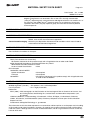
TROUBLESHOOTING
Problem
Cause and solution
Page
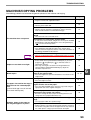
If scanning is not possible, shut down your computer,
turn off the machine’s power switch, and unplug the
machine’s power cord. Next, start your computer, restore
power to the machine, and try scanning again. If scanning
is still not possible, check the following items.
–
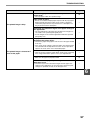
Your application is not TWAIN/WIA compliant.
→ If your application is not TWAIN/WIA compliant, scanning will not
be possible. Make sure your application is TWAIN/WIA
compliant.
You have not selected the scanner driver of the machine
in your application.
→ Make sure that the machine’s scanner driver is selected in your
TWAIN/WIA-compliant application.
Unable to scan the image.
–
–
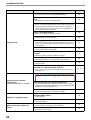
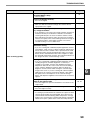
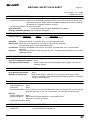
You have not specified all scanning preferences
appropriately.
→ Scanning a large area in full color at high resolution results in a
large amount of data and extended scanning times. The scanning
preferences should be set appropriately for type of original to be
scanned, i.e., Text, Text/Graphics, Photograph, Color, or Black &
White.
–
There is not enough computer memory.
→ The scan resolution will vary depending on the scanning area and
how much memory in the machine is free. To can a 11" x 17"
original in full color at 600 dpi without using enhancement, the
dual function board and the 256 MB optional memory (AR-SM5)
are required.
–
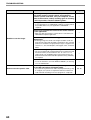
You do not have Administrator rights.
→ To use the machine to scan into Windows 2000/XP, you must log
on as an Administrator.
–
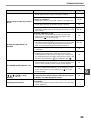
Your computer does not meet the system requirements
for the USB 2.0 interface (Hi-Speed mode).
Scanner transfer speed is slow
60
→ See "System requirements for USB 2.0 (Hi-Speed mode)" (p.38)
to configure your system as required for USB 2.0, and then set
"USB 2.0 mode switching" in the user programs to "Hi-Speed".
38, 46