1
6
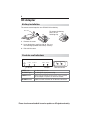
Using the Adapter
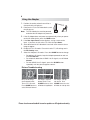
1. Position the emitter where there will be a
clear path to the 3D glasses.
2. Power on the TV, the 3D video device, and
the 3D glasses.
Note:
The 3D video device must be powered
on before the 3D Adapter can power on.
3. If the 3D Adapter does not power on automatically when you power
4.
on the 3D video device, press the POWER button.
If the New Input Found screen displays, assign a name to the
input. If you have an 833 series TV, name the input Game.
5. Start video from the 3D video device and wait a few moments for an
6.
7.
image to appear.
Enable the TV’s 3D mode. For an 833 series TV, 3D settings are in
the FX Gaming menu.
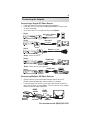
Select the Adapter’s 3D mode. Press the 3D MODE button to change.
•
•
•
For ordinary 2D signals, keep the Adapter powered on and use
3D Mode Normal.
For automatic detection of HDMI 1.4a 3D signals, use 3D Mode
Normal.
For non-HDMI 1.4a 3D signals, press the 3D MODE button
repeatedly until the picture appears correct.
Picture Troubleshooting
Blurry double image,
checkerboard format.
Turn on TV’s 3D mode.
Press 3D MODE button to
select 3D Mode Normal.
Two images, top-andbottom format. Press
3D MODE button to select
3D Mode for top/bottom.
Two images, side-byside format. Press
3D MODE button to select
3D Mode for side-by-side.
Please check www.mitsubishi-tv.com for updates on 3D signals and safety.