1
System-Level Editor
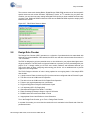
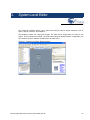
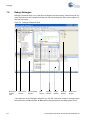
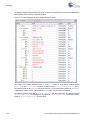
The monitor desktop looks very similar to the simulation desktop, except that you are monitoring live
values from your prototype board. The board monitor also enables the use of the variables chart window that allows you to track any or all of your system variables in real time.
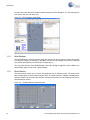
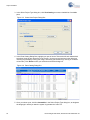
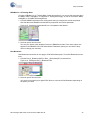
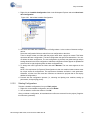
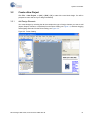
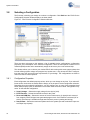
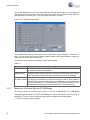
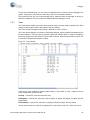
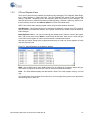
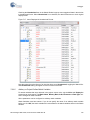
Figure 3-12. Variables Chart Window
The variables chart allows you to track all or any combination of system variables in real time on a
chart. You can choose which of the available variables appear in the chart window by checking or
clearing the box next to the variable name.
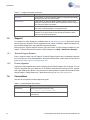
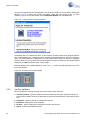
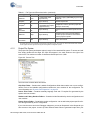
The variables chart supports three different vertical scaling modes:
Table 3-4.
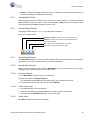
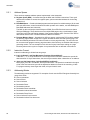
Automatic Scaling The Variables Window uses a preset algorithm to choose a scale that will allow
all selected variables to be displayed.
Manual Scaling
Deselect the Auto Scale box and enter a minimum and maximum value for the Y
scale. Only those traces that fall within the selected range will be displayed.
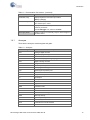
Data Normalized Select the Normalize button and all of the selected variables will be normalized
to a Manual Scale so that they can be viewed on a common scale that you choose. Each variable is
scaled according to that variables Minimum and Maximum. So if a variable has a
max of 5 and a minimum of -5 and the actual values recorded range from -4 to 4,
the data points will be graphed over the middle 80% of the chosen range.
3.13.1
Monitoring Your Board With the I2C-USB Bridge
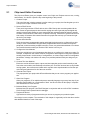
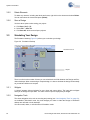
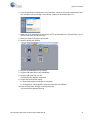
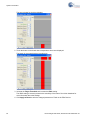
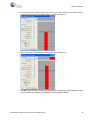
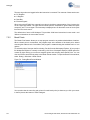
The easiest method of monitoring your board is to use the CY3240-I2USB I2C to USB Bridge
Debugging/Communication Kit. The I2C to USB Bridge is a quick and easy link from any design or
application’s I2C bus to a PC via USB for design testing, debugging and communication.
1. Open your design in PSoC Designer.
80
PSoC Designer IDE Guide, Document # 001-42655 Rev *B