1
Making a copy
If you want to save ink while copying or receiving a fax, see "Copying/receiving in Ink Save mode" on page 1.8.
1
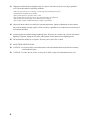
Turn the page face down and insert it into the document feeder.
2
Adjust the document guide to match the width of the document.
3
Feed the document into the machine.
4
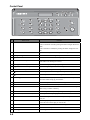
Adjust the resolution by pressing Resolution.
5
Press Start Copy.
Document
Guide
• The display shows Number of Copies.
6
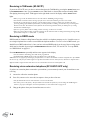
Enter the number of copies you want, and press OK.
• The display shows Zoom Rate.
• If you want one copy without specific copy options, you can press Start Copy again at this time, and copying will
start immediately.
7
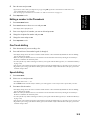
Select the zoom rate you want by pressing Scroll buttons, and then press OK.
• You can scale the document from 50% to 150% by selecting a pre-defined rate. The default rate is 97%.
8
Choose if you want to collate document.
• When collation is selected, you need to select the sorting order; Normal, Reverse.
9
Press OK when all options have been selected.
• When the machine runs out of paper, Load paper and press OK appears in the display. Supply additional paper and press
OK.
Setting date and time
The current date and time are shown in the display when the machine is on and ready for use (Standby Mode).
The date and time will be printed on all faxes you send.
1
Press Menu.
2
Press Scroll buttons to choose SET DATE & TIME and press OK.
3
Press OK when the display shows Date Format.
4
Press Scroll buttons to select either Europe(D-M-Y) or USA(M-D-Y) and press OK.
5
Press OK when the display shows Date & Time.
6
Set the date and time. You can move the cursor by pressing Scroll buttons.
• If you enter an invalid number, the machine beeps and doesn’t proceed to the next step. If this happens, just re-enter
the correct number.
• When entering the hour, you should enter it in 24-hour format.
7
Press OK when the date and time appear correctly.
• The display shows the date and time you have set, then returns to Standby Mode.
1.6