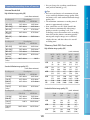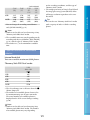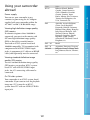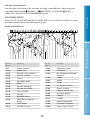
1
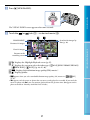
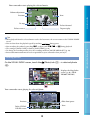
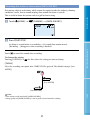
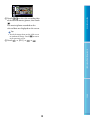
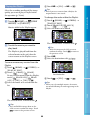
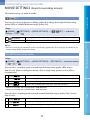
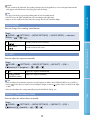
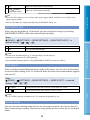
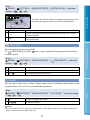
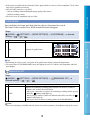
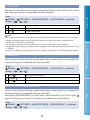
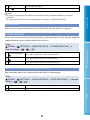
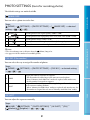
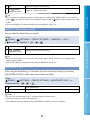
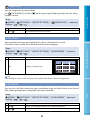
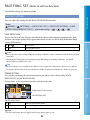
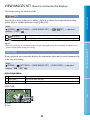
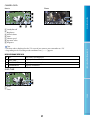
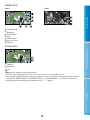
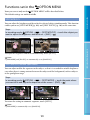
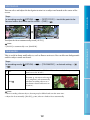
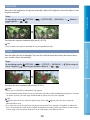
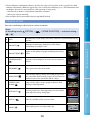
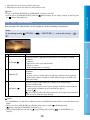
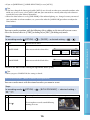
GUIDEFRAME You can display the frame and check that the subject is horizontal or vertical. The frame is not recorded. Press DISP to make the frame disappear. Steps (HOME) setting (SETTINGS) [MOVIE SETTINGS] [GUIDEFRAME] a desired OFF Does not display the guide frame. Displays the guide frame. Tips Positioning the subject at the cross point of the guide frame makes a balanced composition. The outer frame of [GUIDEFRAME] shows the display area of a TV which is not compatible with full pixel display. Useful Recording Techniques ON Table of Contents If the movie recorded with this function [ON] is played back on a non-x.v.Color-compliant TV, the color may not be reproduced correctly. [X.V.COLOR] cannot be set to [ON]: When recording standard definition image quality (SD) movies While recording a movie. The LCD screen is compatible with x.v.Color. REMAINING SET Steps (HOME) (SETTINGS) [MOVIE SETTINGS] [ desired setting ON Always displays the remaining recording media indicator. Displays the remaining recording time of movies for about 8 seconds in situations such as those described below. When your camcorder recognizes the remaining recording media capacity while the (Movie) lamp lights up When you press DISP to switch the indicator from off to on while the (Movie) lamp lights up When you select the movie recording mode on the HOME MENU Notes When the remaining recordable time for movies is less than 5 minutes, the indicator stays on the screen. 78 Index AUTO REMAINING SET] a