1
EFN3320 Fisheye Camera
4.4
Live View Window
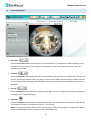
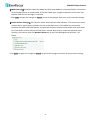
1. Live View
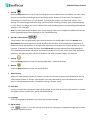
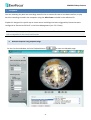
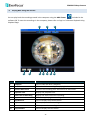
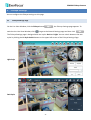
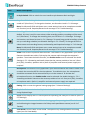
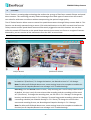
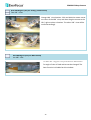
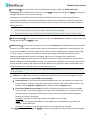
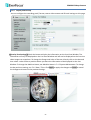
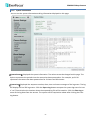
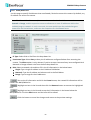
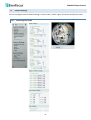
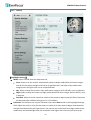
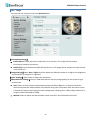
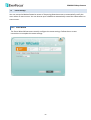
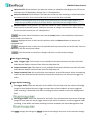
Click the Live View button to display the Live View window. If you experience video feed lag time (if
connected via Internet), you can reduce the resolution or limit the number of streams. See 7.2.1
Streaming and Audio.
2. Playback
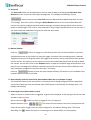
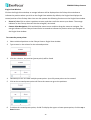
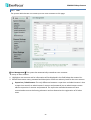
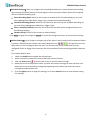
Click the Playback button to play back the recorded data directly from the on-camera SD / SDHC card.
For this function to become active, you have to insert an SD / SDHC card into the SD / SDHC card slot
on the camera (see 5.2 Setting up the Playback Function). For the tested card brands, please refer to
Appendix.
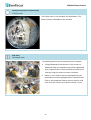
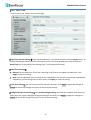
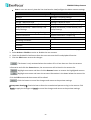
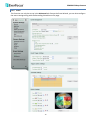
3. Fisheye
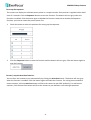
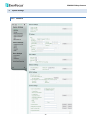
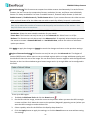
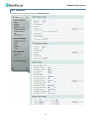
Click the Fisheye button to enter the Fisheye setup page. You can configure all the fisheye settings on
this page (see 6. Fisheye Settings).
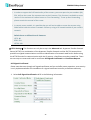
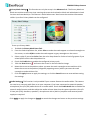
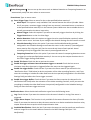
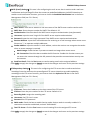
4. Snapshot
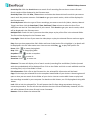
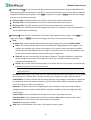
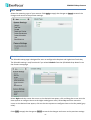
Click the Snapshot button to take a snapshot. By default, the snapshot will be saved at C:\EverFocus\.
To change the location, see Record to Local in 7.1.3 Storage.
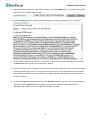
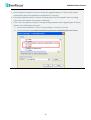
Note: For Microsoft IE10 and above users, some settings have to be complete to enable this function
(see B. Snapshot/Record error message in 10. Troubleshooting).
18