1
User Guide
Managing theme images and colors
Managing theme images and colors
10
You can use the Plazmic® Theme Builder catalogs to save images and colors for later use. Adding items to the Catalog panel
creates a collection of resources that you can access at any time.
For example, if you want to create themes that are consistent in appearance across multiple BlackBerry® devices and you want
to use similar background images and colors, create the first theme, then drag resources from that theme into a catalog. When
you create a theme for a different BlackBerry device, you can select an item from the catalog and drag it to the appropriate
location in the Inspector.
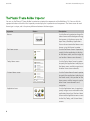
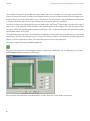
The Plazmic Theme Builder has the following default catalogs:
•
Tiled Images: stores images along with their border and tiling definitions
•
Images: stores static images
•
Colors: stores predefined colors
•
Scaled images for various screen sizes
•
Sample banner meters, hour glasses and volume meters
You can create additional catalogs and specify the types of items they can store.
Create a catalog
1.
2.
3.
Click the Catalog options icon, then click New.
In the Catalog Name field, type a unique name for the catalog.
Select the types of items that you can add to the catalog. Select any combination of tiled images, images, and colors, or
select All to permit all three.
Add items to a catalog
If you try to drag an item to a catalog that does not permit the selected type, the Plazmic® Theme Builder automatically adds
the item to the appropriate default catalog.
1. In the Plazmic Theme Builder Inspector, click any color swatch or thumbnail image.
2. Drag the item to the catalog.
Reuse resources from a catalog
Drag the item from the catalog to the appropriate color swatch or thumbnail image in the Plazmic® Theme Builder Inspector.
54