1
Additional user preferences
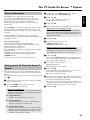
This section describes how you can make additional personal settings.
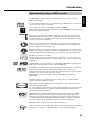
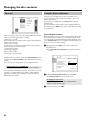
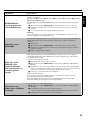
The symbols have the following meaning:
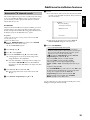
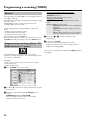
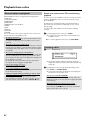
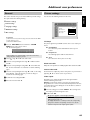
Picture settings
You can select the following functions in this menu:
Picture settings
Sound settings
Language settings
Additional settings
Disc settings
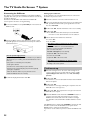
Preparation:
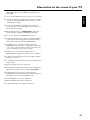
•) Switch on the TV set, and if necessary, select the channel for the DVD
recorder (channel 3 or 4).
•) Switch on the DVD recorder.
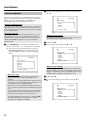
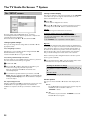
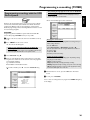
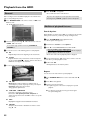
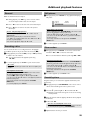
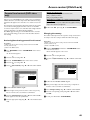
1 Press the DISC MENU button and then the SYSTEM
MENU button on the remote control.
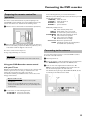
P The menubar appears.
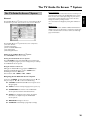
ENGLISH
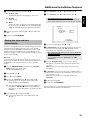
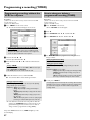
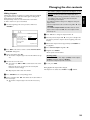
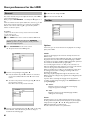
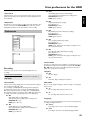
General
Picture
TV Shape
Black level shift
Vertical video shift
Video output
16:9
Off
ï
Interlaced
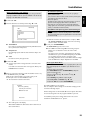
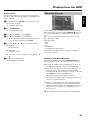
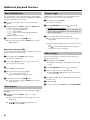
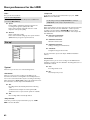
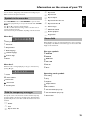
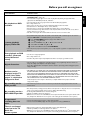
'TV Shape'
The picture signal from your DVD recorder can be set to match your
TV set:
O '4:3 letterbox'
for a widescreen picture with black bars at the top and
bottom
O '4:3 panscan'
If this menubar is not complete visible on your wide screen TV-set,
change the picture settings on your TV.
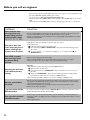
2 Select 'A' using D oder C and confirm with
3 Select the corresponding function using B or A and confirm
with C .
for a full-height picture with the sides trimmed.
O '16:9'
for a widescreen TV set (16:9 screen ratio)
'Black level shift'
4 Select the corresponding line using B or A and confirm with
C . For more information on each function, read the following
pages.
Adapts the color dynamics for NTSC playback when switched to 'On'
5 Select the corresponding function using B or A , or the setting
with D or C . Select the functions you want to change as
described in the following pages.
Use this feature to adjust the position of the picture on your TV left or
right using D , C to suit the screen of your TV set.
6 Confirm the new setting with OK .
'Video output'
7 Close the menu item with D .
'Vertical video shift'
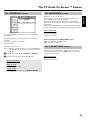
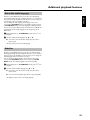
This allows you to switch the Component Video signal between
'Interlaced' and 'Progressive Scan.'
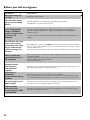
Warning If your TV has separate connections for 'Interlaced' and
'Progressive Scan' or it does not switch automatically between the two,
it is possible that no picture will appear on the TV after it is switched
from one to the other.
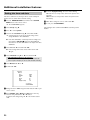
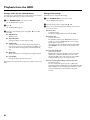
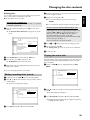
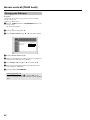
1 Select the setting you need with SELECT . Choose Progressive
Scan only if your TV has Progressive Scan.
2 Confirm with OK .
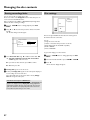
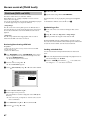
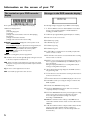
a No picture appears on the TV after switching
Check the display of your DVD recorder.
'PRO': 'Progressive Scan' is on
No display: 'Interlaced' is on. Switch your TV to the corresponding
input jack or select the corresponding connection. You can also
switch the Component video output signal as follows:
64